

Excel is one of the most useful tools when it comes to dealing with a huge dataset. Often, we need to change the cell size without changing the whole column in Excel. In this article, I will explain 2 efficient ways to do so.
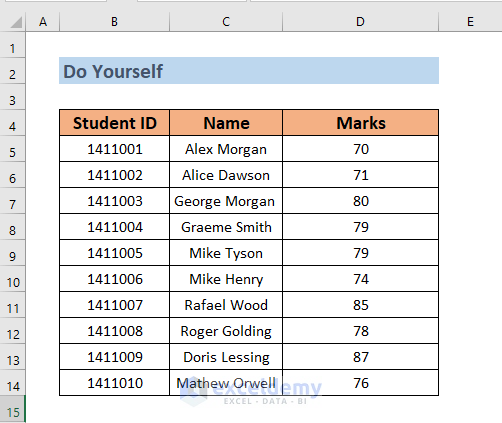
This is the worksheet I am going to use to explain the methods. We have several students along with their Student ID and their Marks. I will change the cell size containing the heading (that is, B2).

How to Change Cell Size Without Changing Whole Column: 2 Easy Ways
1. Applying Merge & Center to Change Cell Size Without Changing Whole Column
Before illustrating the method, let me explain what we are up to. In the dataset, you will see that I have changed cell size in cell B2. But the text change cell size has exceeded the border of B2.
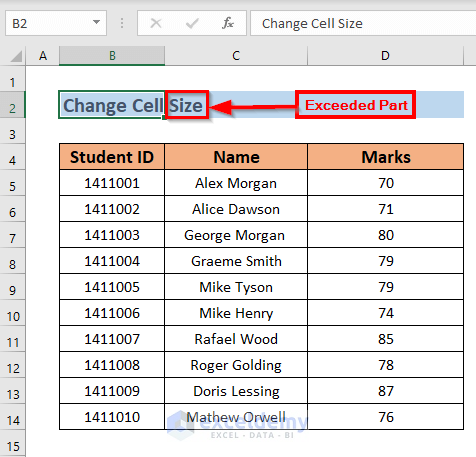
Now, if you solve this problem by increasing the column size, Excel will change the size of the entire column. This will make your dataset unappealing.

To deal with this issue, you can use the Merge & Center command to merge and center cells in Excel.
STEPS:
➤ Select the range B2:D2. Then go to the Home tab >> select Merge & Center
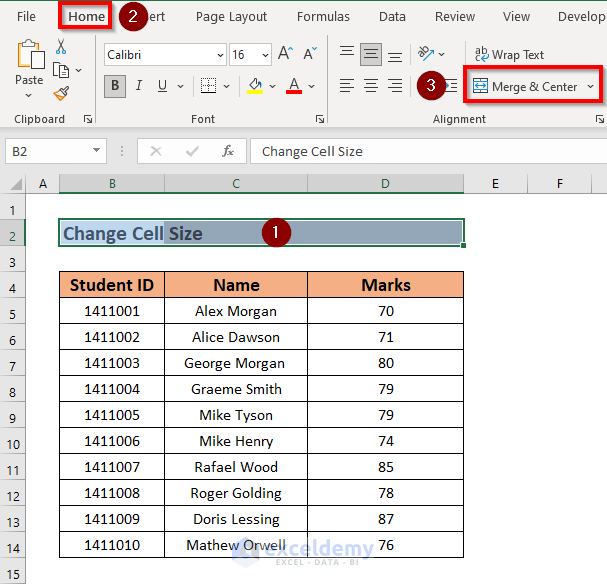
Excel will merge B2:D2.

Read More: How to Make Excel Cells With The Same Height and Width
2. Using a Keyboard Shortcut to Change Cell Size Without Changing the Whole Column
I will explain the keyboard shortcuts ALT + H, M, and C to apply the Merge & Center.
STEPS:
➤ Select the range B2:D2.

➤ Then press ALT + H. Your datasheet will look like this.
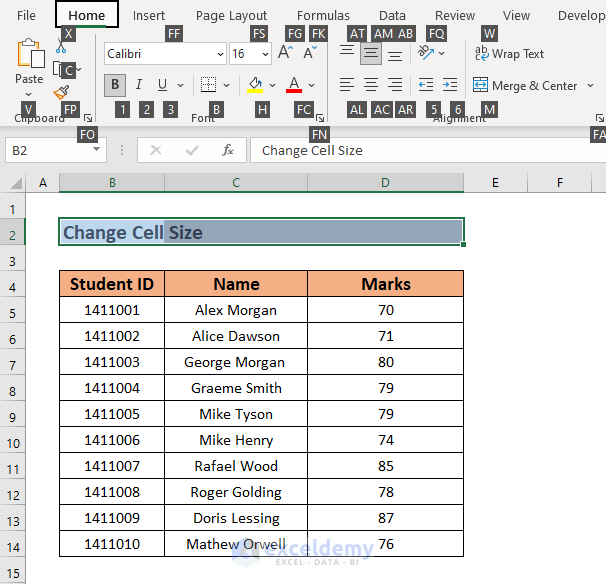
➤ Then press M. Your datasheet will look like this.

Excel will show you the options available in Merge & Center. Choose the one you like. I will choose Merge & Center. So, I will press C.
As a result, Excel will merge B2:D2.
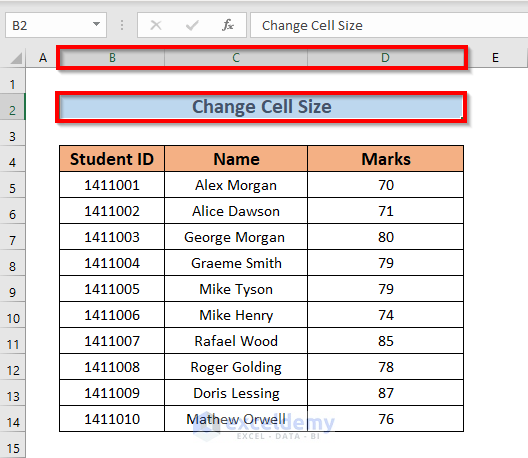
NOTE: If you want to keep the cell size as it is, you can unmerge cells from Merge & Centre.
Read More: How to Make All Cells the Same Size in Excel
Practice Workbook
So, I hope you all know how to change the cell size without affecting the whole column in Excel. To master this skill, you should practice. That’s why I have added a practice sheet for you.
Download Practice Workbook
Conclusion
In this article, I have illustrated two efficient ways to alter the cell size without altering the whole column in Excel. I hope this will benefit you. And lastly, if you have any kind of suggestions, ideas, or feedback, please feel free to comment below.
Related Articles
- How to Fix Cell Size in Excel
- How to Change Cell Size in Excel
- [Fixed] AutoFit Row Height Not Working for Merged Cells in Excel
- How to Make Cells Independent in Excel
- How to Reset Cell Size to Default in Excel
- How to AutoFit in Excel
- How to Use AutoFit Shortcut in Excel
- How to Make a Cell Bigger in Excel
<< Go Back to Cell Size | Excel Cells | Learn Excel
Get FREE Advanced Excel Exercises with Solutions!

