


Cleaning up inherited “legacy” spreadsheets is a common challenge for analysts, managers, and data professionals. These files often suffer from inconsistent formatting, extra spaces, merged cells, duplicates, incorrect data types (e.g. dates stored as text), blank rows/columns, and non-printable characters. Cleaning them improves accuracy, enables better analysis, and prevents errors in formulas or PivotTables.
In this tutorial, we will show three Excel techniques for cleaning up inherited “legacy” spreadsheets, from quick formula fixes to a full Power Query cleanup pipeline.
Technique 1: Text Cleanup with Formulas (TRIM, CLEAN, SUBSTITUTE, PROPER, etc.)
Legacy spreadsheets — especially anything exported from an old database, mainframe system, or copied and pasted from a PDF or email — are notorious for invisible characters: leading/trailing spaces, double spaces between words, and non-breaking spaces (which look like regular spaces but aren’t). These issues break lookups, sorting, filtering, and further analysis.
Create a Backup Copy:
Always work on a copy. Insert a new sheet or duplicate the workbook. You can insert helper columns next to the messy data. Do not start by editing the original file.
- Open the inherited workbook.
- Select File >> Save As.
- Save a copy with a name such as: Legacy_Sales_Cleanup_Copy.xlsx
This gives you a clean version to return to if something is removed accidentally.
Cleaning Formulas:
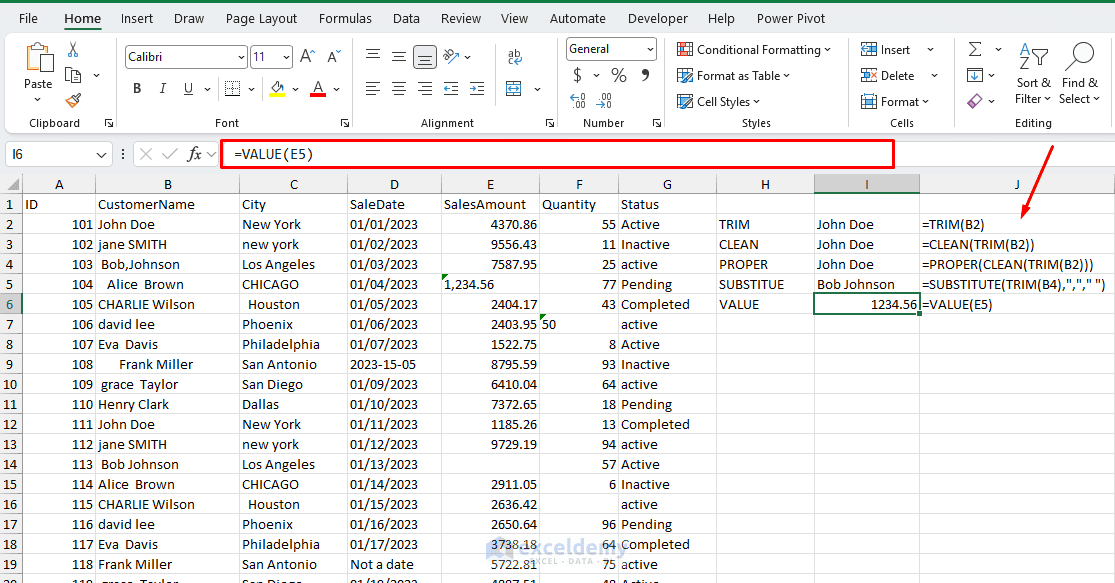
- Remove Extra Spaces:
=TRIM(A2)
Eliminates leading, trailing, and multiple internal spaces.
- Remove Non-Printable Characters:
=CLEAN(TRIM(A2))
Great for data imported from other systems.
- Standardize Case:
=PROPER(CLEAN(TRIM(A2)))
This is most commonly needed for names.
=UPPER()
Converts text to uppercase.
=LOWER()
Converts text to lowercase.
- Replace Specific Characters:
- For stubborn double spaces:
=SUBSTITUTE(TRIM(A2), " ", " ")
- Remove hyphens:
=SUBSTITUTE(A2, "-", "")
Handles non-breaking spaces too.
- Convert Formulas to Values:
- Copy the cleaned column.
- Right-click >> select Paste Special >> select Values.
- Delete the original messy column.
- Flash Fill:
- Press Ctrl+E as a quick alternative for pattern-based fixes like splitting names or standardizing phone numbers.
- Convert Numbers Stored as Text to Numbers:
=VALUE(A2)
Converts numbers stored as text into actual numbers. If numbers are stored as text, you cannot perform calculations or analysis on them.
- Some sales amounts may contain dollar signs, commas, spaces, or placeholders.
- Use the following helper formula:
=IFERROR(VALUE(SUBSTITUTE(SUBSTITUTE(TRIM(A2),"$",""),",","")),"")
Tip: Use =TEXTJOIN(” “, TRUE, …) or dynamic arrays in newer Excel versions for more complex concatenations.
This technique is fast for column-by-column fixes and requires no add-ins.
Technique 2: Find & Replace + Text to Columns + Remove Duplicates
For structural issues like inconsistent delimiters, merged cells, or duplicate records, Excel’s Find & Replace tools are useful for an initial inspection. Before editing the workbook, identify the cells that require attention.
Find & Replace:
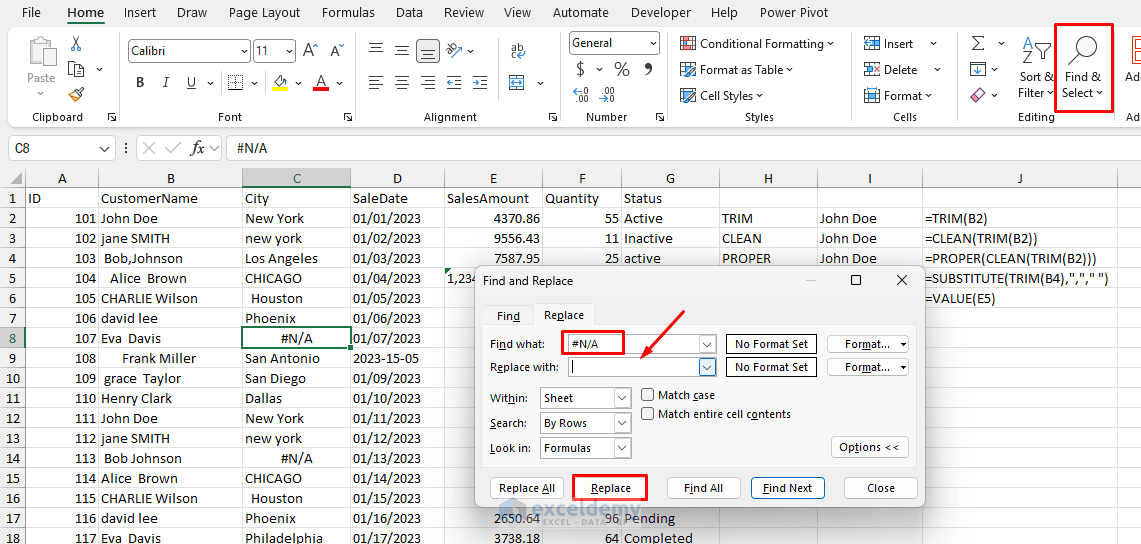
- Go to the Home tab >> from Find & Select >> select Replace.
- Replace unwanted characters (e.g. find “N/A” or “*” and replace with blank).
- Remove prefixes/suffixes across the sheet.
Text to Columns:
- Select a column with combined data.
- Go to the Data tab >> select Text to Columns.
- Choose Delimited (by comma, space, etc.) or Fixed Width.
- Complete the wizard to split into multiple columns. This is ideal for legacy exports.
Remove Duplicates:
- Select your data range.
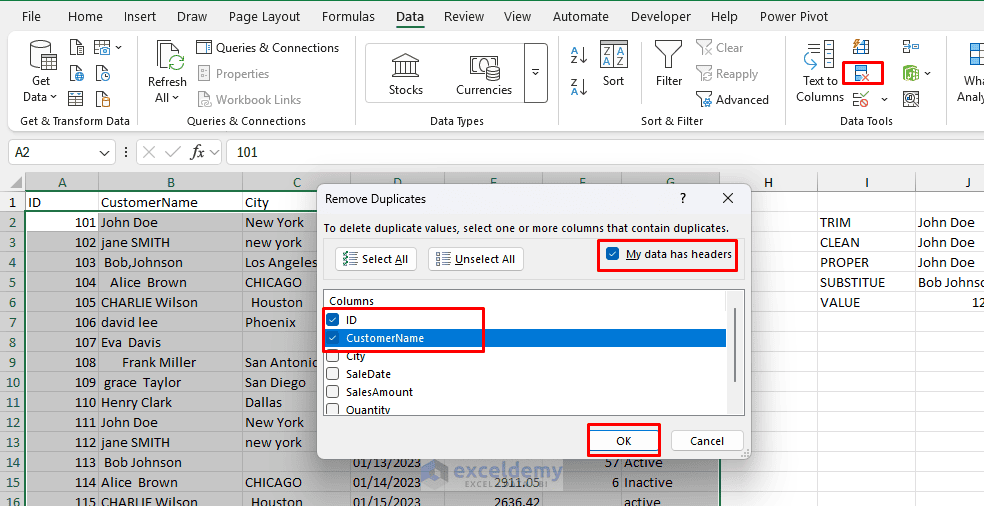
- Go to the Data tab >> select Remove Duplicates.
- Choose columns to base uniqueness on (e.g. ID + Name).
- This preserves the first occurrence.
Bonus: Handle Merged Cells
- Select the sheet and press Ctrl+A.
- Go to the Home tab >> select the Merge & Center dropdown >> select Unmerge Cells.
- Then use Fill Down (Ctrl+D) or formulas to repopulate blank cells in key columns.
Pro Tip: Convert your range to an Excel Table (Ctrl+T) first. Tables auto-expand, support better filtering, and make cleaning easier.
Advanced Cleaning: Power Query for Robust, Reproducible Cleaning
Power Query (Get & Transform) is Excel’s most powerful tool for legacy data. It records steps so you can refresh when the source data updates — making it ideal for inherited files that change periodically.
Load Your Data:
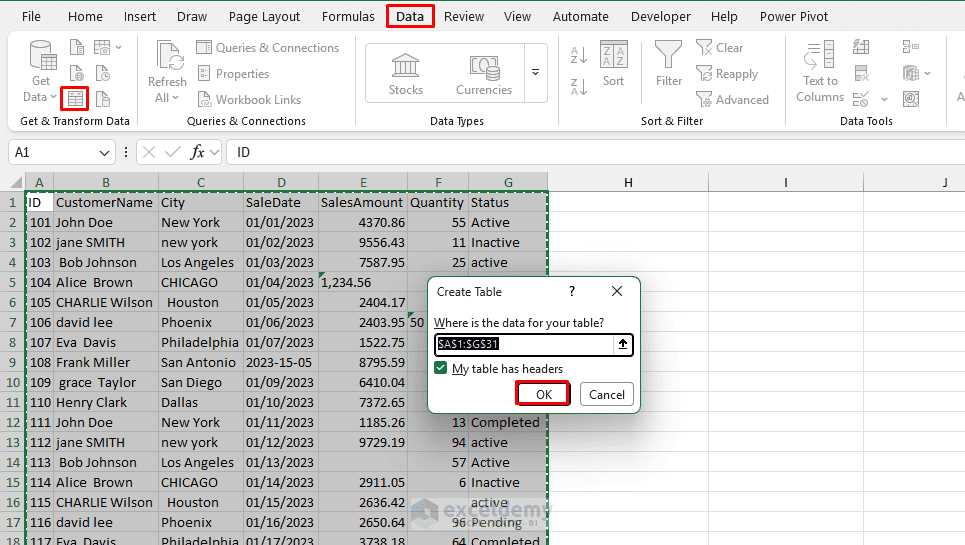
- Go to the Data tab >> select Get Data >> select From File >> select From Workbook (or From Table/Range if already in Excel).
Open Power Query Editor:
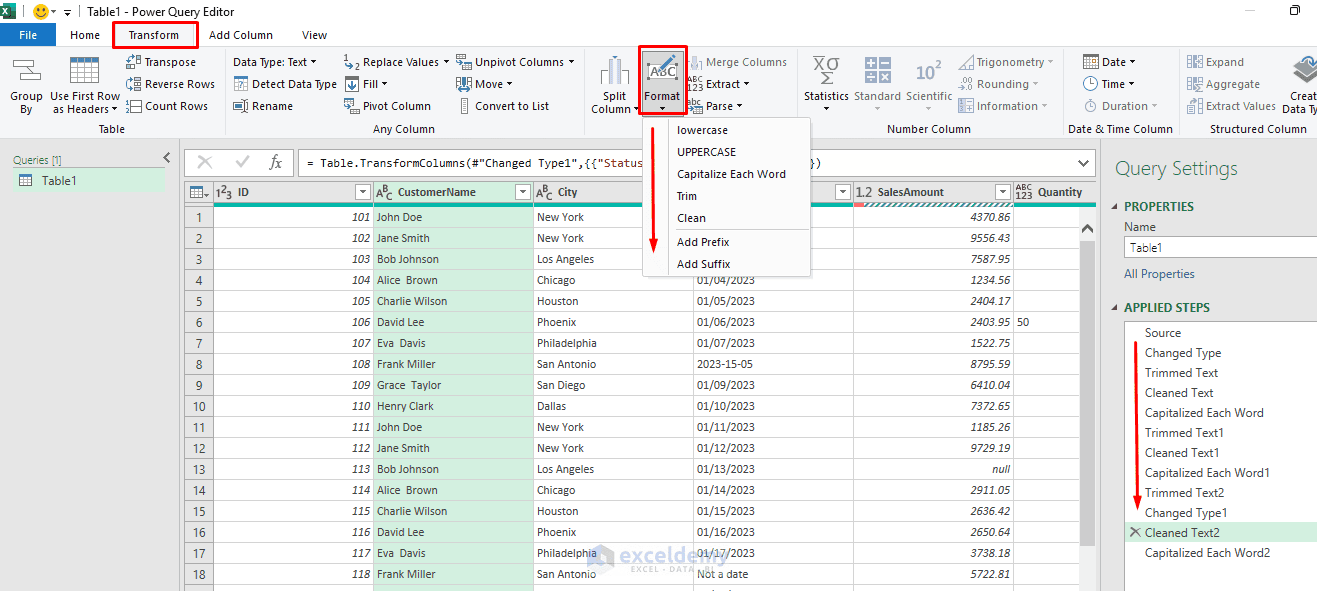
- Trim and clean text:
- Go to the Transform tab >> select Format >> select Trim (or Clean).
- Change data types:
- Select columns.
- Detect data type >> convert text to Date or Whole Number.
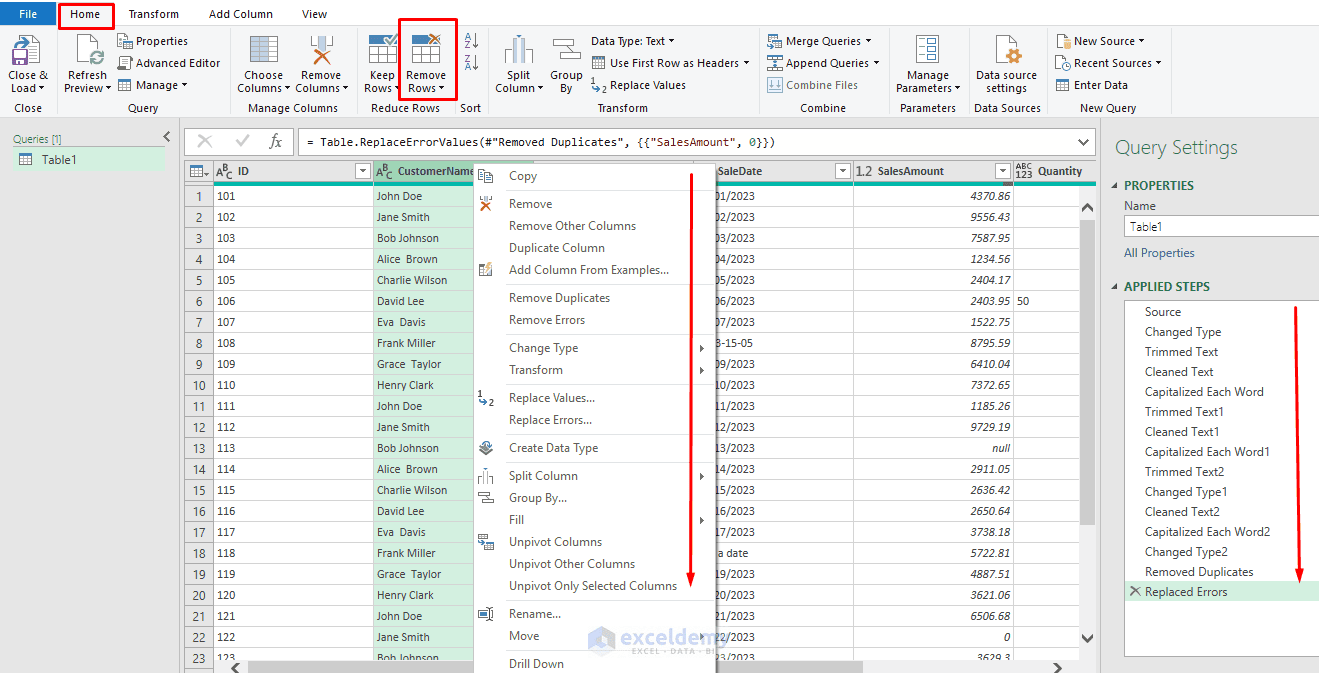
- Remove blank rows/columns:
- Go to the Home tab >> select Remove Rows >> select Remove Blank Rows.
- Fix errors with Replace Errors.
- Remove duplicates:
- Right-click column(s) >> select Remove Duplicates.
- Split columns, merge, or add custom columns with M functions.
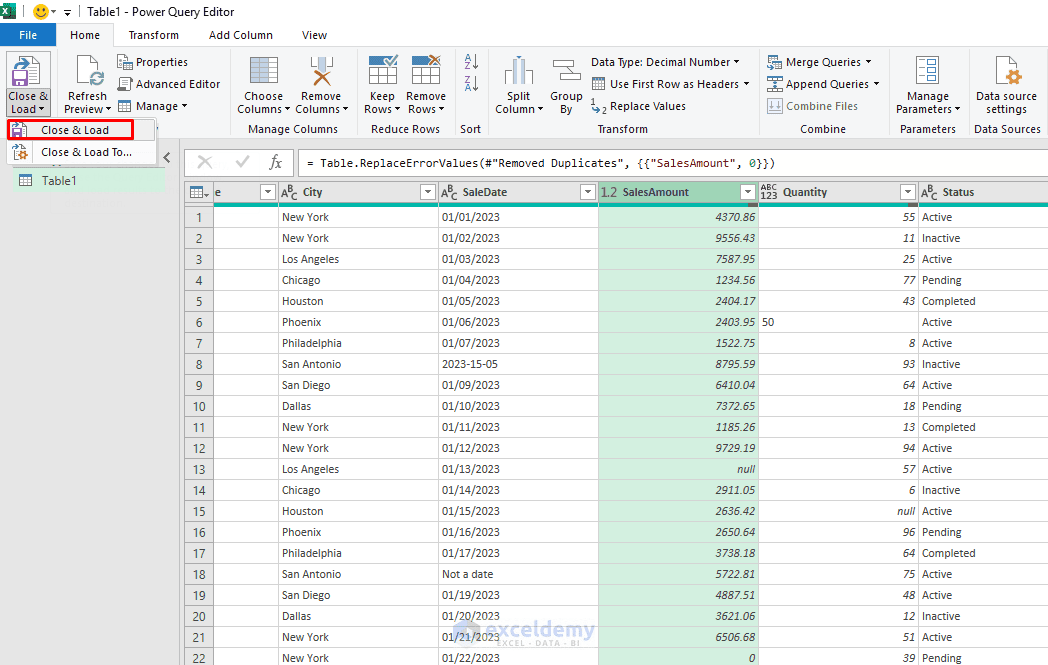
- Close & Load to a new sheet or an existing one. The query can be refreshed anytime via Data >> Refresh All.
Why it’s great for legacy files: It handles large, messy datasets without altering the source, and you can document transformations (e.g. “Removed 245 duplicates based on CustomerID”).
Technique 3: Audit Formulas, References, and External Links
A legacy workbook may produce believable but incorrect results because formulas have been copied inconsistently or still refer to old files.
Check Formula Consistency:
- Select the formula range.
- Go to the Home tab >> select Find & Select >> select Go To Special.
- Select Column differences.
- Click OK.
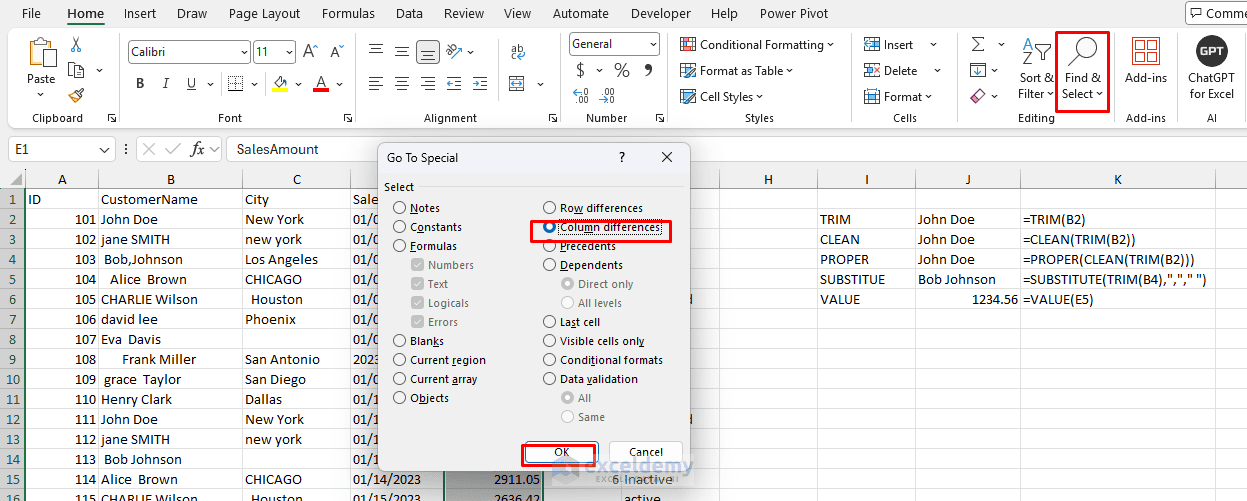
Excel selects cells whose formulas differ from the general pattern in the column. Check whether each difference is intentional.
Trace Formula Sources:
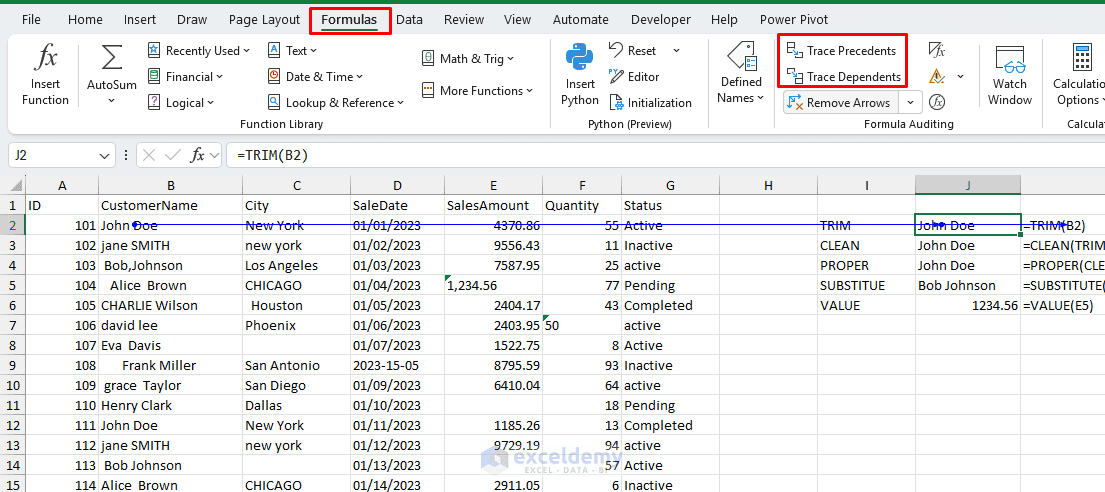
To see which cells supply data to a formula:
- Select the formula cell.
- Go to the Formulas tab >> select Trace Precedents.
- Excel draws arrows from the source cells to the formula.
- To see which formulas depend on a selected cell, use Trace Dependents.
- Use Remove Arrows when you finish reviewing the relationships.
Run Excel’s Error Checking Tool:
- Go to the Formulas tab >> select Error Checking.
- Review each warning.
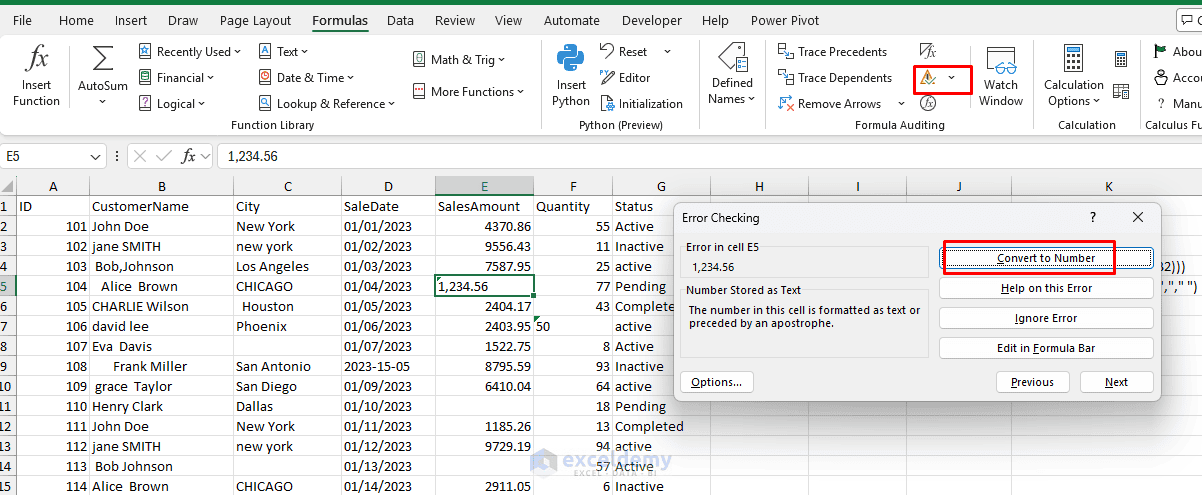
Excel may identify:
- Formulas inconsistent with surrounding formulas
- Numbers stored as text
- Formulas that omit adjacent cells
- References to blank cells
- Division by zero
Not every warning represents a genuine error. Review the calculation before accepting Excel’s suggested correction.
Inspect External Workbook Links:
An inherited workbook may still refer to an old file on another employee’s computer. A linked formula may look like:
=’C:\Old Reports\[Sales2024.xlsx]Summary’!B12
To inspect external links:
- Go to the Data tab >> select Workbook Links or Edit Links, depending on your Excel version.
- Review each linked workbook.
- Update, change, or remove links only after confirming where the required data should come from.
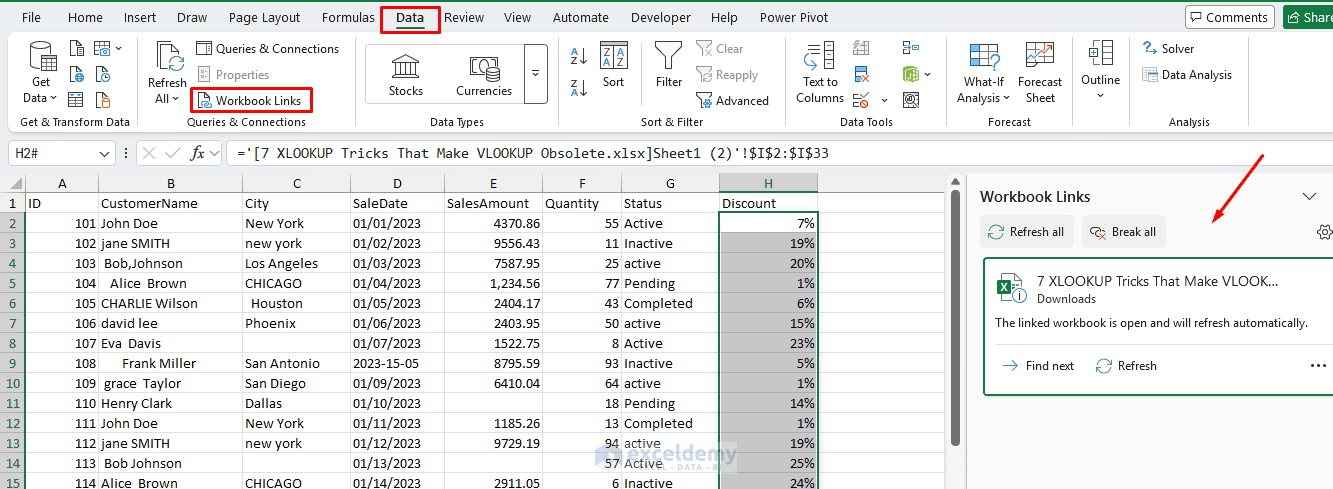
Do not select Break Link without creating a backup first. Breaking a link permanently replaces linked formulas with their current values.
Review Defined Names:
Old workbooks often contain unused or broken named ranges.
- Go to Formulas >> select Name Manager.
- Review the Refers To column.
- Look for names containing:
=Sheet2!#REF!
This indicates that the referenced range or worksheet has been deleted. Correct the reference if the name is still needed; otherwise, remove the unused name.
Check Hidden Rows, Columns, and Worksheets:
Important formulas or outdated data may be hidden.
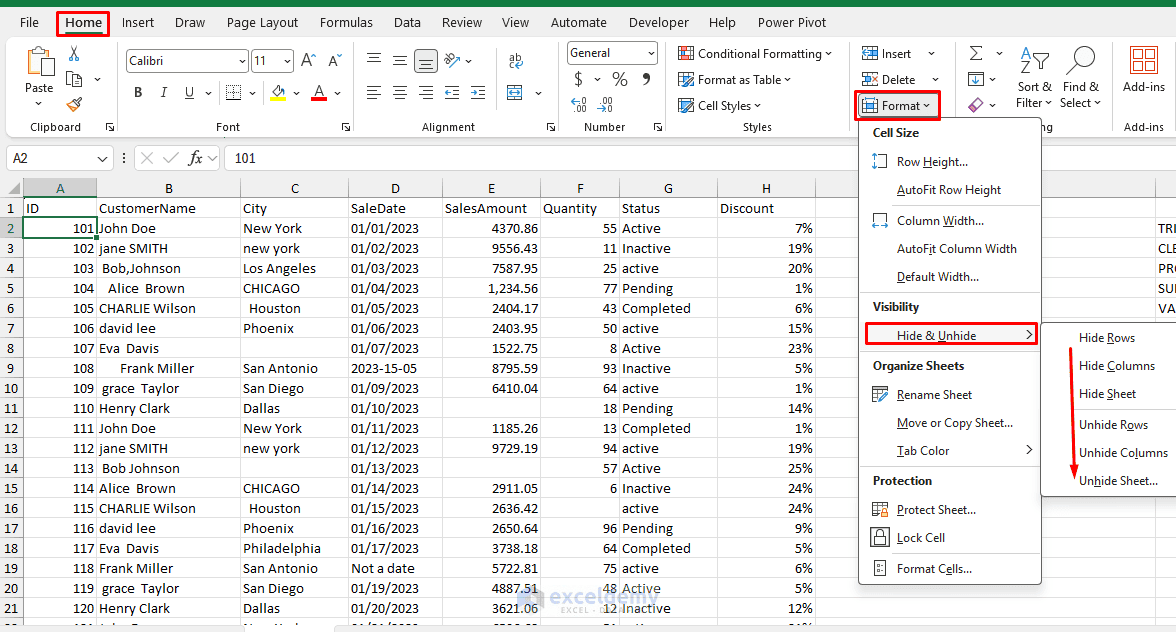
To reveal hidden rows and columns:
- Select the entire worksheet by clicking the triangle in the upper-left corner.
- Go to Home >> select Format >> select Hide & Unhide.
- Select Unhide Rows.
- Repeat the steps and select Unhide Columns.
To reveal hidden worksheets:
- Right-click any worksheet tab >> select Unhide.
- Select a hidden worksheet.
- Click OK.
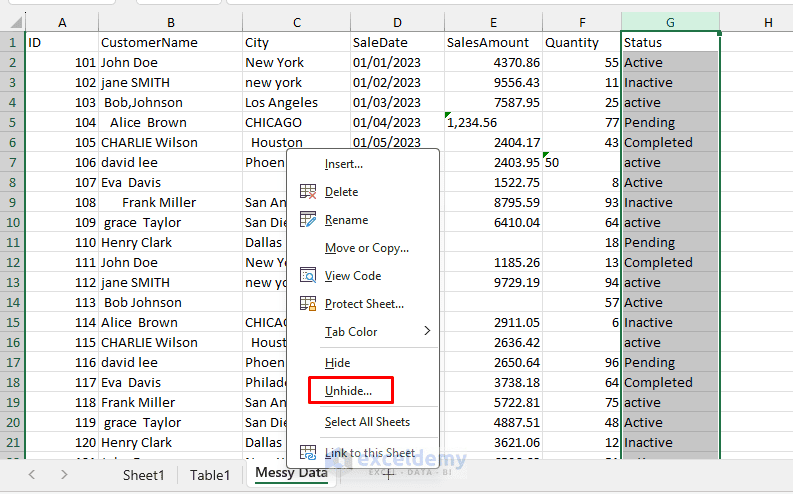
Review hidden content before deleting it, as formulas elsewhere in the workbook may depend on it.
Best Practices for Inherited Spreadsheets
- Always start with a backup and work on copies.
- Use Conditional Formatting (Home tab) to highlight blanks, duplicates, or errors (e.g. Data Bars or Highlight Cells rules).
- Check for hidden rows/columns or very hidden sheets.
- Validate data with Data Validation rules after cleaning.
- For very large files, consider turning off automatic calculation temporarily (Formulas tab).
- Document your changes in a separate “Change Log” sheet.
Conclusion
Cleaning an inherited spreadsheet is not simply a matter of changing its formatting. You must identify hidden inconsistencies, standardize the underlying values, and verify that formulas still calculate correctly. Mastering these three techniques will transform chaotic legacy files into reliable, professional spreadsheets. By working on a backup copy and validating each change, you can turn an unreliable legacy workbook into a cleaner and more dependable source of data.
Get FREE Advanced Excel Exercises with Solutions!

