
The InputBox function in VBA is useful when you want a user to enter a value while a macro is running. However, the value entered through an InputBox is not always reliable. A user may enter text instead of a number, leave the box blank, enter a negative value, or type a date in the wrong format. That is why validation is important. Validation means checking the user’s entry before using it in your VBA code.
In this tutorial, we will show how to validate InputBox entries in VBA. You will be able to validate InputBox entries and handle common user input mistakes.
Basic Syntax of VBA InputBox
A standard VBA InputBox call looks like this:
Sub BasicInputBox()
	Dim userValue As String

	userValue = InputBox("Enter a number:", "Number Entry")

	MsgBox "You entered: " & userValue
End Sub
Although the prompt asks for a number, the user can still enter text such as abc. Since a normal VBA InputBox returns a String, you need to validate the entry manually.
Remember: VBA’s built-in InputBox function always returns a String. Even if the user types 42, you receive the string “42”, not the number 42. There are two special return cases you must always account for: the user clicks Cancel, or the user clicks OK with the box empty. Both return an empty string (“”).
1. Checking for Empty or Cancelled Input
This is the most fundamental check. Always do this before any other validation.
Sub ValidateNotEmpty()
    Dim userInput As String

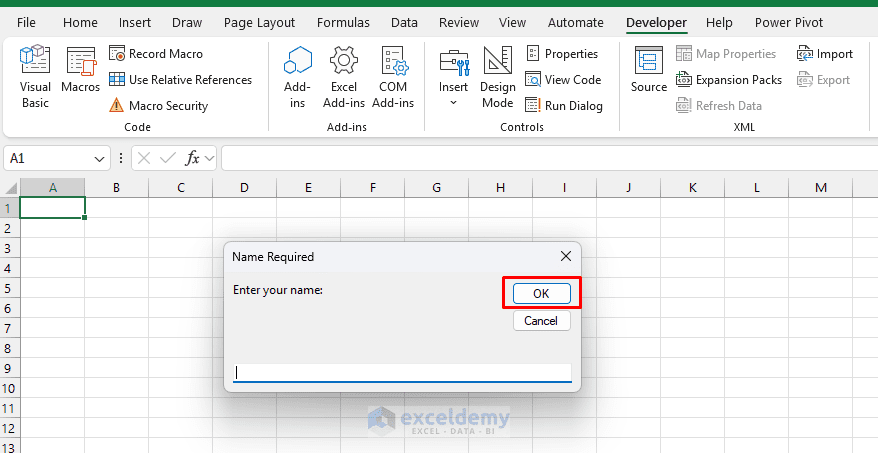
    userInput = InputBox("Enter your name:", "Name Required")

    If userInput = "" Then
        MsgBox "No input was provided. Please try again.", vbExclamation, "Input Required"
        Exit Sub
    End If

    MsgBox "Hello, " & userInput & "!", vbInformation, "Welcome"
End Sub- Leave the box empty and click OK.
- The macro shows the empty-input message.
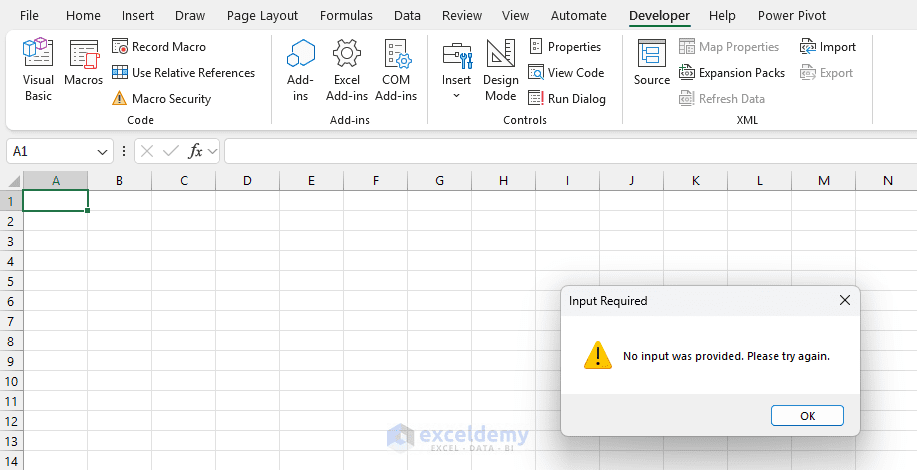
What’s happening here: If the user clicks Cancel or submits a blank entry, the macro exits gracefully with a friendly message instead of crashing or processing garbage data.
2. Validating That the Entry Is a Number
Use VBA’s built-in IsNumeric() function to check whether a string can be interpreted as a number. It returns True for entries like 42, 3.14, -7, and 1E3.
Sub ValidateNumericInput()
    Dim userInput As String
    Dim enteredNumber As Double

    userInput = InputBox("Enter a number:", "Numeric Input")

    If userInput = "" Then
        MsgBox "Operation cancelled.", vbInformation, "Cancelled"
        Exit Sub
    End If

    If Not IsNumeric(userInput) Then
        MsgBox "'" & userInput & "' is not a valid number. Please enter digits only.", _
               vbExclamation, "Invalid Input"
        Exit Sub
    End If

    enteredNumber = CDbl(userInput)
    MsgBox "You entered: " & enteredNumber, vbInformation, "Valid Input"
End Sub
To test it, enter any text instead of a number, and the macro will show an invalid input error.
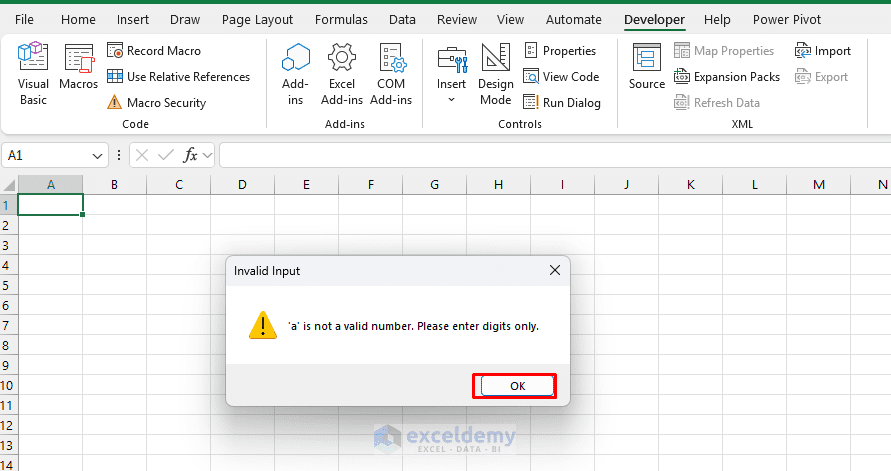
Key point: After confirming the input is numeric, always convert it explicitly using CInt(), CLng(), or CDbl() before using it in calculations. Never rely on VBA’s implicit conversion.
| Function | Use For |
|---|---|
| CInt | Small whole numbers |
| CLng | Larger whole numbers |
| CDbl | Decimal numbers |
3. Validating a Whole Number (No Decimals)
IsNumeric() accepts decimals and scientific notation. If you specifically need a whole number, add a second check using the Int() function.
Sub ValidateIntegerInput()
    Dim userInput As String
    Dim enteredValue As Double

    userInput = InputBox("Enter a whole number (no decimals):", "Integer Input")

    If userInput = "" Then Exit Sub

    If Not IsNumeric(userInput) Then
        MsgBox "Please enter a numeric value.", vbExclamation, "Invalid Input"
        Exit Sub
    End If

    enteredValue = CDbl(userInput)

    If enteredValue <> Int(enteredValue) Then
        MsgBox "Please enter a whole number. Decimals are not allowed.", _
               vbExclamation, "Invalid Input"
        Exit Sub
    End If

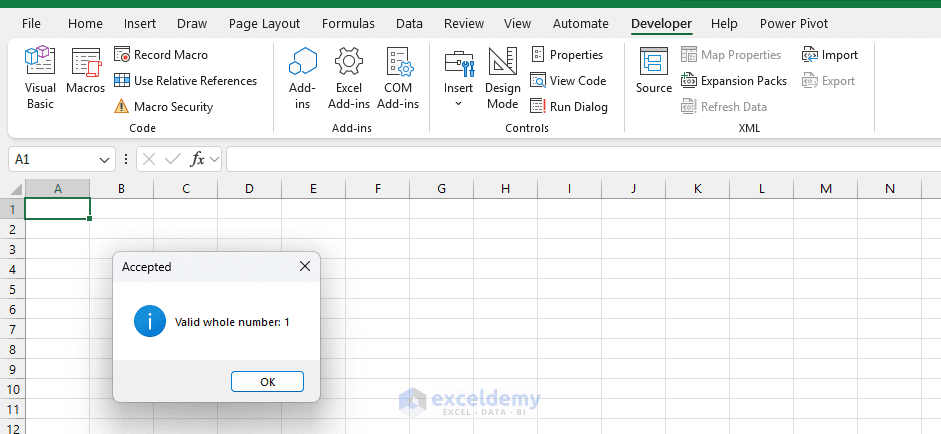
    MsgBox "Valid whole number: " & enteredValue, vbInformation, "Accepted"
End Sub
To check it, enter a decimal number; the macro will show a validation message stating that decimals are not allowed.
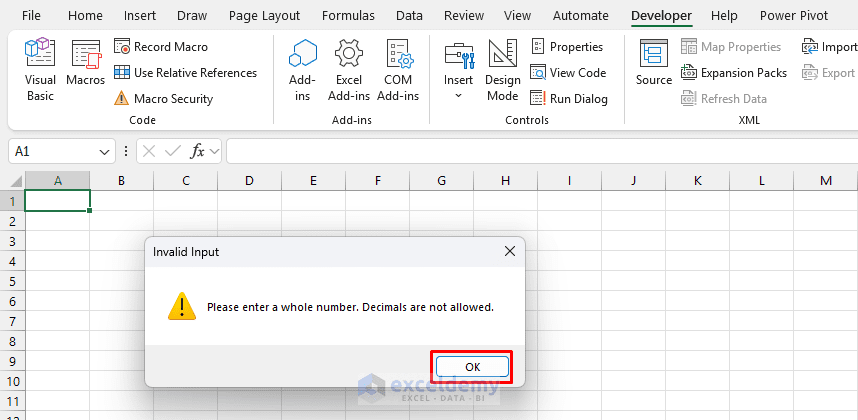
Now, enter a whole number, and the macro shows the correct message.
4. Distinguishing Cancel from a Blank OK
Clicking Cancel and clicking OK with the box empty both return a blank string (“”). If your use case needs to tell them apart (for example, blank is valid, but Cancel should abort), use the Application.InputBox method instead of the plain InputBox function. It returns False (a Boolean) when the user clicks Cancel.
Sub DistinguishCancelFromBlank()
    Dim userInput As Variant  ' Must be Variant to catch the False return

    ' Note: Application.InputBox, not plain InputBox
    userInput = Application.InputBox("Enter a value (leave blank if none):", "Entry", Type:=2)

    If VarType(userInput) = vbBoolean Then
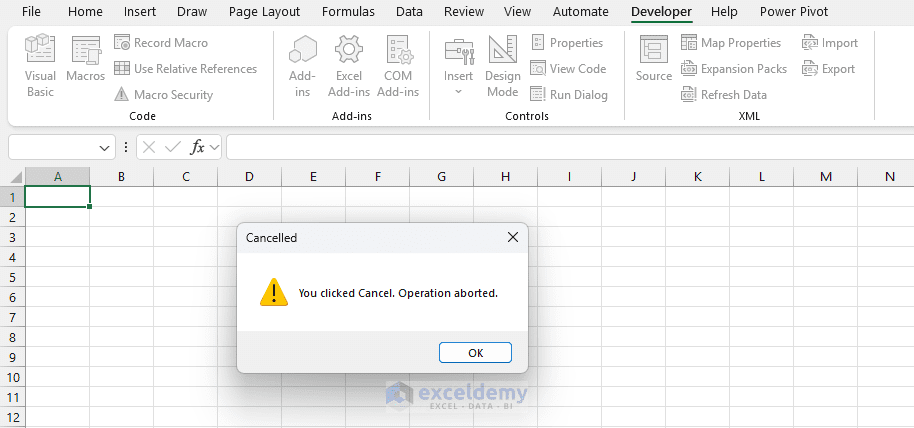
        MsgBox "You clicked Cancel. Operation aborted.", vbExclamation, "Cancelled"
        Exit Sub
    End If

    If userInput = "" Then
        MsgBox "You submitted a blank entry. That's acceptable here.", vbInformation, "Blank Accepted"
        Exit Sub
    End If

    MsgBox "You entered: " & userInput, vbInformation, "Received"
End Sub- Click Cancel, and the code will abort.
Important: The variable must be declared as Variant; if you use String, VBA will convert the False return to “False”, and you’ll lose the Cancel signal entirely. The code checks the type with VarType instead of comparing with = False, because typing the word False would also match that comparison.
5. Prevent Blank Entries
Sometimes the user may click OK without typing anything. You can check for blank entries using Trim.
Sub ValidateBlankInput()
    Dim userInput As String

    userInput = InputBox("Enter employee name:", "Name Entry")

    If Trim(userInput) = "" Then
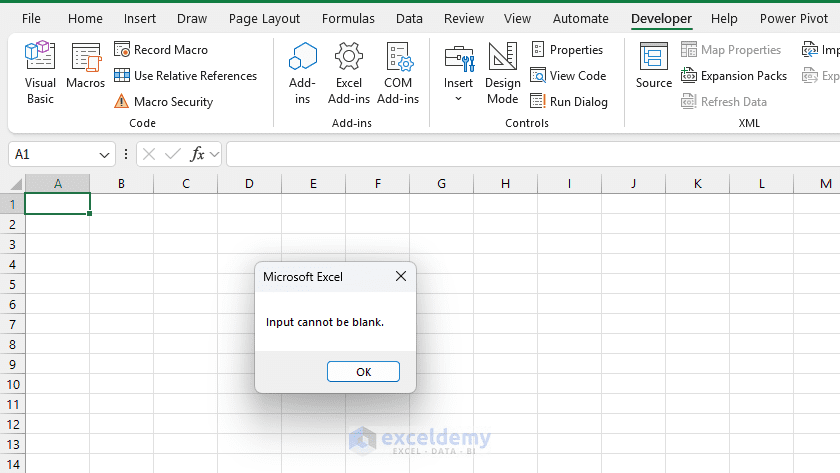
        MsgBox "Input cannot be blank."
    Else
        MsgBox "Employee name: " & userInput
    End If
End Sub
Trim(userInput) removes extra spaces from the beginning and end of the text. This means entries like ” “ will also be treated as blank.
The macro shows that it can’t accept a blank as input.
6. Ask Again Until the User Enters a Number
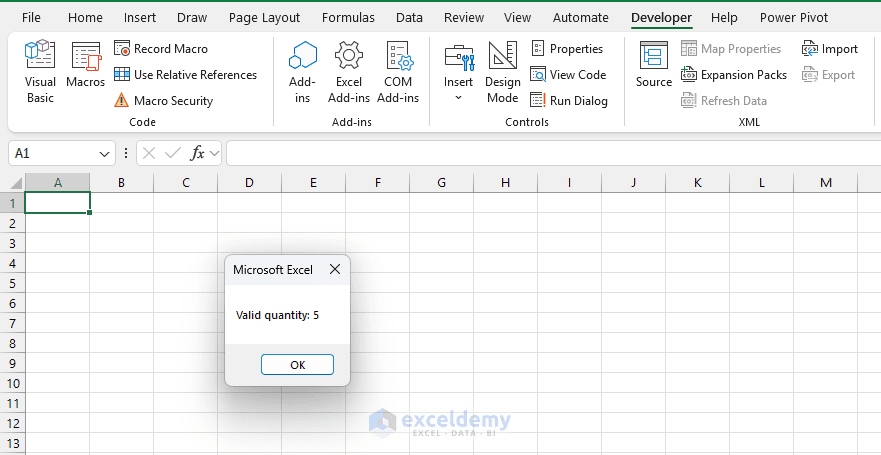
Instead of showing only an error message, you can use a loop to keep asking until the user enters a valid number. Rather than exiting and forcing the user to re-run the macro, you can loop the InputBox until a valid entry is submitted or the user explicitly cancels.
Sub RepeatUntilNumber()
    Dim userInput As String

    Do
        userInput = InputBox("Enter quantity:", "Quantity Entry")

        If userInput = "" Then Exit Do

        If IsNumeric(userInput) Then
            MsgBox "Valid quantity: " & userInput
            Exit Do
        Else
            MsgBox "Invalid entry. Please enter a number."
        End If
    Loop
End Sub
This macro continues showing the InputBox until the user enters a numeric value. This pattern keeps the InputBox open (by re-displaying it) until the user either provides a valid entry or clicks Cancel, making the macro much more resilient in real-world use. Since Cancel and a blank OK both return “”, the macro also exits if the user clicks OK with the box empty.
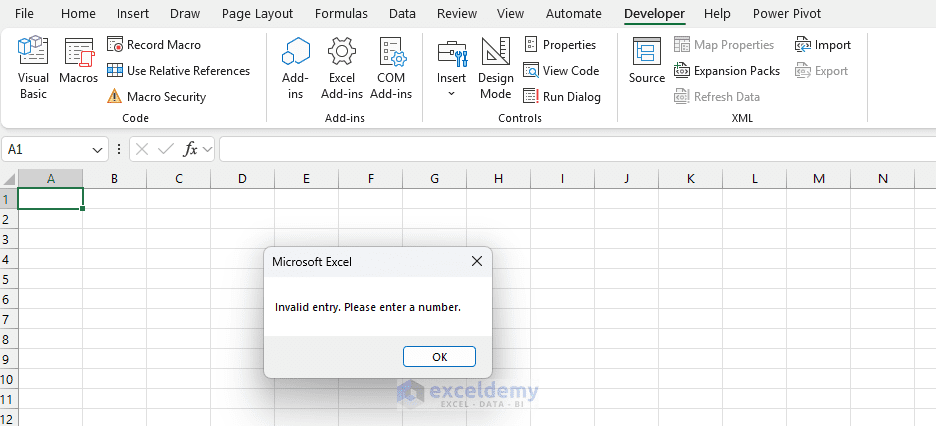
- The InputBox will pop up again. Now, enter a valid input.
7. Validate a Number Within a Specific Range
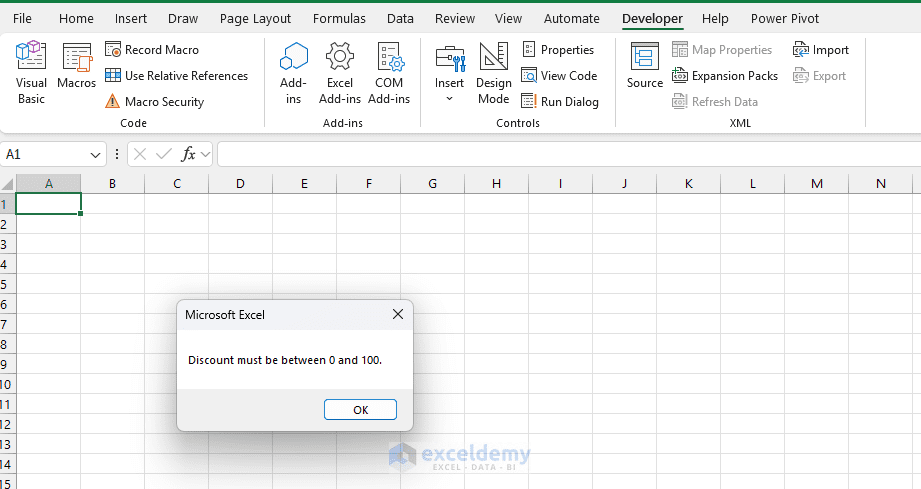
Sometimes a number is valid only if it falls within a certain range. For example, a discount percentage should be between 0 and 100.
Sub ValidateNumberRange()
    Dim userInput As String
    Dim discount As Double

    userInput = InputBox("Enter discount percentage:", "Discount Entry")

    If IsNumeric(userInput) Then
        discount = CDbl(userInput)

        If discount >= 0 And discount <= 100 Then
            MsgBox "Valid discount: " & discount & "%"
        Else
            MsgBox "Discount must be between 0 and 100."
        End If
    Else
        MsgBox "Invalid entry. Please enter a number."
    End If
End Sub
This code checks two things:
- Whether the input is numeric
- Whether the number is between 0 and 100
8. Validate a Date Entry
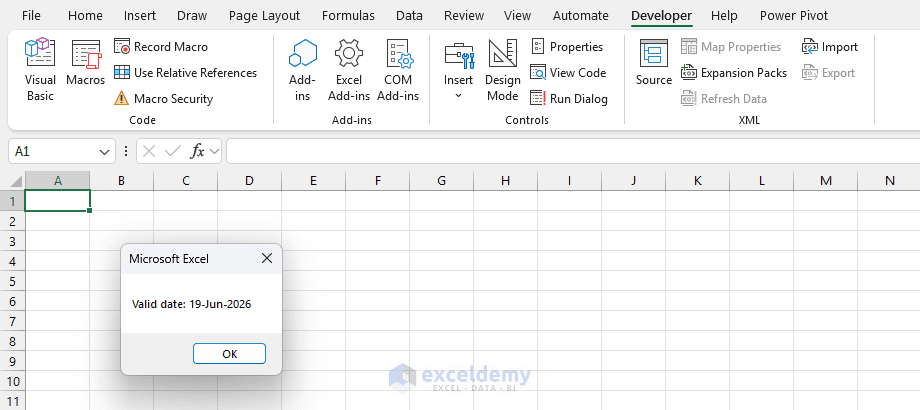
Date validation requires IsDate(), which returns True if the string can be interpreted as a valid date in the current locale.
Sub ValidateDate()
    Dim userInput As String
    Dim orderDate As Date

    userInput = InputBox("Enter order date:", "Date Entry")

    If IsDate(userInput) Then
        orderDate = CDate(userInput)
        MsgBox "Valid date: " & Format(orderDate, "dd-mmm-yyyy")
    Else
        MsgBox "Invalid date. Please enter a valid date."
    End If
End Sub
For example, entries like 1/15/2026 or 15-Jan-2026 are usually recognized as dates. Text such as January ABC will be invalid.
Watch out: IsDate(“13/45/2025”) returns False correctly, but IsDate(“2/30/2025”) may return True on some systems since VBA is lenient about day overflow. If precision matters, validate the day against the actual month after conversion.
9. Validate Text Length
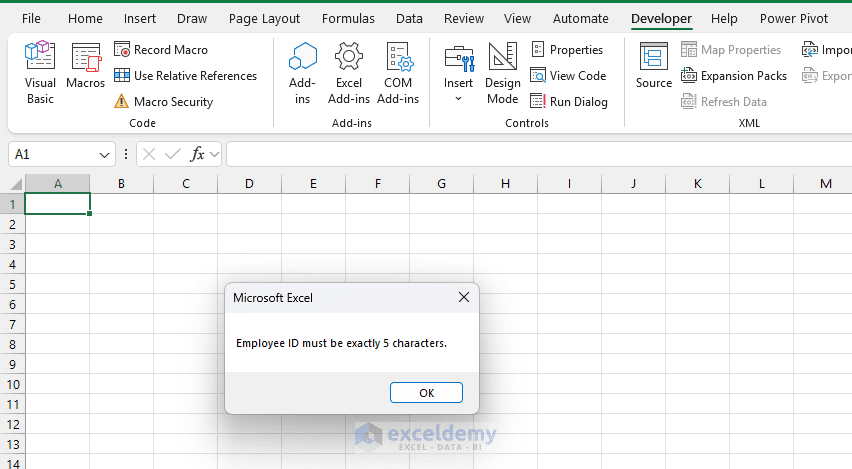
You may want to make sure that a text entry is not too short or too long. For example, an employee ID may need to be exactly 5 characters.
Sub ValidateTextLength()
    Dim empID As String

    empID = InputBox("Enter 5-character Employee ID:", "Employee ID")

    If Len(empID) = 5 Then
        MsgBox "Valid Employee ID: " & empID
    Else
        MsgBox "Employee ID must be exactly 5 characters."
    End If
End Sub
The Len function counts the number of characters in the input.
Using Application.InputBox with Built-In Type Enforcement
Application.InputBox has a Type parameter that enforces input type at the dialog level; Excel itself rejects invalid entries before your code receives them.
| Type Value | Accepted Input |
|---|---|
| 1 | Number |
| 2 | Text (String) |
| 4 | Logical value: True or False |
| 8 | Cell reference or range |
| 16 | An error value |
Sub ValidateWithApplicationInputBox()
    Dim userInput As Variant

    ' Type:=1 forces numeric input — Excel rejects text automatically
    userInput = Application.InputBox( _
        Prompt:="Enter a numeric value:", _
        Title:="Numbers Only", _
        Type:=1)

    If VarType(userInput) = vbBoolean Then
        MsgBox "Cancelled.", vbInformation, "Cancelled"
        Exit Sub
    End If

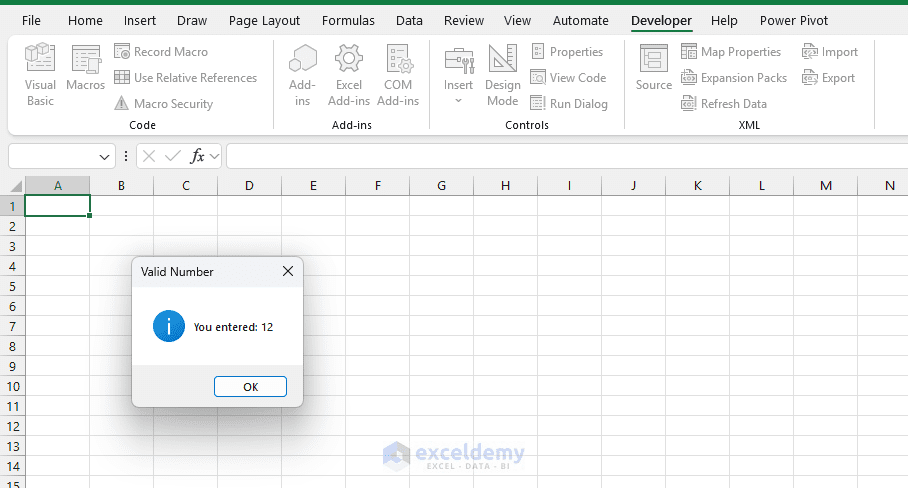
    MsgBox "You entered: " & userInput, vbInformation, "Valid Number"
End Sub
When to use this vs. manual validation: Application.InputBox with Type:=1 is great for quick enforcement, but it gives the user a generic Excel error message they can’t customize. Manual validation with IsNumeric() lets you display your own clear, user-friendly messages.
Common InputBox Validation Functions
| Function | Purpose | Example |
|---|---|---|
| IsNumeric | Checks whether input is a number | IsNumeric(userInput) |
| IsDate | Checks whether the input is a valid date | IsDate(userInput) |
| Trim | Removes extra spaces | Trim(userInput) |
| Len | Counts characters | Len(userInput) |
| CInt | Converts to an integer | CInt(userInput) |
| CLng | Converts to a long integer | CLng(userInput) |
| CDbl | Converts to a decimal number | CDbl(userInput) |
| CDate | Converts to date | CDate(userInput) |
| LCase | Converts text to lowercase | LCase(userInput) |
| UCase | Converts text to uppercase | UCase(userInput) |
Common Mistakes to Avoid
- Skip the Cancel Check Entirely: If you pass an empty string straight into CInt() or CDbl(), VBA throws a type mismatch error. Always check for “” before any conversion.
- Declare the Variable as String in Application.InputBox: The Cancel return value is False (Boolean). A String variable silently converts it to “False”, making your Cancel detection fail.
- Rely on Implicit Type Conversion: Even after IsNumeric() confirms the entry is a number, always convert explicitly with CInt(), CLng(), or CDbl(). Implicit conversion can produce unexpected results when the string contains spaces or locale-specific decimal symbols.
- Use IsNumeric() Alone for Strict Integer Validation: IsNumeric(“3.7”) is True. If you need a whole number, pair it with the Int() check shown in Section 3.
- Forget Locale Differences with Dates: IsDate() interprets dates according to the system locale. “15/01/2025” might be valid on a UK machine, but fail on a US machine. Where possible, specify the expected format in your prompt and document this assumption in your code.
Conclusion
By following this tutorial, you can validate InputBox entries in VBA. Validating InputBox entries in VBA helps prevent errors caused by incorrect user input. Since the standard VBA InputBox returns values as text, you should check the entry before using it in calculations, conditions, or worksheet updates. You can use IsNumeric for numbers, IsDate for dates, Trim to catch blank entries, and loops to keep asking until the user enters a valid value. For stronger built-in validation, use Application.InputBox with the appropriate Type argument.
Get FREE Advanced Excel Exercises with Solutions!