


Complex Excel formulas can quickly become difficult to read, especially when the same calculations appear multiple times. Excel’s LET and LAMBDA functions solve this problem by making formulas easier to understand and allowing you to create your own reusable functions. Both are among Excel’s most powerful modern functions, but they come with a steep learning curve. ChatGPT turns out to be an excellent pair-programmer for this: you describe the calculation logic in plain English, and it drafts the LET/LAMBDA syntax, explains the variable structure, and helps you debug the inevitable #CALC! errors.
In this tutorial, we will explore how to build LAMBDA and LET functions with ChatGPT in Excel. We’ll build both functions from scratch, refine them, and turn them into reusable custom formulas.
Understanding LET and LAMBDA
What LET Does
LET lets you assign names to values or calculations inside a single formula, then reference those names later in the same formula. This eliminates repeated sub-calculations and makes long formulas readable.
Basic Syntax:
=LET(name1, value1, name2, value2, ..., calculation)
What LAMBDA Does
LAMBDA lets you define a custom, reusable function using native Excel formula syntax — no VBA required. Once defined, you can save it under a name using the Name Manager and call it like any built-in function.
Basic Syntax:
=LAMBDA(parameter1, parameter2, ..., calculation)
A LAMBDA is typically combined with LET, since LET handles the intermediate calculations and LAMBDA provides reusable packaging.
Although both functions make Excel formulas more manageable, they serve different purposes.
| LET | LAMBDA |
|---|---|
| Assigns names to values and calculations. | Creates custom, reusable Excel functions. |
| Reduces repetitive calculations. | Eliminates the need to rewrite the same formula. |
| Names are available within the formula. | Named functions can be used throughout the workbook. |
| Ideal for simplifying complex formulas. | Ideal for calculations used repeatedly. |
Note: LET is available in Excel 2021 and later, while LAMBDA requires Excel 2024 or Microsoft 365.
Building a LET Function with ChatGPT
Suppose you manage sales data and want to calculate the final sales amount after applying a 10% discount to orders worth $500 or more.
- Without LET, you may use this formula:
=IF(F2*G2>=500,(F2*G2)*(1-0.1),F2*G2)
Although the formula works, it repeats F2*G2 several times. LET allows us to calculate the subtotal once and reuse it.
ChatGPT Prompt:
Act as an Excel formula expert. I have Quantity in column F and Unit Price in column G.
Calculate the final sales amount after applying a 10% discount when the gross sales are
$500 or more. Use LET to avoid repeated calculations.
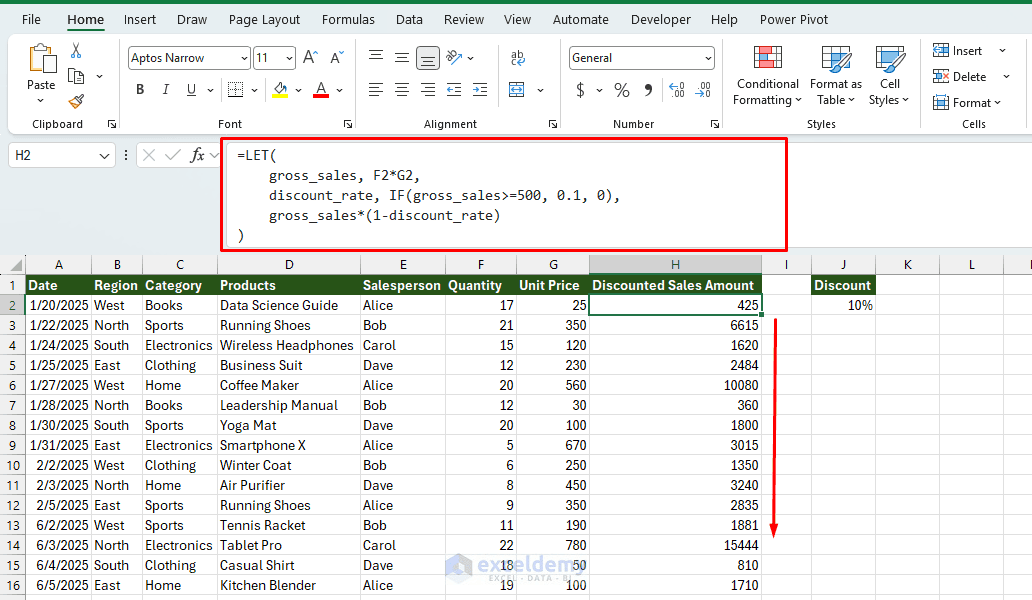
ChatGPT may generate the following LET formula:
=LET(
    gross_sales, F2*G2,
    discount_rate, IF(gross_sales>=500, 0.1, 0),
    gross_sales*(1-discount_rate)
)
Here, gross_sales stores the initial sales amount, while discount_rate stores the applicable discount rate. The final expression calculates the discounted amount.
Creating More Advanced LET Formulas
LET becomes particularly useful when several conditions and calculations are involved. Suppose you want to apply different sales commissions based on the salesperson’s total sales.
| Sales Amount | Commission |
|---|---|
| Below $1,000 | 5% |
| $1,000–$4,999.99 | 8% |
| $5,000 or more | 12% |
Ask ChatGPT:
Generate a LET formula that calculates the commission based on the sales amount in cell H2.
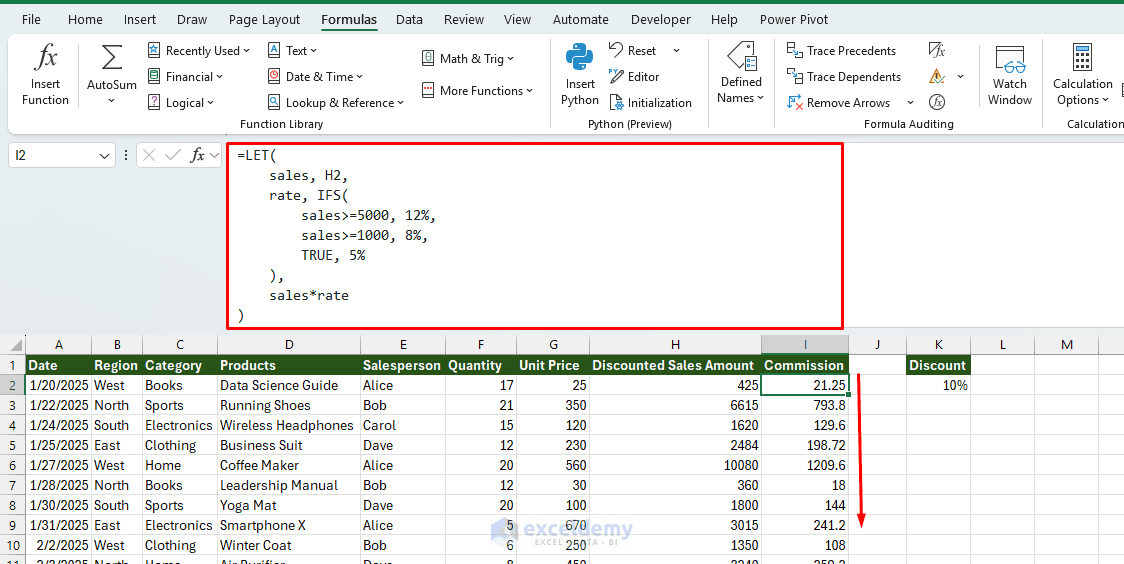
ChatGPT-generated formula:
=LET(
    sales, H2,
    rate, IFS(
        sales>=5000, 12%,
        sales>=1000, 8%,
        TRUE, 5%
    ),
    sales*rate
)
Instead of inserting multiple calculations into a single complicated formula, LET separates the sales amount, commission rate, and final calculation.
You can also ask ChatGPT to modify an existing formula rather than writing a new one. For example:
Follow-up prompt:
Modify the LET formula to return zero when the sales cell is empty or contains an
invalid value. Keep the existing commission rates.
ChatGPT may return:
=LET(
    sales, H2,
    IF(
        OR(sales="", NOT(ISNUMBER(sales)), IFERROR(sales<0,FALSE)), 0, IFS( sales>=5000, sales*12%,
            sales>=1000, sales*8%,
            TRUE, sales*5%
        )
    )
)
Turning the LET Formula into a LAMBDA Function
The LET formula works well, but what if you need the same calculation across several worksheets? Instead of copying a lengthy formula, you can convert it into a custom LAMBDA function.
ChatGPT Prompt:
Convert my previous LET formula into a reusable LAMBDA function.
Use qty and price as parameters, and keep the same discount conditions.
Show me how to test the formula and save it using Excel's Name Manager.
ChatGPT may convert the previous formula into:
=LAMBDA(qty,price,
     LET(
   gross_sales,qty*price,
   discount_rate,IF(gross_sales>=500,0.1,0),
   gross_sales*(1-discount_rate)
        )
)
Here, qty and price are the parameters. LET calculates gross_sales, determines the applicable discount, and returns the final sales amount.
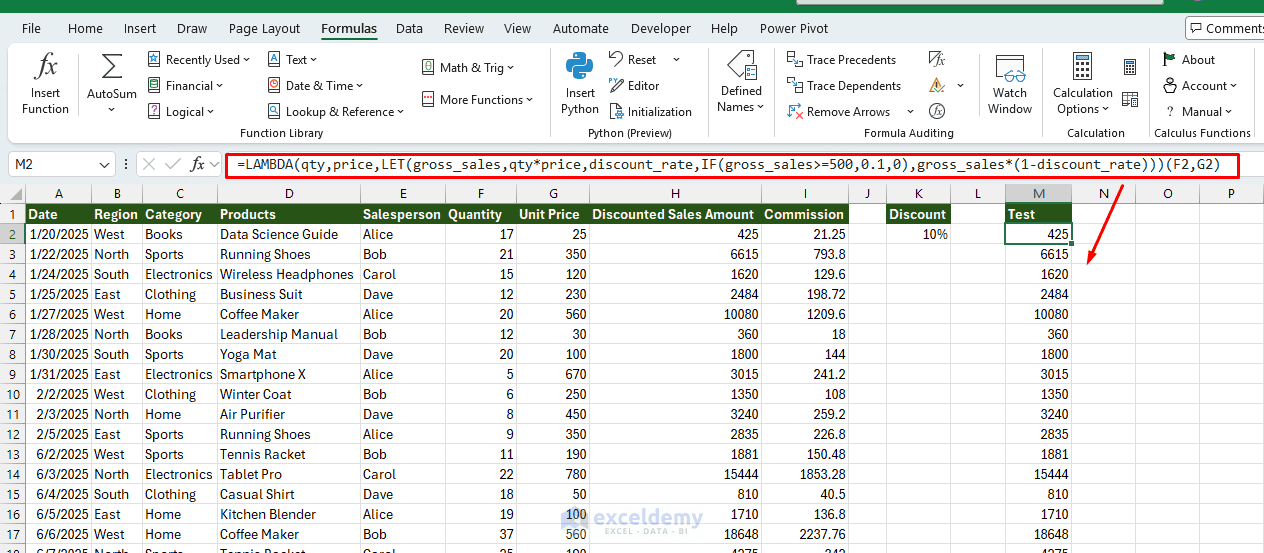
- Before saving it, test it directly in a cell by adding arguments at the end:
=LAMBDA(qty,price,LET(gross_sales,qty*price,discount_rate,IF(gross_sales>=500,0.1,0),gross_sales*(1-discount_rate)))(F2,G2)
Save the LAMBDA as a Custom Function
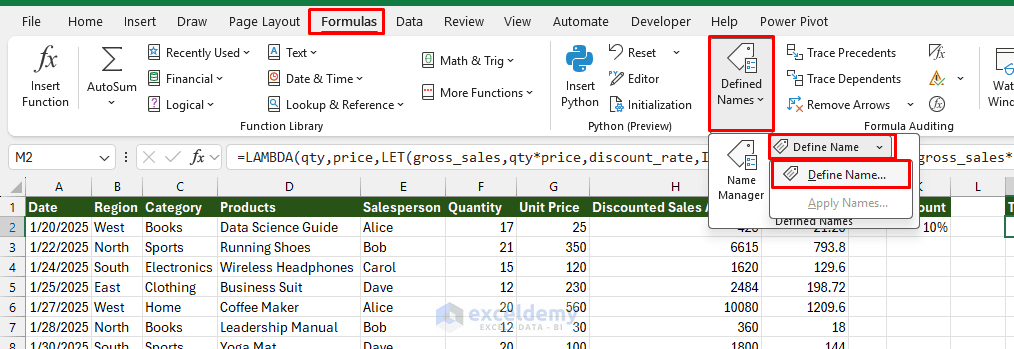
- Go to the Formulas tab >> click Defined Names >> select Define Name
- In Name: type SalesAfterDiscount
- Keep the Scope set to Workbook
- In Refers to: paste the LAMBDA formula:
=LAMBDA(qty,price,
     LET(
   gross_sales,qty*price,
   discount_rate,IF(gross_sales>=500,0.1,0),
   gross_sales*(1-discount_rate)
        )
)
- Click OK
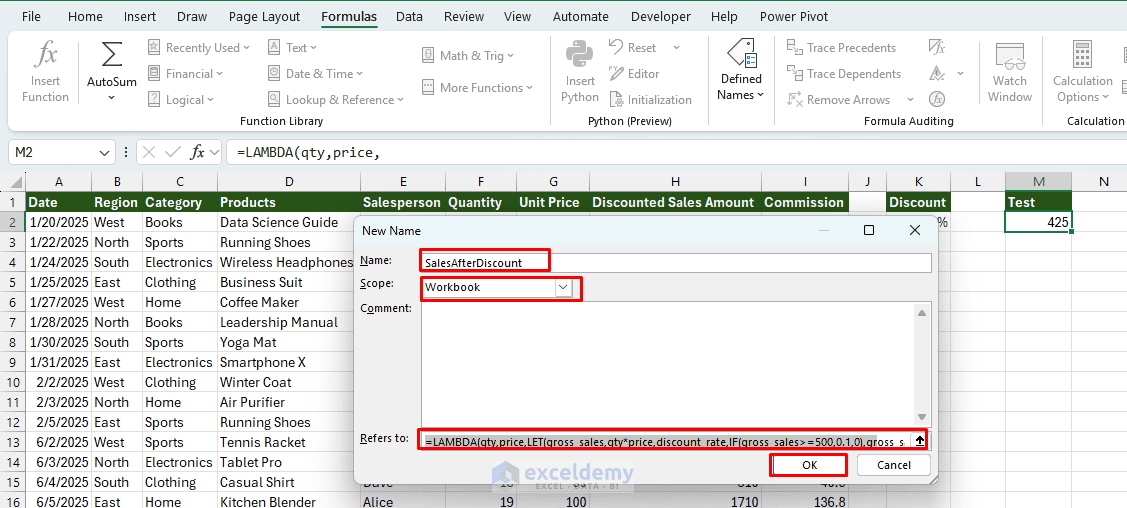
You can now use your custom function in any worksheet within that workbook.
- Instead of using a long formula, simply enter:
=SalesAfterDiscount(F2,G2)
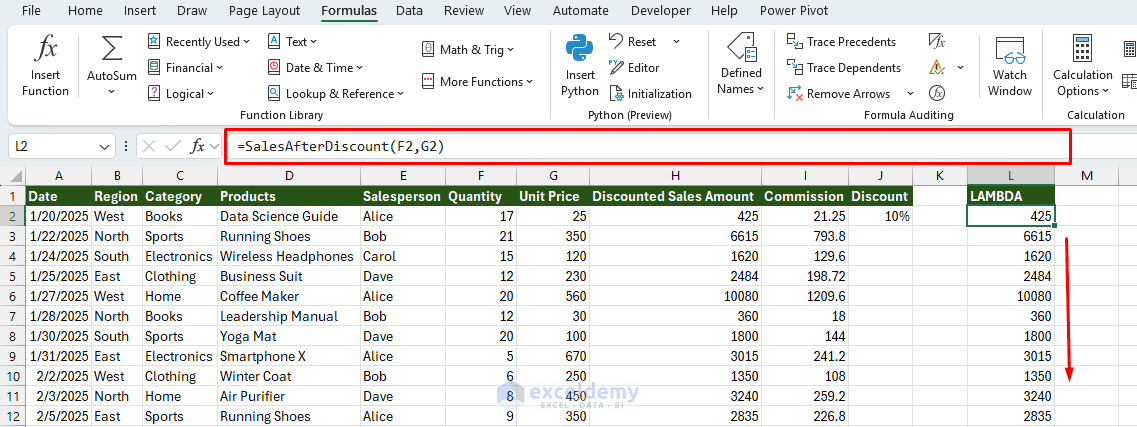
Excel calculates the sales amount using the same conditions. If you need to change the discount rule later, edit the LAMBDA in Name Manager rather than updating every formula individually.
Asking ChatGPT for the Function Description Too
Named LAMBDAs support a description that appears in the formula tooltip.
ChatGPT Prompt:
Also give me the LAMBDA function description text I should add in Name Manager,
so it shows helpful argument hints.
ChatGPT will typically suggest something like:
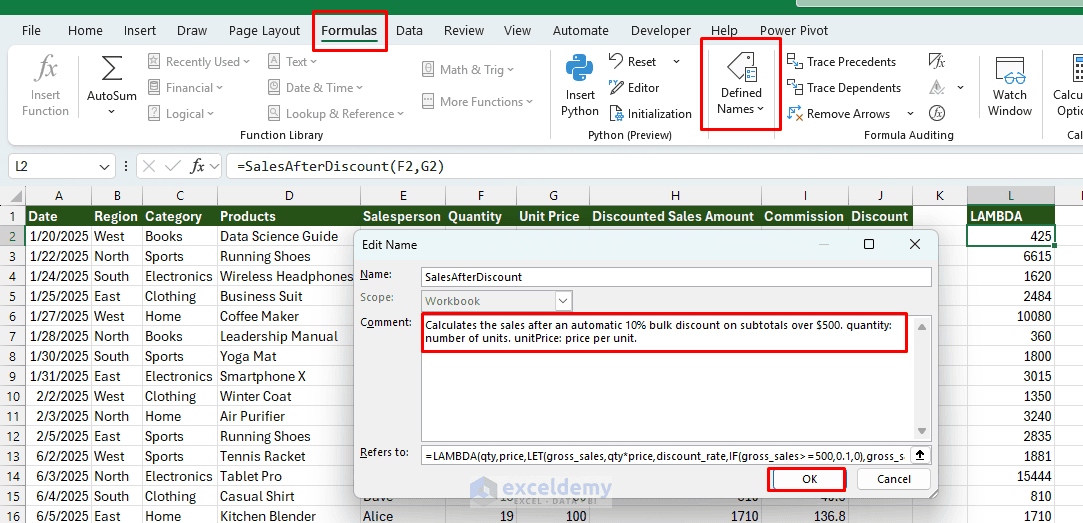
Calculates the sales after an automatic 10% bulk discount on subtotals over $500.
quantity: number of units. unitPrice: price per unit.
- Paste this into the Comment field in Name Manager
- Go to the Formulas tab >> click Defined Names >> select Name Manager
- Click the SalesAfterDiscount name
- In the Comment section, paste the comment
- Click OK
- Click Close
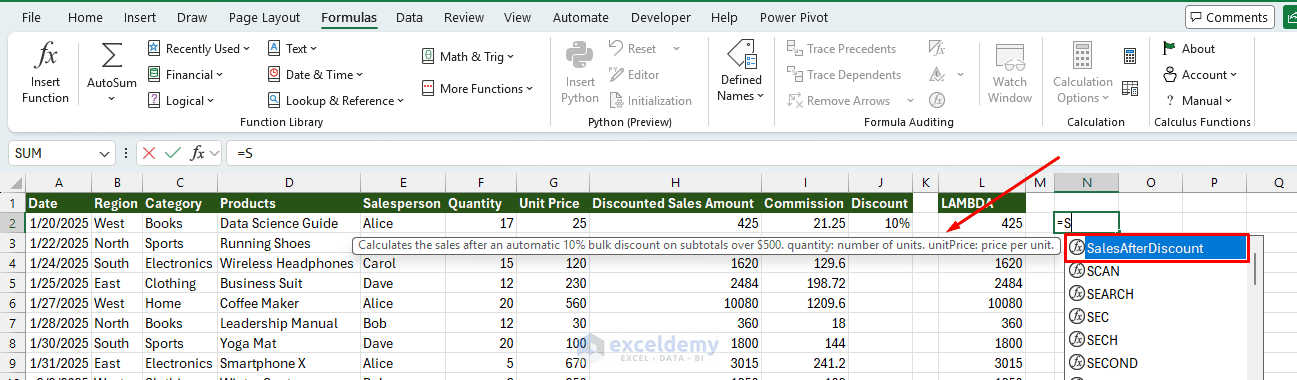
Now, when you type the formula name, =SalesAfterDiscount(, it will surface the comment as a parameter hint.
Making LAMBDA Functions More Flexible
You can also ask ChatGPT to replace fixed values with additional parameters. For example, rather than always applying a 10% discount to orders of $500 or more, you can create a function where both values are configurable.
Ask ChatGPT:
Modify my SalesAfterDiscount LAMBDA to accept four parameters: quantity, price,
discount threshold, and discount rate. Use LET for the intermediate calculations.
ChatGPT may return the modified function:
=LAMBDA(qty,price,threshold,rate,
    LET(
    gross_sales, qty*price,
    discount_rate, IF(gross_sales>=threshold, rate, 0),
    gross_sales*(1-discount_rate)
         )
)
Save this formula in the Name Manager as FlexibleDiscount, then use it with different quantities, prices, thresholds, and discount rates.
Try the custom function:
- Change the values to see how the formula behaves
- Use the following formula:
=FlexibleDiscount(5,120,500,10%)
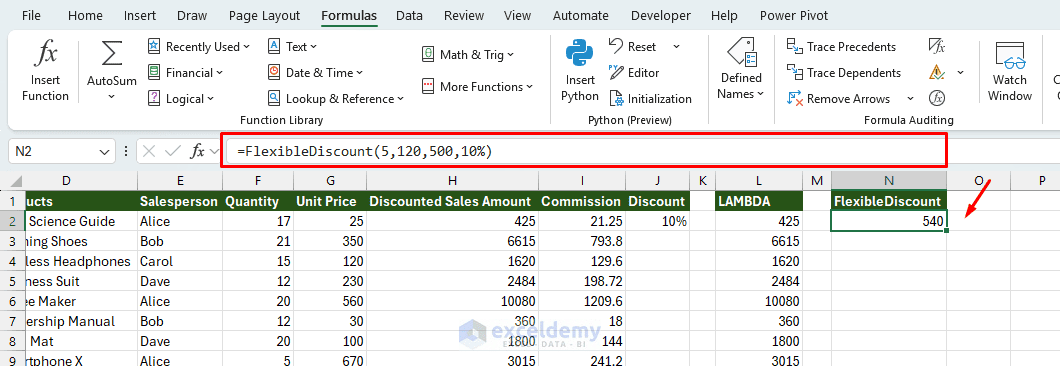
It returns the final sales of $540, where gross_sales: $600 and discount applied: 10%.
Debugging LET and LAMBDA with ChatGPT
Formula errors are common when building custom functions. You can paste the problematic formula into ChatGPT along with Excel’s error message and ask it to identify the issue.
A useful debugging prompt pattern:
This formula returns [#CALC! / #VALUE! / wrong output of X instead of Y].
Here's the formula: [paste]. Here's what B2 and C2 contain: [describe]. What's wrong?
| Error | Possible cause |
|---|---|
| #NAME? | The function name is undefined, misspelled, or unsupported by your Excel version. |
| #CALC! | A LAMBDA was entered without calling it or assigning it a name. |
| #VALUE! | The custom function received an incorrect number of arguments. |
| #NUM! | A recursive LAMBDA exceeded Excel’s calculation limits. |
When troubleshooting, provide ChatGPT with the original formula, the expected result, the actual result, and the error message. Also mention your Excel version and whether your regional settings use commas or semicolons as formula separators.
Conclusion
By following this tutorial, you can build LAMBDA and LET functions with ChatGPT in Excel. LET and LAMBDA are especially useful when you work with large datasets, repeat calculations across multiple worksheets, or maintain spreadsheets for other people. ChatGPT can help you develop these functions, but always test the results with sample values before using them in important calculations. Start with LET to organize a complex formula. Once the formula works correctly, convert it into LAMBDA when you need to reuse it.
Get FREE Advanced Excel Exercises with Solutions!

