


Managing a small business budget involves more than simply recording income and expenses. You need to know how much you are spending, compare actual expenses with your budget, identify problem areas, estimate loan payments, and quickly summarize financial data. But running a small business budget in Excel doesn’t require complicated financial models, just the right set of functions applied consistently. Excel provides several functions that can automate these calculations.
In this tutorial, we will show 7 useful Excel functions for managing a small business budget. These functions cover the core jobs of budgeting: tracking totals, categorizing expenses, monitoring variances, and flagging problems before they become crises.
1. SUM / SUMIF / SUMIFS: Calculate Category Totals
The backbone of any budget spreadsheet is knowing how much you spend in each category (rent, payroll, marketing, supplies) without manually adding rows. The SUM function is one of the most useful functions for budgeting. It adds values together and can quickly calculate total budgeted or actual amounts, based on conditions as well.
Syntax:
=SUM(number1, [number2], ...)
=SUMIF(range, criteria, sum_range)
=SUMIFS(sum_range, criteria_range1, criteria1, criteria_range2, criteria2, ...)
Suppose you have a transaction log with Date, Category, Vendor, Budget, and Expense Amount.
- Calculate total budgets:
=SUM(E2:E23)
- Calculate total expenses:
=SUM(F2:F23)
- Total all “Marketing” expenses:
=SUMIF(B2:B23, "Marketing", F2:F23)
- Total all Marketing expenses that are paid:
=SUMIFS(F2:F23,B2:B23,"Marketing",G2:G23,"Paid")
- Total Marketing expenses specifically in Q1:
=SUMIFS(F2:F500, B2:B500, "Marketing", A2:A500, ">="&DATE(2026,1,1), A2:A500, "<="&DATE(2026,3,31))
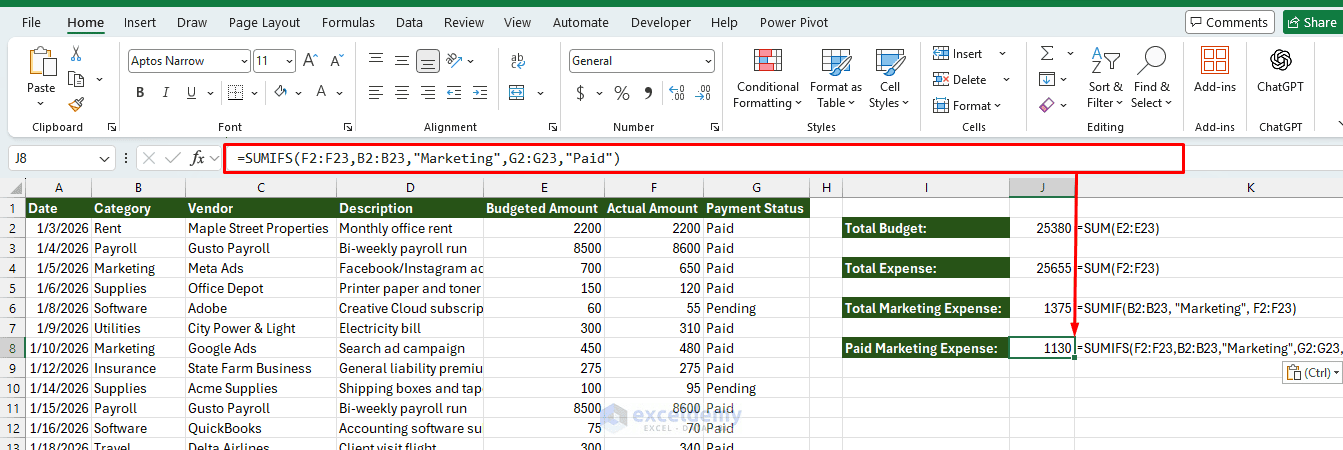
Why it matters: These functions turn a flat list of transactions into a live category breakdown with totals. Pair them with a small summary table (one row per category), and every cell updates automatically as you log new expenses — no manual re-totaling at month-end.
2. COUNTIF / COUNTIFS: Transaction Counts
Sometimes the number of transactions matters as much as the dollar amount — for example, catching a vendor you're paying too frequently, or counting how many invoices are still unpaid.
Syntax:
=COUNTIF(range, criteria)
=COUNTIFS(criteria_range1, criteria1, criteria_range2, criteria2, ...)
- Count unpaid invoices where the Status column says "Pending":
=COUNTIF(G2:G23, "Pending")
- Count pending invoices specifically from a certain vendor:
=COUNTIFS(G2:G23, "Pending", C2:C23, "Gusto Payroll")
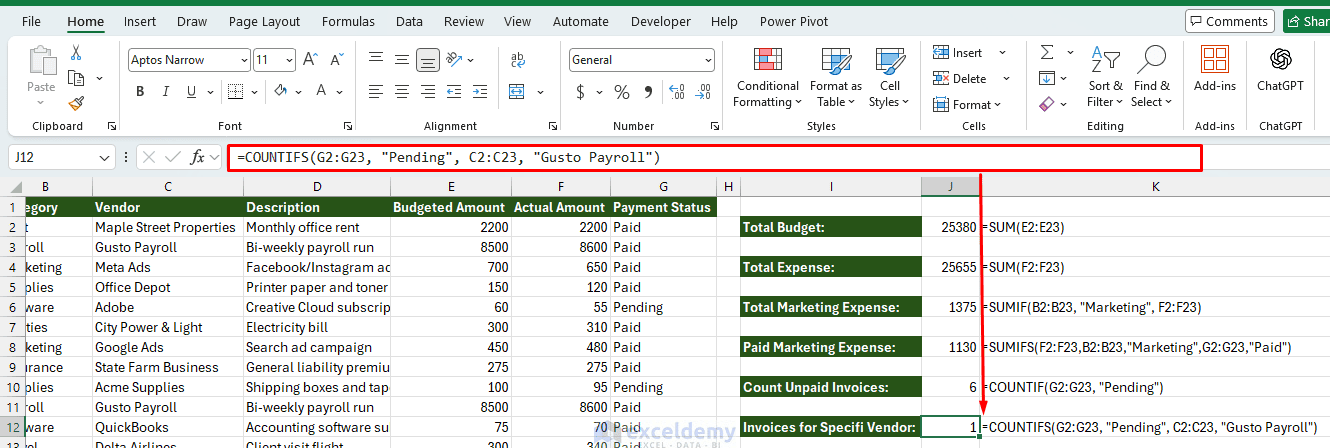
Why it matters: These functions help build an early-warning system for accounts payable/receivable bottlenecks; e.g. "we have 12 unpaid invoices this month" is a metric worth watching alongside the dollar totals.
3. AVERAGE / AVERAGEIF: Understand Typical Spending
While total expenses show how much your business spends overall, the AVERAGE and AVERAGEIF functions help you understand what a typical expense looks like. This is useful for setting realistic budgets, comparing spending patterns, and spotting unusually high transactions.
Syntax:
=AVERAGE(number1, [number2], ...)
=AVERAGEIF(range, criteria, [average_range])
- Average expense across all transactions:
=AVERAGE(F2:F23)
- Average spending for Marketing:
=AVERAGEIF(B2:B23,"Marketing",F2:F23)
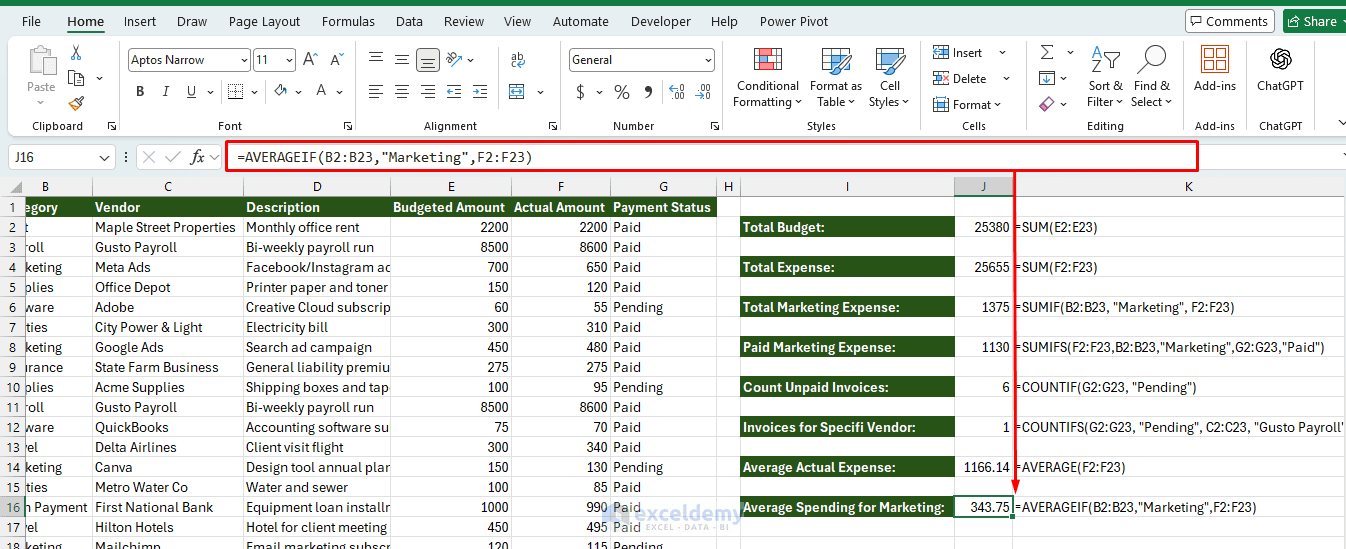
Why it matters: Average spending gives a useful baseline for future budgeting and helps spot seasonal patterns. For example, knowing that a typical Marketing transaction costs about $343.75 can help you estimate future campaign expenses and identify transactions that are significantly above normal.
4. VLOOKUP / XLOOKUP: Pulling Budget Data Across Sheets
Most small business budgets are split across sheets: a master Chart of Accounts, a monthly Actuals sheet, and an Annual Budget sheet. You need a reliable way to pull data from one into another.
Syntax:
=XLOOKUP(lookup_value, lookup_array, return_array, [if_not_found])
Suppose you want to pull the budgeted amount for "Office Supplies" from a Budget sheet into your Actuals sheet:
=XLOOKUP(B2,'Budget Plan'!$A$2:$A$11,'Budget Plan'!$B$2:$B$11,"Not Found")
If you're on an older Excel version without XLOOKUP, the equivalent is:
=VLOOKUP(B2, 'Budget Plan'!$A$2:$B$11, 2, FALSE)
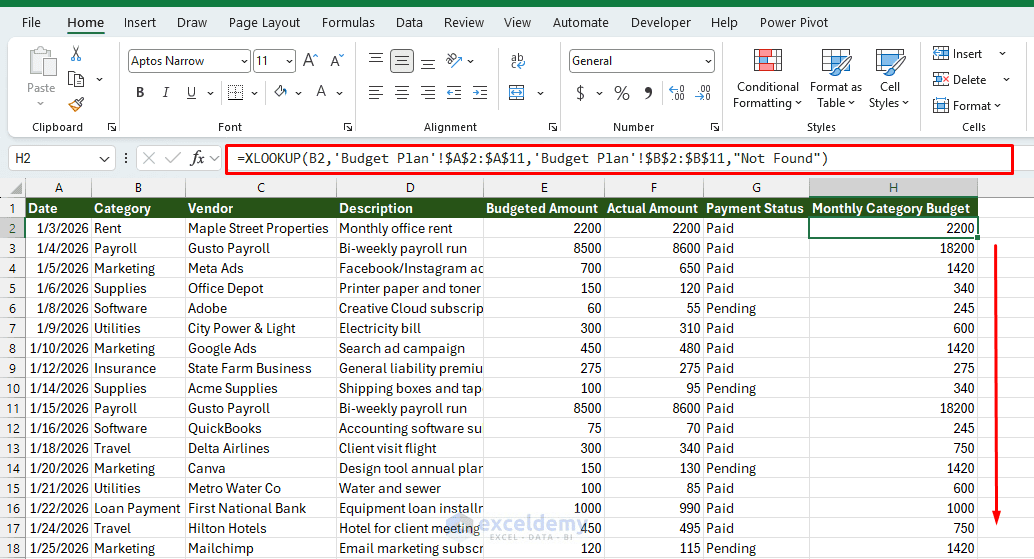
Why it matters: Best for retrieving category budgets, supplier costs, product costs, department allocations, and dashboard values. This lets you maintain a single source of truth for your budget figures instead of retyping numbers across multiple tabs, reducing the risk of one sheet drifting out of sync with another.
Note: XLOOKUP is available in newer versions of Excel, including Microsoft 365 and Excel 2021 or later. Older versions may require VLOOKUP or INDEX/MATCH.
5. IF: Flag Over-Budget Expenses
Simply knowing the amount spent is not always enough. A business owner also needs to identify expenses that exceed their planned budget. The IF function can automatically flag categories where actual spending exceeds the planned budget.
Syntax:
=IF(logical_test, value_if_true, value_if_false)
- Flag overspending in Budget Status:
=IF(F2>E2,"⚠ OVER","OK")
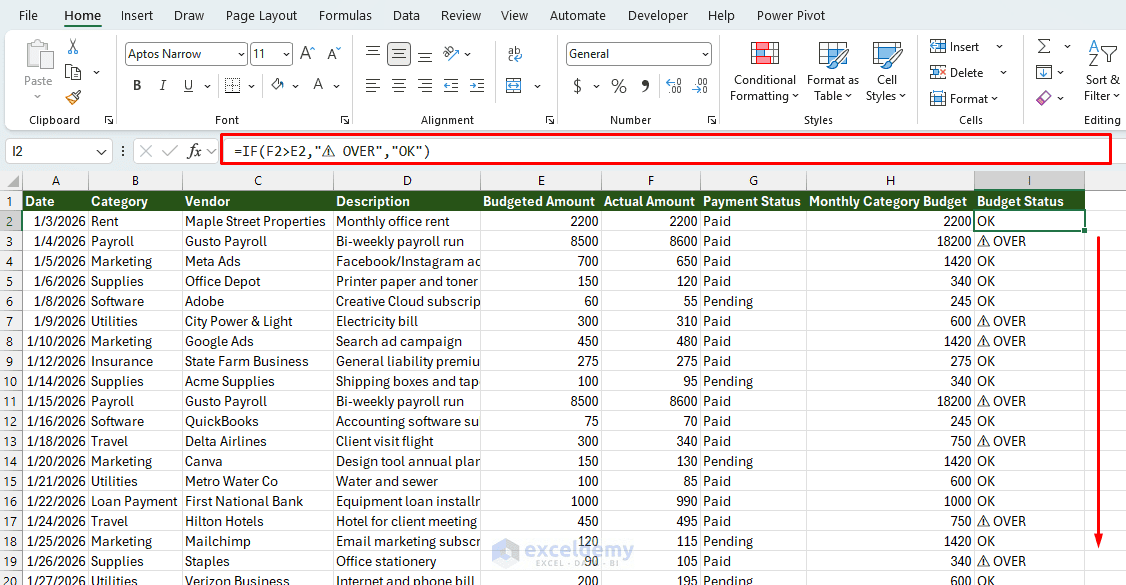
Why it matters: In a budget with 20-30 line items, you don't want to manually check each row for overspending every month. This turns your spreadsheet into a dashboard you can scan in seconds — an instant visual warning so you can act before cash runs low.
6. Budget vs. Actual Variance
There's no dedicated "variance" function, but this calculation is the single most useful thing in a small business budget: it tells you where you're overspending or underspending relative to plan.
Formula Pair:
Variance ($) = Actual - Budget
Variance (%) = (Actual - Budget) / Budget
- Variance:
=F2-E2
- Variance Percentage:
=(F2-E2)/E2
- Format as Percentage (%)
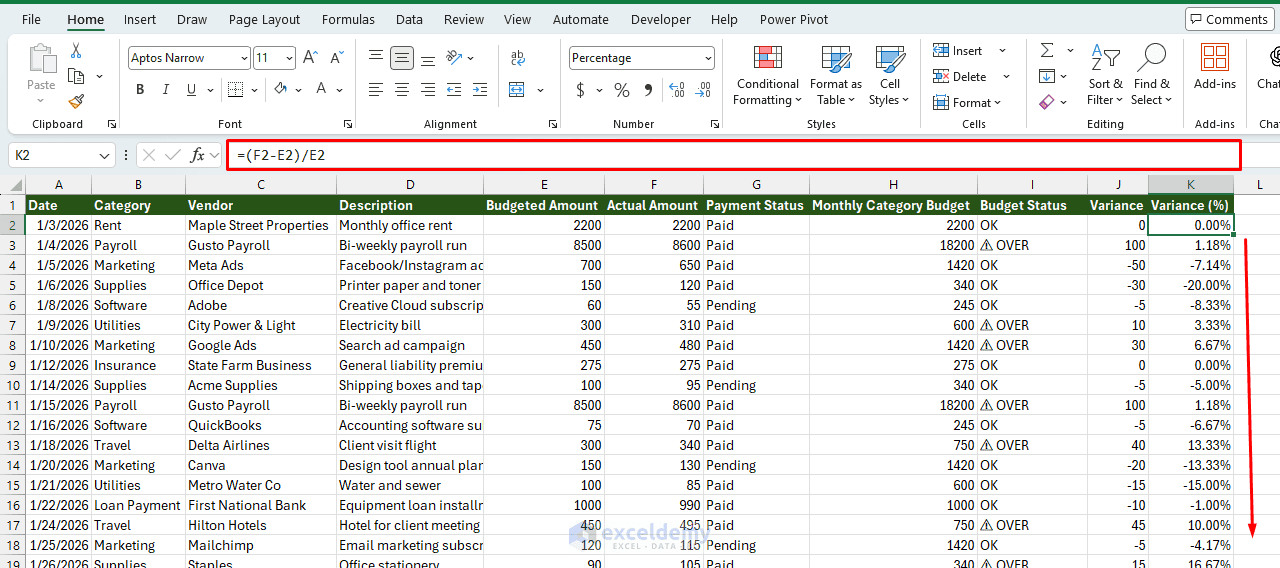
Why it matters: A raw actual number ("$4,200 spent on marketing") tells you little on its own. Knowing you're $700 over a $3,500 budget — a 20% overrun — is what actually drives a decision like cutting spending, reallocating, or revising the budget.
Tip: Wrap this in IFERROR() to avoid #DIV/0! errors when a budget line is $0:
=IFERROR((C2-B2)/B2, "N/A")
7. PMT: Loan and Financing Payment Planning
Many small businesses carry debt — equipment loans, a line of credit, an SBA loan. PMT calculates the fixed periodic payment so you can build it into your monthly budget correctly.
Syntax:
=PMT(rate, nper, pv, [fv], [type])
Suppose your business takes out a $50,000 loan at 6% annual interest for 5 years.
- The monthly payment formula is:
=PMT(6%/12,5*12,-50000)
This returns the fixed monthly payment (entering the loan amount as negative returns a positive payment figure).
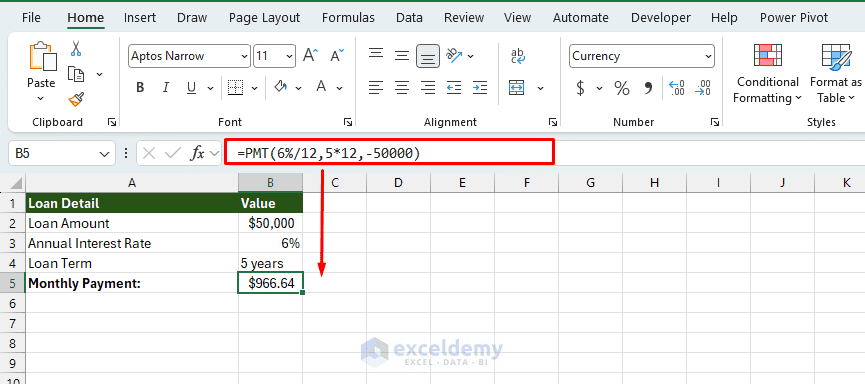
Why it matters: Once you know the fixed monthly payment, you can hardcode it as a line item in your budget rather than guessing or manually recalculating it whenever loan terms come up.
Bonus: FORECAST.LINEAR (or TREND) - Projecting Future Expenses/Revenue
Once you have a few months of actual data, you can project forward — useful for cash flow planning and setting next quarter's budget targets.
Syntax:
=FORECAST.LINEAR(x, known_ys, known_xs)
Suppose you have monthly revenue in B2:B7 for months numbered 1-6 in A2:A7, and want to project month 7:
=FORECAST.LINEAR(A8,$C$2:$C$7,$A$2:$A$7)
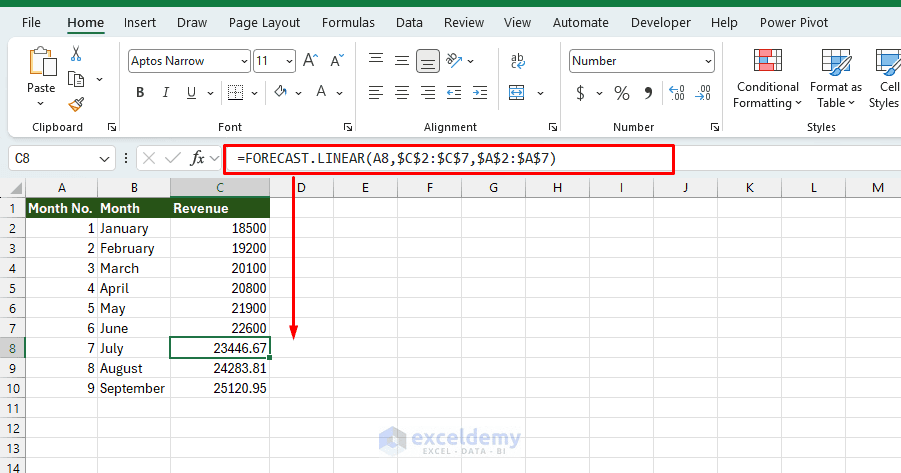
Why it matters: Rather than budgeting next quarter based on gut feel, this gives you a trend-based estimate rooted in your actual historical numbers — a useful starting point that you then adjust for known one-off factors (a new hire, a seasonal dip, a planned marketing push).
Putting It Together: A Simple Budget Sheet Structure
A practical small business budget workbook typically has three tabs:
- Transactions: Raw log of every expense/income entry (Date, Category, Vendor, Amount, Status)
- Budget vs. Actual: One row per category, using SUMIFS to pull actuals from the Transactions tab, XLOOKUP to pull budgeted amounts, and the variance formulas to compare them
- Dashboard: A summary view using COUNTIF for outstanding items, conditional formatting for at-a-glance flags, and a FORECAST.LINEAR projection for the next period
This structure keeps raw data, comparison logic, and the "so what" summary cleanly separated, which makes the workbook far easier to audit and maintain as your transaction volume grows.
Conclusion
A small business budget doesn't require complicated Excel formulas. A handful of well-chosen functions can automate most everyday budgeting tasks, and these seven cover 90% of what most small businesses need for solid budget control. Once combined in a budget summary worksheet, they give you a budget that is easier to update, analyze, and maintain as your business grows. Start simple, keep the data clean, and let Excel do the heavy lifting.
Get FREE Advanced Excel Exercises with Solutions!

