


A well-built Excel workbook is not always easy for someone else to understand. Even when formulas and calculations are correct, a new user may struggle to determine what each column means, why a formula was used, or where the data came from. ChatGPT can help turn an existing workbook into a more understandable and collaboration-friendly file. You can use it to generate in-cell comments, data dictionaries, and plain-English formula explanations that make workbook handoff much easier.
In this tutorial, we will show how to document Excel workbooks with ChatGPT. Documenting makes it easier for another analyst to understand and maintain.
1. Prepare a Sample Excel Workbook
Before you use ChatGPT, clean and organize the workbook with consistent headers, no merged cells in key areas if possible, and clear sheet names. It is also a good idea to convert the range to an Excel Table.
- Select your data range
- Go to the Insert tab >> select Table or press Ctrl + T
- Check My table has headers
- Click OK
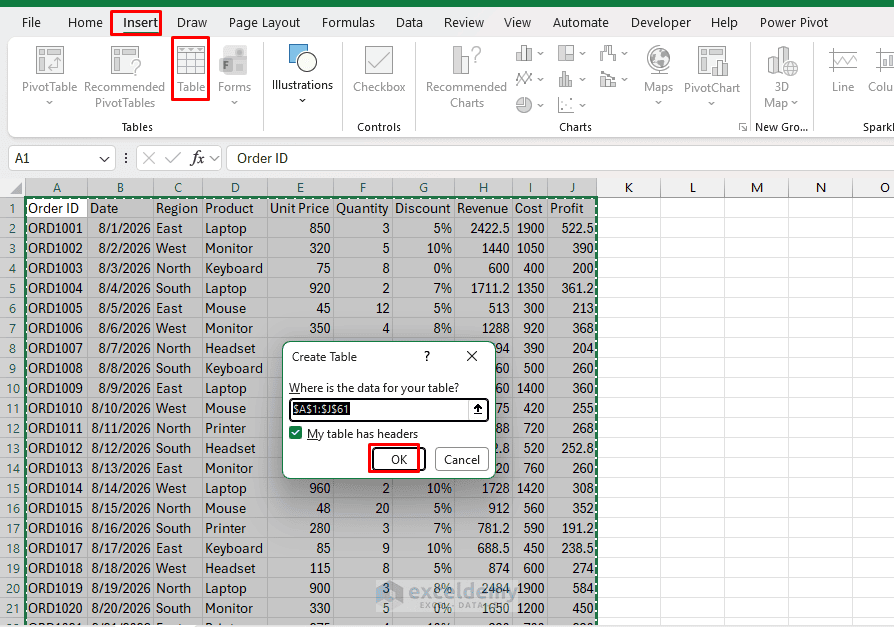
- Go to the Table Design tab >> name your table such as SalesData
This makes the workbook easier to manage as new records are added.
2. Open ChatGPT Inside Excel
If you have installed a ChatGPT add-in for Excel, you can access it directly from the ribbon.
- Go to the Home tab >> click Add-ins
- Search for ChatGPT add-in to add it
- Sign in with your ChatGPT account
- The ChatGPT pane should appear on the right side of Excel
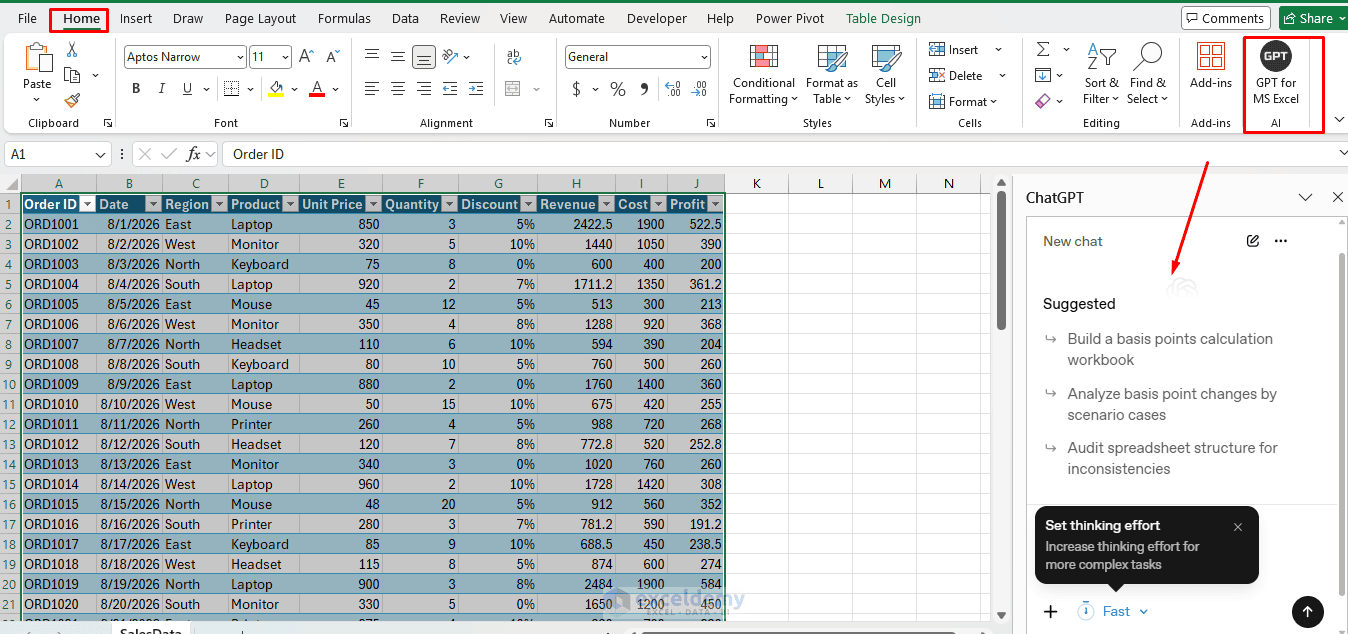
This setup is useful because you can keep the workbook visible while generating documentation. If you do not use an Excel add-in, you can perform the same tasks in ChatGPT separately and paste the results back into Excel.
3. Generate In-Cell Comments with ChatGPT
Cell comments or notes are useful when a column, formula, assumption, or input requires additional explanation. Instead of writing every comment manually, you can ask ChatGPT to create concise descriptions.
For example, suppose you want to document the Discount column. You can use the following prompt in ChatGPT. If you are using the ChatGPT add-in, then it will automatically add the comment using a simple prompt.
Prompt:
Write a short Excel cell comment explaining the purpose of the Discount column
to another employee.
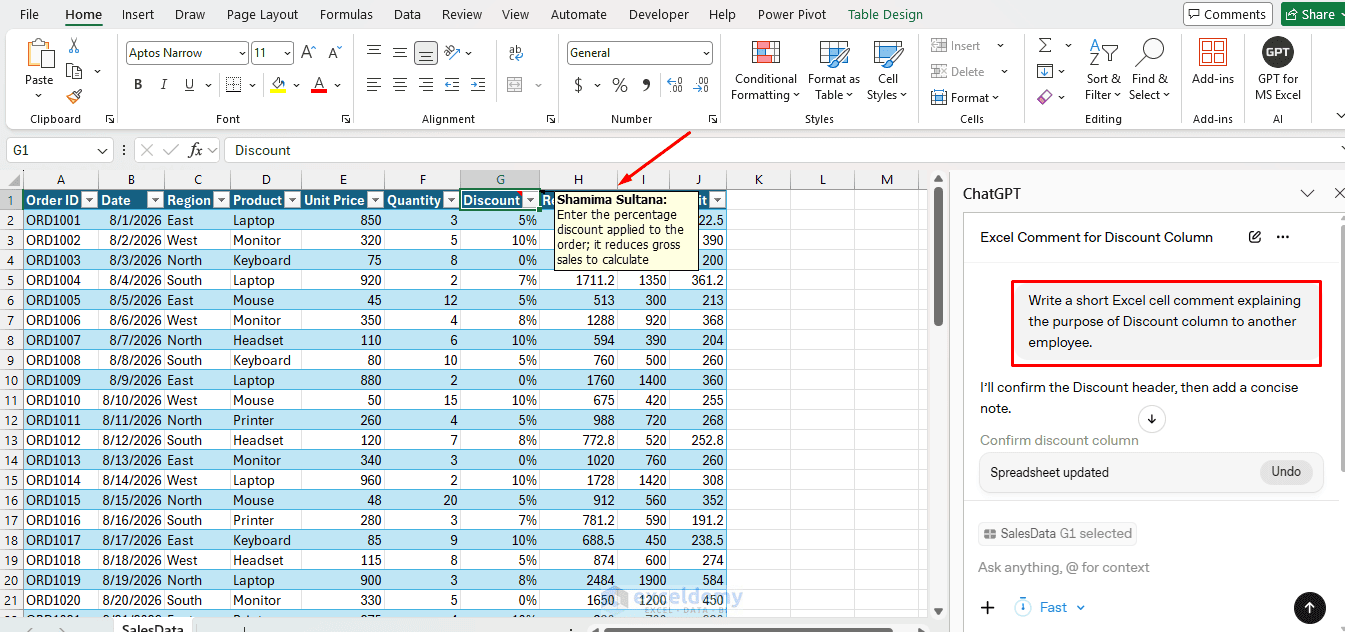
ChatGPT add-in can read the workbook, and it can also write back based on the prompt. So you won’t need to explicitly explain the dataset.
For the regular ChatGPT app, you will need to explain your workbook or data in detail.
Prompt:
I have an Excel sales workbook. Column G is named Discount and contains percentage
discounts applied to each order. Write a short Excel cell comment explaining
the purpose of this column to another employee.
ChatGPT may generate a comment similar to:
“Contains the percentage discount applied to each sales order. Use this value to understand how much the original order price was reduced.”
Add the Comment to Excel:
- Select cell G1 containing the Discount heading
- Go to the Review tab >> select New Note or New Comment
- Paste the description generated by ChatGPT
- Click outside the cell
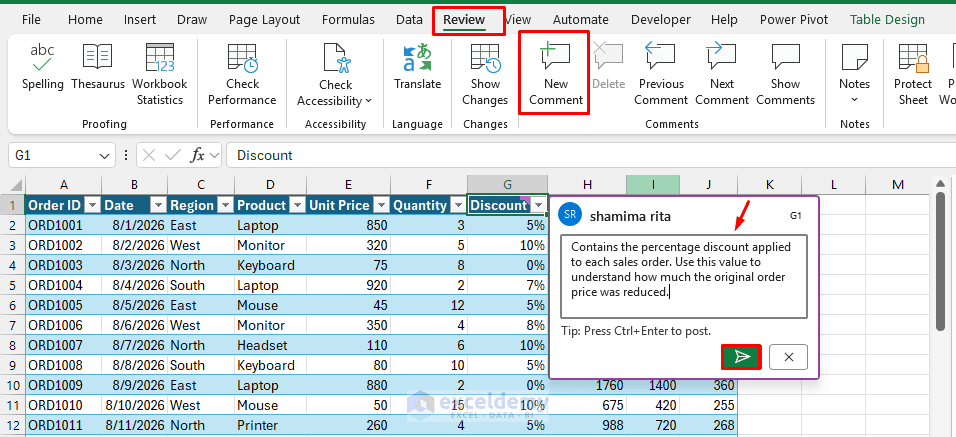
You can repeat the process for important input and calculated columns.
Example Prompt:
Add comments for the Revenue and Profit columns, explaining the purpose, logic,
and any assumptions. Make it useful for a colleague taking over the file.
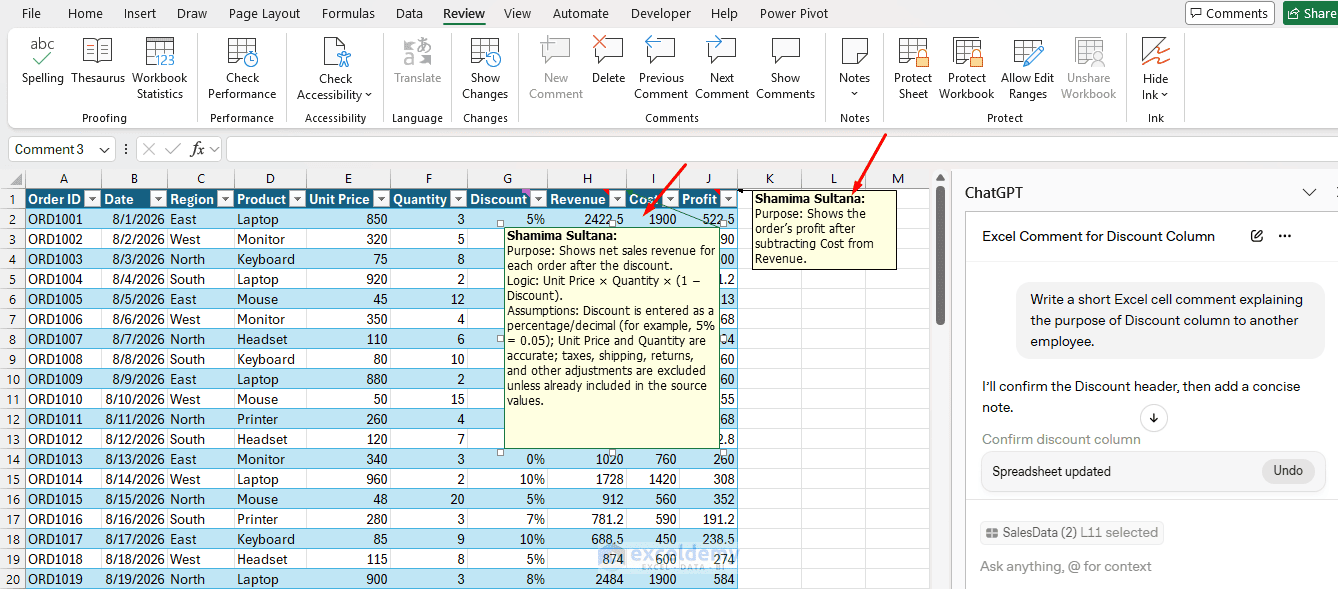
This is especially useful when the workbook contains assumptions or calculated fields whose meanings are not immediately obvious.
Bulk/Automated Approach:
- Ask ChatGPT to generate a VBA macro that loops through cells with formulas (or a selected range) and adds comments.
Example Prompt:
Write an Excel VBA macro that loops through all cells with formulas on the active sheet.
For each formula cell, it should add a comment that starts with "AI Explanation: "
followed by a placeholder.
Tips:
- Keep comments short and scannable
- Include the date or author if helpful for version control
- Use Notes for lighter documentation and Comments (threaded) for discussion-style notes in modern Excel
4. Create a Data Dictionary with ChatGPT
For larger workbooks, adding comments to every column can become inconvenient. A data dictionary provides a centralized description of the workbook’s fields.
- Create another worksheet and name it Data Dictionary
Ask ChatGPT:
Create a data dictionary for the following Excel columns:
Order ID
Date
Region
Product
Unit Price
Quantity
Discount
Revenue
Cost
Profit
The workbook contains sales transaction data.
For each field, provide:
- Field name
- Data type
- Description
- Example
Identify Revenue and Profit as calculated fields. Keep the descriptions concise and
suitable for Excel documentation.
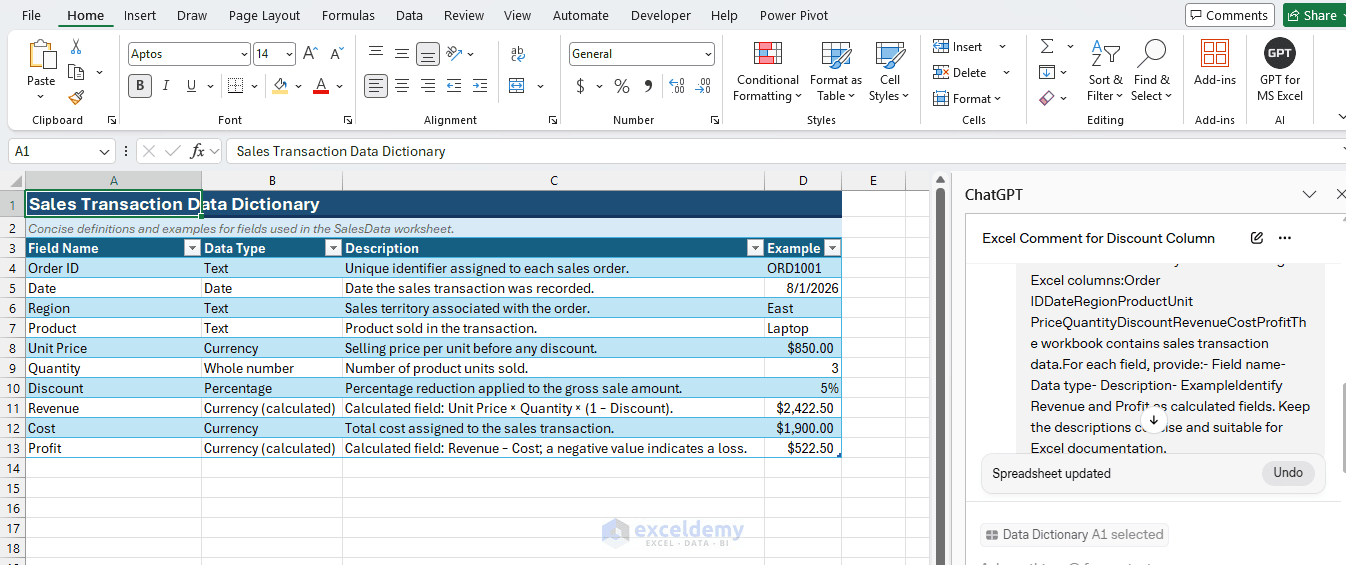
ChatGPT returns:
| Field Name | Data Type | Description | Example |
| Order ID | Text | Unique identifier for each sales order. | ORD-1001 |
| Date | Date | Date the sales transaction occurred. | 08/15/2026 |
| Region | Text | Sales region associated with the order. | North |
| Product | Text | Name of the product sold. | Laptop |
| Unit Price | Currency / Number | Selling price per unit before discount. | $850.00 |
| Quantity | Whole Number | Number of units sold in the order. | 3 |
| Discount | Percentage | Percentage discount applied to the order. | 10% |
| Revenue | Currency / Number | Calculated field: Total sales revenue after applying the discount. | $2,295.00 |
| Cost | Currency / Number | Total cost associated with the products sold. | $1,800.00 |
| Profit | Currency / Number | Calculated field: Revenue minus Cost. | $495.00 |
Calculated fields
- Revenue: Unit Price × Quantity × (1 − Discount)
- Profit: Revenue − Cost
Improve the Data Dictionary
You can ask ChatGPT to add other documentation fields, such as:
- Allowed values
- Source system
- Required/optional
- Formula
- Owner
- Last updated
- Validation rules
This makes it much easier for another analyst to understand the workbook without inspecting every formula individually.
5. Generate Plain-English Formula Explanations
Complex Excel formulas are often the hardest part of the workbook handoff. ChatGPT can translate formulas into plain English.
- Copy the following formula and ask:
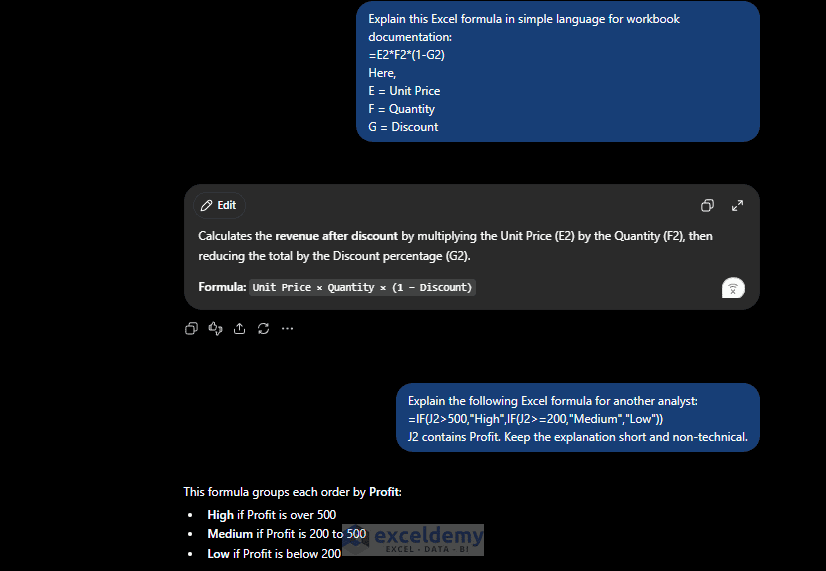
Explain this Excel formula in simple language for workbook documentation:
=E2*F2*(1-G2)
Here,
E = Unit Price
F = Quantity
G = Discount
A suitable explanation would be:
Calculates the revenue after discount by multiplying the Unit Price (E2) by the Quantity (F2), then reducing the total by the Discount percentage (G2).
Formula: Unit Price × Quantity × (1 − Discount)
Explain More Complex Formulas
Consider this formula:
=IF(J2>500,"High",IF(J2>=200,"Medium","Low"))
- Provide ChatGPT with the formula and the meanings of the referenced cells.
Explain the following Excel formula for another analyst:
=IF(J2>500,"High",IF(J2>=200,"Medium","Low"))
J2 contains Profit. Keep the explanation short and non-technical.
The resulting documentation could be:
This formula groups each order by Profit:
- High if Profit is over 500
- Medium if Profit is 200 to 500
- Low if Profit is below 200
This approach is particularly useful for formulas containing functions such as IF, IFS, XLOOKUP, INDEX, MATCH, SUMIFS, or nested formulas.
6. Create a Workbook Documentation Sheet
For an important workbook, it is useful to create a dedicated Documentation worksheet.
- Add a new sheet and include information such as:
- ChatGPT can generate most of this content once you describe the workbook.
Create a short documentation summary for an Excel workbook.
Workbook purpose: Monthly sales analysis
Main sheet: SalesData
Users: Sales managers and financial analysts
Data: Order ID, date, region, product, price, quantity, discount, revenue, cost, and profit
Revenue formula: Unit Price × Quantity × (1 - Discount)
Profit formula: Revenue - Cost
Format the result so I can place it on a Documentation worksheet.
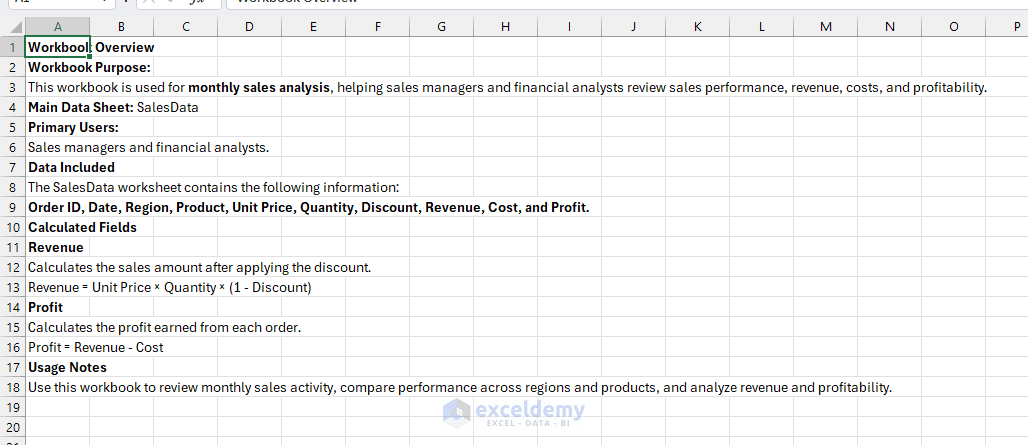
You can then edit any details that are specific to your organization.
7. Ask ChatGPT to Document Multiple Formulas at Once
If a workbook contains several calculated columns, you do not have to explain formulas individually.
- Provide the formulas together
- For example:
Document these Excel calculated columns in plain English:
Revenue: =E2*F2*(1-G2)
Profit: =H2-I2
Profit Margin: =IFERROR(J2/H2,0)
Return a table containing:
Column Name
Formula
Explanation
The result can be organized as:
| Column Name | Formula | Explanation |
| Revenue | =E2*F2*(1-G2) | Calculates sales revenue by multiplying Unit Price by Quantity and then applying the Discount. |
| Profit | =H2-I2 | Calculates profit by subtracting Cost from Revenue. |
| Profit Margin | =IFERROR(J2/H2,0) | Calculates profit as a percentage of Revenue. Returns 0 if the calculation cannot be completed. |
This table can become part of your workbook’s technical documentation.
8. Use ChatGPT for Workbook Handoff Notes
When handing a workbook to a colleague, documentation should explain not only what the workbook contains but also how it should be used.
For example, provide ChatGPT with:
Write short handoff notes for an Excel sales workbook.
Users should:
- Add new transactions to the SalesData sheet.
- Enter values only in Order ID through Cost columns.
- Revenue and Profit are formula columns.
- Do not overwrite calculated formulas.
- Update the Data Dictionary if new fields are introduced.
- Check percentage formatting in the Discount column.
Make the instructions concise.
A useful handoff section could look like this:
Workbook Handoff Notes
- Add all new transactions to the SalesData sheet.
- Enter data only from Order ID through Cost.
- Revenue and Profit are calculated automatically using formulas.
- Do not overwrite or delete formulas in calculated columns.
- Keep the Discount column formatted as a percentage.
- Update the Data Dictionary whenever new fields are added.
These instructions can be stored directly in the Documentation sheet.
Review AI-Generated Documentation Before Sharing
ChatGPT can speed up documentation considerably, but the generated descriptions should still be checked against the actual workbook.
Before handing off the file, verify that:
- Column descriptions match the actual data.
- Formula explanations match the formulas in Excel.
- Business definitions are correct.
- Input and calculated fields are identified correctly.
- Data sources are accurately described.
- Any assumptions or exceptions are included.
- Confidential or sensitive data is handled according to your organization’s policies.
ChatGPT can explain the structure you provide, but business rules that are not visible in the workbook may require additional context from you.
Conclusion
By following this tutorial, you can document Excel workbooks with ChatGPT. A properly documented workbook should contain three layers of documentation: In-cell comments or notes for quick explanations beside important fields. A Data Dictionary describing every important column and its purpose. A Documentation sheet containing the workbook’s purpose, formulas, instructions, assumptions, and handoff notes. Using ChatGPT for these repetitive documentation tasks can make an Excel workbook much easier for another analyst, colleague, or client to understand and maintain.
Get FREE Advanced Excel Exercises with Solutions!

