
Claude for Microsoft 365 is Anthropic’s set of add-ins that put Claude directly inside Excel, PowerPoint, Word, and Outlook. You can work in the Microsoft apps you already use, with no constant copy-paste or window switching. Claude works on the open file directly, and context carries across all four apps. You can start with an email, move to a Word brief, build a model in Excel, and finish with a PowerPoint deck without re-explaining anything.
In this tutorial, we will show how and when to use Claude for Microsoft 365. Instead of copying content into an AI chatbot, you can ask Claude to work with your files inside Microsoft 365.
What Can Claude Do in Microsoft 365?
- Excel: Analyzes spreadsheets, explains formulas, builds financial models, and updates calculations while preserving existing formulas. It can build multi-tab models with real formulas from scratch.
- When to use: When you need to understand a complex workbook, create financial forecasts, or modify spreadsheet models.
- PowerPoint: Creates presentations from existing information, edits slides, and generates editable charts and diagrams using your presentation template.
- When to use: When converting reports or spreadsheet analyses into presentations.
- Word: Claude helps draft, edit, and organize documents. It uses tracked changes for its edits, responds to comments, and updates content using your company styles and numbering.
- When to use: When preparing reports, revising business documents, or working with lengthy drafts.
- Outlook (beta): Claude can help prioritize emails, draft responses, and find suitable meeting times. Email drafts and meeting invitations remain available for your review before sending.
- When to use: When managing a busy inbox, preparing email responses, or organizing meetings.
When to Use Claude for Microsoft 365
Claude for Microsoft 365 fits best in these situations:
- One conversation across apps: An email becomes a brief, then a model, then a deck. Context follows you, and changing one thing can update the other open files.
- Brand and formatting matter: Claude follows your slide masters, heading styles, numbering, and formula conventions, so editing one section doesn’t disturb the rest.
- You need a first draft fast: Point Claude at a brief, dataset, or email thread, and spend your time reviewing and refining instead of starting from a blank page.
- You want human-in-the-loop: Tracked changes in Word, highlighted cells in Excel, and drafts that wait for you. Nothing is sent or permanently saved until you approve.
- Your inbox is out of control before a meeting: Ask what needs attention, get quick replies drafted, and open the relevant brief straight into Word.
- A process repeats: Once a workflow works well, save it as a Skill so your team can reuse it the same way in all four apps.
- Extras: Drop PDFs or other docs into the sidebar for reference, use dictation, save recurring workflows as reusable Skills, and pull external context via connectors.
Regular Claude chat is the better choice for open-ended thinking, research, or questions that don’t involve a specific Office file.
How to Get Started
Check Your Plan:
- You need a paid Claude plan (Pro, Max, Team, or Enterprise); the Excel, PowerPoint, and Word add-ins are generally available on all of them
- Outlook is in beta; the add-in is a separate install
Install for Microsoft 365:
- Go to the Claude for Microsoft 365 page
- Select Install for Microsoft 365 to access the Excel, Word, and PowerPoint add-ins

- Next, click Get it now
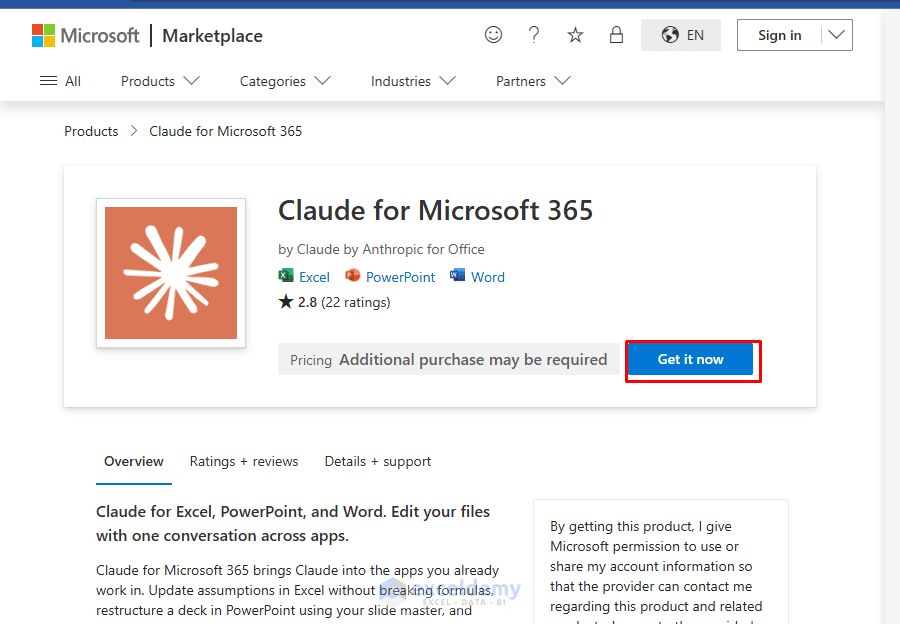
- Sign in with an eligible paid Claude account or connect through your organization’s cloud provider (Microsoft Foundry, Amazon Bedrock, or Gemini Enterprise Agent Platform)
- Click the app you want to use, such as Open in Excel
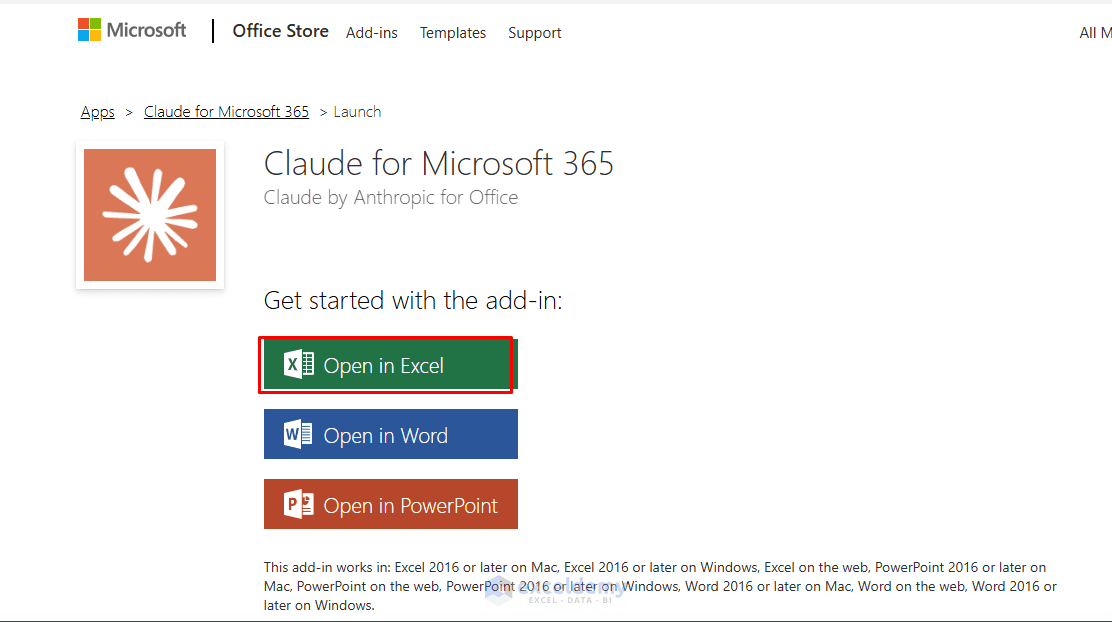
- Log in to Claude from your Microsoft 365 account
- Claude will appear on the Home tab
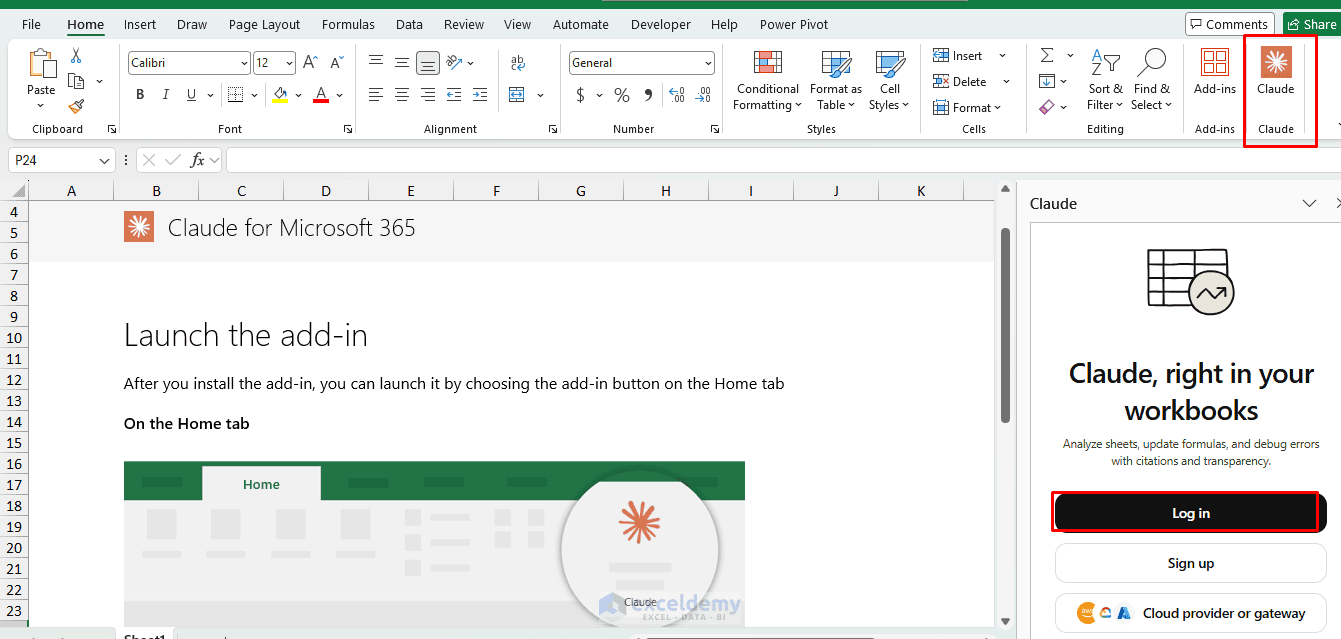
- Access Claude from its sidebar
- Enter a prompt describing the task you want Claude to perform
- Describe the task in plain language
- You can also dictate, or drop a PDF or document into the sidebar for Claude to read alongside your open file
Examples of Useful Prompts
- Word: “Rewrite this report to make it clearer and more professional. Preserve the headings and show your edits as tracked changes.”
- Excel: “Analyze this workbook, identify the main trends, and explain which assumptions have the greatest impact on the results.”
- PowerPoint: “Turn this report into a five-slide presentation using the current template. Keep the key findings and include a summary slide.”
- Outlook: “Summarize the important messages in this thread and draft a concise reply. Do not send it.”
Claude can also help with workflows across applications, for example, using an email brief to prepare a Word report, analyzing supporting figures in Excel, and creating a PowerPoint summary.
Separate But Related: Microsoft 365 Connector
There is also a Microsoft 365 connector (available on all Claude plans, including Free) that lets Claude search and analyze SharePoint, OneDrive, Outlook, and Teams from the main Claude interface. Admins must enable it and grant tenant consent; optional write actions (send email, update files, post in Teams, etc.) can be turned on. This is different from the in-app add-ins described above.
Best Practices
- Give Claude a clear objective, audience, and desired format
- Specify which content, formulas, or formatting must remain unchanged
- Review AI-generated facts, calculations, and edits carefully
- Keep sensitive company information within your organization’s approved AI and data policies
- Remember that access and capabilities depend on your Claude plan, Microsoft 365 setup, and administrator permissions
Summary
Now you know how and when to use Claude for Microsoft 365. Claude for Microsoft 365 is useful for analyzing spreadsheets, editing documents, preparing presentations, and managing emails without repeatedly switching tools. Use Claude for Microsoft 365 when you want AI assistance directly within your Office workflow, especially when a task involves reviewing, transforming, or connecting information across documents, spreadsheets, presentations, and emails. Its biggest advantage is maintaining context across applications, helping you complete connected tasks more efficiently.
Get FREE Advanced Excel Exercises with Solutions!