


Excel Data Validation becomes more useful when you go beyond simple number limits or fixed dropdown lists. You may need rules that depend on other cells, allow blanks only in certain cases, prevent duplicate entries, or create dropdowns that change based on another selection. ChatGPT can draft them quickly, provided you describe the rule precisely and verify the result.
In this tutorial, we will show how to write complex data validation and dependent dropdown rules with ChatGPT.
Effective Prompting Principles for Complex Validation Rules
Good prompts dramatically improve results. Include:
- Exact Excel version or Google Sheets
- Exact data layout (column letters, table names, sheet names)
- Desired behavior and edge cases
- Whether you prefer dynamic-array formulas, classic named ranges, or VBA
- “Explain the formula step-by-step” or “give me the named-range definitions too”
Part 1: Writing Complex Data Validation Rules with ChatGPT
A basic Data Validation rule might only allow whole numbers or dates. More advanced rules usually combine several conditions. Instead of building complicated formulas manually, describe the rule to ChatGPT in plain language.
Example 1: Allow a Valid Quantity or Leave the Cell Blank
Suppose Quantity is entered in D2. You want to allow blank cells and whole numbers from 1 to 50.
Ask ChatGPT:
Quantity is entered in D2. Write a custom Excel Data Validation formula that allows
the cell to remain blank, but if a value is entered, it must be a whole number
between 1 and 50.
ChatGPT may return:
- Use this Custom Data Validation formula for cell D2:
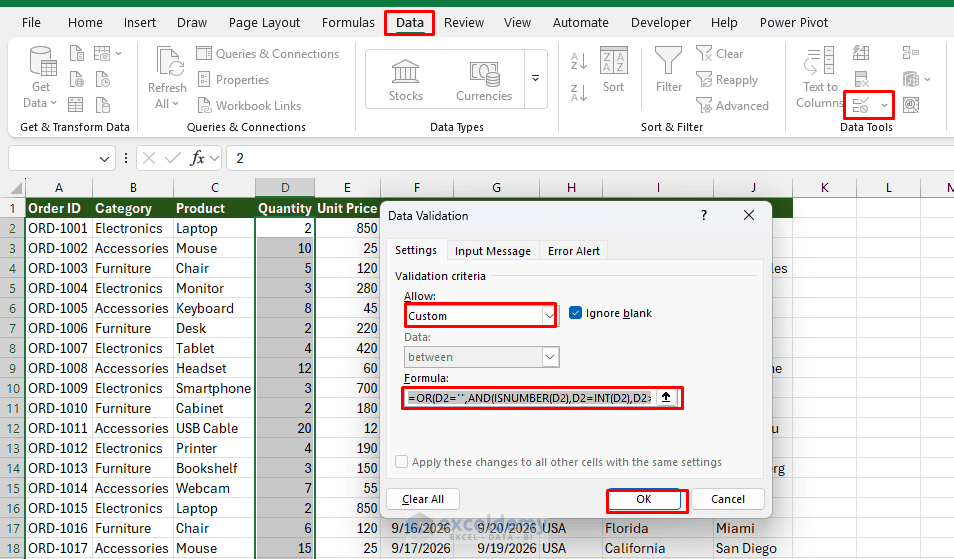
=OR(D2="",AND(ISNUMBER(D2),D2=INT(D2),D2>=1,D2<=50))This allows D2 to be blank, or accepts only whole numbers from 1 to 50. It rejects decimals, text, numbers below 1, and numbers above 50.
In Excel:
- Go to the Data tab >> select Data Validation
- In Allow: select Custom
- In Formula: enter the formula above
- Click OK
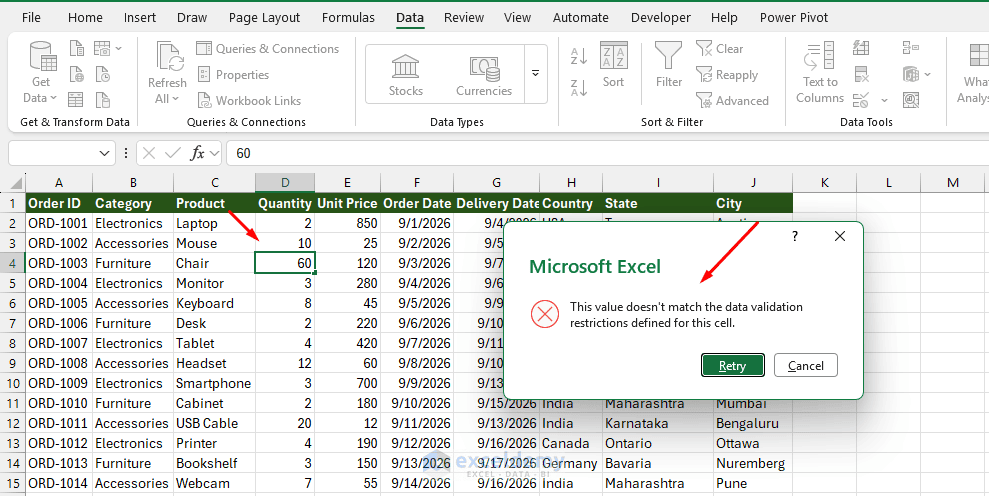
- If you enter any number outside 1 to 50, Excel rejects the entry
Example 2: Delivery Date Cannot Be Before Order Date
Suppose you want to apply data validation to prevent entering a delivery date that is earlier than the order date.
Prompt:
Delivery Date is in G2 and Order Date is in F2. Write a Data Validation formula that
allows G2 to be blank, but if a date is entered, it must be equal to or later than F2.
ChatGPT may return:
- Use this Custom Data Validation formula for cell G2:
=OR(G2="",AND(ISNUMBER(G2),G2>=F2))This allows G2 to remain blank. If a date is entered, it must be the same as or later than the Order Date in F2.
Now apply the custom validation to the Delivery Date column.
Example 3: Prevent Duplicate Order IDs
It is important to avoid duplicate entries in a data sheet. You can simply ask ChatGPT for a data validation rule that prevents them.
Prompt:
Write a custom Data Validation formula for A2 that prevents duplicate Order IDs
in column A but still allows blank cells.
ChatGPT may return:
=OR(A2="",COUNTIF(A:A,A2)=1)This prevents the same Order ID from being entered more than once.
Example 4: Make a Field Conditional
Suppose you only want an Interview Date when Status is Interview or Offer.
Prompt:
Status is in F2 and Interview Date is in G2. Allow G2 to stay blank for other statuses,
but if Status is Interview or Offer, require a valid Excel date.
ChatGPT may return:
=OR(AND(OR(F2="Interview",F2="Offer"),ISNUMBER(G2)),AND(F2<>"Interview",F2<>"Offer",G2=""))The important part is not memorizing the formula. The useful skill is describing the rule clearly enough for ChatGPT to build it.
Example 5: A Unique, Correctly Formatted ID
Prompt:
I'm using Microsoft 365. Column A (A2:A51) holds order IDs. Each must follow the
format ORD- followed by exactly four digits (e.g., ORD-1001) and must not already
exist elsewhere in the column. Give me the Data Validation custom formula for A2,
the error message, and test values.
ChatGPT may return:
=AND(LEFT(A2,4)="ORD-",LEN(A2)=8,IFERROR(AND(--RIGHT(A2,4)>=0,--RIGHT(A2,4)<=9999),FALSE),COUNTIF($A$2:$A$51,A2)=1)This checks all three requirements: the ID starts with ORD-, the last four characters are digits, and the complete ID appears only once in A2:A51.
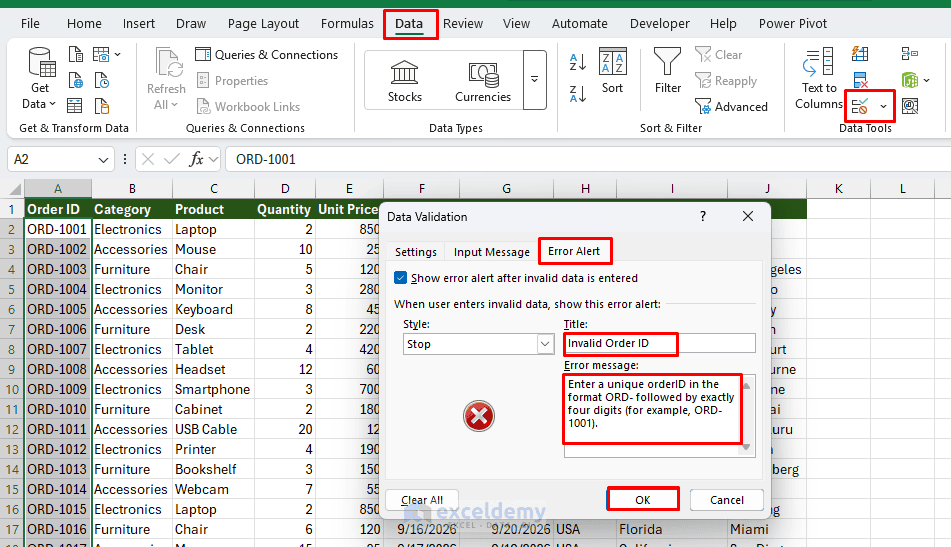
Error Alert:
Title: Invalid Order ID
Error message: Enter a unique order ID in the format ORD- followed by exactly four digits (for example, ORD-1001).
- Select A2:A51
- Go to the Data tab >> Data Validation >> select Settings
- Set Allow to Custom
- In Formula: paste the formula
- On the Error Alert tab >> set Style to Stop
- Title: “Invalid Order ID”
- Message: “Enter a unique order ID in the format ORD- followed by exactly four digits (for example, ORD-1001).”
- Click OK
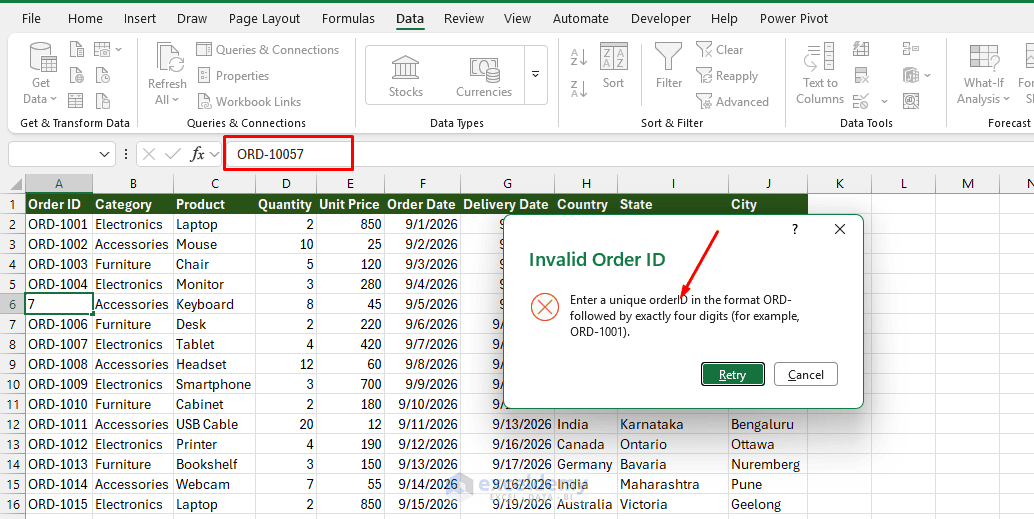
- Test the validation along with the error alert
Part 2: Creating Dependent Dropdown Rules with ChatGPT
A dependent dropdown is different from a normal Data Validation list. With a normal dropdown, the options always stay the same. A dependent dropdown updates its options based on another cell, for example, Category → Product or Country → State → City. There are three common approaches. Ask ChatGPT for the one that matches your Excel version and data layout.
1. Ask ChatGPT to Build the Dependent Dropdown Rule
Suppose you want to create a dependent dropdown for category and product. You can create the dependent dropdown directly from your Product Lists sheet. On that sheet, put each category name as a column header, with its items beneath:
Prompt:
I have a Product Lists sheet where row 1 holds category names (A1:C1) and each column
below holds that category's items. Set up a dependent dropdown so column C on the Sales
sheet shows items based on the category chosen in column B.
ChatGPT may return:
Category dropdown in column B
- Select the required cells (e.g. SalesData!B2:B51)
- Go to the Data tab >> select Data Validation
- Set Allow to List
- For Source, use:
='Product Lists'!$A$1:$C$1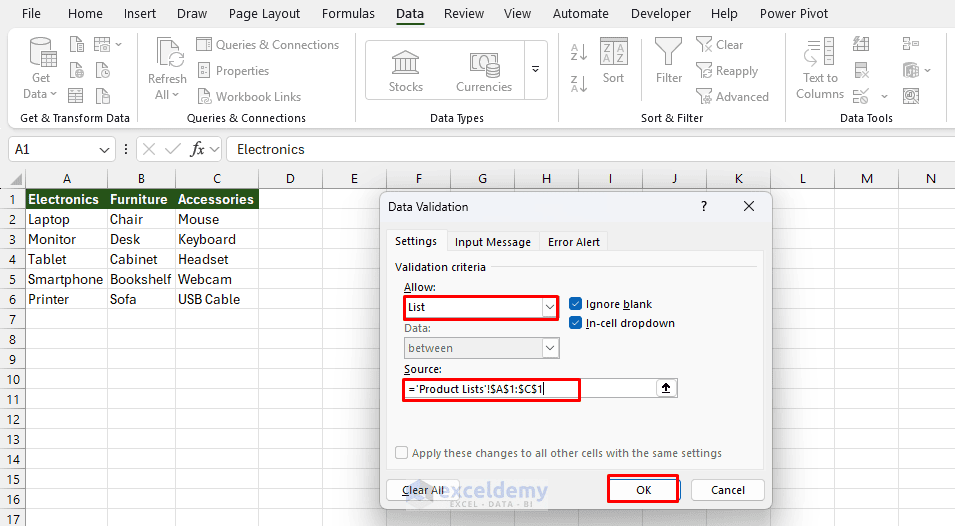
If Excel does not allow the direct cross-sheet reference in Data Validation:
- Create a named range such as Categories referring to:
='Product Lists'!$A$1:$C$1- Then use:
=Categories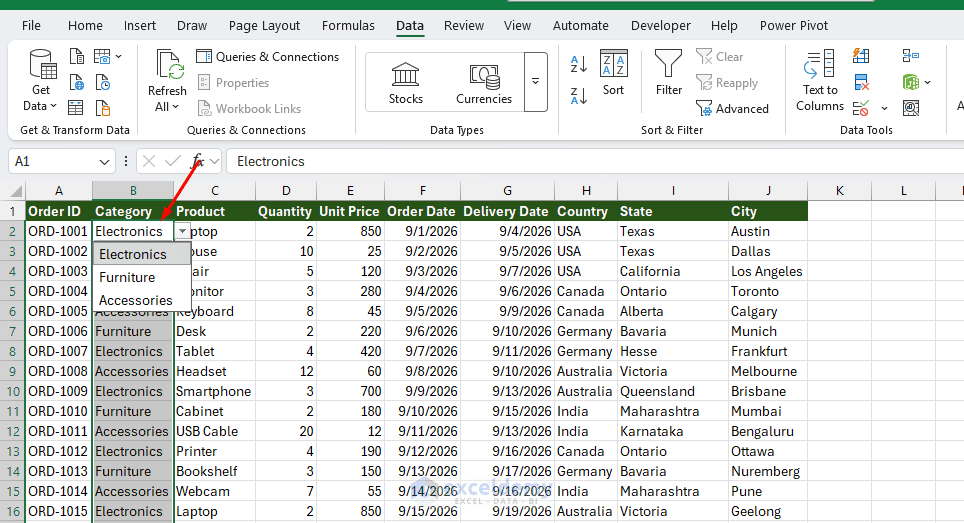
Create names for each item list
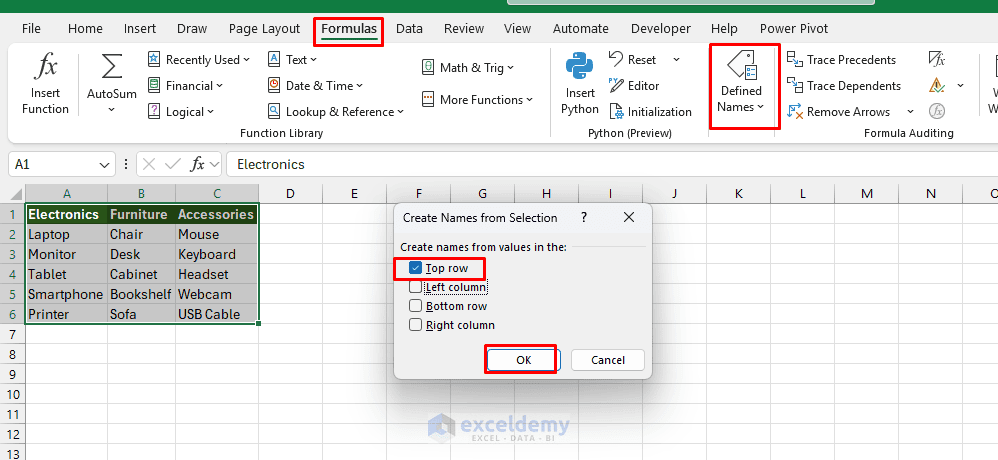
- On the Product Lists sheet, select the headers and their items, such as A1:C6
- Go to the Formulas tab >> click Defined Names >> select Create from Selection
- Select Top row >> click OK
- Excel creates named ranges such as:
- Electronics
- Furniture
- Accessories
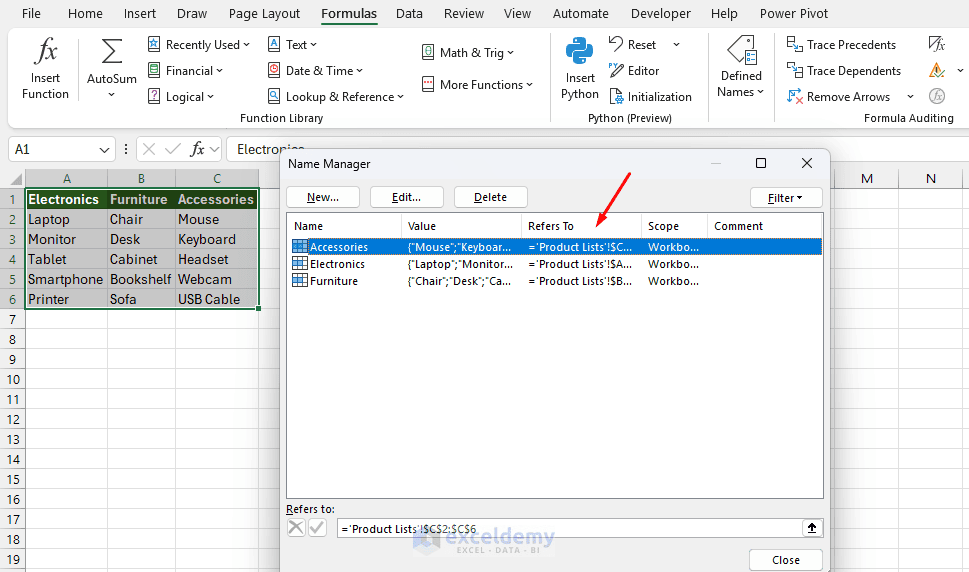
Each name points to the items under that heading.
Dependent dropdown in Product
- Select SalesData!C2:C51
- Go to the Data tab >> select Data Validation
- Set Allow to List
- For Source, enter:
=INDIRECT($B2)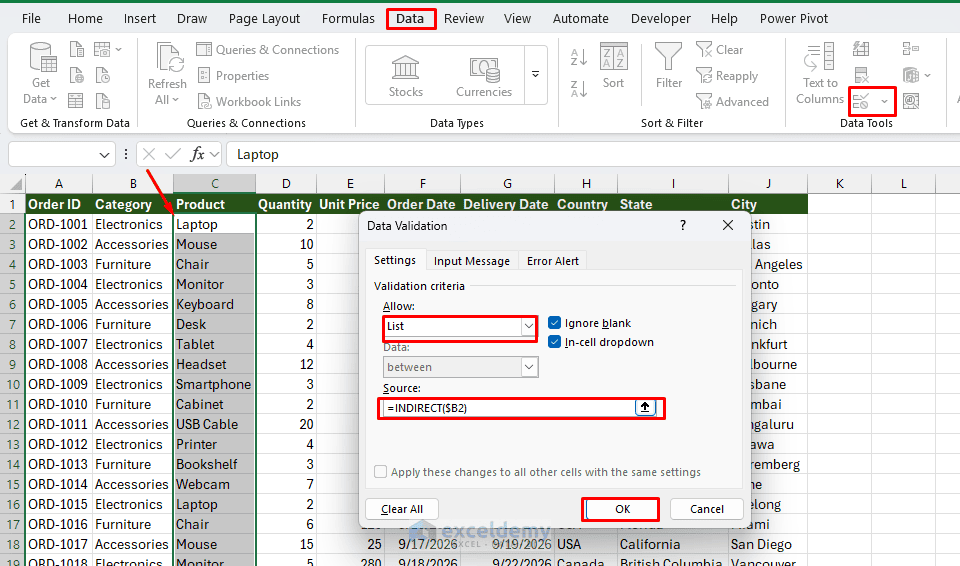
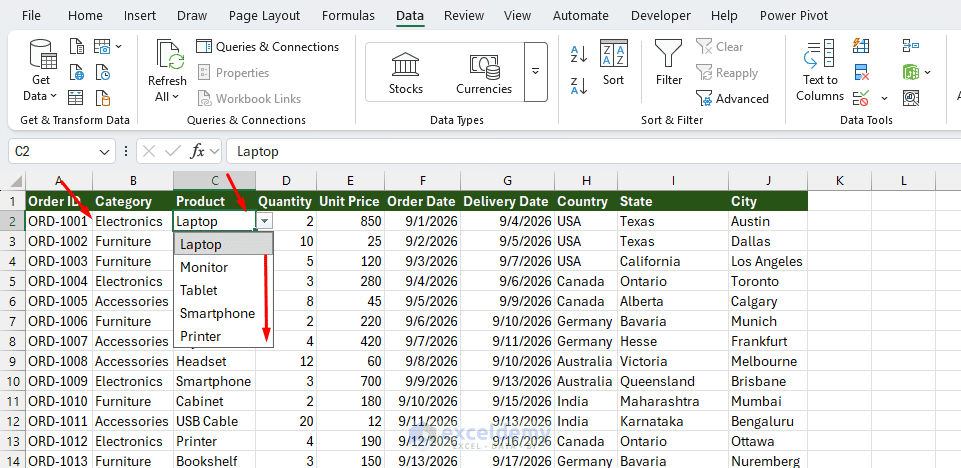
Now the dropdown in C2 depends on B2. For example, if B2 contains Electronics, C2 displays only the items from the Electronics named range. In row 3, C3 responds to B3, and so on.
Important: If category names contain spaces, such as Office Supplies, Excel converts the named range to Office_Supplies. In that case, use:
=INDIRECT(SUBSTITUTE($B2," ","_"))That version is usually safer for a practical dependent-dropdown setup.
2. Create Modern Dependent Dropdowns with FILTER Using ChatGPT
If you use Microsoft 365, ChatGPT can help you create dependent dropdowns with FILTER() and dynamic arrays instead of relying on multiple named ranges.
Suppose you have an Excel Table named ProductList with Category and Product columns. You want to select products based on the selected category. Instead of working out the formulas manually, ask ChatGPT for the complete setup.
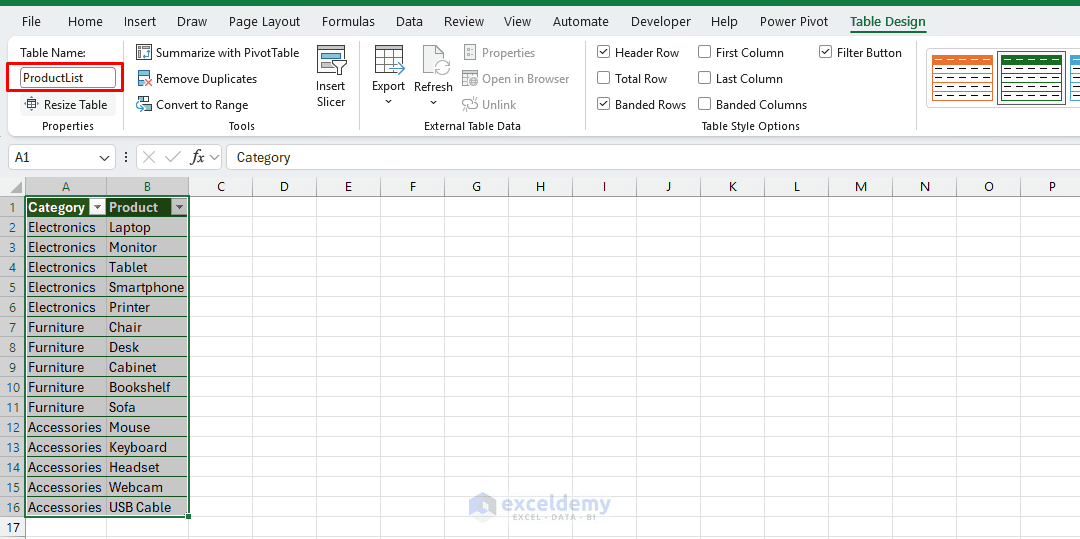
Prompt:
I use Microsoft 365. I have an Excel Table named ProductList with Category and
Product columns. In SalesData, Category is selected in N2 and Product should be
selected in O2. Create a dependent Product dropdown using FILTER. Give me the helper
formula, where to place it, and the Data Validation source for O2.
ChatGPT may return a setup like this:
- Enter the following formula in a helper cell, such as R2:
=FILTER(ProductList[Product],ProductList[Category]=N2,"")The formula returns only the products that match the Category selected in N2.
- Select O2
- Go to the Data tab >> select Data Validation
- Set Allow to List
- In Source: use the following:
=R2#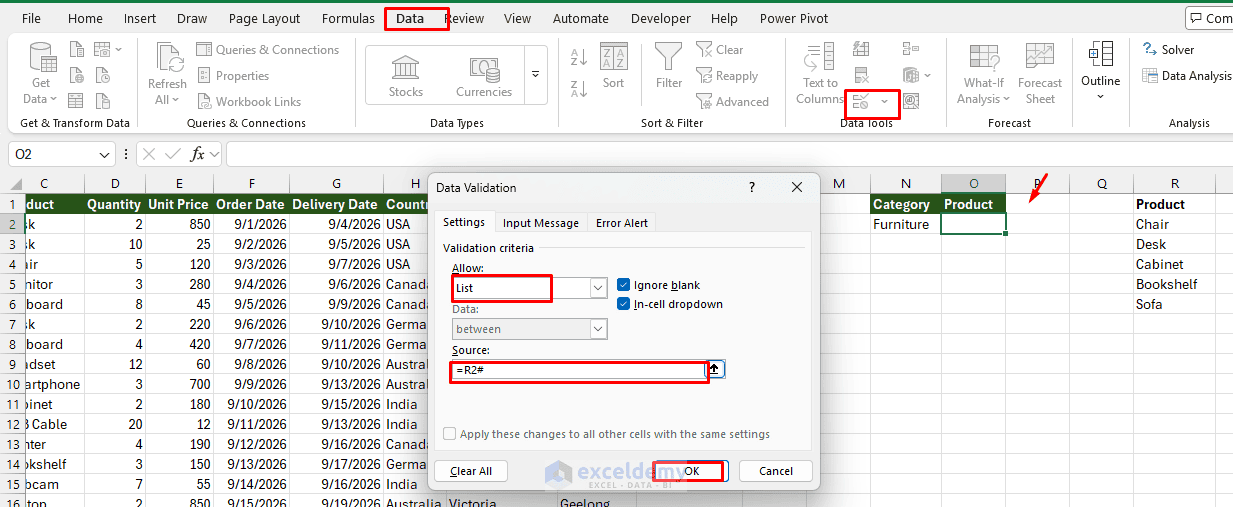
The # tells Excel to use the entire spilled list created by the FILTER() formula. When N2 changes, the dropdown automatically changes.
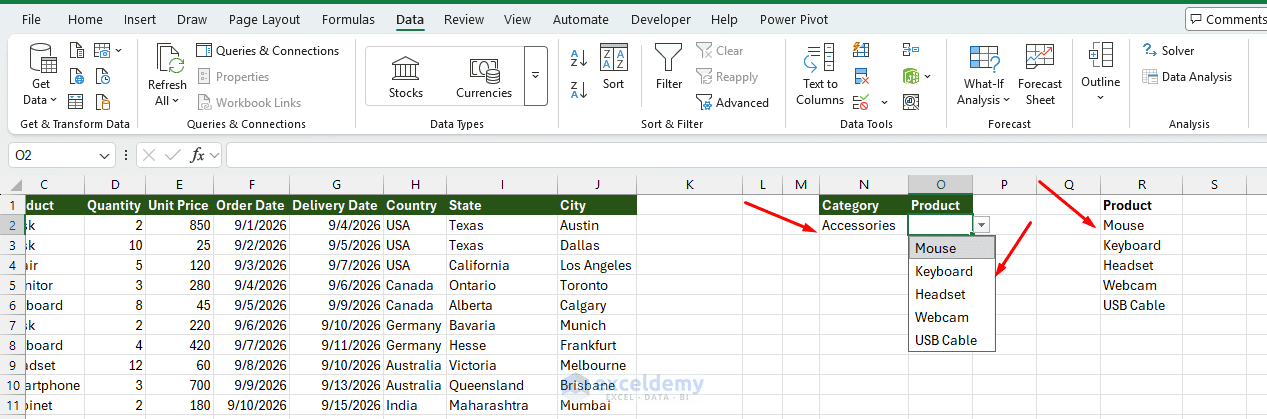
This is where ChatGPT is useful: you provide the table name, columns, and cell locations, and ChatGPT builds the dependent-dropdown formula and tells you exactly how to apply it.
Note: This setup is ideal for a single dependent dropdown. If you need independent dependent dropdowns down many rows of an order or sales table, one helper spill range such as R2# is not sufficient because every row would reference the same helper list.
3. Multi-Level Dependent Dropdown
The same approach works for three or more levels. For example: Country → State → City
Ask ChatGPT:
I use Microsoft 365. I have an Excel Table named LocationList with Country, State, and
City columns. I want Country in A2, State in B2, and City in C2. Create the complete
three-level dependent dropdown setup. Give me all helper formulas, where to enter them,
and the Data Validation sources for A2, B2, and C2.
ChatGPT may return:
Create the helper lists
- You can put these somewhere out of the way on the same worksheet, for example, H:J.
- In H2, enter:
=SORT(UNIQUE(FILTER(LocationList[Country],LocationList[Country]<>"")))This produces a unique list of countries.
- In I2, enter:
=IF(A2="","",SORT(UNIQUE(FILTER(LocationList[State],(LocationList[Country]=A2)*(LocationList[State]<>"")))))This returns only the states belonging to the country selected in A2.
- In J2, enter:
=IF(OR(A2="",B2=""),"",SORT(UNIQUE(FILTER(LocationList[City],(LocationList[Country]=A2)*(LocationList[State]=B2)*(LocationList[City]<>"")))))This returns only cities matching both the selected country and state.
The # spill operator will let the dropdowns use the entire dynamic result from each helper formula.
Set up the three Data Validation lists
- Select A2
- Go to the Data tab >> select Data Validation
- Allow: List and set Source to:
=H2#- For B2, set the Data Validation Source to:
=I2#- For C2, use:
=J2#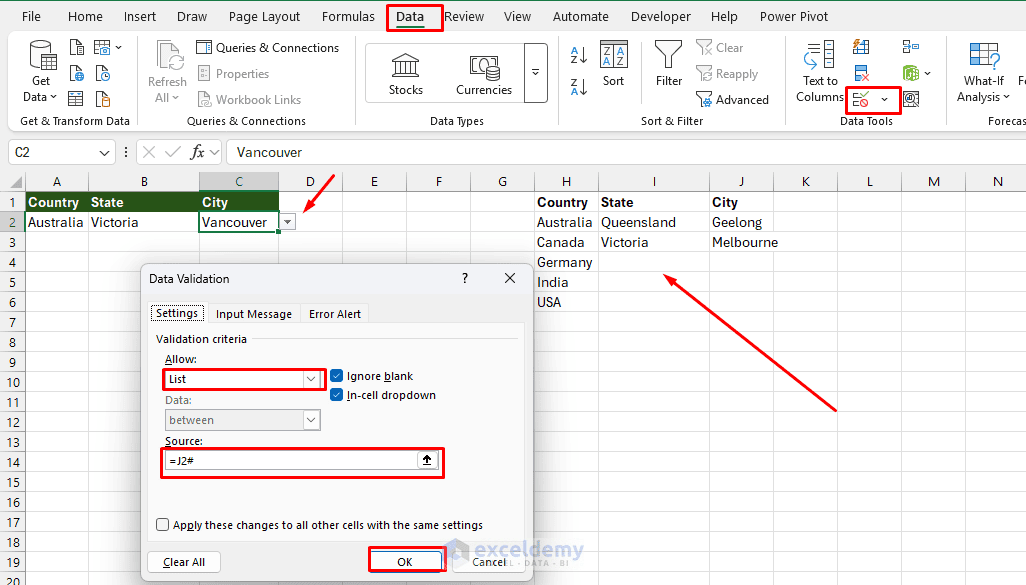
This creates a much more scalable system than manually creating dozens of named ranges.
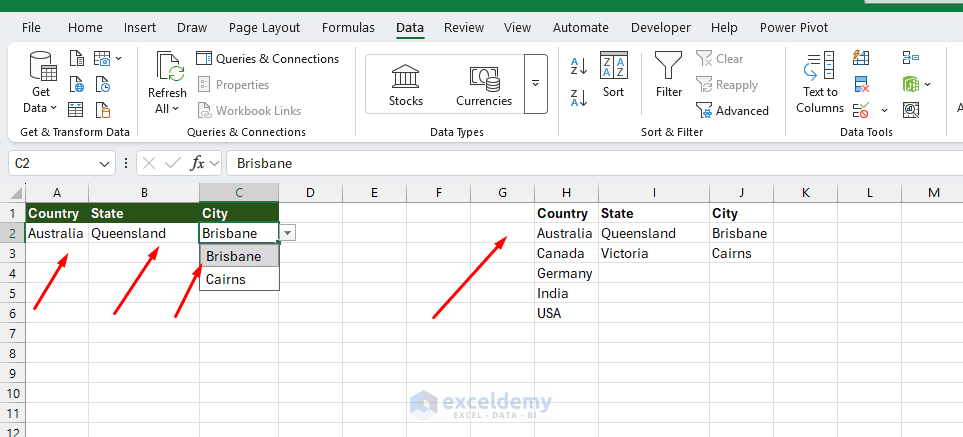
One limitation to know: if you change A2 after already choosing a state and city, Excel does not automatically clear B2 and C2. The dropdown lists update, but the old selections can remain visible. If you want automatic clearing, you need VBA or Office Scripts.
Conclusion
By following this tutorial, you can write complex data validation and dependent dropdown rules with ChatGPT. ChatGPT is particularly useful for Excel Data Validation when rules involve several conditions or dependent dropdown levels. Instead of manually combining functions such as FILTER, UNIQUE, SORT, COUNTIF, AND, OR, and IF, you can describe the business rule in normal language and ask ChatGPT to build the formula. For modern Excel workbooks, combining Excel Tables, dynamic array formulas, and Data Validation is one of the most flexible ways to create reliable input forms, trackers, dashboards, and templates.
Get FREE Advanced Excel Exercises with Solutions!

