


When you are applying for several jobs, it becomes difficult to remember where you applied, which resume you sent, when you should follow up, and which applications are still active. A job application tracker solves this by keeping the entire job search in one organized workbook. A useful tracker should do more than store company names. It should show the current status of each application, identify overdue follow-ups, store recruiter information, and provide a quick overview of your job search. Using one row for each job and standardized status values also makes the workbook easier to filter and analyze.
In this tutorial, we will build a robust job application tracker in Excel using tables, drop-down lists, formulas, conditional formatting, filters, and charts.
Step 1: Create the Workbook Structure
Open a blank Excel workbook and rename the first two worksheets:
- Job Applications
- Lists
The Job Applications worksheet contains your actual data, while Lists stores reusable drop-down values. Keeping these separate makes the tracker easier to maintain when you later add more statuses, sources, or other categories.
Add the Application Fields:
- Go to the Job Applications worksheet and enter the following headings:
- Job Title
- Company
- Location
- Source
- Job URL
- Date Applied
- Status
- Contact
- Connection
- Interview Date
- Last Contact
- Follow-Up Date
- Resume Version
- Salary Range
- Days Since Applied
- Follow-Up Status
- Next Step
- Notes
You do not necessarily need every column. However, fields such as Status, Next Step, and Follow-Up Date are particularly useful because they tell you what needs attention rather than simply recording what happened.
Why Track the Resume Version?
If you customize your resume for different positions, enter the file name you submitted, such as: Resume_Data_Analyst_v3.pdf
When a recruiter contacts you weeks later, you can immediately identify which version they received.
Step 2: Convert the Range to an Excel Table
Instead of leaving the tracker as a normal range, convert it into an Excel Table.
- Select any cell inside your data
- Go to the Insert tab >> select Table
- Check My table has headers >> click OK
- Go to the Table Design tab >> change the Table Name to: JobTracker
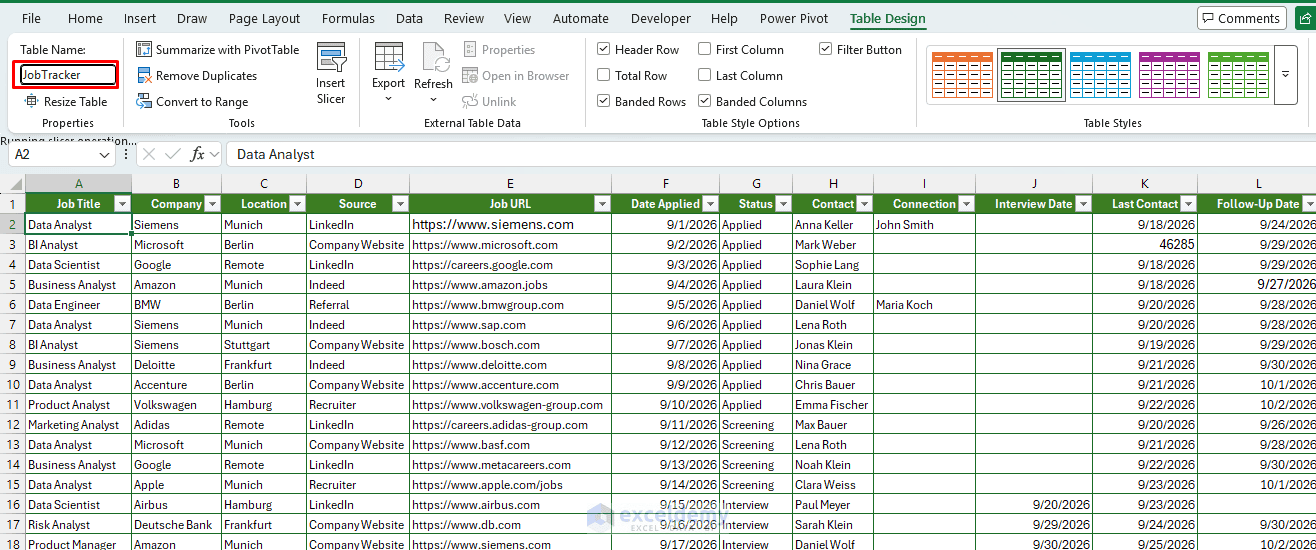
Using a table gives you built-in filtering, sorting, automatic formatting, and formulas that expand automatically whenever you add another application.
Step 3: Add Data Validation for Drop-Downs
Free-typed statuses like “Interview,” “Interviewing,” and “Interview Scheduled” will break your ability to filter and count later. These values may refer to the same stage, but Excel treats them as different text values. Lock this down with a drop-down.
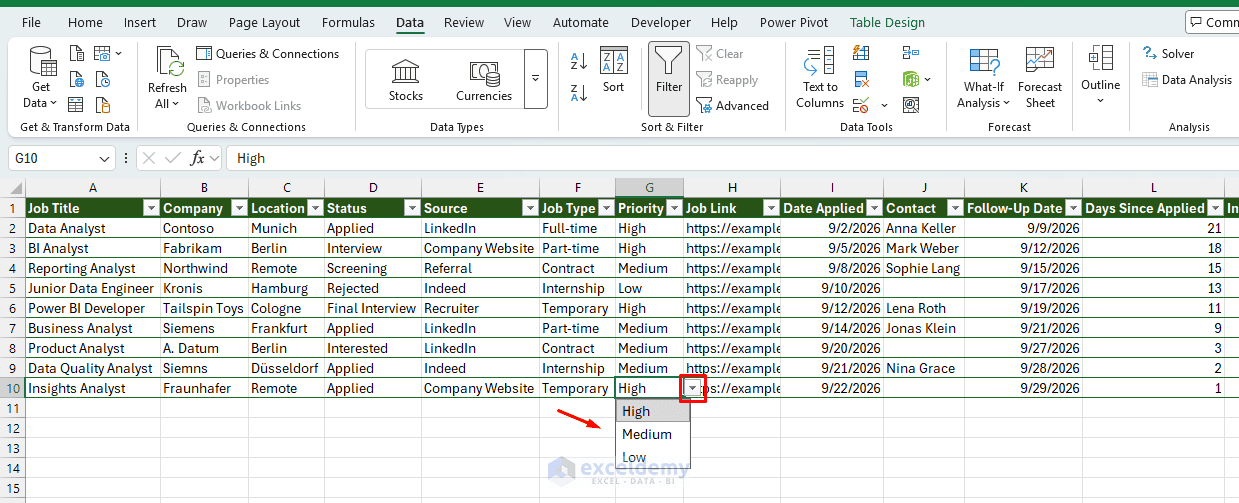
Instead, create a standardized drop-down list for columns where entries are fixed.
- Go to the Lists worksheet
- List all the fixed values in designated columns:
- Status
- Source
- Priority
- Job Type
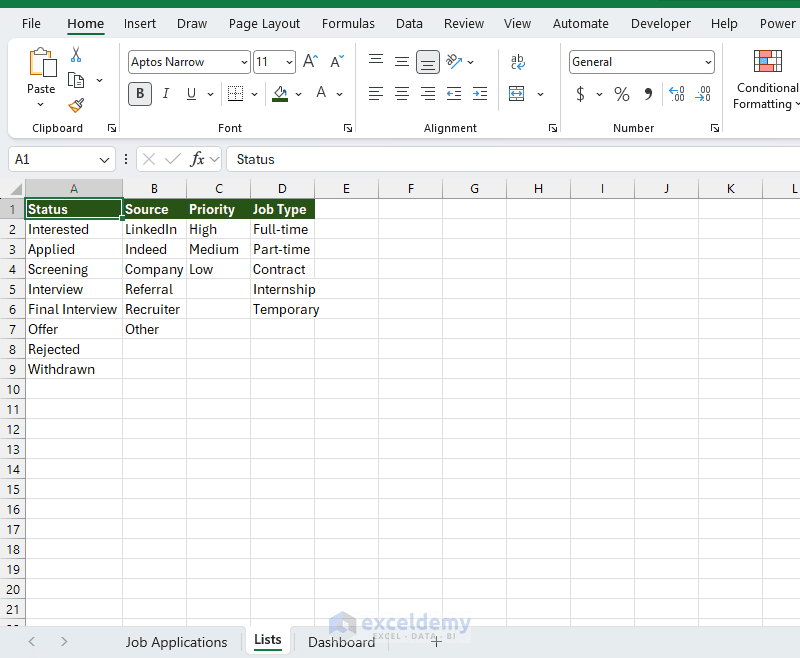
These stages cover most job-search workflows without making the status list unnecessarily complicated.
Create Status Drop-Down Lists
Now go to the Job Applications sheet.
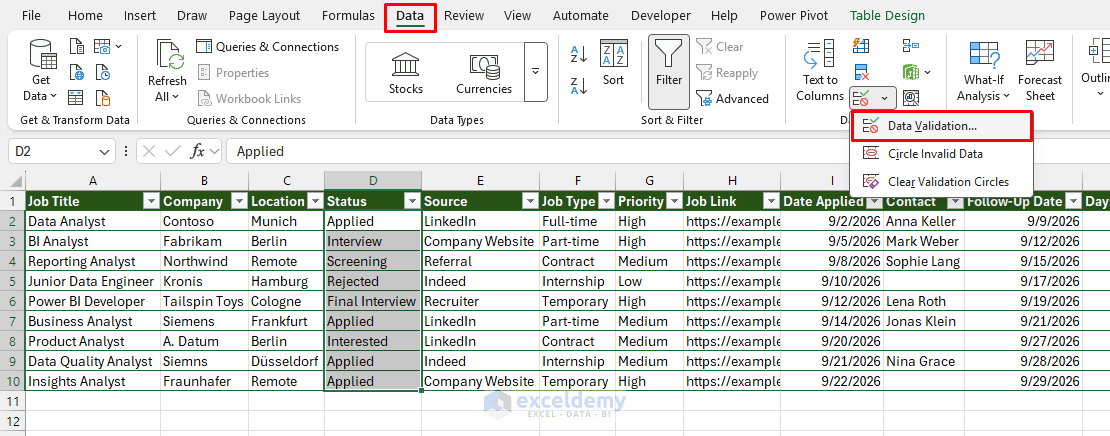
- Select the cells under Status
- Go to the Data tab >> select Data Validation
- Select List under Allow
- In the Source box, enter:
=Lists!$A$2:$A$8- Click OK
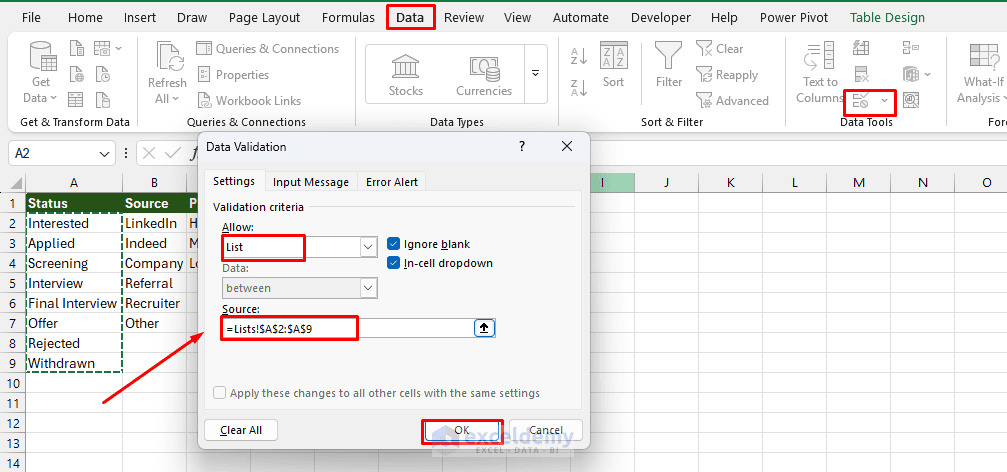
Each application can now be assigned a status from a drop-down menu.
Create a Source Drop-Down
You can use the same technique for the Source column.
- Apply Data Validation to the Source column
- In Source, enter:
=Lists!$B$2:$B$7By following similar steps, create a drop-down for both the Priority and Job Type columns.
Create a Priority Drop-Down
- Apply Data Validation to the Priority column
- In Source, enter:
=Lists!$C$2:$C$4Create a Job Type Drop-Down
- Apply Data Validation to the Job Type column
- In Source, enter:
=Lists!$D$2:$D$7Tracking the source becomes useful when you later create a PivotTable to see where most of your applications or responses originate.
Step 4: Automate Application Tracking with Formulas
Excel formulas can automatically calculate how long ago you applied, identify overdue follow-ups, and suggest your next action. Since the data is stored in an Excel Table, the formulas automatically fill down when you add new applications.
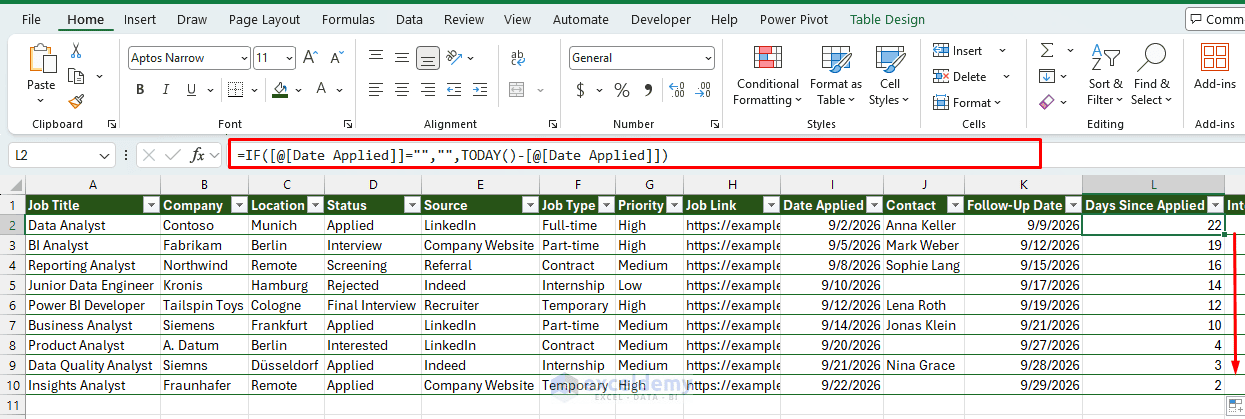
Calculate Days Since You Applied
The Days Since Applied column shows how long an application has been open.
- Enter this formula in the first data row:
=IF([@[Date Applied]]="","",TODAY()-[@[Date Applied]])As the data is stored in an Excel Table, Excel automatically fills the formula down the entire column. The formula also updates automatically whenever the workbook recalculates.
Automatically Identify Follow-Ups
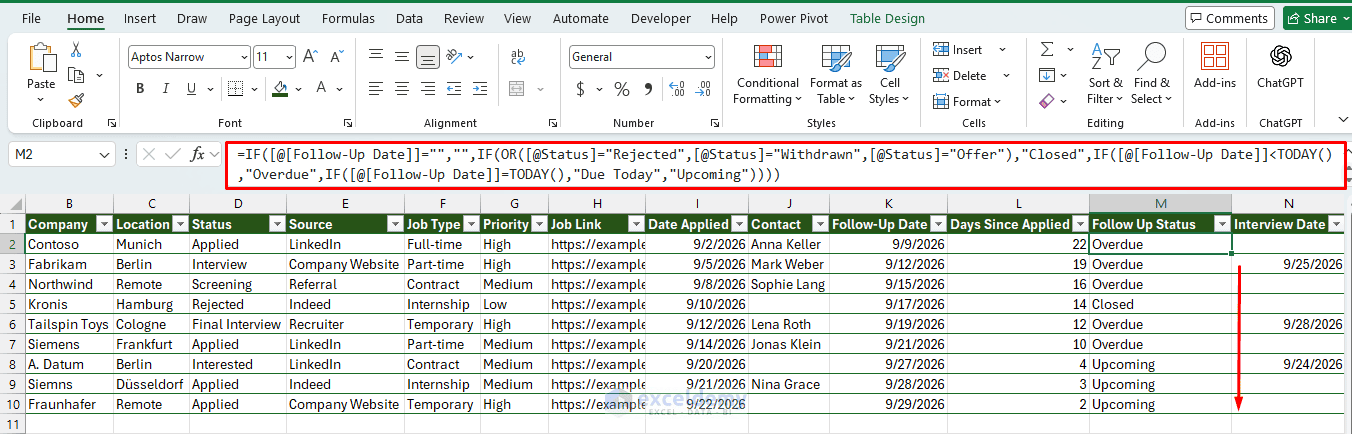
Next, use the Follow-Up Status column to identify applications requiring attention.
- Insert the following formula:
=IF([@[Follow-Up Date]]="","",IF(OR([@Status]="Rejected",[@Status]="Withdrawn",[@Status]="Offer"),"Closed",IF([@[Follow-Up Date]]<TODAY(),"Overdue",IF([@[Follow-Up Date]]=TODAY(),"Due Today","Upcoming"))))The formula compares the follow-up date with today’s date and returns Overdue, Due Today, Upcoming, or Closed. If no follow-up date is entered for an active application, the cell remains blank.
Determine Next Step
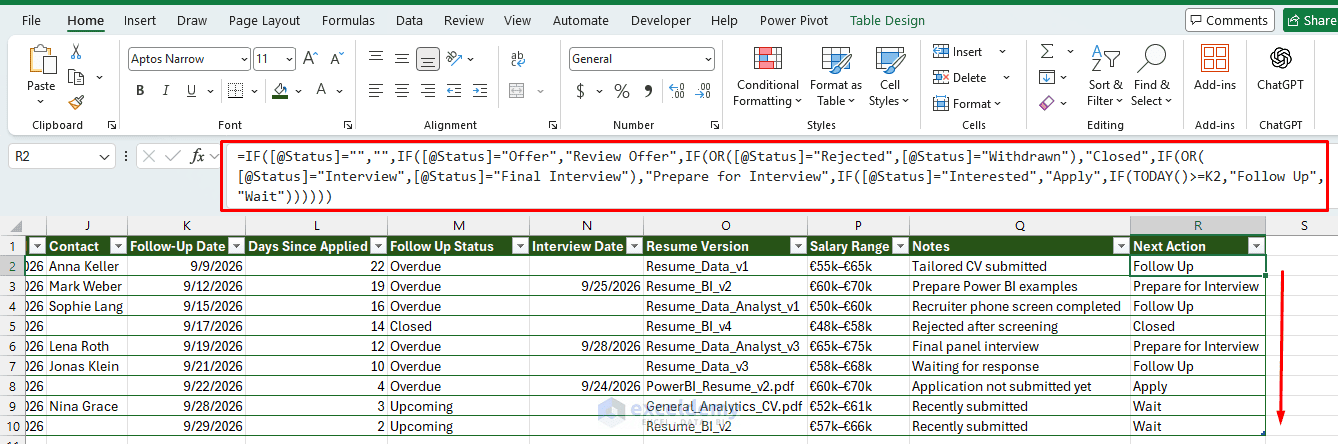
Use the Next Step column to automate an action recommendation based on the application’s status and follow-up schedule.
- Insert the following formula:
=IF([@Status]="","",IF([@Status]="Offer","Review Offer",IF(OR([@Status]="Rejected",[@Status]="Withdrawn"),"Closed",IF(OR([@Status]="Interview",[@Status]="Final Interview"),"Prepare for Interview",IF([@Status]="Interested","Apply",IF(TODAY()>=[@[Follow-Up Date]],"Follow Up","Wait"))))))This formula recommends an action based on the current application stage — applying, following up, preparing for an interview, or reviewing an offer.
Step 5: Use Conditional Formatting to Spot Issues at a Glance
Highlight Status at a Glance
Apply conditional formatting rules to the Status column so you don’t have to read every cell.
- Select your Status column
- Go to the Home tab >> select Conditional Formatting
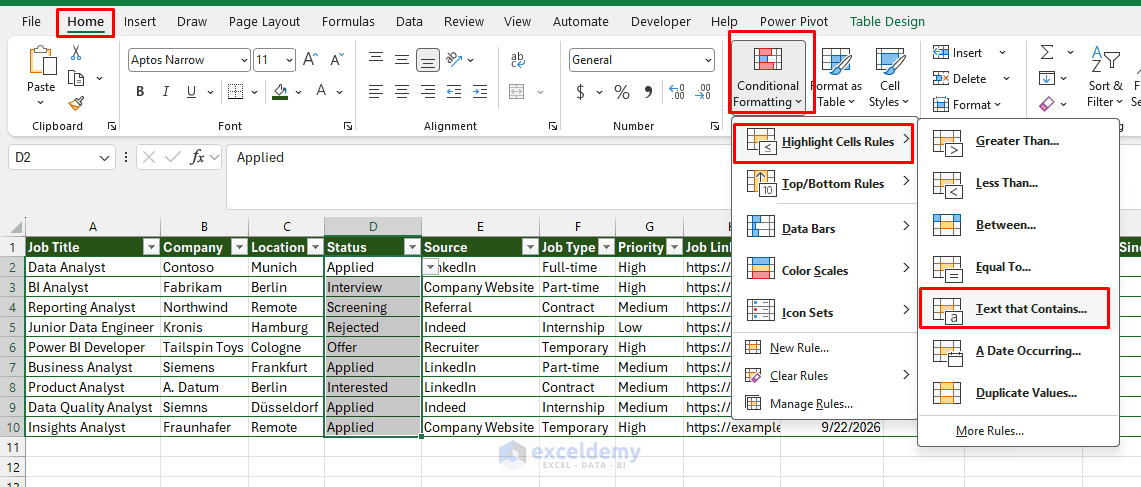
- Select Highlight Cells Rules >> select Text that Contains
- Insert the text and assign a color:
- Offer → Green
- Interview → Yellow
- Rejected → Light Red
- Applied → Light Blue
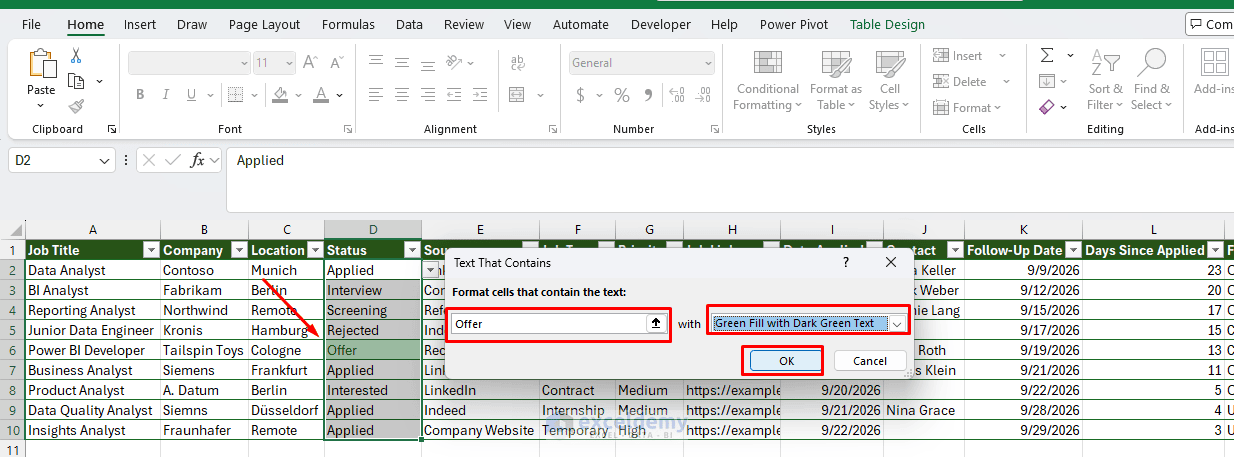
Repeat for each status. Scrolling through the tracker will then give you a visual read of where things stand within seconds.
Highlight Overdue Follow-Ups
You can make overdue applications much easier to spot with conditional formatting.
- Select the cells in the Follow-Up Status column
- Go to the Home tab >> select Conditional Formatting
- Select Highlight Cells Rules >> select Text that Contains
- Enter text and assign a color:
- Overdue → Red
- Due Today → Orange
- Upcoming → Green
- Closed → Yellow
- Click OK
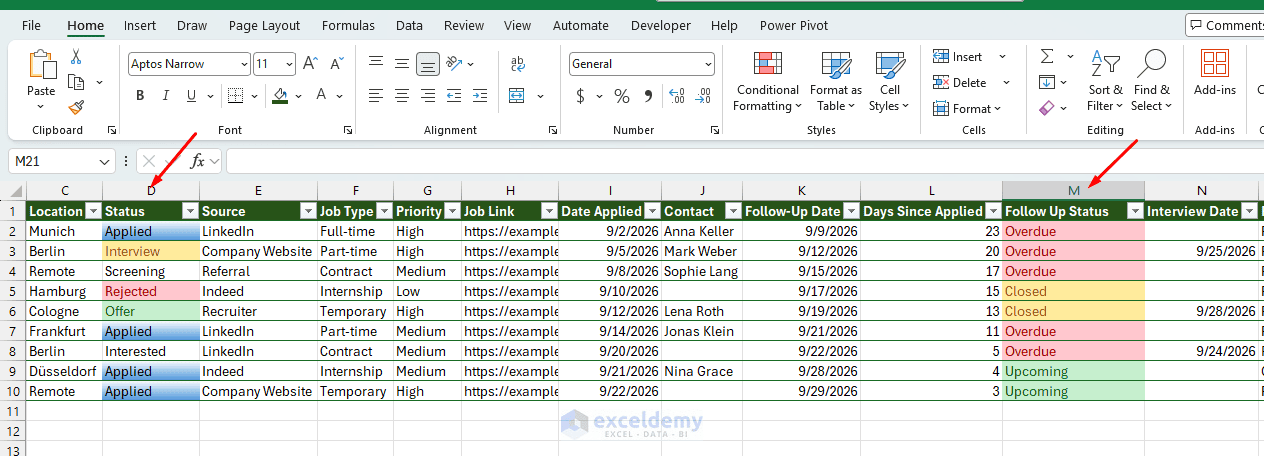
Keep the formatting limited, however. Too many colors can make the tracker harder rather than easier to read.
Step 6: Build a Summary Section in the Tracker
Next, create a simple summary on the Job Applications worksheet.
Regular Formulas for KPIs:
- Total Applications
=COUNT(JobTracker[Date Applied])This counts applications that have an application date entered.
- Currently Applied
=COUNTIF(JobTracker[Status],"Applied")- Screening
=COUNTIF(JobTracker[Status],"Screening")- Interviews
=COUNTIF(JobTracker[Status],"Interview")- Offers
=COUNTIF(JobTracker[Status],"Offer")- Rejections
=COUNTIF(JobTracker[Status],"Rejected")- Follow-Ups Overdue
=COUNTIF(JobTracker[Follow-Up Status],"Overdue")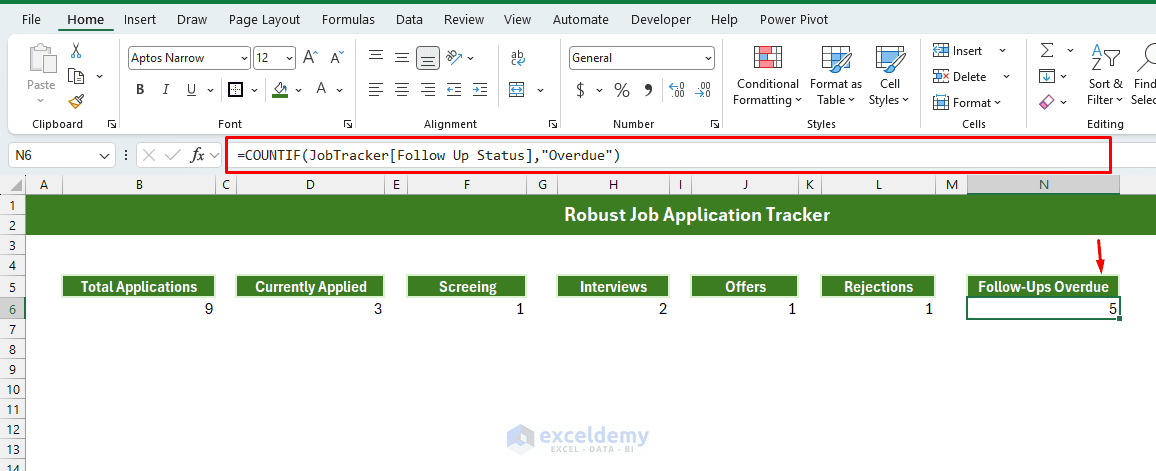
These formulas let you understand the current application pipeline without filtering through the main worksheet, and they form the basis of a simple KPI dashboard.
Step 7: Make KPIs and Charts Dynamic with Slicers
To make the KPIs and charts respond to Table Slicers, you need to follow some extra steps — specifically, adding helper flag columns to the JobTracker table. Each flag returns 1 when the row matches a category and 0 otherwise.
For example:
- Active Flag
=--AND([@[Job Title]]<>"",[@Status]<>"Rejected",[@Status]<>"Withdrawn")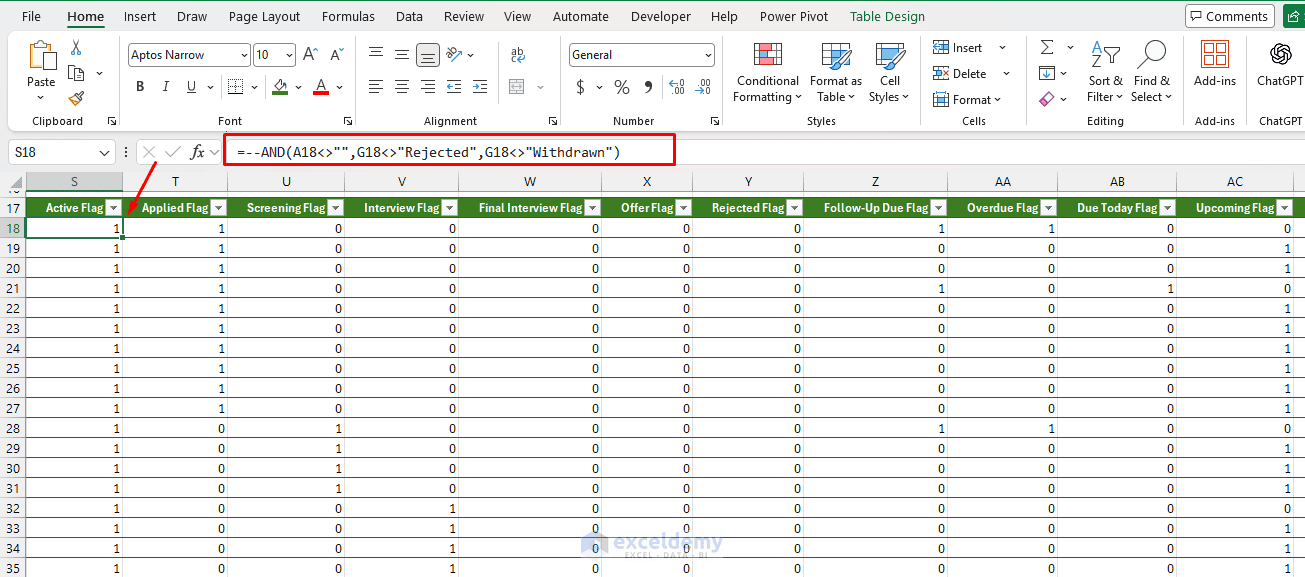
Helper Flag Columns for KPI Calculations:
| Flag Column | Formula |
|---|---|
| Applied Flag | =--([@Status]="Applied") |
| Screening Flag | =--([@Status]="Screening") |
| Interview Flag | =--OR([@Status]="Interview",[@Status]="Final Interview") |
| Offer Flag | =--([@Status]="Offer") |
| Rejected Flag | =--([@Status]="Rejected") |
| LinkedIn Flag | =--([@Source]="LinkedIn") |
| Company Website Flag | =--([@Source]="Company Website") |
| Indeed Flag | =--([@Source]="Indeed") |
| Referral Flag | =--([@Source]="Referral") |
| Recruiter Flag | =--([@Source]="Recruiter") |
| Overdue Flag | =--([@[Follow-Up Status]]="Overdue") |
| Due Today Flag | =--([@[Follow-Up Status]]="Due Today") |
| Upcoming Flag | =--([@[Follow-Up Status]]="Upcoming") |
| Closed Flag | =--([@[Follow-Up Status]]="Closed") |
Use SUBTOTAL for the KPI Cards:
- Total Applications
=SUBTOTAL(103,JobTracker[Company])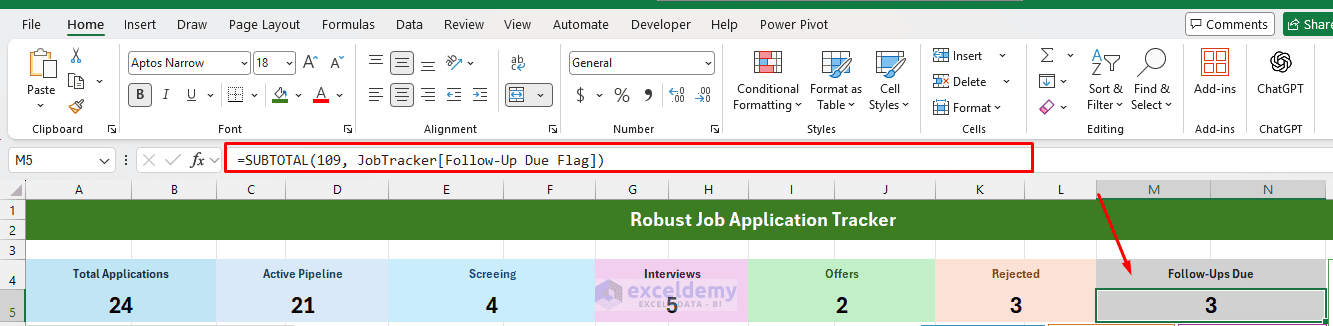
Because SUBTOTAL ignores rows hidden by filters, the KPI cards respond to the Table Slicers automatically.
| KPI | SUBTOTAL Formula |
|---|---|
| Applied | =SUBTOTAL(109,JobTracker[Applied Flag]) |
| Screening | =SUBTOTAL(109,JobTracker[Screening Flag]) |
| Interviews | =SUBTOTAL(109,JobTracker[Interview Flag]) |
| Offers | =SUBTOTAL(109,JobTracker[Offer Flag]) |
| Rejected | =SUBTOTAL(109,JobTracker[Rejected Flag]) |
| Follow-Ups Due | =SUBTOTAL(109,JobTracker[Follow-Up Due Flag]) |
Create a Summary Table for Charts:
- Create a small helper table on the same sheet
- For Application Status:
| Status | Count |
|---|---|
| Applied | =SUBTOTAL(109,JobTracker[Applied Flag]) |
| Screening | =SUBTOTAL(109,JobTracker[Screening Flag]) |
| Interview | =SUBTOTAL(109,JobTracker[Interview Flag]) |
| Offer | =SUBTOTAL(109,JobTracker[Offer Flag]) |
| Rejected | =SUBTOTAL(109,JobTracker[Rejected Flag]) |
- Following a similar approach, build tables for Application by Source and Follow-Up Status
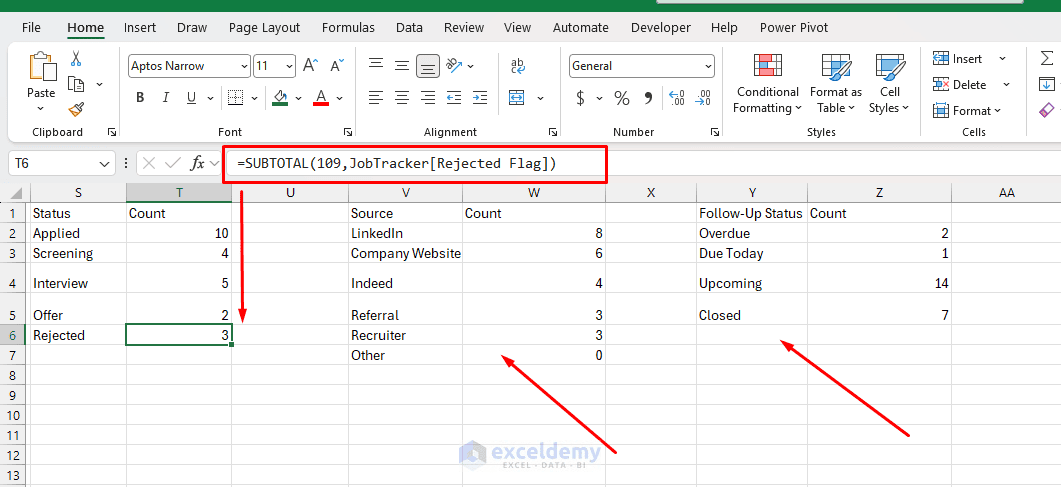
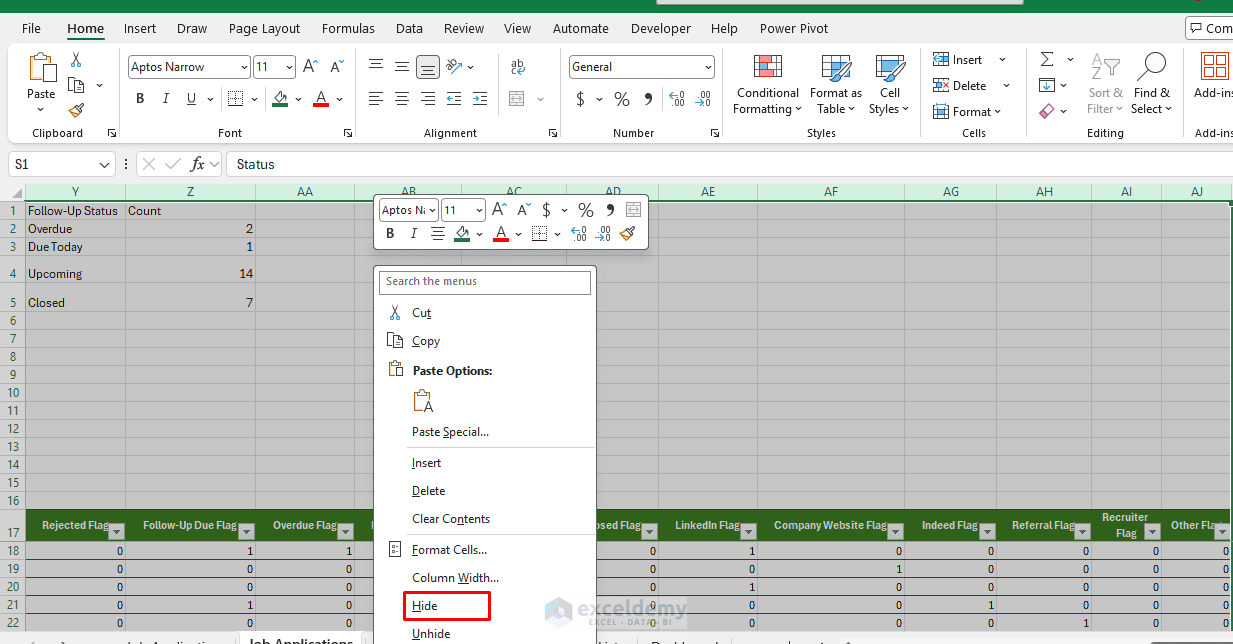
Keep the helper columns and summary tables to the right of the main tracker so they can be hidden easily. Hide the flag columns and summary tables used for charts to give the tracker a clean, professional appearance.
Create a Dynamic Chart:
- Select the Status summary table
- Go to the Insert tab >> select Doughnut Chart
- For Application by Source, insert a Clustered Column Chart
- For Follow-Up Status, insert a Bar Chart
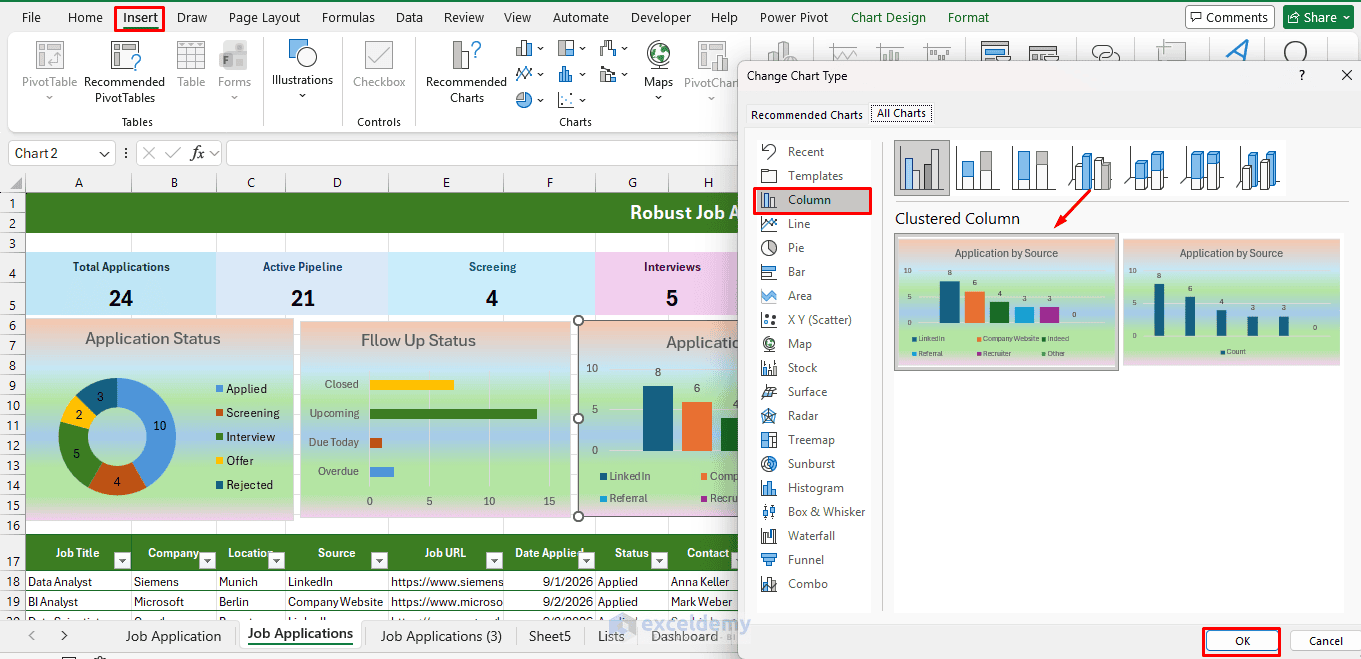
The Application by Status chart immediately shows how many jobs are currently Applied, Screening, Interviewing, or Closed.
Avoid creating too many charts. A compact summary with two or three useful visuals is easier to understand than a page filled with charts.
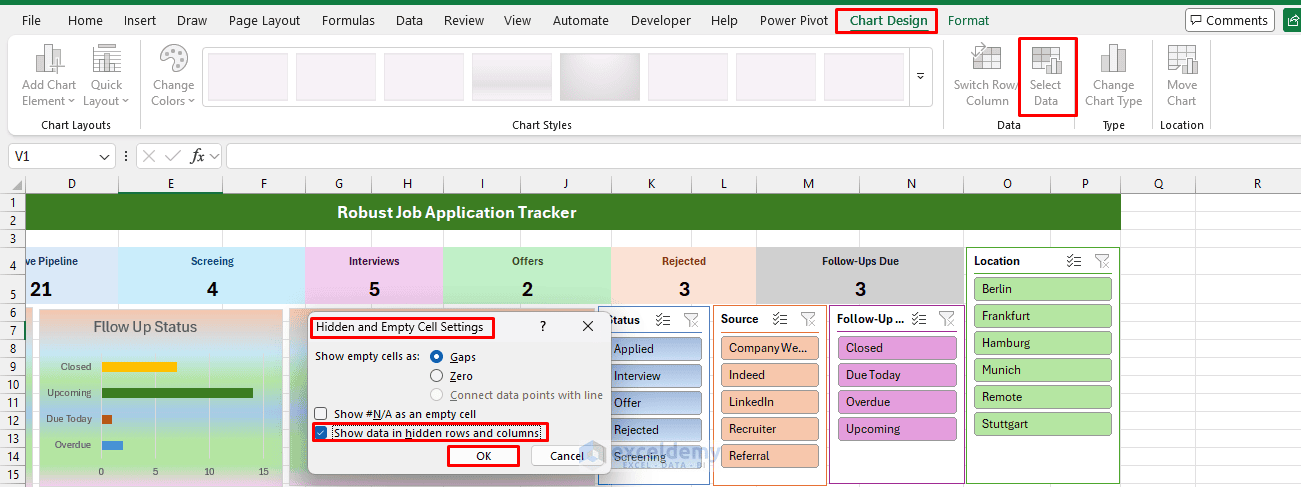
Keep the helper data hidden but keep the chart visible:
- Click the chart
- Go to Chart Design >> Select Data
- Click Hidden and Empty Cells
- Check Show data in hidden rows and columns
- Click OK
Step 8: Add Slicers for Fast Filtering
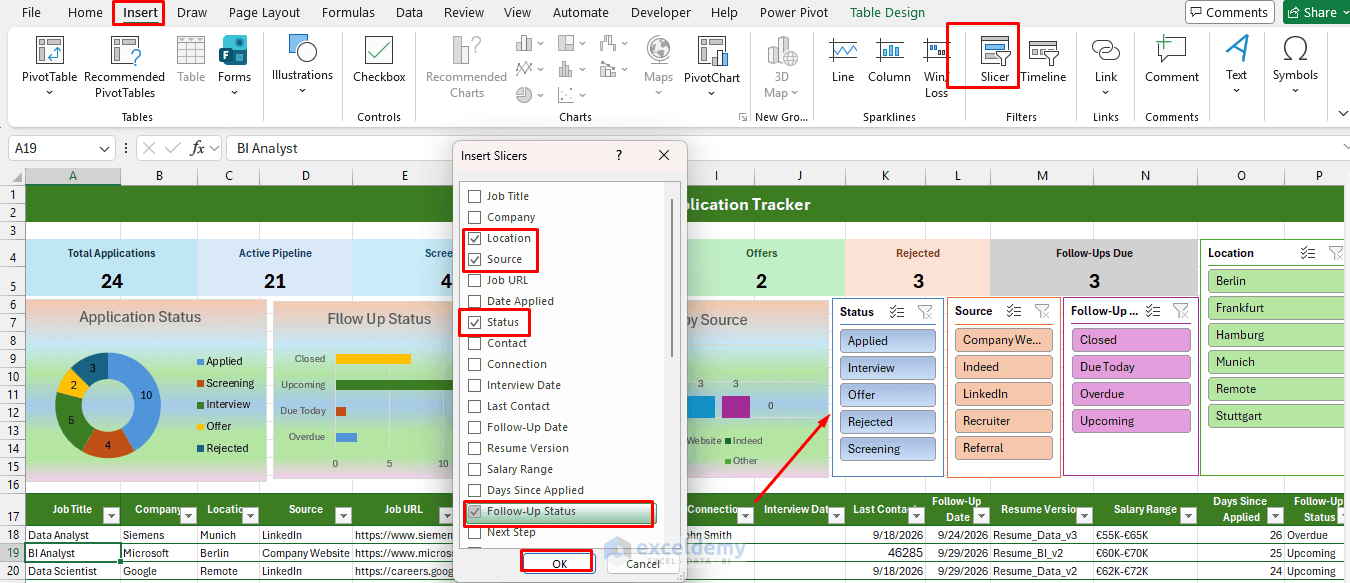
- Click inside the JobTracker table
- Go to the Insert tab >> select Slicer
- Add slicers for Status, Source, Follow-Up Status, and Location
- Click OK
- Position them in the Dashboard section
Group Them:
- Select the slicers
- Right-click >> click Group
- Format the slicers to match your table style
Because slicers work together, you can instantly view, for example, only permanent full-time roles currently in the Interview stage.
Step 9: Make the Tracker Easier to Use
A few final changes can improve the workbook considerably.
- Freeze the Header Row:
- Go to the View tab >> select Freeze Panes >> select Freeze Top Row
- The headings remain visible while scrolling through a long list of applications
- Wrap Long Notes:
- Select the Notes and Next Step columns
- Go to the Home tab >> select Wrap Text
- This prevents long text from making the worksheet excessively wide
- Adjust Date Formatting:
- Select Date Applied, Last Contact, and Follow-Up Date and apply a consistent format such as
9/23/2026or23-Sep-2026
- Select Date Applied, Last Contact, and Follow-Up Date and apply a consistent format such as
- Keep Job Links: Store the original job posting URL whenever possible. The link is useful when preparing for an interview and reviewing the job description.
- If the URL is very long, you can display cleaner hyperlink text with:
=HYPERLINK([@[Job URL]],"Open Job")- Hide Helper Columns:
- Select the helper columns
- Right-click >> select Hide
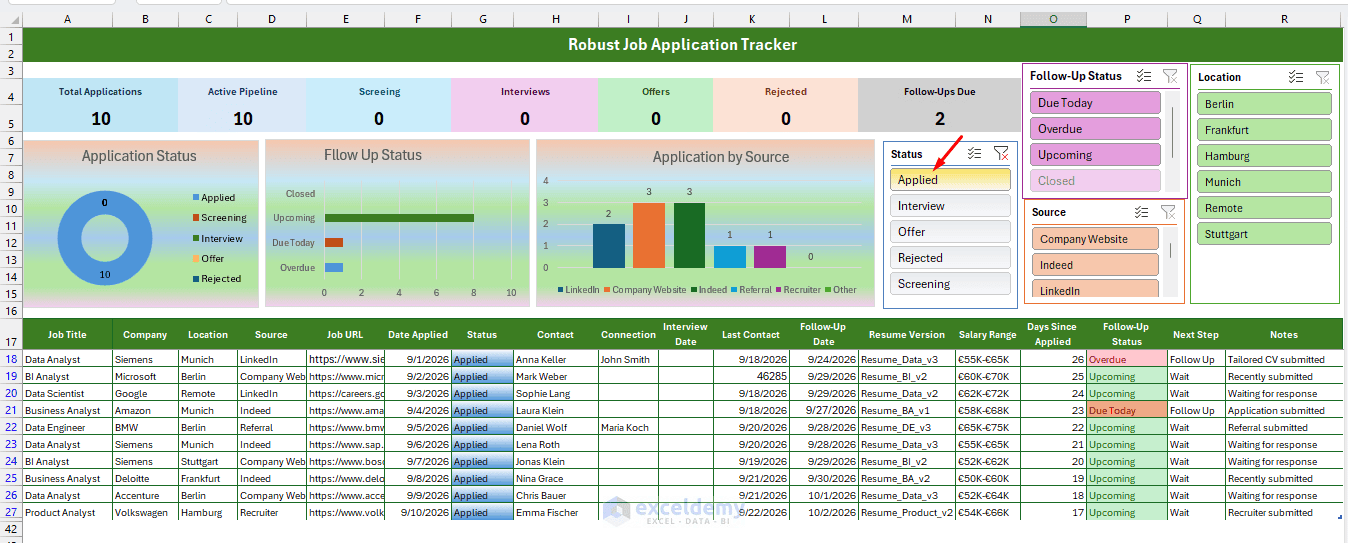
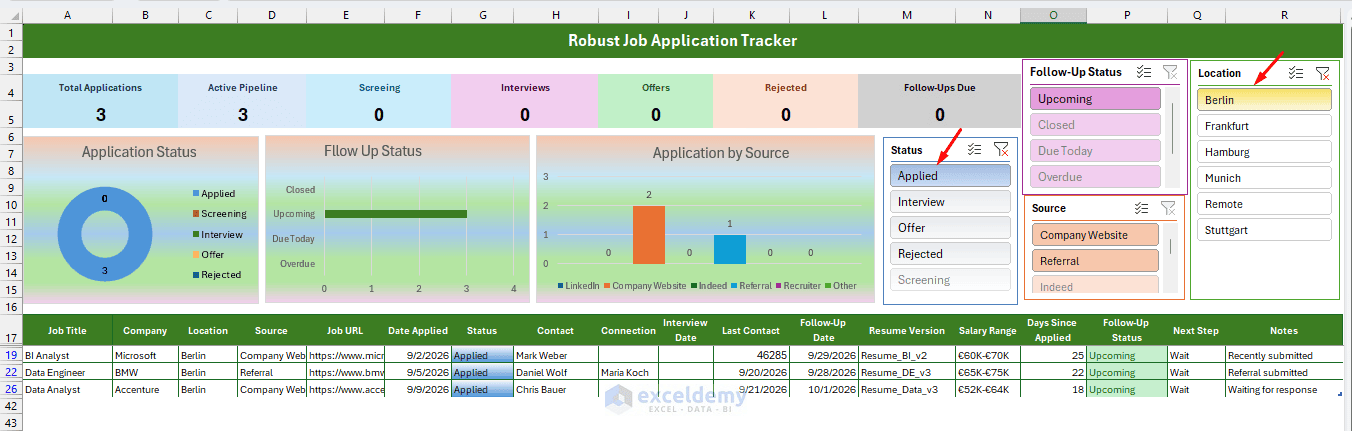
Final Robust Job Tracker:
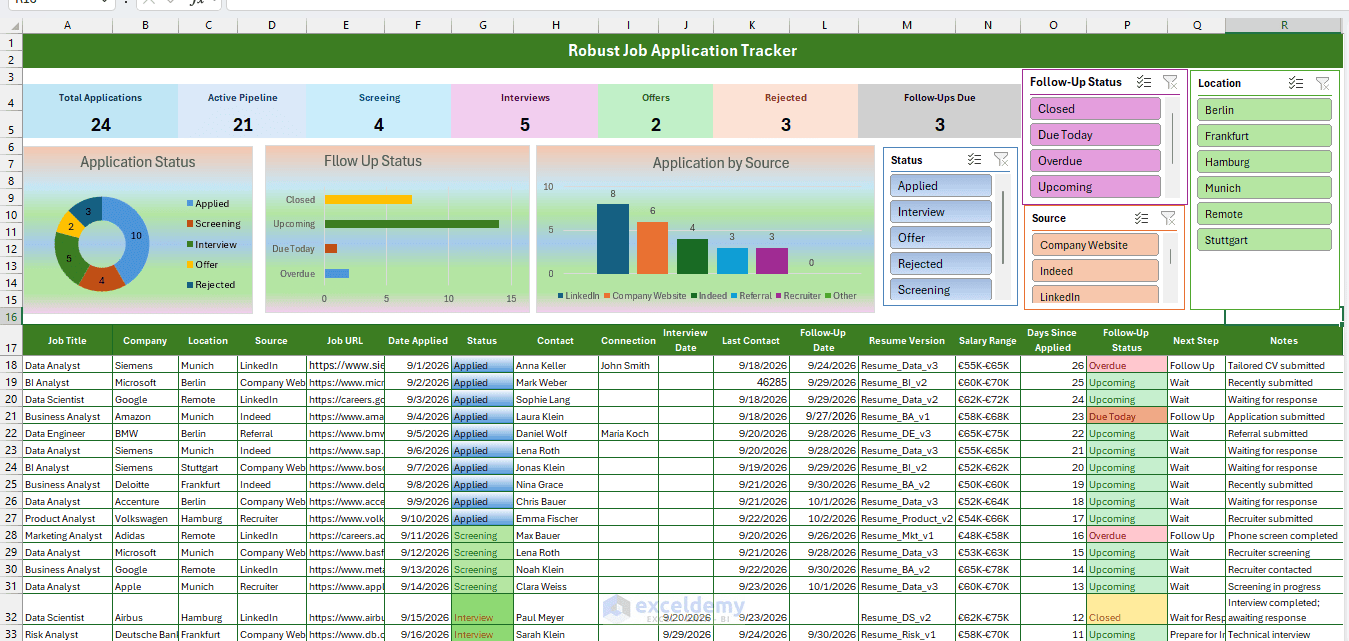
Test the Job Tracker:
- Test the tracker to verify everything works as expected
- Select any slicer — the KPIs, charts, and table will update dynamically
- Select multiple slicers to update the tracker simultaneously
Advanced: Analyze Applications with a PivotTable
A PivotTable can provide deeper analysis.
- Click anywhere inside the JobTracker table
- Go to the Insert tab >> select PivotTable
- Choose the Dashboard worksheet as the destination
- Drag the following fields:
- Source to Rows
- Company to Values
Excel displays the number of applications from each source.
You can also create another PivotTable with:
- Status in Rows
- Company in Values
This provides a quick breakdown of your application pipeline.
Slicers for Fast Filtering:
- Click inside the PivotTable
- Go to the PivotTable Analyze tab >> select Insert Slicer
- Add slicers for Status, Type, and Schedule
PivotTable slicers are automatically linked to both the PivotTable and any associated PivotChart, so you can instantly filter to, for example, only permanent full-time roles currently in the Interview stage.
Add Charts to the Dashboard:
- Select one of your PivotTables
- Go to the Insert tab >> select PivotChart
- Useful charts include:
- Column chart for applications by source
- Bar chart for applications by status
- Line chart for applications over time
Conclusion
A basic job application spreadsheet records where you applied. A robust tracker helps you manage the entire process. By combining an Excel Table with standardized status drop-downs, automatic follow-up calculations, conditional formatting, filters, charts, and PivotTables, you can turn a simple worksheet into a practical job-search management system.
The most important part is not tracking every possible detail. Keep the fields that help you make a decision or take the next action — that is what keeps the workbook useful even as the number of applications grows.
Get FREE Advanced Excel Exercises with Solutions!

