


Power Query lets you clean, transform, and combine data in Excel and Power BI. Most tasks can be completed through the Power Query interface, but some transformations are easier when you use M code. Power Query’s M language is powerful, but it is case-sensitive, unforgiving about syntax, and poorly documented compared with Excel formulas. If you are not familiar with the M language, ChatGPT can help you generate Power Query M code, fix errors, and explain existing queries.
In this tutorial, we will show you how to write Power Query M code with ChatGPT and then apply it in Excel or Power BI.
What Is Power Query M Code?
Power Query’s UI is excellent for common tasks, but complex logic — custom columns, multi-step cleaning, conditional logic, custom functions, or refactoring messy queries — often requires M code. M is the language used by Power Query. Every time you perform a transformation, such as filtering rows or changing a column type, Power Query creates M code in the background.
Quick M Language Basics
M is a functional, case-sensitive language, which means Sales and sales are treated as different names. Almost every query follows this pattern:
let
	Source = ...,
	Step1 = ...,
	Step2 = ...
in
	Step2
- let starts the query
- Each line creates a step
- A step can use the result of a previous step
- in tells Power Query which step should be returned as the final result
- If a step name contains spaces, write it like
#"Changed Type"
Each transformation usually uses the result of the previous step.
Example:
#"Filtered Rows" =
    Table.SelectRows(#"Changed Type", each [Quantity] > 0)
Here:
#"Changed Type"is the previous stepTable.SelectRowsfilters the tableeach [Quantity] > 0keeps rows where Quantity is greater than zero
Table.SelectRows returns only rows that meet the supplied condition.
Common Functions: Table.TransformColumnTypes, Table.AddColumn, Table.SelectRows, Table.Group, Text.Trim, Text.Proper, Text.BeforeDelimiter, if ... then ... else, etc.
Comments: // single-line or /* multi-line */
You can view the full M code via:
- Go to the Home tab >> select Advanced Editor
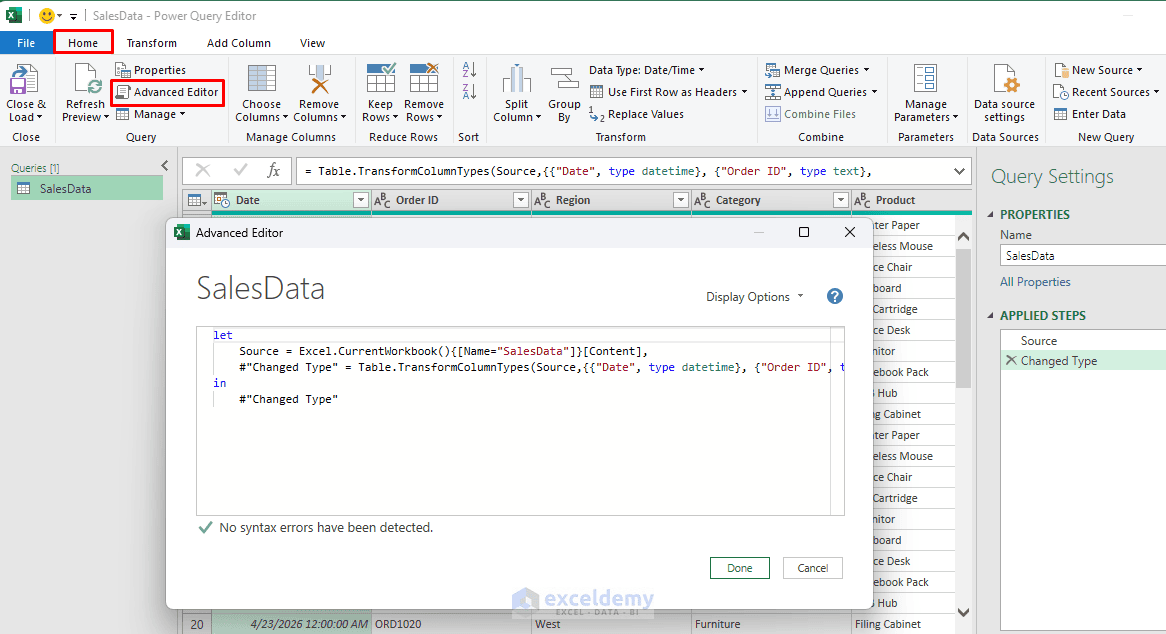
Give ChatGPT the Context It Needs
The most common reason for bad M code is a vague prompt. The quality of ChatGPT’s output depends almost entirely on prompt quality. Follow this structure:
- Set the role and context: “Act as a Power Query M expert. Write Power Query M code for Microsoft Excel / Power BI.”
- Your table’s structure: Column names (exactly as they appear, including spaces and capitalization) and data types.
- Describe the data source: Table name, file type, or existing steps. Paste current M code when refining an existing query.
- A few sample rows: Anonymized if the data is sensitive. Names and sample values or types help a lot.
- The desired output: State the goal as ordered steps and describe what the final table should look like.
- Your environment: Excel or Power BI, since some connectors differ.
- Specify constraints: Prefer query folding where possible, use descriptive step names, handle nulls and errors, etc.
- Request the full query or a specific step, plus brief explanations if desired.
Tip: In Power Query, open Advanced Editor to copy your current query. Pasting it into ChatGPT shows exactly what you’ve already built.
Privacy note: Never paste confidential, personal, or client data into a public AI tool. Replace real values with dummy rows that keep the same structure.
1. Generate Power Query M Code with ChatGPT
Instead of writing an entire query manually, describe the transformations you need. Suppose you want to assign correct data types, remove rows with missing entries, calculate new columns, etc.
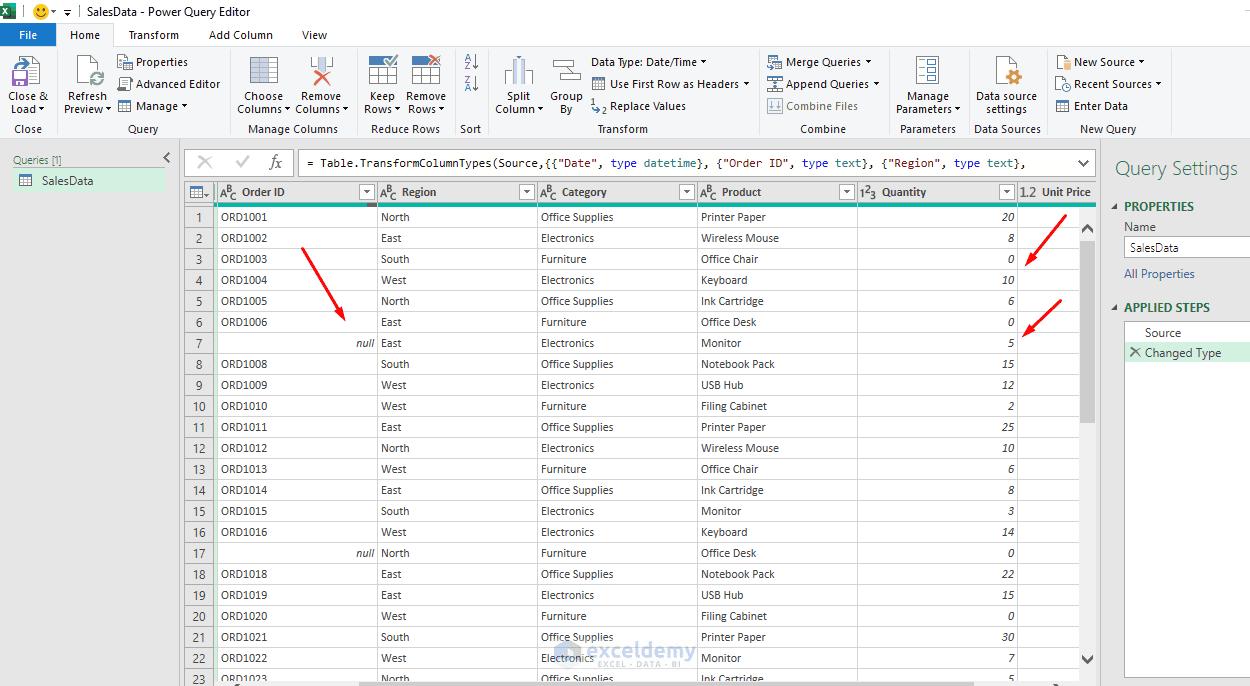
Strong ChatGPT Prompt:
Act as a Power Query M expert. Write complete, ready-to-paste M code for
Power Query in Excel/Power BI.

I have an Excel table named SalesData with the columns Date, Order ID, Region, Product,
Quantity, and Unit Price. Write Power Query M code that:
- Loads the SalesData table from the current Excel workbook
- Sets the correct data types
- Removes rows where Order ID is blank or null
- Removes orders with zero quantity
- Adds a Sales column calculated as Quantity multiplied by Unit Price
Return the complete M query and briefly explain each step.
ChatGPT Generated Code:
let
    // Load the SalesData table from the current Excel workbook
    Source = Excel.CurrentWorkbook(){[Name="SalesData"]}[Content],

    // Set the correct data types
    #"Changed Type" = Table.TransformColumnTypes(
        Source,
        {
            {"Date", type date},
            {"Order ID", type text},
            {"Region", type text},
            {"Product", type text},
            {"Quantity", Int64.Type},
            {"Unit Price", type number}
        }
    ),

    // Remove rows where Order ID is null or blank
    #"Removed Blank Orders" = Table.SelectRows(
        #"Changed Type",
        each [Order ID] <> null and Text.Trim([Order ID]) <> ""
    ),

    // Remove orders with zero quantity
    #"Removed Zero Quantity" = Table.SelectRows(
        #"Removed Blank Orders",
        each [Quantity] <> 0
    ),

    // Add Sales column: Quantity × Unit Price
    #"Added Sales" = Table.AddColumn(
        #"Removed Zero Quantity",
        "Sales",
        each [Quantity] * [Unit Price],
        type number
    )
in
    #"Added Sales"
ChatGPT Explanation:
What each step does
- Source — Loads the Excel table named SalesData from the current workbook.
- Changed Type — Assigns appropriate data types: Date as date, text fields as text, Quantity as a whole number, and Unit Price as a number.
- Removed Blank Orders — Removes records where Order ID is null, empty, or contains only spaces.
- Removed Zero Quantity — Removes orders where Quantity = 0.
- Added Sales — Creates a new Sales column using:
Sales = Quantity × Unit Price
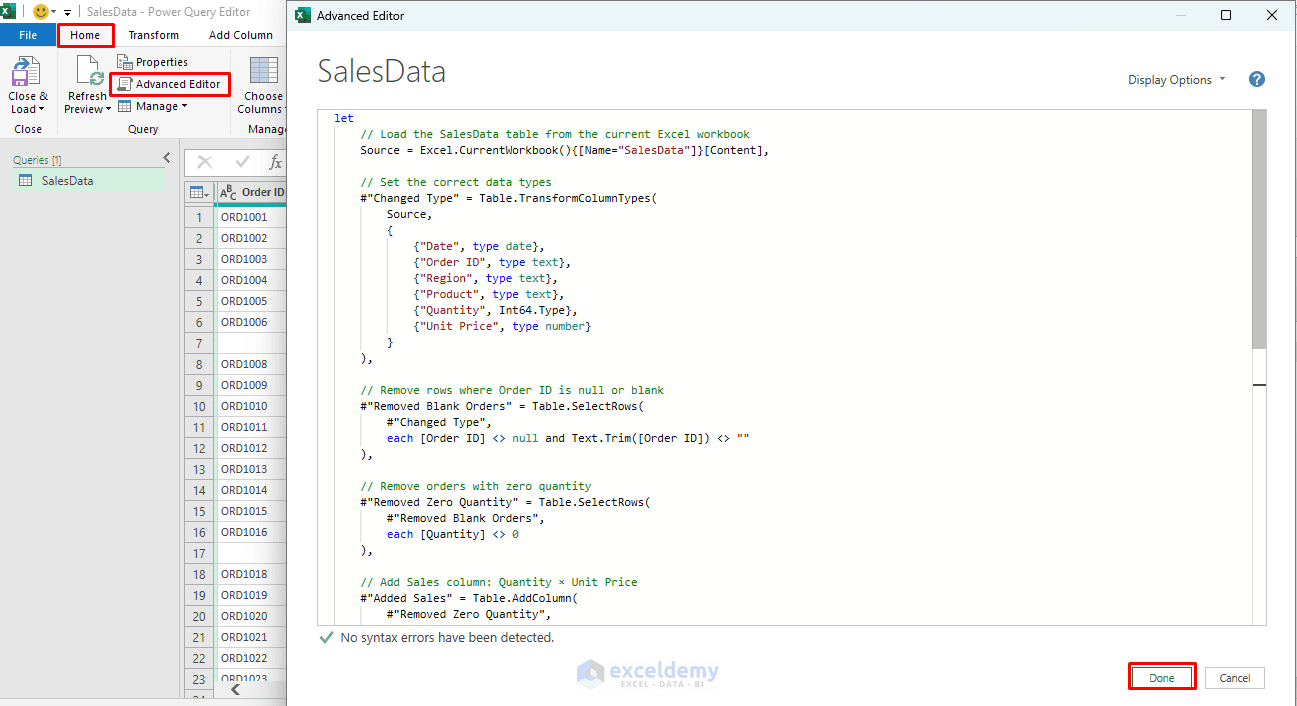
Insert the Code into Power Query
In the Power Query Editor:
- Go to the Home tab >> select Advanced Editor
- Replace the existing query with the generated code
- Click Done
Power Query will display the transformed table.
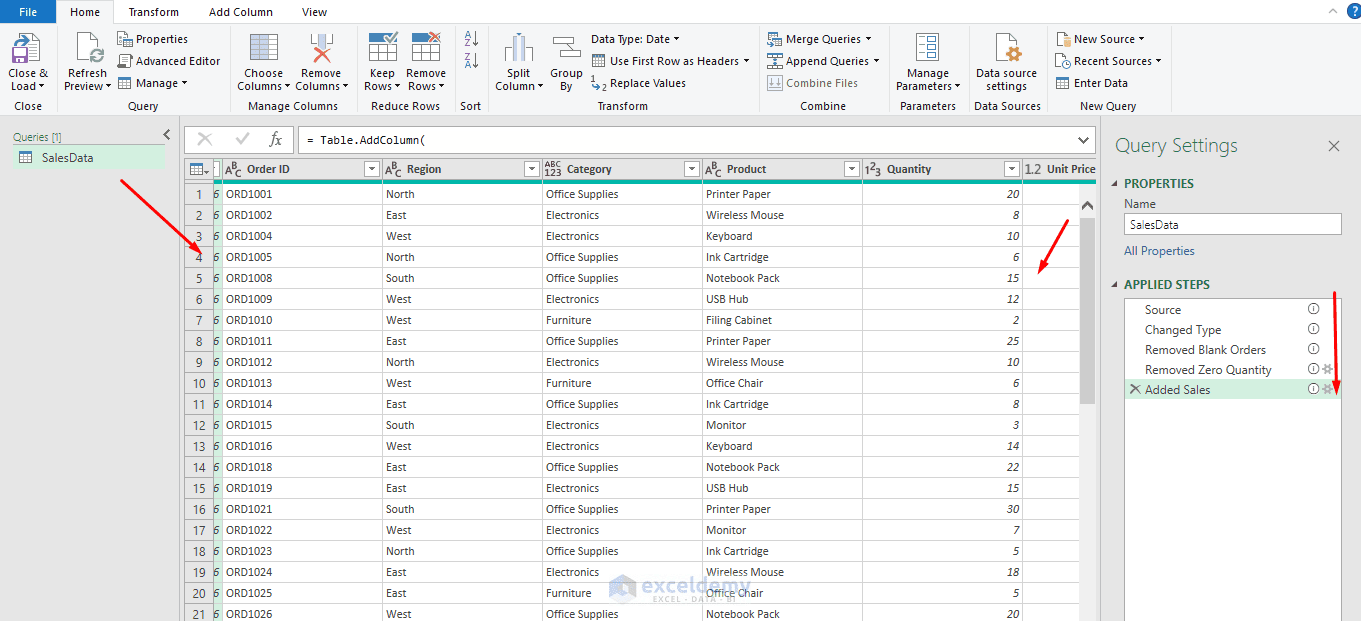
The row with the missing Order ID and the row with Quantity equal to zero are removed.
2. Ask ChatGPT to Add M Code to an Existing Query
You do not always need ChatGPT to rewrite the entire query. When your data source is already configured, asking ChatGPT to modify the existing code is often safer, because it prevents the AI from guessing your workbook path, database connection, table name, or other source details.
Suppose your existing query ends with:
#"Changed Type" =
    Table.TransformColumnTypes(
    	Source,
    	{
            {"Quantity", Int64.Type},
            {"Unit Price", Currency.Type}
    	}
	)
- You want to add a Sales column.
You could ask ChatGPT:
My current final Power Query step is called #"Changed Type". Write only the next
M step that creates a column called Sales by multiplying Quantity by Unit Price.
Set the result to Currency.Type.
ChatGPT should return something similar to:
#"Added Sales" =
	Table.AddColumn(
    	#"Changed Type",
        "Sales",
    	each [Quantity] * [Unit Price],
    	Currency.Type
	)
in
	#"Added Sales"
Notice that the prompt tells ChatGPT:
- The exact previous step name
- The exact column names
- The required calculation
- The required data type
- That only one new transformation is needed
The more context you provide, the less ChatGPT has to guess.
3. Create Conditional Columns with ChatGPT
ChatGPT is especially useful when the required M expression contains several conditions.
Suppose you want to categorize orders as:
- High Value when Sales is at least $300
- Medium Value when Sales is at least $150
- Low Value otherwise
Ask ChatGPT:
Write a Power Query M step that uses my existing step #"Added Sales" and
adds a column called Order Category. Return High Value when Sales is 300 or more,
Medium Value when Sales is 150 or more, and Low Value otherwise.
ChatGPT Generated Code:
#"Added Order Category" =
	Table.AddColumn(
    	#"Added Sales",
    	"Order Category",
    	each
        	if [Sales] >= 300 then "High Value"
        	else if [Sales] >= 150 then "Medium Value"
        	else "Low Value",
    	type text
	)
This is much easier than trying to remember the exact M syntax for nested if...then...else statements, and it becomes especially useful when your conditions grow more complex.
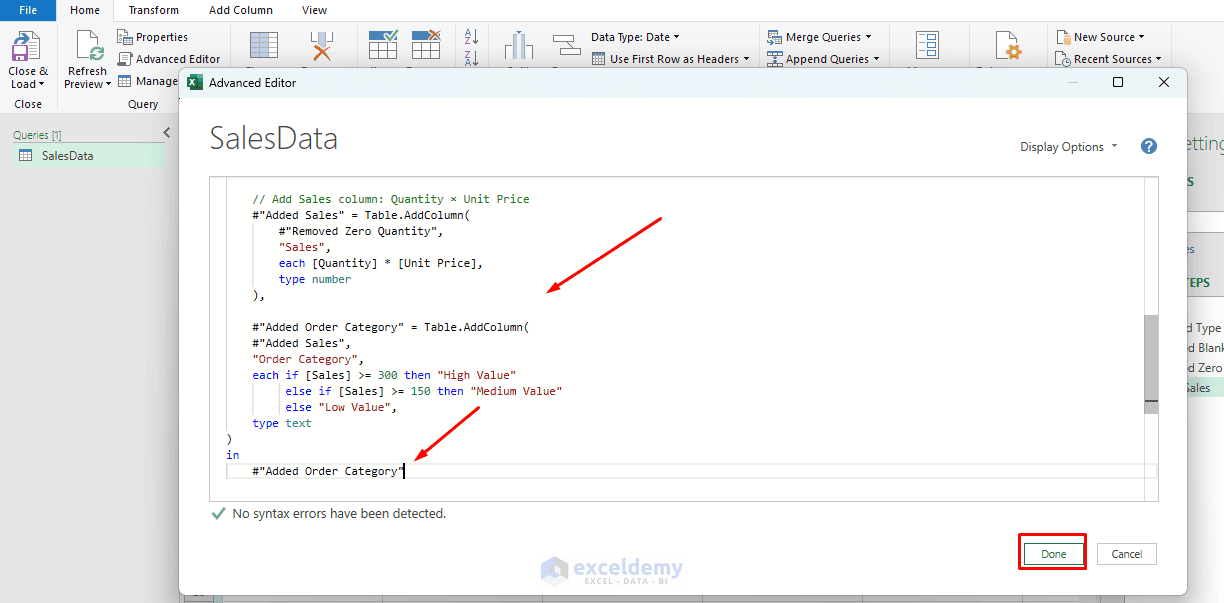
To use it:
- Add a comma (,) after the closing parenthesis of the #”Added Sales” step
- Add the new #”Added Order Category” step after that comma
- At the bottom, change:
in

#"Added Sales"
to:
in

#"Added Order Category"
- Click Done to apply the changes
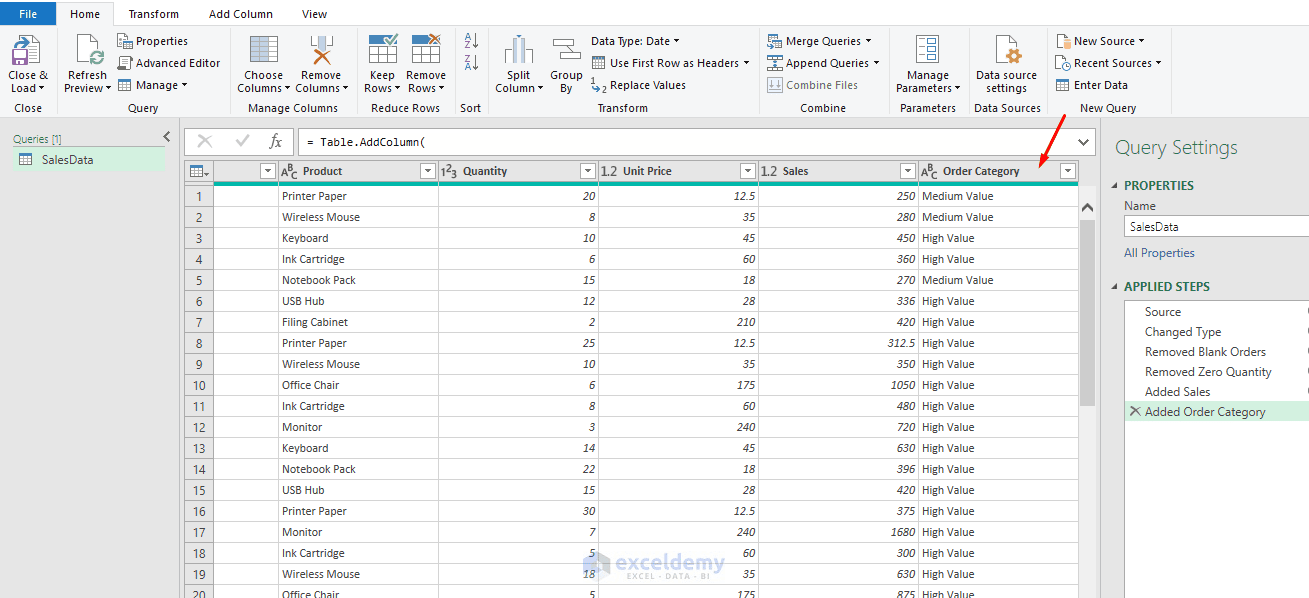
You will get the new column Order Category with the categorized sales values.
4. Use ChatGPT to Fix M Code Errors
ChatGPT can also help troubleshoot Power Query errors. Suppose your code produces:
Expression.Error: The field ‘UnitPrice’ of the record wasn’t found
Rather than simply asking “Why doesn’t my code work?”, provide ChatGPT with the error message, column names, and the relevant code.
Ask ChatGPT:
My actual column name is Unit Price. Here is my code:
Table.AddColumn(
	#"Changed Type",
	"Sales",
	each [Quantity] * [UnitPrice]
)
Correct the M code and explain the problem.
ChatGPT will identify that the field reference does not match the actual column name and return:
Table.AddColumn(
	#"Changed Type",
	"Sales",
	each [Quantity] * [Unit Price]
)
Providing the exact Power Query error message is important — it gives ChatGPT much more to work with than simply saying the query is broken.
5. Ask ChatGPT to Add Error Handling
Real-world datasets often contain invalid text, missing values, or unexpected data types. Consider this calculation:
each [Sales] / [Quantity]
If Quantity contains zero or an invalid value, the calculation will fail.
Ask ChatGPT:
Modify this Power Query calculation so that if an error occurs while dividing Sales by Quantity, it returns null instead:
each [Sales] / [Quantity]
ChatGPT can use M’s try...otherwise syntax:
each try [Sales] / [Quantity] otherwise null
M provides try expressions for catching errors; otherwise supplies a fallback value when an error occurs.
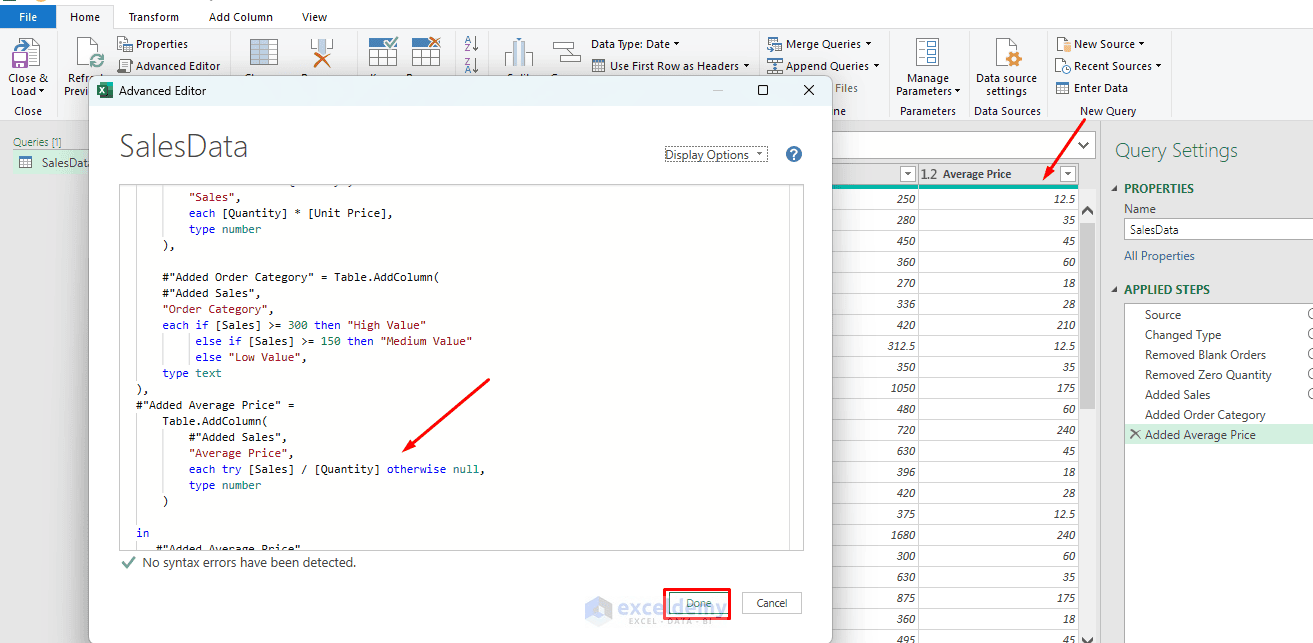
You can therefore create a safer calculated column:
#"Added Average Price" =
	Table.AddColumn(
    	#"Added Sales",
    	"Average Price",
    	each try [Sales] / [Quantity] otherwise null,
    	type number
	)
6. Use ChatGPT to Explain Existing M Code
Sometimes the challenge is not writing code but understanding code created by someone else, or code automatically generated by Power Query.
Suppose a team member wrote the following step and you want to understand it before continuing.
Paste the code into ChatGPT and ask:
Explain this Power Query M code in plain language. Describe what each function and each condition does.
#"Filtered Rows" =
	Table.SelectRows(
    	#"Changed Type",
    	each ([Region] = "North" or [Region] = "East")
        	and [Quantity] >= 5
	)
ChatGPT can translate it into plain language:
The code takes the table from the Changed Type step and keeps only rows where Region is either North or East, and where Quantity is at least 5.
This technique is useful when learning M, because you can compare the visual Power Query transformation with the M code behind it.
7. Use ChatGPT to Simplify or Improve Existing Queries
Large Power Query scripts can accumulate unnecessary steps.
You can paste your query into ChatGPT and ask:
Review this Power Query M code. Look for redundant transformations,
repeated steps, unnecessary sorting, or operations that can be combined.
Return an improved version without changing the final result.
This can be particularly helpful for queries built up through many small UI operations. Keep in mind, though, that optimization is not simply about using fewer lines of M code.
Best practice is to filter out unnecessary data early, use correct data types throughout, and postpone expensive operations where practical. For data sources that support it, preserving query folding can also improve performance, because Power Query can delegate some transformations back to the original source.
A better optimization prompt is therefore:
Optimize this M query while preserving the result. Keep filters as early as practical,
avoid unnecessary transformations, and do not break query folding if the
source supports it. Explain any changes you make.
8. Verify the Generated Code
ChatGPT-generated M code should always be checked before using it in an important workbook or Power BI report.
Pay attention to:
- Column names
- Step names
- Data types
- Null values
- Source table names
For example, ChatGPT may reference:
#"Changed Type"
while your actual previous step may be:
#"Removed Columns"
In that case, update the step reference before running the query.
Conclusion
ChatGPT can make Power Query M code much easier to work with, especially if you do not use the M language regularly. You can use it to generate transformations, create conditional columns, write complete queries, explain unfamiliar code, and fix errors. Remember to provide exact column names, step names, and clear transformation requirements to get the best results, and always review the generated code before applying it to your actual data.
Get FREE Advanced Excel Exercises with Solutions!

