


Running a small business involves tracking sales, expenses, customers, inventory, payments, and profit. Excel can make these tasks much easier when you know the right functions. Instead of manually calculating totals or checking records one by one, you can use Excel functions to automate everyday business tasks.
In this tutorial, we’ll cover 10 must-know Excel functions for small business owners. These functions will help you manage your work more efficiently while saving time and reducing errors.
1. SUM: The Foundation of Every Financial Sheet
The SUM function is one of the most useful functions for any business. It adds numbers together and can be used for sales, expenses, payroll, purchases, or other financial totals.
Syntax:
=SUM(number1, [number2], ...)
- To calculate total revenue, use the following formula:
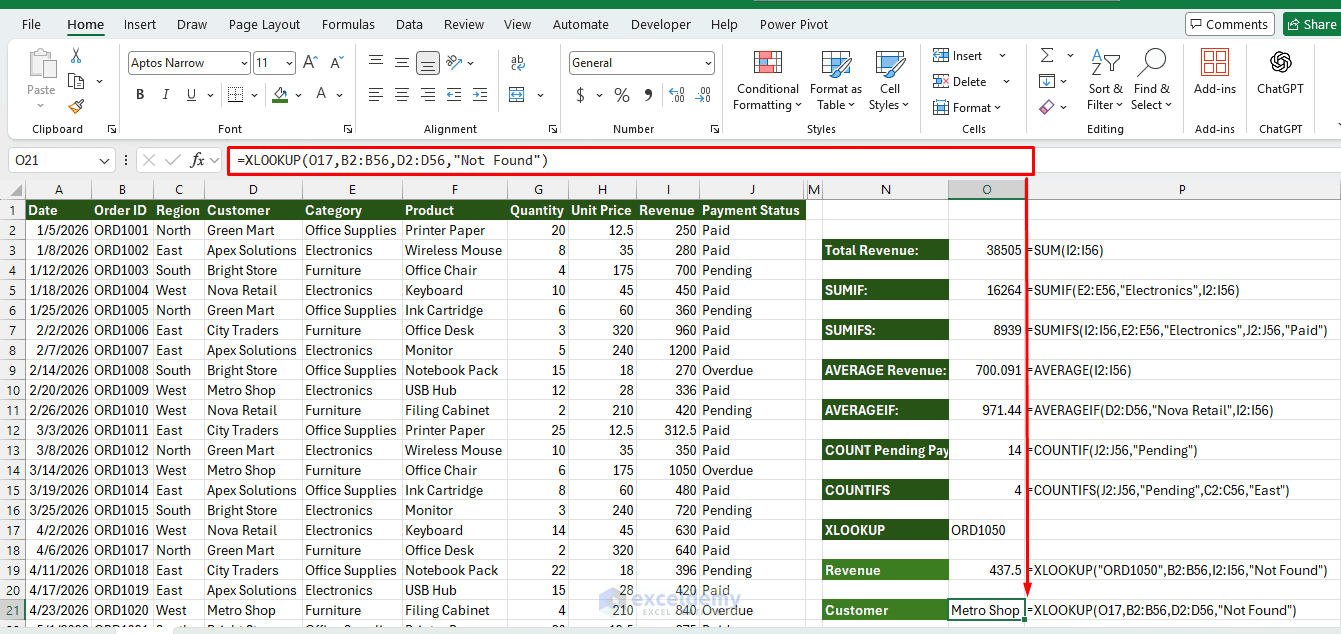
=SUM(I2:I56)
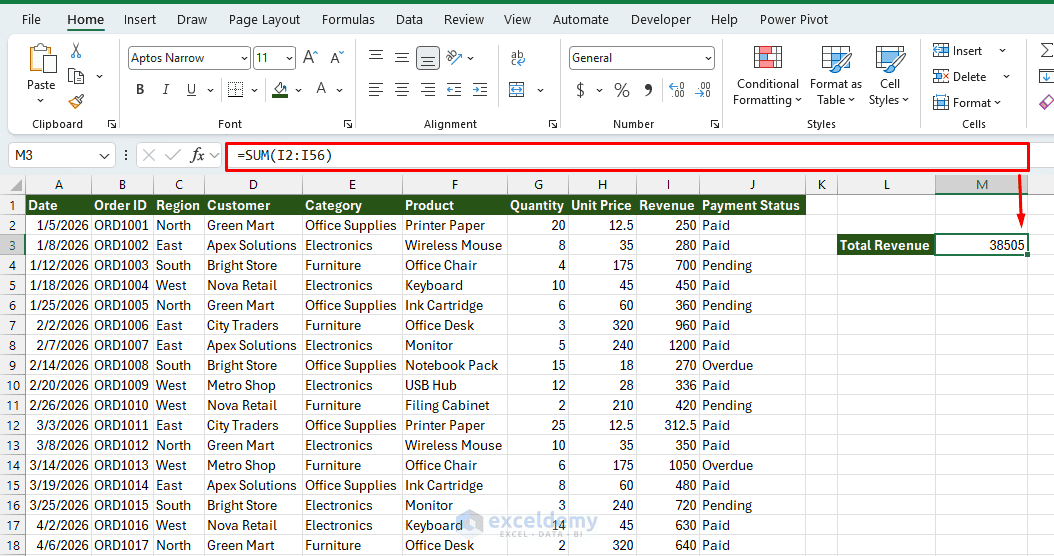
Business use case: Add a SUM row at the bottom of your income and expense columns so your monthly total updates automatically as you add transactions.
Pro tip: Use =SUM(B2:B13)/12 right next to it to get a running monthly average, useful for spotting seasonal spikes.
2. SUMIF / SUMIFS: Conditional Totals
Raw totals are rarely enough. You need totals by category — total sales by product, total expenses by vendor, total hours by employee. SUMIF adds values only when they meet a condition. SUMIFS is useful when one condition isn’t enough.
Syntax:
=SUMIF(range, criteria, [sum_range])
=SUMIFS(sum_range, criteria_range1, criteria1, [criteria_range2, criteria2], ...)
SUMIF with single condition:
- Calculate revenue for Electronics
=SUMIF(E2:E56,"Electronics",I2:I56)
SUMIFS with multiple conditions:
- Calculate revenue for paid Electronics sales
=SUMIFS(I2:I56,E2:E56,"Electronics",J2:J56,"Paid")
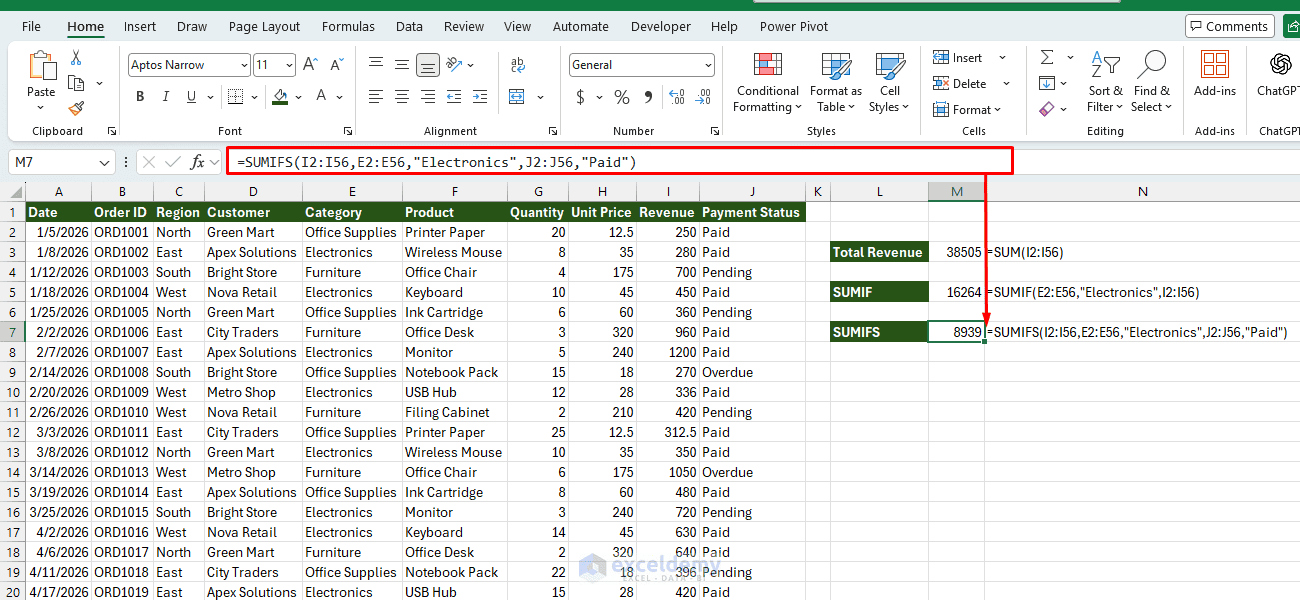
Business use case: Build a summary table that automatically breaks down revenue by product line, region, or sales rep — no manual filtering required.
3. AVERAGE / AVERAGEIF: Conditional Averages
The AVERAGE function calculates the arithmetic mean of a group of numbers. It’s useful for average order value (AOV), average monthly spend, or average units per order.
Syntax:
=AVERAGE(number1,[number2],...)
=AVERAGEIF(range, criteria, [average_range])
- To calculate the average revenue, use:
=AVERAGE(I2:I56)
- To find the average amount for a specific client, use:
=AVERAGEIF(D2:D56,"Nova Retail",I2:I56)
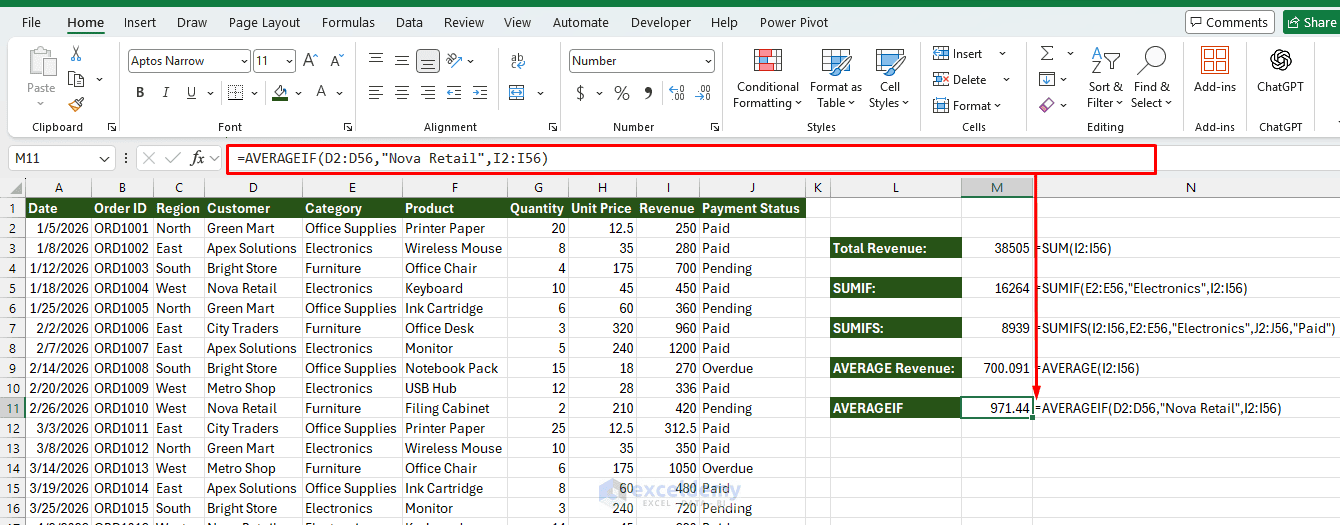
Average values help you understand what a typical transaction looks like and how much customers generally spend per order.
Business use case: Track average customer order size by month to catch trends before they show up in your bank balance.
4. COUNTIF / COUNTIFS: Count Records That Meet a Condition
Sometimes you don’t need the total sales amount — you simply need to know how many records meet a condition. That is where COUNTIF helps. It counts how many cells meet one or more conditions, such as the number of orders from a customer, or orders over a certain size.
Syntax:
=COUNTIF(range,criteria)
=COUNTIFS(criteria_range1, criteria1, criteria_range2, criteria2, ...)
- To count pending payments, use:
=COUNTIF(J2:J56,"Pending")
Excel counts how many orders currently have a Pending payment status.
- You can also count pending payments by region:
=COUNTIFS(J2:J56,"Pending",C2:C56,"East")
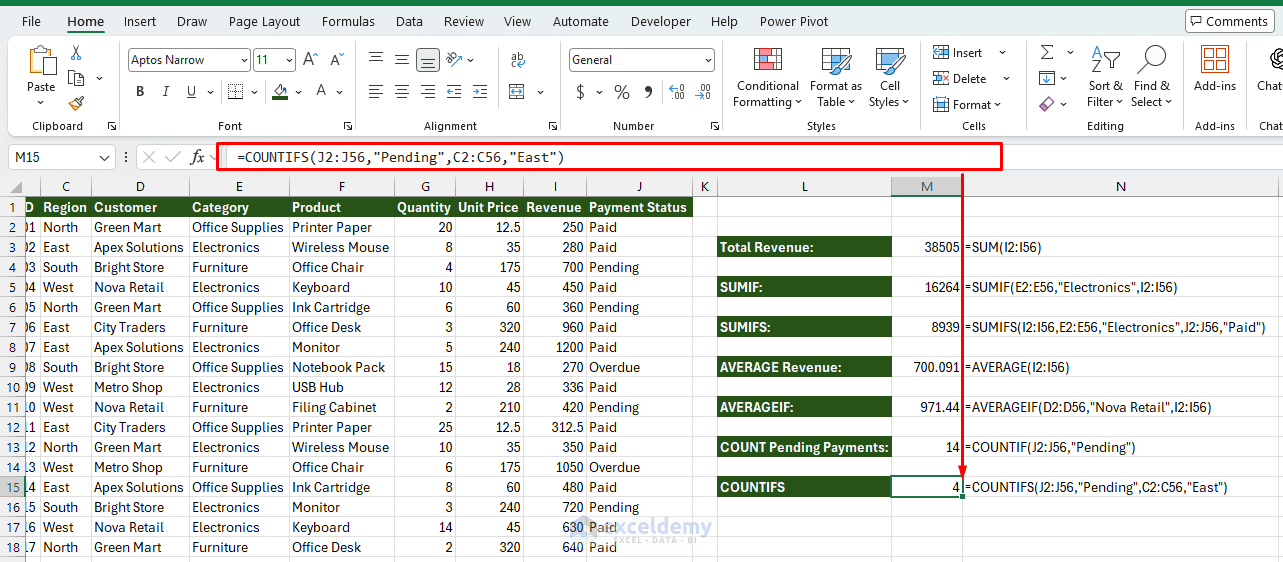
Business use case: COUNTIF can help you count unpaid invoices, orders from a particular region, products in a particular category, orders from an individual customer, and completed or cancelled orders.
5. IF / IFS: Automate Business Decisions
IF lets your spreadsheet make decisions instead of just displaying numbers. IFS replaces messy nested IF statements with a clean list of conditions, evaluated in order.
Syntax:
=IF(logical_test, value_if_true, value_if_false)
=IFS(condition1, value1, condition2, value2, ...)
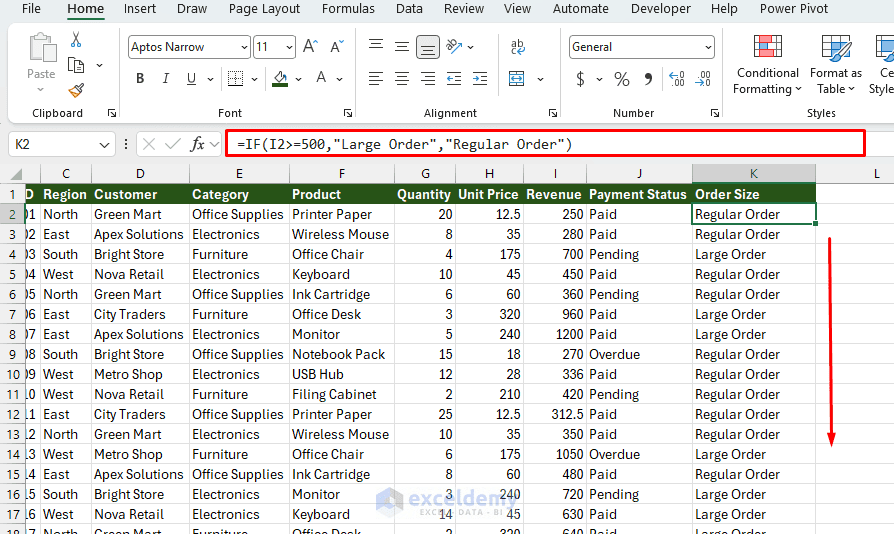
- Flag large orders:
=IF(I2>=500,"Large Order","Regular Order")
Excel labels orders worth $500 or more as Large Order.
- Apply a bulk discount:
=IF(I2 >= 500, B2*0.9, B2)
- Categorize customers by spend tier:
=IFS(I2>=1000, "Platinum", I2>=500, "Gold", I2>=100, "Silver", TRUE, "Bronze")
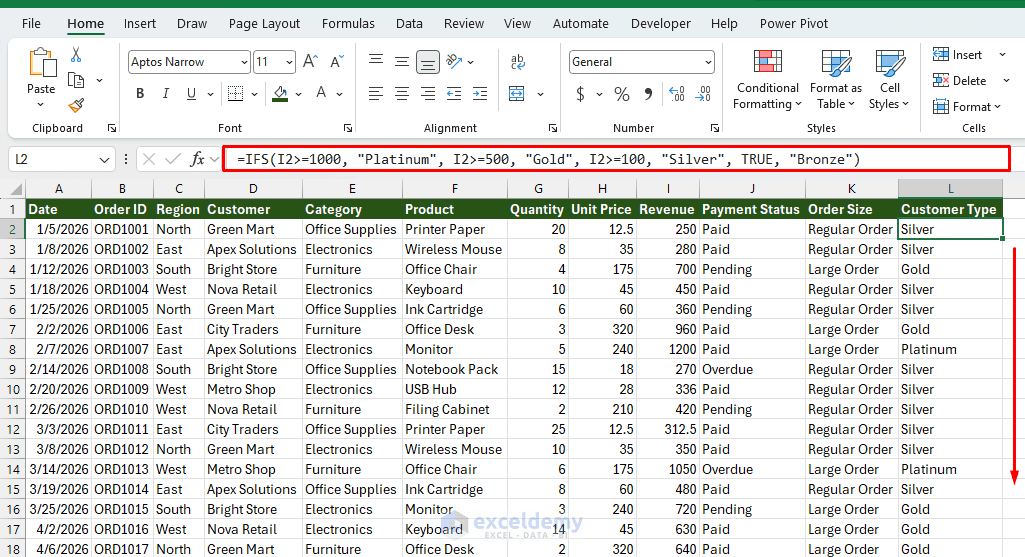
Business use case: Automatically flag low stock, overdue payments, or underperforming products so you don’t have to scan every row manually. Assign inventory reorder priority, customer loyalty tiers, or commission brackets without a wall of nested parentheses.
Pro tip: Nest IFs sparingly — beyond 2-3 conditions, switch to IFS for readability.
6. XLOOKUP: Modern Lookups Across Sheets
If you’re still using VLOOKUP, XLOOKUP is the upgrade. The XLOOKUP function searches for a value and returns the corresponding information from another column. It is especially useful for maintaining product lists, customer databases, and price tables.
Syntax:
=XLOOKUP(lookup_value, lookup_array, return_array, [if_not_found])
- To find the revenue for an order, use:
=XLOOKUP("ORD1050",B2:B56,I2:I56,"Not Found")
Excel searches column B for the specified Order ID and returns its revenue from column I.
- To retrieve the customer instead, use:
=XLOOKUP(O17,B2:B56,D2:D56,"Not Found")
Business use case: Link your invoice sheet to your customer database, or your sales log to your product price list, so pricing and contact details are maintained in one place and flow everywhere else.
Note: XLOOKUP is available in modern versions of Excel, including Microsoft 365 and Excel 2021 or later. If you’re on an older version without XLOOKUP, INDEX/MATCH is the reliable substitute:
=INDEX(D:D, MATCH(A2, A:A, 0))
7. PMT: Loan and Payment Planning
Small business owners deal with loans constantly — equipment financing, lines of credit, SBA loans. PMT calculates the fixed periodic payment.
Syntax:
=PMT(rate, nper, pv, [fv], [type])
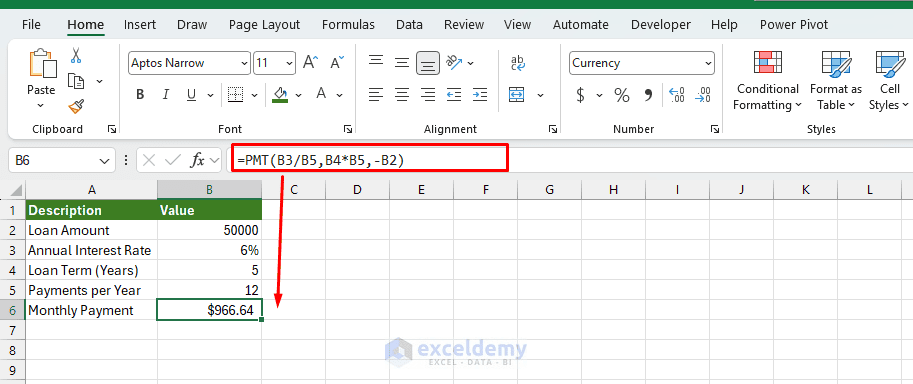
Example: Monthly payment on a $50,000 loan at 6% annual interest over 5 years
=PMT(B3/B5,B4*B5,-B2)
Business use case: Compare financing offers side by side before committing to a loan, or model what a new equipment purchase does to your monthly cash flow.
8. IFERROR: Replace Formula Errors with Friendly Messages
Spreadsheet errors such as #N/A, #DIV/0!, and #VALUE! can make reports difficult to read. The IFERROR function lets you replace these errors with a cleaner result.
Syntax:
=IFERROR(value,value_if_error)
Example:
=IFERROR(A2/B2,0)
If the calculation succeeds, Excel displays the result. If it fails, Excel displays 0.
IFERROR is also useful with XLOOKUP:
=IFERROR(XLOOKUP("ORD1056",B2:B56,I2:I56),0)
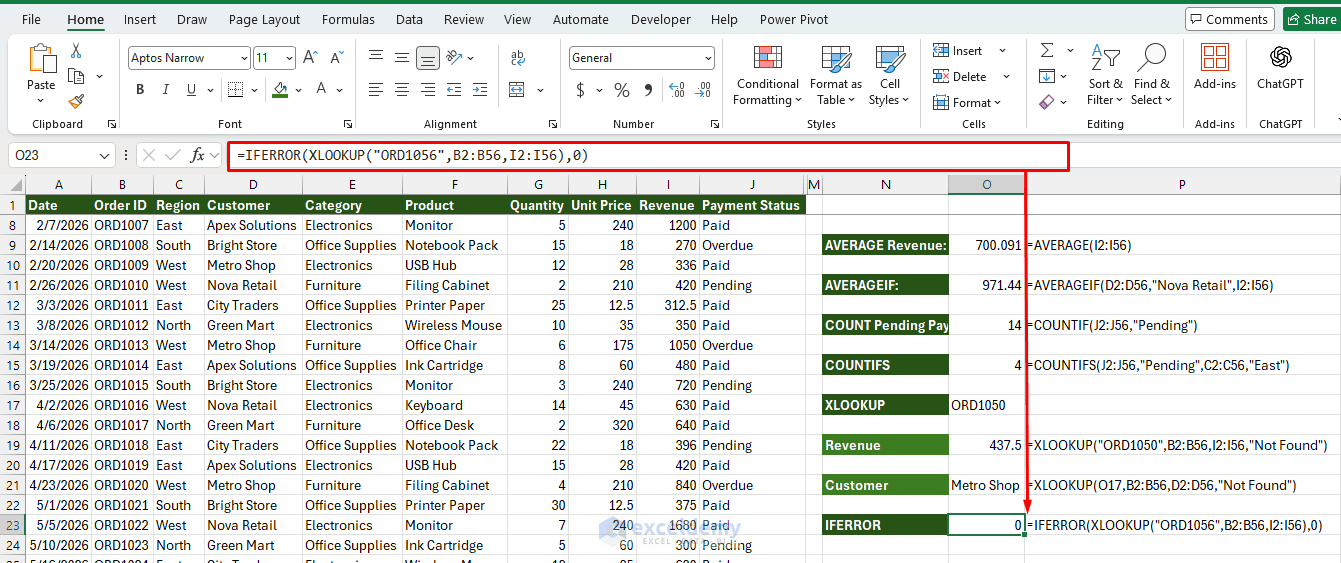
Business use case: Instead of displaying confusing errors such as #N/A, #VALUE!, or #DIV/0!, you can show cleaner messages such as “Not Found”, “No Data”, or 0. This is especially useful when creating dashboards or reports for employees, clients, or business partners.
9. ROUND: Keep Financial Calculations Accurate and Presentable
Business calculations often produce several decimal places. The ROUND function lets you control the number of decimal places displayed and used in calculations.
Syntax:
=ROUND(number,num_digits)
- Round a tax calculation:
Suppose revenue is in I2 and you want to calculate an 8.25% tax.
=ROUND(I2*8.25%,2)
Excel calculates the tax and rounds the result to two decimal places.
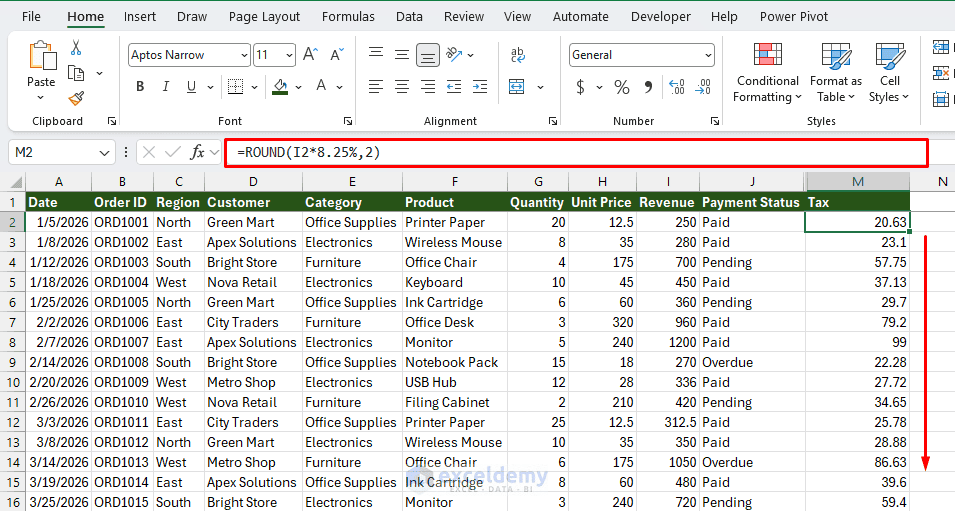
Business use case: ROUND is especially useful for tax calculations, discounts, product pricing, payroll, and currency calculations. For financial data, rounding calculated values to two decimal places helps keep monetary amounts consistent.
10. TEXT / CONCATENATE / TEXTJOIN: Format and Combine Text
Raw numbers rarely look client-ready. TEXT converts values into formatted strings for invoices, reports, and dashboards. Merging first and last names, building full addresses, or creating unique order IDs from multiple fields is a daily need.
Syntax:
=TEXT(value, format_text)
=CONCATENATE(text1, text2, ...)
=TEXTJOIN(delimiter, ignore_empty, text1, text2, ...)
- Format a date for an invoice header:
=TEXT(H2,"MMMM DD, YYYY")
- Combine first and last name:
=TEXTJOIN(" ",TRUE,A2,B2)
- Build a full mailing address, skipping blank fields (e.g. a missing “Suite” line):
=TEXTJOIN(", ",TRUE,C2,D2,E2,F2,G2)
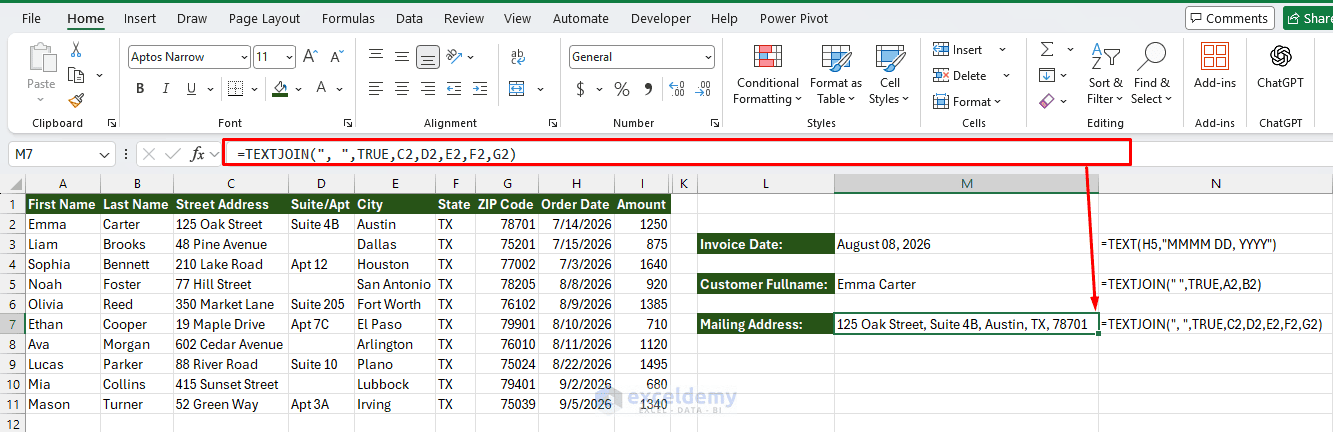
Business use case: Build dynamic invoice or report headers that combine text and formatted numbers in a single readable line. Clean up customer data exports where names or addresses are split across columns, or generate readable order confirmation numbers.
Bonus: TODAY — Track Deadlines and Invoice Dates
The TODAY function returns the current date automatically.
Syntax:
=TODAY()
It does not require any arguments.
- Calculate days since an order:
Suppose the order date is stored in H2.
=TODAY()-H2
Excel calculates how many days have passed since that date.
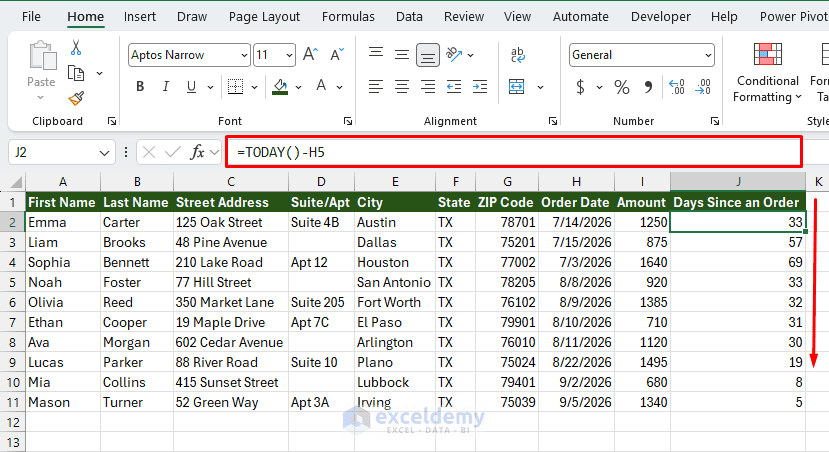
You can use the same idea with invoice due dates.
=IF(TODAY()>H2,"Overdue","Not Due")
If the date in H2 has already passed, Excel returns Overdue.
Business use case: TODAY can help track invoice deadlines, payment delays, contract expiration dates, delivery dates, employee deadlines, and subscription renewals. Because TODAY updates automatically, you don’t need to manually change the current date every day.
Conclusion
These are the 10 Excel functions every small business owner should know. You don’t need hundreds of functions to build useful spreadsheets — a relatively small set can handle most everyday calculations. With these 10, you can quickly calculate revenue, analyze sales, track invoices, retrieve customer information, flag important records, and automate repetitive calculations. The key is to combine them: use XLOOKUP to retrieve a product price, IF to determine whether a discount applies, ROUND to calculate the final amount, and SUMIFS to summarize the resulting sales.
As your business data grows, these functions will help you spend less time crunching numbers manually and more time understanding what those numbers mean for your business.
Get FREE Advanced Excel Exercises with Solutions!

