

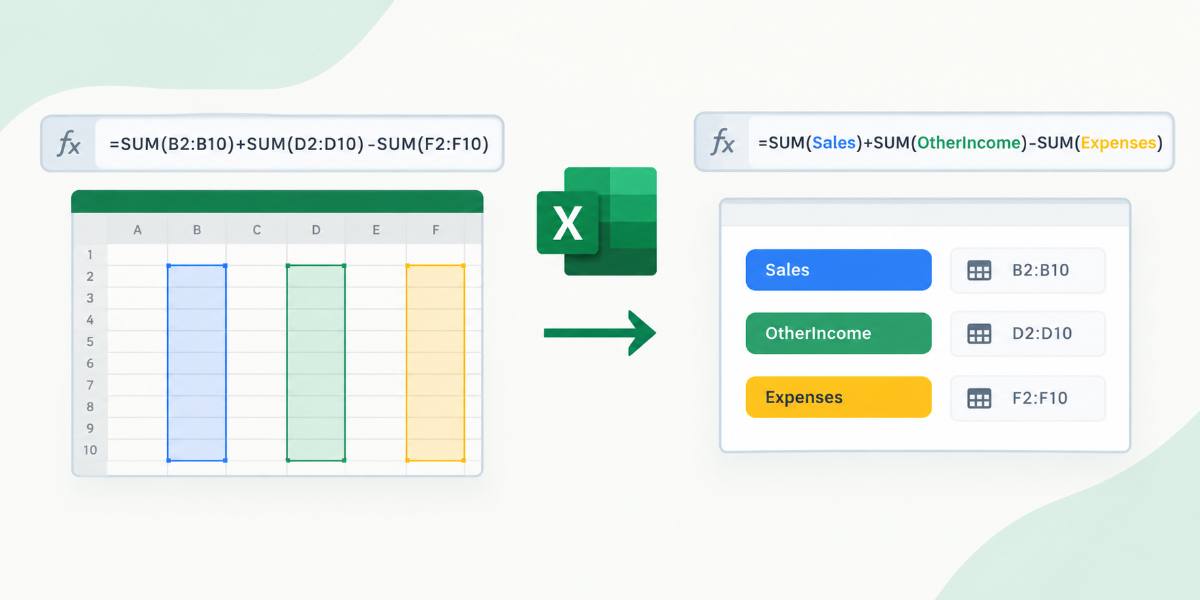
Excel formulas can quickly become difficult to understand when they contain many cell references. Named ranges let you assign meaningful names (like Sales_Q1 or TaxRate) to cells or ranges instead of relying on addresses like $B$12 or C2:C50. Named ranges are one of the most underused features in Excel. Once you start using them, your formulas stop looking like cryptic strings of cell references and start reading almost like plain English.
In this tutorial, we will show how to use named ranges to make formulas easier to read and maintain. We will cover everything from the basics to advanced techniques like dynamic named ranges.
Why Named Ranges Matter
Compare these two formulas:
=SUMIFS(C2:C500,A2:A500,"Electronics",B2:B500,">="&DATE(2026,1,1))=SUMIFS(Sales_Amount,Product_Category,"Electronics",Order_Date,">="&Start_Date)The second version tells you exactly what it’s doing without needing to trace back to the sheet to figure out what column C or A actually contains. That’s the core benefit of named ranges: they turn hazy cell references into self-documenting labels.
Beyond readability, named ranges give you three practical advantages:
- Easier Maintenance: If your data range moves or expands, you update the name definition once instead of hunting through dozens of formulas.
- Fewer Reference Errors: No more accidentally dragging a formula one row too far or referencing the wrong column.
- Reusability: A name defined once can be used in formulas, charts, data validation lists, and VBA code.
Step 1: Creating a Basic Named Range
There are three main ways to create a named range.
Method 1: The Name Box
- Select the cell or range you want to name
- Click into the Name Box (left of the formula bar, where it normally shows something like “A1”)
- Type a valid name like Tax_Rate >> press Enter
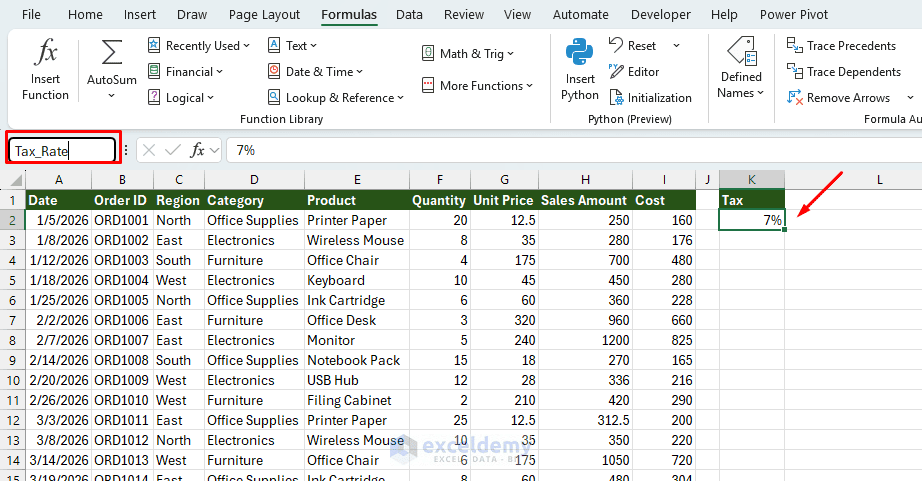
That’s it. The range is now named, and you can reference it in any formula by typing Tax_Rate instead of K2.
Method 2: Define Name Option (More Control)
- Select your range
- Go to the Formulas tab >> from Defined Names >> select Define Name
- In the dialog box:
- Name: Enter a descriptive name (e.g. Sales_Amount)
- Scope: Choose Workbook or a specific worksheet
- Refers to: Confirm or adjust the cell reference
- Click OK
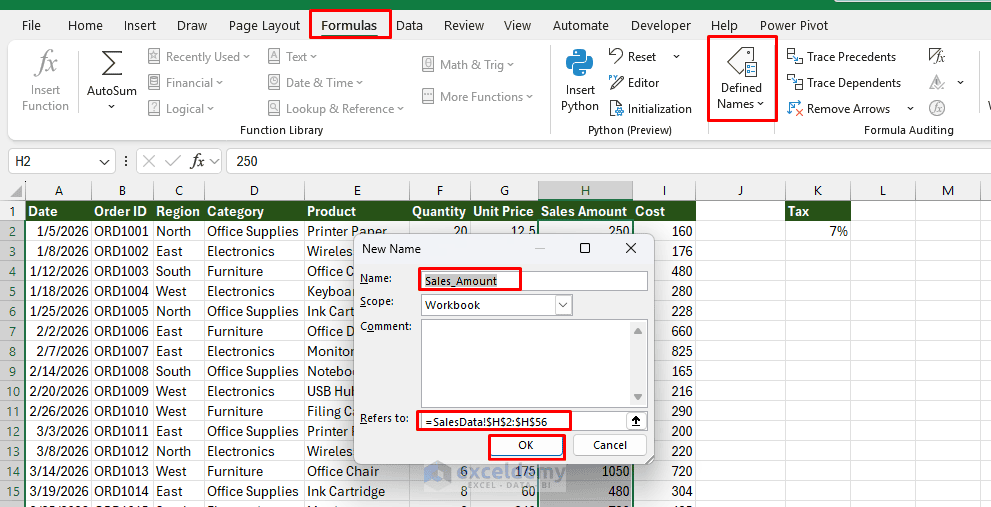
This method is preferable when you want to set the scope explicitly or add a comment describing what the name is for.
Method 3: Create from Selection
If you already have a table with headers, Excel can name each column automatically based on its header text.
- Select your data range including the header row (e.g. A1:I56)
- Go to the Formulas tab >> expand Defined Names >> select Create from Selection
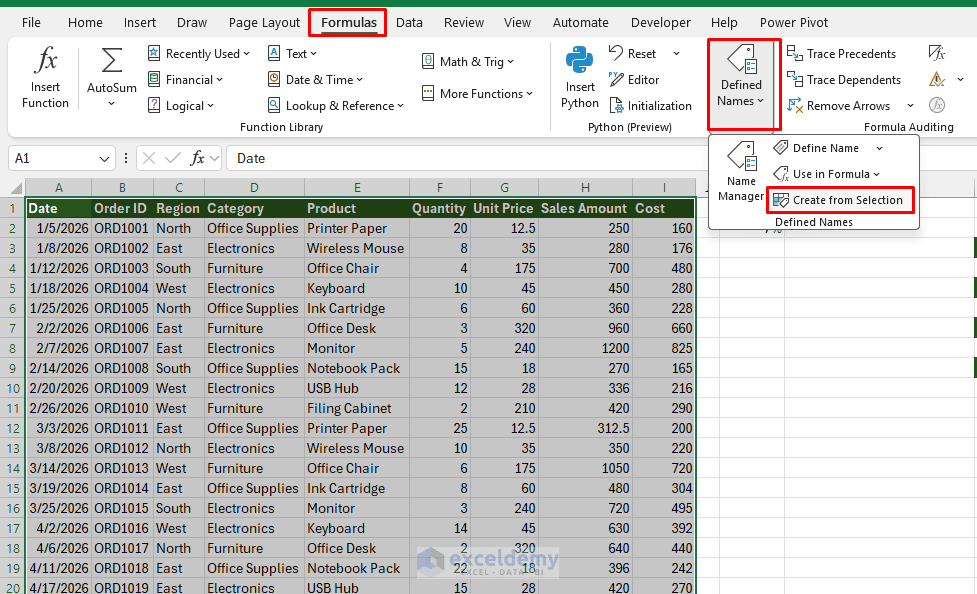
- Check the box for Top row (or whichever side your labels are on)
- Click OK
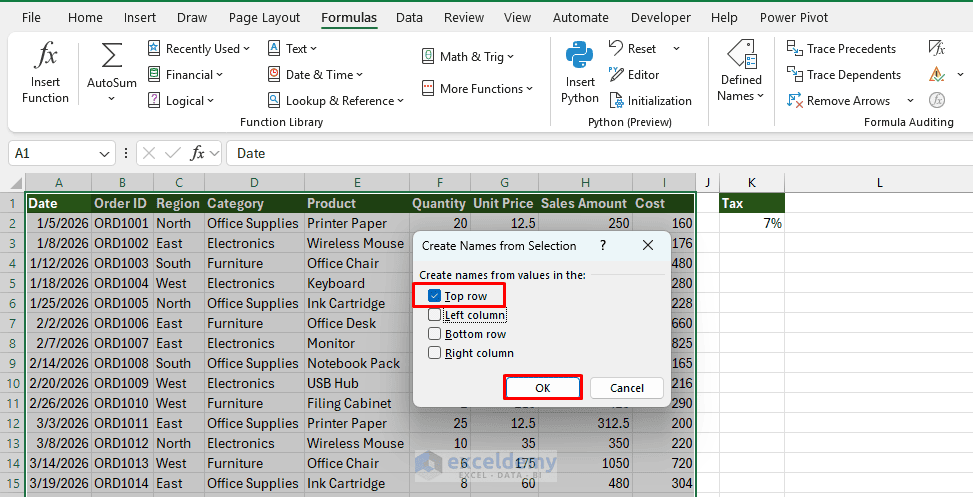
Excel will create one named range per column, using the header text as the name. Spaces are automatically converted to underscores, so “Sales Amount” becomes Sales_Amount.
Step 2: Naming Rules to Know for Valid Names
- Names must start with a letter, an underscore (_), or a backslash (\), not a number
- No spaces allowed (use underscores or camelCase: Tax_Rate or TaxRate)
- Names can’t look like cell references (you can’t name something A1 or Q3)
- Names are not case-sensitive (Sales_Amount and sales_amount refer to the same thing)
- Keep names short but descriptive; Sales_Amount beats both S and TotalMonthlySalesAmountForRegion
- Maximum length is 255 characters (keep them short and meaningful)
Step 3: Using Named Ranges in Formulas
Once a range has a name, you can use that name directly in formulas. A name behaves just like a cell reference.
Calculate Total Sales:
=SUM(Sales_Amount)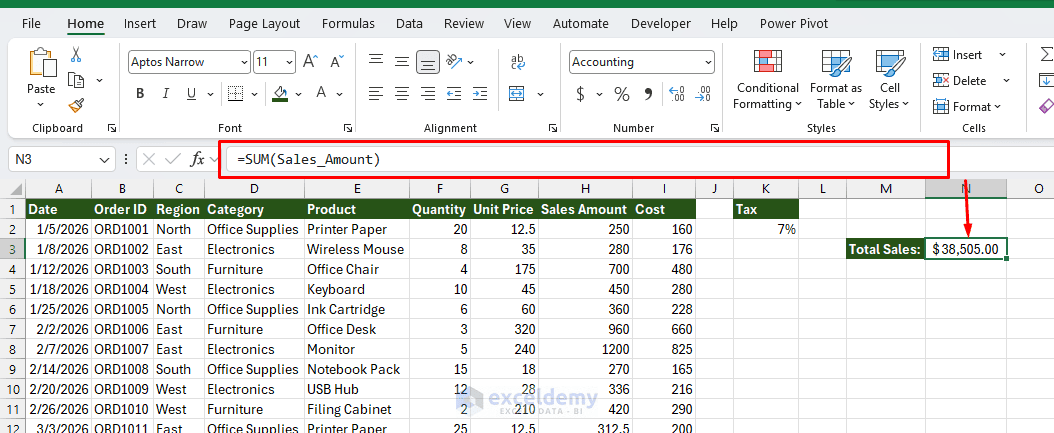
Conditional Sum:
=SUMIFS(Sales_Amount,Category,"Electronics")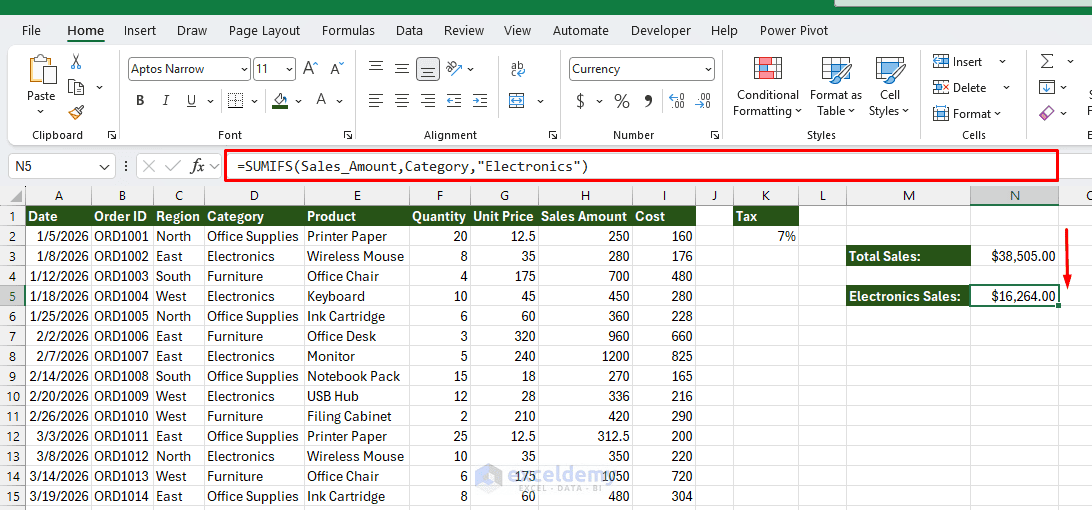
Named ranges therefore make formulas much easier to understand when you return to a workbook later or share it with another person.
Step 4: Named Constants (Not Just Ranges)
Named ranges are especially useful for assumptions such as tax rates, discount percentages, interest rates, or growth rates. Names don’t have to refer to a range at all; they can store a constant value or even a formula.
A Named Constant:
- If you name the tax rate cell Tax_Rate, you can use:
=H2*(1+Tax_Rate)- Drag this formula down without needing to lock the reference with $ signs
- The name behaves like an absolute reference automatically
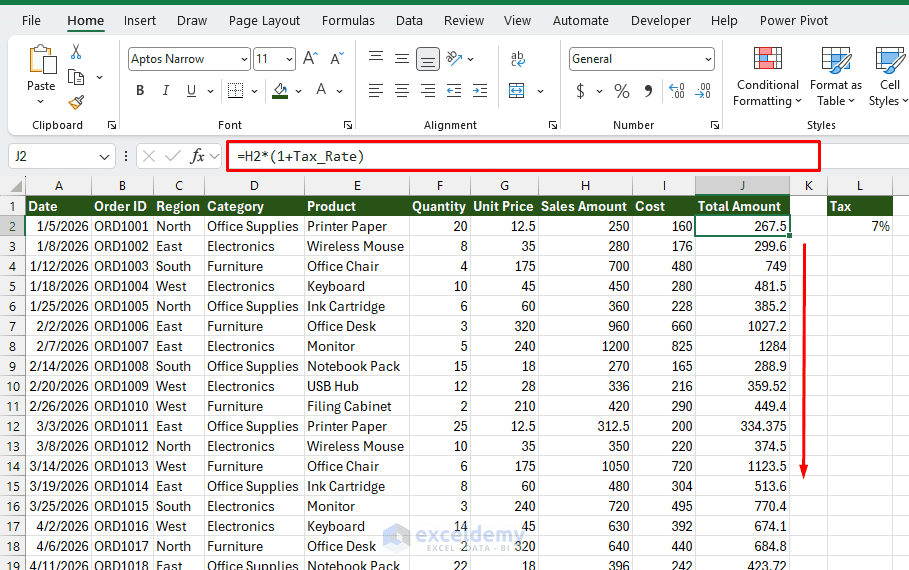
This named range is a huge win for maintainability: no more hunting for missing $ symbols when a formula breaks after copying. This works in any cell, and if the tax rate changes, you update it in one place.
A Named Formula:
- Go to the Formulas tab >> expand Defined Names >> select Define Name
- Name: NetProfitMargin
- Refers to:
=(Total_Sales-Total_Cost)/Total_SalesThis lets you use NetProfitMargin as if it were a built-in function, dramatically simplifying dashboards and financial models.
=NetProfitMargin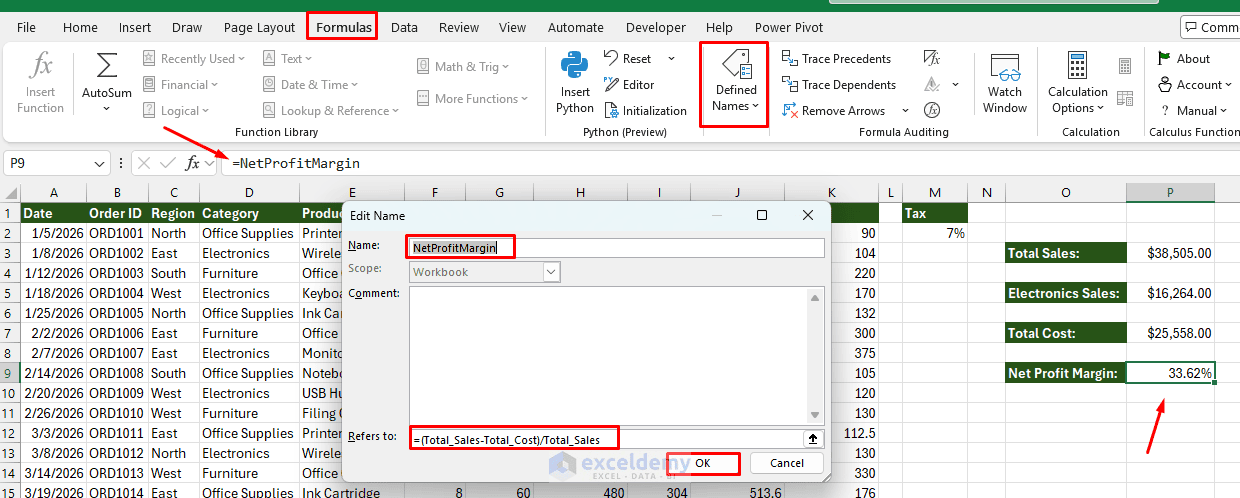
Note: To use this named formula, you must first define total sales and total cost as the named ranges Total_Sales and Total_Cost.
Step 5: Managing Named Ranges
As a workbook grows, you may need to review, edit, or delete existing names.
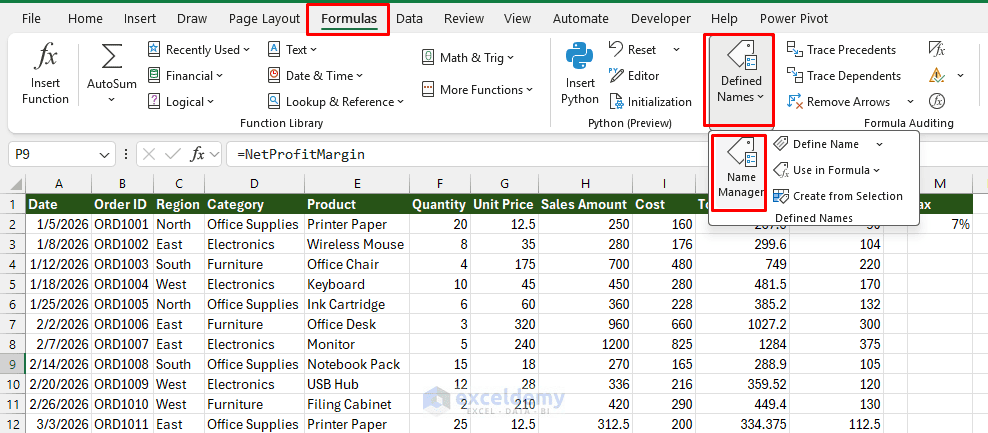
- Go to the Formulas tab >> from Defined Names >> select Name Manager
- Here you can:
- Edit the name or the “Refers to” reference without breaking formulas that use it (the formulas automatically pick up the new reference)
- Delete unused names (helpful for cleaning up a workbook that’s grown messy over time)
- Filter names by scope, by errors, or by type (defined names vs. table names)
- See which names have #REF! errors
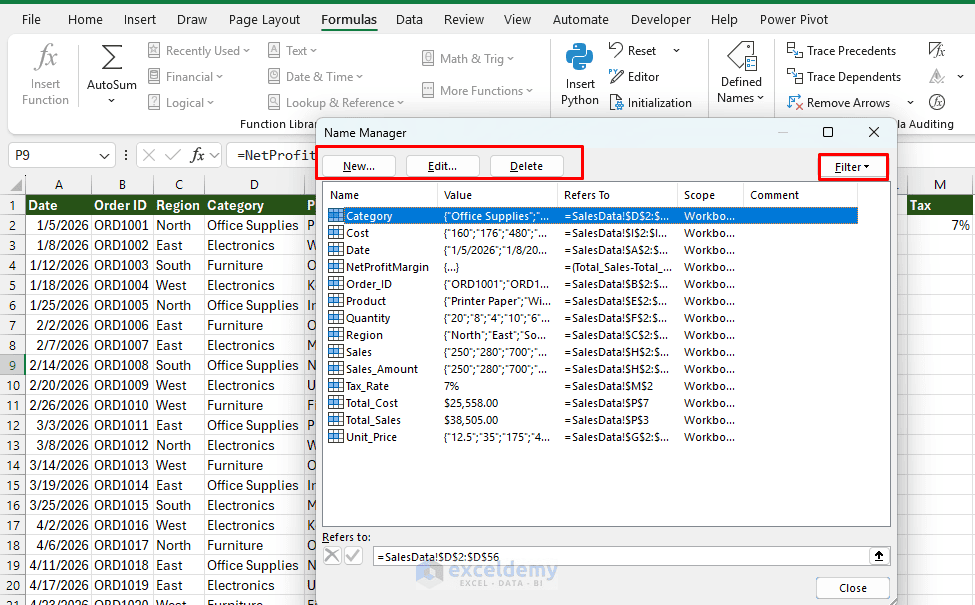
Tip: Periodically open the Name Manager and check for names with #REF! errors in the “Refers To” column. These happen when the original range was deleted, and they’ll silently break any formula depending on them.
Dynamic Named Ranges (Ranges That Grow Automatically)
A static named range like B2:B500 stops working correctly once your data grows past row 500. There are two modern ways to solve this.
Option A: Excel Tables
- Select your data
- Go to the Insert tab >> select Table or press Ctrl + T
- Check “My table has headers” >> click OK
- Give the table a name via Table Design >> Table Name (e.g. SalesTable)
- Reference columns using structured references: SalesTable[Sales Amount]
Structured references automatically expand as you add rows; no manual range updates needed. This is the easiest and most robust way to get “dynamic” named ranges in modern Excel.
Option B: Named Ranges with OFFSET or Dynamic Arrays
If you’re not using a Table, you can define a name using a formula instead of a fixed reference:
=OFFSET(Sheet1!$B$2,0,0,COUNTA(Sheet1!$B:$B)-1,1)This creates a range that automatically resizes based on how many entries are in column B.
Modern Alternatives (Excel 365 / 2021+):
Alternatively, in modern Excel with dynamic arrays, you can reference a spilled range directly (this works when B2 contains a formula that spills):
=Sheet1!$B$2#Or you can use FILTER to return only the non-blank cells in the column:
=FILTER(Sheet1!$B$2:$B$1000,Sheet1!$B$2:$B$1000<>"")The # (spill operator) automatically captures the entire dynamic array output, expanding or shrinking as the source formula’s results change.
Conclusion
By following this tutorial, you can use named ranges to make formulas easier to read and maintain. Named ranges replace difficult-to-remember cell references with meaningful labels. The calculation remains the same, but the named-range version is easier to read, understand, troubleshoot, and maintain. For small worksheets, named ranges may simply improve readability. For larger financial models, reports, dashboards, and shared workbooks, they can significantly reduce confusion and make formulas much easier to manage.
Get FREE Advanced Excel Exercises with Solutions!

