


Why Spreadsheet Auditing Matters
Studies on spreadsheet error rates consistently find that the majority of real-world spreadsheets contain at least one material error. Common categories:
- Logic errors: A formula computes something other than what it’s supposed to (e.g. averaging a column that includes a subtotal row).
- Reference errors: A formula points at the wrong cell, range, or sheet, often after a row or column insertion shifts references unexpectedly.
- Circular references: A cell’s formula depends, directly or indirectly, on its own value.
- Inconsistent formulas: A formula pattern that should be uniform across a row or column (e.g. a monthly total) breaks in one or two cells, usually from manual overwrites.
- Hardcoded values inside formulas: Numbers typed directly into a formula that should reference a named input, making updates untraceable.
None of these throw a visible error in Excel unless they produce something like #REF! or #DIV/0!. Most just produce a wrong number that looks plausible.
Preparing a Workbook for a ChatGPT Audit
Before handing anything to ChatGPT, do this prep — it dramatically improves the quality of the results.
Extract Formulas into a Flat List:
A quick way to get a clean formula inventory:
- Select the range you want to audit.
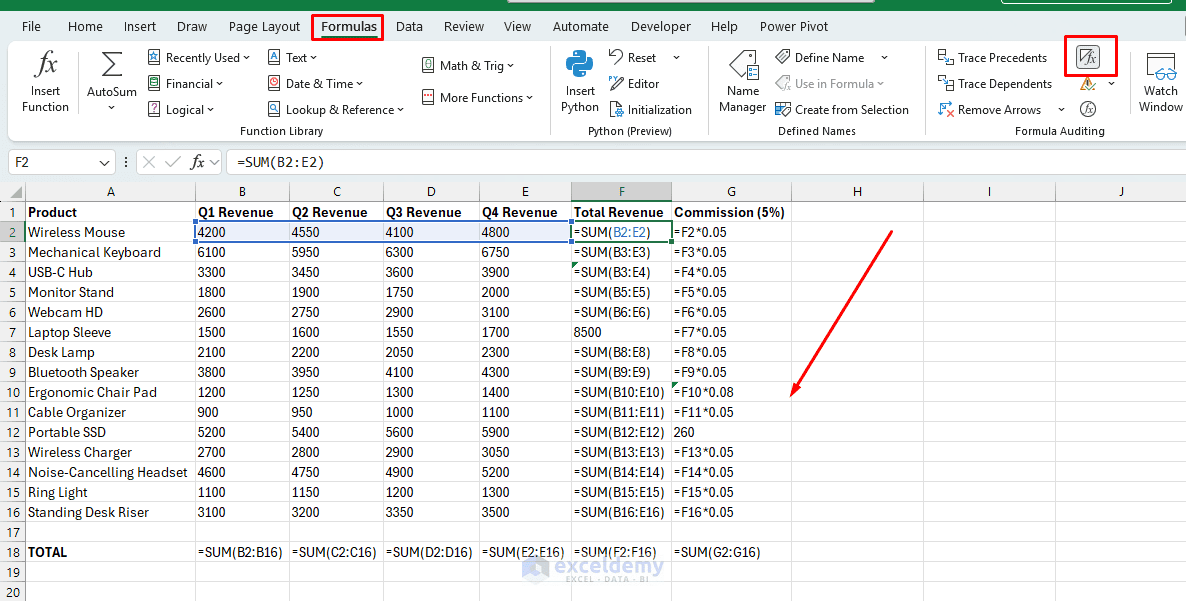
- Go to Formulas >> select Show Formulas or press Ctrl + ~.
- Copy the range, paste it into a plain text editor, and clean up tabs.
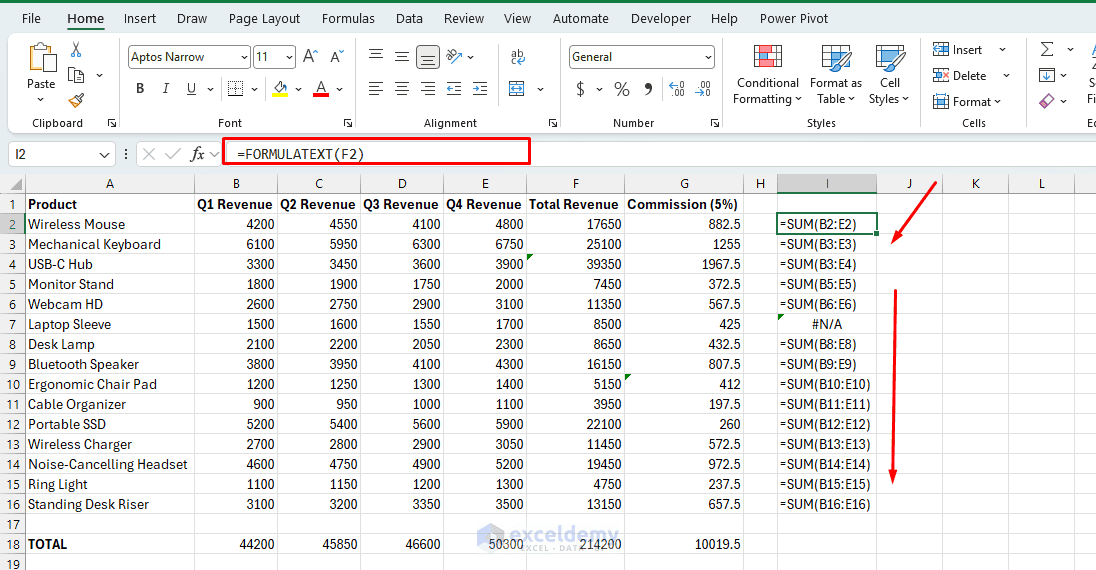
Alternatively, use this small helper formula in a blank column to list a cell’s formula as text, which is easier to paste into a chat than a screenshot:
=FORMULATEXT(F2)
Drag this down alongside the range you’re auditing to build a formula-to-cell map you can hand to ChatGPT as a table.
Note Named Ranges and Cross-Sheet Links:
- List out any named ranges.
- Go to the Formulas tab >> select Name Manager.
- Note which sheets reference which other sheets.
ChatGPT cannot infer this from a formula snippet alone if the snippet references a name it hasn’t seen defined.
Audit Formulas by Pasting
This is the fastest way to get a second opinion on a specific area — a pricing model, a set of totals, or a lookup table — without uploading the whole file.
Prompt Structure for Logic-Error Detection
Give ChatGPT three things: the formulas, what the cell is supposed to represent, and the surrounding structure.
Prompt:
Here are formulas from a sales dataset, in column F ("Total Revenue"):

=SUM(B2:E2)
=SUM(B3:E3)
=SUM(B3:E4)
=SUM(B5:E5)
=SUM(B6:E6)
8500
=SUM(B8:E8)
=SUM(B9:E9)
=SUM(B10:E10)
=SUM(B11:E11)
=SUM(B12:E12)
Columns B–E are Q1–Q4 revenue per product. F is meant to be the row total.
Check for inconsistencies or logic errors in this pattern.
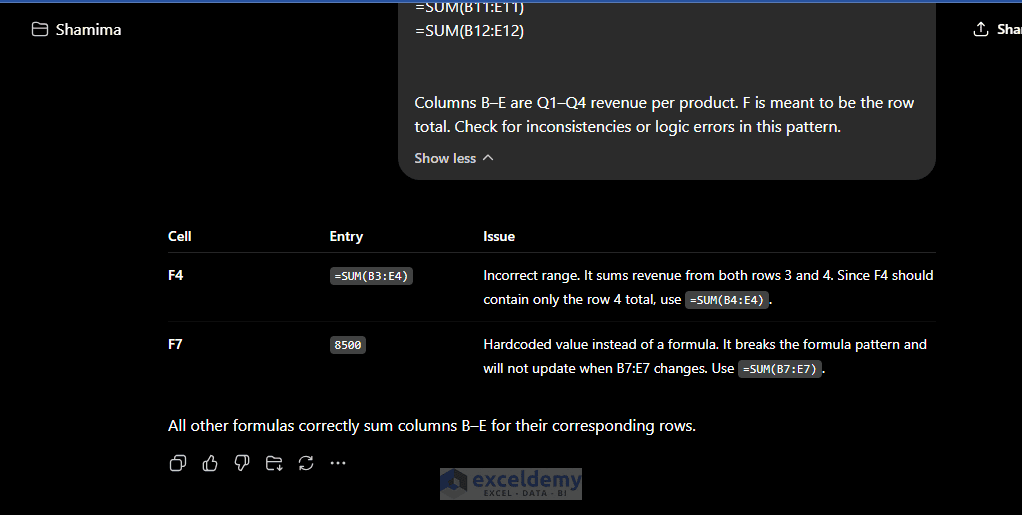
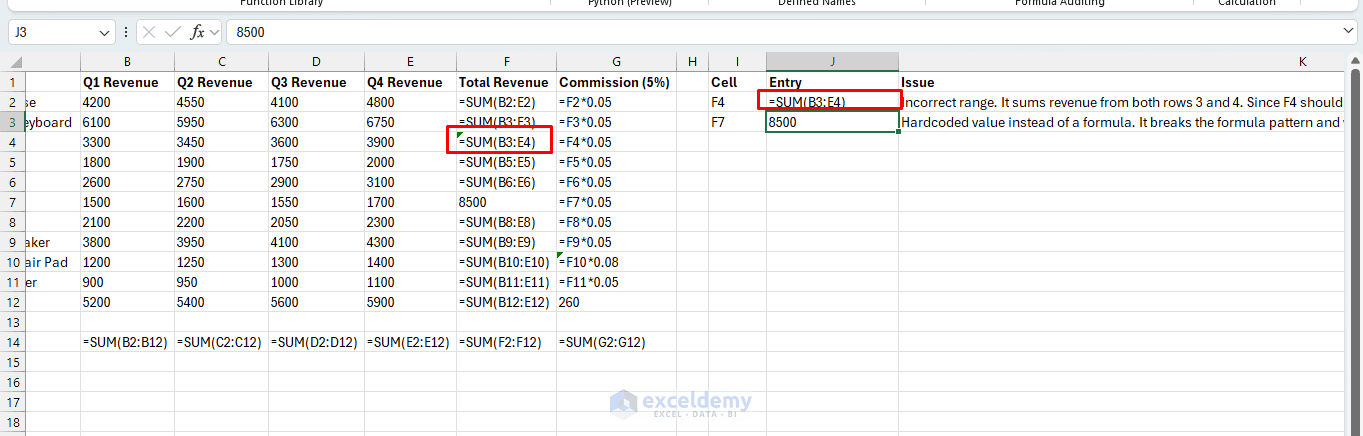
ChatGPT will flag the F4 and F7 entries — a classic drag-fill error where the range wasn’t anchored correctly, silently pulling in a chunk of the row above.
Prompt Structure for Circular Reference Detection
Circular references are easiest to catch when you give ChatGPT the full dependency chain rather than one formula in isolation, since the circularity is often indirect (A→B→C→A).
Prompt:
Trace this formula chain for circular references:
C10: =C11+D10
C11: =SUM(C5:C10)
D10: =C10*1.05
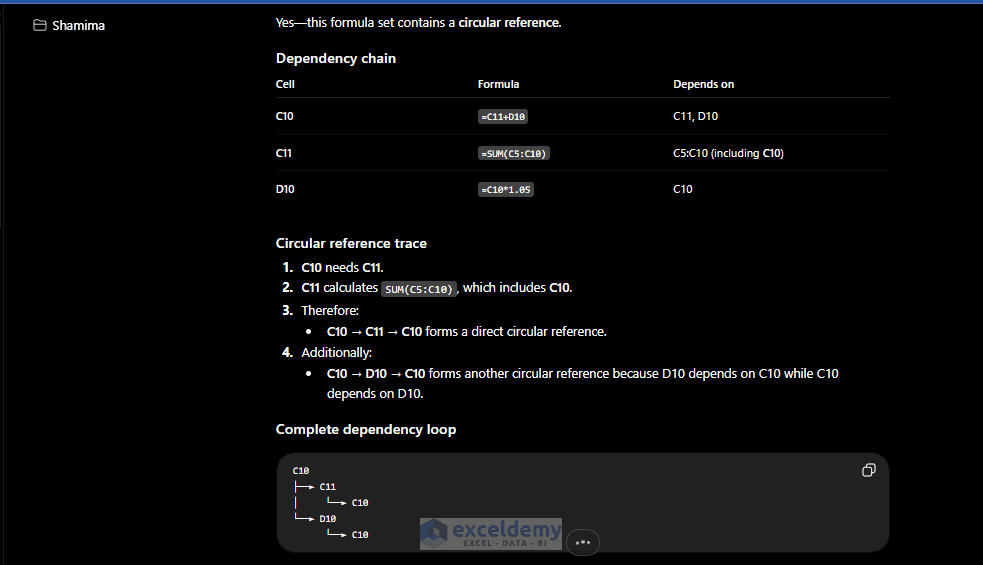
ChatGPT will identify that C11 sums a range including C10, and C10 depends on C11 through the first formula — an indirect circular reference that Excel may not flag clearly if iterative calculation is enabled, which silently produces a converged but wrong number instead of an error.
ChatGPT Output:
Circular reference trace
- C10 needs C11.
- C11 calculates SUM(C5:C10), which includes C10.
- Therefore:
- C10 → C11 → C10 forms a direct circular reference.
- Additionally:
- C10 → D10 → C10 forms another circular reference because D10 depends on C10 while C10 also depends on D10.
Complete dependency loop
C10
├──► C11
│ └──► C10
└──► D10
└──► C10
Result
- ❌ Circular reference detected.
- Primary loop: C10 → C11 → C10
- Secondary loop: C10 → D10 → C10
Excel will report this as a circular reference unless iterative calculation is intentionally enabled.
Prompt Structure for Inconsistent Formula Patterns
Paste an entire column or row of formulas and ask ChatGPT to identify the “modal” pattern and flag deviations:
Prompt:
Here are formulas from column G (Commission 5%), rows 2–15.
=F2*0.05
=G3*0.05
=F4*0.05
=F5*0.05
=F6*0.05
=F7*0.05
=F8*0.05
=F9*0.05
=F10*0.08
=F11*0.05
=G12*0.5
Identify the dominant formula pattern and flag any row that deviates from it,
including why.
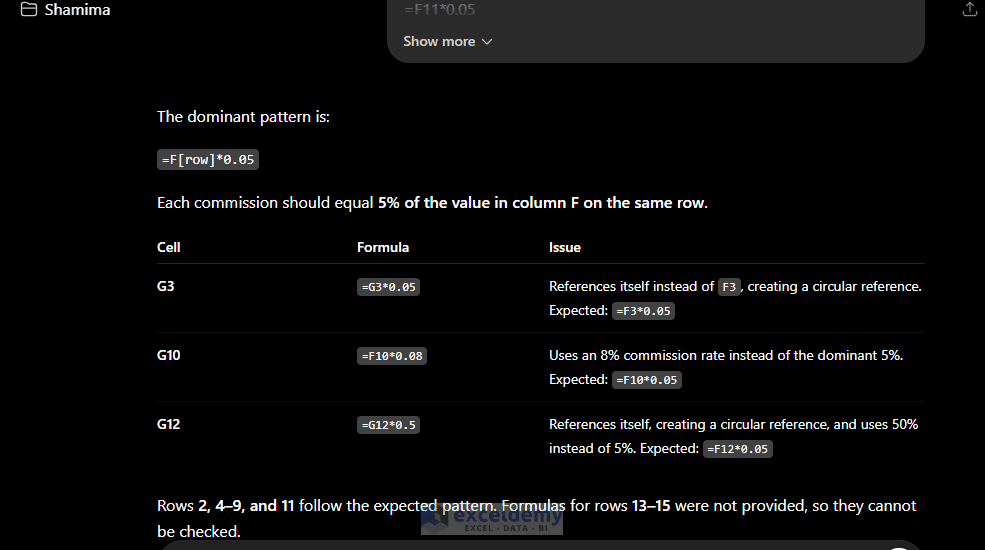
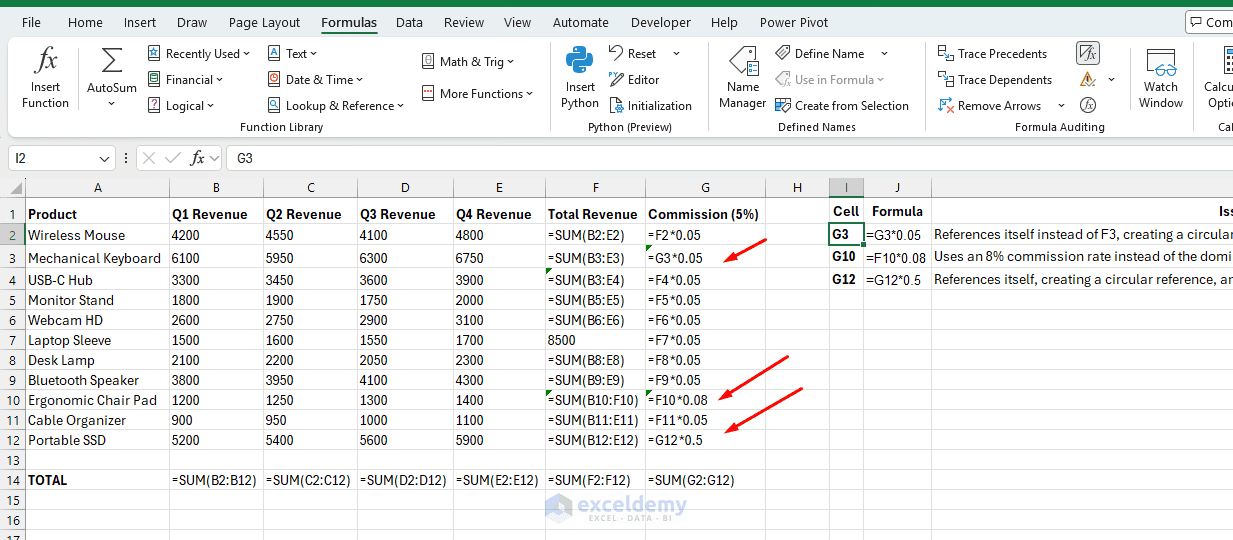
This catches the extremely common case where someone manually overwrote one or two cells with a hardcoded value or a slightly different range mid-column — something that’s very hard to spot visually in a grid of similar-looking formulas, but trivial for a model to diff.
Ask for a Structured Audit Report, Not Just a Paragraph
Prompt ChatGPT to return findings in a table:
Return your findings as a table with columns: Cell, Formula, Issue Type (Logic Error / Circular Reference / Inconsistency / Hardcoded Value), Description, Suggested Fix.
This makes it easy to work through issues one at a time and paste the table into a tracking sheet or comment thread.
Full-Workbook Audit with File Upload
If you have access to ChatGPT’s file upload with Code Interpreter, you can upload your Excel file to audit and validate your spreadsheets. ChatGPT extracts formulas from every sheet, runs them through Python-based checks (using openpyxl), and reports patterns programmatically.
What to Ask ChatGPT:
Rather than “check my spreadsheet,” give a specific, checklist-style instruction:
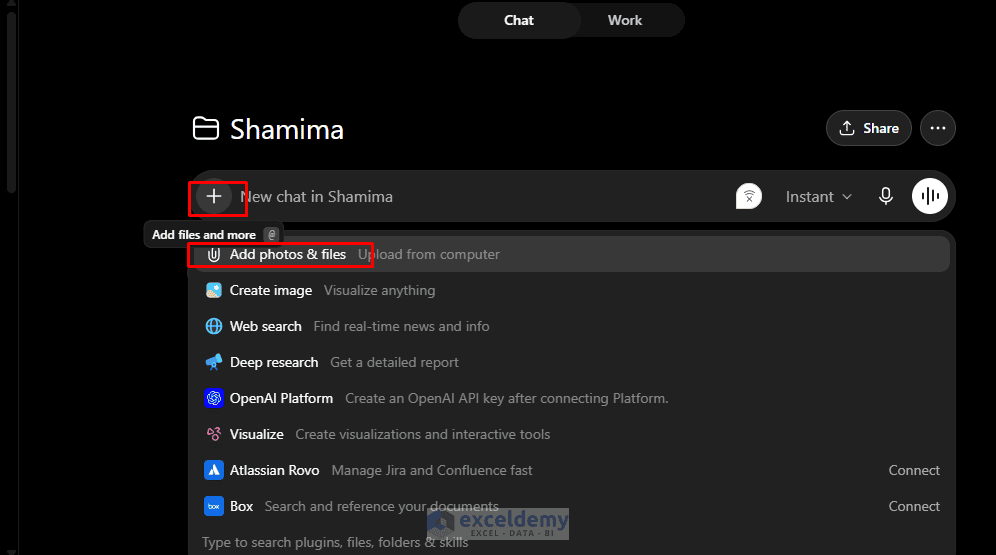
- Go to the ChatGPT app >> click on the plus (+) icon.
- Select Add photos & files >> upload the Excel file.
Prompt Example:
I’ve uploaded a workbook. Review, audit, and validate the spreadsheet. Follow these instructions:
- Flag any column where the formula pattern is inconsistent across rows.
- Flag any circular references.
- Flag any formula containing a hardcoded numeric literal instead of a cell or named-range reference.
- Flag any SUM, AVERAGE, or COUNT range that appears to exclude the last row of a contiguous data block.
Return results as a table with cell reference, sheet name, and explanation.
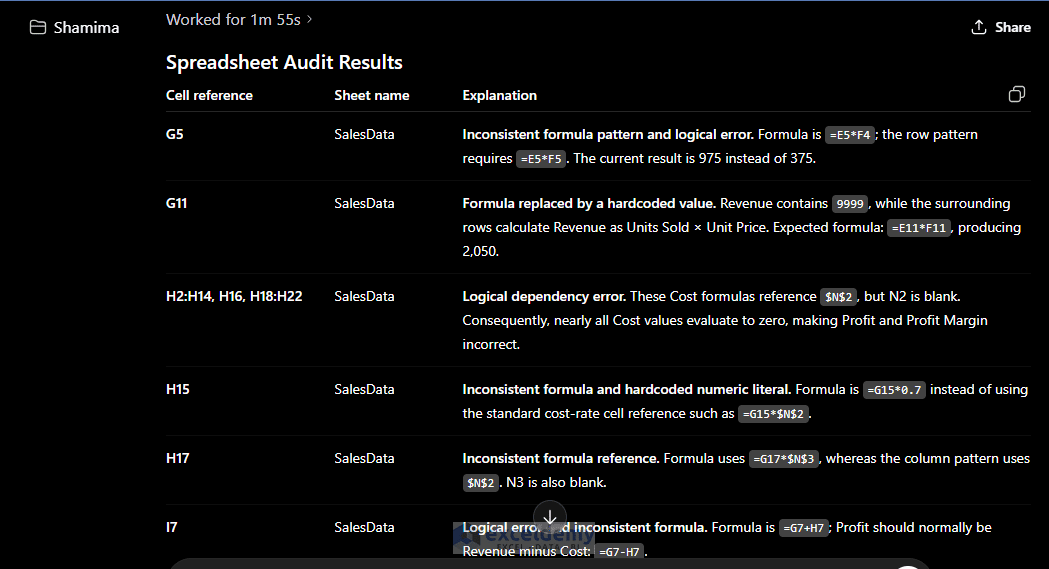
ChatGPT will return the audit results in a table along with a validation summary.
- Copy and paste the table from ChatGPT into Excel.
- Match the flagged issues in the Excel file and resolve them one by one.
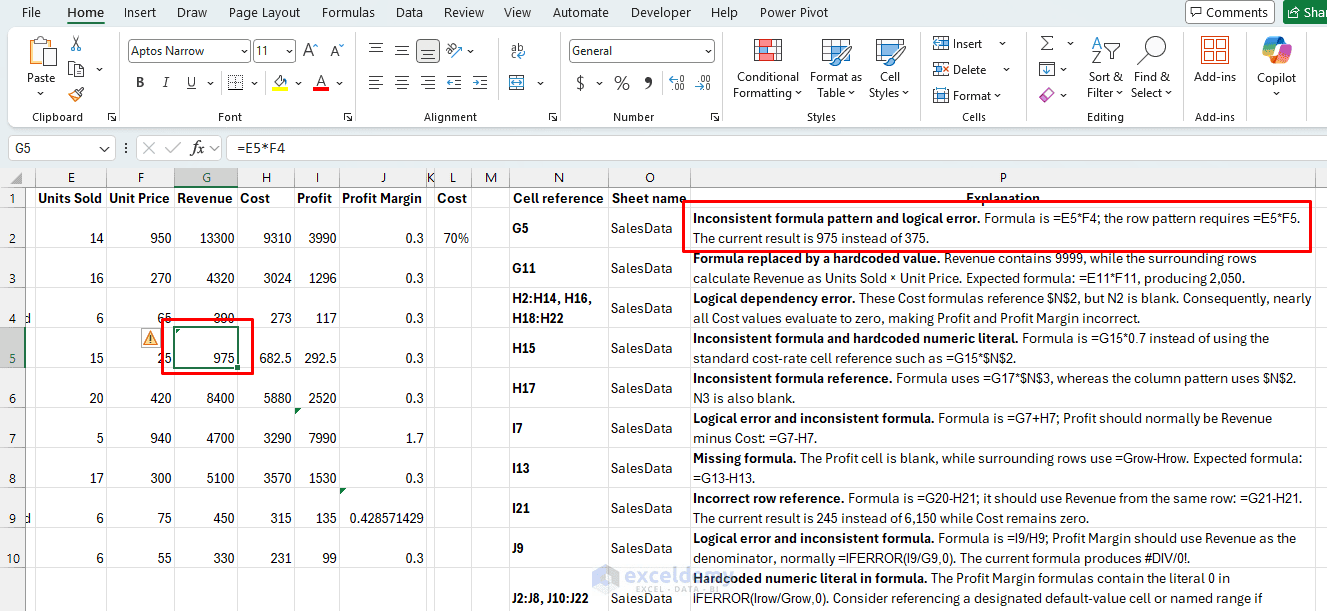
This works because openpyxl can read formula strings (not just calculated values) from an .xlsx file, and ChatGPT can write and run the Python needed to parse them, build a simple dependency graph, and pattern-match against the row above or below for consistency — all inside the same session.
Why This Catches More Than Excel’s Built-In Tools
Excel’s native Trace Precedents/Dependents and its circular reference warning are useful but limited: the warning only fires for direct circularity in the active sheet under default settings, and tracing is manual, one cell at a time. A scripted pass across the whole formula set surfaces:
- Indirect circular chains spanning multiple sheets.
- Column-wide pattern breaks that aren’t errors — so Excel won’t flag them — but are still wrong.
- Silent hardcoding that looks identical to a working formula until you read the actual string.
Bonus: Built-In ChatGPT Add-In
It is also possible to use ChatGPT directly inside Excel. If you have a premium subscription, this approach keeps the audit workflow entirely within the spreadsheet application.
- Go to the Home tab >> click Add-ins.
- Search for ChatGPT >> sign in with your credentials.
- Go to the Home tab >> select ChatGPT.
- Insert the following prompt:
Review, audit, and validate the spreadsheet. Specifically focus on logic errors,
circular references, and inconsistent formulas across a workbook.
- Click Done to bring the report directly into Excel.
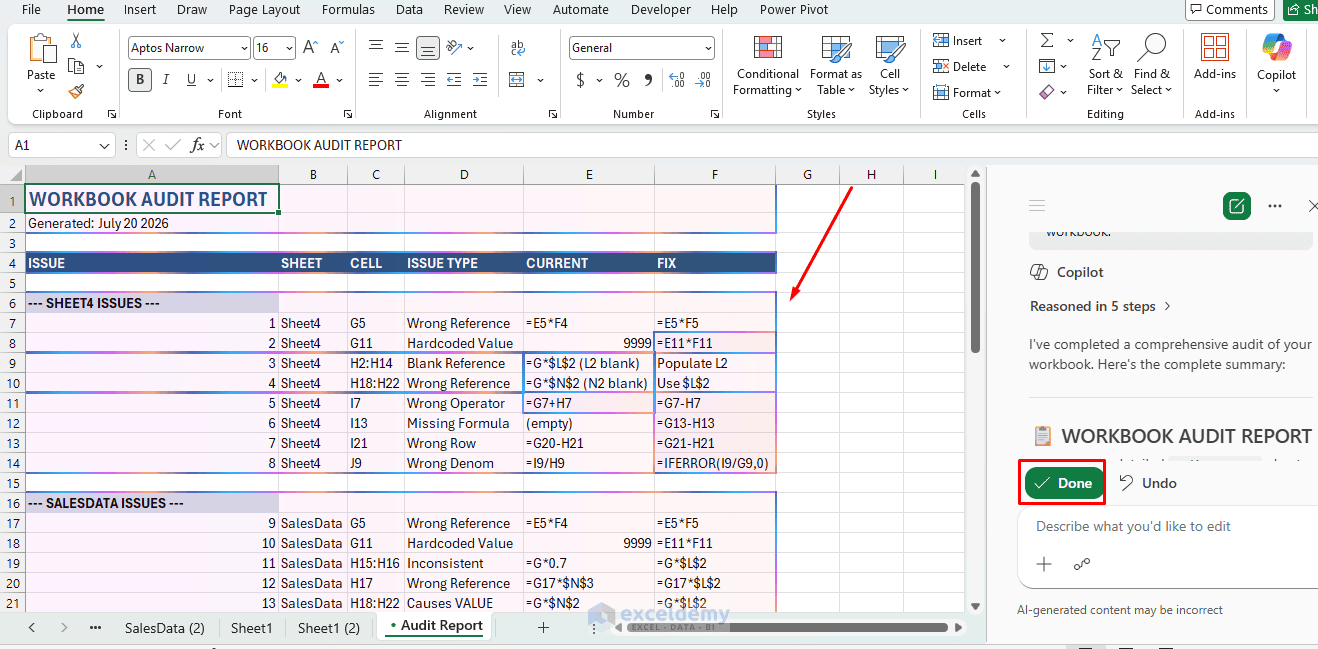
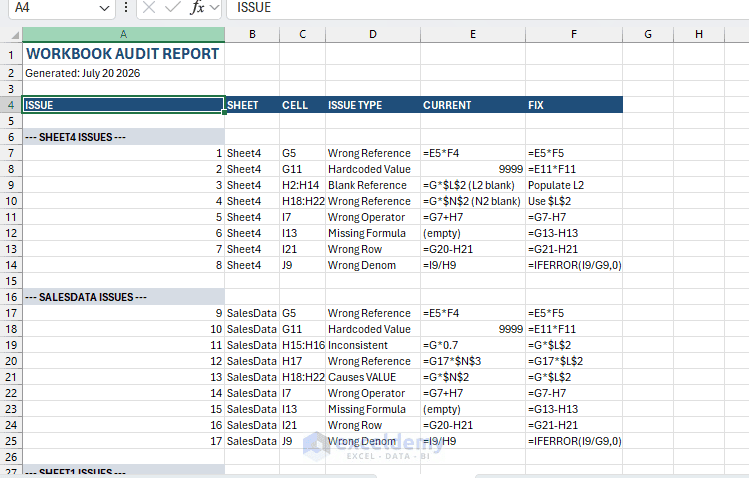
The formatted audit report is detailed and structured. From there, navigate to the relevant sheets and correct each flagged issue.
A Reusable Audit Checklist Prompt
For recurring audits (e.g. a monthly report you re-validate every cycle), keep a standing prompt like this one, filling in the pasted formulas or uploaded file each time:
Act as a spreadsheet auditor. For the formulas/file provided, check for:
- Circular references (direct and indirect)
- Inconsistent formula patterns within a column or row
- Off-by-one range errors (ranges that don’t match the actual data block boundaries)
- Hardcoded values embedded in formulas
- Mismatched data types feeding into calculations (e.g. text-formatted numbers in a SUM range)
Report findings as a table with cell reference, issue type, explanation, and suggested fix. Do not report a finding unless you can point to the specific formula text that supports it.
That last line matters — it discourages the model from guessing at issues it can’t actually verify from what you’ve provided.
Limitations to Keep in Mind
- No live recalculation: ChatGPT reasons over formula text; it doesn’t execute Excel’s calculation engine. For confirming an actual computed result, cross-check in Excel itself, especially with volatile functions (NOW(), RAND(), OFFSET()) or iterative circular calculations.
- Volatile and array functions need context: Modern dynamic array formulas (FILTER, UNIQUE, spilled ranges) can look like errors to a model that isn’t told the workbook uses Excel 365 dynamic arrays. State the Excel version if you’re using these.
- Business logic must be stated explicitly: A formula can be internally consistent and still wrong for the business rule it’s meant to implement. Always state what the cell is supposed to calculate, not just paste the formula.
- Treat findings as a prioritized list, not a verdict: Confirm each flagged issue manually before changing a live workbook, particularly in financial models where a “fix” based on a misunderstood business rule can introduce a new error.
Conclusion
By following the prompts and steps above, you can use ChatGPT to effectively audit and validate spreadsheets. ChatGPT can help identify spreadsheet problems that are difficult to catch manually, especially in large datasets. Logic errors can be found by comparing formulas against calculation rules, circular references can be traced through dependency chains, and inconsistent formulas can be detected by comparing patterns across rows and worksheets. Always review ChatGPT’s recommendations and verify corrected formulas in Excel before using the workbook for reporting or decision-making.
Get FREE Advanced Excel Exercises with Solutions!

