


When an Excel chart is copied normally into PowerPoint, it may become a separate, static chart. Any later changes made in Excel will not necessarily appear in the presentation. Instead, you can link the chart to its original Excel workbook. The Excel chart linked to PowerPoint creates a dynamic connection: when you update the source data in Excel and save the file, the chart in your presentation can refresh to reflect those changes. This is ideal for recurring reports, dashboards, and presentations with frequently updated data.
In this tutorial, we will show how to link Excel charts to PowerPoint so they auto-update. Linked charts will automatically reflect the latest data whenever the Excel workbook is updated.
Key Concepts: Linking vs. Embedding vs. Static Paste
- Linking: The chart references the original Excel file. Changes in Excel propagate to PowerPoint (manual or prompted refresh).
- Embedding: Copies the data into PowerPoint. The chart is self-contained and editable, but does not auto-update from the source Excel file.
- Static paste: A fixed snapshot with no updates or easy editing.
Step 1: Prepare Your Excel Chart to Copy
- Open the Excel workbook containing your data
- Confirm that the chart displays the correct values
- Apply the required chart formatting, such as colors, labels, axis titles, etc.
- Save the workbook somewhere stable
- Click the chart once to select it
- Press Ctrl+C or right-click and select Copy
- Make sure you are selecting the chart object itself, not just a cell range
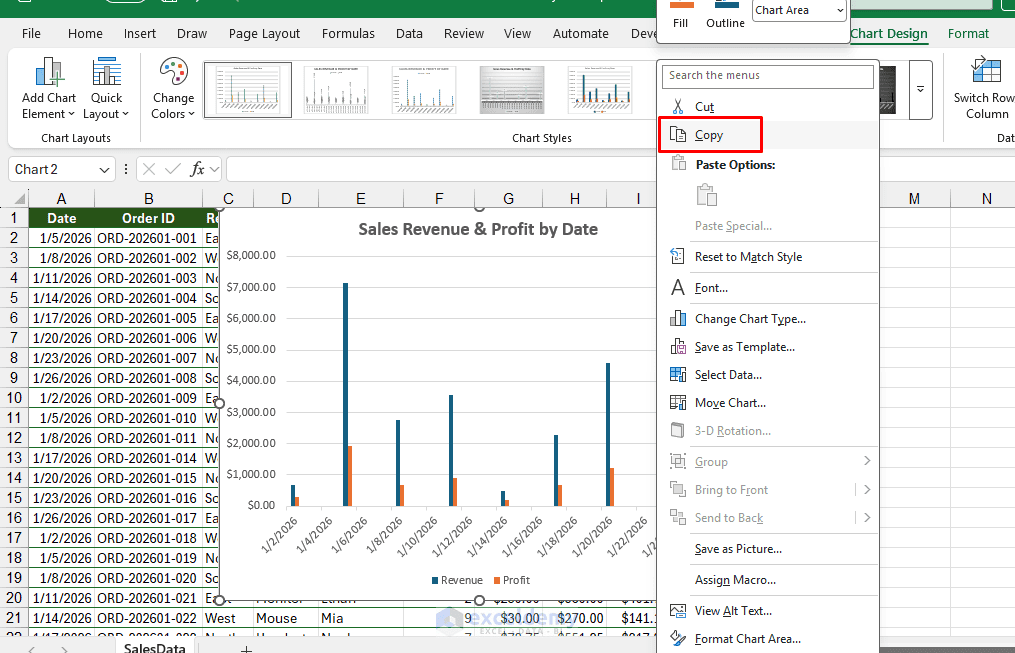
It is best to complete most chart formatting in Excel before linking it. This helps keep the Excel and PowerPoint versions visually consistent.
Step 2: Paste the Chart into PowerPoint with Linking
- Switch to PowerPoint and go to the slide where you want the chart
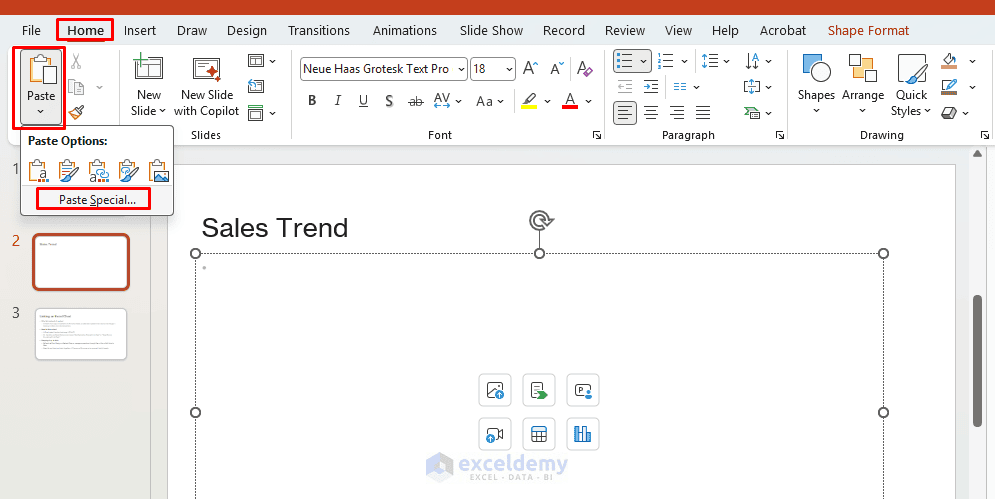
- Instead of a plain paste (Ctrl+V), use Paste Special:
- Go to the Home tab, click the small arrow under Paste, and select Paste Special
-
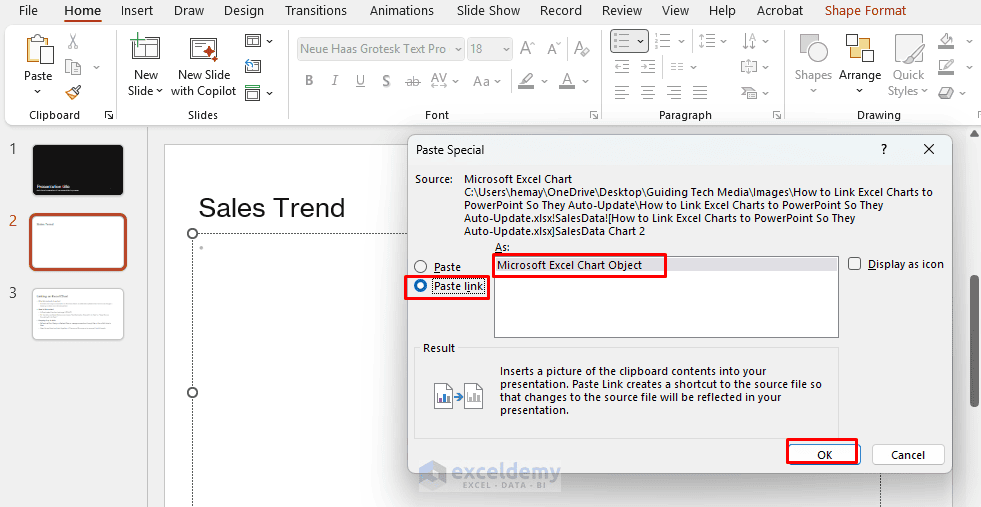
- In the dialog, choose Paste link
- Select Microsoft Excel Chart Object as the format
- Click OK
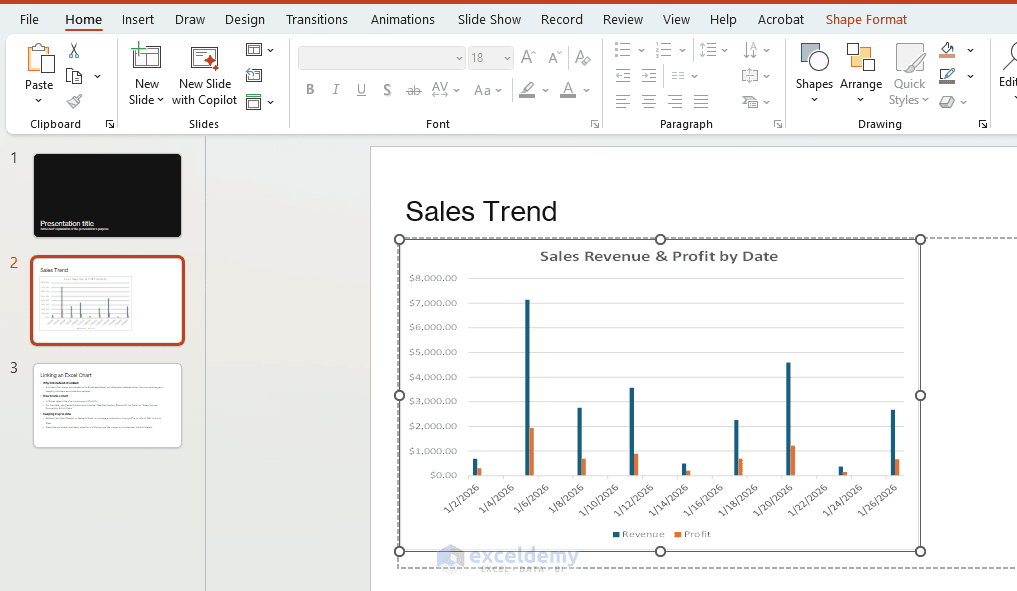
You will get the chart in PowerPoint.
Alternatively:
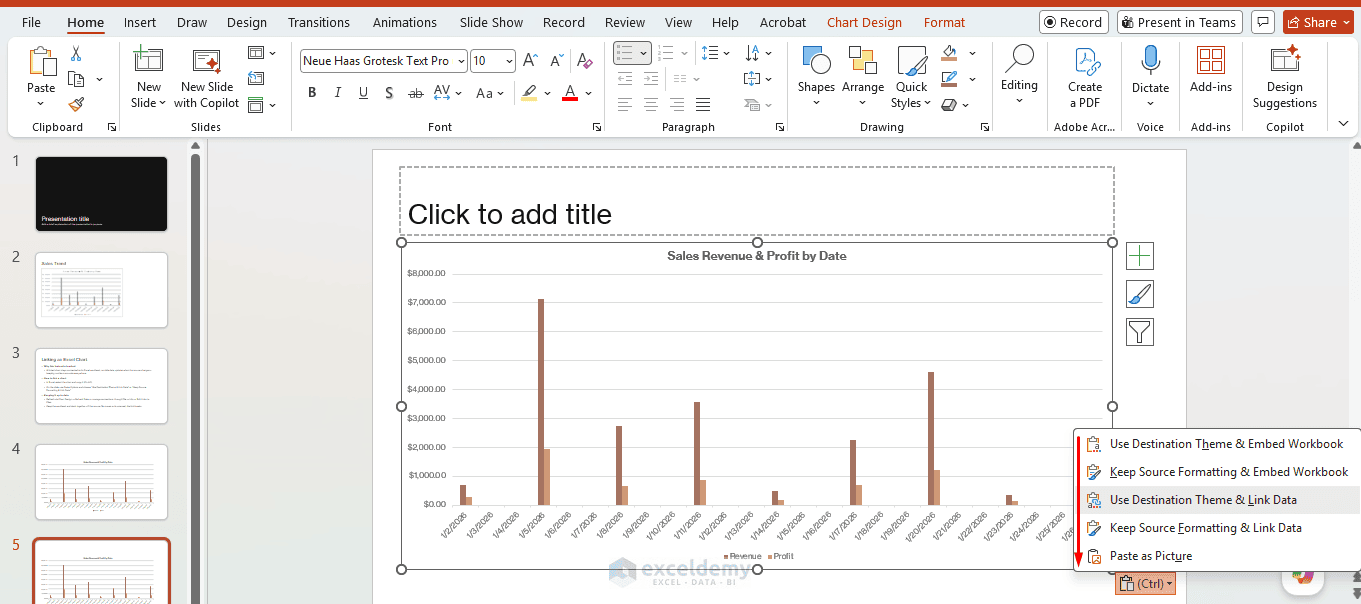
- Press Ctrl+V to paste the chart
- PowerPoint shows a small Paste Options icon near the pasted chart
- Click it and choose Keep Source Formatting & Link Data
- Or choose Use Destination Theme & Link Data if you want the chart to match your PowerPoint theme
- Either of these two “link” options creates the live connection; the plain “Embed” options do not
- Avoid options that say “Embed” if you want linking
Choosing Paste link creates a linked object, while choosing the regular Paste option creates an embedded object instead.
Step 3: Test the Link
After inserting the linked chart, test whether it works.
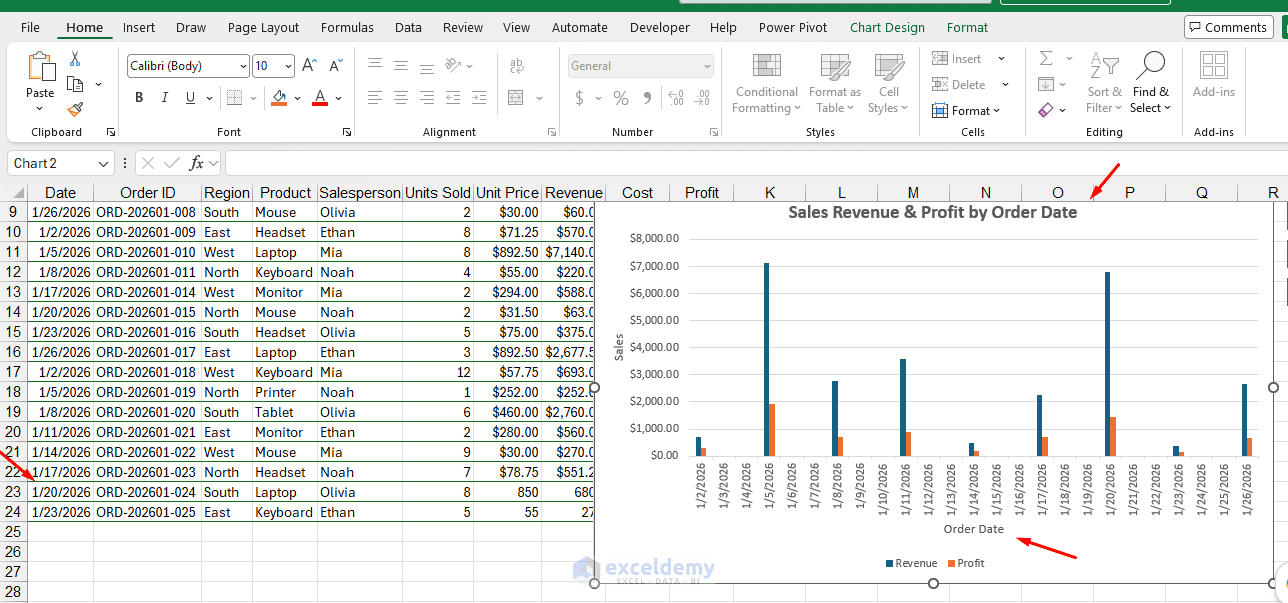
- Return to the original Excel workbook
- Change one of the values used by the chart
- Save the Excel workbook
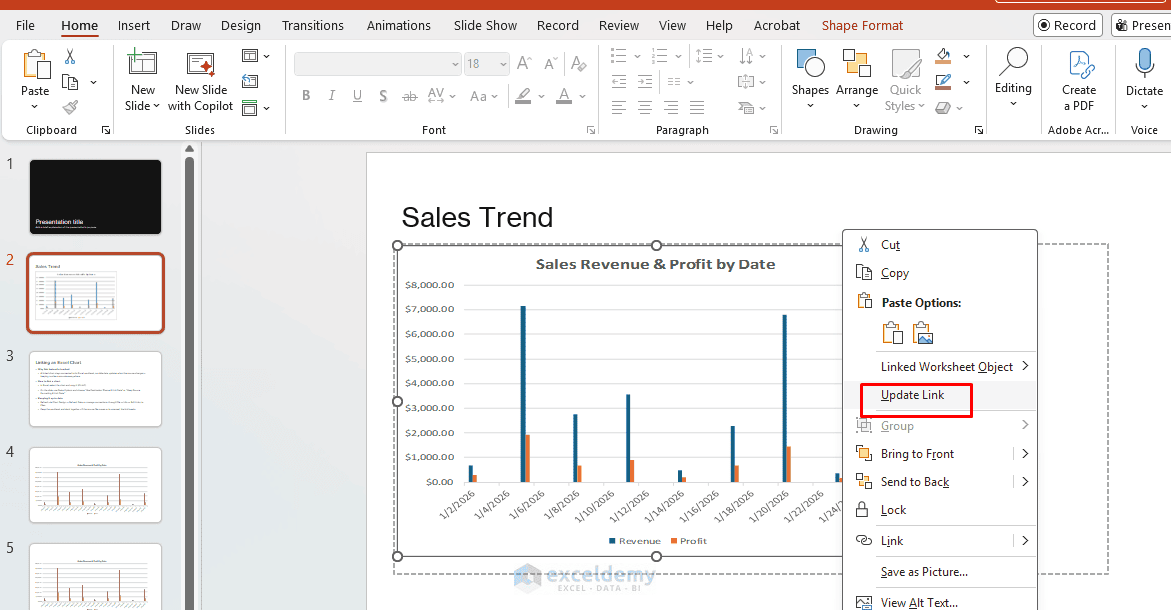
- Return to PowerPoint
- Right-click the chart and select Update Link
- The linked chart will update automatically
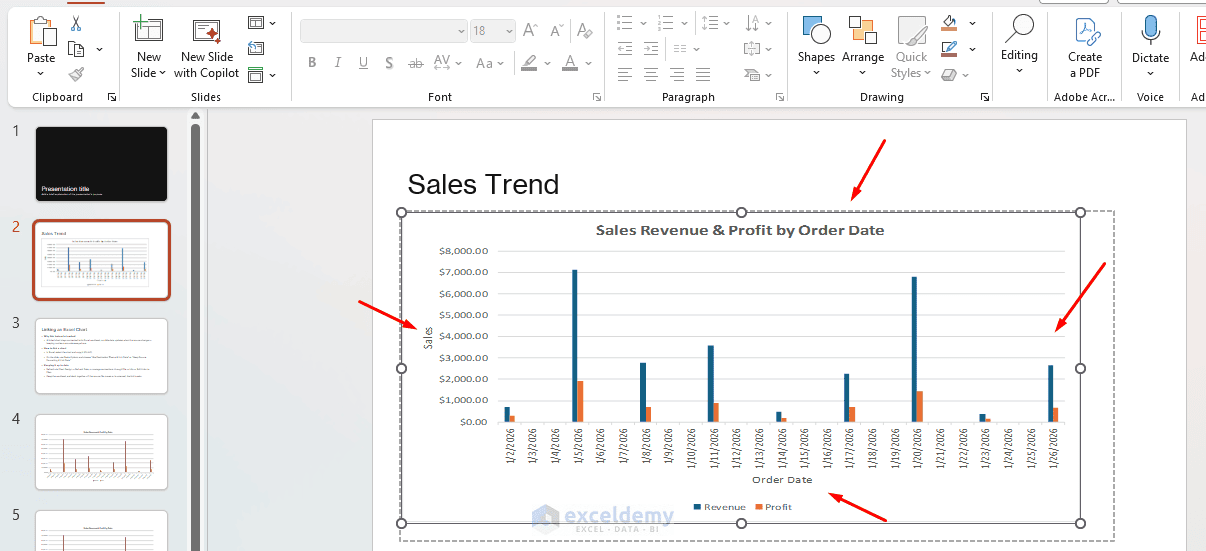
When both applications are open, the chart may display updated values immediately. If the presentation was closed while the Excel data was changed, you may need to refresh the chart after reopening PowerPoint.
PowerPoint closed or opened later:
When you reopen the PowerPoint file after editing the source Excel file, PowerPoint will usually prompt: “This presentation contains links to other files. Do you want to update this presentation with the data from the linked files?”
- Click Update (or Yes) to refresh all charts
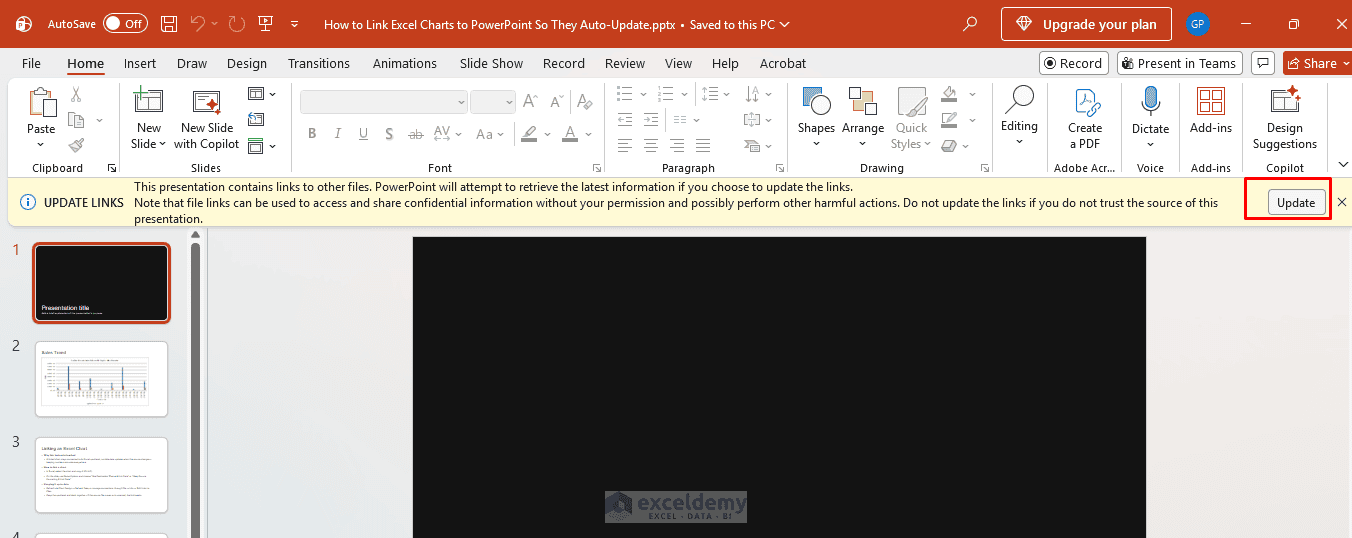
Important: A linked chart does not always refresh instantly while Excel and PowerPoint are open side by side. PowerPoint may continue showing cached data until you select Update Link. Linking means the chart can retrieve updated data from Excel without being copied and pasted again; it does not guarantee continuous real-time synchronization.
How to Manage the Link
PowerPoint provides link-management options for linked external files.
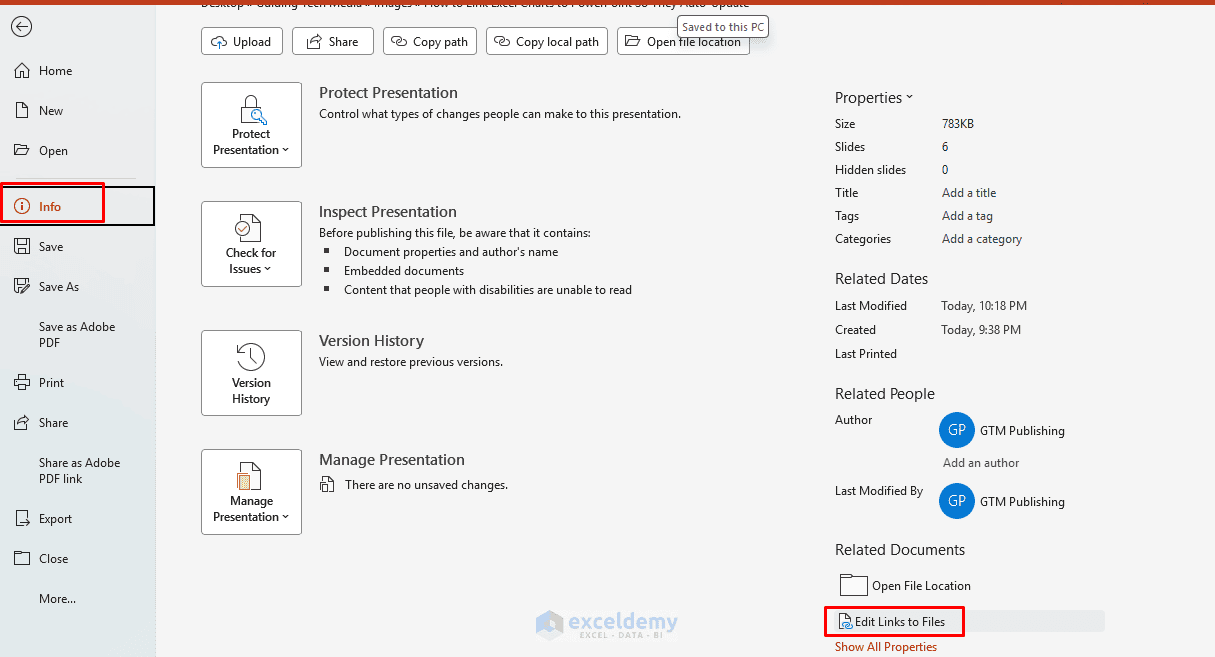
- Save the PowerPoint presentation
- Select File >> Info
- Find the Related Documents section
- Select Edit Links to Files
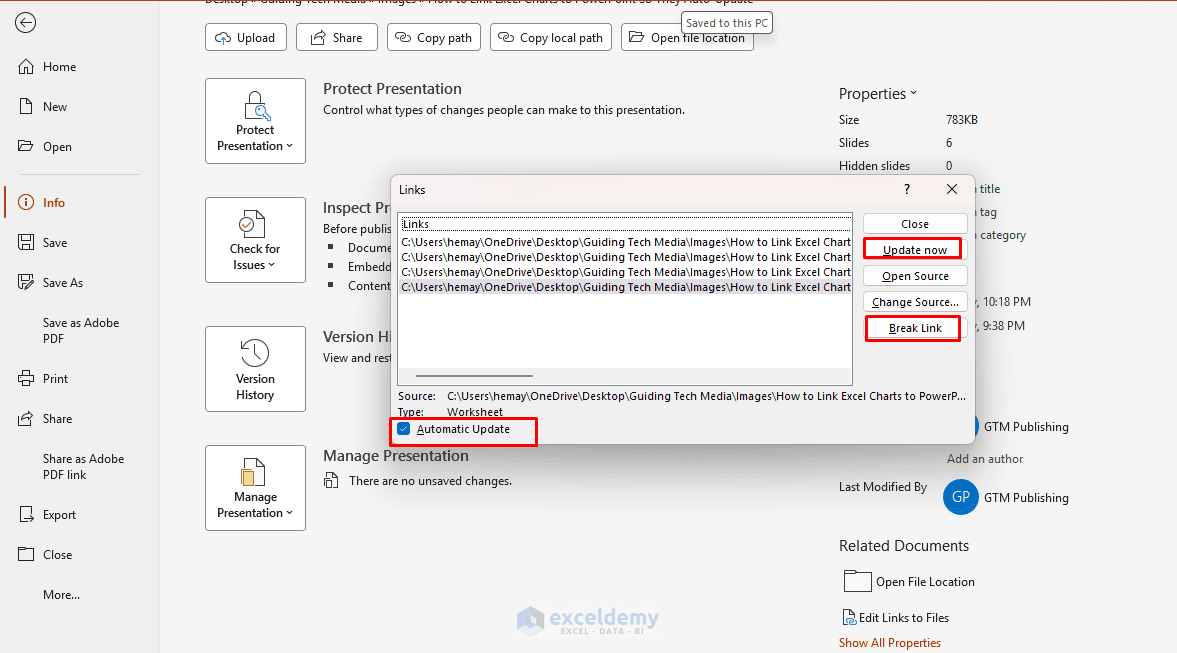
- From the Links dialog box, you can:
- Update the chart immediately
- Change the source workbook
- Switch the update method
- Open the source file
- Break the link
The Edit Links to Files option may not appear until the presentation has been saved.
Troubleshooting Common Issues
- “Link source not found” or broken links: Files were moved or renamed. Keep them together or use Edit Links to Files to update the source path. Save both files in the same folder initially.
- No update after changes: Ensure you saved the Excel file. Refresh manually or reopen PowerPoint.
- Formatting changes unexpectedly: Use the “Microsoft Excel Chart Object” option in Paste Special to let Excel handle rendering.
- Large files or performance: Linking keeps PowerPoint files smaller than full embedding.
- Sharing presentations: Recipients need access to the Excel file (or embed instead for portability). Links can break when sharing externally.
- Mac vs. Windows: Steps are similar, but keyboard shortcuts and menus may vary slightly (e.g. Cmd instead of Ctrl).
Best Practices for Reliable Chart Links
- Keep the Files Together: Store the Excel workbook and PowerPoint presentation in the same project folder. Avoid moving either file after creating the link.
- Save Excel Before Refreshing PowerPoint: PowerPoint retrieves the last saved version of the workbook. Save Excel after changing the data and before refreshing the linked chart.
- Use Excel Tables for Expanding Data: Convert the chart’s source range into an Excel Table using Ctrl+T. When new rows are added to the table, the chart range can expand more reliably than a fixed cell range.
- Use Dynamic Chart Titles: Link chart titles to worksheet cells when the title needs to display a reporting period, department name, or selected category.
- Avoid Unnecessary File Renaming: Finalize the Excel workbook name and storage folder before linking multiple charts. Renaming or relocating the source file may require every affected link to be repaired.
Important Note About PowerPoint for the Web
Linking to locally stored Excel files is primarily supported through the PowerPoint desktop application. PowerPoint for the web has limitations when linking charts unless the source is stored on a supported cloud or web location.
For the most reliable workflow, create and manage linked Excel charts using the desktop versions of Excel and PowerPoint.
Conclusion
By following the steps above, you can easily link charts to PowerPoint so they auto-update. Linking Excel charts to PowerPoint is an efficient way to keep presentations synchronized with your latest data. Instead of manually replacing charts every reporting cycle, you can update the Excel workbook, save it, and let PowerPoint display the refreshed visuals. This approach is especially useful for recurring business reports, KPI dashboards, financial updates, and executive presentations where data changes frequently.
Get FREE Advanced Excel Exercises with Solutions!

