

In this article, we will talk about and show how to use VBA to delete a row or rows in Excel. We will go through some easy techniques to do the task smoothly.
The use of VBA to Remove rows in Excel is beneficial for data automation & customization, error reduction, and for efficiency & flexibility.
So let’s dive into the following article to explore this topic.
Download Practice Workbook
Delete a Single Row
In this section, we will delete a single row using VBA.
- Type the following VBA code in the Module.
Sub Deleting_a_Single_row()
Rows(6).EntireRow.Delete
End Sub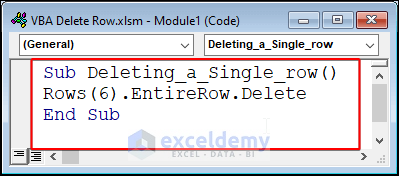
- After that, when we Run the code, Row6 will be deleted.
Result after deleting a single row

Delete Multiple Rows
In this section, we will delete multiple rows.
- Type the following VBA code in the Module.
Sub Delete_Multiple_rows()
Range("B5:B7").EntireRow.Delete
End Sub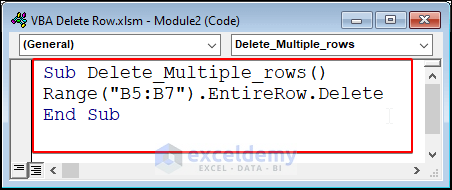
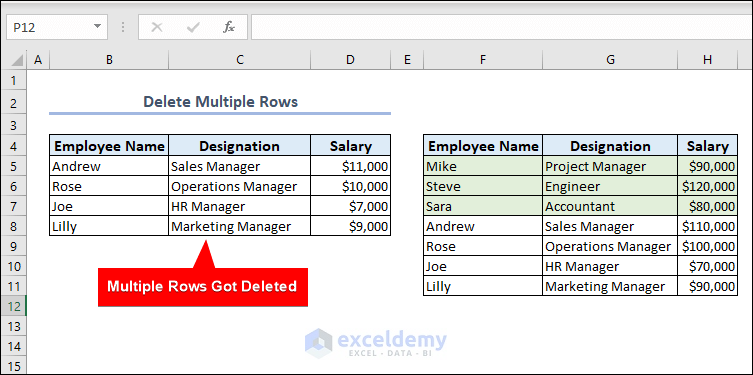
- After that, when we Run the code, Rows will be deleted.
Delete Selected Rows
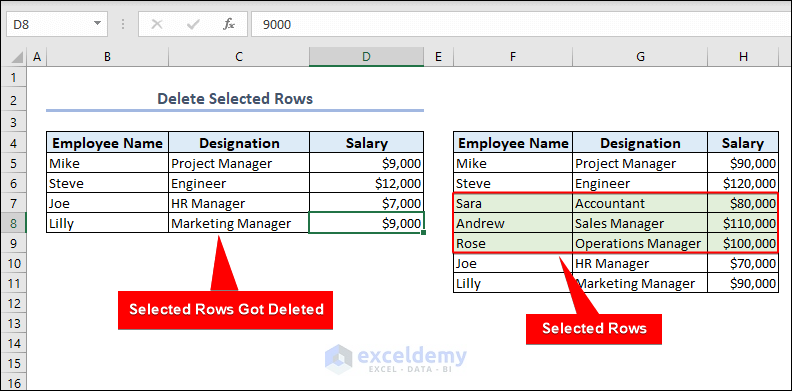
Here, we will delete selected rows.
- Type the following VBA code in the Module.
Sub Delete_Selected_rows()
Selection.EntireRow.Delete
End Sub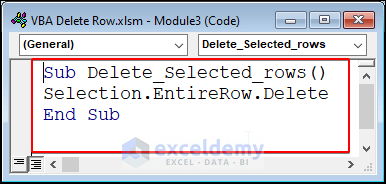
- Then, select the rows you want to delete >> Run the code.
Delete Alternate Rows
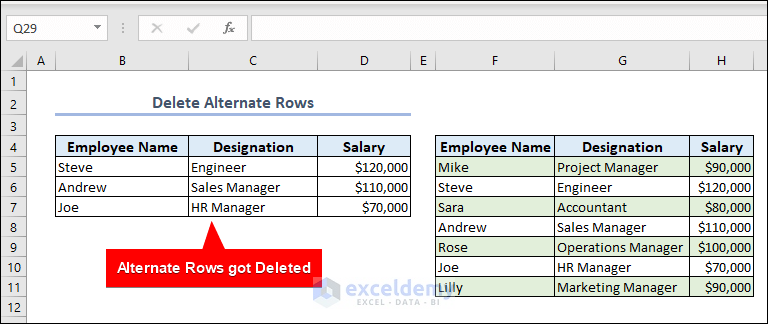
Here, we will delete alternate rows.
- Type the following VBA code in the Module.
Sub Delete_Alternate_Rows()
RCount = Selection.Rows.Count
For i_row = RCount To 1 Step -2
Selection.Rows(i_row).E ntireRow.Delete
Next i_row
End Sub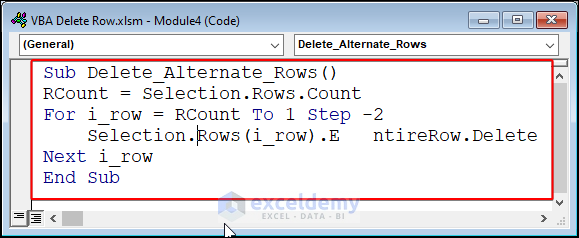
- Afterwards, select the range of cells >> Run the code.
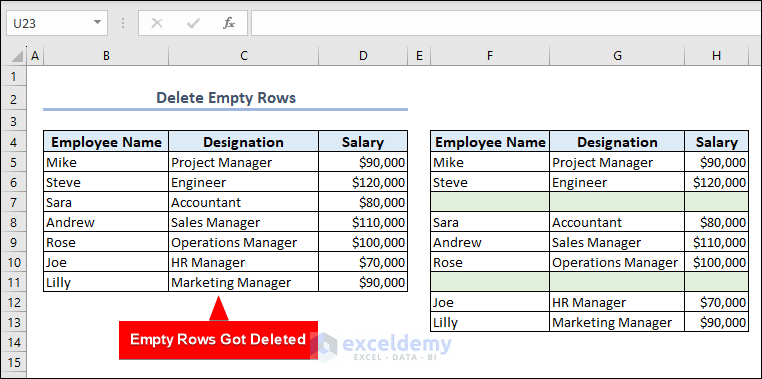
Delete Empty Rows
In this section, we will delete empty rows.
- Type the following VBA code in the Module.
Sub Delete_Empty_Rows()
Selection.SpecialCells(xlCellTypeBlanks).EntireRow.Delete
End Sub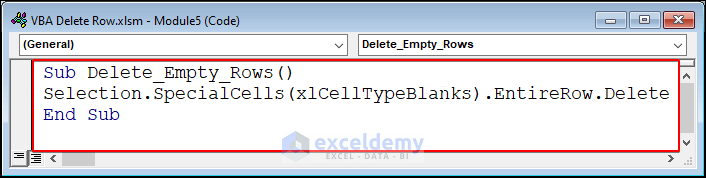
- After that, select the range of rows >> Run the code.
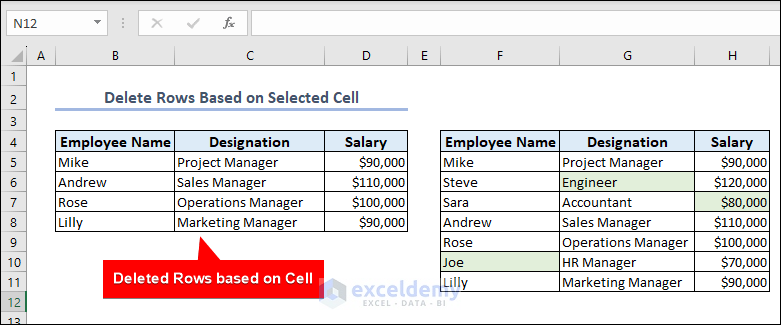
Delete Rows Based on Specific Cell Content
In this section, we will delete empty rows.
- Type the following VBA code in the Module.
Sub delete_Rows_Based_on_Cell()
Set my_row = Selection
my_row.EntireRow.Delete
End Sub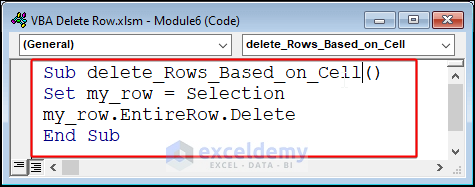
- After that, select the range of rows >> Run the code.
Delete Last Row
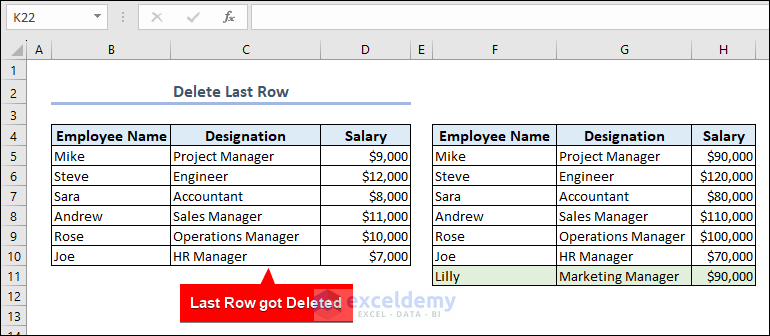
In this section, we will delete the last row.
- Type the following code in the Module.
Sub Delete_Last_Row()
Cells(Rows.Count, 2).End(xlUp).EntireRow.Delete
End Sub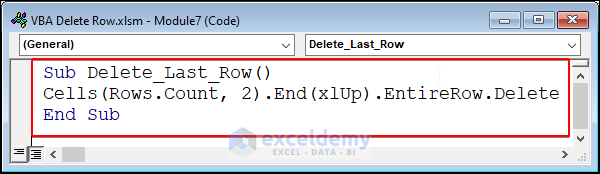
- Now, Run the code and the last row of the dataset will be deleted.
Delete Duplicate Rows
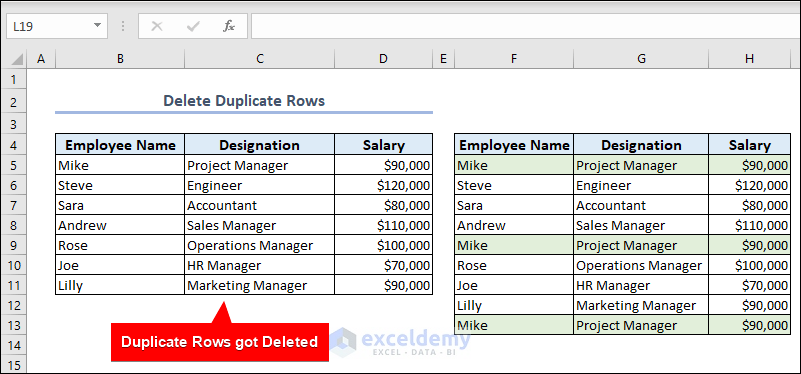
Here, we will delete duplicate rows.
- Type the following code in the Module.
Sub Remove_Duplicate_Rows()
Range("B4:D13").RemoveDuplicates Columns:=2
End Sub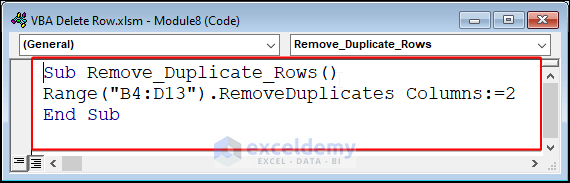
- Next, Run the code and duplicate rows of the dataset will be deleted.
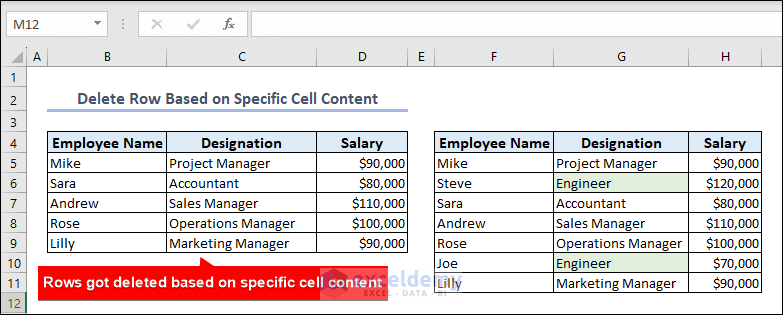
Delete Rows Based on Specific Cell Content
Here, we will delete rows based on specific cell content.
- Type the following code in the Module.
Sub delete_rows_based_on_specific_text()
Dim i_cell As Integer
Set my_rng = Worksheets("Specific Cell Content").Range("B4:D11")
For i_cell = my_rng.Rows.Count To 1 Step -1
If my_rng.Cells(i_cell, 2).Value = "Engineer" Then
my_rng.Cells(i_cell, 2).EntireRow.Delete
End If
Next i_cell
End Sub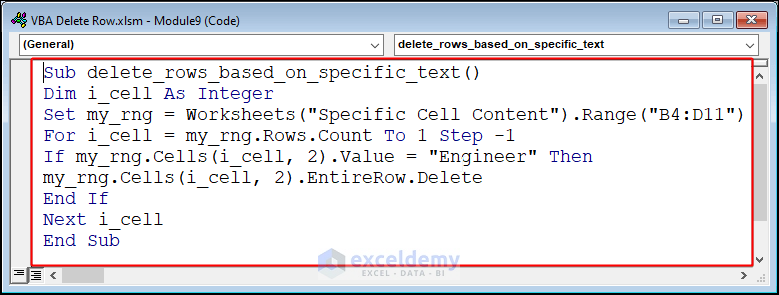
- After that, Run the code to delete rows based on specific cell content.
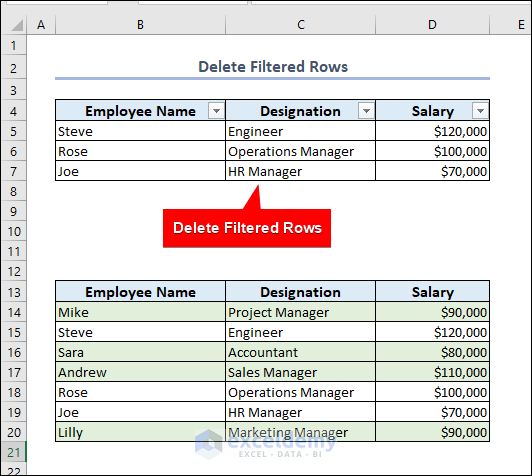
Delete Filtered Rows
In this section, we will delete filtered rows.
- Type the following code in the Module.
Sub Delete_Filtered_Rows()
Range("B5:D11").SpecialCells(xlCellTypeVisible).EntireRow.Delete
End Sub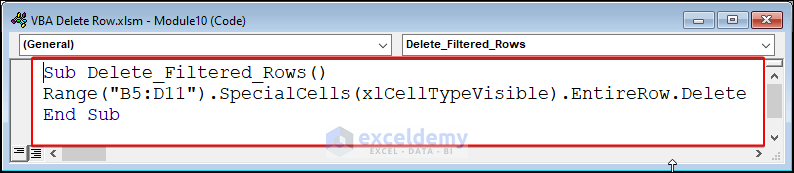
- Next, Run the code to delete filtered rows.
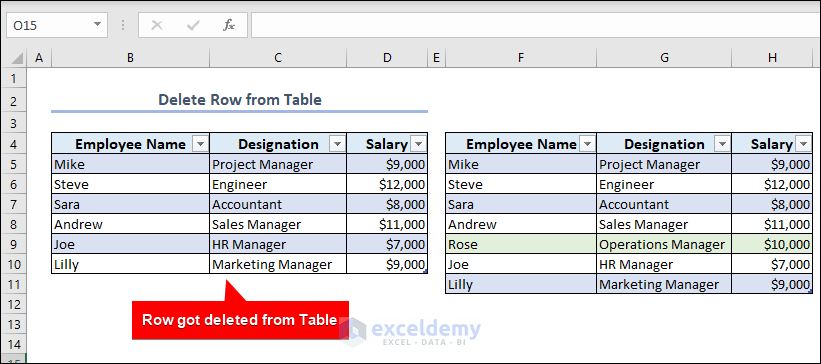
Delete Row in Excel Table
Here, we will delete row from a Table.
- Type the following code in the Module.
Sub delete_row_from_table()
Worksheets("Delete Row from table").ListObjects("Table1").ListRows(5).Delete
End Sub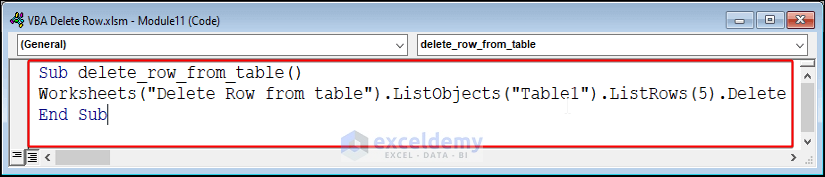
- Now, Run the code to delete a row from the Table.
VBA Delete Rows: Knowledge Hub
- Excel VBA Delete Entire Row
- Delete Selected Rows in Excel VBA
- Excel VBA Delete Rows With Specific Data
- Excel VBA Delete Multiple Rows
- Delete Duplicate Rows in Excel VBA
- Excel VBA Remove Duplicate Rows Based On One Column
- Delete Every Other Row in Excel VBA
- Delete Empty Rows in Excel VBA
- Delete Hidden Rows in Excel VBA
- Excel VBA Delete Row Based On Cell Value
- Macro to Delete Rows Based On Criteria
- Excel Macro Delete Row If Cell Contains Value
- Excel Macro Delete Row If Cell Contains 0
- Excel VBA Delete Row If Cell Contains Partial Text
- Excel VBA Delete Row On Another Sheet
- Excel VBA Delete Table Row
- Delete Row VBA Shift Up
- Excel VBA Delete Shift Left
- VBA to Filter Data in Excel and Delete Rows
- Filter and Delete Rows in Excel VBA
- Delete Unfiltered Rows
Conclusion
This article discusses the way we can use VBA to delete a row or rows in Excel. This article extensively represents the topic, and we believe you thoroughly understand the topic.
Here, we present how you can delete a single row, multiple rows, selected rows, alternate rows, empty rows, rows based on cell content, the last row of a dataset, based on specific cell content, filtered rows, and rows from Excel table.
Thank you for reading this article. We hope you find this article beneficial. If you have any queries or suggestions, please let us know in the comment section.
Get FREE Advanced Excel Exercises with Solutions!

