


One of the most common moments of confusion in spreadsheets is staring at your data and asking: “Do I need to count it, sum it, average it, or apply a condition?” Excel has many functions that look similar at first glance, but they answer very different questions. Sometimes you need to count how many entries exist. Sometimes you need to add values. Sometimes you need to find the average value. Choosing the wrong function can give a result that looks correct but answers the wrong question. It is important to know when to use COUNT, COUNTA, COUNTBLANK, COUNTIF, COUNTIFS, SUM, SUMIF, SUMIFS, AVERAGEIF, and AVERAGEIFS.
In this tutorial, we will explain counting vs. summing vs. averaging and what’s the right function. The main decision is simple: do you want to count, add, or average? Then decide whether you need a condition and whether it is single or multiple.
Counting Functions
Use counting functions when you want to know how many, not how much.
1. Count Numbers Only with COUNT
Use COUNT when you want to count only numeric values. It ignores text, blanks, and logical values.
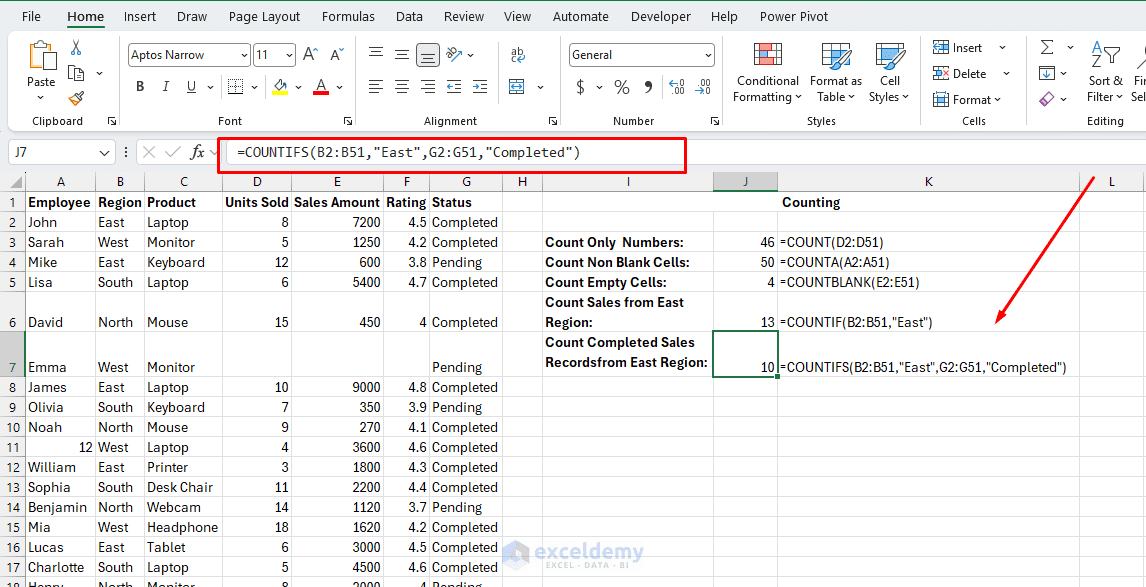
To count how many employees have a value in the Units Sold column, use:
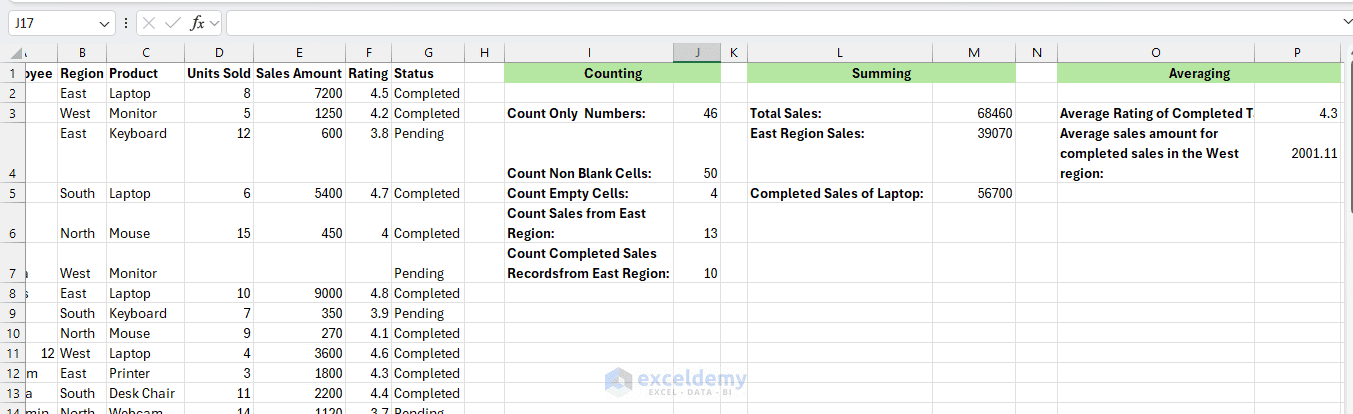
=COUNT(D2:D51)
This function counts only numbers. It ignores text, blank cells, and non-numeric entries.
Choose COUNT when your question is: “How many numeric values are there?”
This is useful for checking how many sales records contain actual numeric sales data.
2. Count Any Non-Blank Cell with COUNTA
Use COUNTA when you want to count all non-blank cells, including text, numbers, dates, formulas, and anything that returns values. It counts any cell that is not empty.
To count how many employee names are listed, use:
=COUNTA(A2:A51)
This will return the total number of employees listed in the column.
Choose COUNTA when your question is: “How many entries are there?”
This is different from COUNT. If a column contains names, product names, status labels, or mixed data, COUNTA is usually the better choice.
3. Count Empty Cells with COUNTBLANK
Use COUNTBLANK when you want to count missing or empty cells. Use it when you want to find missing data that has not been submitted yet, and to identify which fields are unfilled.
To count how many blank cells exist in the Sales Amount column, use:
=COUNTBLANK(E2:E51)
Choose COUNTBLANK when your question is: “How many values are missing?”
This is helpful for data cleaning before analysis.
4. Count with One Condition Using COUNTIF
Use COUNTIF when you want to count cells that meet one condition.
To count how many sales records are from the East region, use:
=COUNTIF(B2:B51,"East")
This counts only the sales records from the East region.
Choose COUNTIF when your question is: “How many cells meet this one condition?”
Examples include counting how many orders are completed, how many employees belong to a region, or how many products are laptops.
5. Count with Multiple Conditions Using COUNTIFS
Use COUNTIFS when you want to count records that meet more than one condition. It counts cells where all conditions are true simultaneously (AND logic). You can add as many range/criteria pairs as needed.
To count how many completed sales records are from the East region, use:
=COUNTIFS(B2:B51,"East",G2:G51,"Completed")
It matches both conditions, then counts the records.
Choose COUNTIFS when your question is: “How many records meet all these conditions?”
This is useful when a single condition is not enough for analysis.
Critical Rule: All ranges in COUNTIFS must be the same size and shape. Mixing different-length ranges causes an error.
Summing Functions
Use summing functions when you want to know the total amount; they always operate on numbers.
1. Add All Numbers with SUM
Use SUM when you want to add numeric values.
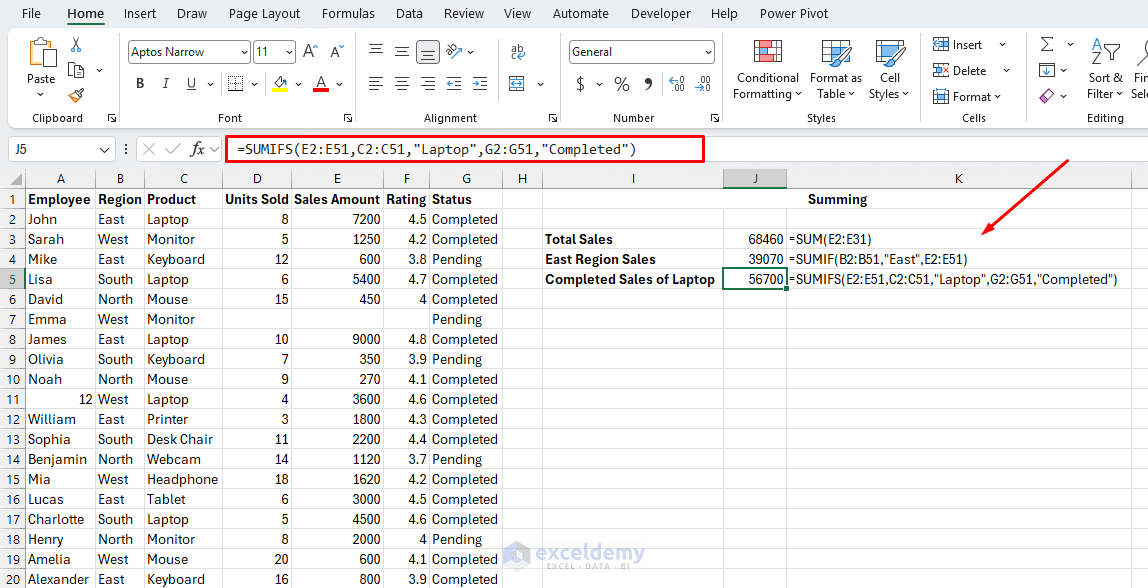
To calculate the total sales amount, use:
=SUM(E2:E31)
This adds up all numbers in a range. Text and blanks are ignored.
Use SUM when your question is: “What is the total?”
This is useful for total sales, total units sold, total cost, total profit, or total expenses.
2. Add Values with One Condition Using SUMIF
Use SUMIF when you want to add values based on one condition. It adds up values in the sum_range only for rows where the range meets the condition. Note that the condition range and sum range can be different columns.
To calculate total sales from the East region, use:
=SUMIF(B2:B51,"East",E2:E51)
Here, B2:B51 is the criteria range, “East” is the condition, and E2:E51 is the range to sum.
Choose SUMIF when your question is: “What is the total for this one condition?”
This is useful for finding total sales by region, product, salesperson, or status.
3. Add Values with Multiple Conditions Using SUMIFS
Use SUMIFS when you want to add values based on multiple conditions. Note that unlike SUMIF, in SUMIFS the sum_range comes first. This is a common source of confusion.
To calculate total sales for completed Laptop orders, use:
=SUMIFS(E2:E51,C2:C51,"Laptop",G2:G51,"Completed")
This calculates the total completed sales for all Laptops.
Choose SUMIFS when your question is: “What is the total for records that meet all these conditions?”
This is one of the most useful functions for reports because business analysis often depends on multiple conditions.
Averaging Functions
Averaging functions calculate the arithmetic mean. Only the conditional versions exist beyond the basic AVERAGE.
1. Average Values with One Condition Using AVERAGEIF
Use AVERAGEIF when you want to calculate the average of values that meet one condition.
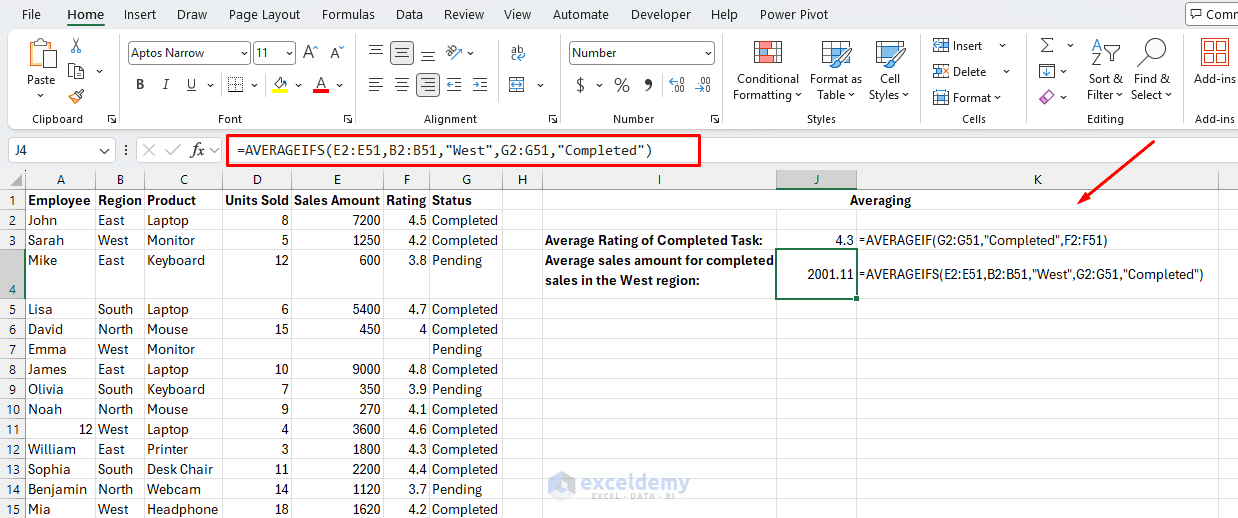
To calculate the average rating for completed records, use:
=AVERAGEIF(G2:G51,"Completed",F2:F51)
This adds up all qualifying numbers and divides by their count. Blanks and text are excluded from both the sum and the count.
Use AVERAGEIF when your question is: “What is the average for this one condition?”
This is useful for average sales by product, average rating by status, or average units sold by region.
2. Average Values with Multiple Conditions Using AVERAGEIFS
Use AVERAGEIFS when you want to calculate the average based on multiple conditions. It follows the same structure as SUMIFS: specify the average range first, then each criteria range and condition pair.
To calculate the average sales amount for completed sales in the West region, use:
=AVERAGEIFS(E2:E11,B2:B11,"West",G2:G11,"Completed")
This averages all completed sales in the West region.
Use AVERAGEIFS when your question is: “What is the average for records that meet all these conditions?”
This is useful for performance analysis, customer ratings, product comparison, and regional reporting.
Quick Decision Guide
| Function | Operates on | Conditions | Syntax highlight |
| COUNT | Numbers only | None | COUNT(range) |
| COUNTA | Any non-blank | None | COUNTA(range) |
| COUNTBLANK | Empty cells | None | COUNTBLANK(range) |
| COUNTIF | Any | 1 | COUNTIF(range, criteria) |
| COUNTIFS | Any | 2+ | COUNTIFS(r1, c1, r2, c2) |
| SUM | Numbers | None | SUM(range) |
| SUMIF | Numbers | 1 | SUMIF(check_range, criteria, sum_range) |
| SUMIFS | Numbers | 2+ | SUMIFS(sum_range, r1, c1, r2, c2) |
| AVERAGE | Numbers | None | AVERAGE(range) |
| AVERAGEIF | Numbers | 1 | AVERAGEIF(check_range, criteria, avg_range) |
| AVERAGEIFS | Numbers | 2+ | AVERAGEIFS(avg_range, r1, c1, r2, c2) |
Common Mistakes to Avoid
- Using COUNT when you need COUNTA: One common mistake is using COUNT on a text column. If your column has names or labels, COUNT returns 0 — it only counts numbers.
- Swapping sum_range and range in SUMIF: Writing SUMIF(sum_range, criteria, check_range) is backwards. The correct order is: check range → criteria → sum range.
- Forgetting that SUMIFS and AVERAGEIFS flip the order: In SUMIF and AVERAGEIF, the result range is last. In SUMIFS and AVERAGEIFS, it is first. This trips up even experienced users.
- Mismatched range sizes in COUNTIFS, SUMIFS, and AVERAGEIFS: Every range pair must have the same dimensions. If one range has 10 rows and another has 9 rows, the formula will return a #VALUE! error.
- Forgetting quotes around text criteria: Writing West without quotes will return an error. It must be “West”.
- Hardcoding criteria when a cell reference is cleaner: Instead of typing the region name directly into the formula, you can enter it in a cell and reference that cell instead. This makes your formulas easier to update.
Conclusion
Following this tutorial, you can easily decide what the right function is for counting, summing, or averaging. The easiest approach is to first identify the type of answer you need. If you need the number of entries, use a counting function. If you need a total, use a summing function. If you need a typical value, use an averaging function. Then decide whether the calculation needs a condition. If there is no condition, use COUNT, COUNTA, COUNTBLANK, or SUM. If there is one condition, use COUNTIF, SUMIF, or AVERAGEIF. If there are multiple conditions, use COUNTIFS, SUMIFS, or AVERAGEIFS.
Once you understand this decision process, choosing the right Excel function becomes much easier, and your reports become more accurate.
Get FREE Advanced Excel Exercises with Solutions!

