


Excel formulas normally perform calculations already built into the application. For most users, a custom function means creating a function using VBA. The LAMBDA function changes this by letting you create your own reusable functions without writing VBA, JavaScript, or macros. It lets you define your own named, reusable functions directly in the Excel formula language. You can write the logic once, give it a name, and from that point on it behaves exactly like SUM or VLOOKUP: type the name, pass arguments, get a result.
In this tutorial, we will show 5 LAMBDA functions that turn Excel into your own programming language. Each one solves a real, recurring spreadsheet problem, and together they demonstrate the core techniques.
1. LAMBDA: Create Your Own Excel Function
In programming, a function receives one or more inputs, performs a calculation, and returns a result. LAMBDA brings the same structure to Excel.
LAMBDA Syntax:
=LAMBDA([parameter1, parameter2, ...], calculation)
The parameters represent the values supplied to the function. The final argument contains the calculation that Excel performs.
Suppose the net sales for an order are calculated as: Quantity × Unit Price × (1 − Discount)
- Enter the following formula:
=LAMBDA(qty,price,discount,qty*price*(1-discount))(F2,G2,H2)
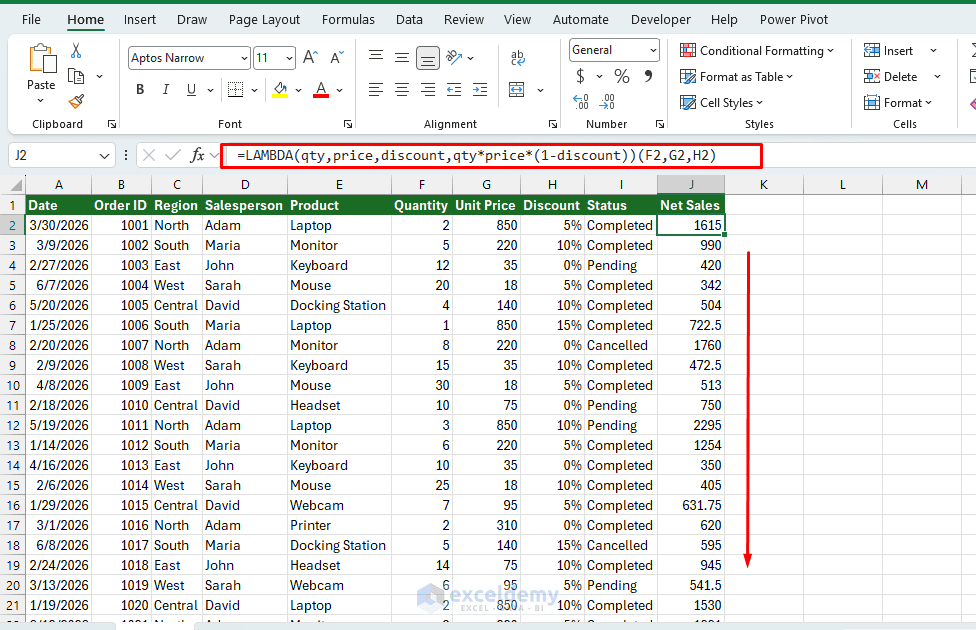
Explanation:
- The first part defines the function:
- LAMBDA(qty,price,discount,qty*price*(1-discount))
- The final parentheses call the function using values from the worksheet:
- (F2,G2,H2)
Save the LAMBDA as a Reusable Function
The real benefit of LAMBDA appears when you give the formula a name.
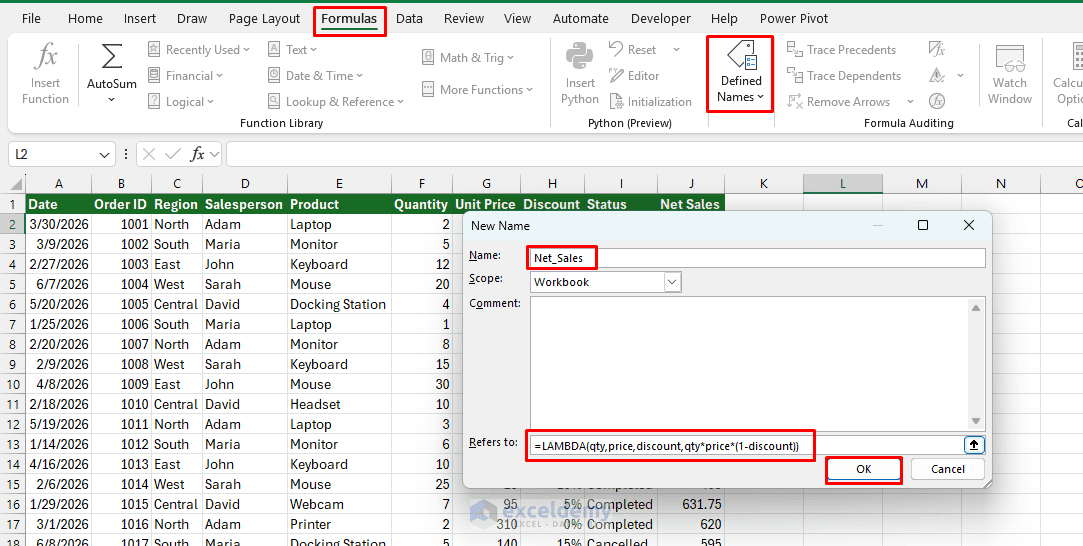
- Go to the Formulas tab >> select Name Manager >> click New
- Enter Net_Sales in the Name box
- Enter the following formula in the Refers to box:
=LAMBDA(qty,price,discount,qty*price*(1-discount))
- Click OK
You can now calculate net sales using a much simpler formula:
=Net_Sales(F2,G2,H2)
Notice how easy it is to reuse your own named function. You can use it anywhere in the workbook, especially if you are maintaining sales data on a regular basis.
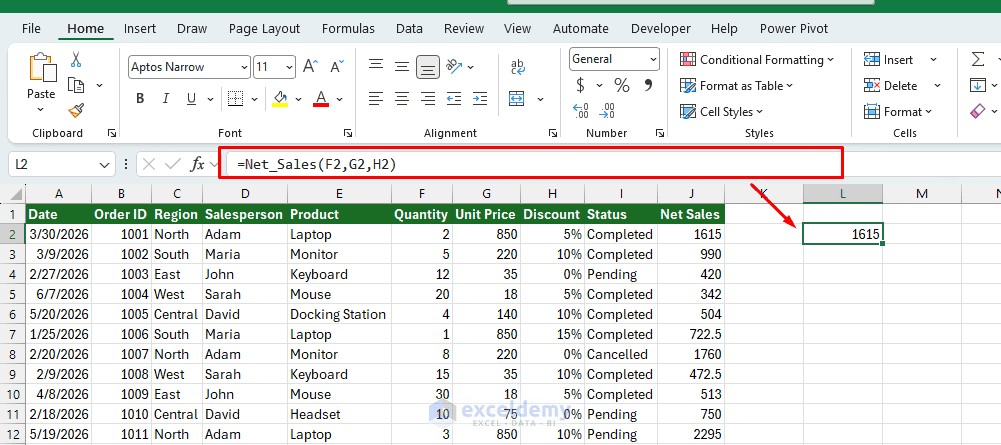
The custom function can be used anywhere in the workbook, just like SUM, IF, or XLOOKUP. Microsoft recommends testing a LAMBDA in a worksheet cell before saving it in Name Manager.
Programming concept: Defining and calling a reusable function.
2. MAP: Process Every Value Without Copying a Formula
A traditional Excel approach would calculate net sales and then drag the formula down to fill the rest of the cells. MAP removes that step. It applies the same LAMBDA calculation to every corresponding value in one or more arrays and returns a new array.
- Insert the following formula:
=MAP(F2:F51,G2:G51,H2:H51,LAMBDA(qty,price,discount,qty*price*(1-discount)))
The formula spills the net sales results into adjacent cells.
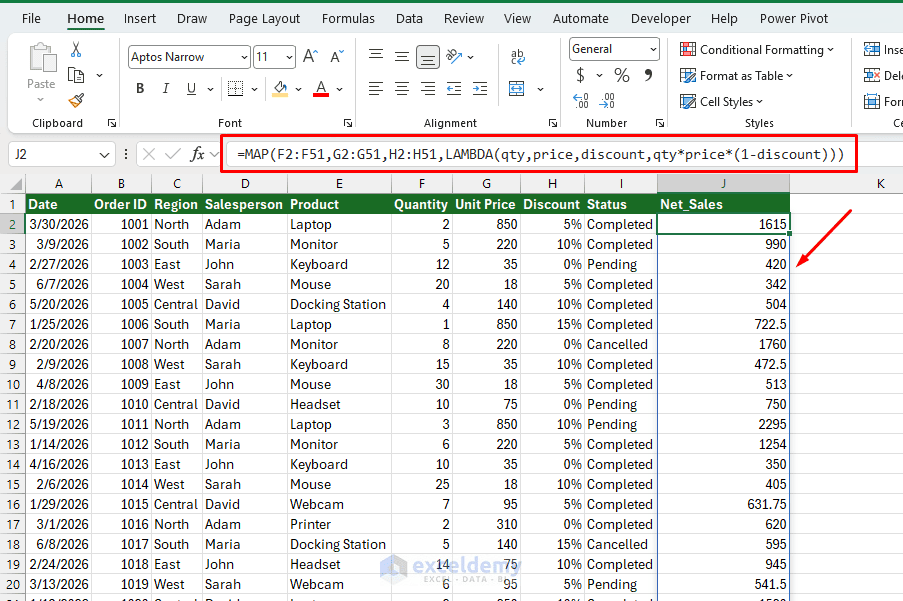
- qty receives each value from F2:F51
- price receives the matching value from G2:G51
- discount receives the matching value from H2:H51
- The LAMBDA calculates the net sales for each order
Because Net_Sales has already been saved as a custom function, the formula can also be shortened to:
=MAP(F2:F51,G2:G51,H2:H51,Net_Sales)
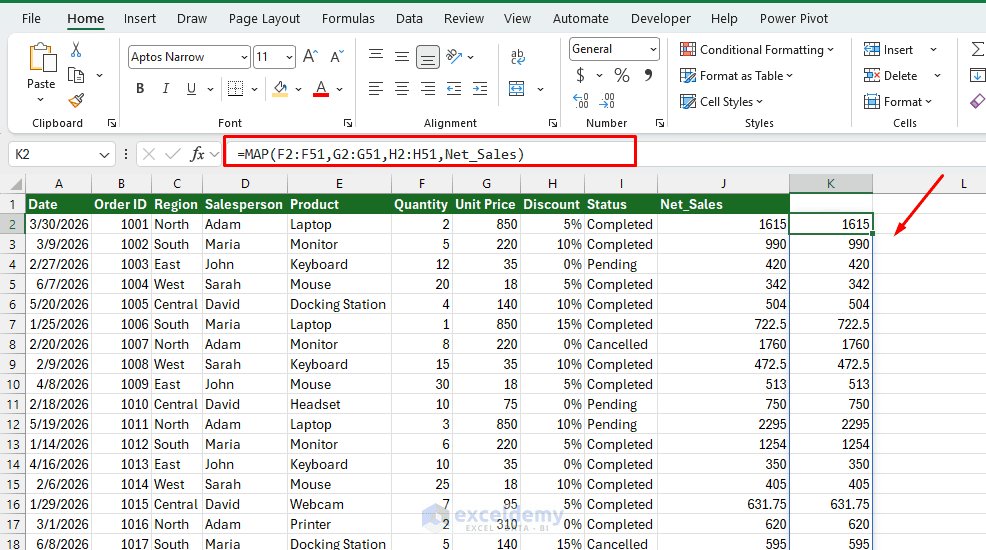
This is similar to a loop in a programming language. Excel goes through the arrays, applies the function to each set of values, and returns the complete set of results.
Programming concept: Looping through data and transforming every item.
3. REDUCE: Combine an Array into One Result
MAP normally produces multiple results. REDUCE does the opposite: it processes an array and combines all its values into one accumulated result.
Syntax:
=REDUCE([initial_value],array,LAMBDA(accumulator,value,calculation))
The accumulator stores the result produced so far. The current value represents the element currently being processed.
Suppose you need the total net sales from completed orders only.
- To calculate Completed Sales Total, insert the following formula:
=REDUCE(0,FILTER(J2#,I2:I51="Completed"),LAMBDA(total,current,total+current))
The formula returns the total sales for the completed orders.
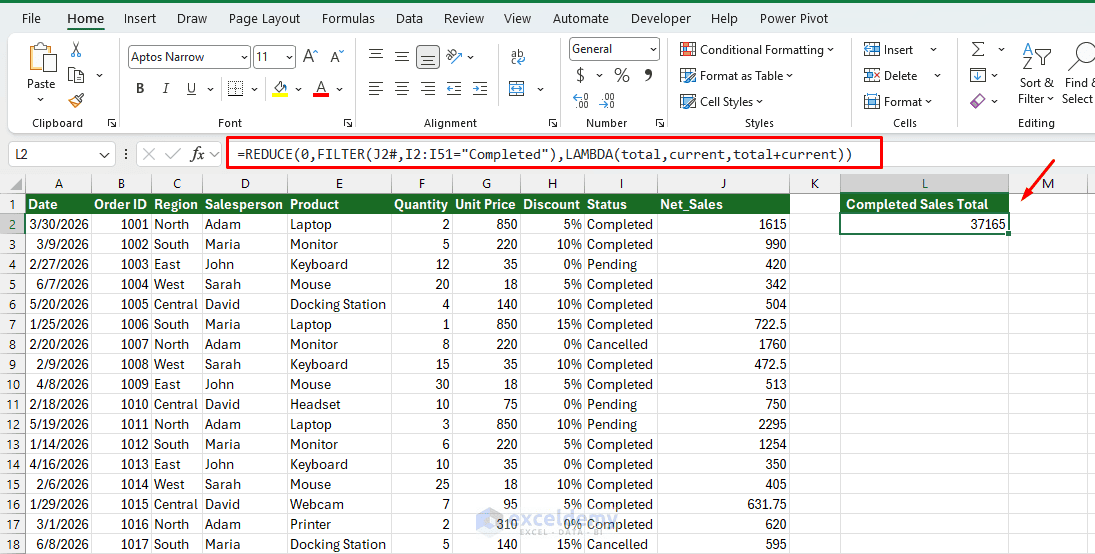
- J2# refers to the complete spilled array created by MAP
- FILTER keeps only orders whose status is Completed
- 0 is the starting value of the accumulator
- total stores the accumulated sales
- current represents the current net sales value
- total+current adds the current value to the accumulated result
A normal SUM formula would also calculate this particular result. However, REDUCE becomes more useful when the accumulation requires custom conditions.
For example, the following formula counts completed orders with net sales of at least $500:
=REDUCE(0,FILTER(J2#,I2:I51="Completed"),LAMBDA(count,sale,IF(sale>=500,count+1,count)))
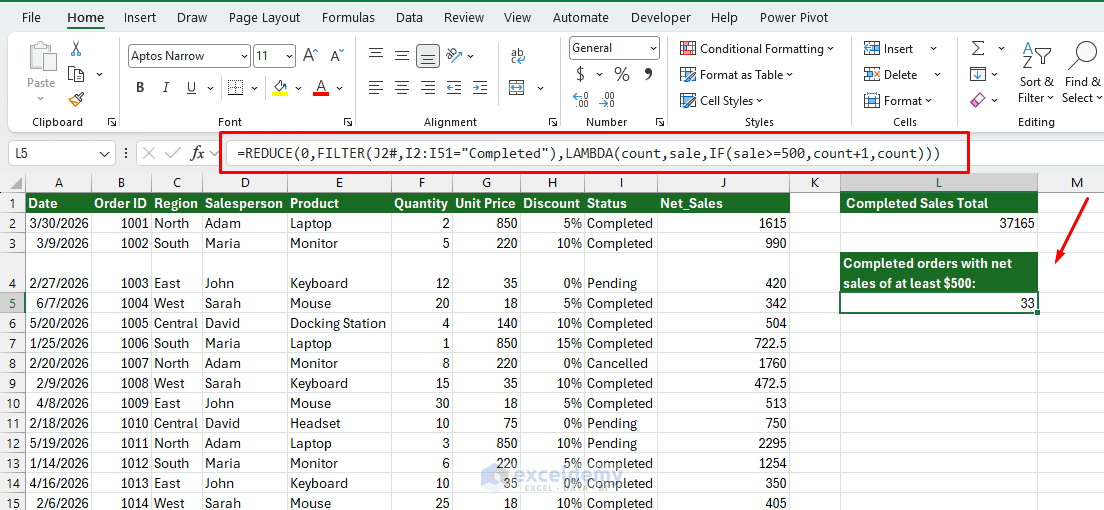
Programming concept: Maintaining an accumulator and returning one final value.
4. SCAN: Return Every Intermediate Result
REDUCE returns only the final accumulated value. SCAN performs a similar calculation but returns every intermediate value.
This makes SCAN useful for running totals, account balances, inventory levels, cumulative targets, and progressive calculations.
Syntax:
=SCAN([initial_value],array,LAMBDA(accumulator,value,calculation))
Microsoft defines SCAN as a function that applies a LAMBDA to each value and returns an array containing every intermediate result.
- To calculate Running Completed Sales, insert the following formula:
=SCAN(0,IF(I2:I51="Completed",J2#,0),LAMBDA(total,current,total+current))
The IF function replaces sales from pending or canceled orders with zero. SCAN then adds each value to the running total.
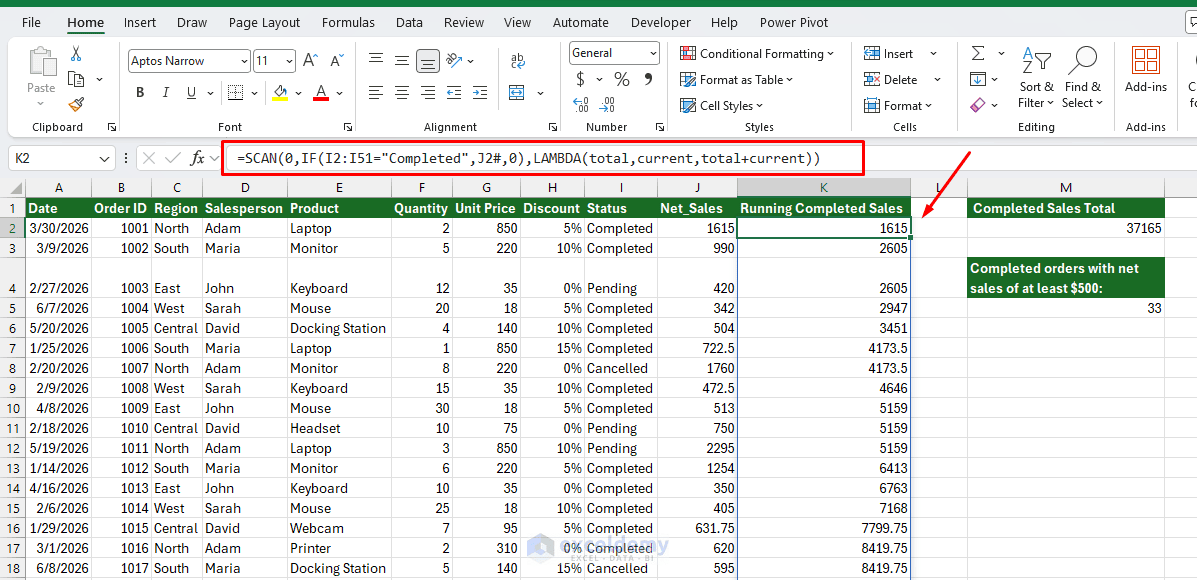
Notice the difference between REDUCE and SCAN:
=REDUCE(0,H2#,LAMBDA(a,b,a+b))
Returns one final total.
=SCAN(0,H2#,LAMBDA(a,b,a+b))
Returns the total after every order.
Programming concept: Maintaining state and preserving every stage of a calculation.
5. MAKEARRAY: Generate an Entire Array with a Formula
MAKEARRAY creates an array with a specified number of rows and columns. A LAMBDA then determines what value should appear at each row-and-column position.
Syntax:
=MAKEARRAY(rows,columns,LAMBDA(row,column,calculation))
The row and column parameters represent the position currently being calculated within the generated array.
For example, you can generate a pricing matrix showing the gross sales for different product quantities.
Enter these headings in columns:
- Quantity
- Laptop
- Monitor
- Keyboard
- Mouse
Enter the quantities 1 through 5 in the Quantity (M8:M12) column.
- Then enter the following formula in cell N8, under the Laptop column:
=MAKEARRAY(5,4,LAMBDA(r,c,r*CHOOSE(c,850,220,35,18)))
The formula generates a five-row and four-column array:
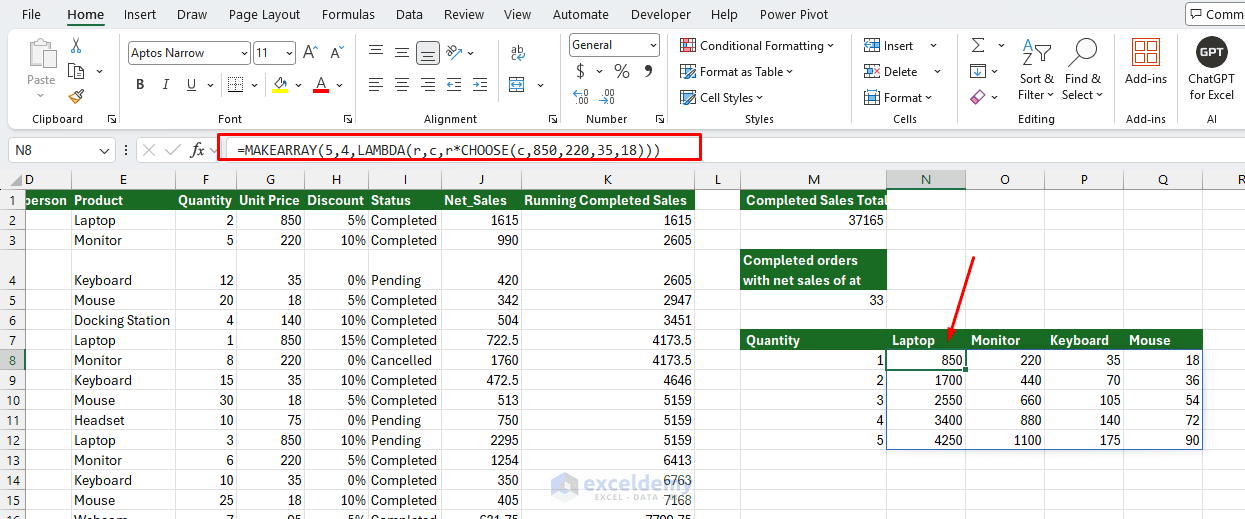
- 5 creates five rows
- 4 creates four columns
- r represents the current row number
- c represents the current column number
- CHOOSE returns a different product price depending on the column
- The row number acts as the product quantity
MAKEARRAY is especially useful for generating test data, simulation grids, calculation matrices, schedules, and other structured arrays.
Programming concept: Generating data based on row and column indexes.
How the Five Functions Work Together
Each function provides a different programming-like capability:
| Function | Main purpose | Programming equivalent |
| LAMBDA | Creates a reusable custom function | Function definition |
| MAP | Applies a function to every item | Loop or map operation |
| REDUCE | Combines values into one result | Accumulator |
| SCAN | Returns every accumulated stage | State tracking |
| MAKEARRAY | Generates a structured array | Nested loops or array construction |
These functions can also be combined in a single formula. For example, the following formula calculates the total net sales for all completed orders without using a helper column:
=REDUCE( 0,
 FILTER(
    MAP(
        F2:F51,
        G2:G51,
        H2:H51,
        LAMBDA(qty,price,discount,
           qty*price*(1-discount)
        )
   ),
   I2:I51="Completed"
 ),
  LAMBDA(total,current,
     total+current
  )
)
The formula performs three stages:
- MAP calculates the net sales for every order
- FILTER keeps completed orders
- REDUCE combines the remaining values into one total
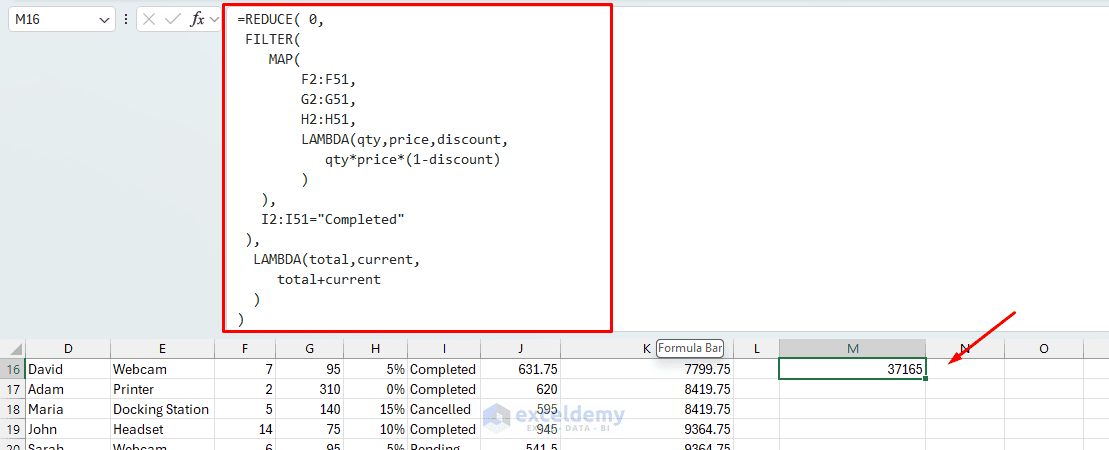
Although this formula is powerful, separating complex calculations into named LAMBDA functions can make a workbook easier to understand and maintain.
Common LAMBDA Errors
- The formula returns #CALC!: The LAMBDA has been defined but not called. A LAMBDA entered directly into a cell must be called, or it must be saved in the Name Manager.
- The formula returns #VALUE!: Check whether the number of parameters matches the number of values or arrays supplied.
- The formula returns #SPILL!: MAP, SCAN, and MAKEARRAY return dynamic arrays. Make sure the cells into which the results need to spill are empty.
- The custom function returns #NAME?: Check that the LAMBDA was saved correctly in Name Manager and that its name is spelled correctly in the worksheet formula.
Conclusion
These five LAMBDA functions can turn Excel into your own programming language. LAMBDA creates reusable custom functions, MAP processes entire arrays, REDUCE produces accumulated results, SCAN tracks intermediate values, and MAKEARRAY generates structured outputs. Together, these functions introduce many concepts normally associated with programming while keeping the work inside the familiar Excel formula environment. They are particularly useful for reusable business rules, pricing models, text processing, financial calculations, data cleaning, reporting, and workbook automation.
Get FREE Advanced Excel Exercises with Solutions!

