


Microsoft Excel spreadsheets are incredibly powerful for organizing data, performing calculations, analyzing trends, and automating tasks. However, creating a spreadsheet from scratch can be time-consuming, especially when you need formulas, tables, dashboards, or automation. This is where ChatGPT can become a valuable productivity partner. Instead of manually designing every worksheet, writing formulas, or searching online for solutions, you can describe what you want in plain English and let ChatGPT help build the spreadsheet structure, formulas, datasets, VBA code, and even dashboard layouts.
In this tutorial, we will show how to build Excel spreadsheets with ChatGPT. Let’s explore how to use ChatGPT to create Excel spreadsheets faster and more effectively.
1. Generating Structured Data from Any Source
One of the biggest time-savers is turning unstructured information (menus, PDFs, web pages, text lists, images, etc.) into clean tabular data. ChatGPT can find the mess in the data and suggest cleaning procedures more efficiently.
Steps:
- Gather your source material (e.g. copy text, upload a PDF/image, or provide a link if supported)
- Prompt ChatGPT clearly
Example Prompt:
"Extract the product descriptions and prices from this data into a clean table with
columns: Item, Description, Price per Unit, Category. Format as a Markdown table first,
then as CSV."
This works exceptionally well for restaurant menus, product lists, reports, scraped data, or scanned documents.
Advanced: Upload files directly (in supported ChatGPT versions) or describe images of whiteboards or handwritten notes.
2. Generating a Spreadsheet Structure from Scratch
The best place to start any new spreadsheet is not in Excel; it’s in ChatGPT. Let ChatGPT design the architecture before you touch a single cell.
The prompt pattern: “Create an Excel spreadsheet structure for [purpose]. List the sheet names, column headers, and a brief description of what each column tracks.”
Example Prompt:
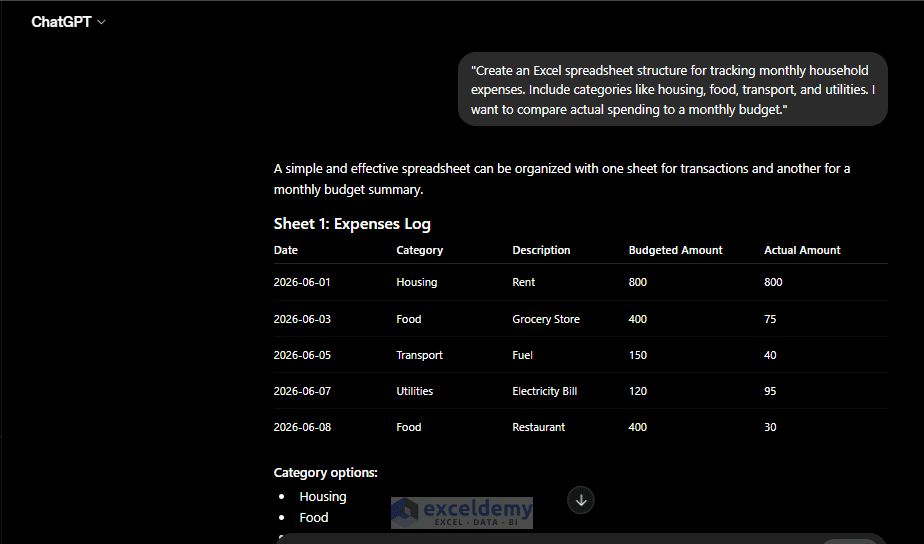
"Create an Excel spreadsheet structure for tracking monthly household expenses.
Include categories like housing, food, transport, and utilities.
I want to compare actual spending to a monthly budget."
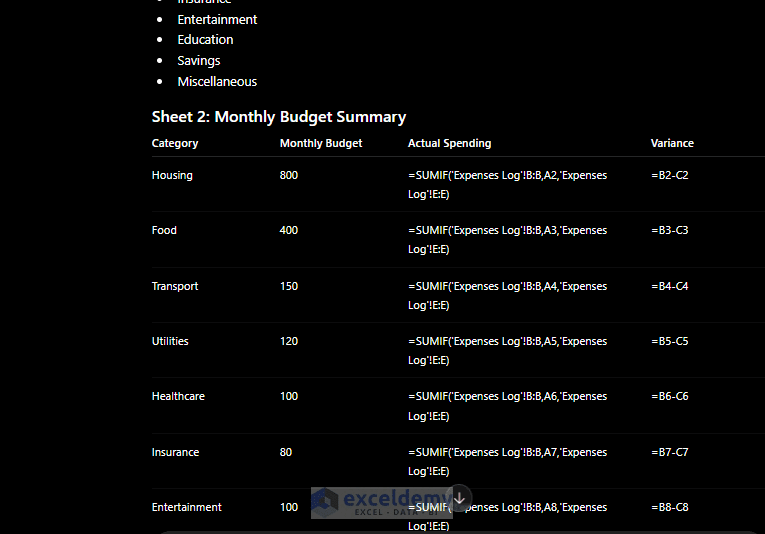
It will return a full sheet layout, column headers like Category, Budget, Actual, Difference, % Use, and Formulas, plus instructions for where to put totals and how to structure the data range.
- Copy the headers and dataset, if needed, into Excel, then ask follow-up questions to fill in the rest
- Next, copy the Monthly Budget Summary sheet
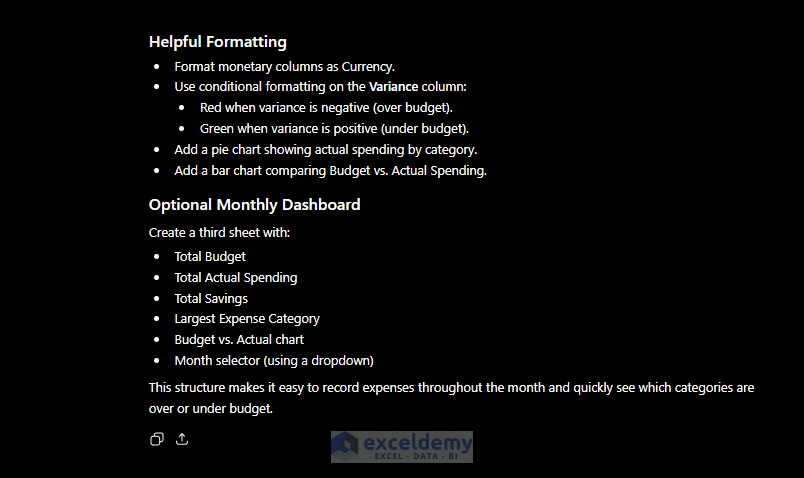
- Follow the formatting instructions
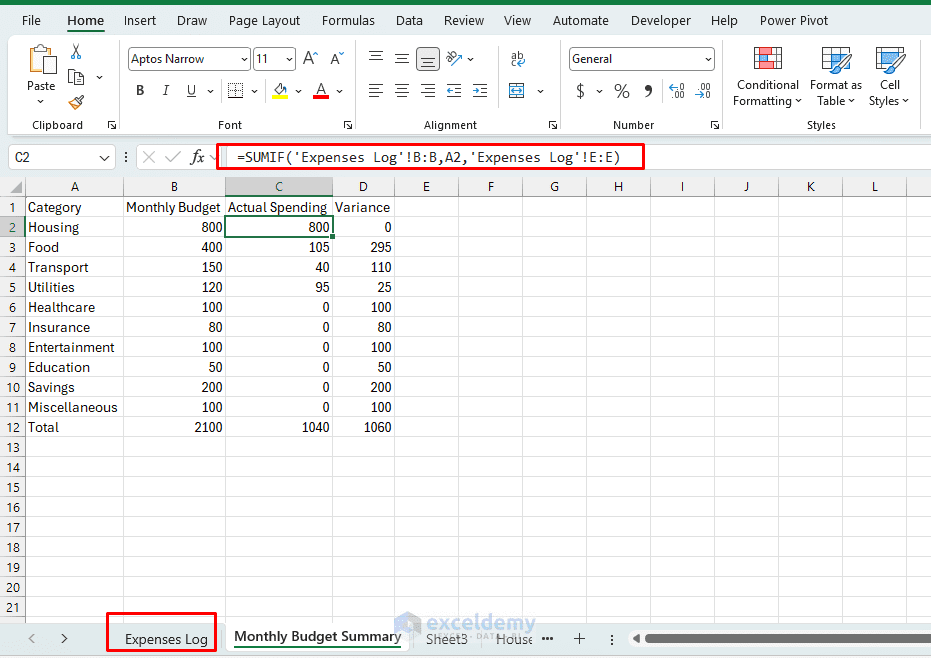
- When you copy the exact information using the Copy button, it automatically works in Excel
Pro tip: Be specific about your goal. “Track expenses” gives a generic result. “Compare actual spending to a monthly budget by category, with a summary row at the bottom” gives something closer to what you actually need.
3. Getting Formulas Written for You
This is where ChatGPT saves the most time. You describe the logic; it writes the formula.
The prompt pattern: “Write an Excel formula that [describes the logic]. My data is in [describe the range].”
Example Prompts:
Conditional Total:
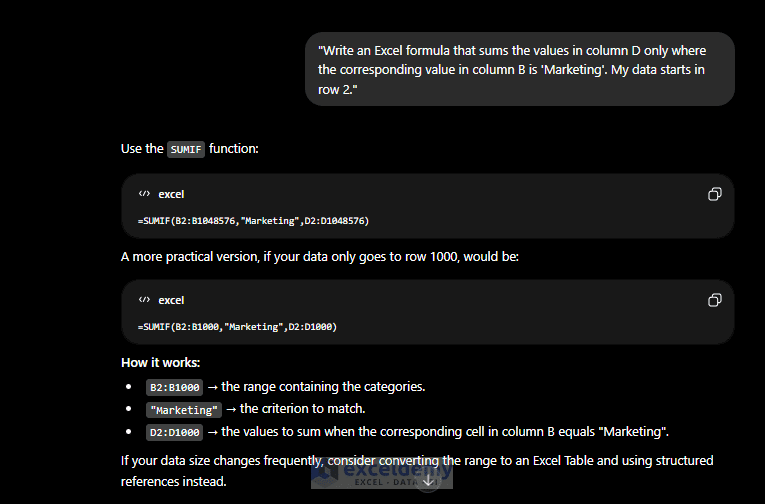
"Write an Excel formula that sums the values in column D only where the
corresponding value in column B is 'Marketing'. My data starts in row 2."
Formula:
=SUMIF(B2:B1000,"Marketing",D2:D1000)
Copy the formula from ChatGPT into your spreadsheet. ChatGPT also provides a formula explanation, which helps you use any formula with a proper understanding of what it does.
Lookup with a Fallback:
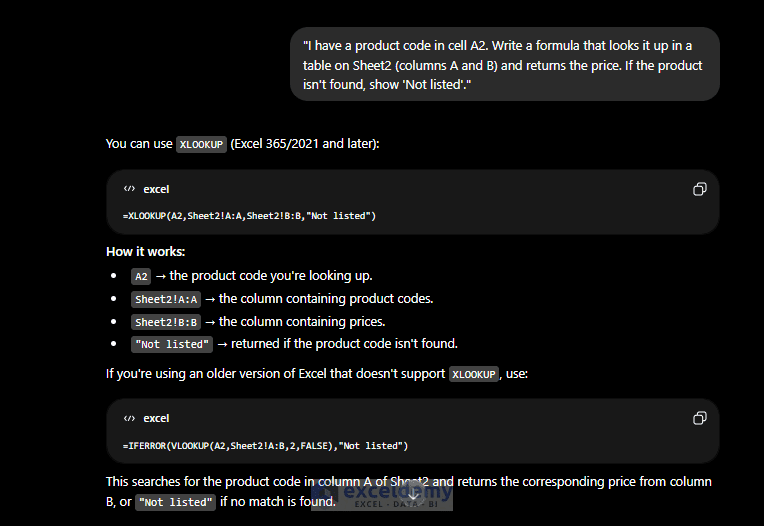
"I have a product code in cell A2. Write a formula that looks it up in a table on Sheet2
(columns A and B) and returns the price. If the product isn't found, show 'Not listed'."
Formula:
=XLOOKUP(A2,Sheet2!A:A,Sheet2!B:B,"Not listed")
Dynamic Filtering:
"I have a list of orders in columns A through E. Column C is the status.
Write a formula that extracts all rows where status is 'Pending'."
Formula:
=FILTER(A2:E1000,C2:C1000="Pending","No pending orders")
When the formula doesn’t work: Paste the broken formula back into ChatGPT and say, “This formula is returning a [#VALUE! / #REF! / #N/A] error.
- Here’s my data structure: [describe it]. What’s wrong?”
ChatGPT is remarkably good at diagnosing formula errors when given context.
4. Generating Realistic Sample Data
Blank spreadsheets are hard to design in. Sample data makes it easier to test formulas, check formatting, and see whether the layout actually works.
The prompt pattern: “Generate [N] rows of sample data for an Excel spreadsheet that tracks [purpose]. Format it as a table I can paste directly into Excel.”
Example Prompt:
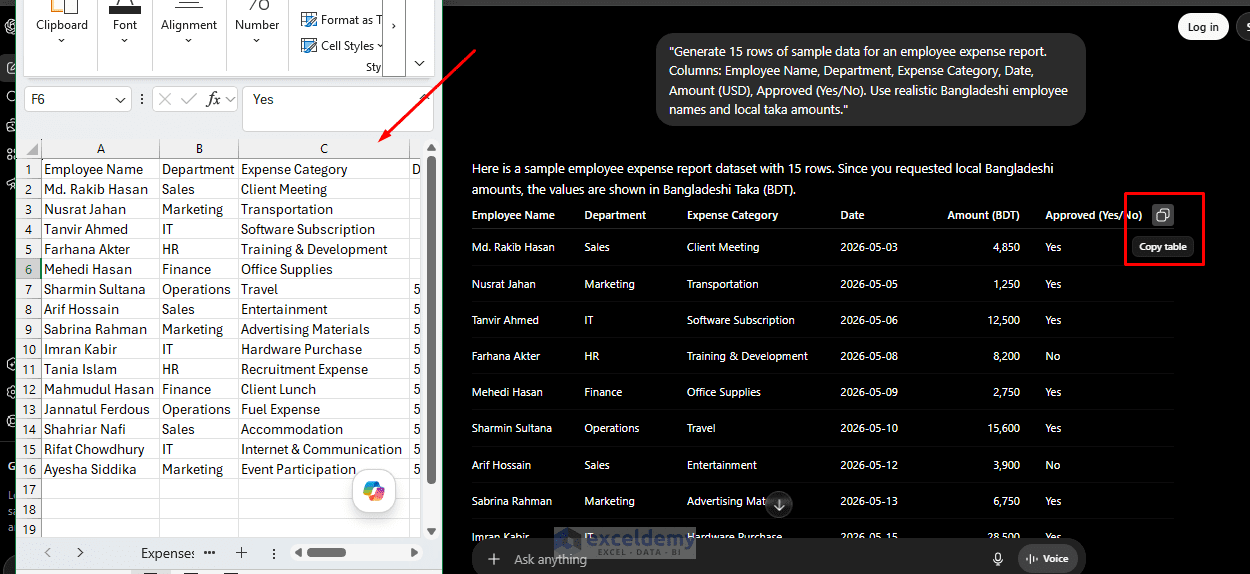
"Generate 15 rows of sample data for an employee expense report. Columns:
Employee Name, Department, Expense Category, Date, Amount (USD), Approved (Yes/No).
Use realistic Bangladeshi employee names and local taka amounts."
- ChatGPT will return a clean table
- Copy the value and paste into Excel using Paste Special >> select Value if needed, and your sheet is instantly testable
Tip: Ask for data that tests edge cases — duplicate names, blank fields, amounts of zero — so your formulas handle real-world messiness from the start.
5. Building a Multi-Sheet Workbook
ChatGPT can help you design an entire workbook, not just individual sheets.
Example prompt:
"I'm building an Excel workbook for managing a small event. What sheets should I include,
and what should go on each one? I need to track the budget, vendor contacts,
a task timeline, and RSVPs."
It will suggest a logical sheet structure, something like:
| Sheet | Purpose |
| Dashboard | Summary of key numbers pulled from other sheets |
| Budget | Income vs. expense breakdown with actuals |
| Vendors | Contact info, payment status, contract details |
| Tasks | Gantt-style timeline with owners and due dates |
| RSVPs | Guest list with attendance confirmation and meal choice |
From there, ask ChatGPT to build each sheet one at a time. Keep the conversation in the same chat window so it retains the context from your earlier sheets.
6. Writing Conditional Formatting Rules in Plain English
Conditional formatting is powerful but fiddly. ChatGPT can write the exact rule for you to enter.
Example Prompt:
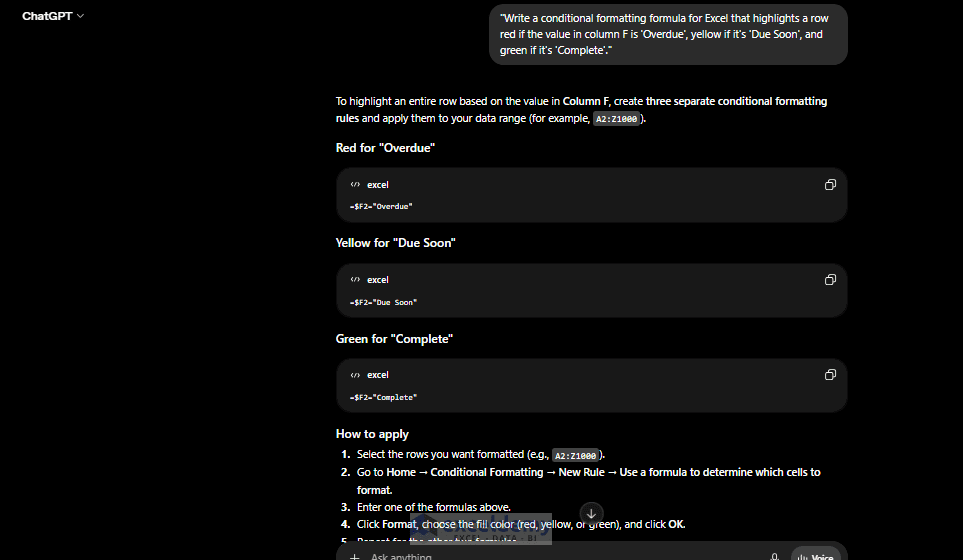
"Write a conditional formatting formula for Excel that highlights a row red if the value
in column F is 'Overdue', yellow if it's 'Due Soon', and green if it's 'Complete'."
It will give you the exact formulas to use:
=$F2="Overdue"
It will also walk you through where to enter them in the Conditional Formatting dialog. This alone saves significant time for anyone who has wrestled with relative vs. absolute references inside formatting rules.
7. Automating Repetitive Tasks with VBA (No Coding Required)
If you’re comfortable enabling macros, ChatGPT can write VBA scripts for you.
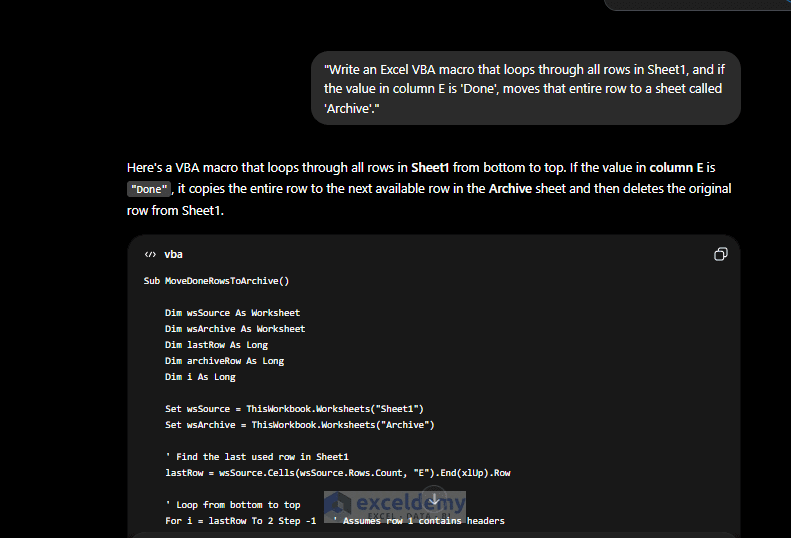
Example Prompt:
"Write an Excel VBA macro that loops through all rows in Sheet1, and if the value
in column E is 'Done', moves that entire row to a sheet called 'Archive'."
ChatGPT will return ready-to-paste VBA code. Open the Visual Basic Editor (Alt + F11), insert a new module, paste the code, and run it.
Important Steps:
- Always test VBA on a copy of your file first
- Tell ChatGPT your Excel version (Microsoft 365, Excel 2019, etc.) since some functions differ
- If the macro errors out, paste the error message back into the chat for a fix
The ChatGPT Add-in Inside Excel
Instead of switching between apps, you can bring ChatGPT directly into Excel.
Steps to Install:
- Go to the Home tab >> select Add-ins
- Search for ChatGPT in the Office Add-ins store
- Click Add, and a ChatGPT button appears in your ribbon
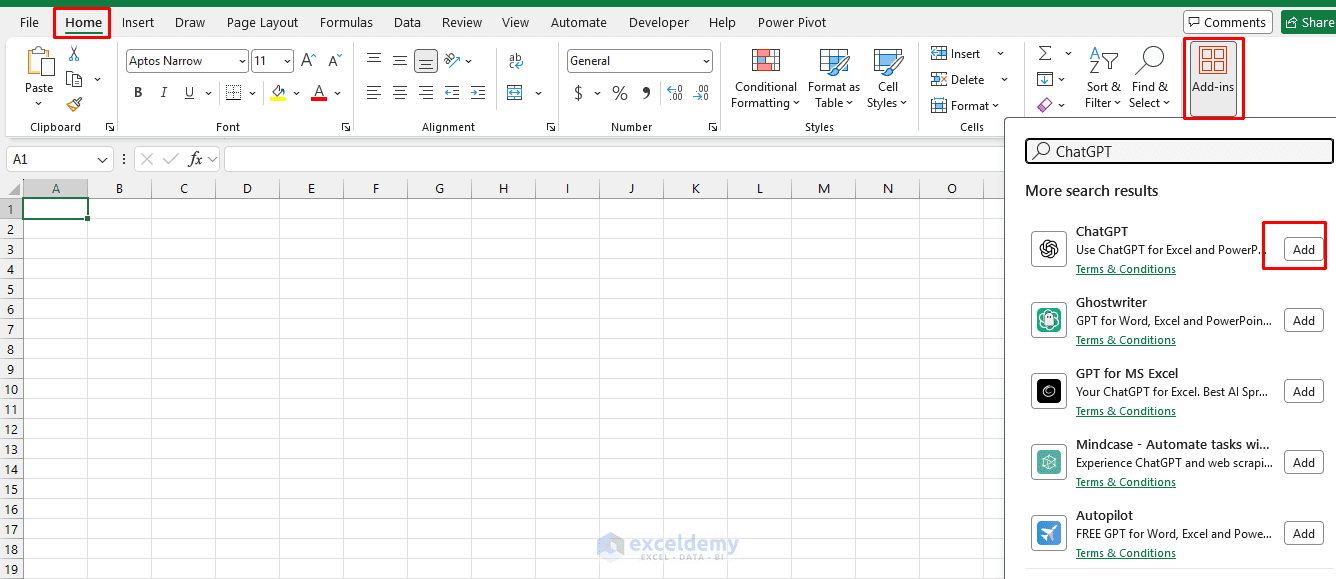
- Click it to open the ChatGPT panel on the right side of the screen
| Web ChatGPT | ChatGPT Add-in |
| You paste the structure manually | ChatGPT builds directly into your sheet |
| No awareness of your file | Sees your open workbook and selected cell |
| You insert formulas yourself | Formulas go into the right cells automatically |
| Requires switching windows | Everything in one screen |
Steps to Use It:
- Go to the Home tab >> click on ChatGPT
- Log in to your ChatGPT account
- Insert a prompt similar to the first one:
"Create an Excel spreadsheet structure for tracking monthly household expenses.
Include categories like housing, food, transport, and utilities.
I want to compare actual spending to a monthly budget."
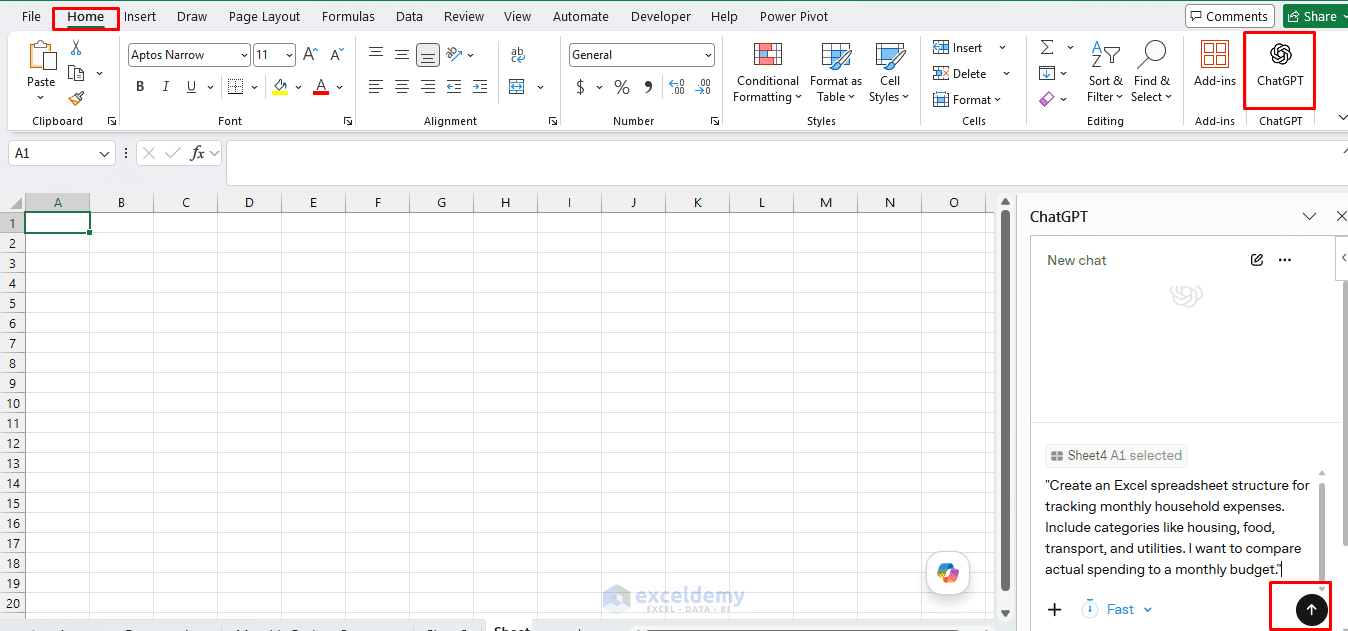
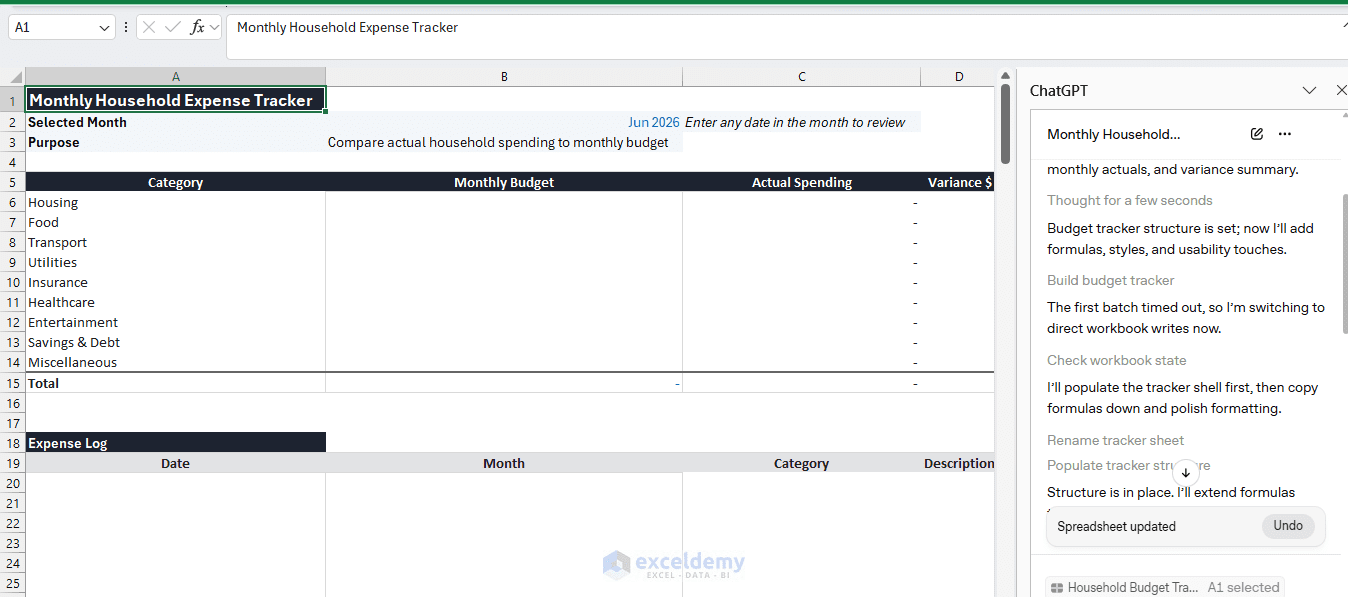
You will get a fully formatted expense tracker in Excel — more polished and efficient than building it manually. No more switching back and forth between ChatGPT and Excel.
Prompting Tips That Make a Big Difference
| Instead of this… | Try this… |
| “Make a budget spreadsheet” | “Make a monthly budget spreadsheet that compares planned vs. actual spending by category, with a summary row and a running total” |
| “Write a lookup formula” | “Write an XLOOKUP formula that finds the value in A2 in the range Sheet2!A:A and returns the value from column C of that sheet. If nothing is found, return 0.” |
| “Fix my formula” | “This formula returns #VALUE!: =SUMIF(B:B,’Q1′,C:C). My column B has text labels and column C has numbers. What’s wrong?” |
| “Add some data” | “Generate 20 rows of test data where column A is dates in January 2026, column B is sales rep names (5 different reps), and column C is sales amounts between 5,000 and 50,000 BDT” |
The golden rule: The more context you give, the better the output. Column letters, row numbers, sheet names, data types, and the goal of the formula all help ChatGPT get it right the first time.
Conclusion
Using ChatGPT to build Excel spreadsheets cuts the time it takes to produce a polished, functional spreadsheet from hours to minutes — without needing to memorize syntax or dig through help documentation. Start experimenting today: open ChatGPT alongside your spreadsheet and try a simple prompt like “Help me build a personal finance tracker.” You’ll be amazed at how quickly you go from a blank grid to a functional tool.
Whether you’re building a budget tracker, inventory system, sales dashboard, or automated reporting workbook, ChatGPT can serve as a spreadsheet assistant to help you plan, design, and troubleshoot at every stage of development.
Get FREE Advanced Excel Exercises with Solutions!

