

Formatting dates manually in Excel is simple, but it can become repetitive when you work with regular reports, imported data, or large datasets. You also may need to format dates in a fixed style. In that case, VBA can help you apply date formats automatically with just a few lines of code.
In this tutorial, we will show you how to format dates in Excel using VBA. Here, you will find VBA examples with short, ready-to-use code.
How to Insert VBA Code
To use any of the following codes:
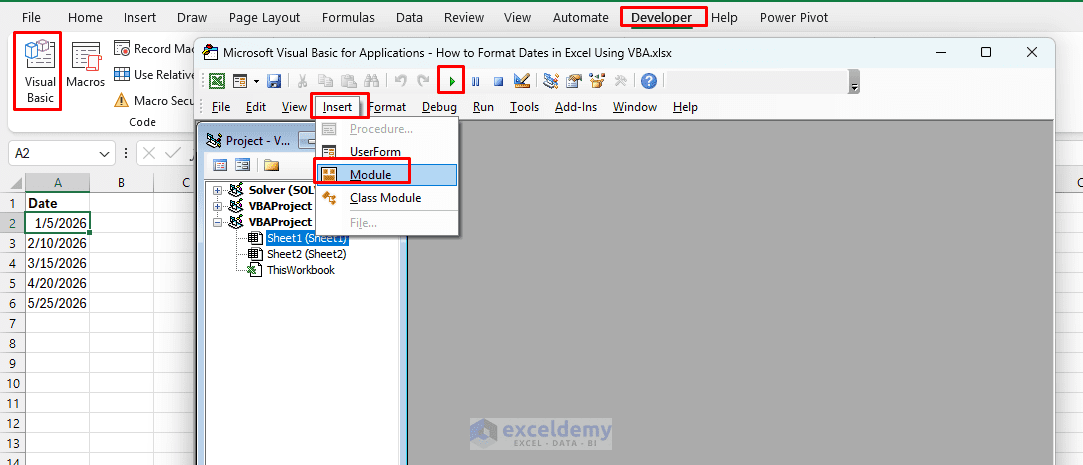
- Go to the Developer tab >> select Visual Basic or press Alt + F11 to open the VBA Editor
- Go to the Insert tab >> select Module
- Paste the VBA code into the module
- Press F5 to run the code
1. Format Dates in Different Basic Styles
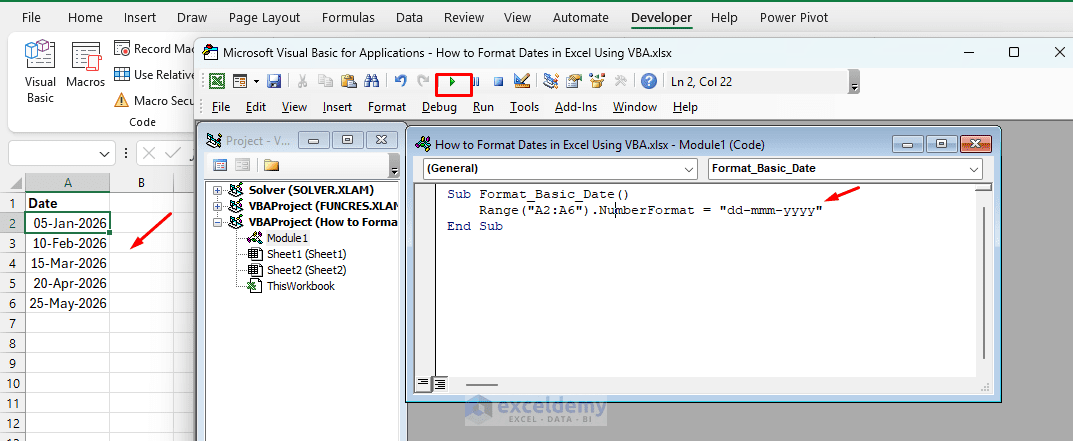
The most common way to format dates in VBA is to use the NumberFormat property. You only need to change the format code based on how you want the date to appear.
Sub Format_Basic_Date()
    Range("A2:A6").NumberFormat = "dd-mmm-yyyy"
End Sub
In this code, A2:A6 is the date range, and “dd-mmm-yyyy” is the date format.
You can replace the format code with any of the following options.
| Format Type | VBA Code Line | Example Output |
| Day-Month-Year | Range(“A2:A6”).NumberFormat = “dd-mmm-yyyy” | 05-Jan-2026 |
| Month/Day/Year | Range(“A2:A6”).NumberFormat = “mm/dd/yyyy” | 01/05/2026 |
| Day/Month/Year | Range(“A2:A6”).NumberFormat = “dd/mm/yyyy” | 05/01/2026 |
| Year-Month-Day | Range(“A2:A6”).NumberFormat = “yyyy-mm-dd” | 2026-01-05 |
To format dates as yyyy-mm-dd, use:
Sub Format_Date_YYYY_MM_DD()
    Range("A2:A6").NumberFormat = "yyyy-mm-dd"
End Sub
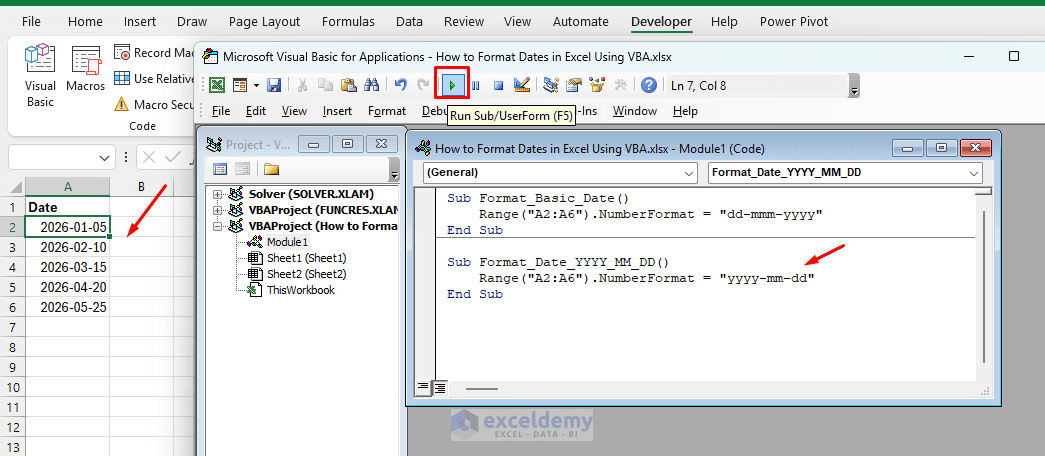
This type of format is useful for reports, databases, and sorted date lists.
2. Format Dates with Month and Weekday Names
You can also show month names and weekday names in your date format. For this, use format codes such as mmmm, mmm, dddd, and ddd.
Sub Format_Date_With_Month_Name()
    Range("A2:A6").NumberFormat = "mmmm dd, yyyy"
End Sub
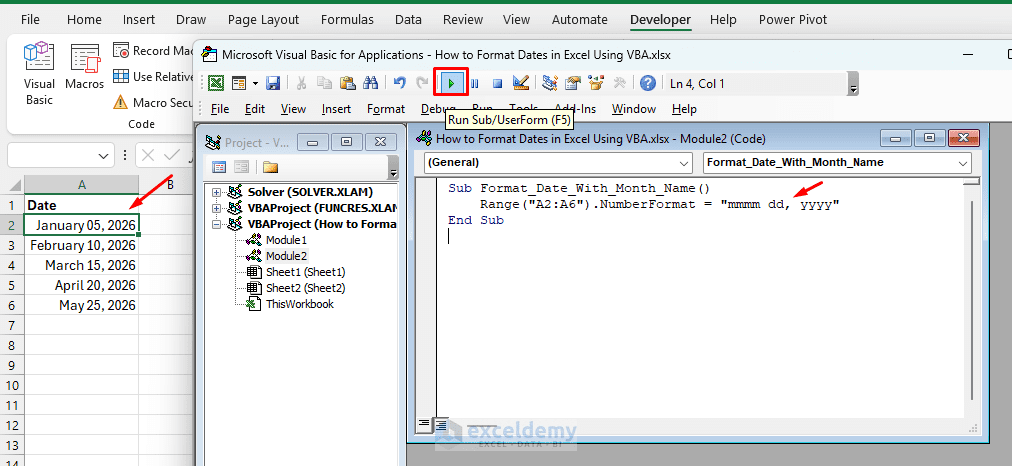
You can replace the format code with any of the following options.
| Format Type | VBA Code Line | Example Output |
| Full Month Name | Range(“A2:A6”).NumberFormat = “mmmm dd, yyyy” | January 05, 2026 |
| Short Month Name | Range(“A2:A6”).NumberFormat = “dd-mmm-yy” | 05-Jan-26 |
| Full Weekday Name | Range(“A2:A6”).NumberFormat = “dddd, mmmm dd, yyyy” | Monday, January 05, 2026 |
| Short Weekday Name | Range(“A2:A6”).NumberFormat = “ddd, dd-mmm-yyyy” | Mon, 05-Jan-2026 |
To show the full weekday name with the date, use:
Sub Format_Date_With_Weekday()
    Range("A2:A6").NumberFormat = "dddd, mmmm dd, yyyy"
End Sub
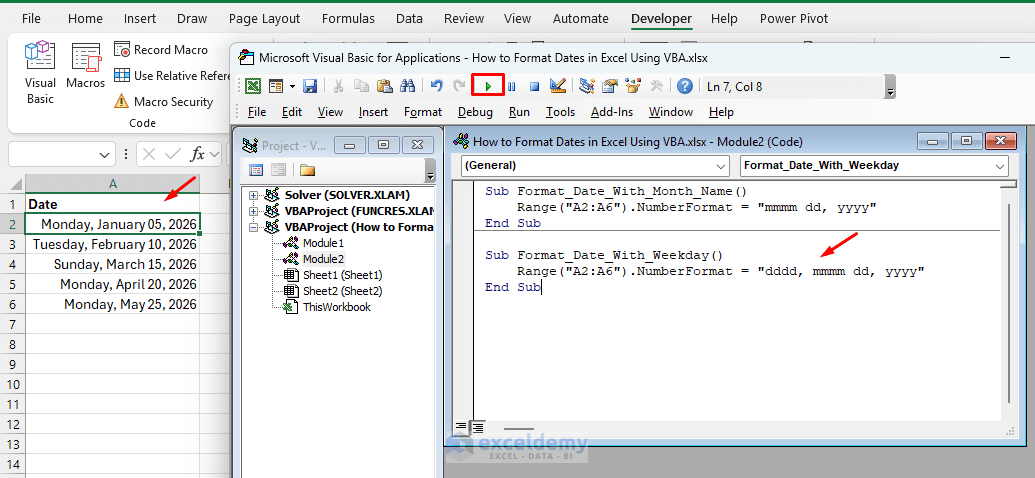
This style is useful for schedules, attendance sheets, calendars, and dashboard reports.
3. Format Date and Time Together
If your cells contain both date and time, you can format them together using VBA.
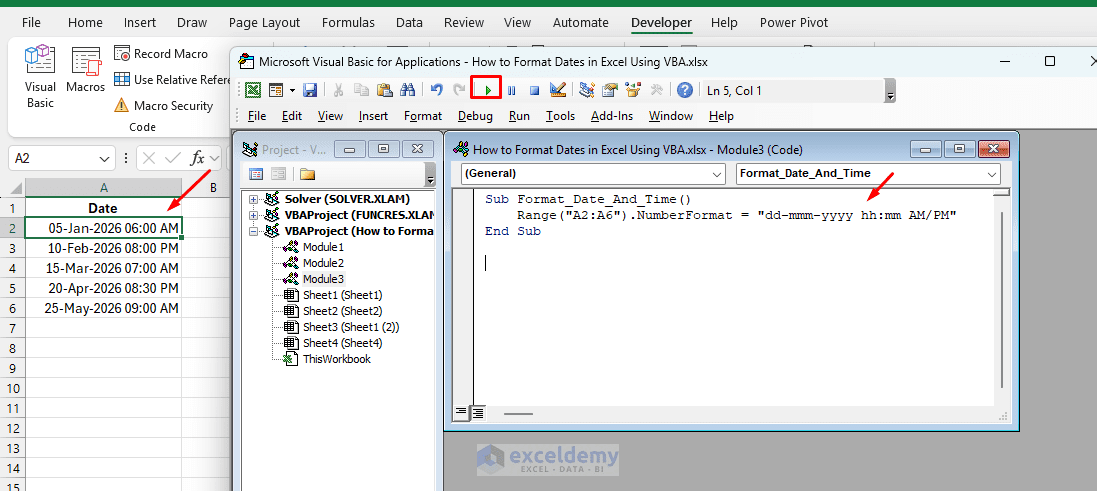
12-Hour Format:
Sub Format_Date_And_Time()
    Range("A2:A6").NumberFormat = "dd-mmm-yyyy hh:mm AM/PM"
End Sub
Here, hh:mm AM/PM displays the time in 12-hour format.
24-Hour Format:
Sub Format_Date_And_24_Hour_Time()
    Range("A2:A6").NumberFormat = "dd-mmm-yyyy hh:mm"
End Sub
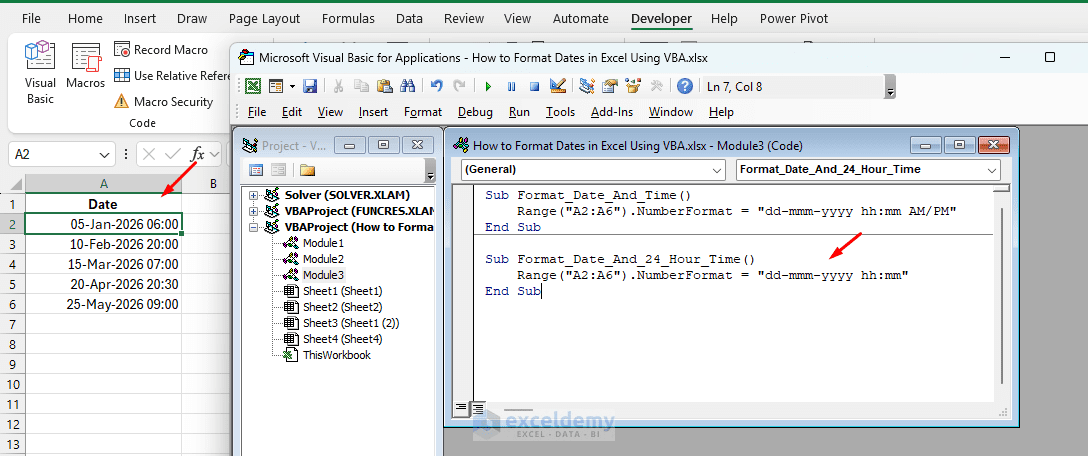
This is useful when working with timestamps, log files, order times, or attendance records.
4. Insert Today’s Date and Format It
You can use VBA to insert the current date into a cell and format it at the same time.
Today’s Date:
Sub Insert_Today_Date()
    Range("B2").Value = Date
    Range("B2").NumberFormat = "dd-mmm-yyyy"
End Sub
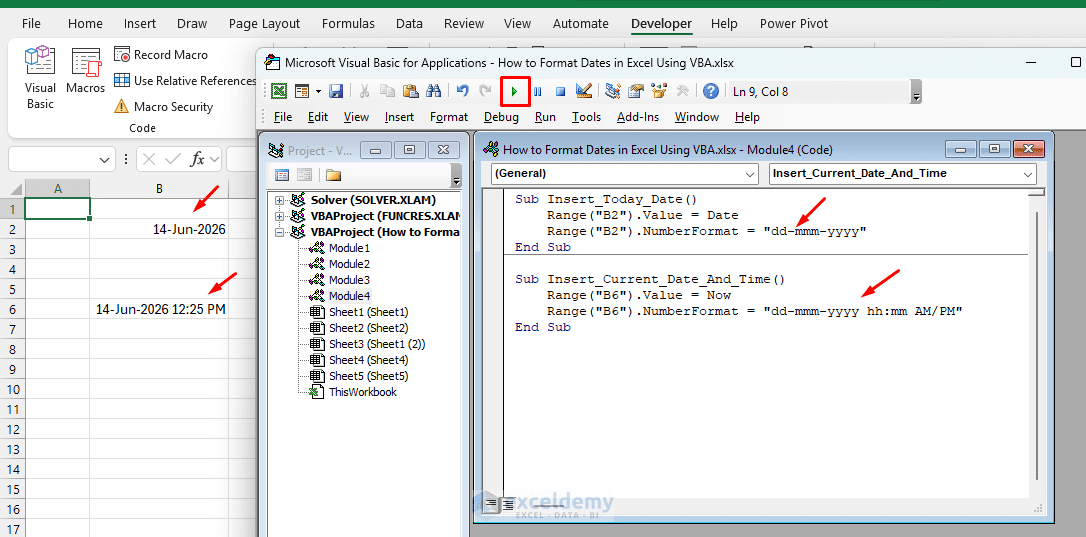
This code inserts the current system date in cell B2 and formats it as dd-mmm-yyyy.
Now, with Date and Time:
To insert the current date and time, use Now instead of Date.
Sub Insert_Current_Date_And_Time()
    Range("B6").Value = Now
    Range("B6").NumberFormat = "dd-mmm-yyyy hh:mm AM/PM"
End Sub
Here, Date returns only the current date, while Now returns both the current date and time.
5. Format Only Valid Date Cells
Sometimes a range may contain dates, text, and blank cells. In that case, you can check each cell before applying the date format.
Sub Format_Only_Valid_Dates()
    Dim cell As Range

    For Each cell In Range("A2:A10")
        If IsDate(cell.Value) Then
            cell.NumberFormat = "dd-mmm-yyyy"
        End If
    Next cell
End Sub
This code loops through each cell in the range A2:A10. If the cell contains a valid date, VBA applies the date format.
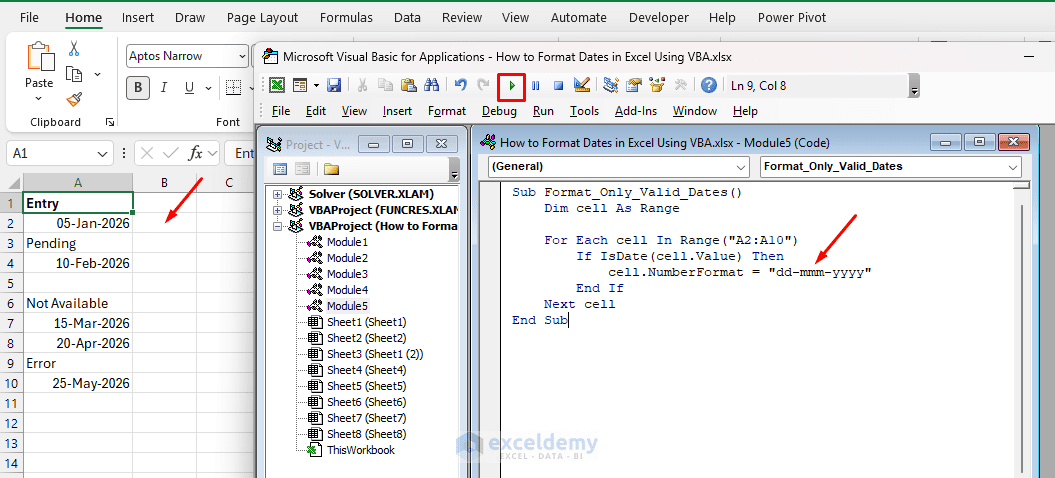
This is helpful when your dataset is not clean or contains mixed values.
6. Convert Text Dates and Format Them
Dates imported from other systems may sometimes be stored as text. In that case, changing the number format may not work properly. You need to convert the text dates into real Excel dates first.
Sub Convert_Text_Dates_And_Format()
    Dim cell As Range

    For Each cell In Range("A2:A10")
        If IsDate(cell.Value) Then
            cell.Value = CDate(cell.Value)
            cell.NumberFormat = "dd-mmm-yyyy"
        End If
    Next cell
End Sub
This code checks whether each cell contains a valid date. Then it uses CDate to convert the value into a real date and applies the format.
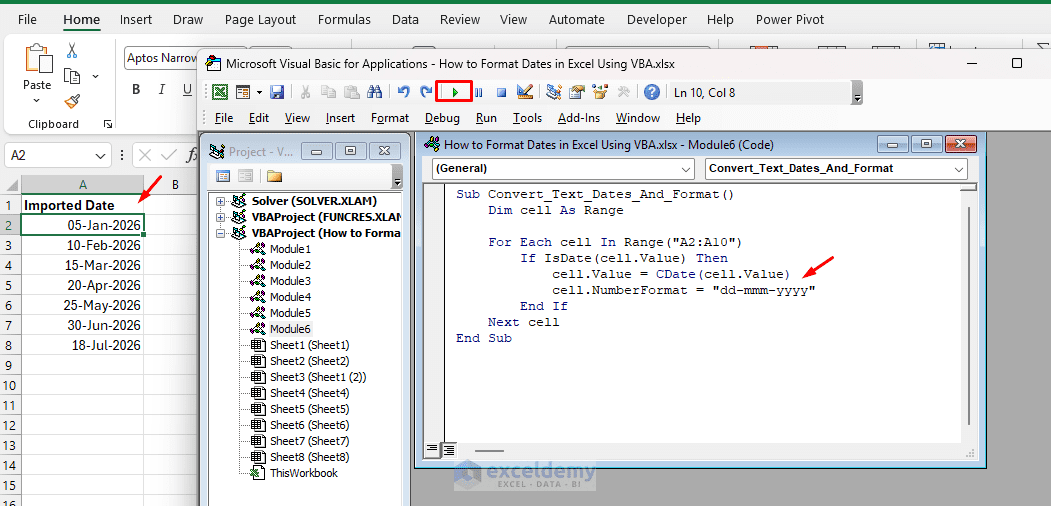
Use this code when dates look like dates but do not behave like real Excel dates.
7. Format a Date Column in an Excel Table
If your dataset is inside an Excel Table, you can format a specific table column using ListObject.
Suppose your table name is SalesTable and the date column name is Order Date.
Sub Format_Table_Date_Column()
    Dim tbl As ListObject

    Set tbl = ActiveSheet.ListObjects("SalesTable")
    tbl.ListColumns("Order Date").DataBodyRange.NumberFormat = "dd-mmm-yyyy"
End Sub
This code formats only the Order Date column inside the table.
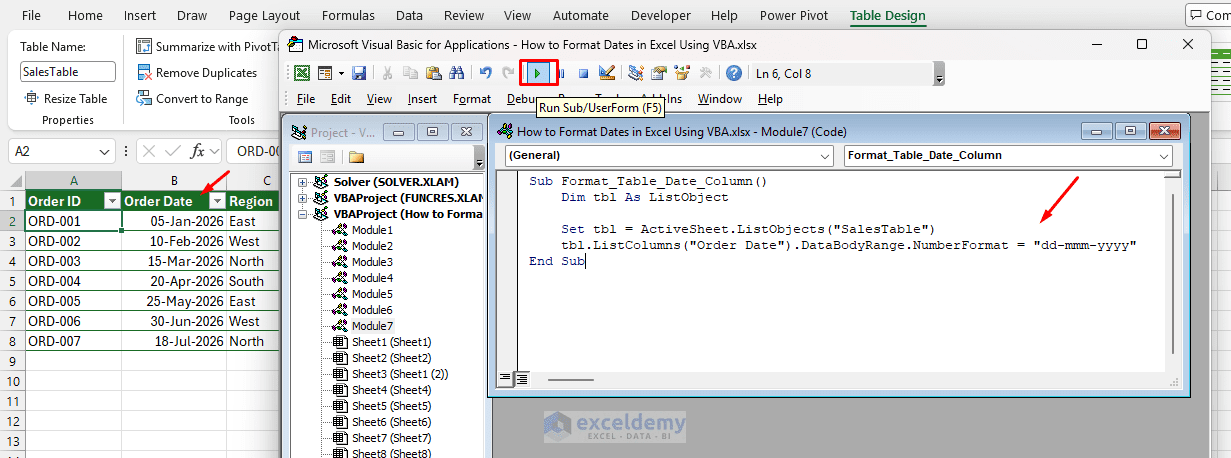
This method is useful when your data range expands regularly, and you want to work with structured table references.
8. Format the Entire Column as Date
If you want to format the entire column B as a date, use this short code:
Sub Format_Entire_Date_Column()
    Columns("B").NumberFormat = "dd-mmm-yyyy"
End Sub
This code applies the date format to the full column B.
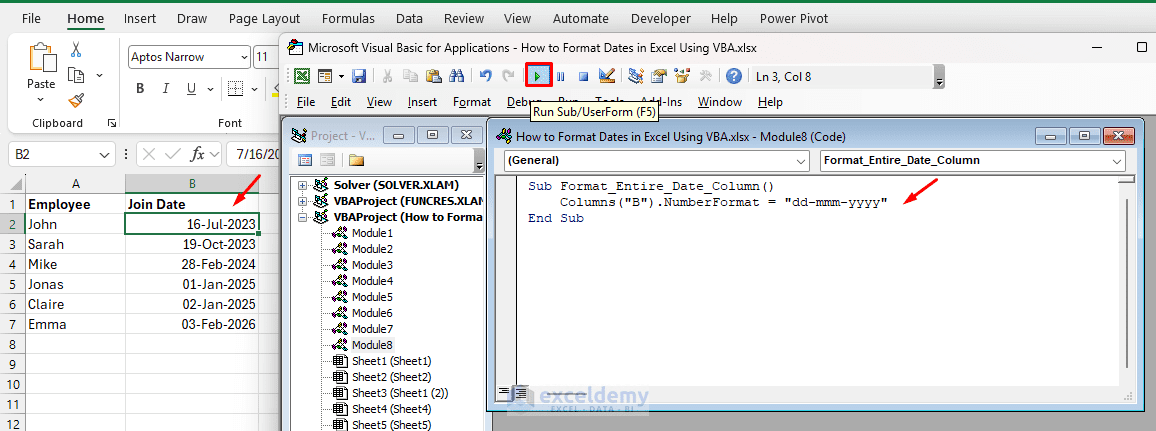
However, if your column contains headings or other values, it is usually better to format only the actual data range.
Common VBA Date Format Codes
The following table shows some useful date format codes you can use with NumberFormat.
| Format Code | Example Output |
| dd-mmm-yyyy | 05-Jan-2026 |
| mm/dd/yyyy | 01/05/2026 |
| dd/mm/yyyy | 05/01/2026 |
| yyyy-mm-dd | 2026-01-05 |
| mmmm dd, yyyy | January 05, 2026 |
| dd-mmm-yy | 05-Jan-26 |
| dddd, mmmm dd, yyyy | Monday, January 05, 2026 |
| ddd, dd-mmm-yyyy | Mon, 05-Jan-2026 |
| dd-mmm-yyyy hh:mm AM/PM | 05-Jan-2026 10:30 AM |
| mmm-yy | Jan-26 |
NumberFormat vs Format Function in VBA
In VBA, NumberFormat and Format are not the same.
The NumberFormat property changes how the date appears in the worksheet. The original value remains a real Excel date.
Sub Use_NumberFormat()
    Range("A2:A6").NumberFormat = "dd-mmm-yyyy"
End Sub
The Format function returns a formatted text value.
Sub Use_Format_Function()
    Range("B2").Value = Format(Range("A2").Value, "dd-mmm-yyyy")
End Sub
For most worksheet formatting tasks, NumberFormat is the better option because it keeps the value as a real date. Use Format only when you specifically need the result as text.
Conclusion
You can easily format dates in Excel using VBA with the NumberFormat property. For basic date styles, change only the format code, such as dd-mmm-yyyy, mm/dd/yyyy, dd/mm/yyyy, or yyyy-mm-dd. You can also display full month names, weekday names, and time values using different format codes. If your dates are stored as text, convert them with CDate before applying the format. With these short VBA snippets, you can quickly standardize date formats in reports, tables, dashboards, and imported datasets.
Get FREE Advanced Excel Exercises with Solutions!

