


Excel spreadsheets often contain more than rows, columns, and formulas. They contain patterns, errors, trends, unusual data behavior, sales changes, and business insights. The problem is that finding those insights manually can take time, especially when the spreadsheet is large or messy. This is where ChatGPT can help. Instead of only using Excel as a place to store data, you can use ChatGPT as an analysis assistant. It can help you understand your data, create formulas, summarize trends, detect inconsistencies, suggest charts, and explain what is happening inside a workbook.
In this tutorial, we will show how you can mine your Excel spreadsheets with ChatGPT. You will get the prompts and techniques to get actionable insights without needing advanced Excel mastery.
1. Extracting and Structuring Data from Various Sources
Excel spreadsheets often contain more than rows, columns, and formulas. They contain patterns, errors, trends, unusual data behavior, sales changes, and business insights. The problem is that finding those insights manually can take time, especially when the spreadsheet is large or messy. This is where ChatGPT can help. Instead of only using Excel as a place to store data, you can use ChatGPT as an analysis assistant. It can help you understand your data, create formulas, summarize trends, detect inconsistencies, suggest charts, and explain what is happening inside a workbook.
In this tutorial, we will show how you can mine your Excel spreadsheets with ChatGPT. You will get the prompts and techniques to get actionable insights without needing advanced Excel mastery.
“Mining” often starts with getting raw data into a usable spreadsheet format. ChatGPT excels at converting unstructured text, PDFs, images, or web content into tables.
Steps:
- Copy-paste text/lists or upload files (PDFs, images of tables, screenshots)
- Insert the following prompt
"Convert this sales data table with columns: Item Name, Description, Price, Category.
Include whether it's per roll or per piece."
- If your existing spreadsheets are already clean, ask ChatGPT to summarize the structure or extract subsets
Tip: Use Ctrl+Shift+V (paste without formatting) in Sheets/Excel for clean imports.
2. Data Cleaning and Preparation
Raw data is rarely perfect. ChatGPT helps identify and fix issues. Spreadsheet mining is not only about analysis — sometimes, you first need to clean the data. ChatGPT can clean the data, and it can also offer the formulas and steps for data cleaning.
Prompt Examples:
- “Here’s sample data [paste rows]. Identify duplicates, missing values, inconsistent formats (e.g. dates, currencies), and suggest cleaning steps or formulas.”
- “Write Excel formulas to: standardize phone numbers, extract domain from emails, flag outliers in sales column (beyond 2 std devs).”
- “Convert this messy dataset into a normalized table. Handle merged cells logic if described.”
This step is crucial before deeper mining/analysis. A clean spreadsheet gives ChatGPT better context and reduces the chance of wrong formulas or misleading analysis.
3. Ask ChatGPT to Understand the Dataset
Start by asking ChatGPT to describe your dataset. This helps you confirm whether it understands the structure correctly.
Example prompt:
- Paste your data or mention the column names
- Then type the following prompt:
"I have an Excel table with this data. Explain what kind of analysis
I can perform with this dataset."
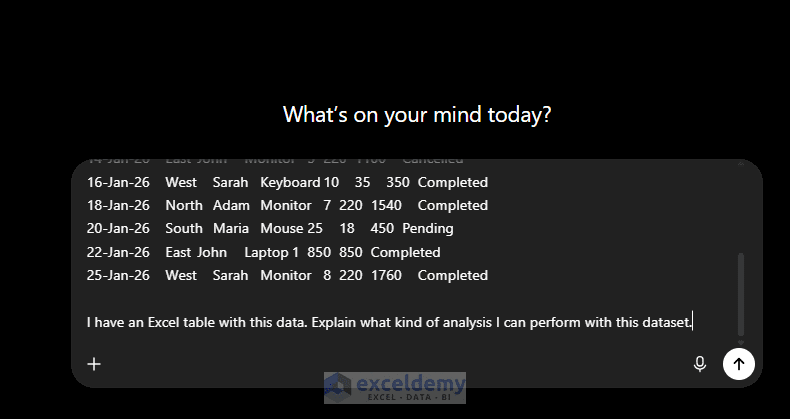
ChatGPT will suggest analysis along with formulas and steps, such as:
- Overall Sales Performance
- Revenue Analysis by Product
- Salesperson Performance Analysis
- Regional Performance Analysis
- Order Status Analysis
- Lost Revenue Analysis
- Product Performance by Region
- Sales Trend Over Time
- Units Sold Analysis
- Revenue Contribution Percentage Analysis
- Sales KPI Dashboard
- Revenue Comparison by Status
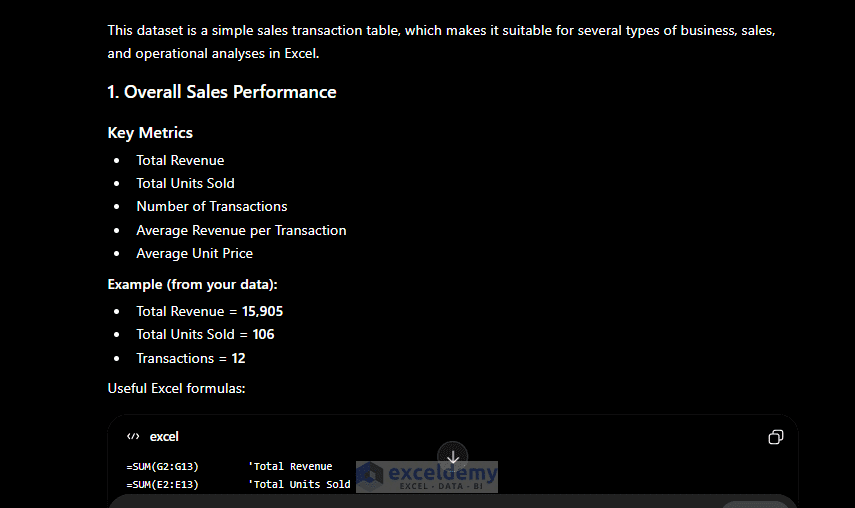
This step is useful because it gives you a roadmap before you start writing formulas or creating charts.
Tip: ChatGPT will give too many suggestions. Don’t go for everything — decide which analysis you need based on the dataset and the stakeholder requirements.
4. Generate Excel Formulas with ChatGPT
ChatGPT is excellent at creating and explaining formulas, perfect for mining insights like calculations, lookups, and aggregations. You can paste or upload the entire dataset, and ChatGPT can detect column names and numbers to create ready-to-use formulas.
Total Revenue by Region:
Prompt:
"Write an Excel formula to calculate total revenue for the North region."
Formula:
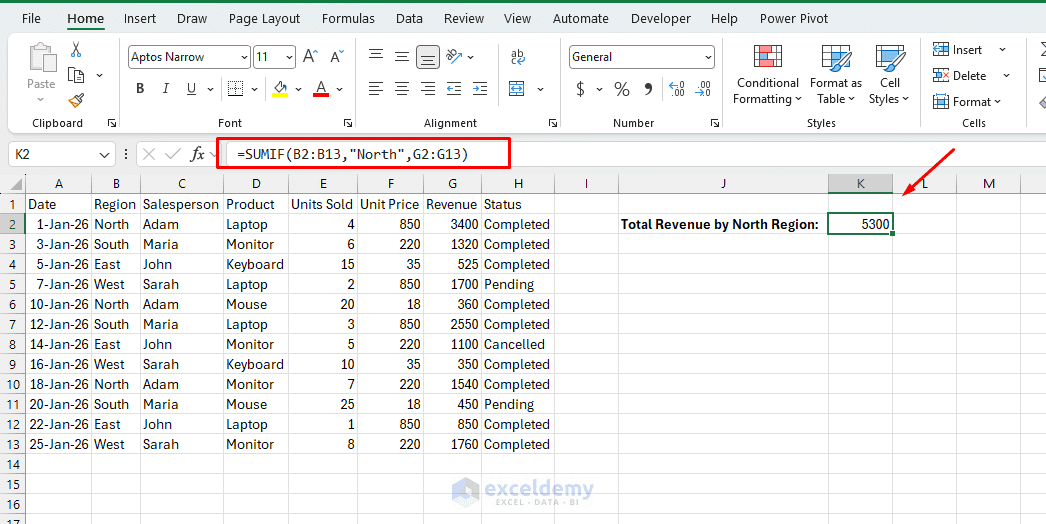
=SUMIF(B2:B13,"North",G2:G13)
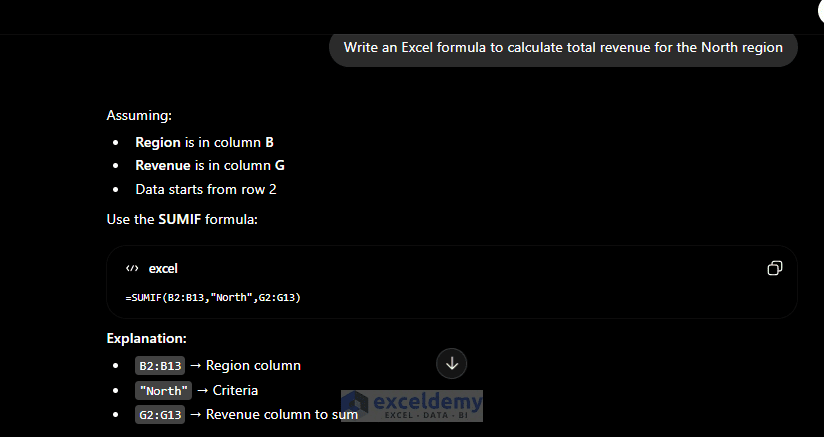
This formula checks the Region column and adds only the revenue values where the region is North.
Since the whole dataset was already pasted, ChatGPT automatically detected the cell range and columns. You can use this formula directly in an Excel spreadsheet.
Total Revenue for Completed Orders:
Prompt:
"Write an Excel formula to calculate total revenue only for Completed orders."
Formula:
=SUMIF(H2:H13,"Completed",G2:G13)
Revenue by Product and Region:
Prompt:
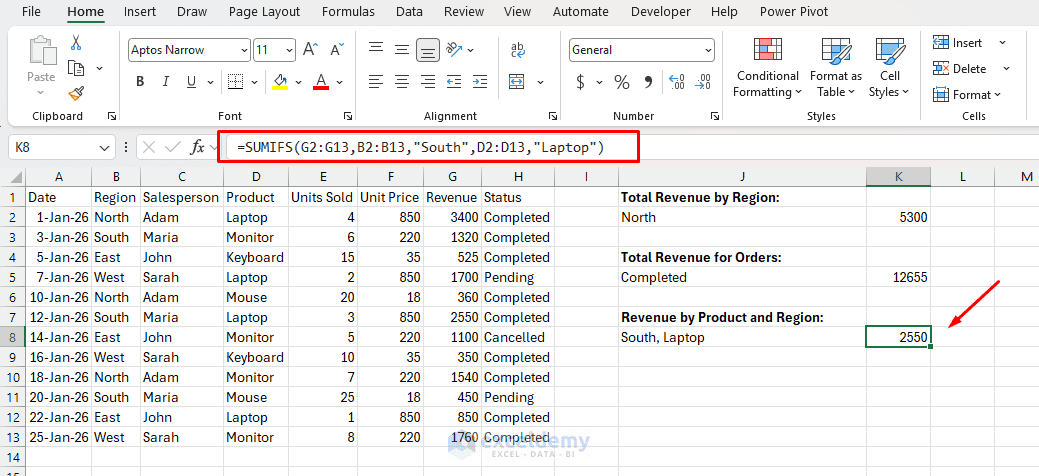
"Write a formula to calculate total revenue for Laptop sales in the South region."
Formula:
=SUMIFS(G2:G13,B2:B13,"South",D2:D13,"Laptop")
The SUMIFS function is useful when you need to calculate totals based on multiple conditions.
For more complex formulas, ChatGPT will run Python code behind the scenes (via the integrated code interpreter), compute the result, and display the output directly in the chat, including charts if you asked for them.
Tip: Provide context such as column letters, sample data, and the desired output. Ask for array formulas (dynamic arrays in modern Excel) or LAMBDA functions for reusability.
5. Use ChatGPT to Find Trends
You can ask ChatGPT to help you identify trends from your spreadsheet.
Example Prompt:
"Based on this sales dataset, what trends should I check in Excel?"
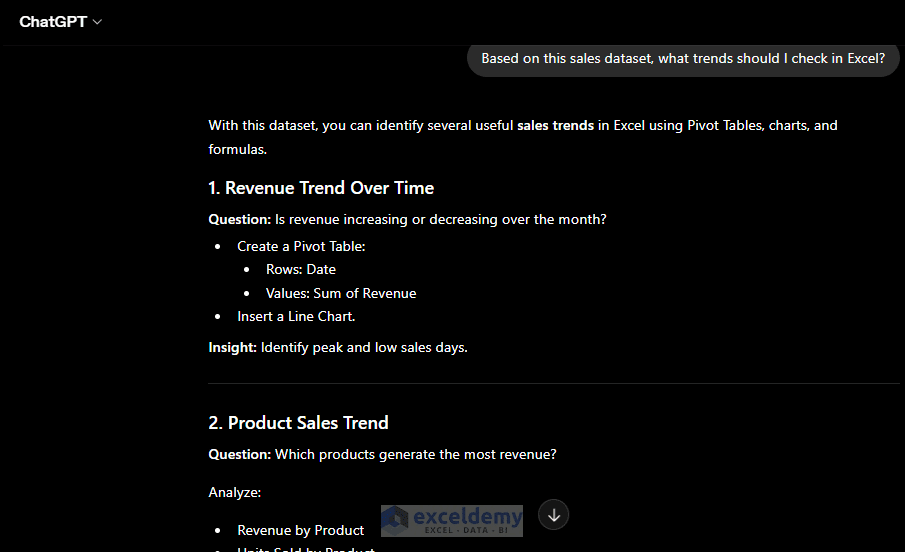
ChatGPT will suggest the following trends along with explanations:
- Revenue Trend Over Time
- Product Sales Trend
- Regional Sales Trend
- Salesperson Performance Trend
- Product Popularity Trend
- Order Status Trend
- Lost Revenue Trend
- Product Performance by Region
- Revenue vs Units Sold Trend
- Average Order Value Trend
- Revenue Contribution Trend
Then you can ask for the exact formulas or setup for the trend you want.
6. Data Analysis and Insight Mining
This is the core of “mining” — turning numbers into insights.
Summary Statistics:
"Provide summary statistics, trends by month/region, top performers, and potential issues."
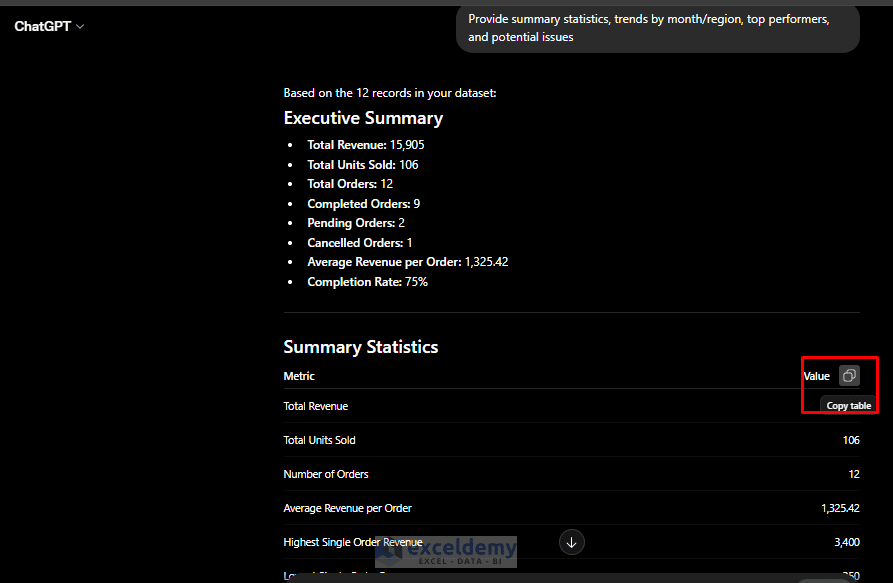
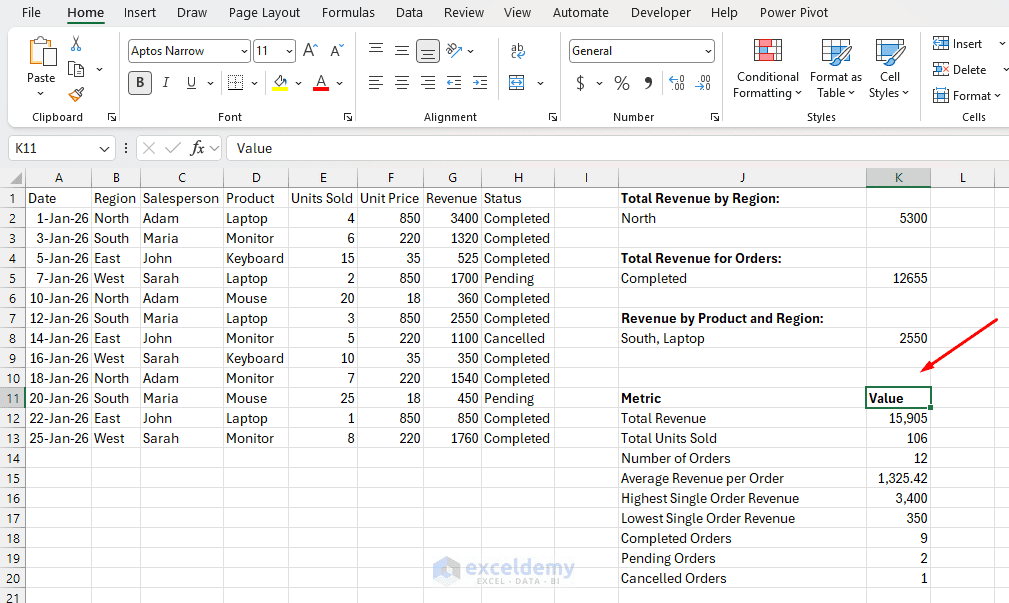
You can copy the summary directly into Excel. If you want, you can also ask for the formulas to make it dynamic.
Specific Queries:
"What are the correlations between advertising spend and revenue?
Identify any seasonal patterns."
Visualization Ideas:
- “Suggest pivot table setups or charts to show this data. Generate sample chart titles and axis labels.”
- “What charts should I create from this sales dataset?”
Advanced Analysis: Upload a File Using Advanced Data Analysis
This is the most powerful method for genuine data mining — exploring patterns, generating charts, and running statistics across a complete dataset.
If your file is large, you want visualizations, you need statistical analysis (regression, correlation, forecasting), or you want ChatGPT to reason across the whole dataset at once, this is the option to use.
Requirements:
- ChatGPT Plus, Team, or Enterprise
- File uploads support up to 512 MB and accept .xlsx, .xls, .csv, .tsv, and .json formats
- You can also connect Google Drive to upload directly from Google Sheets
Upload Your File:
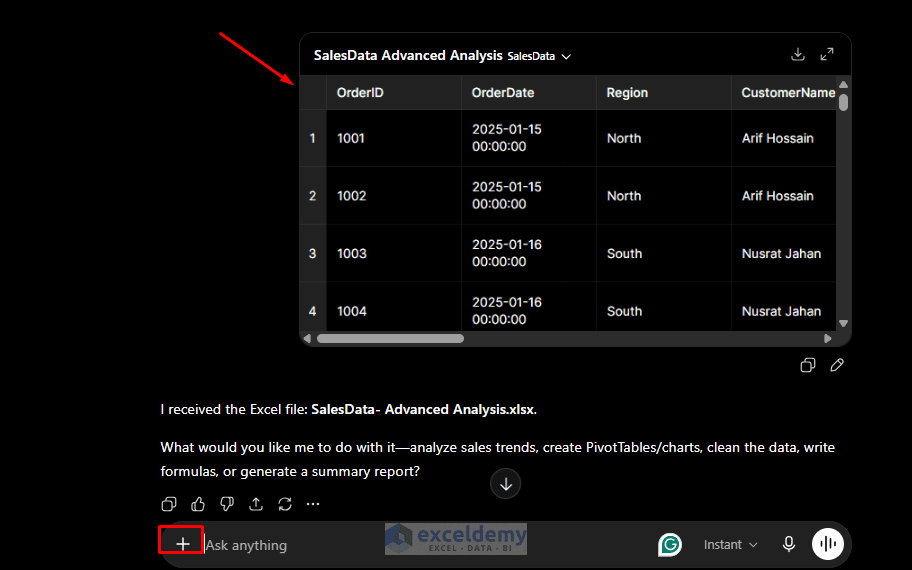
- Click the “+” icon in the chat input and select your Excel or CSV file
- ChatGPT will automatically scan the upload and detect sheet names, column headers, data types, empty fields, and formatting issues
- You will typically see a confirmation message describing what it found
Start Asking Questions in Plain English:
- “What is the average monthly revenue for each region in recent years?”
- “Which five customers spent the most in Q3, and how does that compare to Q2?”
- “Show me a line chart of user growth by city over the last twelve months.”
- “Are there any outliers in the Return Rate column? Flag any values more than two standard deviations from the mean.”
- “Summarize the top three insights from this dataset and suggest two things I should investigate further.”
This approach often produces surprisingly useful strategic observations.
Export the Analyzed Excel File:
You can ask ChatGPT for the Excel file along with all the analysis, charts, and everything else. For very large datasets, summarize subsets or export key metrics first.
"Give the Excel file with all the analysis, visualizations, and create a dashboard."
It will provide a download link in the chat. Download the Excel file to verify.
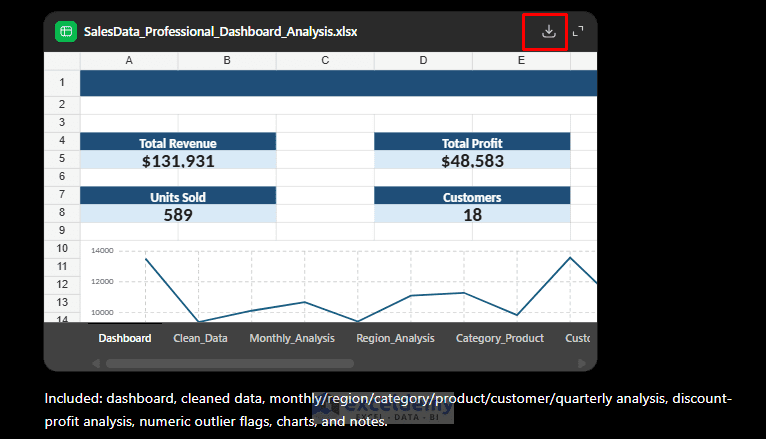
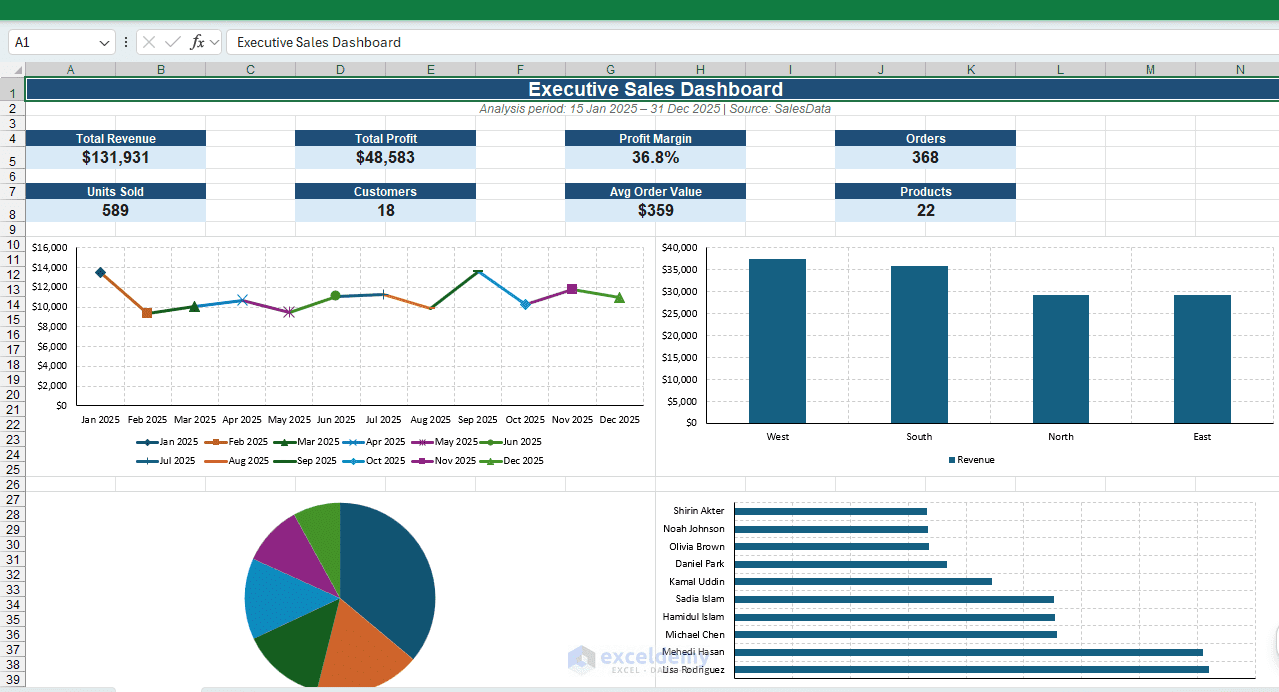
Look at the dashboard — it is ready to use and looks professional. But you must verify all features before finalizing them.
Limitations and Best Practices
- Hallucinations: AI may invent formulas — always test them.
- Data Size: Large files may need summarization; use CSV subsets.
- Accuracy: Provide clear context and verify outputs.
- Security: Be cautious with proprietary data.
- Enhancements: Combine with Excel’s built-in AI (Copilot), Gemini for Sheets, or dedicated add-ins.
Final Thoughts
Mining your Excel spreadsheets with ChatGPT means using AI to uncover insights faster. You can use it to understand your dataset, write formulas, clean messy records, discover trends, detect unusual values, suggest charts, and summarize findings. But remember, ChatGPT should not replace your own judgment. Think of it as an assistant, not the final authority. The best workflow is simple: ask ChatGPT for help, test the result in Excel, verify the output, and then use the insight confidently.
Get FREE Advanced Excel Exercises with Solutions!

