


Why Rename Fields at the Visual Level?
When you connect Power BI to a data source, field names often come in as-is — raw, technical, or abbreviated. These names make sense to a database administrator, but they confuse a business audience reading the report. There are multiple ways to rename such fields. Many users assume they need to rename the column in the data model, but that can affect other visuals, measures, and report pages. Fortunately, Power BI allows you to rename a field for a specific visual without changing the underlying source data.
In this tutorial, we will show how to rename visual fields without changing your Power BI source data, while keeping the data model intact.
Visual-level renaming is useful when:
- You want cleaner labels in charts and tables
- Technical column names are confusing for report consumers
- Different visuals need different field names
- You want to preserve consistent naming in the data model
| Original Field Name | Visual Display Name |
| Sales_Amount | Total Sales |
| Cust_Count | Customers |
| Prod_Category | Product Category |
The source data remains unchanged while the visual becomes easier to understand.
Rename a Field for a Single Visual
- Open your Power BI report
- Select the visual
- In the Visualizations pane, locate the Values section
- Find the field you want to rename, like Region_List
- Double-click the field name
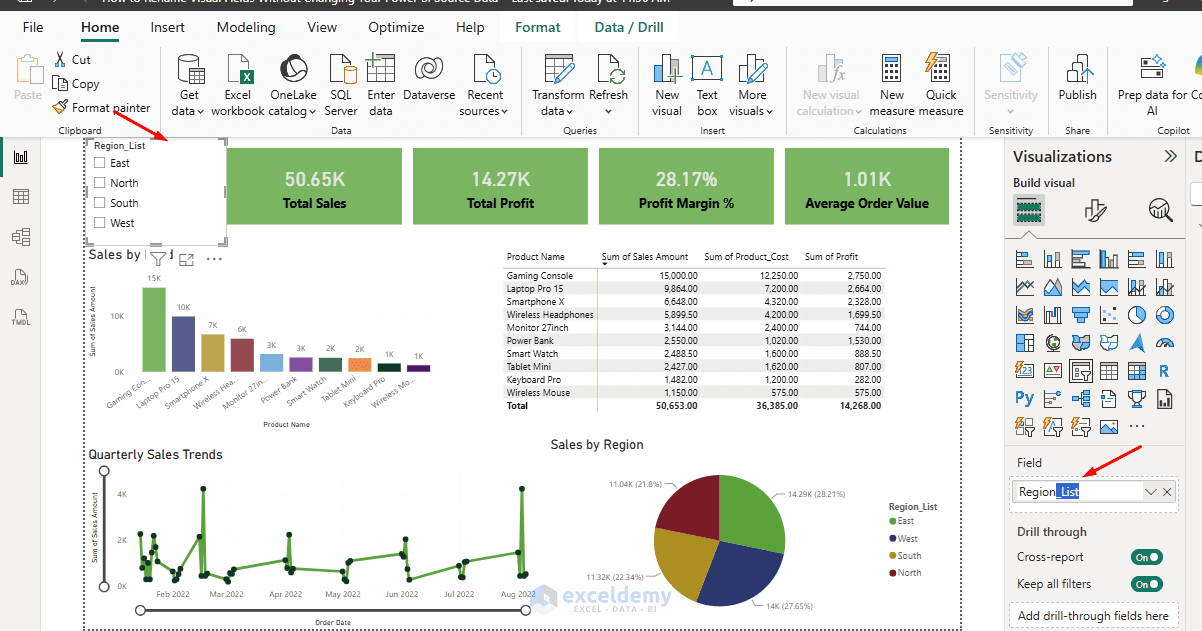
- Type the new name
- Press Enter
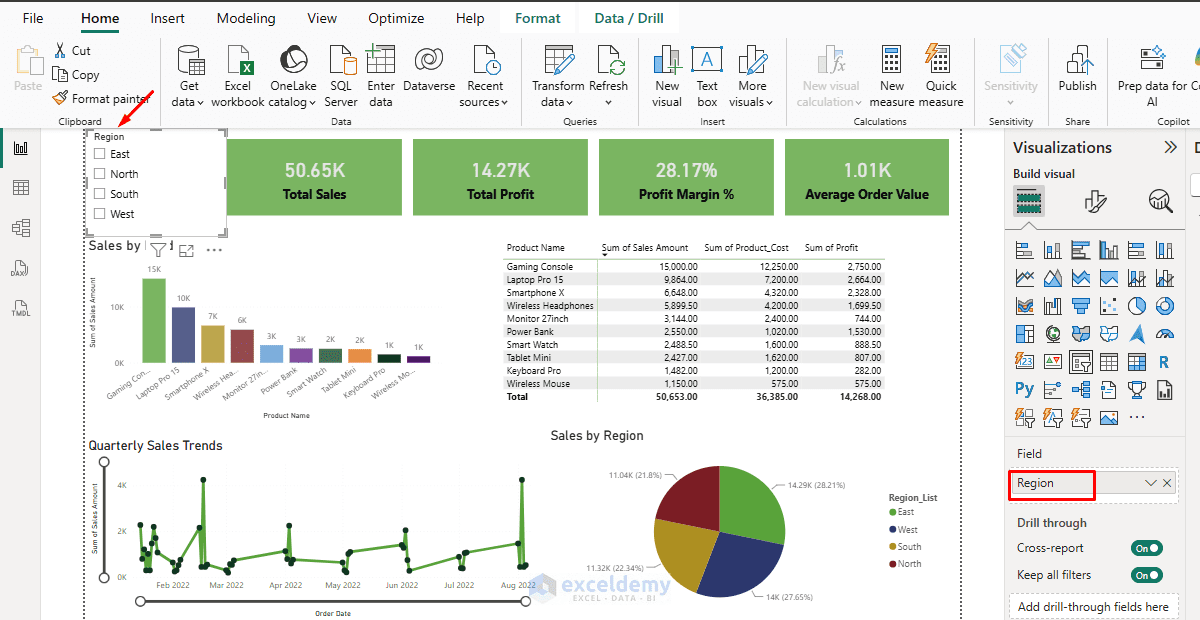
The visual now displays Region instead of Region_List. The change applies immediately to that visual only. The original field name remains unchanged in the Data pane and data model.
Check & Verify That the Data Model Is Unchanged
After renaming, you can verify that the data model remains unchanged.
- Go to the Fields pane or Table view
- Locate the original column
- The field/column still appears as Region_List
- The data model remains unchanged
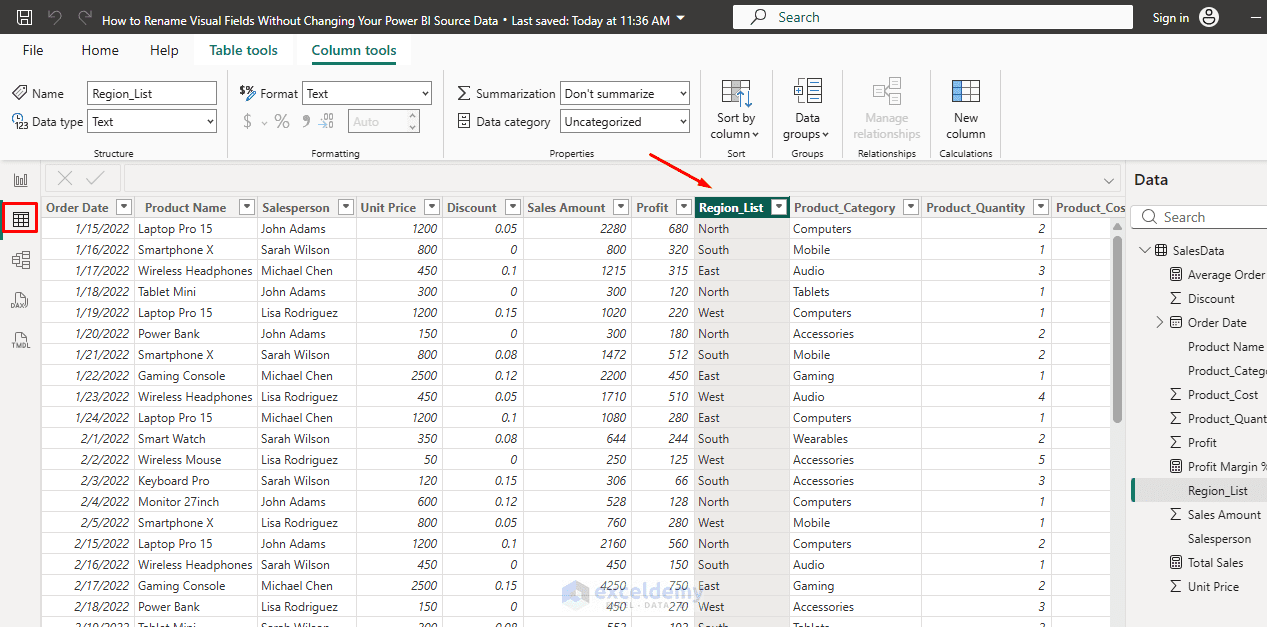
Other visuals continue using the original name unless you rename them separately. This is why visual-level renaming is a safe way to improve report readability.
Rename Fields in Charts
The same technique works in charts.
- Select a chart
- Axis: Region_List
- Values: Sum of Sales Amount
- Rename the axis and value field:
- Axis: Region
- Values: Total Sales
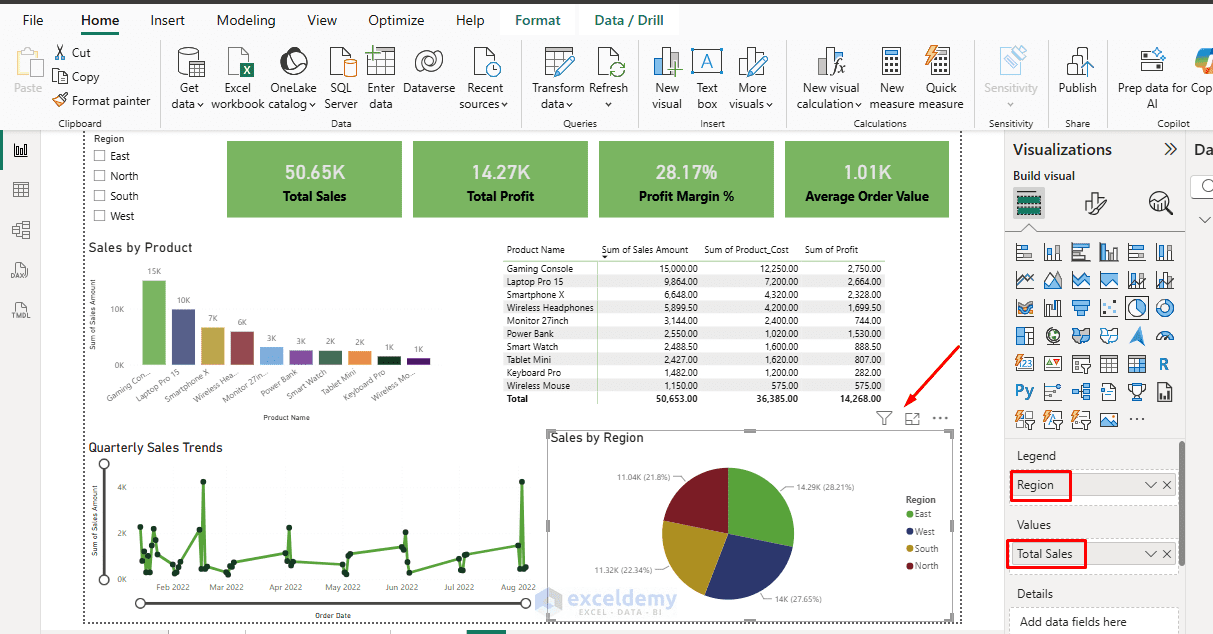
The chart legend, tooltip, and axis labels will use the new name while the underlying column remains unchanged.
Alternative Method: Use “Rename for This Visual”
In Power BI’s interface, you will also see a drop-down arrow beside the field name in the visual well.
To use this method:
- Select the visual
- Go to the fields section of the Visualizations pane
- Click the drop-down arrow beside the field, or right-click the field
- Choose Rename for this visual
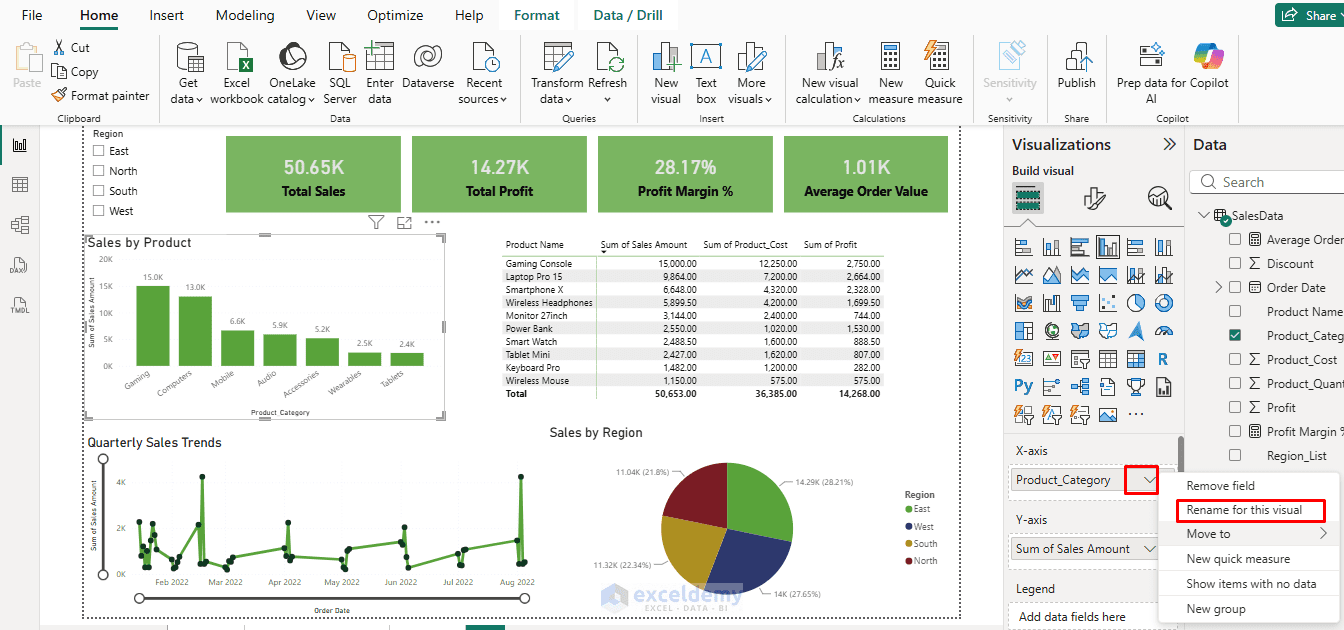
- Type the new name: Category and Total Sales
- Press Enter
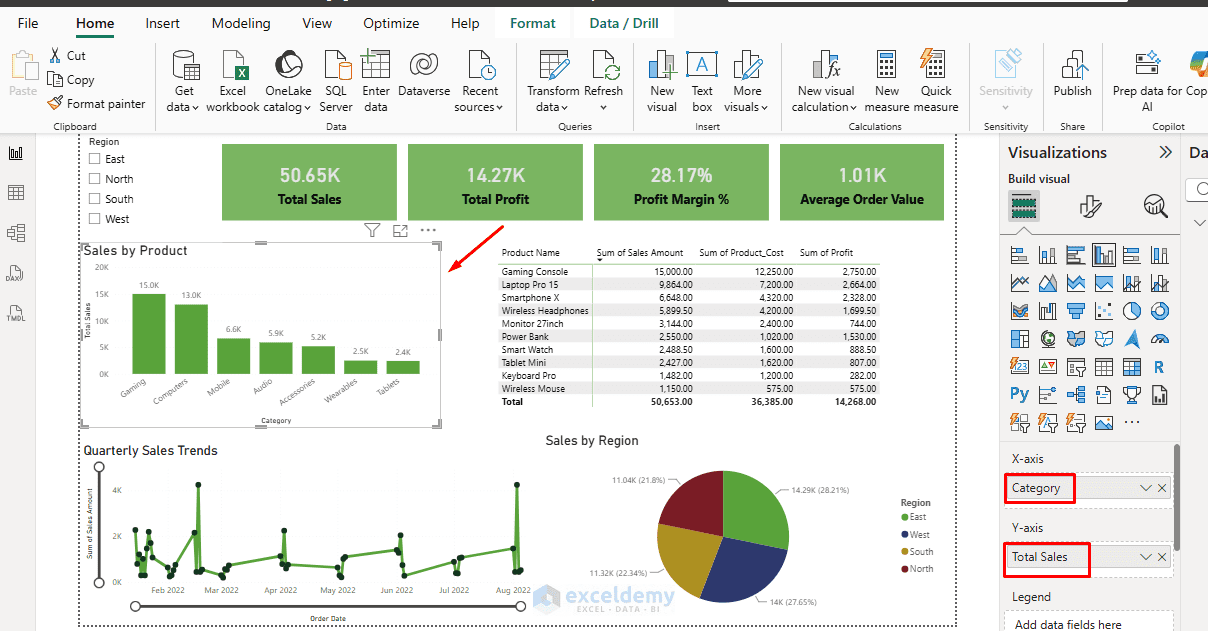
This method does the same thing: it changes the field label only for the selected visual. This is especially useful if double-click doesn’t trigger for any reason.
Best Practices
- Be Consistent: Use clear, business-friendly names that match your report’s audience.
- Document Changes: Consider adding a text box or tooltip explaining display names if the report is shared widely.
- Multiple Visuals: You can use different display names for the same field across different visuals (e.g. “Revenue” in one chart, “QTD Revenue” in another).
- Sorting: Renaming doesn’t affect sorting behavior; use the original field for sort columns if needed.
- Performance: These renames have a negligible impact on report performance.
- Avoid it when:
- Every report page should use the same name.
- The source field name itself is incorrect.
- You need consistency across dozens of visuals.
Common Mistakes
- Renaming the Field in Model View: Changing the column name in Model View affects the entire report and all visuals that use that field.
- Expecting Other Visuals to Update: Visual-level renaming only affects the selected visual. Other visuals continue displaying the original field name.
- Renaming Measures Unnecessarily: If a measure already has a clear name, additional visual-level renaming can create confusion when maintaining the report later.
Conclusion
By following the above methods, you can easily rename visual fields without changing your Power BI source data. Visual-level field renaming is one of Power BI’s most useful organizational features. By simply double-clicking a field in the visual well or using Rename for this visual, you can create cleaner, more professional reports without altering your source data or data model. This approach lets you keep technical names behind the scenes while presenting clear, business-friendly labels to your report audience.
Get FREE Advanced Excel Exercises with Solutions!

