


Boolean variables are one of the simplest but most useful tools in VBA. A Boolean variable stores only two possible values: True or False, which helps you make decisions in your code. In VBA scripting, this is helpful when you need to check something before running a part of your code. For example, you may need to check whether a cell has data, whether the user clicked Yes, or whether a worksheet exists.
In this tutorial, we will show how to use Boolean variables in VBA. Instead of writing long conditions repeatedly, you can store the result in a Boolean variable and use that variable in your code.
What Is a Boolean Variable in VBA?
A Boolean variable is declared with the Boolean data type. It is a variable that stores a logical value: either True or False. Boolean variables make VBA code easier to read and control.
Basic Syntax:
Dim variableName As Boolean
For example:
Dim isComplete As Boolean
- Here, isComplete can store either True or False
- isComplete = True
- Or, isComplete = False
If you declare a Boolean variable but do not assign a value, VBA treats it as False by default.
Why Use Boolean Variables?
VBA allows you to use integers as a stand-in for True/False (0 = False, any non-zero = True), but this is bad practice. Here is why you should always use Boolean explicitly:
- Clarity: They make your code readable. Instead of remembering what 1 or 0 means, you use descriptive names like isFileOpen or hasErrors.
- Decision Making: Booleans are the backbone of If…Then, While, Do…Loop, and other conditional logic.
- State Tracking: Track whether a condition is met (e.g. “user is logged in”, “calculation is complete”, “cell is empty”).
- Performance: Simple True/False checks are very fast.
- Error Reduction: Explicit True/False logic is less error-prone than using numbers or strings for flags.
Basic Example of a Boolean Variable: Check If a Cell Has Data
The following macro checks whether cell A2 has a value.
Sub CheckCellValue()

    Dim hasValue As Boolean

    hasValue = Range("A2").Value <> ""

    If hasValue Then
        MsgBox "Cell A2 has a value."
    Else
        MsgBox "Cell A2 is empty."
    End If

End Sub
In this code, the condition below returns either True or False:
Range(“A2”).Value <> “”
If cell A2 is not empty, hasValue becomes True. If cell A2 is empty, hasValue becomes False.
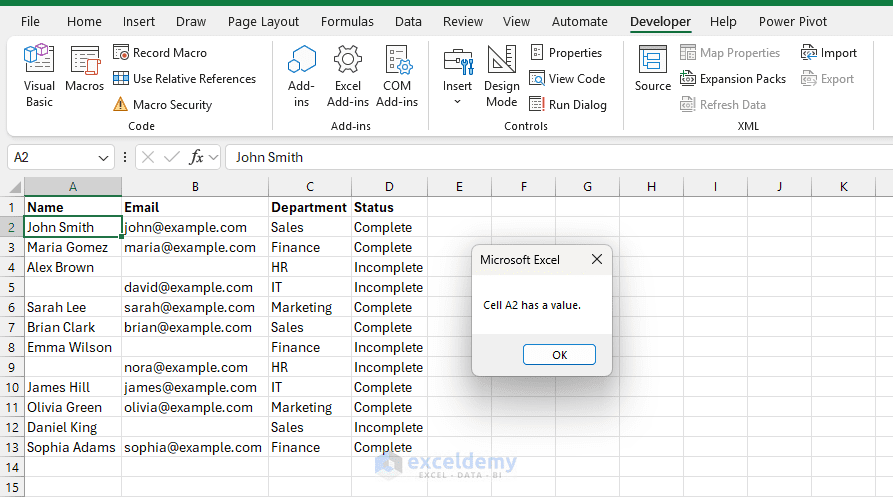
This type of Boolean variable is useful when your macro should run only if the required data is available.
1. Use a Boolean Variable to Validate Data
Suppose you want to check whether a user entered both a name and an email address.
Sub ValidateEntry()

    Dim isValid As Boolean

    isValid = Range("A2").Value <> "" And Range("B2").Value <> ""

    If isValid Then
        MsgBox "Data entry is complete."
    Else
        MsgBox "Please enter both Name and Email."
    End If

End Sub
Here, isValid becomes True only when both A2 and B2 are filled.
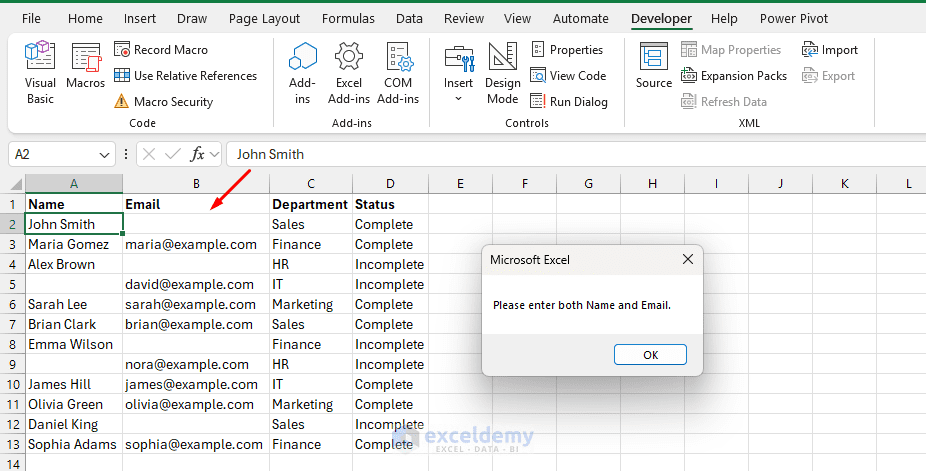
Use this type of Boolean variable when your macro should continue only after the required fields are completed. It is useful because the validation result is stored in one clear variable, so you can check whether a form, table row, or input area is complete before continuing.
2. Use a Boolean Variable to Check If a Worksheet Exists
Boolean variables are useful when you need to check whether something exists before using it.
Sub CheckWorksheetExists()

    Dim ws As Worksheet
    Dim sheetFound As Boolean

    sheetFound = False

    For Each ws In ThisWorkbook.Worksheets
        If ws.Name = "Sales" Then
            sheetFound = True
            Exit For
        End If
    Next ws

    If sheetFound Then
        MsgBox "The Sales worksheet exists."
    Else
        MsgBox "The Sales worksheet was not found."
    End If

End Sub
In this example, sheetFound works like a flag. At first, it is False. If VBA finds a worksheet named Sales, the variable changes to True.
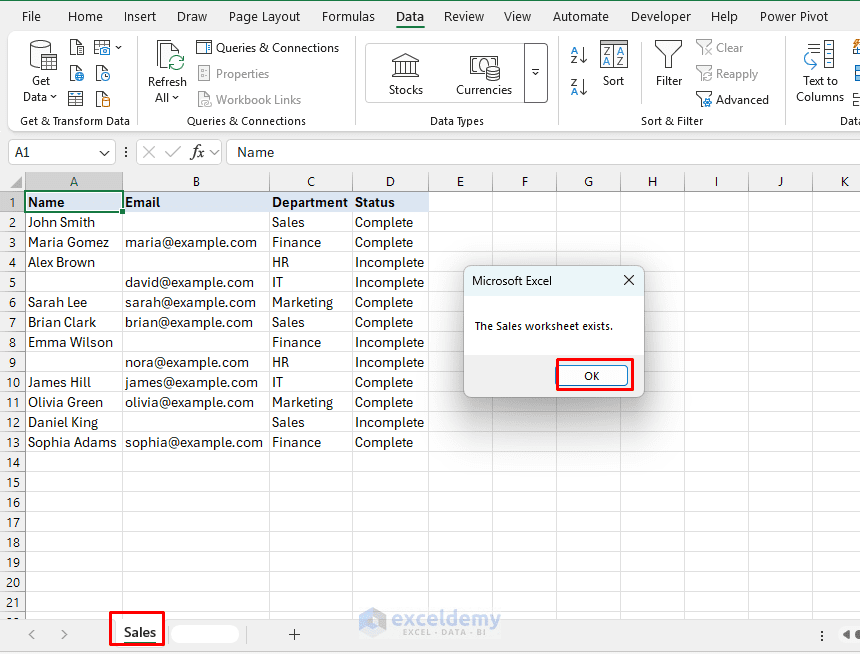
Use this approach when your macro depends on a worksheet, table, workbook, or file being available. It helps prevent errors before the macro tries to use something that does not exist.
3. Store a User’s Yes/No Response: Boolean Logic with a Message Box
You can also use a Boolean variable to store the user’s choice.
Sub ConfirmDelete()

    Dim canDelete As Boolean

    canDelete = MsgBox("Do you want to delete the selected data?", vbYesNo + vbQuestion) = vbYes

    If canDelete Then
        Selection.ClearContents
        MsgBox "Data deleted."
    Else
        MsgBox "Action cancelled."
    End If

End Sub
- Here, this part checks whether the user clicked Yes:
MsgBox(“Do you want to delete the selected data?”, vbYesNo + vbQuestion) = vbYes
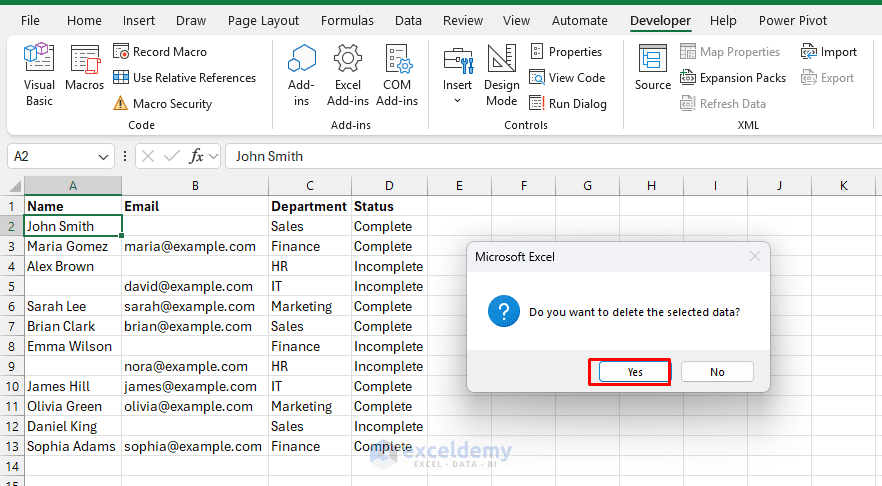
- If you click Yes, canDelete becomes True. Otherwise, it becomes False.
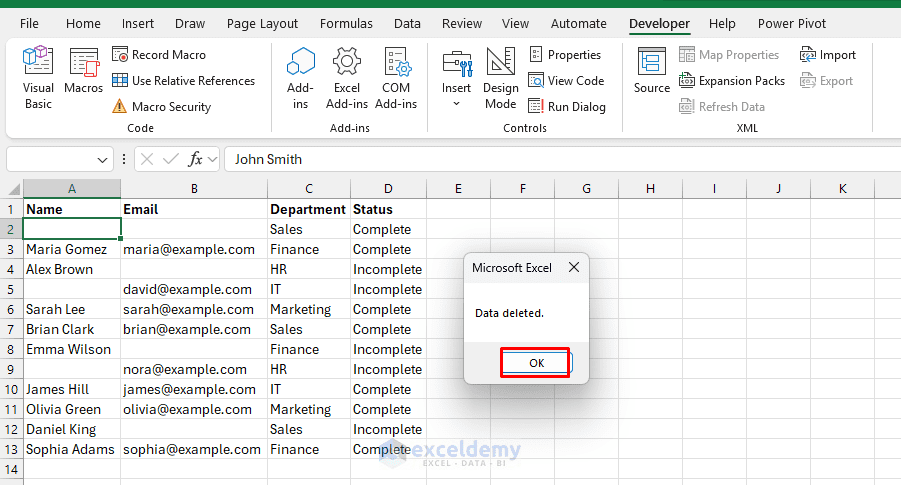
Use this method when your macro performs an important action, such as deleting data, clearing cells, replacing values, or sending information. It is useful because it protects the user from accidental changes.
4. Use Boolean Variables to Control a Loop
A Boolean variable can control whether a loop should continue.
Sub FindFirstBlankCell()

    Dim keepSearching As Boolean
    Dim rowNum As Long

    keepSearching = True
    rowNum = 1

    Do While keepSearching

        If Cells(rowNum, 1).Value = "" Then
            keepSearching = False
            MsgBox "First blank cell found in row " & rowNum
        Else
            rowNum = rowNum + 1
        End If

    Loop

End Sub
In this macro, the loop continues while keepSearching is True. When VBA finds the first blank cell in column A, keepSearching becomes False, and the loop stops.
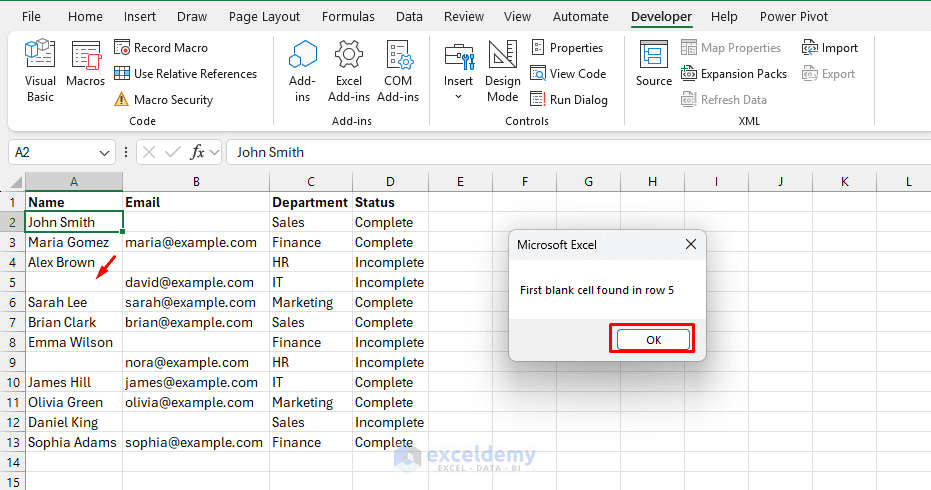
Use Boolean variables in loops when the macro should continue until a certain condition is met. This gives you better control over when the loop should stop.
5. Use Boolean Variables to Turn Macro Features On or Off
Boolean variables can also work like switches inside a macro.
Sub FormatReport()

    Dim applyFormatting As Boolean

    applyFormatting = True

    If applyFormatting Then
        Range("A1:D1").Font.Bold = True
        Range("A1:D1").Interior.Color = RGB(220, 230, 241)
        MsgBox "Formatting applied."
    Else
        MsgBox "Formatting skipped."
    End If

End Sub
- If applyFormatting is True, the formatting code runs.
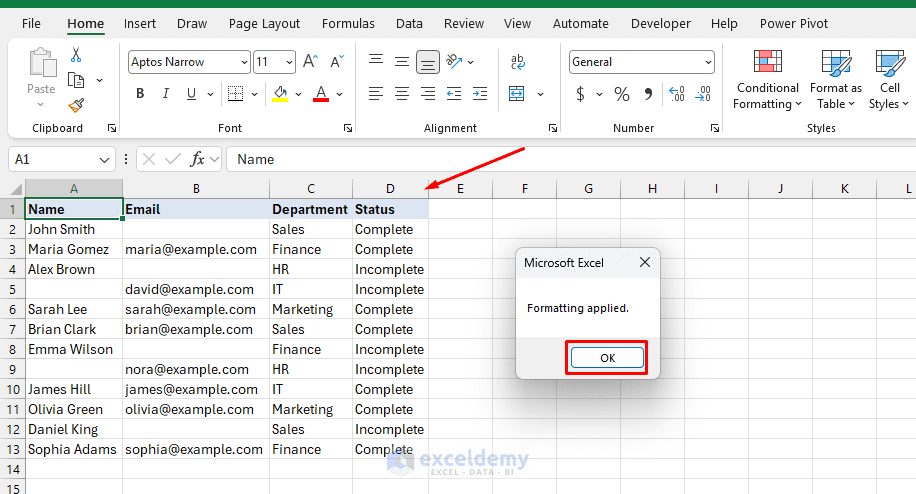
- If you change it to False, the formatting code is skipped.
applyFormatting = False
Use this when you want to turn a section of code on or off without deleting it. This is helpful while testing, customizing, or updating a macro.
6. Using Boolean Variables with And, Or, and Not
Boolean variables often work with logical operators such as And, Or, and Not.
Use And:
And returns True only when all conditions are true.
Dim isReady As Boolean
isReady = Range("A2").Value <> "" And Range("B2").Value <> ""
Here, isReady becomes True only if both A2 and B2 are not blank.
Use Or:
Or returns True when at least one condition is true.
Dim needsReview As Boolean
needsReview = Range("C2").Value = "Pending" Or Range("C2").Value = "Hold"
Here, needsReview becomes True if the status is either Pending or Hold.
Use Not:
Not reverses a Boolean value.
Dim isEmpty As Boolean
isEmpty = Range("A2").Value = ""
If Not isEmpty Then
   MsgBox "The cell is not empty."
End If
If isEmpty is False, then Not isEmpty becomes True.
When Should You Use Boolean Variables in VBA?
Use Boolean variables when your macro needs to answer a yes/no or true/false question.
Common situations include:
| Situation | Example Boolean Variable |
| Check if a cell has data | hasData |
| Check if data is valid | isValid |
| Check if a worksheet exists | sheetExists |
| Check if the user clicked Yes | userConfirmed |
| Check if a loop should continue | keepSearching |
| Check if a macro feature should run | applyFormatting |
| Check if data can be saved | canSave |
Boolean variables are especially helpful when the condition has a clear meaning in your macro.
Naming Tips for Boolean Variables
Use names that clearly describe a True/False condition. Clear names make your code easier to understand.
Dim hasData As Boolean
Dim isValid As Boolean
Dim userConfirmed As Boolean
Dim sheetExists As Boolean
Dim canSave As Boolean

' Avoid unclear names like:
Dim check As Boolean
Dim result As Boolean
Dim x As Boolean
Conclusion
By following this tutorial, you can use Boolean variables in VBA. Boolean variables in VBA store either True or False. They are useful when a macro needs to make a decision, validate data, confirm a user action, or control whether a section of code should run. Use Boolean variables when your code needs to answer a simple yes/no question. With clear names like hasData, isValid, or canSave, your VBA code becomes easier to read, debug, and maintain.
Get FREE Advanced Excel Exercises with Solutions!

