


Excel formulas are powerful but sensitive. A missing parenthesis, wrong cell reference, or subtle syntax error can break everything, producing frustrating results like #VALUE!, #REF!, #DIV/0!, or unexpected outputs. Traditionally, fixing these errors meant hunting through documentation, rewatching tutorials, or posting questions on forums and waiting for an answer. ChatGPT changes that workflow entirely. It acts as an on-demand Excel expert, letting you describe your problem in plain English and get a working formula back in seconds.
In this tutorial, we will show how to fix Excel formulas with ChatGPT. ChatGPT excels as a debugging partner: it can explain complex formulas, diagnose issues, suggest fixes, and even rewrite them in simpler or more efficient ways.
Understanding What ChatGPT Can Do with Excel Formulas
ChatGPT is useful when you know what you want Excel to do, but do not know why the formula is failing. Instead of searching through many help pages, you can paste your formula, describe your data layout, and ask ChatGPT to correct it. When you describe a spreadsheet problem in plain language, it can:
- Write a formula from scratch based on your description
- Explain what an existing formula does, step by step
- Diagnose and fix errors like #VALUE!, #REF!, #NAME?, and #N/A
- Suggest a simpler or more efficient version of a complex formula
- Combine multiple functions into a single nested formula
The key to getting useful results is in how clearly you describe your data and your goal. Vague prompts produce generic formulas; specific prompts produce formulas you can drop straight into your spreadsheet.
Step 1: Describe Your Data Structure to ChatGPT
ChatGPT has no access to your actual spreadsheet (unless you’re using the ChatGPT for Excel add-in), so the more context you provide about your data, the more accurate its suggestions will be. Think of it like describing a problem to a colleague over the phone; they need enough detail to visualize what you’re working with.
A strong prompt includes:
- Copy-paste the data or what your columns contain and where they start (e.g. “Column A has product names starting in A2, Column B has sales figures”)
- What you’re trying to calculate or look up
- The formula you’ve already tried, if any
- The error message you’re getting
Weak prompt:
"My formula isn't working."
Strong Prompt:
"This Excel formula isn't working: =SUMIFS(N2:N51, C2:C51, "North", N2:N51, ">1000").
It returns #VALUE!. Column C has Regions, Column N has net revenue.
Explain the issue and give a corrected version."
The second prompt gives ChatGPT everything it needs: the data layout, the goal, the function being used, and the error. You’ll get a targeted fix instead of a generic explanation.
Step 2: Paste Your Broken Formula
If you already have a formula that’s producing an error, paste it directly into ChatGPT along with your description. You don’t need to sanitize it or rewrite it; paste it exactly as it appears in the formula bar, including any nested functions, absolute references ($), or named ranges.
Formula Error:
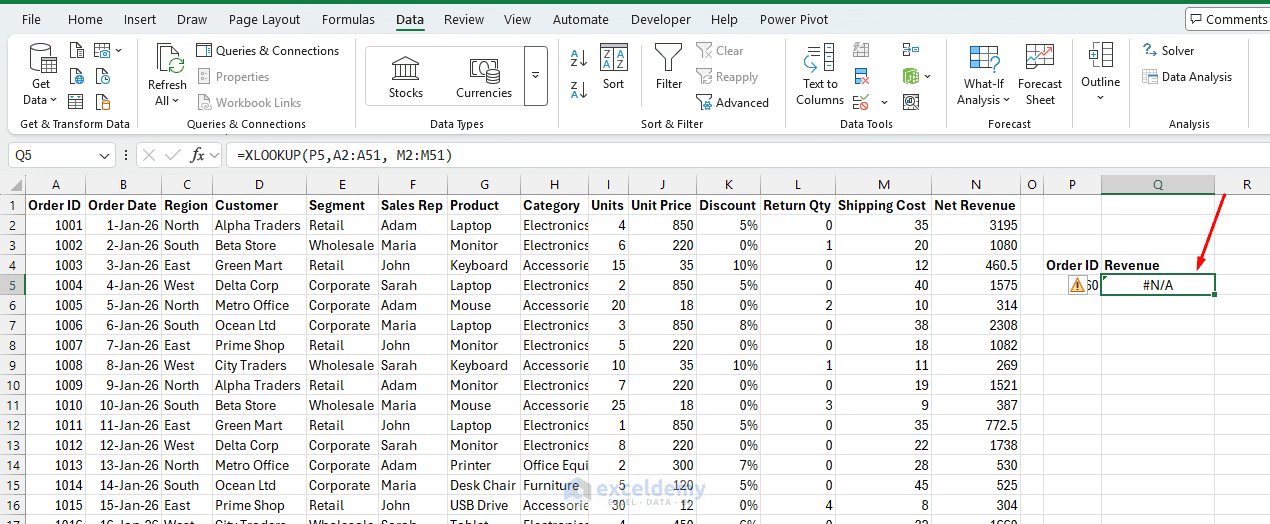
Ask ChatGPT:
"My XLOOKUP formula returns #N/A: =XLOOKUP(P5,A2:A51, N2:N51)
P5 contains an Order ID. Column A contains Order IDs, and column N contains Net Revenue.
Please fix the formula so it shows a friendly message when the order ID is not found."
ChatGPT will also explain why the fix works, which helps you understand the formula instead of just copying it blindly.
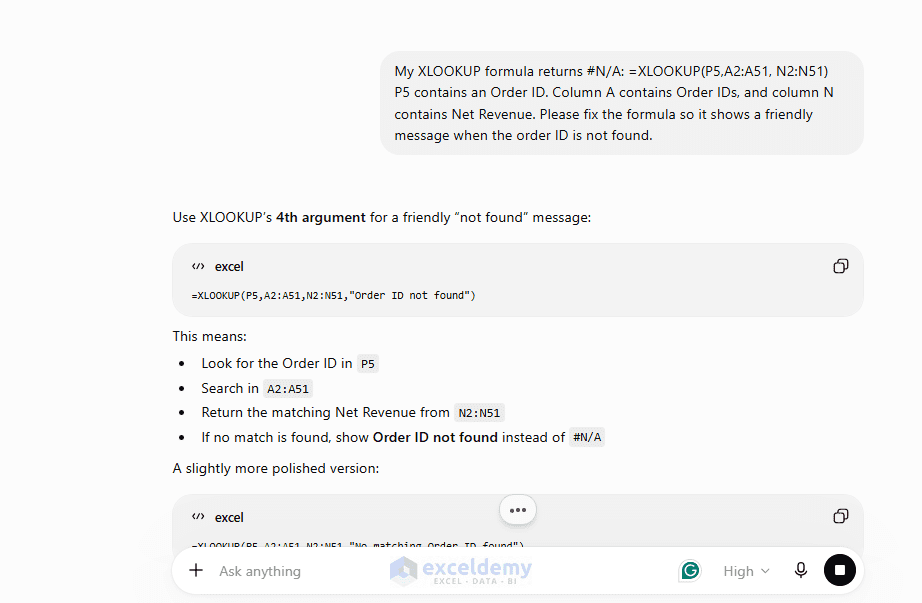
Copy the formula from ChatGPT to fix the issue in Excel.
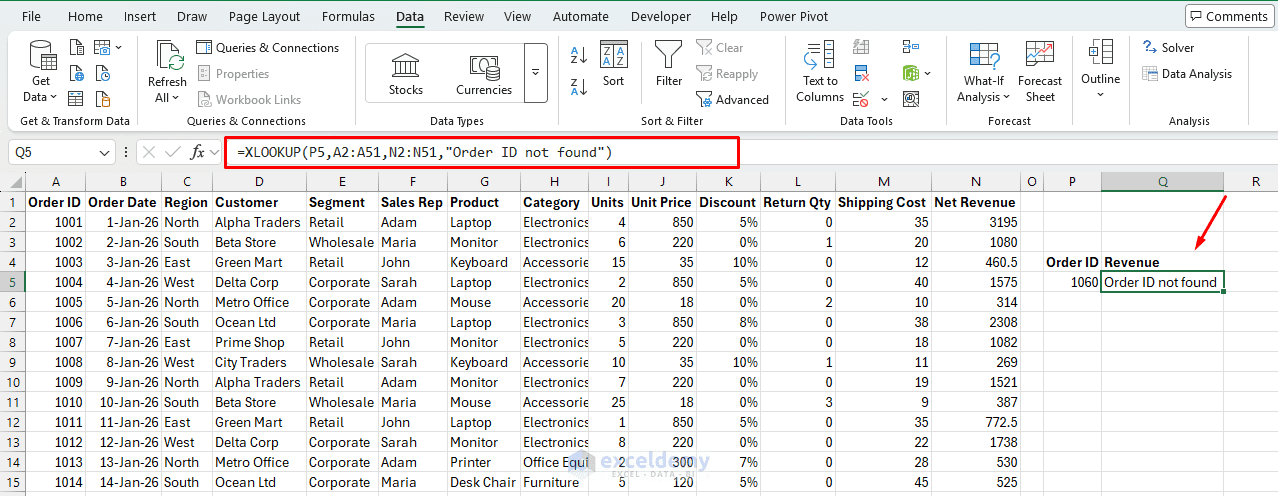
Step 3: Ask ChatGPT to Explain Formulas You Don’t Understand
Sometimes the formula isn’t broken; it’s just inherited from someone else and is completely unclear. ChatGPT is particularly good at translating dense Excel syntax into plain language. You can paste any formula and simply ask: “Can you explain what this formula does, step by step?”
Example Prompt:
=IF(COUNTIF($A$2:$A$100,A2)>1,"Duplicate","Unique")
Ask ChatGPT:
"What does this formula do? I found it in a colleague's spreadsheet and
I'm not sure what it's checking."
ChatGPT will break it down:
- COUNTIF($A$2:$A$100,A2) counts how many times the value from A2 appears in A2:A100
- >1 checks whether that count is more than 1
- IF(…) returns “Duplicate” if the value in A2 appears more than once
- Returns “Unique” if the value in A2 appears only once
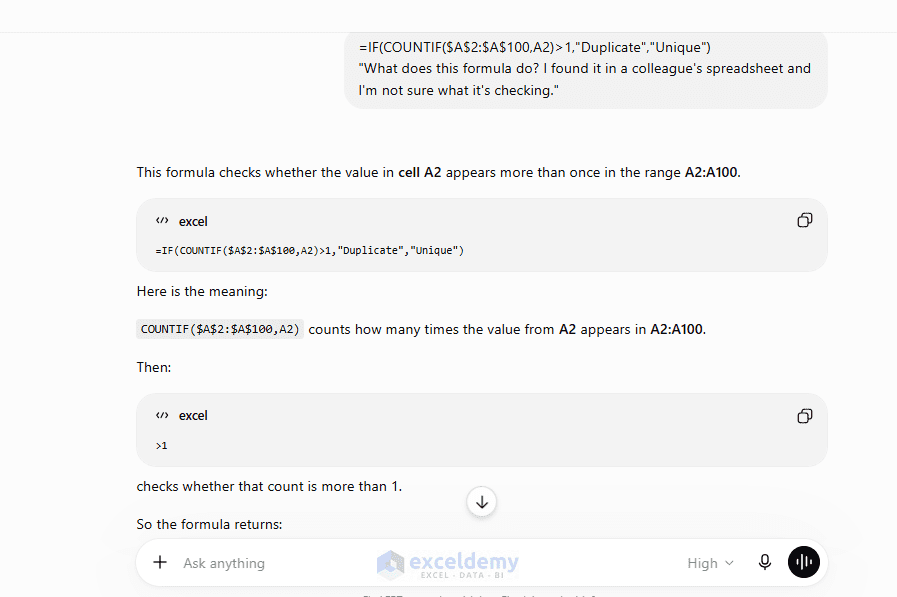
This makes it far easier to modify the formula for your own use case or to adapt it to a different column.
Step 4: Request Fixes for Specific Common Errors
Here are four frequent formula problems and how to prompt ChatGPT to fix each one.
Problem: #REF! after deleting a column
If you delete a column that a formula references, Excel replaces that reference with a #REF! error.
Example Prompt:
"I deleted Column O after building this formula, and now I'm getting a #REF! error.
The formula was originally pointing to the sales totals that were in Column O.
Those are now in Column P."
ChatGPT will rewrite the formula with the corrected reference and flag any other places in a nested formula where #REF! might be lurking.
Problem: #VALUE! in a SUM or arithmetic formula
This usually means a cell in your range contains text instead of a number.
Example Prompt:
"My formula =SUM(I2:I51) is returning #VALUE!. Some cells in that range might contain
 the word 'N/A' instead of a number. How do I fix this?"
It will get you a solution using SUMPRODUCT with ISNUMBER to skip non-numeric cells:
=SUMPRODUCT((ISNUMBER(I2:I51))*I2:I51)
Problem: Nested IF getting too complicated
If you have a formula like =IF(A1=”Red”,10,IF(A1=”Blue”,20,IF(A1=”Green”,30,0))) and you need to add more conditions, ChatGPT can suggest rewriting it using IFS (available in Excel 2019 and Microsoft 365) for cleaner syntax.
=IFS(A1="Red",10,A1="Blue",20,A1="Green",30,TRUE,0)
Or it might suggest using SWITCH if you’re matching a single value against multiple options:
=SWITCH(A1,"Red",10,"Blue",20,"Green",30,0)
Problem: VLOOKUP returning the wrong value
A classic mistake is setting the last argument of VLOOKUP to TRUE (approximate match) when you meant FALSE (exact match). If your lookup is pulling back wrong results, describe the behavior to ChatGPT.
Example Prompt:
"My VLOOKUP seems to be returning values for IDs that are close but not exact.
Here is the formula: =VLOOKUP(C2,A:B,2,TRUE)."
ChatGPT will immediately spot that TRUE is the culprit and give you the corrected version with FALSE.
Step 5: Iterate and Refine
Formula fixing is rarely a one-shot process, especially for complex nested functions. Treat ChatGPT as a collaborator you can go back and forth with. If the first suggestion doesn’t work, copy the error message or describe the unexpected behavior and follow up.
Example Prompt:
"The formula you gave me still returns #N/A. I think those rows have trailing spaces
in the lookup column. Can you update the formula to handle that?"
ChatGPT will then suggest wrapping the lookup value in TRIM() to remove any extra spaces before the comparison is made.
This iterative approach — describe the problem, apply the fix, report what happened, refine — produces better results than trying to write a perfect prompt on the first try.
Step 6: Validate the Result Before Relying on It
One thing to keep firmly in mind: ChatGPT can be wrong. It generates formulas based on patterns and documentation, but it doesn’t know your data, and it can make logical errors or hallucinate function syntax. Always test the formula ChatGPT gives you before applying it across your entire dataset.
A safe workflow looks like this:
- Create a test copy of your sheet before making changes
- Apply the suggested formula to two or three rows and check the output manually
- Trace the formula logic yourself to confirm it makes sense for your data
- Only then apply it across the full range
For any spreadsheet that feeds important decisions, financial reports, payroll calculations, and inventory management, this validation step is non-negotiable.
Use ChatGPT Add-In in Excel
If you prefer to stay inside Excel entirely, Microsoft now offers a ChatGPT for Excel add-in that brings a ChatGPT sidebar directly into your workbook.
- Go to the Home tab >> select Add-ins
- Install it by searching for ChatGPT
- Connect your ChatGPT account with Excel
- Now you can highlight a cell with a broken formula and ask ChatGPT directly within Excel to explain or fix it
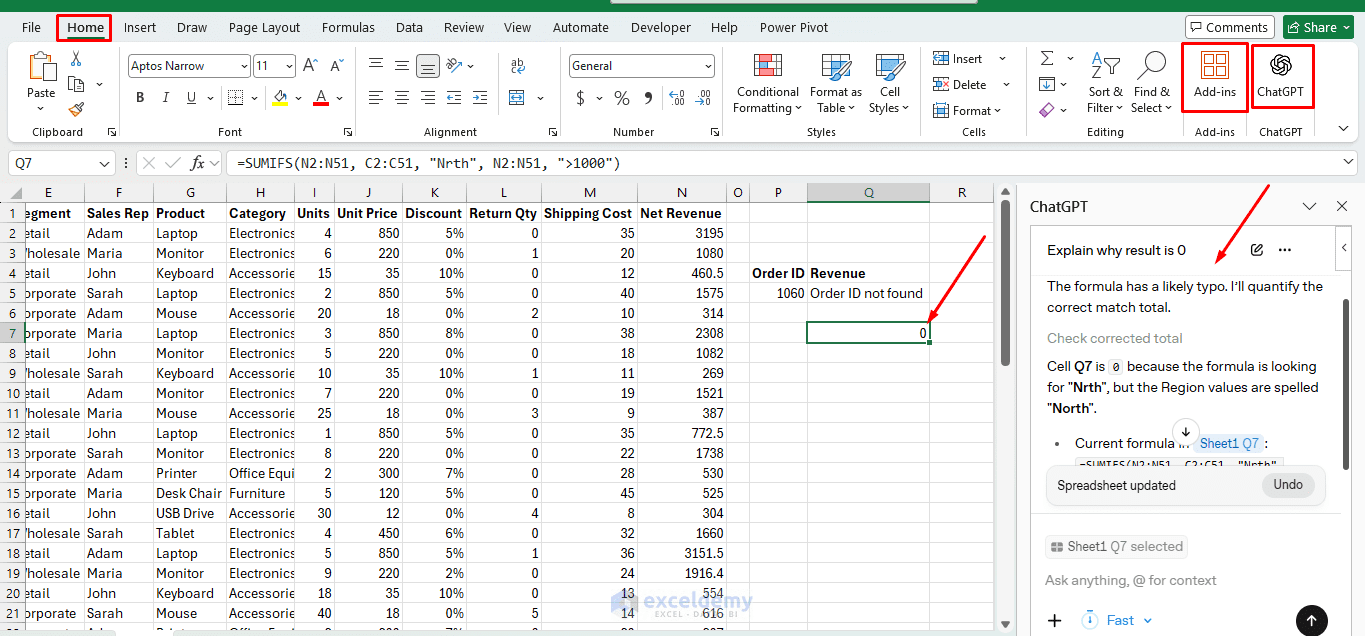
The added benefit is that the AI can see the formula chain in context rather than relying on your description. The add-in is particularly useful for multi-tab workbooks where formula dependencies span several sheets, since it can trace references across the workbook rather than working from a pasted snippet.
Common Excel Errors ChatGPT Can Help Fix
| Error | Meaning | Common Fix |
| #N/A | Lookup value not found | Check spelling, spaces, lookup range, or use IFNA |
| #VALUE! | Wrong data type | Check whether numbers are stored as text |
| #DIV/0! | Dividing by zero or blank | Use IFERROR or check the denominator |
| #REF! | Invalid cell reference | Restore deleted rows, columns, or ranges |
| #NAME? | Excel does not recognize something | Check the function name, named range, or quotation marks |
| Wrong result | The formula runs, but the logic is incorrect | Explain the expected result to ChatGPT clearly |
Conclusion
By following the above steps, you can easily fix your Excel formulas with ChatGPT. ChatGPT doesn’t replace the need to understand Excel, but it dramatically lowers the time it takes to fix them. With practice, you’ll fix formulas in minutes instead of hours. ChatGPT turns Excel debugging from a headache into a collaborative, educational process. The best results come from being specific, testing every suggestion before trusting it, and treating each exchange as both a fix and a learning moment. With that habit in place, your formula troubleshooting sessions will get faster, and your spreadsheet skills will compound over time.
Get FREE Advanced Excel Exercises with Solutions!

