


Conditional Formatting is familiar to most Excel users. It is also available in Power BI, which helps to highlight important data in tables and matrices, making insights easier to spot at a glance. If you’re coming from Excel, where you right-click or use the Home tab for color scales, data bars, or rules, Power BI works a bit differently. You’ll primarily access it through the Visualizations pane (via a field’s dropdown) or the Format pane, rather than a dedicated ribbon.
In this tutorial, we will show how to use Conditional Formatting in Power BI for table cell colors. We will walk you through locating and using it effectively for table cell background colors and font colors.
Step 1: Create a Table Visual
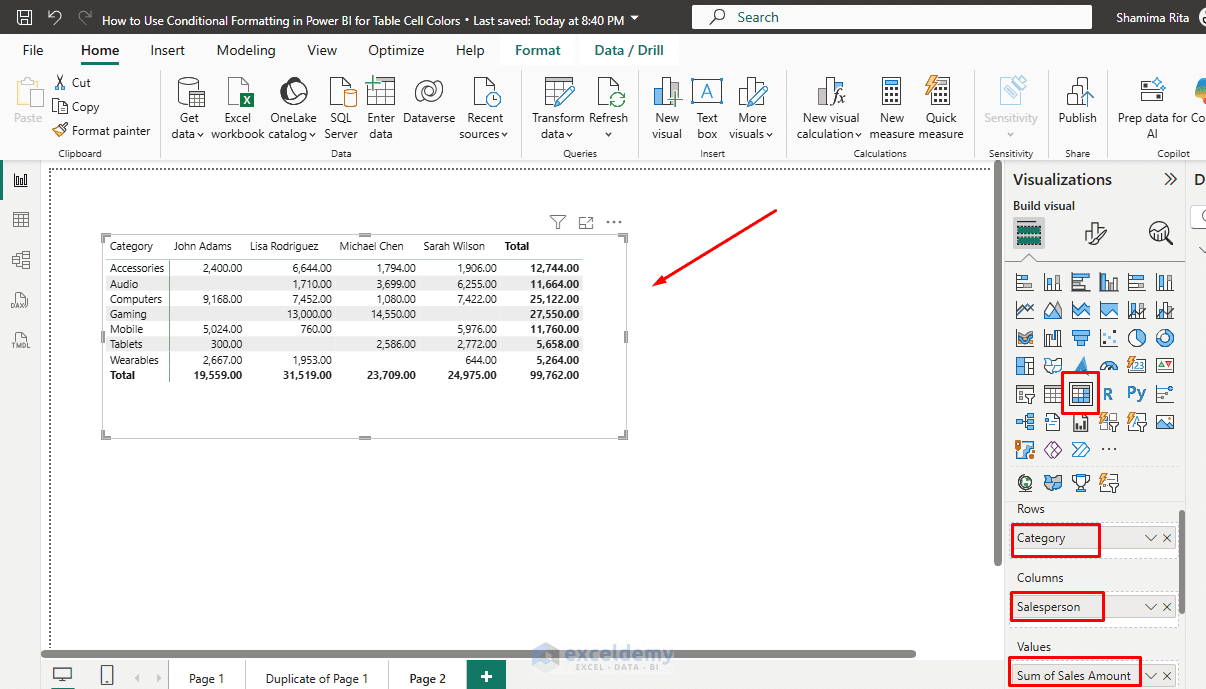
First, add a table to your Power BI report.
- Open your report in Power BI Desktop
- Go to the Report view
- From the Visualizations pane, select the Table or Matrix visual
- Add fields such as:
- Category to the Rows
- Salesperson to the Columns
- Sales Amount to the Values
Step 2: Open the Format Options
Unlike Excel, where conditional formatting is found from the Home tab, Power BI stores these options within the visual itself.
From Build Visual:
- Select the table visual
- In the Visualizations pane, locate the Values section
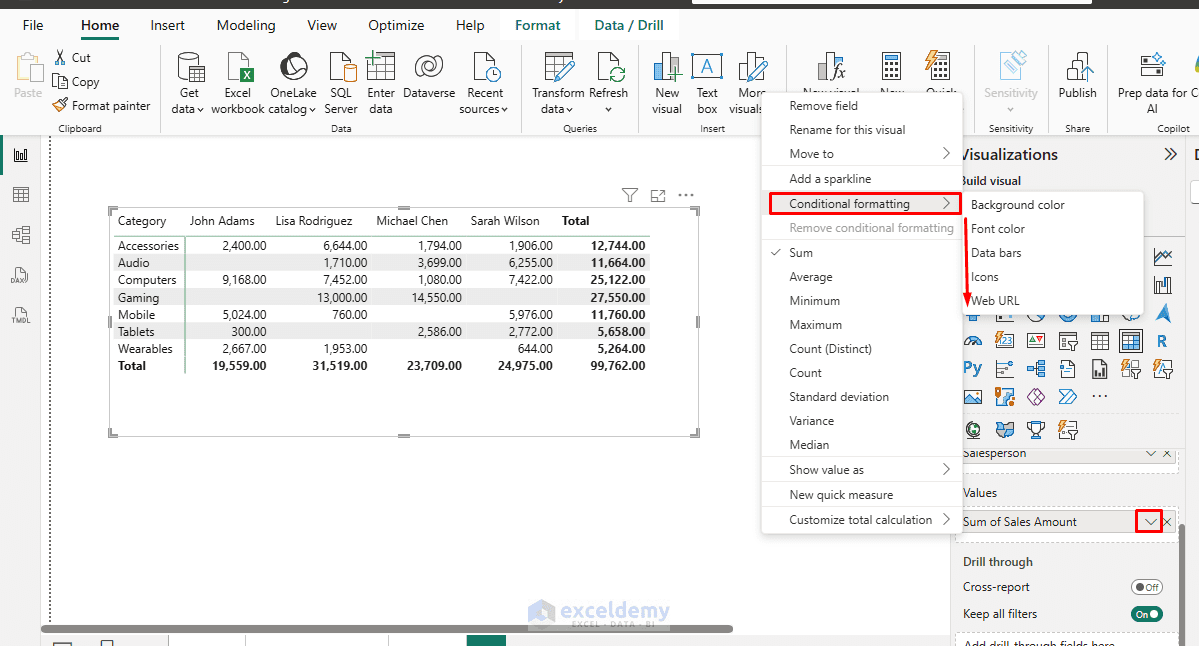
- Right-click or expand the Sales Amount field >> select Conditional Formatting
- You will see several formatting options:
- Background color
- Font color
- Data bars
- Icons
- Web URL
Step 3: Choose Your Format Style
In the conditional formatting dialog, you’ll see several Format style options. The most common format styles are:
- Gradient (Color scale): Creates a smooth transition between colors based on value ranges (e.g. low values red, high values green).
- Rules: Define specific if-then conditions (most similar to Excel’s rule-based formatting).
- Field Value: Use a DAX measure that returns color codes (e.g. “#FF0000” for red) for advanced/dynamic scenarios.
Step 4: Apply Background Color Formatting
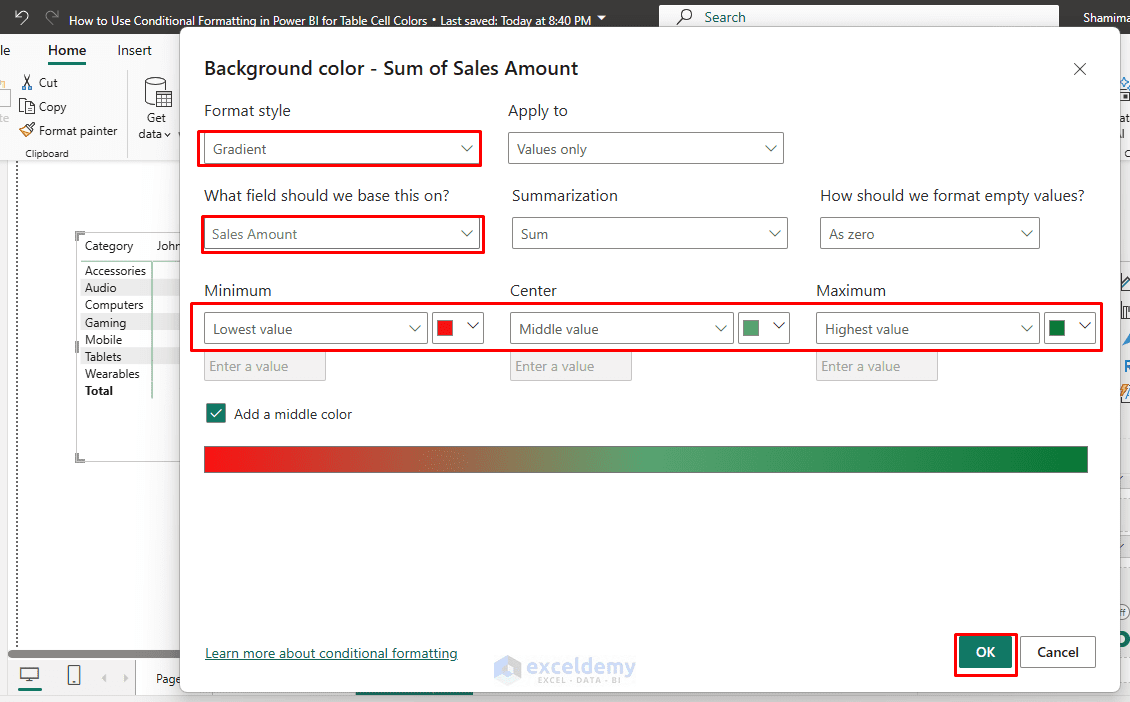
- Click Conditional Formatting >> select Background color
- Set Format style to Gradient
- Under “What field should we base this on?” Select Sales Amount
- Choose the summarization, such as Sum or First, depending on your data
- Set Color:
- Minimum value color: Red
- Maximum value color: Green
- Center: Optional
- Check Add a middle color
- Click OK
Power BI will automatically color the Sales Amount cells based on their values. Lower revenue values will use one color, and higher revenue values will use another color.
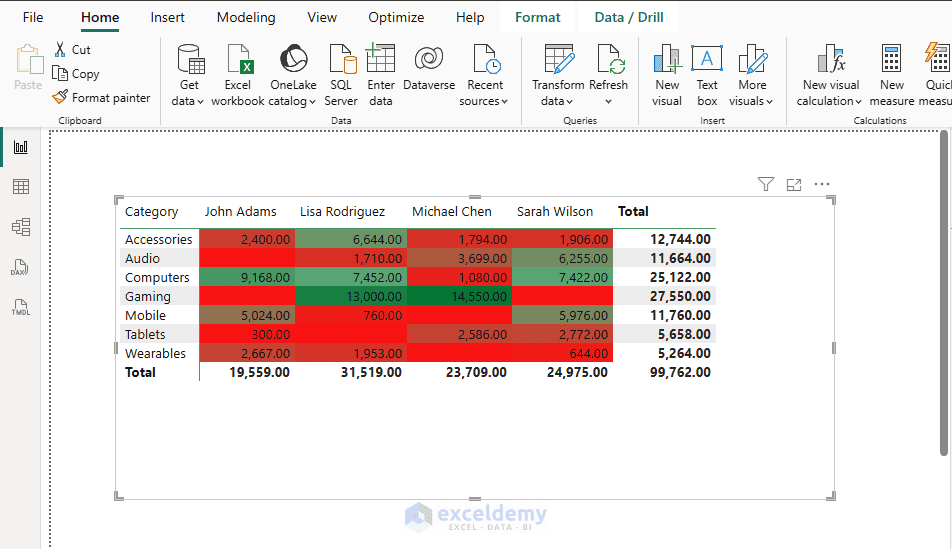
This works like a color scale in Excel, but the path is different.
Step 5: Use Rules Instead of a Color Scale
Color scales work well for continuous data, but sometimes you need specific thresholds. Rules are ideal for categorical thresholds (e.g. Red/Yellow/Green status).
To create this:
- Open Conditional Formatting >> select Background color
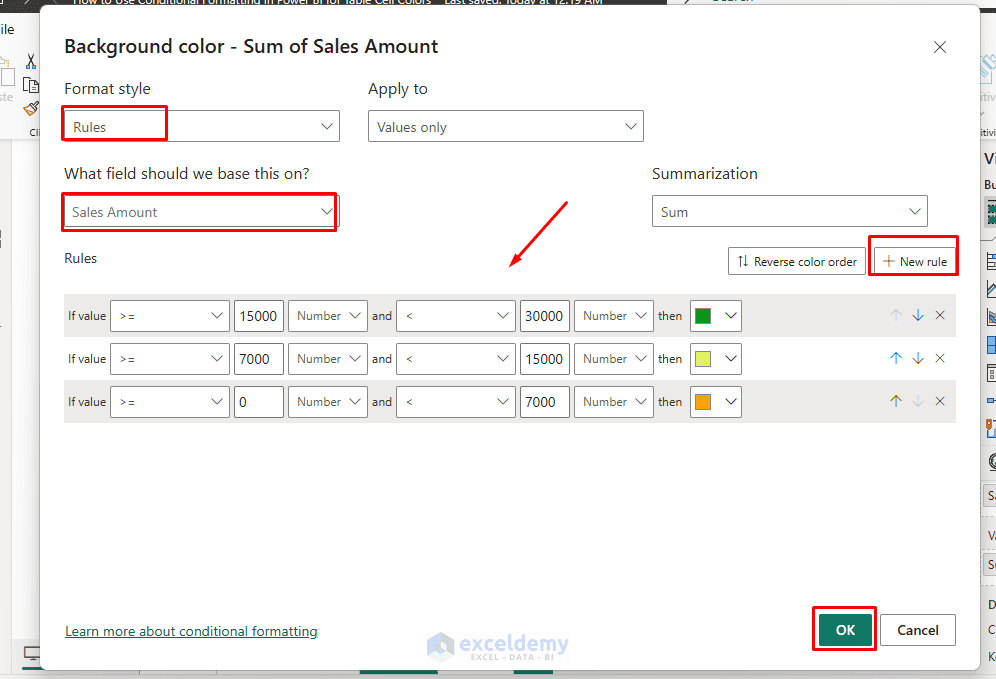
- Change Format style to Rules
- Click New Rule to add rules one by one:
- If value is greater than 15000 and less than 30000 → Green
- If value is greater than or equal to 6000 and less than 15000 → Yellow
- If value is between 0 and 6000 → Red
- Rules are evaluated in order; you can add as many as needed
- Click OK
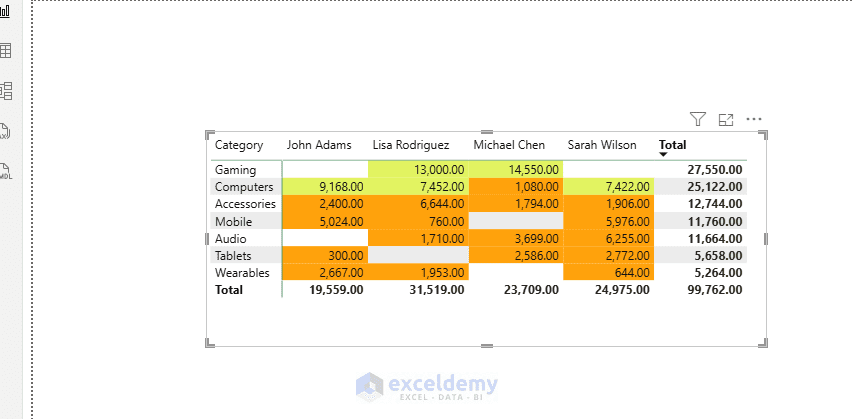
Now the colors are determined by your business rules rather than a gradient.
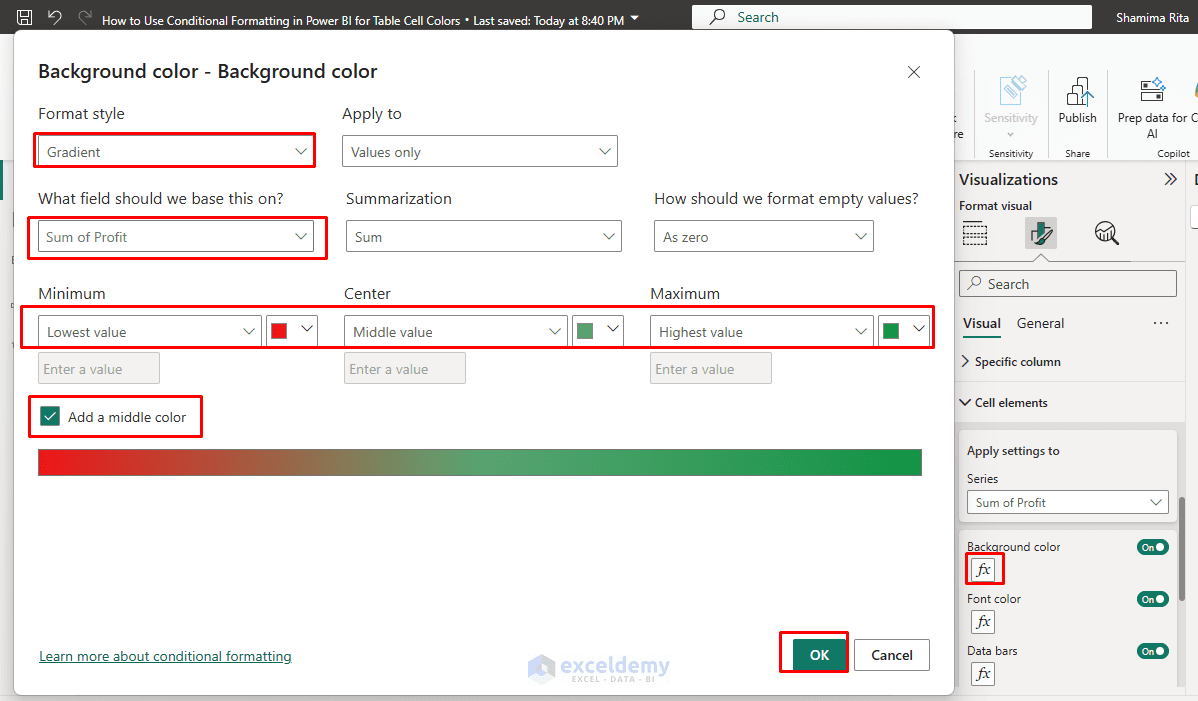
Alternative Access: Via the Format Pane
- Click on your Table or Matrix visual to select it
- Go to the Visualizations pane >> click the Format visual icon
- Expand the Cell elements option
- Find Apply settings to >> choose Sales Amount
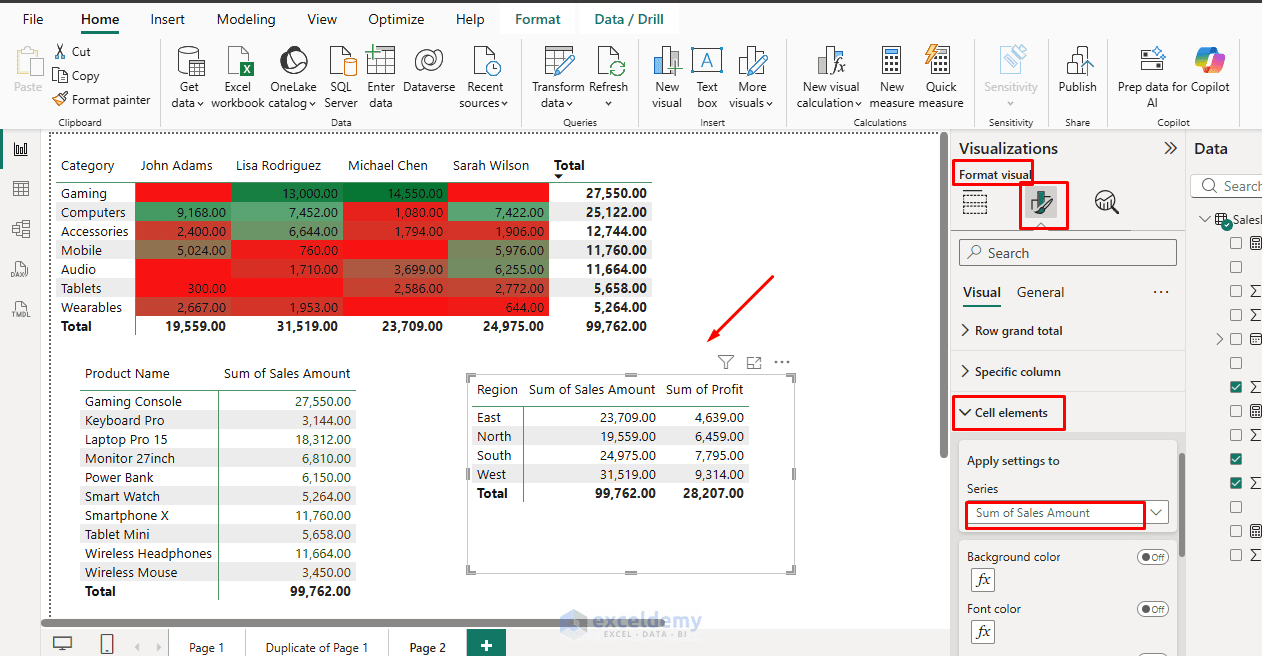
- Turn on the Background color
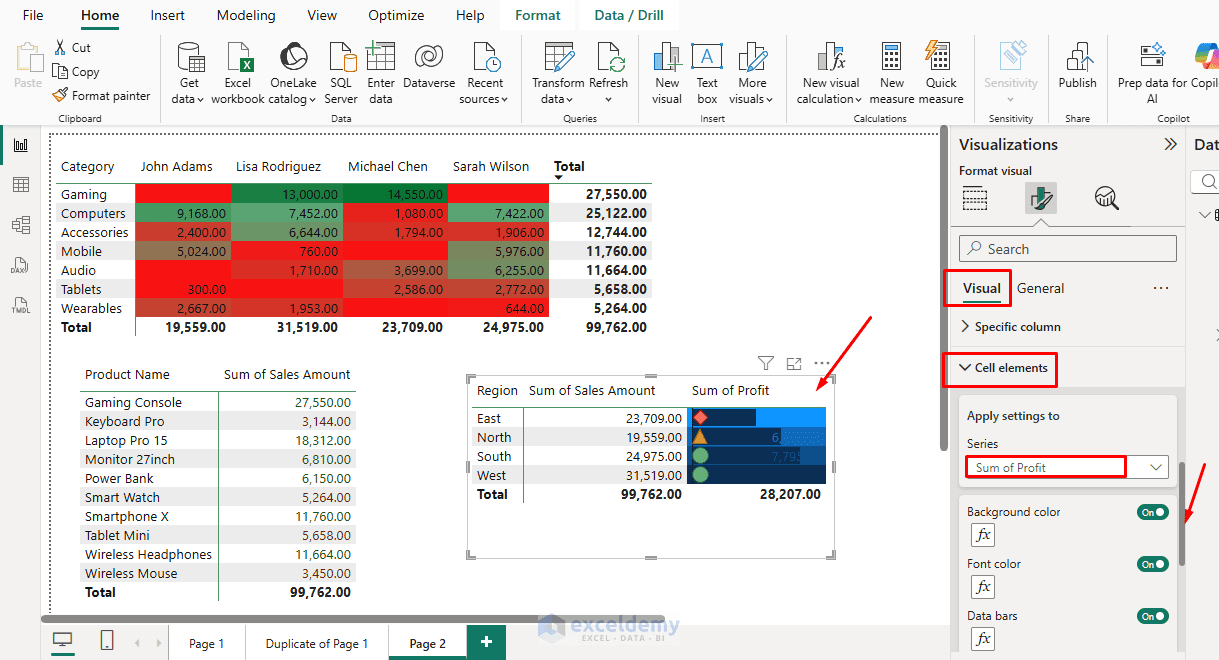
- Click the fx button next to it
- The fx button opens the conditional formatting settings. This is where you define how Power BI should color the cells
- Set Format style to Gradient
- Under “What field should we base this on?” Select Sales Amount
- Choose the summarization, such as Sum or First, depending on your data.
- Set Color:
- Minimum value color: Red
- Maximum value color: Green
- Center: Optional
- Check Add a middle color
- Click OK
You can also turn on the following:
- Font color
- Data bars
- Icons
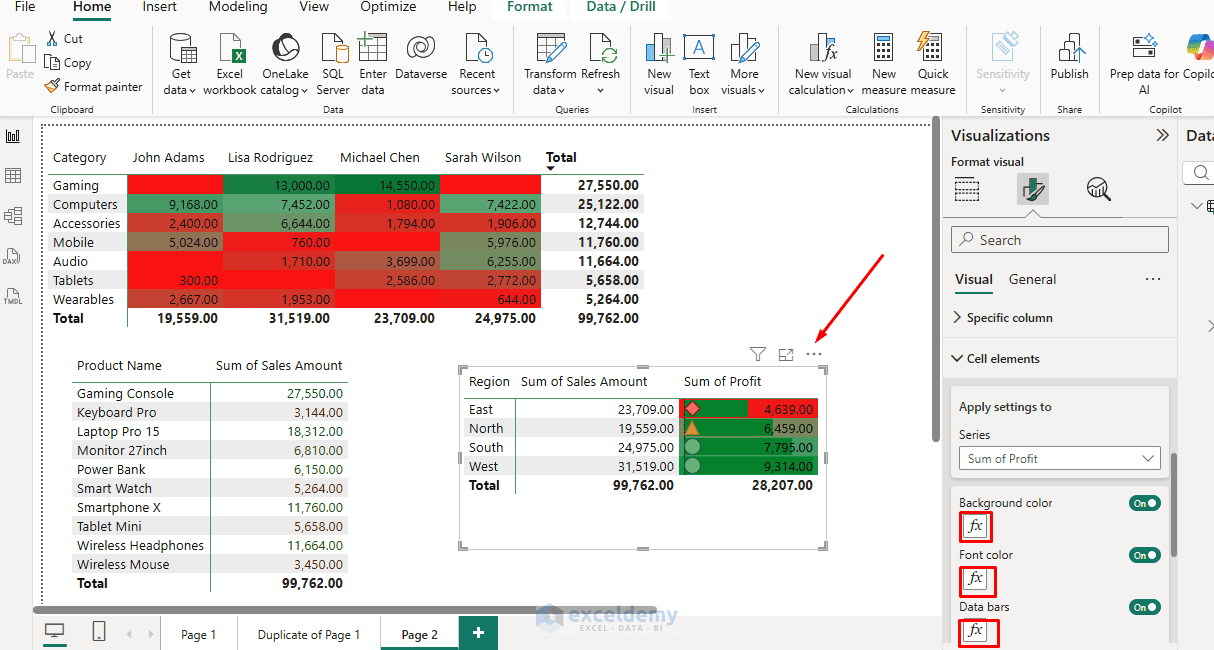
Important: Simply toggling the background color to On without clicking fx applies a flat color to all cells, not a conditional rule. Always click fx to set up value-based color logic.
Use Conditional Formatting for Font Color
You can also format the text color instead of the cell background.
- Click the drop-down beside the Sales Amount field
- Select Conditional Formatting >> select Font color.
- Choose Gradient, Rules, or Field value
- Set your conditions:
- Sales < 3000 → Red
- Sales ≥ 3000 → Green
- Click OK
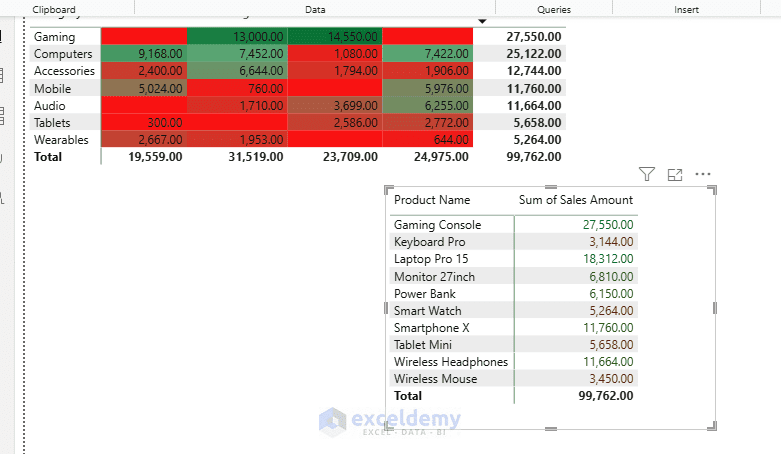
Font color is useful when you want a cleaner table without filling the whole cell background.
Use a DAX Measure for Custom Cell Colors
For more control, you can create a DAX measure that returns a color code.
For example, create this measure:
Sales Amount Color =
SWITCH(
	TRUE(),
    SUM(Sales[Sales Amount]) >= 2500, "#C6EFCE",
    SUM(Sales[Sales Amount]) >= 1000, "#FFEB9C",
    "#FFC7CE"
)
You can then use this measure to drive color rules instead of using the raw Sales Amount values. This approach is especially useful when your formatting depends on calculations, targets, or KPIs.
Advanced Tips
- Apply to Totals/Subtotals: In the dialog, choose whether formatting applies to values only, totals, or both.
- Field Value Method (for complex logic): Create a DAX measure that outputs a hex color based on conditions. In conditional formatting, select Field value and choose this measure.
- Data Bars & Icons: From the same Conditional Formatting menu, you can combine background colors with data bars or KPI icons.
- Matrix-Specific: Formatting works on row/column intersections. Be mindful of hierarchies.
- Performance: Heavy DAX for colors can impact report speed; test with your dataset.
Excel vs Power BI Conditional Formatting
| Task | Excel | Power BI |
| Select what to format | Select cells or a range | Select a table or matrix visual |
| Main menu path | Home >> Conditional Formatting | Format visual >> Cell elements |
| Color scale | Built-in color scales | Gradient formatting |
| Rule-based formatting | Highlight Cells Rules or New Rule | Rules format style |
| Formula-based formatting | Excel formula rule | DAX measure with Field value |
| Applies to | Worksheet cells | Visual fields or columns |
The biggest difference is that Power BI formats visual fields, not worksheet cells.
Troubleshooting
- Formatting not appearing? Ensure the field is in Values (not just Rows/Columns) and the visual is a Table/Matrix.
- Colors not updating? Refresh the visual or check for conflicting rules.
- Text readability issues? Combine background + font color carefully.
- For row-level or cross-column formatting, you may need helper measures or visual calculations.
Conclusion
By following the above steps, you can use Conditional Formatting in Power BI for table cell colors. Conditional formatting turns static tables into dynamic insight tools. Start simple with gradients or basic rules, then explore DAX-powered options as you grow more comfortable. Conditional formatting in Power BI works much like conditional formatting in Excel, but the location is different. Instead of going to the Excel ribbon, you select the table or matrix visual and use the Format pane.
Get FREE Advanced Excel Exercises with Solutions!


Excellet your Excel support
Hello Manuel,
Thank you so much for your kind words! We’re delighted to hear that you liked our Excels support.
Regards,
ExcelDemy