


Excel is not only for manually typed data. You can connect it to online data sources and refresh the results whenever you need updated information. The easiest way to do this without VBA is by using Power Query, also known as Get & Transform Data. It can connect directly to web APIs, parse JSON or XML responses, and refresh data on a schedule, all without writing a single line of VBA.
In this tutorial, we will show how to connect Excel to live web APIs without using VBA. We will use Power Query’s From Web feature to pull live API data into Excel and set it up for refresh.
What Is a Web API?
A web API (Application Programming Interface) allows one application to request data from another over the internet — essentially, a link that sends data from an online service to another tool. In this case, Excel sends a request to the API link, and the API sends back data.
For example, a normal website is designed for people to read. An API is designed for tools like Excel, Power BI, websites, or apps to read.
A typical API link may look like this:
https://api.example.com/data?symbol=MSFT¤cy=USD
The parts after the question mark are called parameters. They tell the API what data you want.
| Service | Data Available |
| Financial APIs | Stock prices, exchange rates, crypto prices |
| Weather APIs | Temperature, forecasts |
| Social Media APIs | Followers, engagement metrics |
| News APIs | Headlines and articles |
Instead of manually copying data from websites, Excel can retrieve it automatically through an API connection. Power Query can extract the values and place them directly into a worksheet.
Connect Excel to a Public API (No Authentication Required)
Let’s start with a free, no-key-required API: ExchangeRate-API’s open endpoint, which returns live currency exchange rates.
Step 1: Open Power Query’s From Web Connector
- Open Excel and create a blank workbook
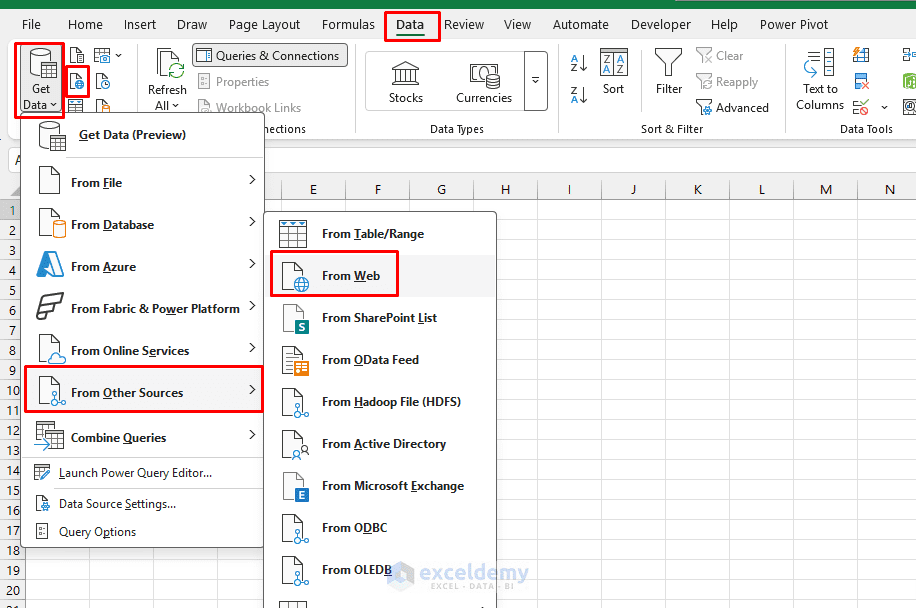
- Go to the Data tab >> select Get Data >> select From Other Sources >> select From Web
- In some Excel versions, you may see From Web directly inside the Get & Transform Data group
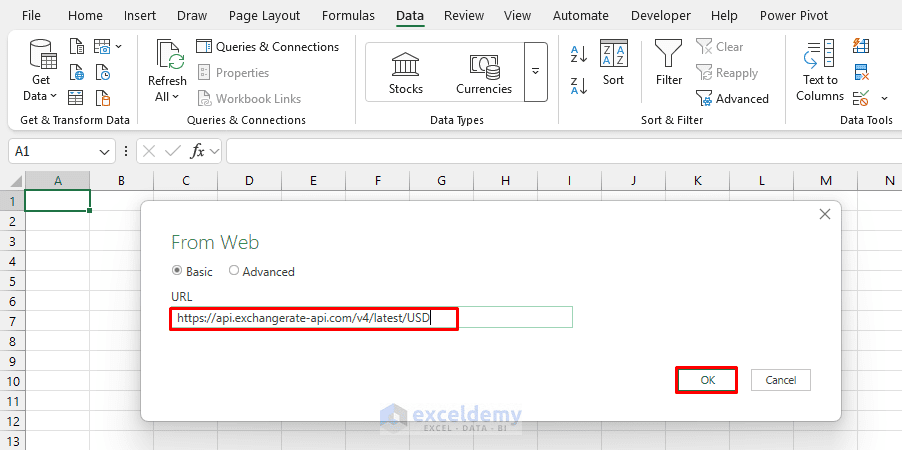
- When the From Web dialog box opens, choose Basic or Advanced
- You can select Advanced, which unlocks header and parameter controls
- Paste the API URL into the URL box >> click OK
https://api.exchangerate-api.com/v4/latest/USD
Step 2: Choose the Authentication Type
- If the API does not require a login or API key, choose: Anonymous
- Then click Connect
For public APIs, Anonymous is usually enough; it requires no login. If the API requires a username, password, organizational account, or API key, you will need to use the correct authentication method.
Others require:
- API keys
- OAuth authentication
- Username and password
If Excel asks for credentials:
- Choose the appropriate authentication method
- Enter your API key if required
- Click Connect
Step 3: Open the Data in Power Query Editor
After Excel connects to the API, it will open the result in Power Query. Because the API returns JSON, the result may first appear as a Record.
- Click on Record (the clickable link, not just the label) to drill into the exchange rate object
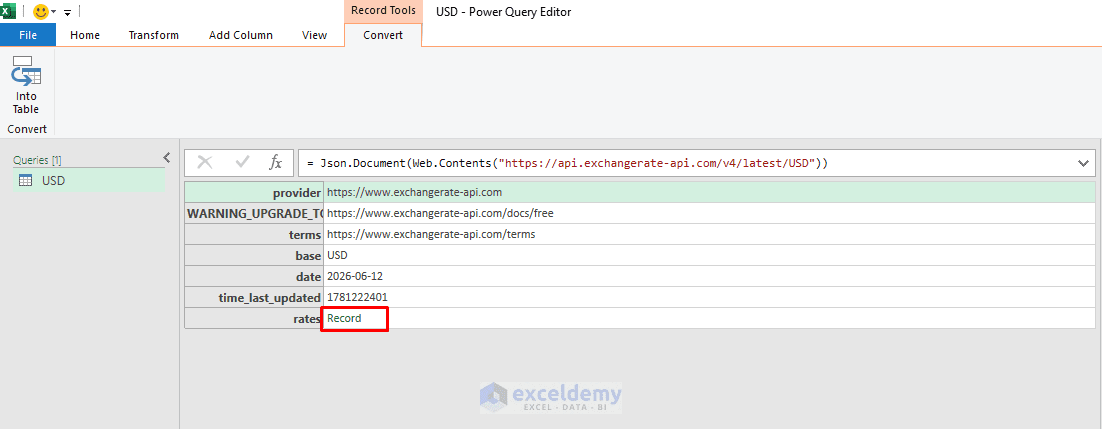
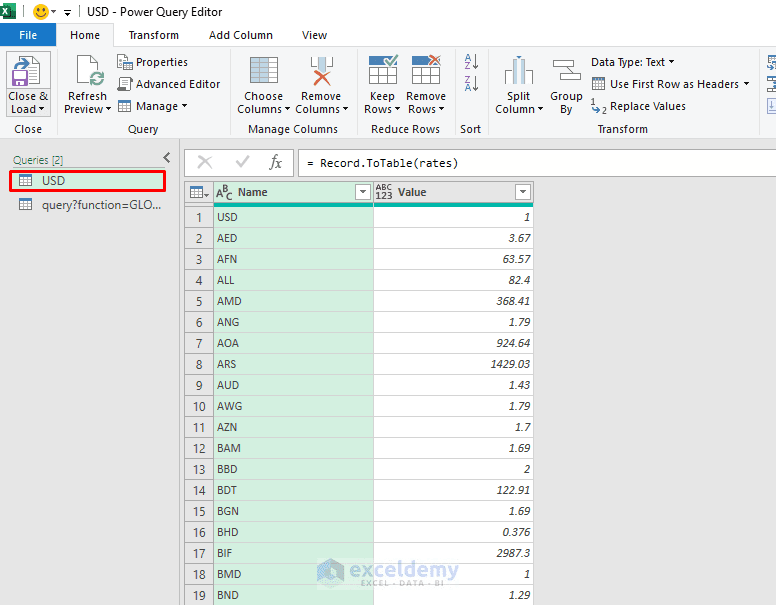
- Power Query converts it to a two-column table: Name (currency code) and Value (rate vs USD)
- Go to the Convert tab >> select Into Table
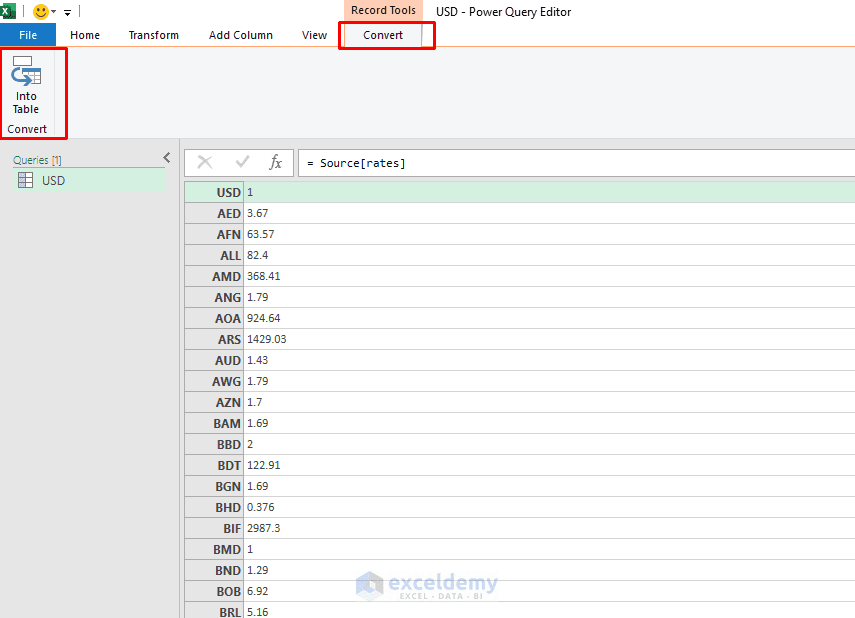
Your goal is to turn the nested JSON result into a normal Excel table.
Step 4: Clean the API Data
Once the data appears in table form, clean it before loading it into Excel.
Common Cleaning Steps:
- Rename Columns: Rename unclear column names to something readable
- Right-click the Name column header >> select Rename >> type Currency
- Right-click the Value column header >> select Rename >> type Rate vs USD
- Change Data Types: Set the correct data type for each column
- To change a data type, click the small icon beside the column name and select the correct type
- Remove Unnecessary Columns: If the API returns extra fields that you do not need, remove them.
- Select the unwanted column, right-click, and choose: Remove
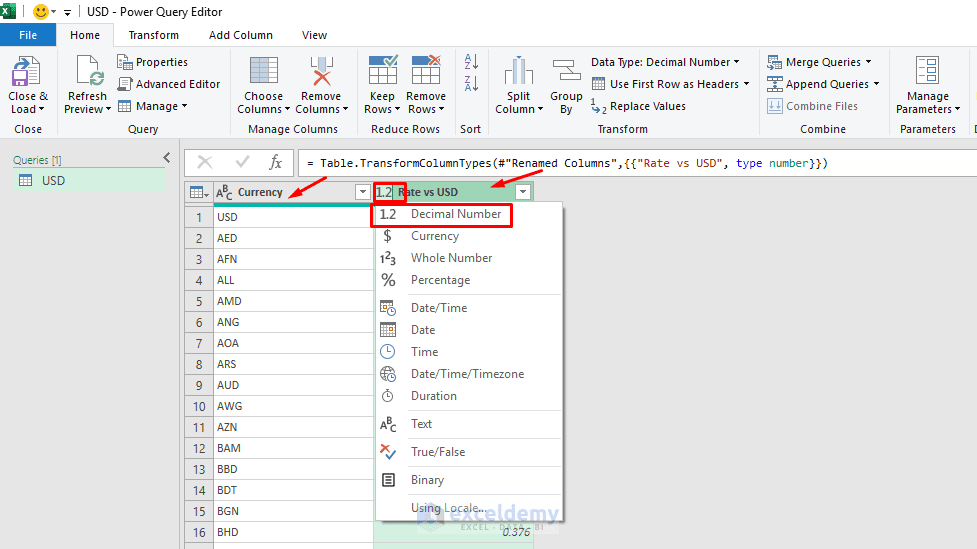
Power Query records every cleanup step in the Applied Steps panel.
Step 5: Load the API Data into Excel
After cleaning the data, load your data into Excel.
- Go to the Home tab >> select Close & Load
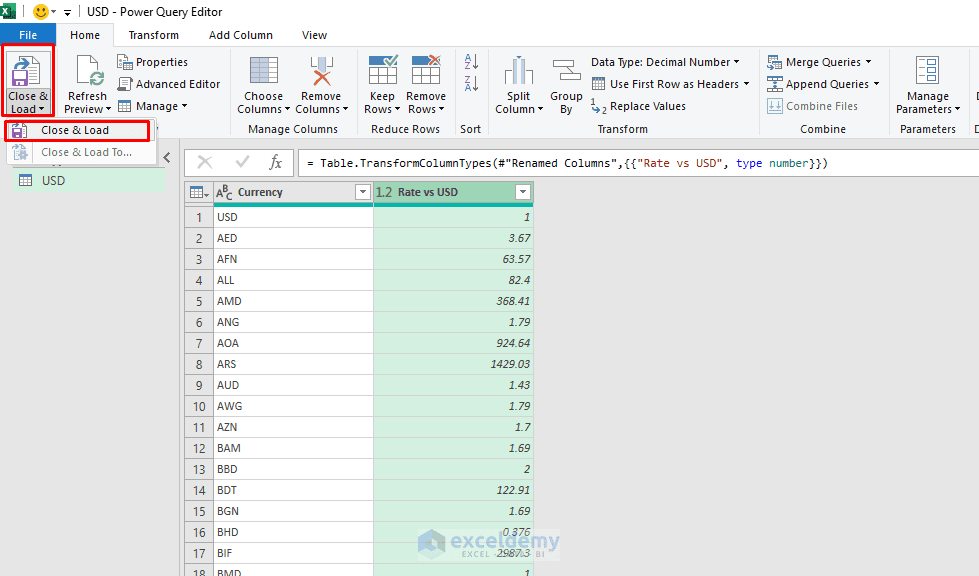
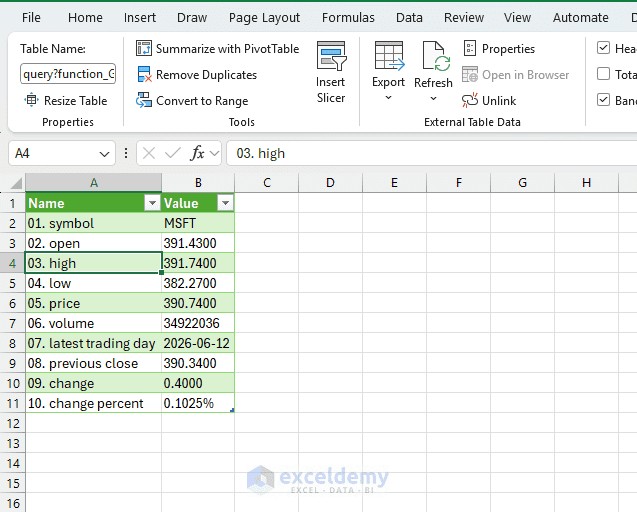
Power Query will load the API result into a new worksheet as an Excel table. Now you have a live API-connected table in Excel.
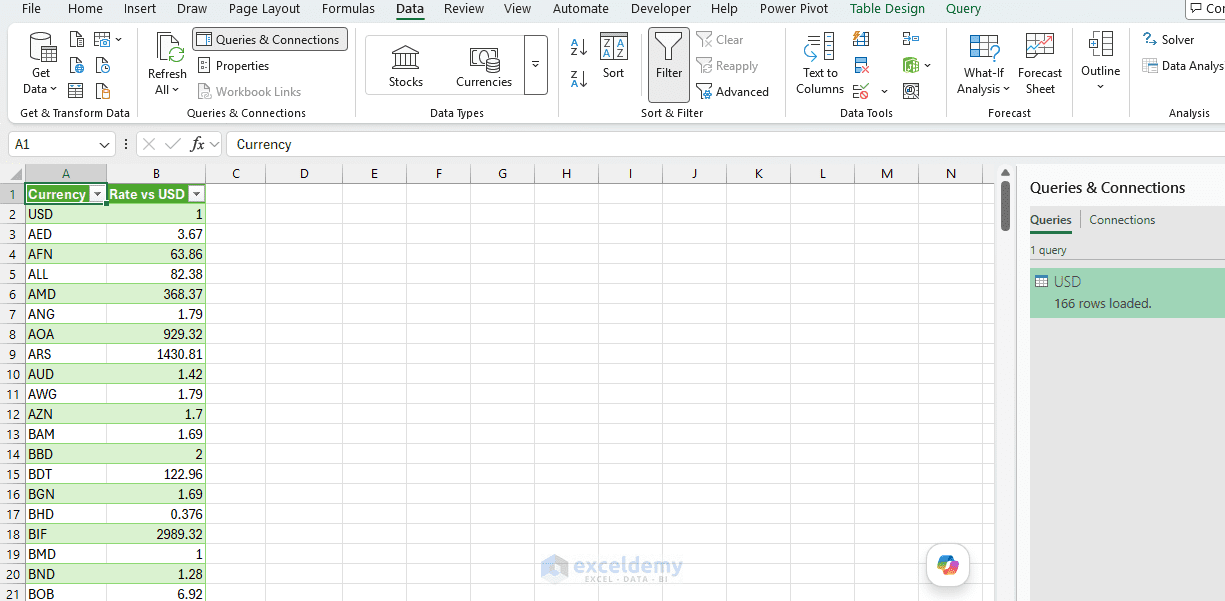
The table is not manually typed data. It is connected to the API source.
Connect to an API That Requires a Key (Financial Data Example)
Many financial APIs, like Alpha Vantage, Polygon.io, or Twelve Data, require an API key passed as a URL parameter. An API key is a private code that identifies your account. The technique is the same; you just build a longer URL.
Suppose you want to pull a stock quote from Alpha Vantage (free tier, registration required).
For example, a stock quote API URL may look like this:
https://www.alphavantage.co/query?function=GLOBAL_QUOTE&symbol=MSFT&apikey=YOUR_API_KEY
- Replace: YOUR_API_KEY with your actual key
- Go to the Data tab >> select Get Data >> select From Other Sources >> select From Web
- When the From Web dialog box opens, choose Advanced
- Paste the URL >> click OK
- Click Connect
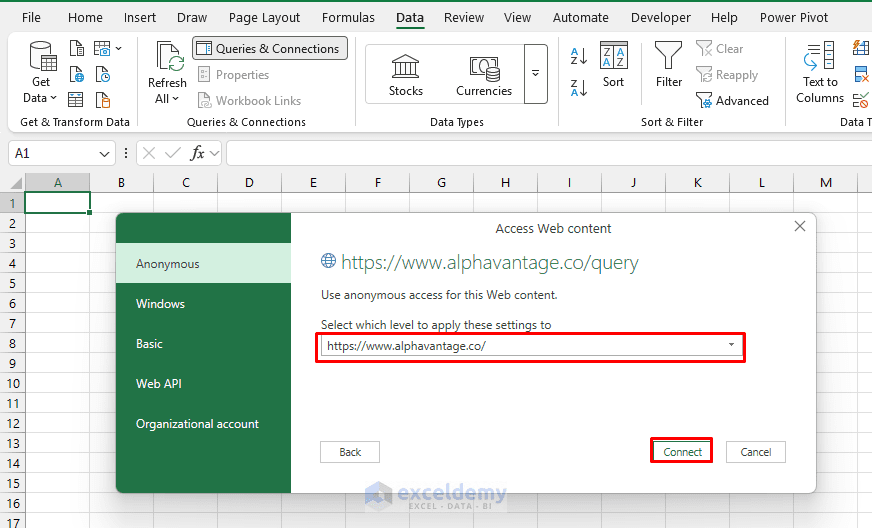
In Power Query (Advanced mode), build it as separate parts:
| Part | Value |
| URL Part 1 | https://www.alphavantage.co/query |
| Query Parameter 1 | function = GLOBAL_QUOTE |
| Query Parameter 2 | symbol = MSFT |
| Query Parameter 3 | apikey = YOUR_API_KEY |
Using the parameter fields (rather than pasting one giant URL) makes it easy to change the ticker symbol later.
Navigating the Response:
The JSON comes back nested like this:
{
"Global Quote": {
"01. symbol": "MSFT",
"05. price": "415.26",
"09. change": "+2.14",
"10. change percent": "0.5183%"
}
}
In Power Query:
- Click Global Quote to drill in
- You’ll see a Record >> click Into Table to convert it
- You now have field names in column 1 and values in column 2
- Rename headers to Field and Value
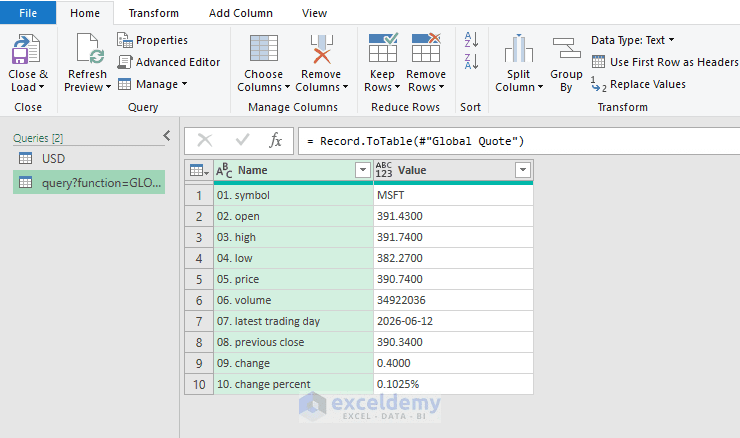
- Load it into Excel
Refresh and Set Automatic Refresh for API Data
You can refresh the live data in Excel.
Refresh Manually:
- To update the values, click anywhere inside the loaded table
- Go to the Query tab >> select Refresh
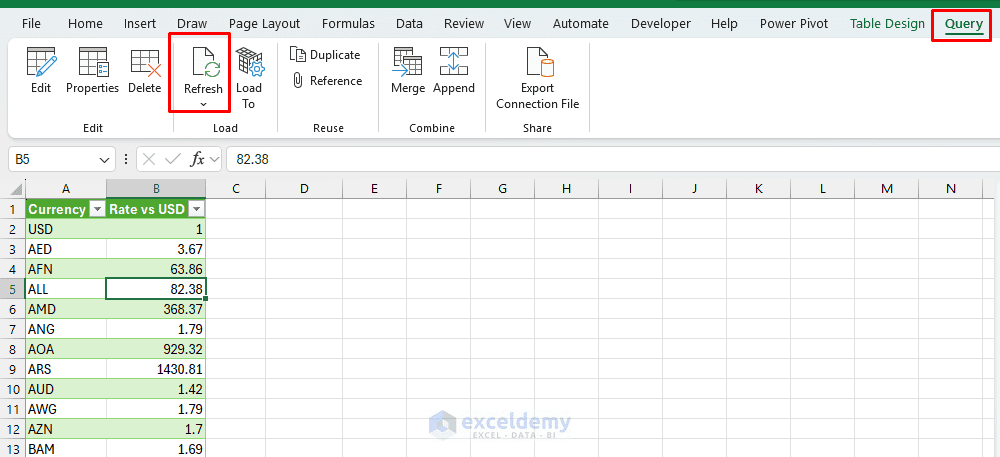
- Or go to the Data tab >> select Refresh All
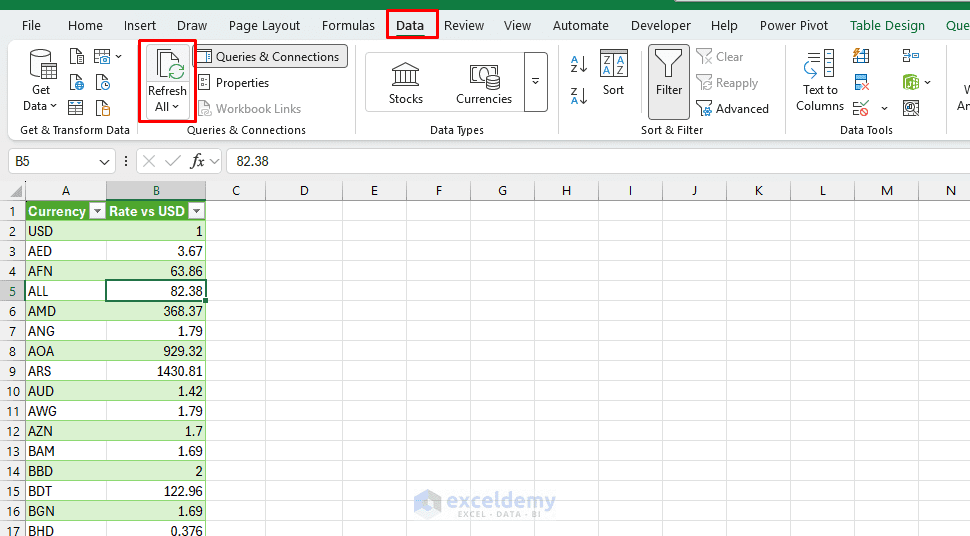
Excel will call the API again and update the table. This is the main reason Power Query is useful. You create the connection once, and then refresh it whenever you need updated data.
Set Automatic Refresh:
If you want Excel to refresh the API data automatically, use the query connection settings.
- Click inside the Power Query output table
- Go to the Data tab >> select Queries & Connections
- In the Queries & Connections pane, right-click your query and choose Properties
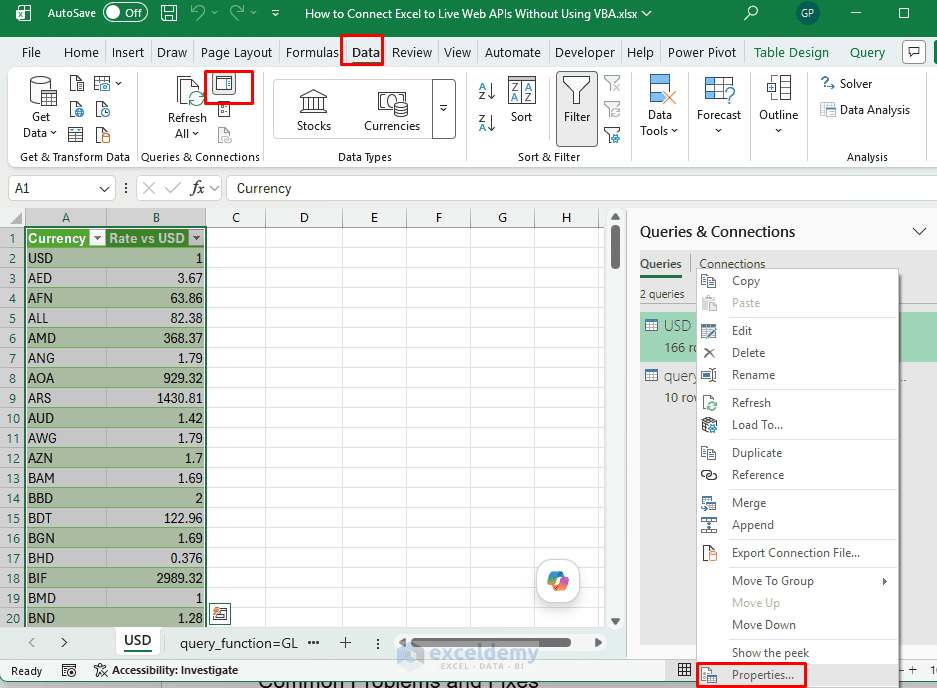
- In the Usage tab;
- Check: Refresh every
- Then enter a time interval, such as: 30 minutes
- You can also check: Refresh data when opening the file
- Click OK
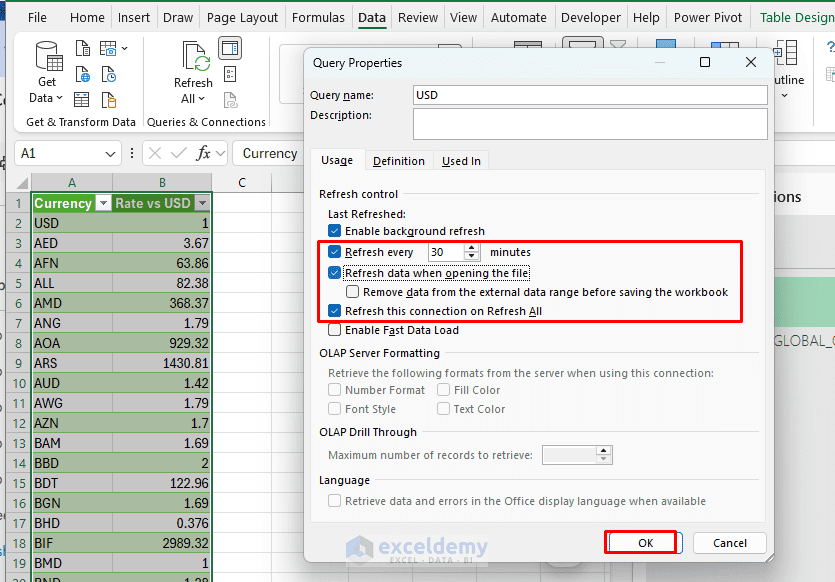
This allows the workbook to update whenever you open it.
Important: Do not set the refresh interval too low. Many APIs have usage limits. If you refresh too often, the API may block your request or return an error.
Common Problems and Fixes
- Excel shows an Error When Connecting: Check whether the API URL works in your browser first. If the browser also shows an error, the issue is with the URL, API key, or API service.
- The API Returns Too Much Nested Data: Many APIs return nested JSON. In Power Query, keep clicking the expand icon until the data becomes a normal table. Use these options:
- Convert to Table
- Expand Column
- Expand Record
- Expand List
- Refresh Does Not Work: Check your internet connection and API limits. Also, check Data Source Settings; you may need to update or clear saved permissions.
- API Key Is Not Working: Make sure the key is typed correctly, the key is active, and the API plan allows that endpoint. Also, check that you have not exceeded the usage limit.
- Data Types Change After Refresh: Power Query may detect wrong data types automatically. Set the data type manually before loading the query.
Conclusion
By following the steps above, you can connect Excel to live web APIs without writing a single line of VBA. Power Query handles the connection, letting you pull financial prices, exchange rates, social metrics, weather data, or business system data directly into a spreadsheet. Once the connection is created, Excel becomes more than a manual spreadsheet. It becomes a refreshable reporting tool connected to live online data. This approach keeps everything no-code/low-code and maintainable. Experiment with different APIs to build powerful live financial trackers or monitoring sheets.
Get FREE Advanced Excel Exercises with Solutions!

