


Excel offers a wide range of date and time functions to help you manage and manipulate dates. It is common to pick the wrong one, which leads to formulas that look right but silently produce incorrect results. Choosing the right function is essential, whether you’re calculating durations, shifting dates, or working with dynamic timestamps.
In this tutorial, we will explore various date and time functions and explain which Excel function you should use based on your specific needs.
1. Dynamic Timestamps: TODAY() and NOW()
These two functions take no arguments and recalculate every time the workbook opens or recalculates.
TODAY Function:
=TODAY()
This function returns the current date. It is dynamic and updates whenever the spreadsheet is recalculated, providing the most up-to-date date without time information.
- Use it when you want to show the current date, such as for logging daily activities or updating reports.
- Do not use it when you need a permanent record of when something happened — use Ctrl+; instead to paste a static date.
NOW Function:
=NOW()
Returns both the current date and time. Like TODAY(), it updates every time the sheet recalculates and is perfect for generating timestamped data.
- Use it when you need a timestamp that includes both date and time — for example, logging when an event occurred or recording when an entry was last updated.
- Keep in mind that
NOW()changes every time Excel recalculates, which can be disruptive in shared workbooks. Consider VBA or Power Query for stable timestamps.
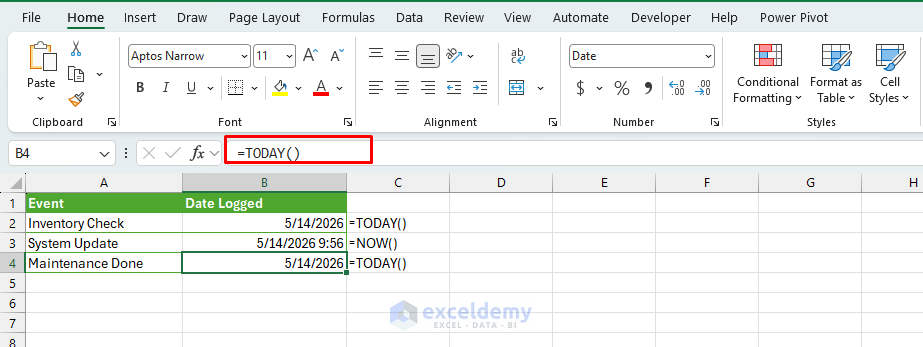
Here, TODAY() provides a dynamic log of the current date for each event, while NOW() captures both the date and the exact time of the system update.
Tip: Neither TODAY() nor NOW() is suitable for audit-trail timestamps. Use Ctrl+; (date) or Ctrl+Shift+; (time) to stamp a cell permanently, or use a macro triggered by Worksheet_Change.
2. Creating Static Dates: DATE()
This function allows you to construct a date using the year, month, and day as separate arguments. It is useful when you need to input a fixed date into your spreadsheet.
=DATE(year, month, day)
This function assembles a proper Excel date from three separate numbers. It handles overflow automatically: DATE(2025,13,1) becomes 1-Jan-2026.
Use Cases:
- When you need to define a specific, static date (e.g. setting a project start date or a task due date).
- Converting text-based dates into proper Excel date values reliably.
- Creating the first or last day of any month.
Common Scenarios:
- Pull year, month, and day from different cells:
=DATE(A2, B2, C2)
- First day of the current month:
=DATE(YEAR(TODAY()), MONTH(TODAY()), 1)
- Last day of the current month:
=DATE(YEAR(TODAY()), MONTH(TODAY())+1, 0)
- First day of next year:
=DATE(YEAR(TODAY())+1, 1, 1)
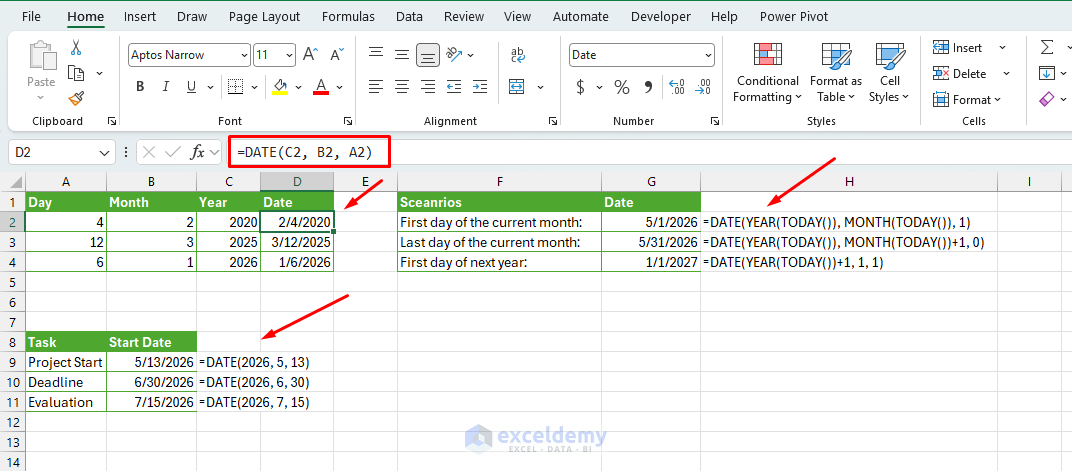
Here, the DATE function creates specific dates for the start, deadline, and evaluation phases of a project. These dates do not change over time.
3. Calculating Duration/Difference: DATEDIF()
This function calculates the difference between two dates in various units such as years, months, or days. It is commonly used for calculating age, service time, or project durations.
=DATEDIF(start_date, end_date, “unit”)
DATEDIF calculates elapsed time between two dates. It is a legacy function inherited from Lotus 1-2-3: it works reliably but does not appear in Excel’s autocomplete, so you must type it in full.
The unit argument controls what you measure:
| Unit | Meaning | Example Use Case |
| “d” | Days | Days overdue |
| “m” | Complete months | Contract length in months |
| “y” | Complete years | Age in years |
| “ym” | Months after a complete year | Age: “X years and Y months” |
| “md” | Days after complete months | Age: “X years, Y months, Z days” |
Age Calculation:
=DATEDIF(A2, TODAY(), "y") & " years, " & DATEDIF(A2, TODAY(), "ym") & " months"
Employee tenure displayed as “2 years, 4 months, 11 days”:
=DATEDIF(A10,TODAY(),"Y")&" yrs, "&DATEDIF(A10,TODAY(),"YM")&" mo, "&DATEDIF(A10,TODAY(),"MD")&" days"
This is ideal for calculating how long something has been ongoing, such as an employee’s age or years of service.
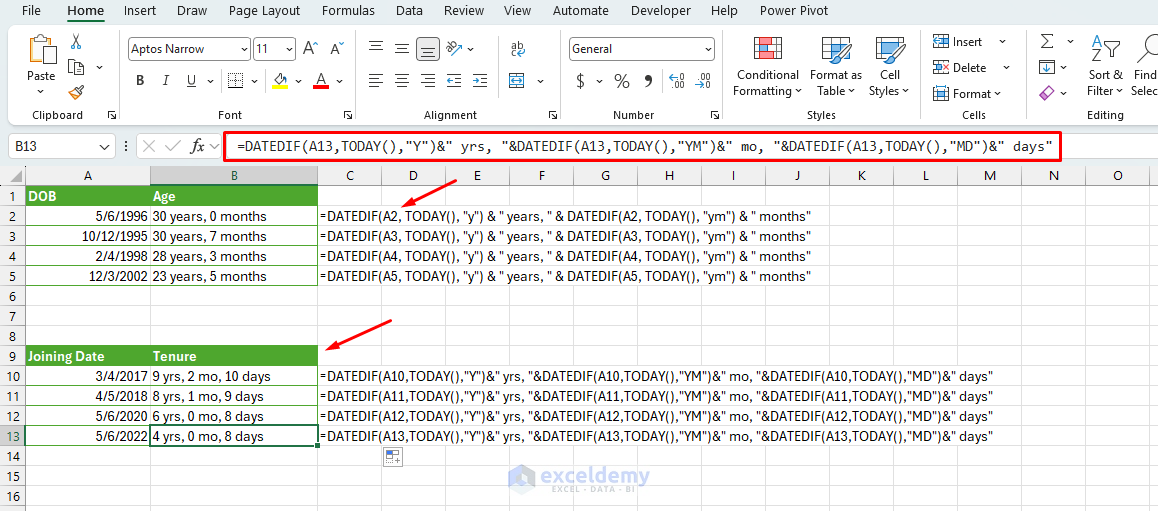
Note: DATEDIF is undocumented in newer versions of Excel but is extremely useful and still fully supported.
4. Business Days Only: NETWORKDAYS()
This function calculates the number of working days (business days) between two dates, excluding weekends and holidays. It is useful in scenarios where weekends are non-working days.
=NETWORKDAYS(start_date, end_date, [holidays])
Returns the number of whole working days between two dates, excluding weekends and any listed holidays.
=NETWORKDAYS(B2, C2, $G$2:$G$5)
Best used in a business context where you need to calculate the time between two dates while excluding weekends and public holidays.
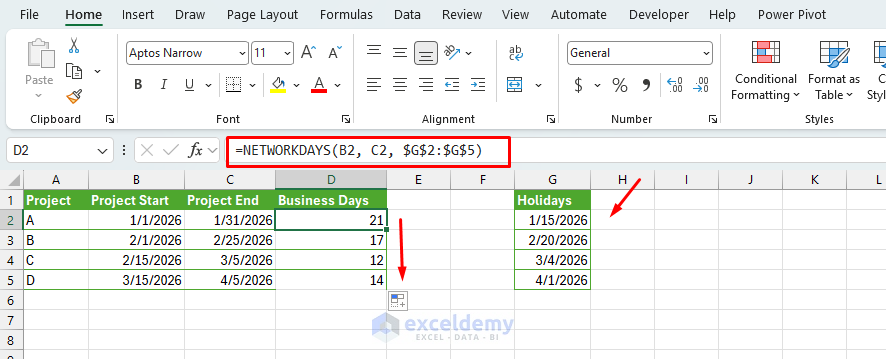
Holiday Lists:
This function accepts an optional third argument: a range of dates to exclude as holidays.
- Create a named range (e.g.
Holidays) containing your holiday dates. NETWORKDAYScounts both the start and end dates as working days if they fall on weekdays.
The .INTL variants:
WORKDAY.INTL and NETWORKDAYS.INTL accept a weekend parameter (a number or a 7-character string like "0000011" for Sat/Sun) to support non-standard work weeks common in Middle Eastern and Asian markets.
5. Shifting Dates Forward or Backward: EDATE() and EOMONTH()
Both functions move a date by a given number of months. The difference is where they land.
EDATE Function:
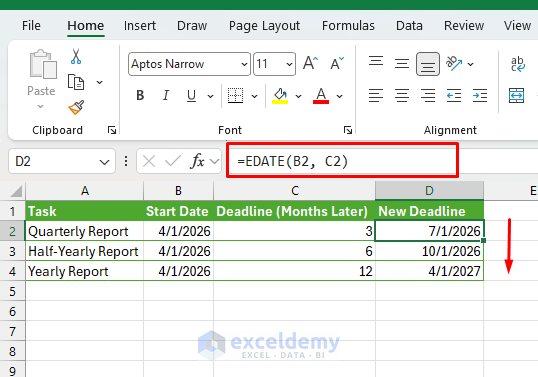
Adds or subtracts a specified number of months to or from a given date. This is useful for project planning, forecasting, or budgeting.
- Best for subscription renewals, anniversary dates, or any recurring event that falls on a fixed day of the month.
=EDATE(B2, C2)
EOMONTH Function:
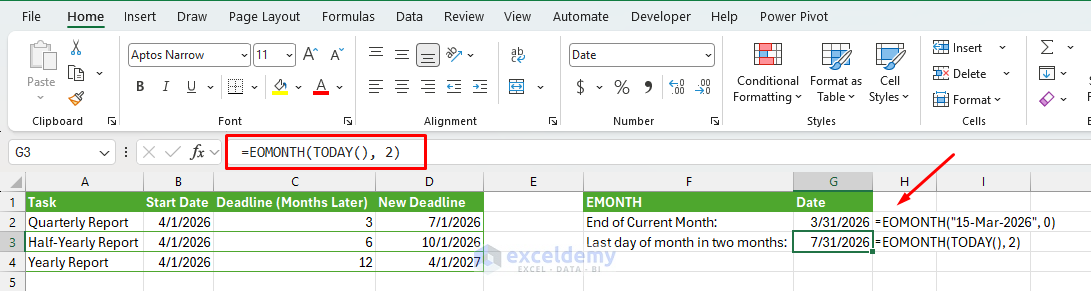
Returns the last day of the month a specified number of months before or after a given date. It is particularly useful for monthly financial reports or billing cycles.
- Best for billing cutoffs, financial period ends, or any deadline that must fall on the last day of the month.
Common Scenarios:
- End of the current month:
=EOMONTH("15-Mar-2026", 0)
- Last day of the month two months from now:
=EOMONTH(TODAY(), 2)
Add/Subtract Business Days:
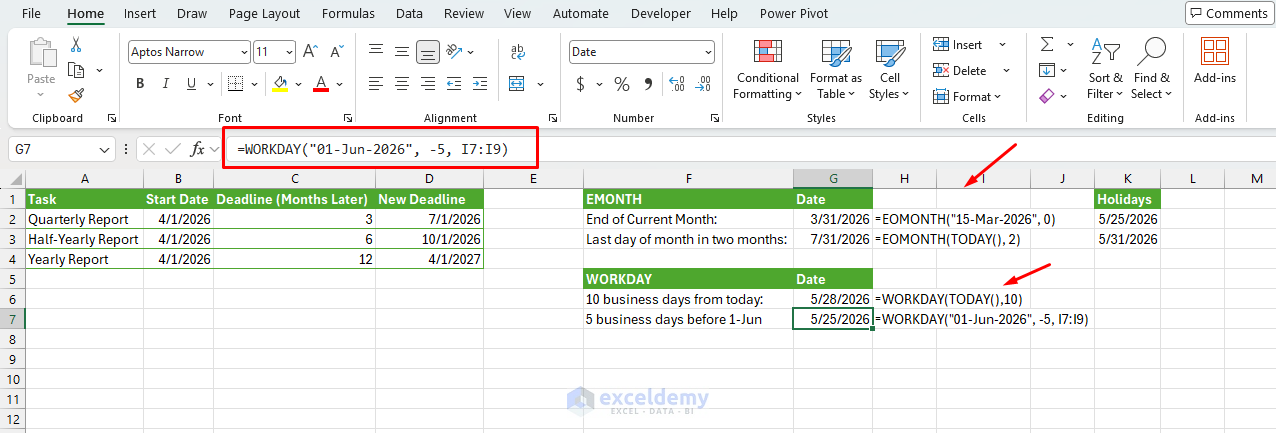
The WORKDAY function returns a date that is a specified number of working days before or after a given date.
=WORKDAY(start_date, days, [holidays])
It skips weekends and optionally accounts for holidays.
- 10 business days from today:
=WORKDAY(TODAY(),10)
- 5 business days before June 1:
=WORKDAY("01-Jun-2026", -5, I7:I9)
Use WORKDAY when you need a future or past date that lands on a working day.
Here, the EDATE function shifts the quarterly report deadline by three months, while WORKDAY finds the new project deadline 15 business days from the start date.
6. Dynamic vs. Static Timestamps
- A dynamic timestamp automatically updates to the current date and time whenever the workbook is recalculated.
- For dynamic logging, tracking time for entries, or real-time data input, use the
NOWfunction.
- For dynamic logging, tracking time for entries, or real-time data input, use the
- A static date provides a fixed timestamp that does not change.
- Use the
DATEfunction for timestamps that are meant to remain constant, such as project start dates or event timestamps.
- Use the
Quick-Pick Decision Cheat Sheet
| If you want to… | Use… |
| Show today’s date | =TODAY() |
| Show current date and time | =NOW() |
| Hard-code a specific date | =DATE(2025,12,31) |
| Calculate someone’s age in years | =DATEDIF(birthdate,TODAY(),”Y”) |
| Get a full tenure string | =DATEDIF(A2,TODAY(),”Y”)&” yrs “&DATEDIF(A2,TODAY(),”YM”)&” mo” |
| Add exactly 6 months | =EDATE(A2,6) |
| Find the month-end for billing | =EOMONTH(A2,0) |
| Deadline 30 business days from today | =WORKDAY(TODAY(),30,holidays) |
| Business days left until due date | =NETWORKDAYS(TODAY(),due_date,holidays) |
| Days between two dates | =B2-A2 (format as Number) |
Pro Tips
- Formatting: Always format cells as Date or Custom (e.g. dd-mmm-yyyy).
- Holidays: Create a named range (e.g.
Holidays) for easy reuse inNETWORKDAYSandWORKDAY. - Avoid #VALUE! errors: Use
DATEVALUE()orTEXT()if dates are stored as text. - International users: Excel date formats vary by regional settings. Use the
DATE()function whenever possible for portability. - Performance:
TODAY()andNOW()are volatile functions; use them sparingly in very large sheets.
Conclusion
Now you have a clear framework for choosing the right Excel date and time function. Whether you are calculating durations, shifting dates, or working with dynamic timestamps, the right tool makes a real difference in accuracy and efficiency. Calculate tenure with DATEDIF, find a 90-day review date with WORKDAY, locate the billing month-end with EOMONTH, and count remaining business days to year-end with NETWORKDAYS. With these functions in hand, you can manage your date and time needs accurately and effectively.


