


Excel Tables are one of the most useful structures for working with organized data. In VBA, Excel Tables are handled through the ListObject object. A ListObject lets you reference an entire table, its rows, columns, headers, and data body without relying on fixed cell ranges.
In this tutorial, we will show how to loop through Excel Tables with ListObjects using VBA. The focus is not only on referencing tables, but also on looping through table rows, columns, cells, and multiple tables in a workbook.
What Is a ListObject?
A ListObject is Excel VBA’s object for an Excel Table. When you format a range as a table in Excel (Ctrl+T), VBA treats it as a ListObject. Every ListObject has:
- ListRows: The data rows (excluding the header)
- ListColumns: The columns (including the header)
- DataBodyRange: The data cells only (no header, no totals)
- HeaderRowRange: Just the header row
1. Loop Through All Tables on a Sheet
You don’t know how many tables a sheet has, or you want to apply the same operation to every table without naming them individually. This is great for audit macros, bulk formatting, or reporting tools. Start by referencing ActiveSheet.ListObjects, which holds every table on the current sheet.
Sub LoopAllTables()
    Dim tbl As ListObject

    For Each tbl In ActiveSheet.ListObjects
        Debug.Print tbl.Name & " has " & tbl.ListRows.count & " rows"
    Next tbl
End Sub
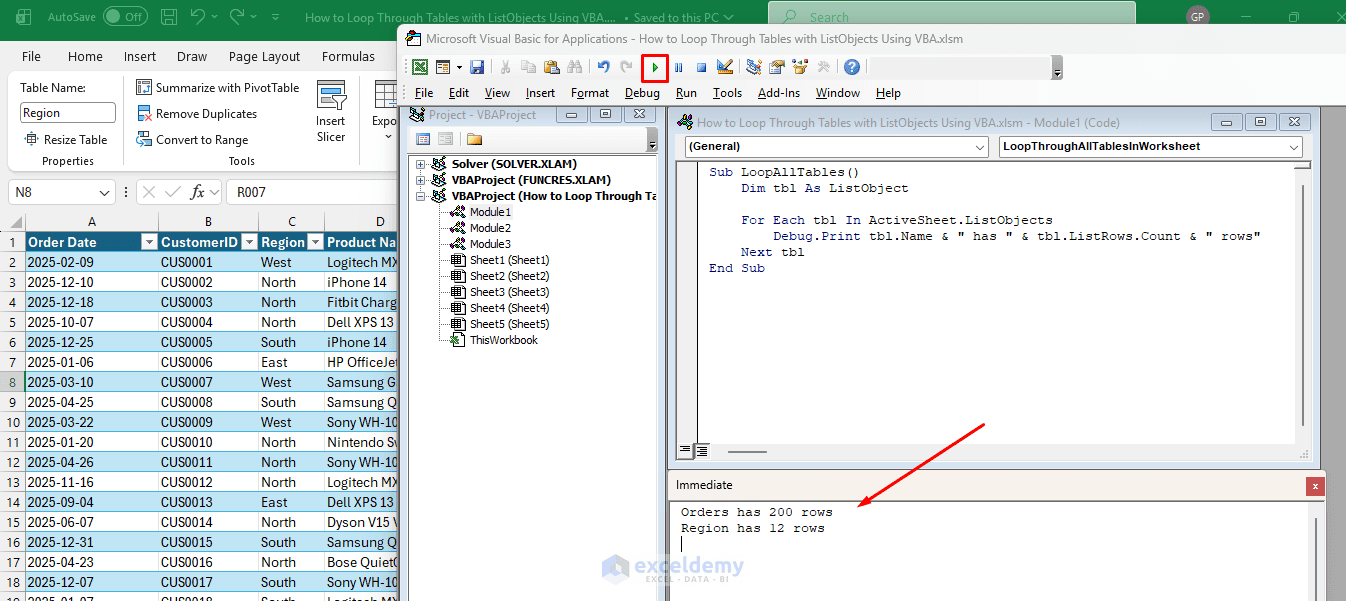
- Open the Immediate Window (Ctrl+G) before running this code
- This macro will print each table’s name and row count, one line per table found on the sheet
2. Loop Through All Tables in the Workbook
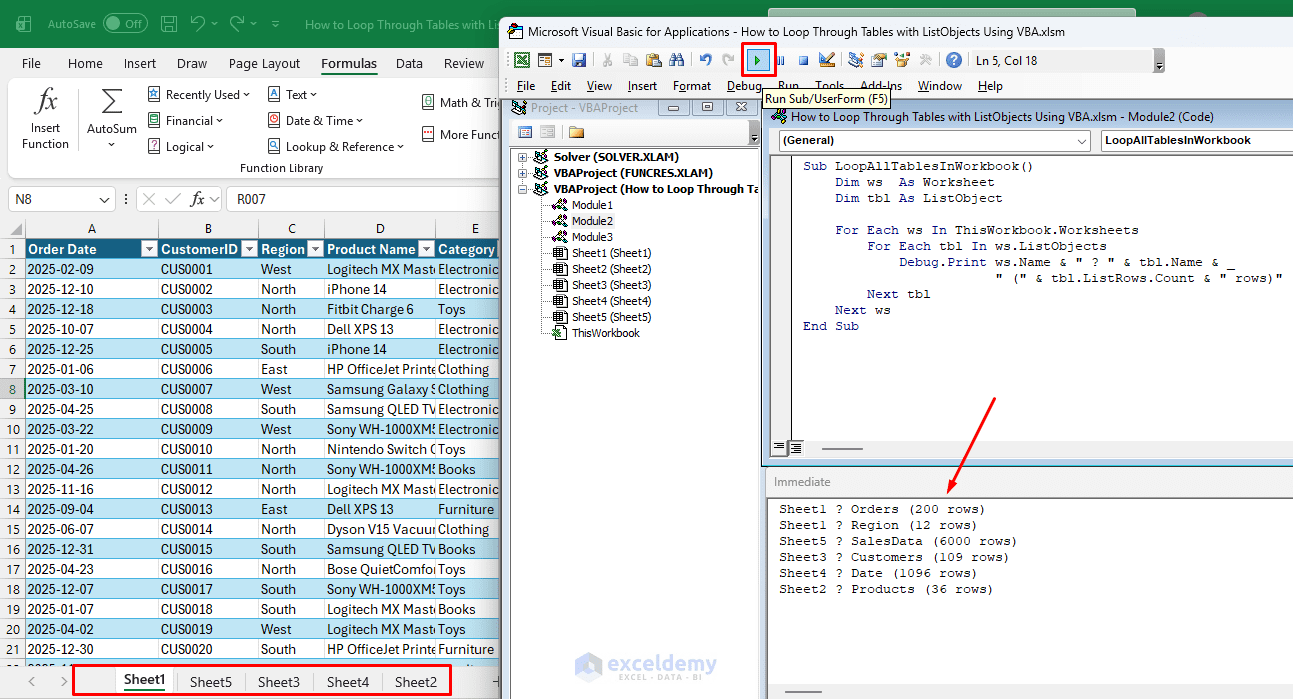
Your workbook may have tables spread across multiple sheets, and you want to process all of them in one pass. To loop through every table in every worksheet, use a nested loop. The outer loop iterates through every worksheet in the workbook, and the inner loop iterates through every ListObject on that sheet.
Sub LoopAllTablesInWorkbook()
    Dim ws  As Worksheet
    Dim tbl As ListObject

    For Each ws In ThisWorkbook.Worksheets
        For Each tbl In ws.ListObjects
            Debug.Print ws.Name & " ? " & tbl.Name & _
                        " (" & tbl.ListRows.count & " rows)"
        Next tbl
    Next ws
End Sub
This checks each worksheet, then loops through the tables within it. The output is a full inventory of every table in the workbook — including sheet name, table name, and row count — in a single run. This is useful for large workbooks where tables are spread across multiple sheets.
Format All Tables in Workbook:
Sub FormatAllTables()

    Dim ws As Worksheet
    Dim tbl As ListObject

    For Each ws In ThisWorkbook.Worksheets
        For Each tbl In ws.ListObjects
            With tbl
                .TableStyle = "TableStyleLight14"
                .ShowTotals = True
                .ShowAutoFilter = True
            End With
        Next tbl
    Next ws

End Sub
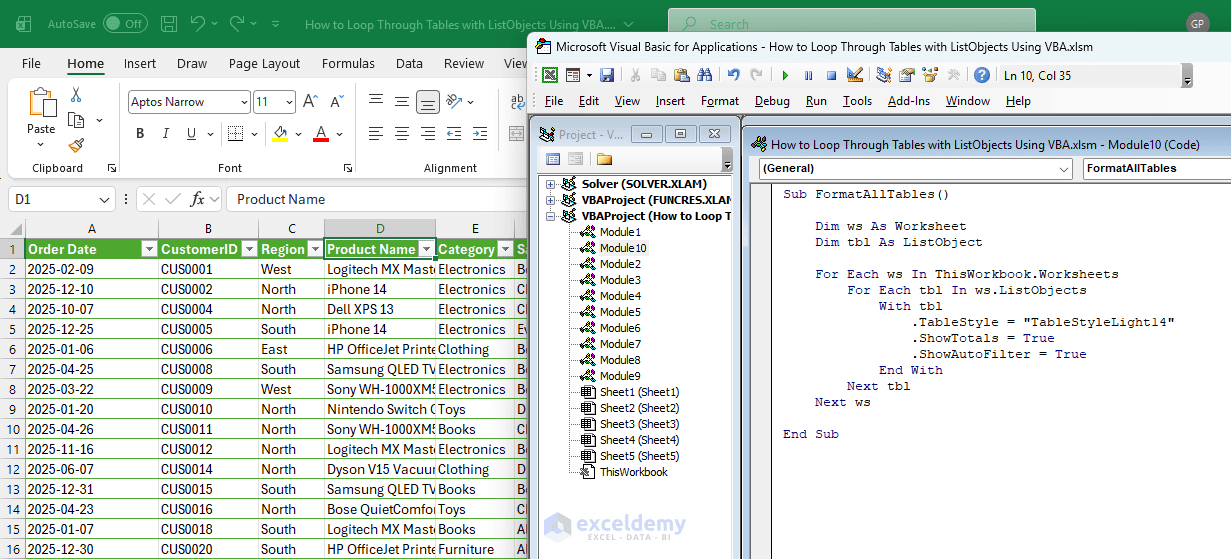
All tables in the workbook are formatted with the same style.
3. Loop Through All Rows in a Table
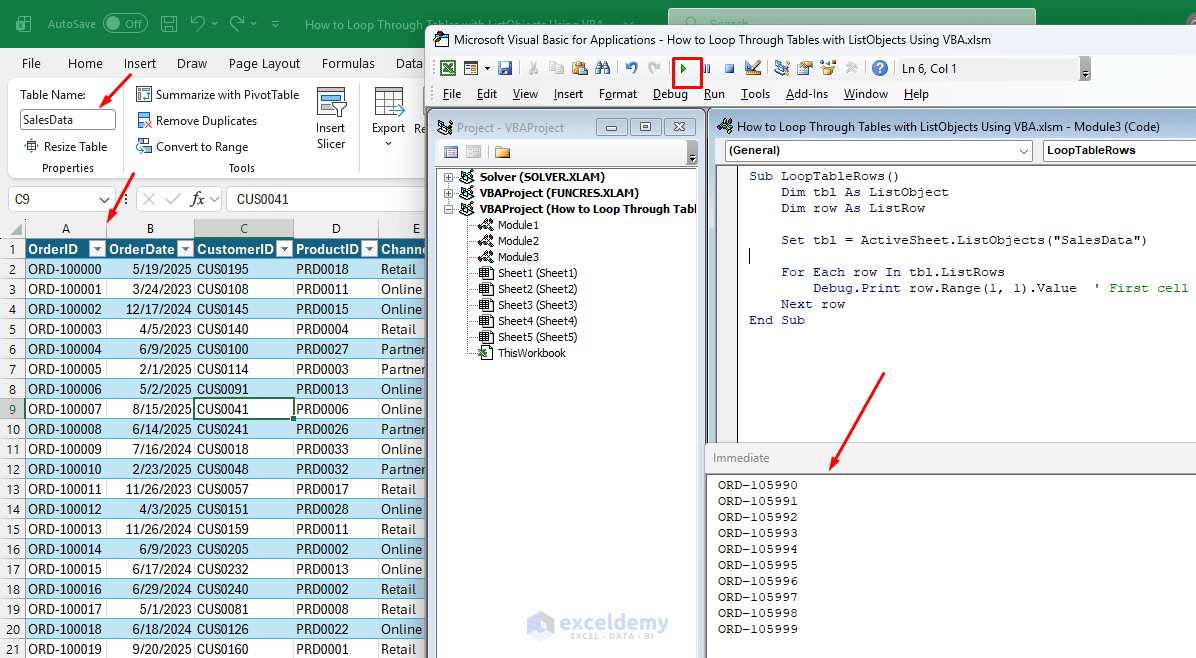
This is one of the most common uses of ListObjects. You can loop through each row in the table using ListRows.
Sub LoopTableRows()
    Dim tbl As ListObject
    Dim row As ListRow

    Set tbl = ActiveSheet.ListObjects("SalesData")

    For Each row In tbl.ListRows
        Debug.Print row.Range(1, 1).Value  ' First cell of each row
    Next row
End Sub
This prints the value of the first column for every data row. The header is automatically skipped — ListRows only contains data rows, so there is no need for any offset or index adjustment.
4. Loop Through All Columns in a Table
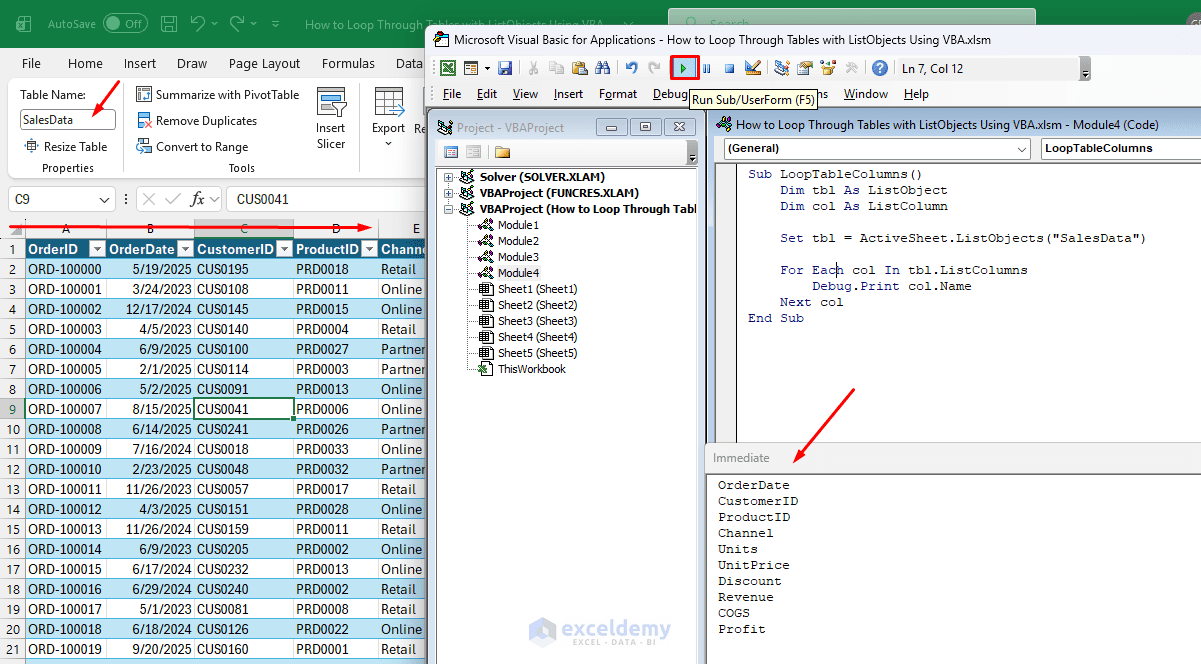
You can loop through every column in the table. Each col object has a .Name property that returns the header text exactly as it appears in the table.
Sub LoopTableColumns()
    Dim tbl As ListObject
    Dim col As ListColumn

    Set tbl = ActiveSheet.ListObjects("SalesData")

    For Each col In tbl.ListColumns
        Debug.Print col.Name
    Next col
End Sub
This prints the header text of every column in order. Use this output to confirm column names before referencing them by name elsewhere in your code — a typo in a column name will throw a runtime error.
5. Loop Through Every Cell in the Data Body
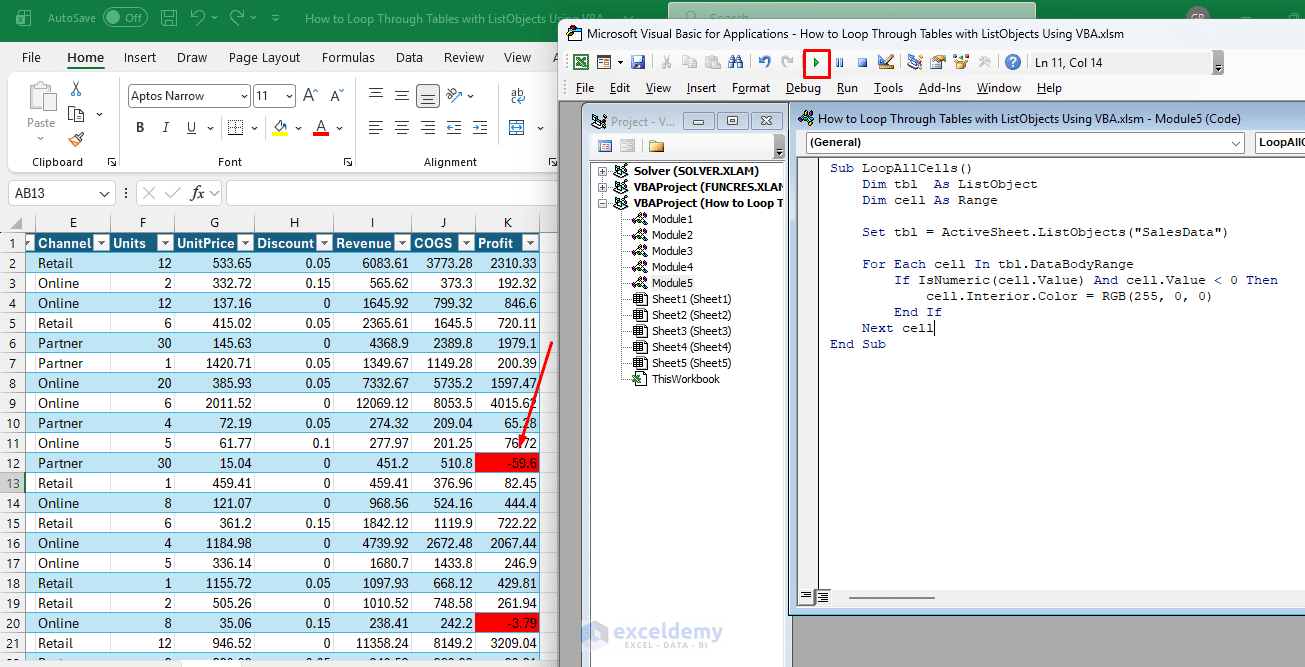
You can inspect or modify individual cells across the entire table. tbl.DataBodyRange returns the entire data area as a standard Range object, excluding the header row. Using For Each cell In that range visits every single cell left-to-right, top-to-bottom.
Sub LoopAllCells()
    Dim tbl  As ListObject
    Dim cell As Range

    Set tbl = ActiveSheet.ListObjects("SalesData")

    For Each cell In tbl.DataBodyRange
        If IsNumeric(cell.Value) And cell.Value < 0 Then
            cell.Interior.Color = RGB(255, 0, 0)
        End If
    Next cell
End Sub
Any cell containing a negative number will be highlighted red after running this. The loop covers all data cells, excluding the header row. Use this approach when you want to inspect, clean, format, or validate every value in the table.
6. Loop Rows and Read a Specific Column by Name
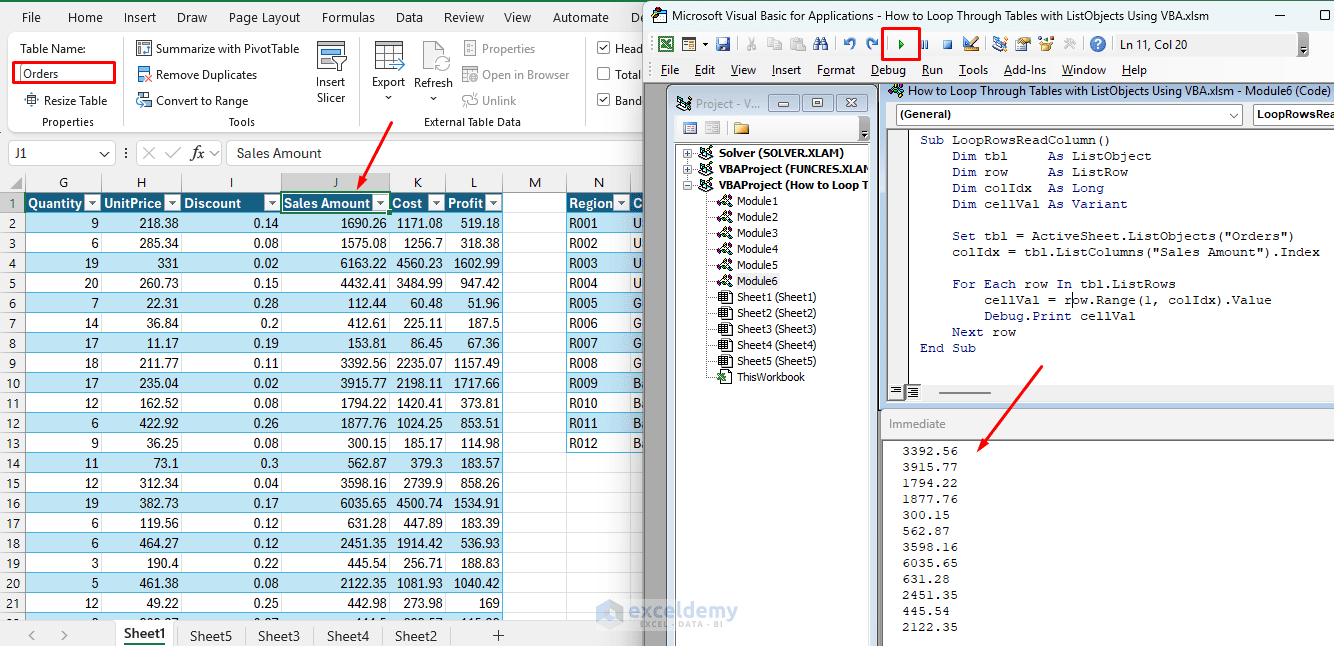
A more practical approach is to loop through each row and read values from specific columns by name. Resolve the column’s index once before the loop using tbl.ListColumns("Revenue").Index, then use that index inside row.Range(1, colIdx) on each iteration. This separates the column lookup from the row loop cleanly.
Sub LoopRowsReadColumn()
    Dim tbl     As ListObject
    Dim row     As ListRow
    Dim colIdx  As Long
    Dim cellVal As Variant

    Set tbl = ActiveSheet.ListObjects("Orders")
    colIdx = tbl.ListColumns("Sales Amount").Index

    For Each row In tbl.ListRows
        cellVal = row.Range(1, colIdx).Value
        Debug.Print cellVal
    Next row
End Sub
Every value in the Sales Amount column prints to the Immediate Window. Because the index is resolved by name before the loop, rearranging columns in the table will not break this code — it will still find the correct column at runtime.
7. Loop and Write Values Back to the Table
If you need to calculate and populate a column based on values in other columns, this pattern handles it cleanly. Common use cases include applying a discount, computing a tax amount, deriving a category label, or any derived-field calculation that belongs inside the table.
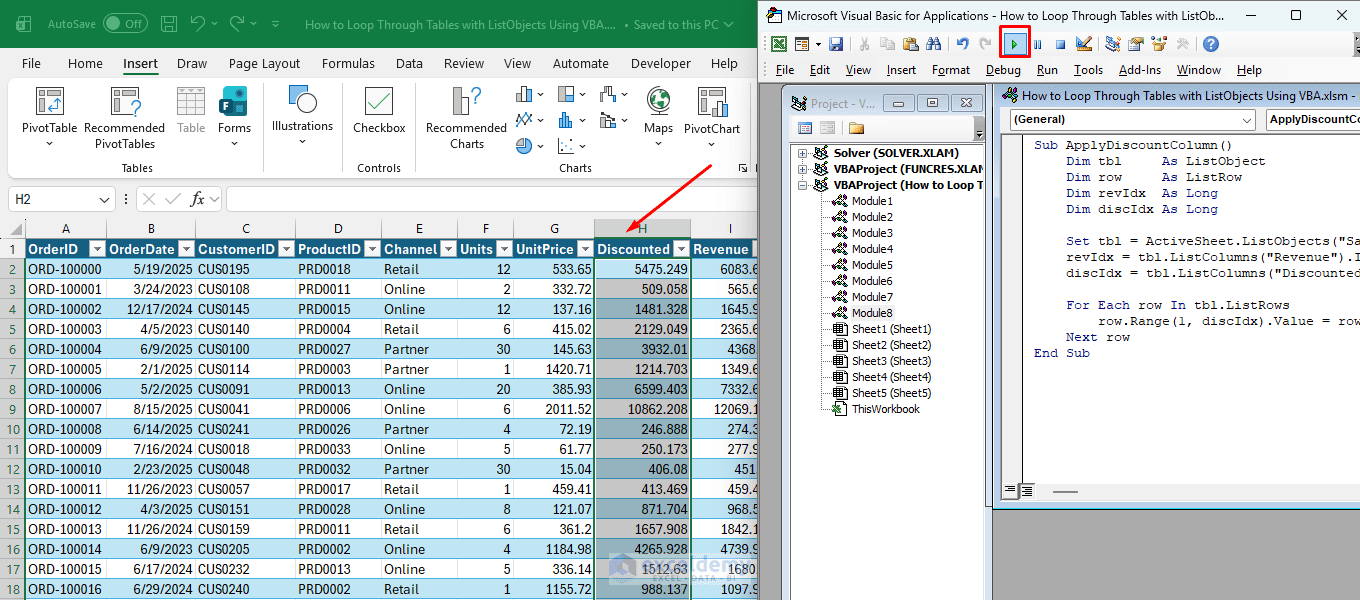
Resolve both the source column index and the destination column index by name before the loop. Then inside each row, read from one and write to the other using row.Range(1, idx).
Sub ApplyDiscountColumn()
    Dim tbl     As ListObject
    Dim row     As ListRow
    Dim revIdx  As Long
    Dim discIdx As Long

    Set tbl = ActiveSheet.ListObjects("SalesData")
    revIdx = tbl.ListColumns("Revenue").Index
    discIdx = tbl.ListColumns("Discounted").Index

    For Each row In tbl.ListRows
        row.Range(1, discIdx).Value = row.Range(1, revIdx).Value * 0.9
    Next row
End Sub
After running, every row’s Discounted column will contain 90% of the corresponding Revenue value. Both columns are resolved by name, so restructuring the table will not require any changes to this macro.
8. Loop and Delete Rows That Meet a Condition
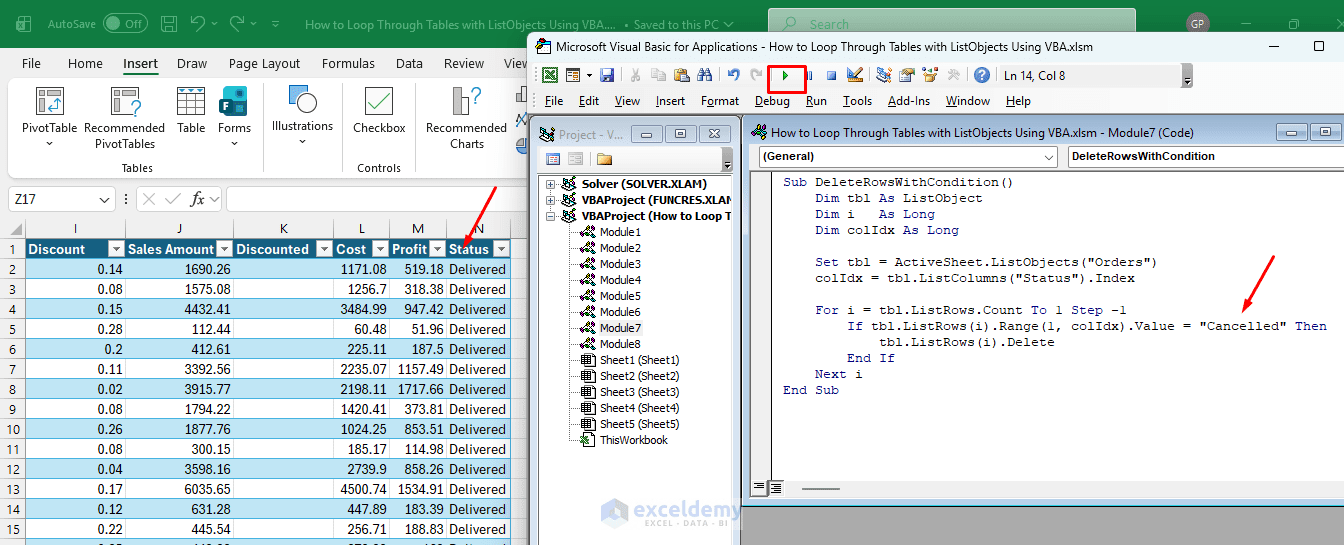
You can loop and delete rows based on a condition — this comes up constantly in data-cleaning workflows.
Critical rule: Always loop backwards when deleting rows. Looping forwards causes rows to shift up after each deletion, which makes the loop skip the row immediately below every deleted row.
Sub DeleteRowsWithCondition()
    Dim tbl As ListObject
    Dim i   As Long
    Dim colIdx As Long

    Set tbl = ActiveSheet.ListObjects("Orders")
    colIdx = tbl.ListColumns("Status").Index

    For i = tbl.ListRows.count To 1 Step -1
        If tbl.ListRows(i).Range(1, colIdx).Value = "Cancelled" Then
            tbl.ListRows(i).Delete
        End If
    Next i
End Sub
Every row where Status equals “Cancelled” is removed cleanly, and no rows are skipped. The backwards-loop pattern is one of the most important habits to build when working with any kind of row deletion in VBA.
9. Loop and Collect Matching Rows Into an Array
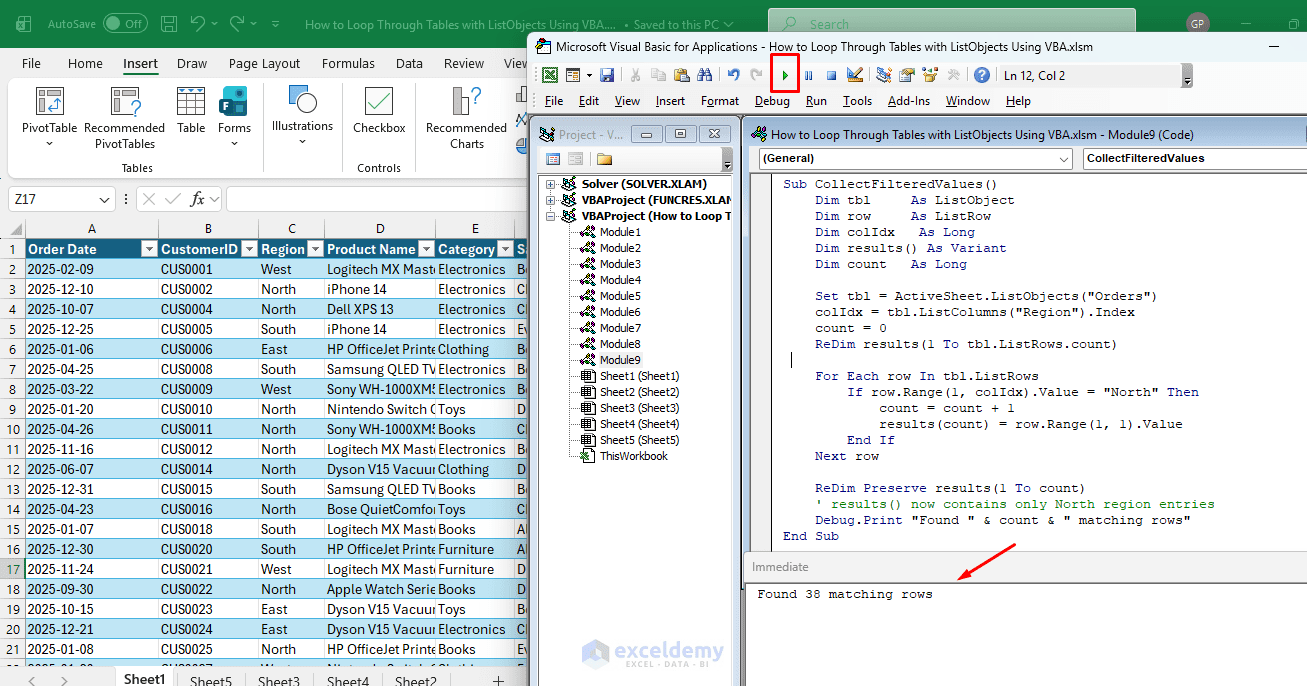
You can extract a filtered subset of data without modifying the table itself — useful for passing to another procedure, writing to a different sheet, or processing further in memory without touching the source data.
Sub CollectFilteredValues()
    Dim tbl     As ListObject
    Dim row     As ListRow
    Dim colIdx   As Long
    Dim results() As Variant
    Dim count   As Long

    Set tbl = ActiveSheet.ListObjects("Orders")
    colIdx = tbl.ListColumns("Region").Index
    count = 0
    ReDim results(1 To tbl.ListRows.count)

    For Each row In tbl.ListRows
        If row.Range(1, colIdx).Value = "North" Then
            count = count + 1
            results(count) = row.Range(1, 1).Value
        End If
    Next row

    ReDim Preserve results(1 To count)
    ' results() now contains only North region entries
    Debug.Print "Found " & count & " matching rows"
End Sub
After running, results() holds only the first-column values from rows where Region is “North”, and the Immediate Window confirms how many were found. The array is ready to pass to another macro or loop through for further processing.
Quick Reference: Key ListObject Properties
| Property | Returns | Description |
| tbl.Name | String | Table name |
| tbl.ListRows.Count | Long | Number of data rows |
| tbl.ListColumns.Count | Long | Number of columns |
| tbl.DataBodyRange | Range | All data cells (no header) |
| tbl.HeaderRowRange | Range | Header row only |
| tbl.ListColumns(“Col”).Index | Long | Column number by name |
| row.Range(1, n) | Range | Cell in row at column n |
Common Mistakes to Avoid
- Looping forwards while deleting rows: Always use
Step -1when deleting inside a loop. Forward loops skip rows silently with no error, making this bug very hard to spot. - Hardcoding column numbers: Use
tbl.ListColumns("Name").Indexinstead of magic numbers. Tables get reorganized and columns get inserted — named lookups survive both. - Forgetting that ListRows excludes the header:
tbl.ListRows(1)is the first data row. The header lives intbl.HeaderRowRangeand is never part ofListRows. - Referencing a table that does not exist:
ListObjects("WrongName")throws a runtime error. Add an existence check withOn Error Resume Nextor loopListObjectsfirst to verify the name before setting your reference.
Conclusion
Looping through Excel Tables with ListObjects is a reliable way to automate structured data in VBA. Instead of depending on fixed ranges, ListObjects allow macros to work with dynamic tables that expand or shrink as data changes. For row-based tasks, use ListRows. For column-based tasks, use ListColumns. For looping through all table values, use DataBodyRange. If your workbook contains multiple tables, you can loop through ws.ListObjects or across the entire workbook. Using ListObjects makes VBA code cleaner, safer, and easier to maintain — especially when working with growing datasets.


