


Old Excel workbooks often depend on helper columns, manual filtering, copied formulas, and complex lookup structures. Remember the old workflow? You’d write a VLOOKUP, drag it down 200 rows, pray it didn’t break, and repeat. If new data came in, you’d manually extend ranges. If something changed, half of your formulas would error out. Modern Excel dynamic array functions make reporting much cleaner because formulas can spill results automatically into nearby cells. They spill a whole range of results automatically, resizing as your data grows. No dragging. No manual updates. No fragile named ranges duct-taped together.
In this tutorial, we will show 3 dynamic array formulas that make your old workbooks look like antiques. Powerful dynamic array formulas: FILTER, UNIQUE, and XLOOKUP create fluid, auto-updating reports that refresh as soon as the source data changes.
1. Use FILTER to Create an Auto-Updating Sales Report
The FILTER function returns only the rows that match a condition. In old workbooks, users usually filtered data manually or used helper columns. With FILTER, the report updates automatically.
Syntax:
=FILTER(array, include, [if_empty])
Sales Report for a Single Region:
Suppose we want to show only the sales records from the East region.
=FILTER(A2:I201, B2:B201="East", "No results found")
The moment you type this into a single cell, the formula spills every East region row directly below it automatically. Add a new row to your source table with “East” in column B, and it appears in your filtered output instantly.
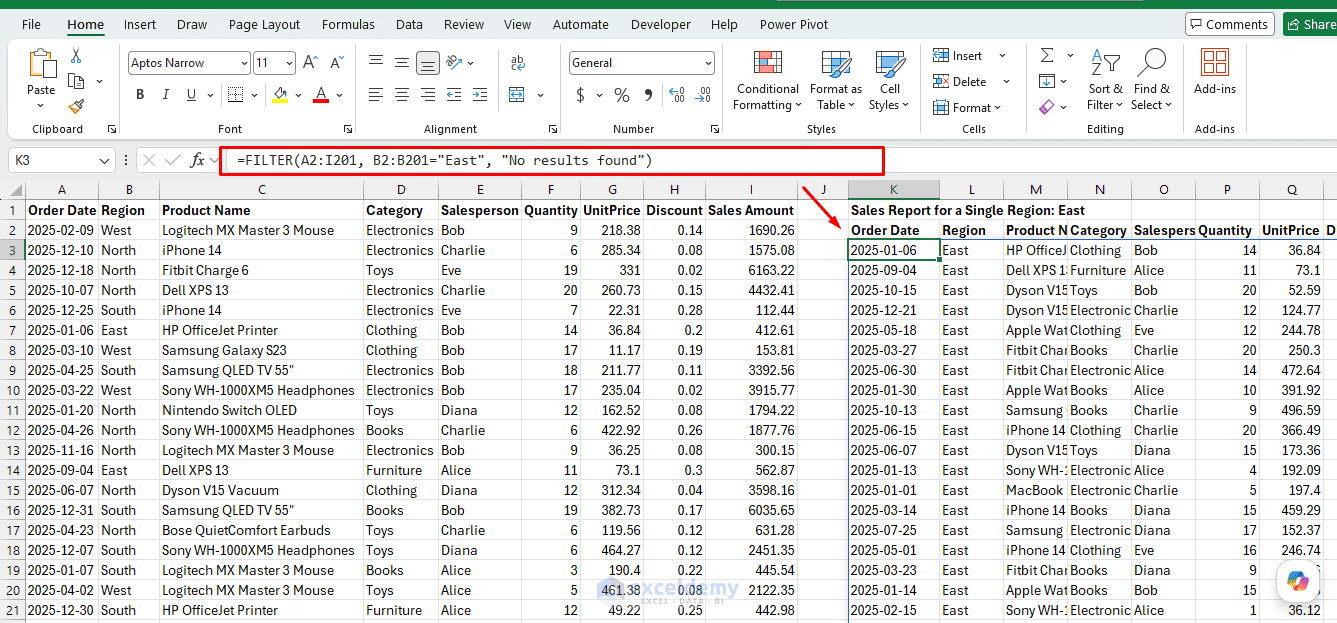
This makes the workbook feel modern because the report is no longer static.
Stacking Conditions:
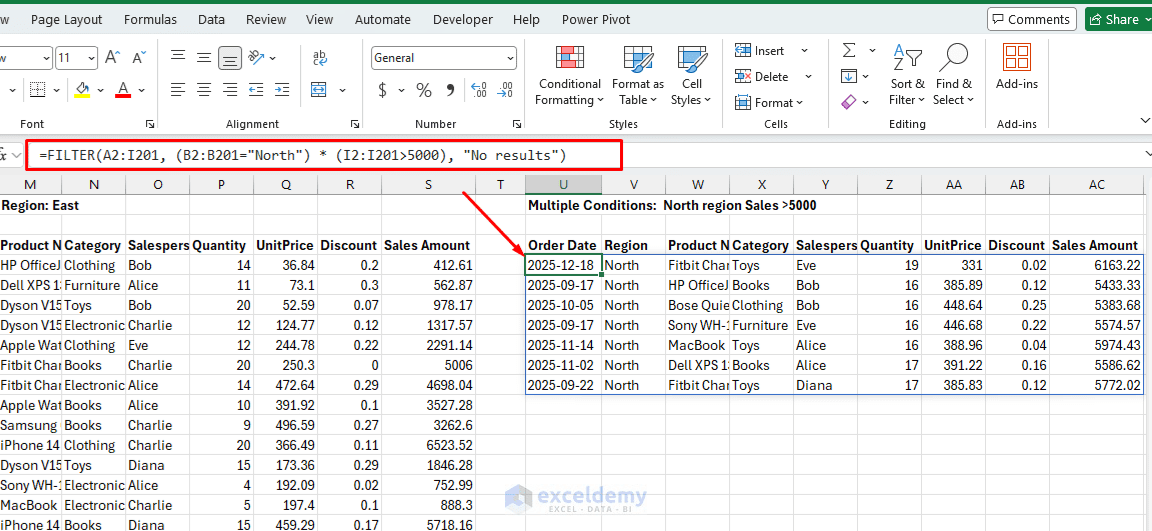
You can use multiple criteria to filter data. Imagine you want to filter for the North region with a Sales Amount above $5,000:
=FILTER(A2:I201, (B2:B201="North") * (I2:I201>5000), "No results")
The * acts as AND. Use + for OR logic. This single formula replaces an entire pivot table for simple extractions.
Wrap with SORT for Polished Output:
=SORT(FILTER(A2:I201, B2:B201="East", "No results found"), 9, -1)
This returns the East region rows sorted by Sales Amount in descending order — a fully dynamic leaderboard that updates the moment source data changes.
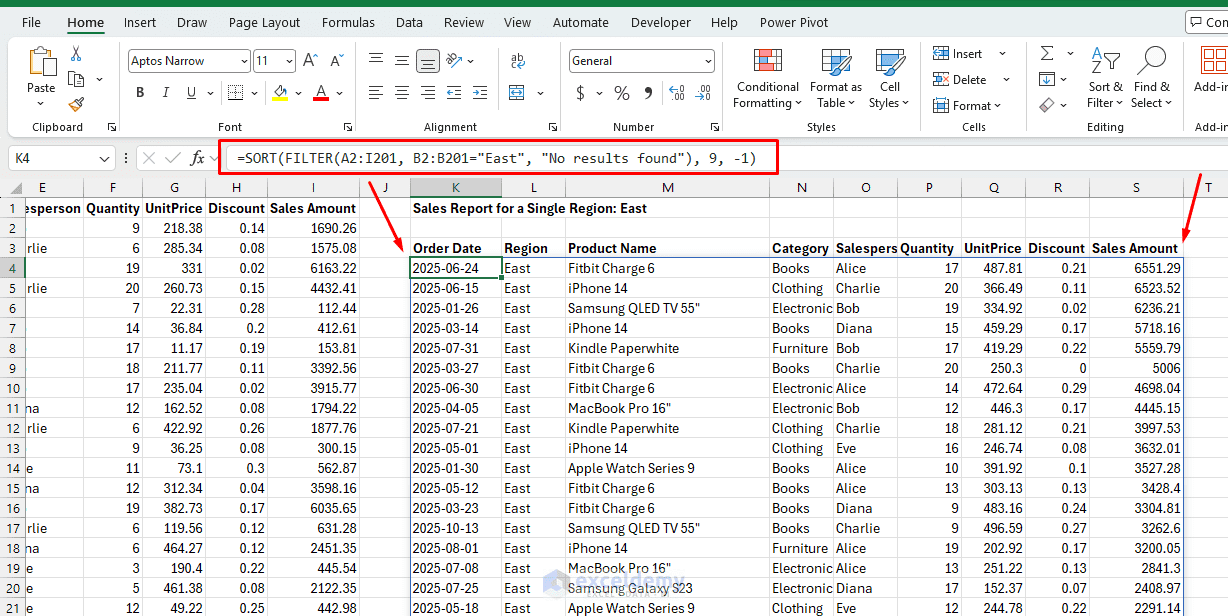
Pro Tip: Drop this inside a formatted Excel Table for beautiful, auto-expanding reports.
2. Use UNIQUE to Build a Dynamic Dropdown Source
The UNIQUE function extracts distinct values from a list. It is very useful for creating dynamic report controls, such as dropdown lists for regions, products, categories, or salespeople.
In old workbooks, maintaining a list of unique values — for a dropdown, a summary table, or a report header — meant copying a column, running Remove Duplicates, and re-pasting it every time new entries appeared. Worse, you’d keep the list on a hidden sheet and forget to update it for months.
Syntax:
=UNIQUE(array, [by_col], [exactly_once])
Auto-Updating Product List:
Suppose your orders table has a “Product” column with repeating entries and you want only the unique product names to use in a dropdown or elsewhere.
=UNIQUE(C2:C201)
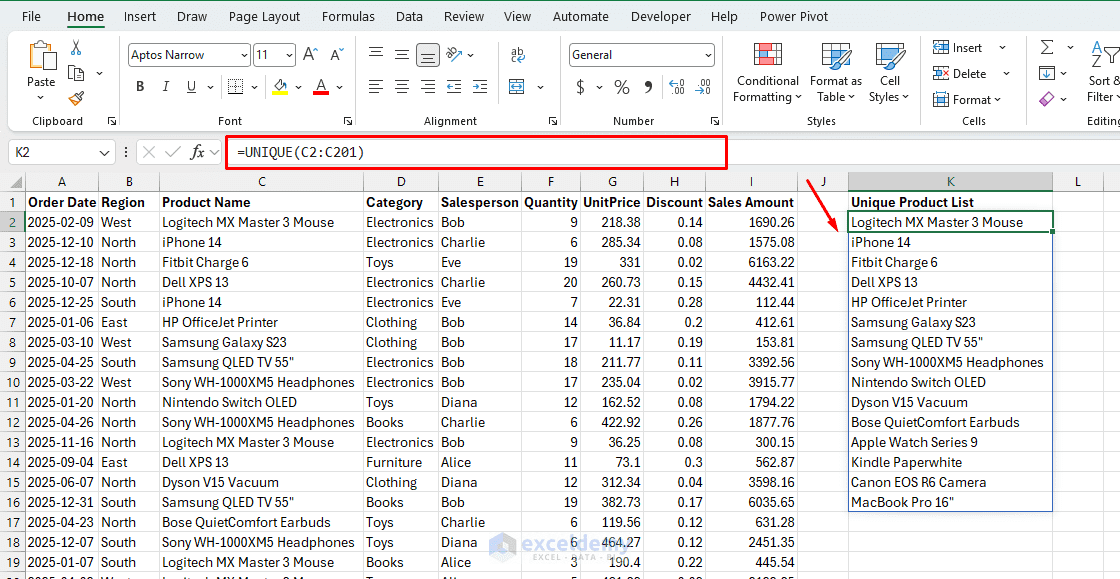
That’s it. A clean, deduplicated list that grows or shrinks as products are added or discontinued — no manual maintenance ever again.
The Real Power: Pairing UNIQUE with SORT:
To make the list cleaner, wrap the formula inside SORT.
=SORT(UNIQUE(C2:C201))
An alphabetically sorted, always-current list of every product in your dataset. Two functions. Zero maintenance.
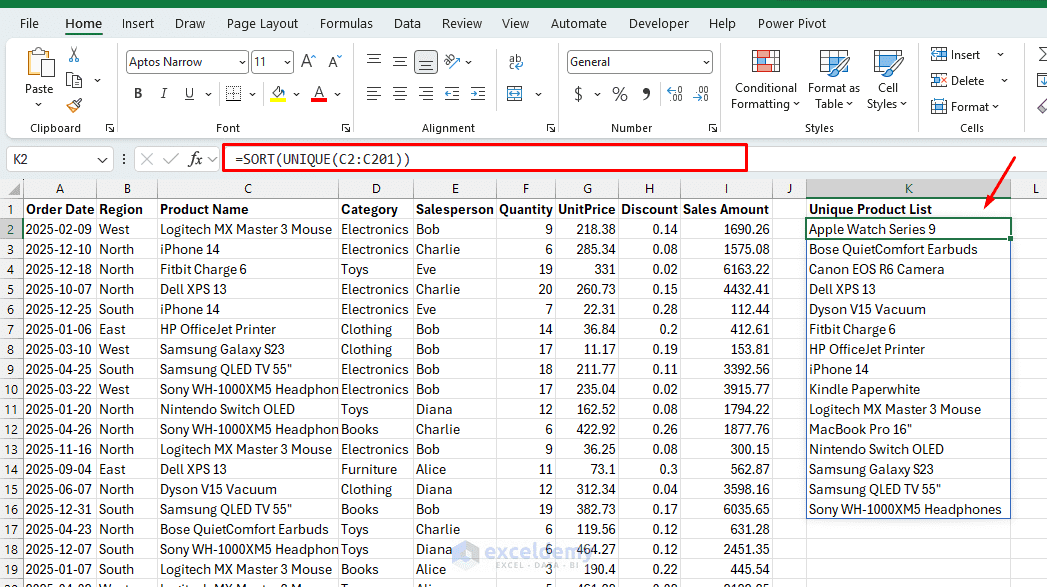
Building a Dynamic Summary Table:
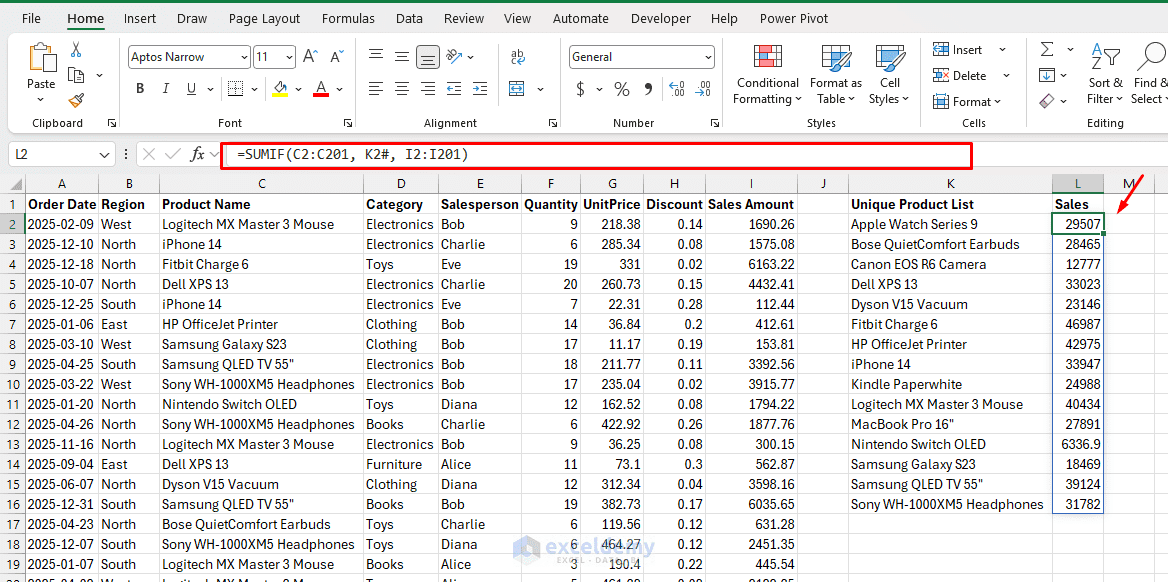
Here’s where it gets genuinely impressive. Use UNIQUE to generate row headers for a summary, then SUMIF to fill in the values:
=SUMIF(C2:C201, K2#, I2:I201)
Notice K2# — that’s spill range reference syntax. The # tells Excel to use the entire spill range from K2, so your SUMIF automatically adjusts to however many unique regions exist. Add a new region to your data and it appears in the summary table on the next refresh. This is a pivot table you built yourself.
Why This Is Better Than Manual Lists
In older workbooks, users often typed dropdown source values manually. That creates a problem when new regions are added later.
For example, if a new row is added with the region Central, the UNIQUE formula automatically includes Central in the list. No manual update is needed. The dropdown list grows automatically when new regions are added to the source table.
3. Use XLOOKUP to Pull Details into a Dynamic Report
The XLOOKUP function replaces older lookup methods like VLOOKUP, HLOOKUP, and many INDEX-MATCH combinations. It is easier to read, more flexible, and works well with modern reports.
VLOOKUP had three famous flaws that everyone simply accepted: it could only look to the right, it broke when you inserted a column (because you had hard-coded a column index number), and it always returned the first match with no way to retrieve the last one.
INDEX/MATCH solved those problems but required nesting two functions and explaining the logic to every new team member who touched the file.
Syntax:
=XLOOKUP(lookup_value, lookup_array, return_array, [if_not_found], [match_mode], [search_mode])
Basic Lookup (But Better):
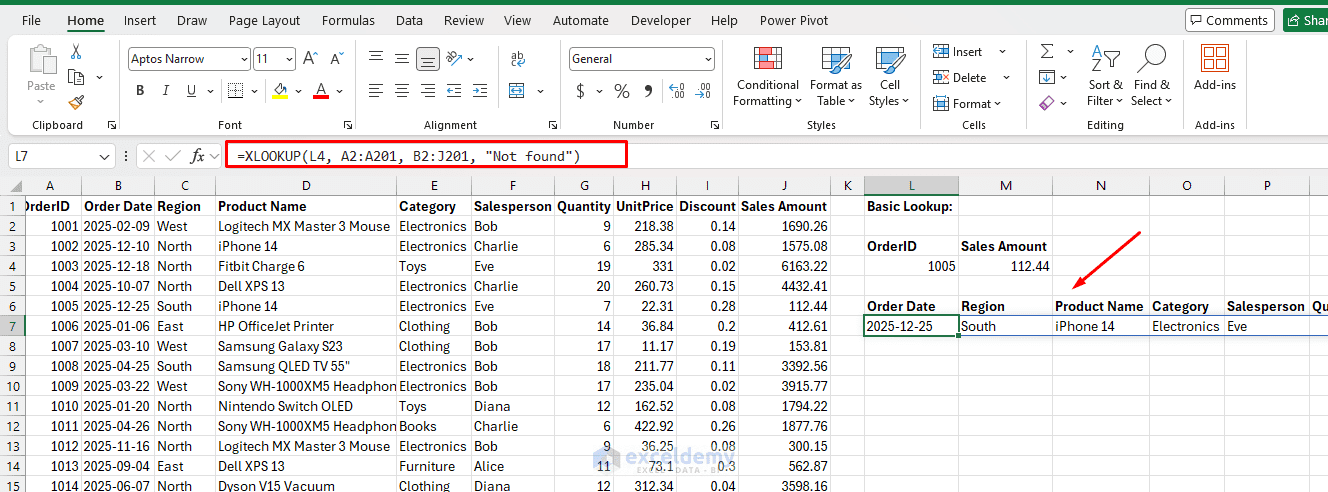
Suppose we want to enter an Order ID and return the related sales amount.
=XLOOKUP(L4, A2:A201, J2:J201, "Not found")
Cleaner, readable, and if you insert a column between A and J tomorrow, it won’t break — because you’re referencing the return column directly, not by position number.
Return Multiple Columns at Once:
This is the feature that makes VLOOKUP users audibly gasp. Instead of writing three separate lookups for product, salesperson, region, and sales amount, write one:
=XLOOKUP(L4, A2:A201, B2:J201, "Not found")
A single formula spills the sales info across nine cells horizontally. One formula. Nine results. That is one of the biggest reasons dynamic array formulas make older workbook structures look outdated. Instead of copying several formulas across columns, one formula returns the full result.
Reverse Lookup (Get the Last Match):
Need the most recent transaction for a customer rather than the first? Set search_mode to -1:
=XLOOKUP(G2, A2:A201, B2:J201, "No transactions", 0, -1)
This searches from the bottom up, returning the last matching row. Previously, this required an array formula complex enough to warrant its own documentation comment.
Wildcard Matching:
Set match_mode to 2 for wildcard support:
=XLOOKUP("Smith*", E2:E201, C2:C201, "Not found", 2)
Returns the first entry where the name starts with “Smith” — useful for fuzzy matching partial product codes or names.
Build a Simple Dynamic Sales Report
Now we can combine these functions to create a small auto-updating dashboard.
The report will include:
- A dynamic region dropdown using UNIQUE
- A filtered sales table using FILTER
- A lookup section using XLOOKUP
Step 1: Create a Dynamic Region List
- Select a suitable cell and insert the following formula:
=SORT(UNIQUE(SalesData!C2:C201))
This creates a dropdown source.
Step 2: Create a Region Dropdown
- Select a cell
- Go to the Data tab >> select Data Validation >> select List
- In the Source box, enter:
=A2#
Cell A2 now serves as a dynamic region selector.
Step 3: Filter Sales Records by Selected Region
- Near the Region dropdown, insert the following formula:
=FILTER(SalesData!A2:J201, SalesData!C2:C201=B1, "No Sales Found")
When the selected region changes, the report updates automatically.
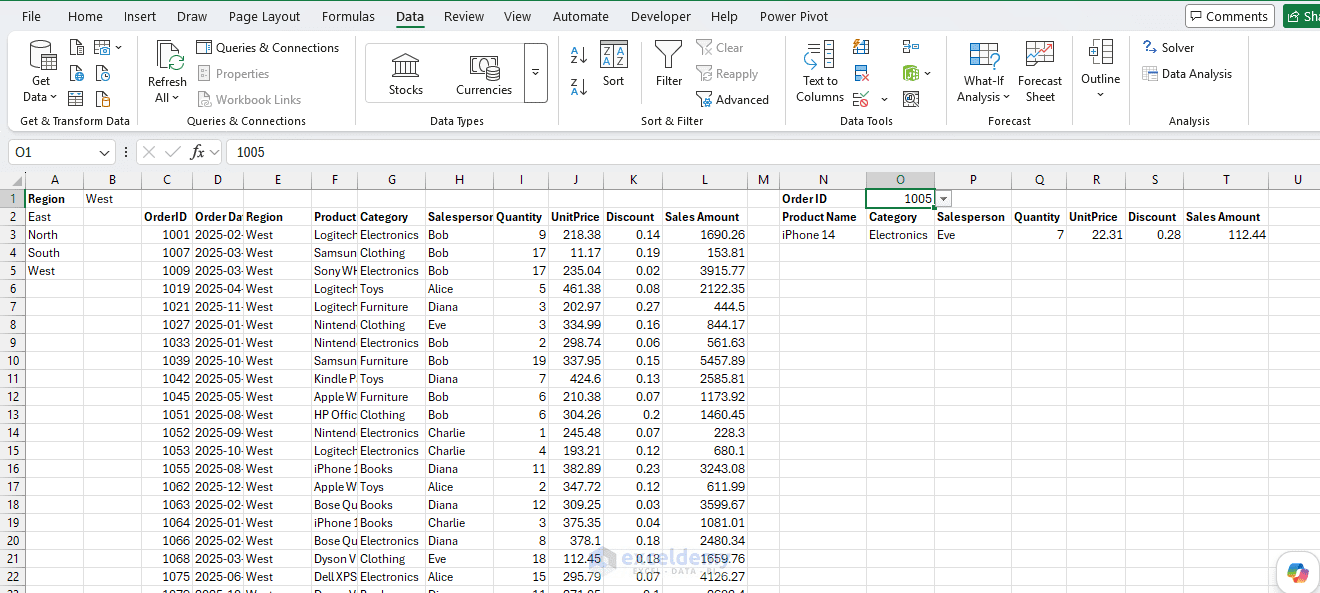
Step 4: Create an Order Lookup Section
- Enter an Order ID in a cell and use the following formula next to it:
=XLOOKUP(O1, SalesData!A2:A201, SalesData!D2:J201, "Order not found")
This returns sales information for the selected order.
Quick Reference Cheat Sheet
| Task | Old Approach | Modern Formula |
| Extract rows matching a condition | AutoFilter + paste | FILTER(range, condition) |
| Get unique values from a column | Remove Duplicates + repaste | UNIQUE(range) |
| Lookup returning multiple columns | Three separate VLOOKUPs | XLOOKUP(val, search, return_range) |
| Lookup returning last match | Complex array formula | XLOOKUP(val, s, r, , 0, -1) |
| Dynamic sorted unique list | Manual + SORT column | SORT(UNIQUE(range)) |
| Auto-updating summary table | Pivot table | UNIQUE + SUMIF with # spill reference |
Common Mistakes to Avoid
- Blocking the Spill Range: Dynamic array formulas need empty cells below or beside the formula cell. If another value blocks the spill range, Excel shows a #SPILL! error. To fix this, clear the cells where the formula needs to spill.
- Forgetting to Use Excel Tables: Dynamic array formulas work with normal ranges, but Excel Tables make them more reliable. When new rows are added to a table, formulas using structured references update automatically.
- Using Old Lookup Logic Unnecessarily: Many old workbooks still use VLOOKUP with fixed column numbers. XLOOKUP is usually safer because it does not require the return column to be counted manually.
Conclusion
Dynamic array formulas can completely change how reports are built in Excel. With FILTER, UNIQUE, and XLOOKUP, you can create reports that expand, update, and respond automatically to source data changes. These formulas reduce manual work and make workbooks easier to maintain. For anyone still relying on helper columns, manual filters, and copied lookup formulas, these three functions are a strong starting point for modern Excel reporting.
Get FREE Advanced Excel Exercises with Solutions!


Mdm, please share data file for better practice.
Hello Usman,
Here, I am attaching the data file to practice by yourself.
Download it from here: 3 Dynamic Array Formulas That Make Your Old Workbooks Look Like Antiques.xlsx
Regards,
ExcelDemy
Dear Shamima,
Salam, thank you for your effort but the link isn’t working! The download doesn’t come through properly. It took me to the very same page!
Please check it and let us know.
Sincerely,
Hello Alen,
It was a linking issue. It is resolved now. Please check the file now.
Regards,
ExcelDemy