


A clean background image or a small brand logo can make a Power BI dashboard look more professional, consistent, and presentation-ready. With a few straightforward steps, you can add background images, company logos, and custom visuals that transform a plain report into something that looks like it belongs in a boardroom presentation. The goal is not to overdecorate the report. The goal is to use branding carefully so the data remains easy to read.
In this tutorial, we will show how to add a custom background image or logo to your Power BI dashboard. This single change can elevate your reports from basic to branded and professional.
Add a Custom Background Image to Your Report Page
This fills the entire canvas with your image, great for branded report templates, dark-mode aesthetics, or slide-style dashboards.
Step 1: Navigate to Page Formatting
- Open your report in Power BI Desktop
- Click on an empty area of the report page
- Go to the Visualizations pane >> select the Format icon (paint roller)
- Expand Canvas background
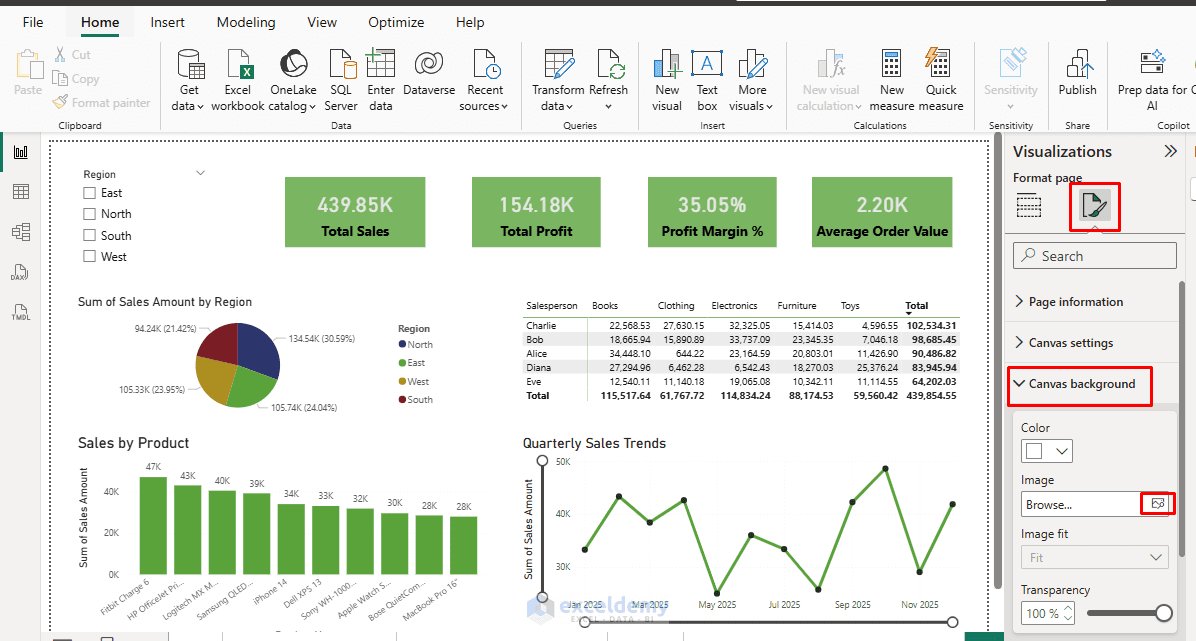
Depending on your Power BI version, the naming may vary slightly.
Step 2: Insert the Background Image
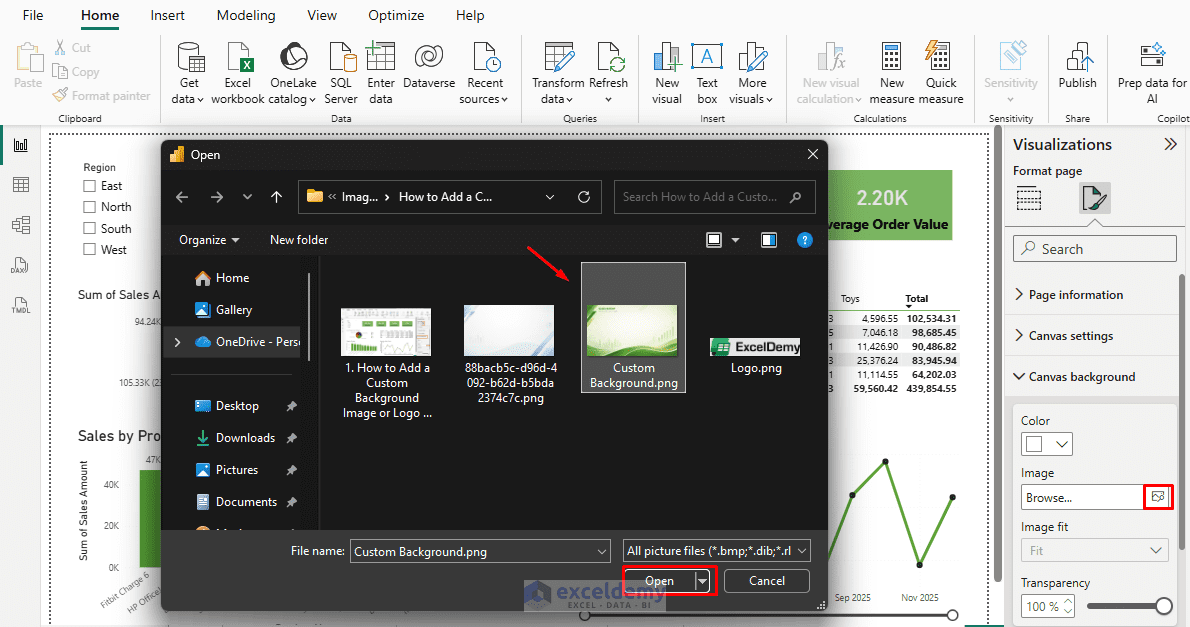
- Click Add image
- Select Browse and select your prepared background image from your computer
- Your image now appears as the report’s background
Step 3: Adjust Background Transparency
Adjust the following settings for a clean look:
- Scaling/Fit: Choose Fit, Fill, or Tile (Fit is usually best for full coverage without distortion).
- Selected Fill
- Transparency: Start at 0–30% for subtle backgrounds so charts stand out. Higher transparency produces a more faded background.
- 0% transparency if the image is already very light
- 50%–85% transparency if the image is decorative or colorful
- 90%+ transparency if you want a watermark effect
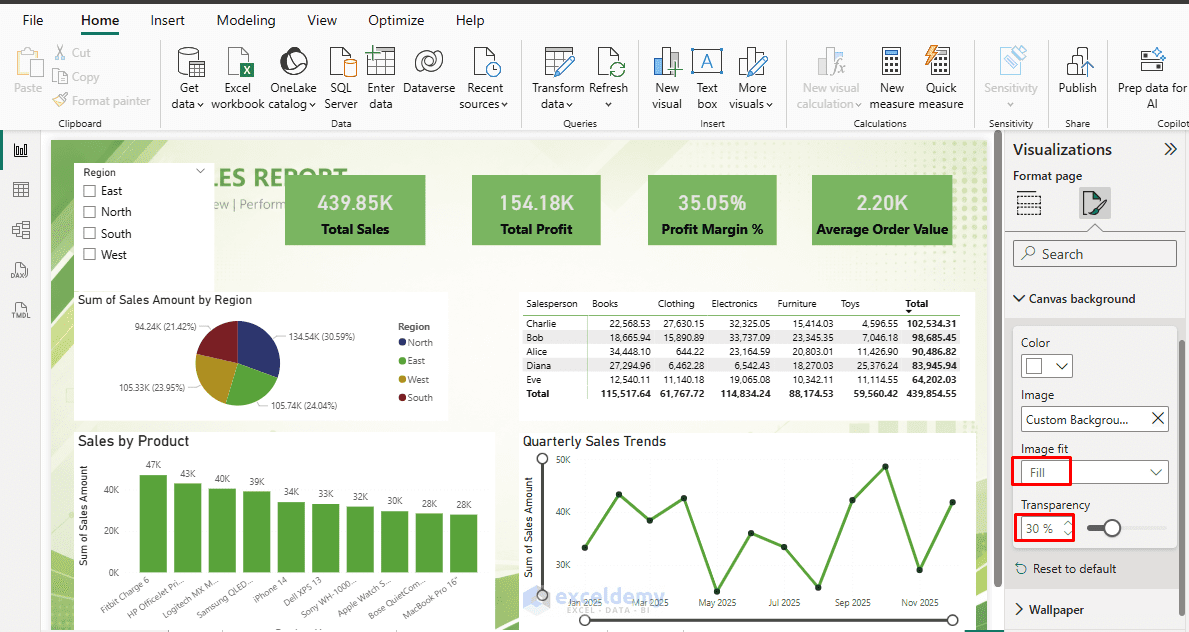
- Color Fallback: Set a solid color as a backup if the image does not load correctly
- Preview and Tweak: Add or adjust your visuals (charts, slicers). Move them around to ensure good contrast and alignment
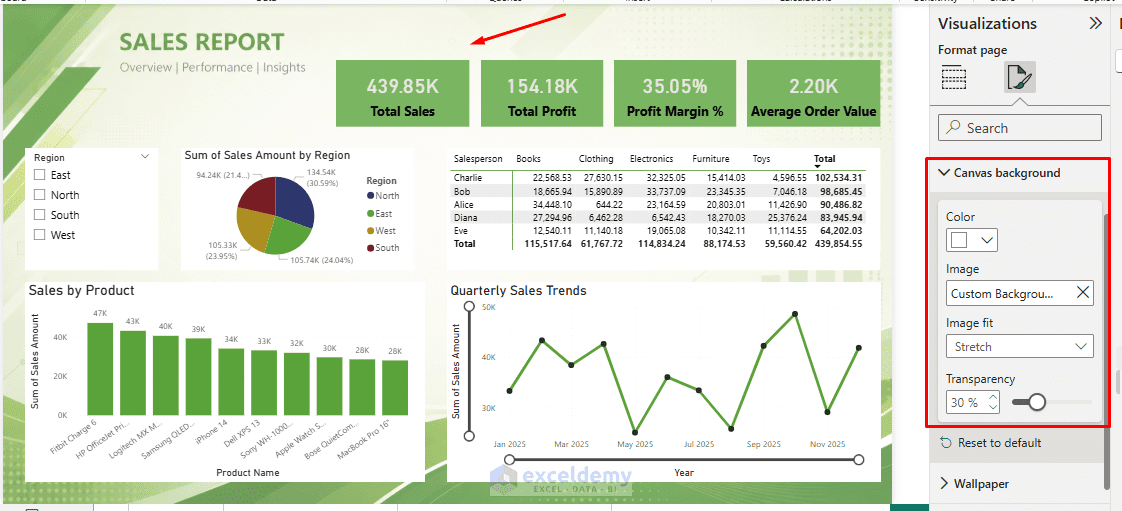
The entire page now has a branded wallpaper that applies consistently. The background should never compete with the visuals. If your charts, labels, or slicers become harder to read, increase the transparency or use a lighter image.
Pro tip: If visuals obscure the background too much, select individual visuals and set their background to transparent (in Format visual > Background).
Add a Logo (or Any Image) as a Foreground Element
Logos sit on top of the canvas as image objects, making them ideal for headers, footers, or corner branding. Logos should sit on top of (not as) the background for clarity.
Step 1: Add a Company Logo
- Go to the Insert tab >> select Image
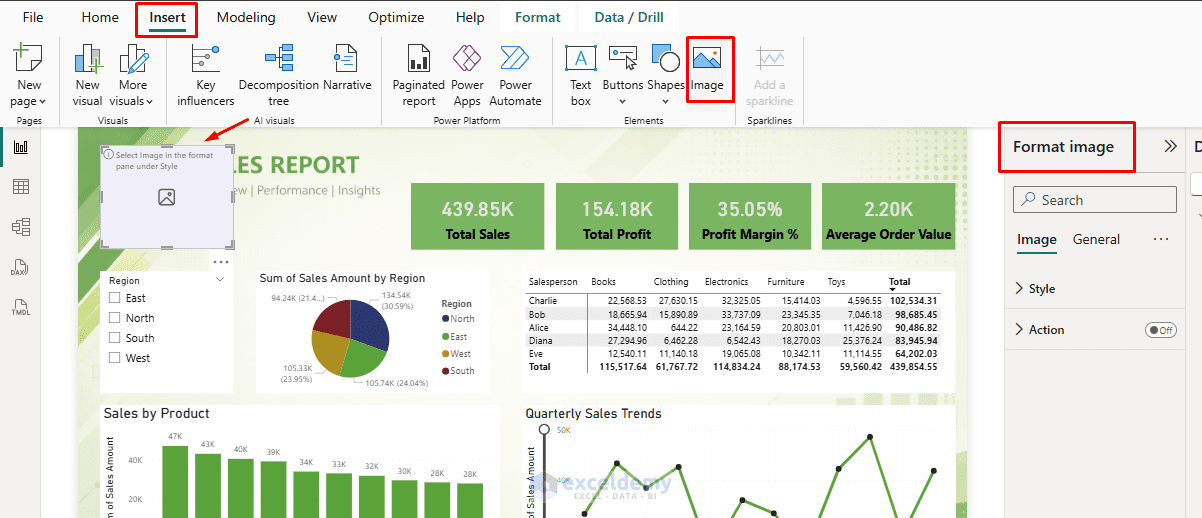
- Go to the Format Image pane >> select the Image menu
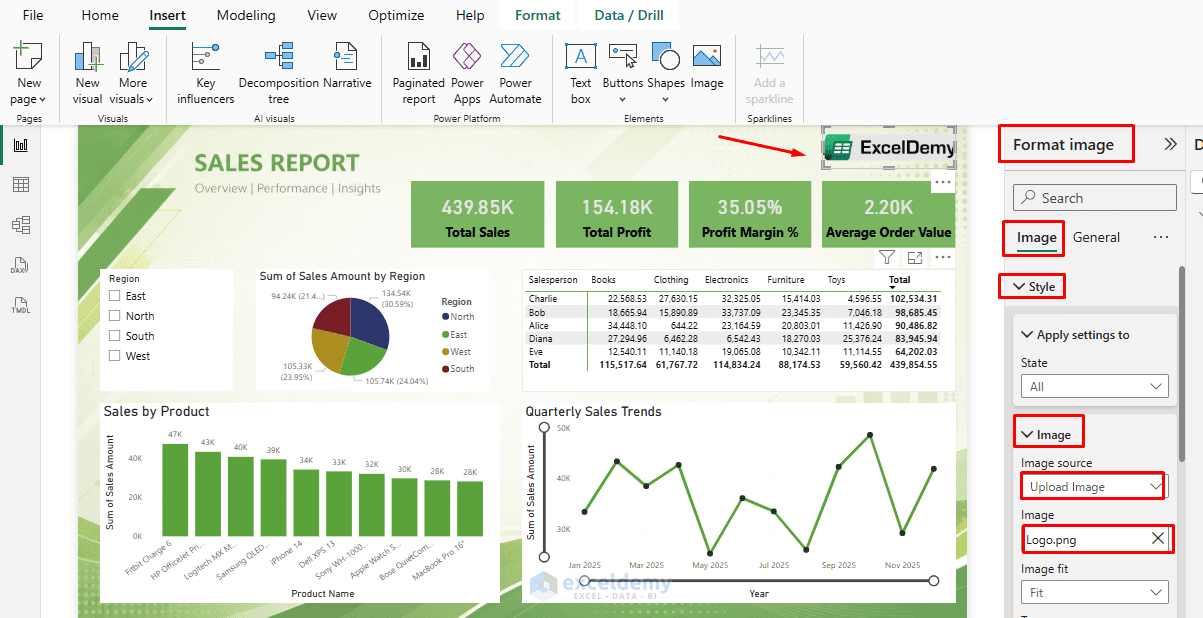
- Expand Style >> expand Image
- Select your Image Source >> browse and select your company logo file
- The image appears on the report canvas
Step 2: Resize and Position the Logo
- Drag to place it (e.g. top-right or top-left corner)
- Top-left: Corporate branding
- Top-right: Minimal design
- Center header: Presentation dashboards
- Hold Shift while dragging corners to maintain the aspect ratio (prevents distortion)
- Keep the logo:
- Small but visible
- Non-distracting
- Away from charts and slicers
- A width between 80 and 150 pixels usually works well
- Turn on the Lock aspect ratio option
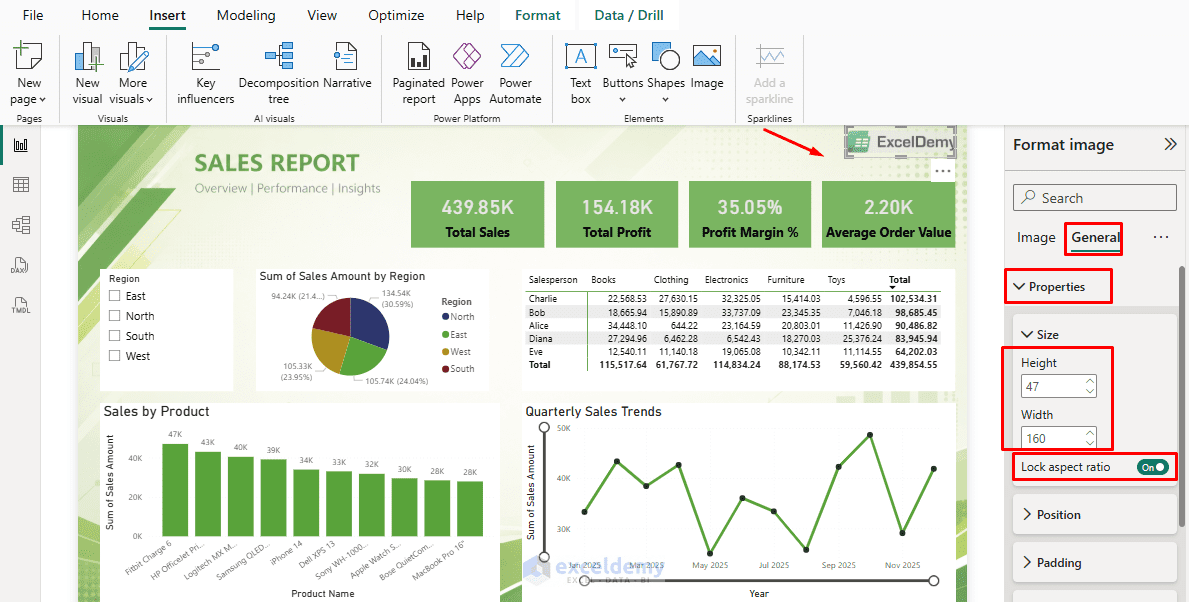
This helps maintain layout consistency and prevents the logo from being accidentally moved while you build out the rest of your report. You can unlock it anytime by right-clicking again.
Step 3: Format the Logo
- Select the logo
- Go to the Format Image pane >> select the Image menu
- Expand the Style option
- Adjust or add the following:
- Add a Border — useful if your logo has a white background and you want to frame it
- Set the Background to transparent
- Keep Shadow light for depth
- Control Alt text for accessibility
- Set padding to give the logo breathing room
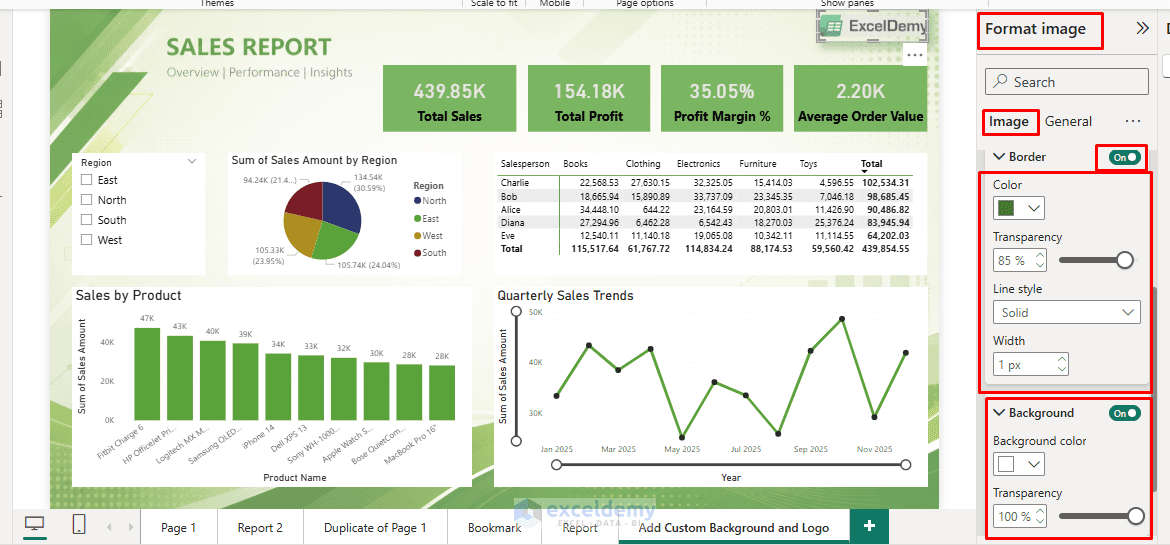
Final Dashboard:

- Make it Consistent Across Pages: Copy the logo (Ctrl+C) and paste (Ctrl+V) onto other pages, or duplicate the page.
- Advanced Option: For reusable branding, create a Power BI theme (.json) with an embedded background (via Base64), but the direct method above is sufficient for most users.
Publish and Check in Power BI Service
Once you have finished designing in Power BI Desktop:
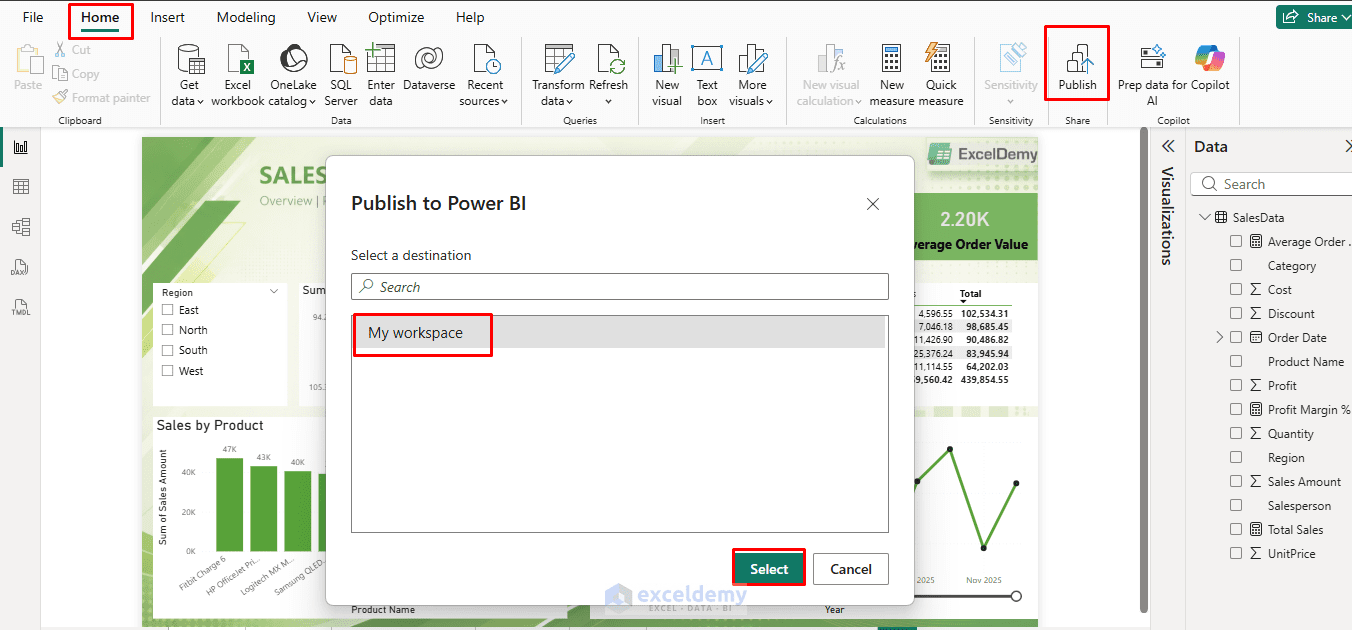
- Go to the Home tab >> select Publish
- Choose your workspace and confirm
- Open the report in your browser via app.powerbi.com
- Check that the background and logo render correctly
- Image paths or transparency settings can occasionally behave slightly differently in the browser view
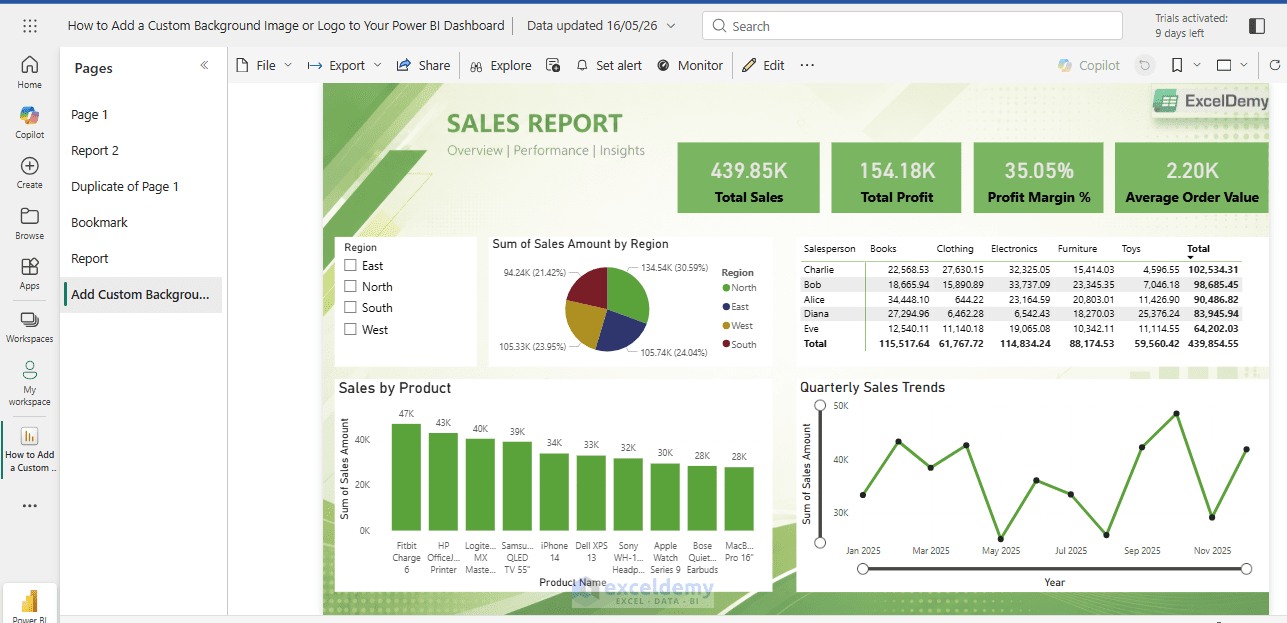
If the background appears missing in the service, re-open the report in Desktop, re-add the image, save, and republish.
Best Practices for a Professional, On-Brand Look
- Placement: Logos usually go in a corner. Backgrounds should enhance, not compete with, the data.
- Consistency: Use the same background and logo across all pages. Match colors to your brand palette (use Format > Colors).
- Readability first: Always check on different screen sizes. Use high-contrast visuals.
- Performance: Smaller file sizes load faster, especially in the Power BI Service.
- Mobile view: Switch to Phone layout (View > Mobile layout) and adjust placements.
- Avoid overload: One subtle background plus a logo is elegant. Do not add too many decorative images.
Common Issues and Fixes
- Image not showing? Ensure the file is not corrupted and try a different format.
- Blurry logo? Use a higher-resolution PNG.
- Background too dominant? Increase the transparency or lighten the image in an image editor.
Conclusion
Adding a custom background image or logo is one of the easiest ways to make a Power BI dashboard look polished and professional. The key is to keep the design simple — use a light background, place the logo carefully, and make sure the visuals remain easy to read. For most reports, the best approach is a subtle page background and a small PNG logo in the header. Your dashboards will feel cohesive and trustworthy, making them well-suited for presentations and stakeholder sharing.
Get FREE Advanced Excel Exercises with Solutions!

