


When a VBA macro runs for a long time, Excel may appear frozen, and it is one of the most frustrating experiences for developers. The screen stops responding, the title bar may show Not Responding, and users may think the workbook has crashed. In many cases, Excel is not actually broken. VBA is simply busy running the macro and does not have time to refresh the interface. The easiest way to reduce this problem is to use DoEvents inside long loops.
In this tutorial, we will show how to prevent Excel from freezing during VBA runs. You can use DoEvents to temporarily give control back to Excel so it can respond to clicks, refresh the screen, and process keyboard actions.
Why Excel Freezes During VBA Runs
Excel usually freezes when a macro performs repetitive tasks without giving Excel a chance to respond. This happens often when the code uses long loops, updates thousands of cells one by one, refreshes many formulas, or processes large datasets.
For example, this macro may make Excel appear frozen:
Sub UpdateStatus()

    Dim i As Long
    Dim lastRow As Long

    lastRow = Cells(Rows.Count, "A").End(xlUp).Row

    For i = 2 To lastRow
        Cells(i, 2).Value = Cells(i, 2).Value * 2
        If Cells(i, 2).Value >= 400000 Then
            Cells(i, 3).Value = "High Value"
        Else
            Cells(i, 3).Value = "Regular"
        End If
    Next i
End Sub
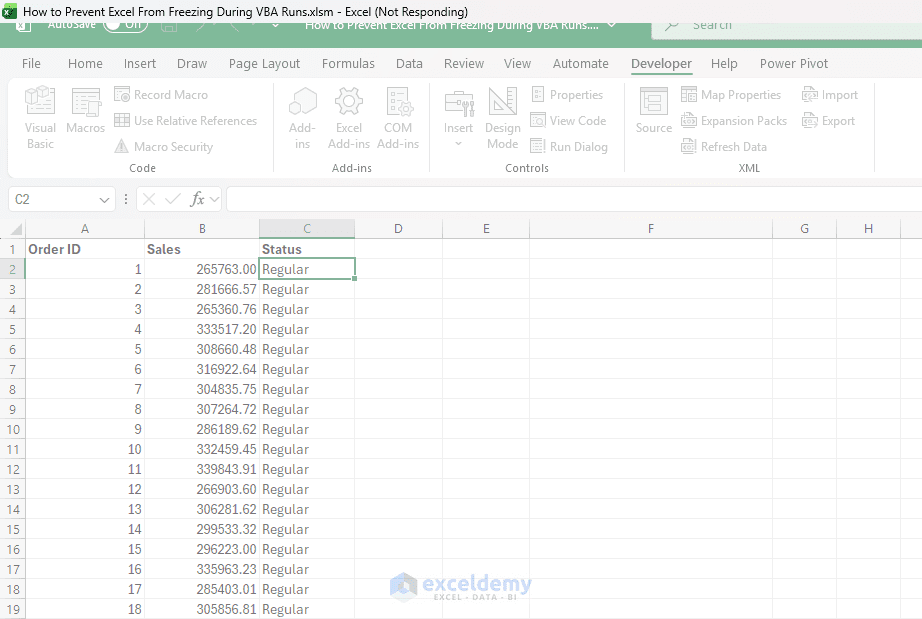
This code works, but since I have more than 20 thousand rows of data, Excel stops responding until the loop finishes.
1. Core Fix: Use DoEvents Inside the Loop
DoEvents is a VBA function that temporarily yields execution back to the operating system, allowing Excel to process any pending events in its queue before returning control to your macro. The DoEvents statement allows Excel to process pending actions while the macro is still running.
Sub DoEvents_UpdateStatus()

    Dim i As Long
    Dim lastRow As Long

    lastRow = Cells(Rows.Count, "A").End(xlUp).Row

    For i = 2 To lastRow
        Cells(i, 2).Value = Cells(i, 2).Value * 2
        If Cells(i, 2).Value >= 400000 Then
            Cells(i, 3).Value = "High Value"
        Else
            Cells(i, 3).Value = "Regular"
        End If

    DoEvents
    Next i

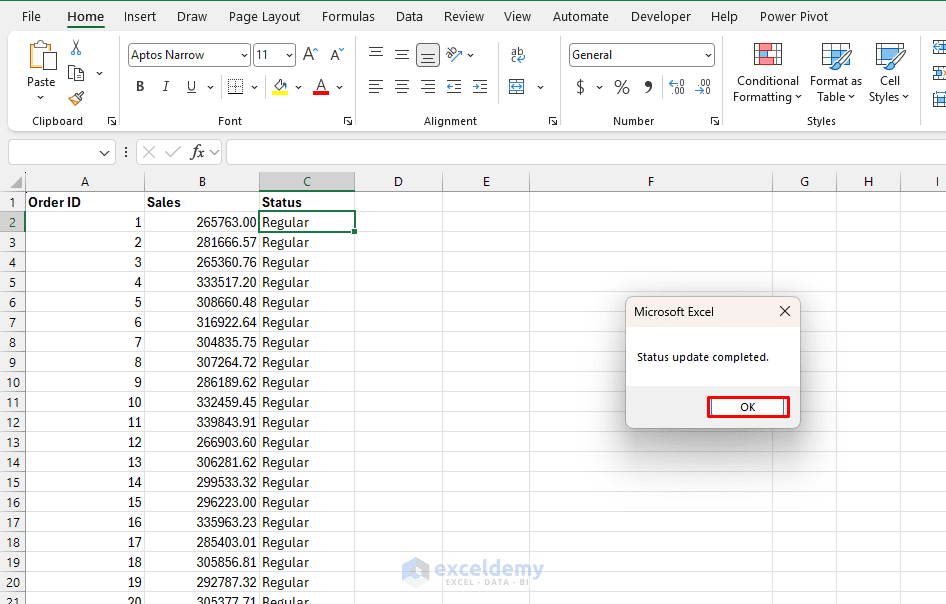
    MsgBox "Status update completed."
End Sub
Now Excel remains more responsive while the macro is running. After each iteration, DoEvents lets Excel handle repaints, respond to the task manager, and stay “alive” from Windows’ perspective.
2. Better Approach: Use DoEvents Every Few Rows
Calling DoEvents on every loop iteration introduces overhead that can significantly slow down your macro. The sweet spot is calling it every 100–500 rows, depending on how heavy each iteration is.
Sub DoEvents_WithIteration()

    Dim i As Long
    Dim lastRow As Long

    lastRow = Cells(Rows.Count, "A").End(xlUp).Row

    For i = 2 To lastRow
        Cells(i, 2).Value = Cells(i, 2).Value * 2
        If Cells(i, 2).Value >= 400000 Then
            Cells(i, 3).Value = "High Value"
        Else
            Cells(i, 3).Value = "Regular"
        End If

    If i Mod 500 = 0 Then
    DoEvents
    End If
    Next i

    MsgBox "Status update completed."

End Sub
This keeps Excel responsive without making the macro unnecessarily slow. This keeps the UI responsive without the performance penalty of constant yielding.
3. Show Progress While the Macro Runs
A major reason users think Excel has frozen is the lack of visible progress. The status bar can show that the macro is still working. Since the screen is not updating, users have no idea what is happening. Use the status bar to give live feedback; it updates independently of ScreenUpdating.
Sub DoEvents_ShowProgress()

    Dim i As Long
    Dim lastRow As Long

    lastRow = Cells(Rows.Count, "A").End(xlUp).Row
    For i = 2 To lastRow
        Cells(i, 2).Value = Cells(i, 2).Value * 2
        If Cells(i, 2).Value >= 400000 Then
            Cells(i, 3).Value = "High Value"
        Else
            Cells(i, 3).Value = "Regular"
        End If

    If i Mod 500 = 0 Then
    Application.StatusBar = "Processing row " & i & " of " & lastRow
    DoEvents
    End If
    Next i

    MsgBox "Status update completed."
    Application.StatusBar = False

End Sub
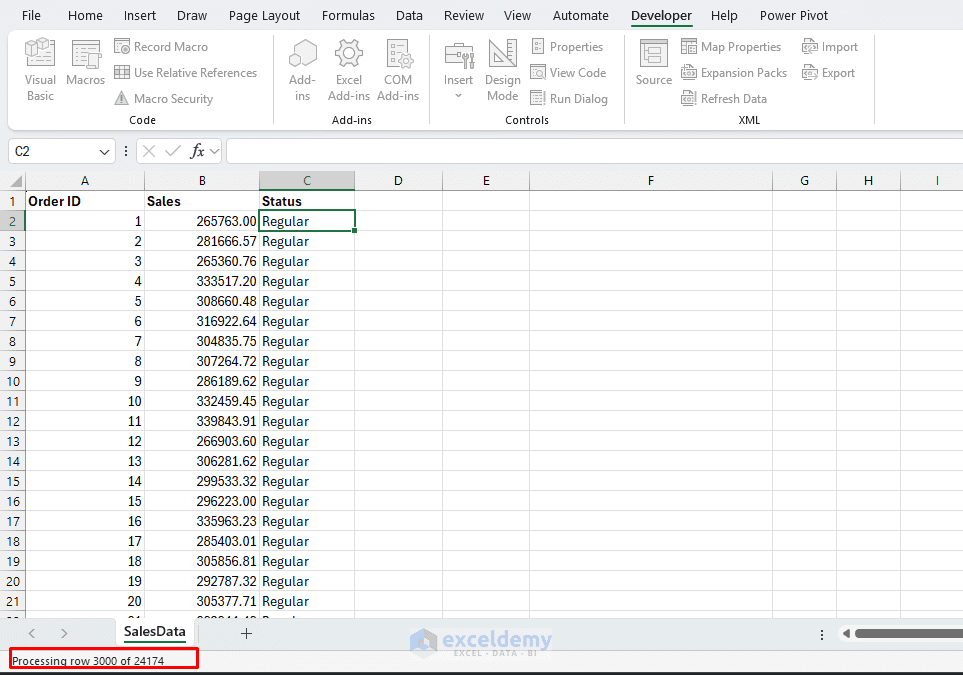
It will show a progress message at the bottom left of the Excel sheet, like Processing row 3000 of 24174.
4. Use DoEvents With ScreenUpdating Turned Off
DoEvents keeps Excel alive, but screen repainting is still expensive. Combine it with Application.ScreenUpdating = False for the best of both worlds: a responsive (non-frozen) application that is not wasting time redrawing cells on every change. Turning off screen updating can make VBA code faster. However, if the macro runs for a long time, Excel may look frozen because the screen is not refreshing.
Sub DoEvents_ScreenUpdateOff()

    Dim i As Long
    Dim lastRow As Long

    lastRow = Cells(Rows.Count, "A").End(xlUp).Row
    ' Disable screen repainting
    Application.ScreenUpdating = False
    Application.Calculation = xlCalculationManual
    Application.EnableEvents = False

    For i = 2 To lastRow
        Cells(i, 2).Value = Cells(i, 2).Value * 2
        If Cells(i, 2).Value >= 400000 Then
            Cells(i, 3).Value = "High Value"
        Else
            Cells(i, 3).Value = "Regular"
        End If

    If i Mod 500 = 0 Then
    Application.StatusBar = "Processing row " & i & " of " & lastRow
    DoEvents
    End If
    Next i

    MsgBox "Status update completed."

    'Always restore settings
    Application.ScreenUpdating = True
    Application.Calculation = xlCalculationAutomatic
    Application.EnableEvents = True
    Application.StatusBar = False

End Sub
This version improves performance by turning off unnecessary Excel actions during the macro.
The important settings are:
| VBA Setting | Purpose |
| Application.ScreenUpdating = False | Stops Excel from redrawing the screen repeatedly |
| Application.EnableEvents = False | Prevents event macros from running during the process |
| Application.Calculation = xlCalculationManual | Stops formulas from recalculating repeatedly |
| DoEvents | Allows Excel to remain responsive |
| Application.StatusBar | Shows progress to the user |
5. Use Error Handling to Restore Excel Settings
If a macro stops due to an error, settings like ScreenUpdating may remain turned off. Use an error handler to restore Excel properly. One common mistake is turning off Excel settings without turning them back on if an error occurs.
For example, if the macro stops suddenly, Excel may remain in manual calculation mode or with screen updating turned off.
Use error handling to restore the settings safely.
Sub DoEvents_ErrorHandling()

    Dim i As Long
    Dim lastRow As Long

    lastRow = Cells(Rows.Count, "A").End(xlUp).Row

On Error GoTo CleanExit

    ' Disable screen repainting
    Application.ScreenUpdating = False
    Application.Calculation = xlCalculationManual
    Application.EnableEvents = False

    For i = 2 To lastRow
        Cells(i, 2).Value = Cells(i, 2).Value * 2
        If Cells(i, 2).Value >= 400000 Then
            Cells(i, 3).Value = "High Value"
        Else
            Cells(i, 3).Value = "Regular"
        End If

    If i Mod 500 = 0 Then
    Application.StatusBar = "Processing row " & i & " of " & lastRow
    DoEvents
    End If
    Next i

    MsgBox "Status update completed."

CleanExit:

    'Always restore settings
    Application.ScreenUpdating = True
    Application.Calculation = xlCalculationAutomatic
    Application.EnableEvents = True
    Application.StatusBar = False

End Sub
6. Allow Users to Cancel a Long Macro
You can also let users stop a macro by pressing Esc or Ctrl + Break. DoEvents also makes it possible for the user to press Escape to cancel a long-running macro. Without it, Application.EnableCancelKey cannot fire.
Sub DoEvents_EscapeButton()

    Dim i As Long
    Dim lastRow As Long
    Dim cancelled As Boolean
    cancelled = False

    ' Allow Escape key to trigger error 18
    Application.EnableCancelKey = xlErrorHandler

 lastRow = Cells(Rows.Count, "A").End(xlUp).Row

    On Error GoTo UserCancelled

    On Error GoTo CleanExit

    ' Disable screen repainting
    Application.ScreenUpdating = False
    Application.Calculation = xlCalculationManual
    Application.EnableEvents = False

    For i = 2 To lastRow
        Cells(i, 2).Value = Cells(i, 2).Value * 2
        If Cells(i, 2).Value >= 400000 Then
            Cells(i, 3).Value = "High Value"
        Else
            Cells(i, 3).Value = "Regular"
        End If

    If i Mod 500 = 0 Then
    Application.StatusBar = "Processing row " & i & " of " & lastRow
    DoEvents
    End If
    Next i
    MsgBox "Status update completed."

UserCancelled:
    If Err.Number = 18 Then
        MsgBox "Macro cancelled at row " & i & ".", vbInformation
    End If

CleanExit:

    'Always restore settings
    Application.ScreenUpdating = True
    Application.Calculation = xlCalculationAutomatic
    Application.EnableEvents = True
    Application.StatusBar = False
End Sub
This is useful when the macro takes longer than expected. When the user presses Escape, VBA raises error 18, which your handler catches gracefully.
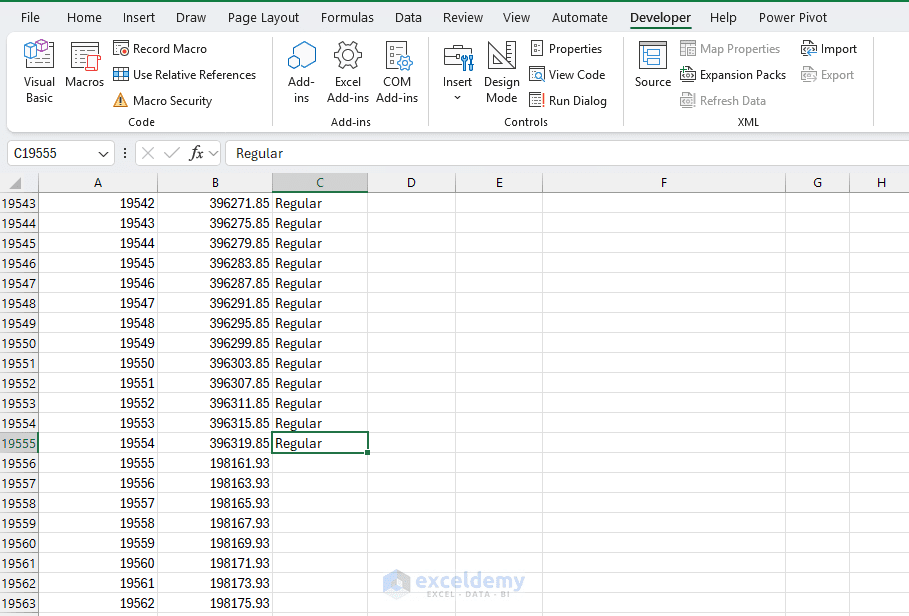
Best Practices to Prevent Freezing
- Use DoEvents inside long loops, but not on every single row unless necessary
- Update the status bar so users know the macro is still running
- Turn off ScreenUpdating, EnableEvents, and automatic calculation during heavy processing, but always turn them back on at the end
- For very large datasets, process data in arrays instead of writing to cells one by one
A Word of Caution About DoEvents
DoEvents is powerful but has one important side effect: it allows the user to interact with Excel while your macro is still running. This means they could:
- Click a cell and accidentally change a value that your macro is about to read
- Trigger another macro before the first one finishes
- Close the workbook mid-execution
Mitigate this by disabling the ribbon or protecting sheets during the run, or at a minimum, by setting Application.Interactive = False for truly critical operations (just remember to set it back to True).
Application.Interactive = False   ' Block user input

' ... critical section ...

Application.Interactive = True             ' Restore
Troubleshooting Checklist
- Still freezing? Add more frequent DoEvents calls (but not too frequent).
- Macro suddenly slower? Reduce DoEvents frequency.
- Crashes after adding DoEvents? Make sure you restore application settings in error handlers (On Error GoTo + cleanup style).
- Running on 64-bit Excel with huge data? Consider moving heavy logic to Power Query or a dedicated VB.NET/C# add-in.
- External calls (web requests, databases)? Always wrap with DoEvents after each call.
Conclusion
Excel freezes during VBA runs because long macros often do not give Excel time to refresh or respond. The DoEvents statement solves this by allowing Excel to process user actions during the macro. For best results, use DoEvents inside long loops, but not on every single iteration. Combine it with status bar updates, screen updating control, calculation control, and error handling. For very large datasets, also consider using arrays instead of writing to worksheet cells one by one.
Get FREE Advanced Excel Exercises with Solutions!

