

Closing connections and query panes can be troublesome; we can do this by a simple process, or it can be done by other means. In this article, we will discuss 2 simple ways to close the queries and connections pane in Excel with elaborate explanations.
Overview of Excel Power Query Editor
You can utilize Power Query, an Excel add-in, for ETL. To put it another way, you can get data from many sources, modify it, and then input it into the worksheet. Given that it has every option for transforming the data, Power Query can be referred to as a machine for data purification. It’s indeed real-time and keeps a record of every action you take.
Basic Component of Power Query
1. Collection of Data
Power Query enables you to retrieve information from a variety of sources, including the internet, CSV, text files, numerous workbooks in a folder, and many other places where data may be stored.
For example, this is data that has been saved in your sheet.
After that, you can load this data into an Excel file in which your Power Query is running.
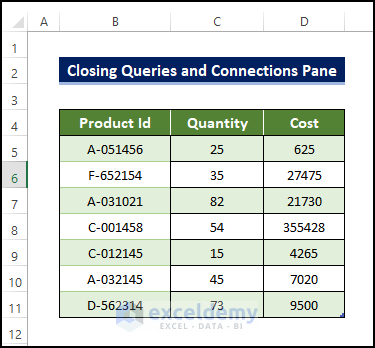
- Therefore, to load a dataset in power query, go to Data > Get Data > From File > From Excel Workbook.
- Then, locate the saved file location using the file explorer option.

Read More: Excel Connections vs Queries
2. Transform/Modify Data
After obtaining the data for the power query, you have a wide range of options for transforming and cleaning it. It generates queries for each action you take (in a sequence one step after another).
Just like the previous table, we load the second set of data.
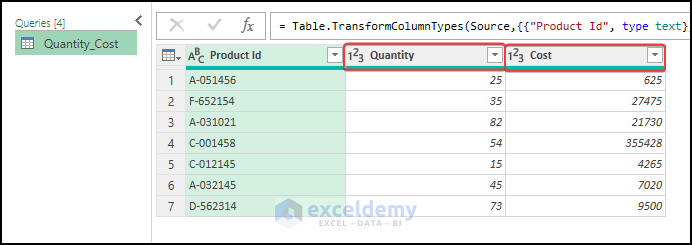
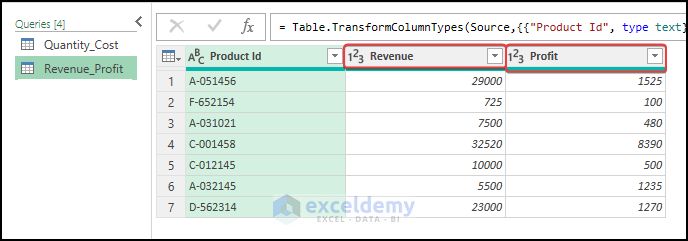
- After loading them, we can see the tables, and we need to merge them together.
- The first table is below.
- The second table is below.
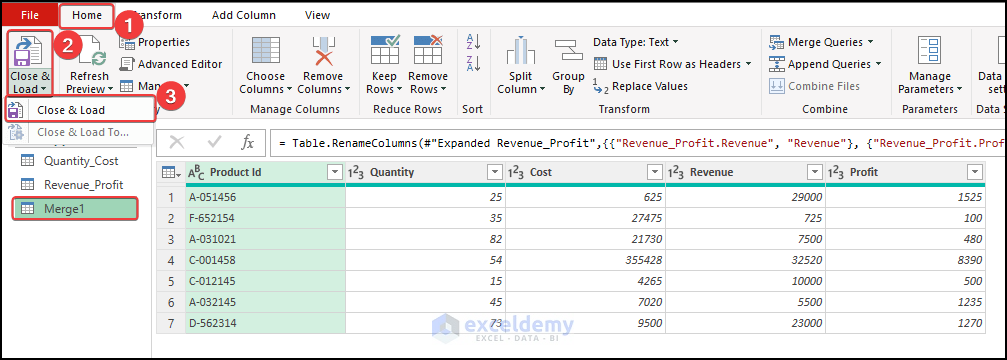
- Lastly, after merging them together in the power query, the newly modified table looks like the below image.

3. Load Data to Destination
You can import the transformed data into the worksheet via the power query editor, or you can immediately build a pivot table, a pivot chart, or just a data connection.
- Now, you can load the modified table to Excel. For this, go to Close and Load from the Home tab. And then click on Close & Load.
- After that, select the destination dataset in Excel.
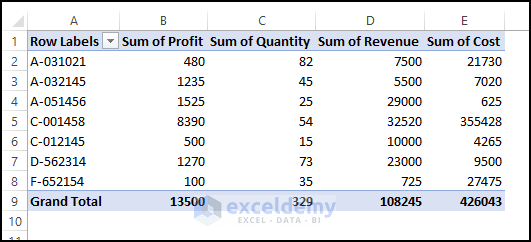
- Lastly, loading the dataset, the data will look like the below image.
Advantages of Using the Power Queries
- Separate Data Sources: To begin, you can import data from a variety of data sources, including CSV, TXT, JSON, and others, in a power query editor.
- Easy Data Transformation: Normally, you utilize formulae and pivot tables to transform data, but with POWER QUERY, you can do a lot with a few simple clicks.
- It’s Real-Time: Once you’ve written a query, you may update it whenever data changes, and it will convert the newly updated data.
Close Queries and Connections Pane in Excel: 2 Simple Ways
Closing Queries and Connections pane are as simple as closing other panes in Excel. Here, we demonstrated two separate ways using which we can close the Queries & Connections pane in Excel. To avoid any compatibility issues, try to use the Excel 365 edition.
1. Follow Traditional Approach to Close Queries and Connections Pane
We can close the Power Queries and Connections by simply pressing the cross sign in the corner of the Queries & Connection pane. Just like the following image.

Read More: How to Find External Data Connections in Excel
2. Close Queries and Connections Pane Through Excel VBA
You can implement a VBA macro to close the connections and queries pane. Which could drastically reduce the time required for closing the pane and make the process seamless.
Steps:
- Firstly, we have the Queries and Connections window pane open already.
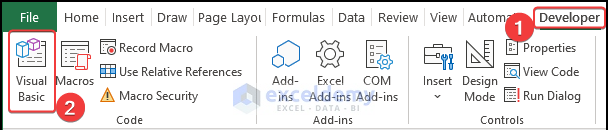
- To use a VBA Macro, go to Developer > Visual Basic.
- Subsequently, in the editor window, input the following code.
Sub Close_Queries_and_Connections()
Application.CommandBars("Queries and Connections").Visible = False
End Sub- Then, close the window and then go to the main worksheet.
- From there go to View > Macros > View Macros.

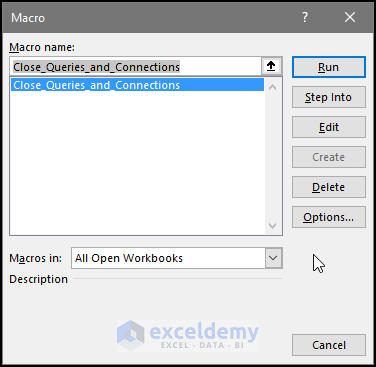
- A new window named Macro.
- Then, from there, select Close_Queries_and_Connections.
- After this, click Run.
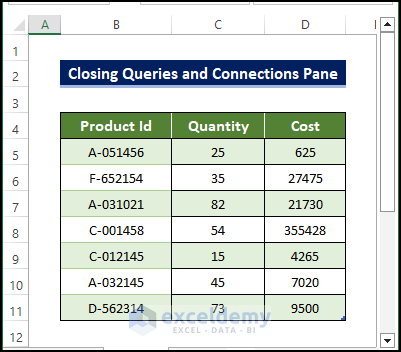
- Lastly, after clicking Run, you will notice that the window will vanish.
Read More: Excel VBA: How to Refresh All Data Connections
Download Practice Workbook
Download this practice sheet to practice while you are reading this article.
Conclusion
To sum it up, the issue of how to close queries and connections pane in Excel. For this problem, a macro-enabled workbook is available to download where you can practice these methods. Feel free to ask any questions or feedback through the comment section.
Related Articles
- How to Create Excel Data Connection to Another Excel File
- [Fixed!] External Data Connections Have Been Disabled in Excel
- How to Create a Data Source in Excel
- How to Refresh Data Connection in Excel Without Opening File
- Data Connection Not Refreshing in Excel
- Excel Queries and Connections Not Working
<< Go Back to Excel Data Connections | Importing Data in Excel | Learn Excel
Get FREE Advanced Excel Exercises with Solutions!

