

Excel is the most widely used tool for dealing with massive datasets. When we work in a group and share any Excel files, we often need to hide and unhide columns in Excel in the demand for clarity in information. In this article, I will show five examples of how to hide selected columns in Excel.
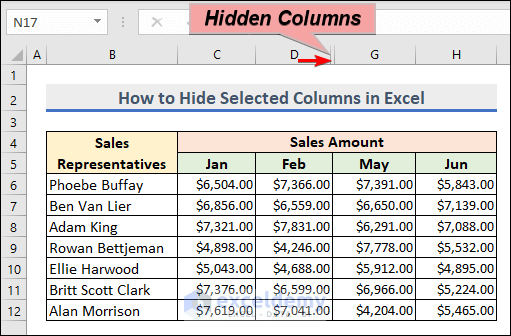
This is the overview dataset for today’s article. There are some Sales Representatives and their sales amount for the first 6 months. I will hide some of the columns to illustrate the methods.
Why Do We Need to Hide Selected Columns in Excel?
The ability to hide columns in Excel can be incredibly useful, as there are many reasons why you might want to keep certain details from being displayed. For instance:
- You may need to compare the data in non-adjacent columns by viewing them side-by-side.
- Your worksheet may contain helper columns with complex formulas that could potentially confuse other users.
- There may be columns containing sensitive information that you wish to keep from being viewed or edited by your colleagues. To accomplish this, you can learn how to lock cells and protect sheets.
How to Hide Selected Columns in Excel: 5 Useful Examples
1. Hide Selected Columns in Excel Using a Keyboard Shortcut
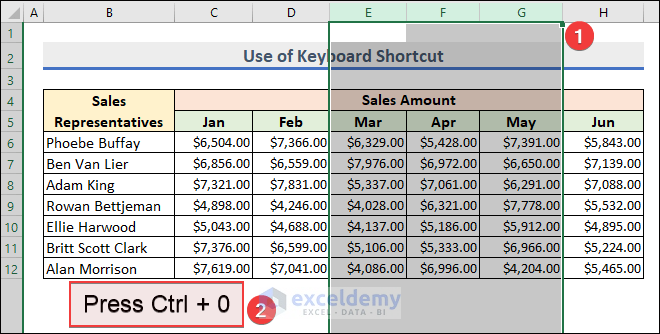
In this example, I will use a keyboard shortcut to hide selected columns in Excel. This time, I will hide three adjacent columns. You can hide non-adjacent columns as well using the keyboard shortcut. Let’s follow the instructions below to learn!
- Select columns E to G >> Press Ctrl + 0.
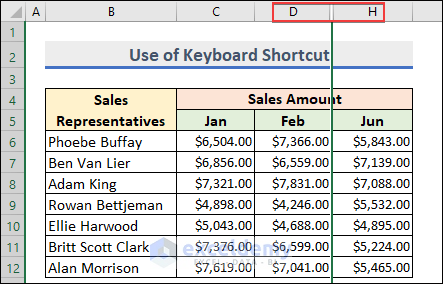
- As a result, Excel will hide the selected columns.
Notes:
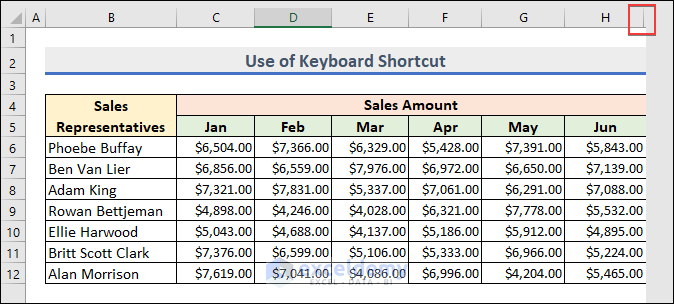
You can also hide the unused columns in Excel. To do that, Select the column that is immediately adjacent to the last data column >> Hit Ctrl + Shift + Right Arrow(→) to select the unused columns >> Press Ctrl + 0.
2. Use Context Menu to Hide Selected Columns in Excel
Now we will use the Context menu to hide selected columns in Excel. In this example, we will hide the selected multiple non-adjacent columns. You can also hide multiple adjacent columns using the Context menu. Hence, learn the process of doing the operation.
- Select entire column C >> Press and hold the CTRL key and select column E.
- Now right-click your mouse to bring up the Context menu >> Select Hide.
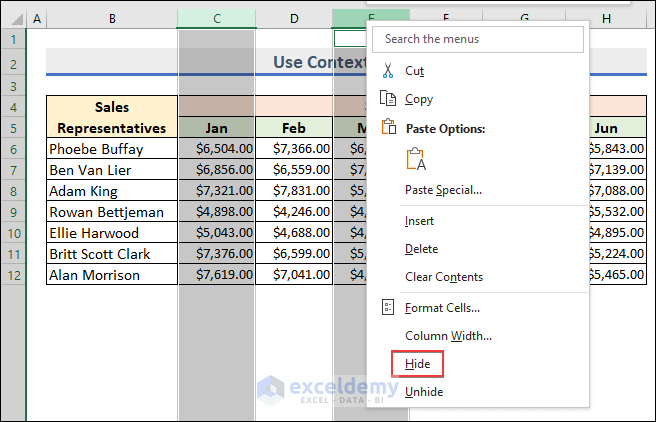
- You will be able to hide selected columns using the Context menu.

3. Use Format Command from Ribbon to Hide Selected Columns in Excel
In this example, we will learn how to hide multiple selected columns using the Format command from the ribbon. Applying the Format command from the ribbon, you can hide both adjacent and non-adjacent columns. Here we will hide adjacent columns E and F. Let’s follow the instructions below to learn!
- Select adjacent columns E and F.
- Home >> Cells >> Format >> Hide & Unhide >> Hide Columns
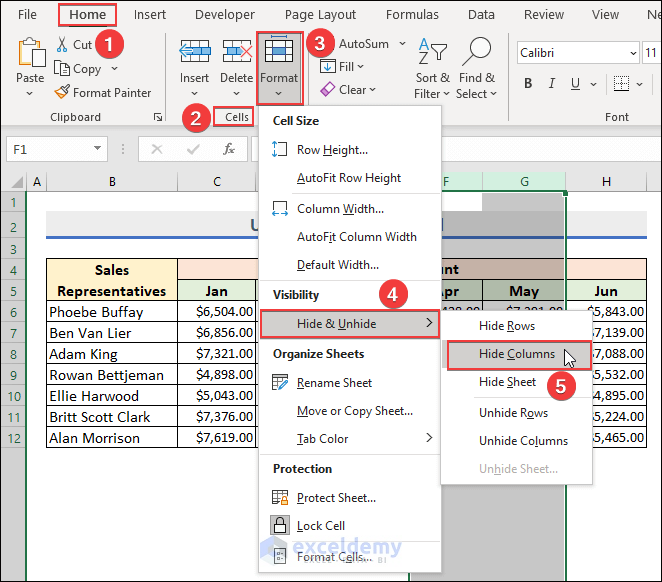
- Now Excel will hide the adjacent columns.
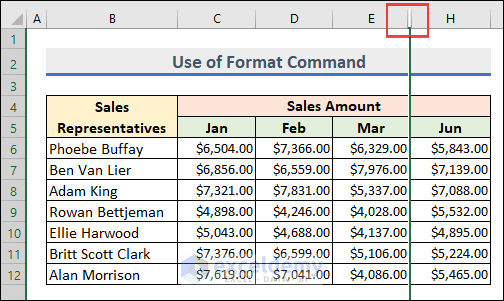
Note: You can hide a single column or multiple adjacent and non-adjacent columns in this method. You can also hide selected columns by setting Column Width to zero (0) from the Format command.
Read More: How to Hide Columns in Excel with Password
4. Run VBA Macro to Hide Selected Columns in Excel
Now, I will discuss how you can hide selected columns in Excel using a VBA Macro. VBA stands for Visual Basic Application. This is the programming language for Microsoft Excel. Using VBA code, we will hide both adjacent and non-adjacent columns. Let’s see how to do it.
- Press ALT + F11 to bring up the Visual Basic Application You can do this by selecting the Visual Basic feature from the Developer tab.
- After that, Select Insert >> Module.
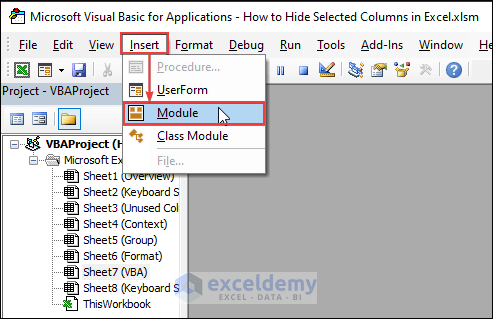
- Now, write down the following code in that Module, and press the Run button or press the F5 key to run the VBA code.
Sub Hide_Selected_Column()
Columns("C:D").Hidden = True
Columns("F").Hidden = True
End Sub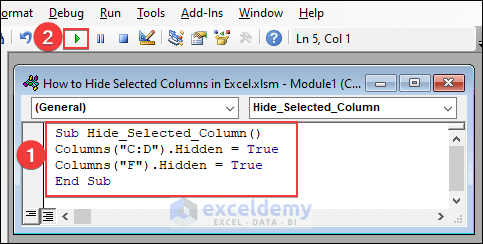
VBA Explanation
- Here, I have created a sub-procedure Hide_Selected_Column.
- Then, I selected the adjacent C and D
- After that, I set the hidden property to True.
- I did the same for a single column F.
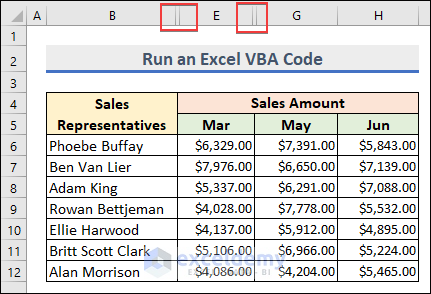
- As a result, you will be able to hide adjacent and non-adjacent columns simultaneously.
5. Apply Group Feature to Hide Selected Non-Adjacent Columns in Excel
In this section, I will hide columns using the Group feature. You can hide only adjacent columns by applying the Group feature. Let’s follow the instructions below to learn!
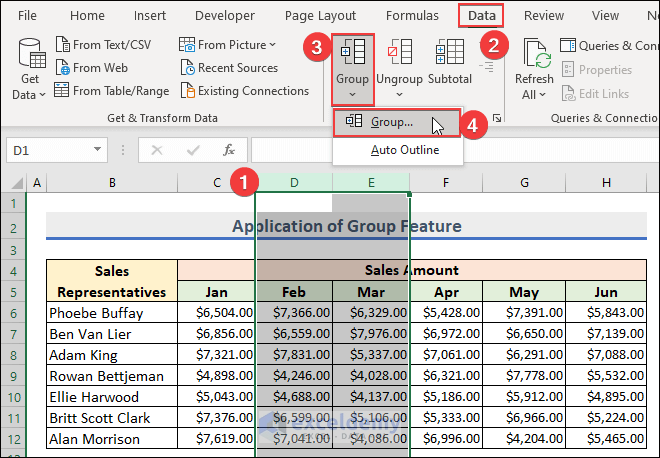
- Select adjacent columns D and E >> Data >> Outline >> Group >> Group
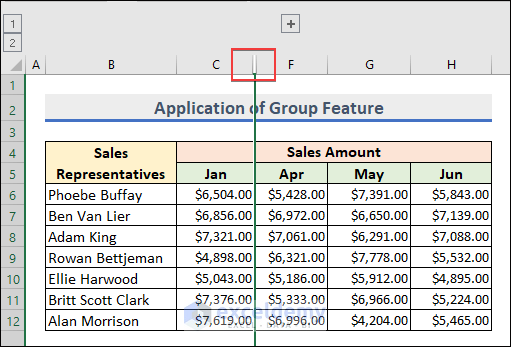
- After that, Excel will group the columns. Now, select the minus (–) sign.

- You can hide adjacent columns using the Group feature.
Notes:
- You can hide a single column in this method too.
- You can unhide the hidden columns by pressing the Plus(+) sign in the above screenshot.
- You can Group only adjacent columns but not those that are non-adjacent columns.
How to Unhide Columns in Excel
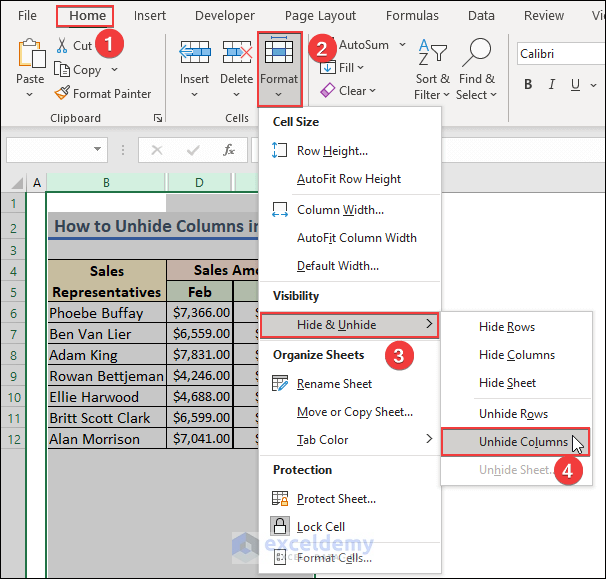
Now we will learn how to unhide columns in Excel using the Format command. Let’s see how to do it.
- Select your entire dataset, and then go to Home >> Cells >> Format >> Hide & Unhide >> Unhide Columns
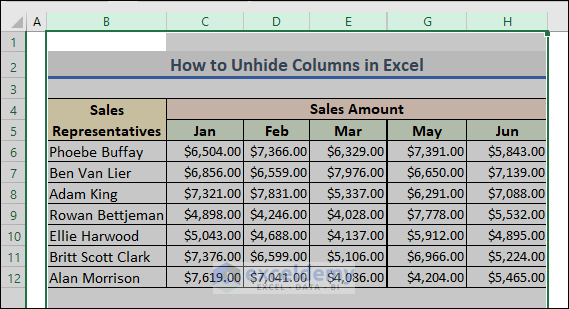
- Finally, you will be able to unhide the hidden columns.
Notes:
You can also unhide columns in Excel. To do that, select your desired dataset and apply the keyboard shortcut Alt + H + O + U + L.
How to Hide & Unhide Rows in Excel?
In this portion, we will use the keyboard shortcuts to hide and unhide rows in Excel.
Hide Rows
Here we will hide our selected rows. To do that, firstly, select your desired rows. Hence, press Ctrl +9.
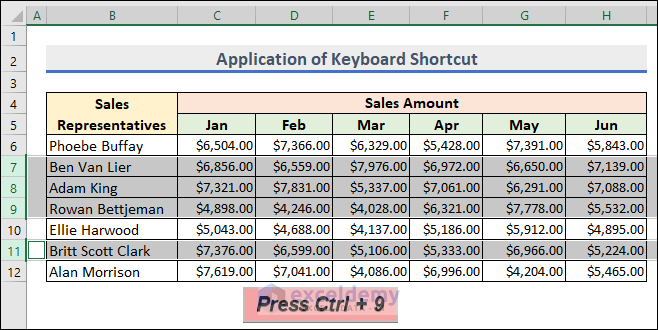
Excel will hide the selected rows.
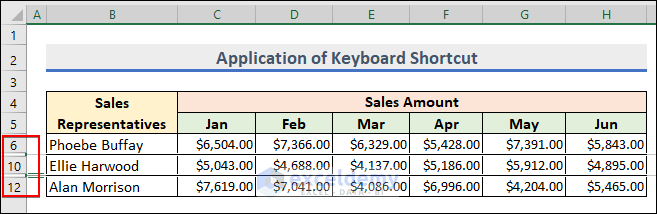
Notes:
We don’t need to select any row, rather selecting any cell from our desired row would be enough for hiding the row.
Unhide Rows
Now we will learn how to unhide rows in Excel. Let’s follow the instructions below to learn!
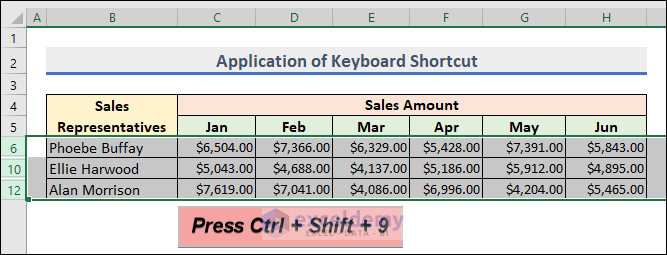
- To unhide our derided rows in Excel, we have to select both rows first, above and below the hidden row. That’s why we have selected rows 6 to 12.
- After that, press Ctrl + Shift + 9.
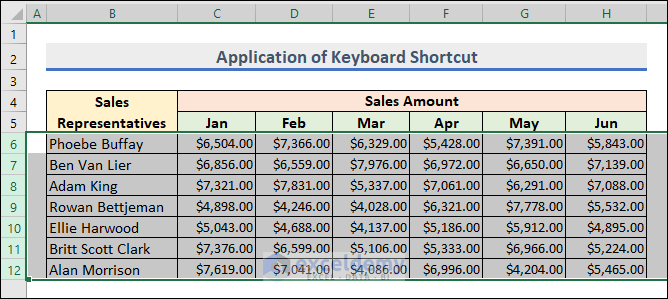
- Finally, you will be able to unhide rows.
Read More: How to Hide Columns in Excel with Minus or Plus Sign
Things to Remember
- Hidden columns can still be used in calculations and formulas, even if they are not visible on the worksheet.
- To unhide hidden columns, you can select the columns on either side of the hidden columns, right-click, and then click on “Unhide“. You can also use the keyboard shortcut “Ctrl + Shift + 0” to unhide hidden columns.
- If you want to hide multiple non-adjacent columns, you will need to select and hide each column individually, or you can use a VBA macro to automate the process.
- You cannot hide non-adjacent columns using the Group feature.
- To hide and unhide rows in Excel, you have to select both the immediate before and after rows.
Frequently Asked Questions
1. Can I password-protect hidden columns?
Answer: No, you cannot password-protect hidden columns in Excel. If you want to prevent other users from viewing or editing certain columns, you can use the Protect Sheet feature to lock the worksheet or specific cells.
2. How do I know if a column is hidden?
Answer: If a column is hidden, its column header will not be visible on the worksheet. To check if a column is hidden, you can try selecting the column on either side of it, or you can go to the Home tab and click on Format > Hide & Unhide > Unhide Columns. If the column is hidden, it will appear as a blank column with no data.
3. Can I hide more than rows and columns in Excel?
Answer: In addition to hiding rows and columns, you can also hide other elements in Excel such as gridlines, headings, and the formula bar. Here’s how to do it:
(i) To hide gridlines, go to the View tab and uncheck the Gridlines box in the Show group. Alternatively, you can use the keyboard shortcut Ctrl + Shift + 8 to toggle gridlines on and off.
(ii) To hide headings, go to the View tab and uncheck the Headings box in the Show group. Alternatively, you can use the keyboard shortcut Alt + W + V + H to toggle headings on and off.
(iii) To hide the formula bar, go to the View tab and uncheck the Formula Bar box in the Show group. Alternatively, you can use the keyboard shortcut Ctrl + Shift + U to toggle the formula bar on and off.
Download Practice Workbook
Download this practice workbook for practice while you are reading this article.
Conclusion
In this article, I have demonstrated 5 effective examples of how to hide selected columns in Excel. I hope it helps everyone. If you have any suggestions, ideas, or feedback, please feel free to comment below. Please visit Exceldemy for more useful articles like this.
Related Articles
- How to Group and Hide Columns in Excel
- How to Collapse Columns in Excel
- Excel Hide Columns Based on Cell Value without Macro
<< Go Back to Hide Columns | Columns in Excel | Learn Excel
Get FREE Advanced Excel Exercises with Solutions!

