

This article illustrates 3 different methods to get the last day of the current, past, or future month from a specific starting date using VBA code in Excel. We’ll use built-in VBA functions in our code to get the last day of a month with proper examples.
Excel VBA to Get the Last Day of Month: 3 Methods
To get the last day of the month, we’ll use several VBA functions and properties in our code. The following section describes how to open and write code in the visual basic editor.
Write Code in Visual Basic Editor:
Follow the steps to open the visual basic editor and write some code there.
- Go to the Developer tab from the Excel Ribbon.
- Click the Visual Basic option.

- In the Visual Basic For Applications window, click the Insert dropdown to select the New Module.

Now that a new module is opened, write some code there and press F5 to run.
1. Use the VBA EoMonth Function to Get the Last Day of Month in Excel
By using the WorksheetFunction.EoMonth method in our VBA code, we can get the last day of a specific month. The syntax of the method is-
expression.EoMonth(Arg1, Arg2)
Here,
- expression is a variable that represents a WorksheetFunction object.
- Arg1 is a required parameter. We need to put the starting date properly with the DATE function or it should be the output of a function or a consequence of a formula.
- Arg2 is also a required parameter. With this, we can set the month from where the function will look for the last day. Positive, negative, and zero as the Arg2 value represents the future, past, and current month respectively.
Read More: Get the First Day of the Current Month in Excel
1.1 Last Day of the Current Month
Put the following code in the visual basic editor to get the last day of the current month in cell C5 of a specific date (2nd Feb 2022) in cell B5.
Sub LastDayOfCurrentMonth()
    Dim LDay As Double
    LDay = Application.WorksheetFunction.EoMonth(Range("B5"), "0")
    Range("C5") = VBA.Format(LDay, "mm/dd/yyyy")
End Sub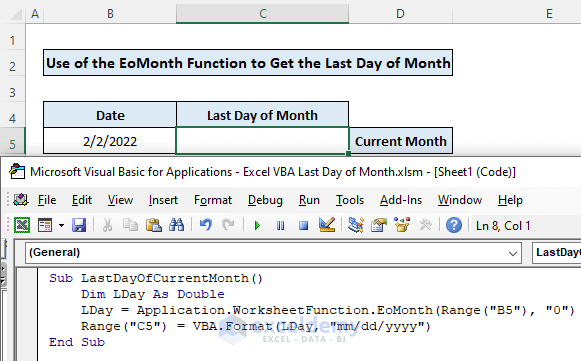
Now press F5 to run the code to get the output.
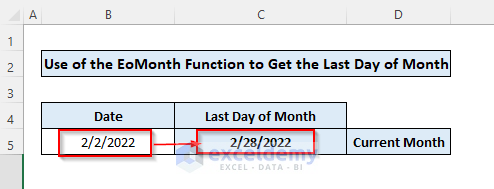
Code Explanation:
- In this code, we put 0 as the Arg2 to get the last day of the current month.
- We took a variable to hold the output of the code.
WorksheetFunction.EoMonth(Range("B5"), "0")Which is a date in the form of a serial no. That’s why we used the VBA Format function to set our desired date format (here, “dd/mm/yyyy”).
1.2 Last Day of the Next Month
We just need to put a positive number to get the last day of a future month from the starting date. For example, we’re going to find out the last day of the next month of the date (2nd Feb 2022) in cell B5. For the next month i.e., one month after the starting date, we need to put 1 as our Arg2 in the code. Let’s run the following code to accomplish the task.
Sub LastDayOfNextMonth()
    Dim LDay As Double
    LDay = Application.WorksheetFunction.EoMonth(Range("B5"), "1")
    Range("C6") = VBA.Format(LDay, "mm/dd/yyyy")
End Sub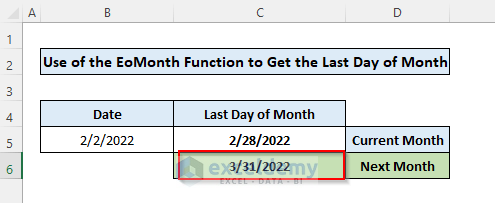
In cell C6, we’ve got the last day of the next month i.e., 31st March 2022 from the date 2nd Feb 2022.
1.3 Last Day of the Previous Month
Similarly, we need to put a negative number to get the last day of a month that is already passed away from the starting date. For example, we’re going to find out the last day of the previous month of the date in cell B5 (2nd Feb 2022). For the previous month, we need to put -1 as our Arg2 in the code. Let’s run the following code to accomplish the task.
Sub LastDayOfPreviousMonth()
    Dim LDay As Double
    LDay = Application.WorksheetFunction.EoMonth(Range("B5"), "-1")
    Range("C7") = VBA.Format(LDay, "mm/dd/yyyy")
End Sub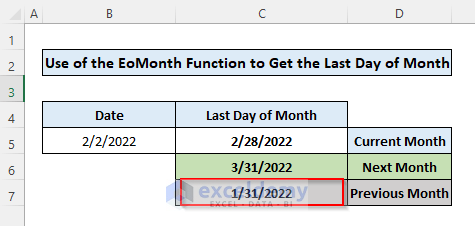
In cell C7, we’ve got the last day of the previous month i.e., 31st Jan 2022 from the starting date 2nd Feb 2022.
Read More: Excel VBA: First Day of Month
2. Get the Last Day of Month Using the VBA DateSerial Function in Excel
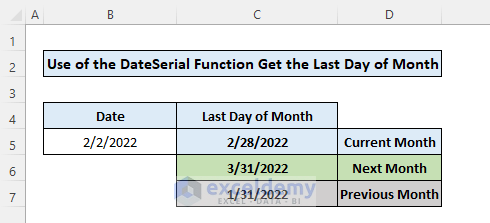
The VBA DateSerial function returns a date using predefined values of the year, month, and date. In this example, we’re going to use this function to get the last day of a specific month based on input data. Here in cell B5, we have a date of 2nd Feb 2022. In cells C5:C7 we’ll output the last day of the current month, next month, and previous month using the DateSerial function in our VBA code. Let’s put the following code in the visual basic editor.
Sub LastDayOfMonth()
strDate = DateValue(Range("B5"))
Range("C5") = DateSerial(Year(strDate), Month(strDate) + 1, 0)
Range("C6") = DateSerial(Year(strDate), Month(strDate) + 2, 0)
Range("C7") = DateSerial(Year(strDate), Month(strDate), 0)
End Sub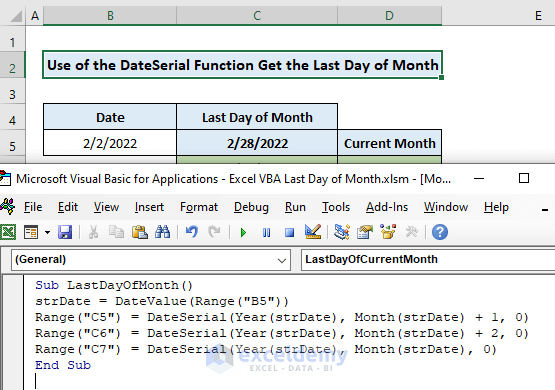
Run the code by pressing F5 on your keyboard and here is the output.
Read More: How to Calculate First Day of Previous Month in Excel
3. Use of VBA Now Function to Get the Last Day of Current Month in Excel
In this example, we’ll use the VBA Now function along with the EoMonth function to get the last day of the current month. The Now function returns the current date and time that we’re going to use the input of the EoMonth function. The necessary code to run is here below.
Sub LastDayOfCurrentMonth()
    Dim LDay As Double
    LDay = Application.WorksheetFunction.EoMonth(Now(), "0")
    Range("C5") = VBA.Format(LDay, "mm/dd/yyyy")
End Sub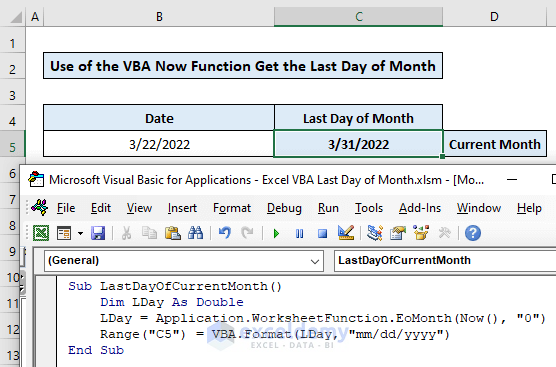
Read More: How to Get First Day of Month from Month Name in Excel
Notes
- To view the code associated with 3 different methods, click the right button on the sheet name and select the View Code option.

Download Practice Workbook
Download this practice workbook to exercise while you are reading this article.
Conclusion
Now, we know how to get the last of the current, past, and future months with 3 different methods. Hopefully, it would help you to use these methods more confidently. Any questions or suggestions don’t forget to put them in the comment box below.
Related Articles
- How to Get Last Day of Previous Month in Excel
- Excel Formula for Current Month and Year
- Excel Formula to Find Date or Days for Next Month
- How to Convert Month to Number in Excel
- Convert 3 Letter Month to Number in Excel
<< Go Back to Excel MONTH Function | Excel Functions | Learn Excel
Get FREE Advanced Excel Exercises with Solutions!

