

Weighted average is one kind of average that includes the varying degrees of importance of numbers in a dataset. In order to calculate weighted average price in Excel, each number is multiplied by the predetermined weight before the final calculation.
For more clarification, we are going to use a dataset containing Product, Price, and Quantity (as Weight) columns.
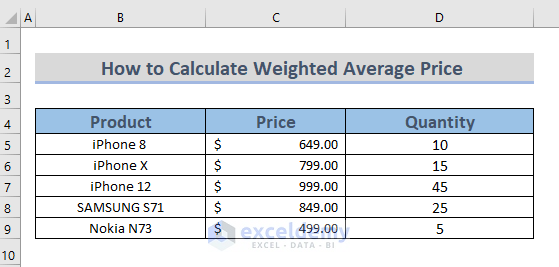
Calculate Weighted Average Price in Excel: 3 Easy Ways
1. Employing Generic Formula to Calculate Weighted Average Price
We can calculate weighted average price quite easily by employing the generic Formula. Actually, generic formula is a mathematical operation. It does not use any in-built functions or processing either.
Steps:
- Select a cell to have the Weighted Average. Here, I selected cell C11.
- Input the following formula.
=(C5*D5+C6*D6+C7*D7+C8*D8+C9*D9)/(D5+D6+D7+D8+D9)Here, the Price with the connected Quantity is multiplied and the summation of them is calculated. Then, the summation is divided by the summation of weights which is mentioned in the Quantity column.
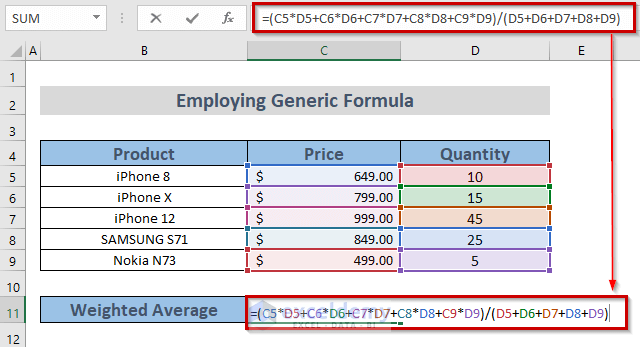
- Press ENTER.
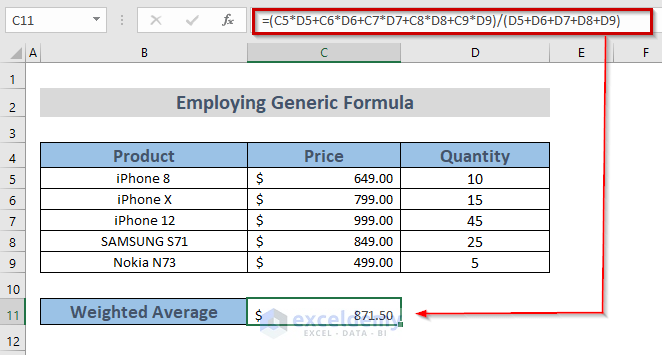
We can see the result on the selected cell.
2. Using SUM Function to Calculate Weighted Average Price
The use of the SUM Function is another easy way to calculate weighted average price.
Steps:
- Firstly, select a cell to have the Weighted Average. Here, I selected cell C11.
- Employ the SUM Function.
=SUM(C5:C9*D5:D9)/SUM(D5:D9)Here, I selected the Price range C5 to C9 and the Quantity range D5 to D9 to multiplicate. Finally, the added result of the multiplications is divided with the summation of Quantity ranging from D5 to D9.

- Then, press ENTER if you are using OFFICE 365/2021. Otherwise, press CTRL + SHIFT + ENTER.
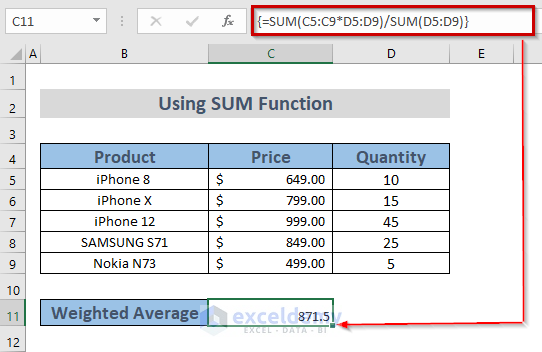
We can have the desired result in front of our eyes.
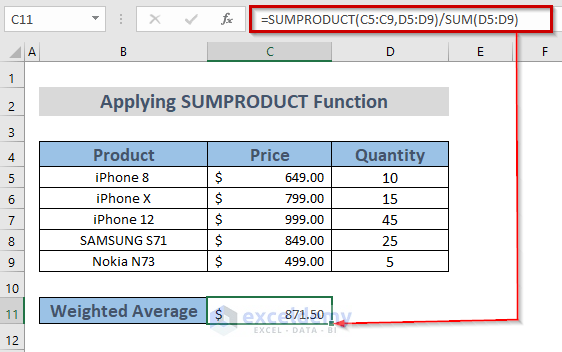
3. Applying SUM & SUMPRODUCT Functions to Calculate Weighted Average Price
Application of the SUMPRODUCT Function along with the SUM function is another cool way to calculate the weighted average price.
Steps:
- Choose a cell to have the Weighted Average. Here, I chose cell C11.
- Apply the SUMPRODUCT function.
=SUMPRODUCT(C5:C9,D5:D9)/SUM(D5:D9)Here, I selected the Price range C5 to C9 and Quantity range D5 to D9 to apply the SUMPRODUCT Function. Finally, the result is divided with the summation of Quantity ranging from D5 to D9.

- Hit ENTER to have the result.
Practice Section
You can practice here for more expertise.

Download Practice Workbook
Conclusion
I have tried to articulate 3 ways how to calculate weighted average price in Excel. I hope it will be helpful for Excel users. For any more questions, comment below.
Related Articles
- Calculate Conditional Weighted Average with Multiple Conditions in Excel
- Assigning Weights to Variables in Excel
- How to Calculate Weighted Average with Percentages in Excel
- How to Calculate Weighted Moving Average in Excel
<< Go Back to Weighted Average Excel | How to Calculate Average in Excel | How to Calculate in Excel | Learn Excel
Get FREE Advanced Excel Exercises with Solutions!

