

To Recover Permanently Deleted Excel Files Online, an external tool is necessary: Stellar Data Recovery is an example. You can download it from the stellarinfo.com website.
STEP 1: Scan the Source Drive
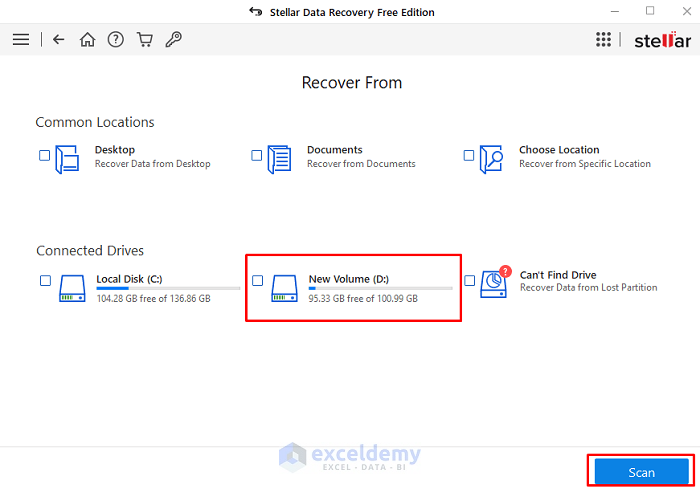
- Open Stellar Data Recovery and select the driver where the file was saved.
- Here, D.
- Click Scan.
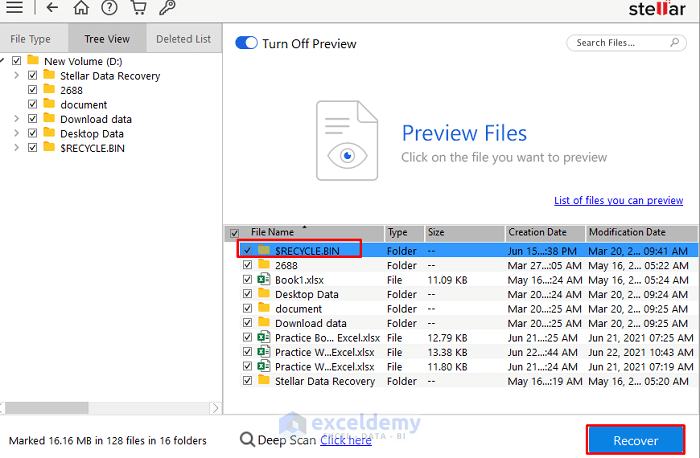
STEP 2 – Select the Folder and the File
- Double-click $RECYCLE.BIN.
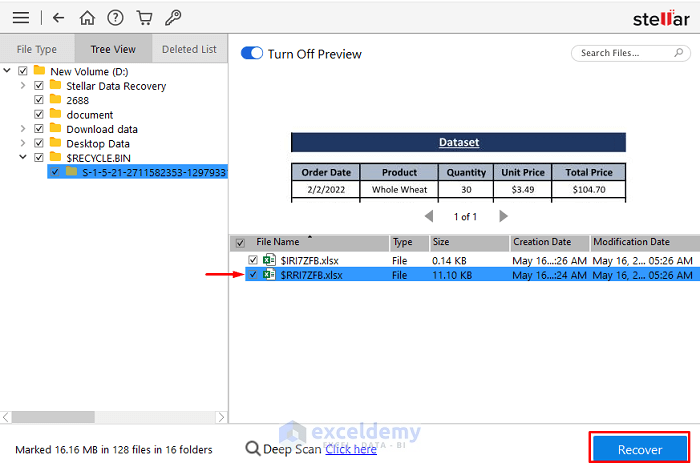
- Select the file and click Recover.
STEP 3 – Choose the Destination
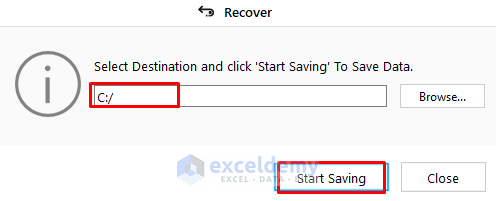
- In the Recover dialog box, select a destination drive and folder.
- Click Start Saving.
The deleted file is restored.
Final Output
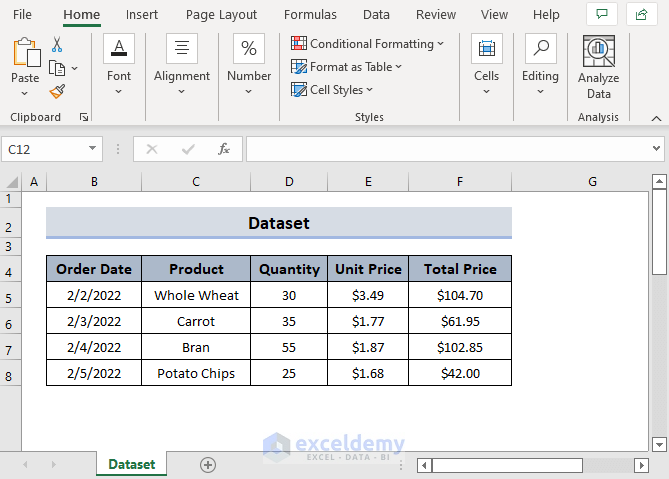
This is the previously deleted Excel file:
How to Recover Permanently Deleted Excel Files Manually
1. Recover Permanently Deleted Excel Files from the Recycle Bin
STEPS:
- Go to the Recycle Bin.

- Choose your file and right-click.
- Select Restore.
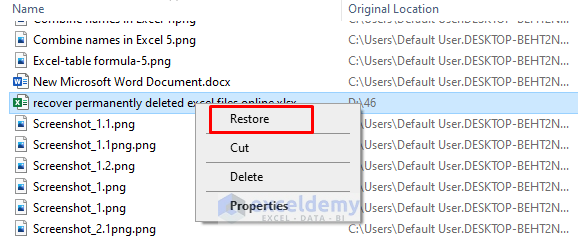
You’ll get your file back.
Read More: How to Recover Corrupted Excel File
2. Apply the Restore Option
STEPS:
- Locate the folder where you saved the Excel file.
- Right-click and choose Restore previous versions.
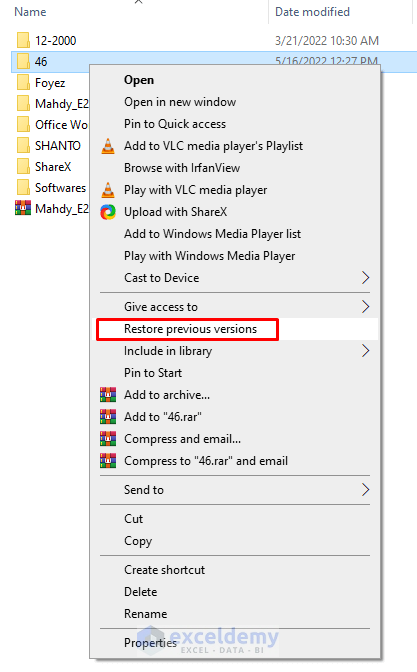
- In the Properties dialog box, you’ll see the available versions of your Excel file.
- Select a version and click Restore.
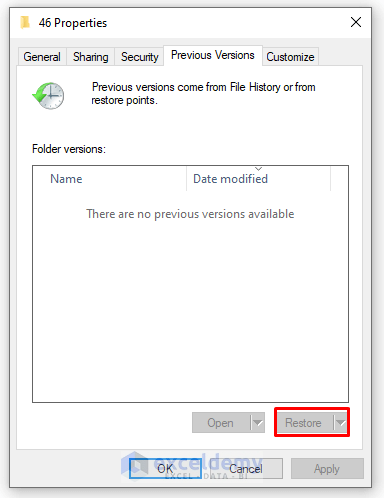
The deleted file is displayed in its original folder.
Read More: How to Recover Corrupted Excel Files from USB
3. Use the Taskbar Search
STEPS:
- Enter restore file in the Taskbar Search.
- Select Restore your files with File History.
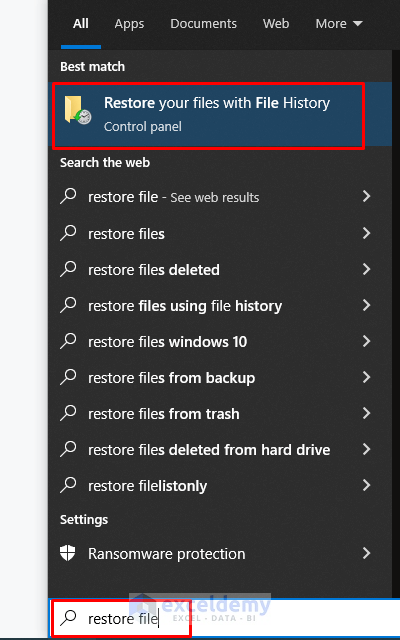
- In the File History dialog box, you’ll see your files.
- Select the file.

The deleted file is displayed.
4. Restore Unsaved deleted Files using the Excel File Info
STEPS:
- Go to the Excel File tab.
- Select Info.
- Click Recover Unsaved Workbooks in Manage Workbook.
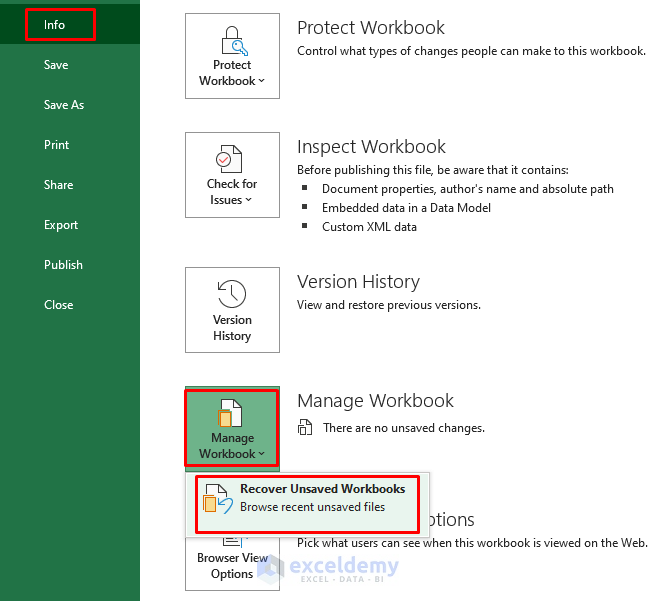
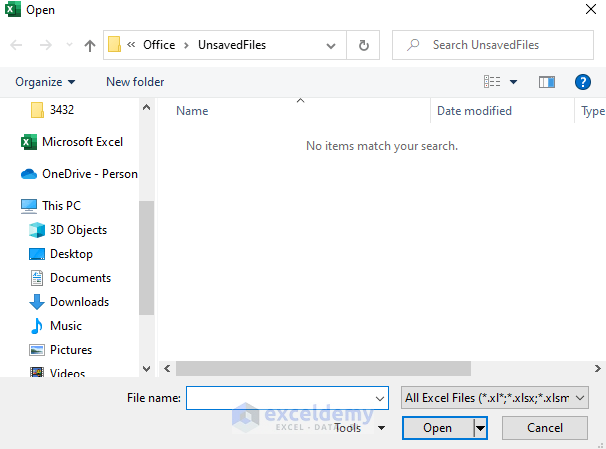
You’ll see Unsaved Files.
- Open the file and save it.
Download Practice Workbook
Download the following workbook and practice.
Related Articles
- How to Find Backup Files in Excel
- How to Auto Backup Excel File
- How to Undo Changes in Excel after Save and Close
- How to Recover Excel File after Crash
- How to Recover Overwritten Excel File with No Previous Version
- How to Recover Previous Version of Excel File
- [Fixed:] Unsaved Excel File Not in Recovery
- How to Backup Excel Files to a Flash Drive
<< Go Back to Recover Excel File | Excel Files | Learn Excel
Get FREE Advanced Excel Exercises with Solutions!

