

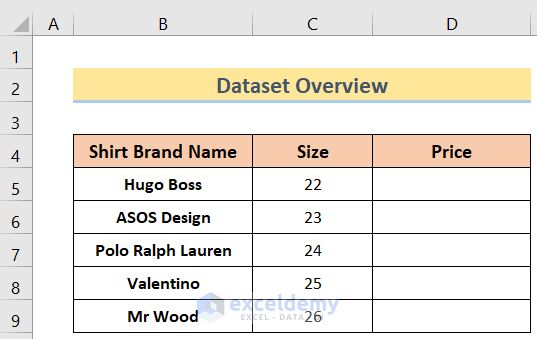
We’ll use the following sample dataset, which contains Shirt Brand Names in Column B, Sizes in Column C, and Prices in Column D.
Method 1 – Using a Data Validation Value Range
If we want to record the age of customers in a cell range, we can set the Data Validation to accept numerical values only, set upper and lower limits for a particular type of data, and return a message to the user about why the data was not accepted and how to resolve the issue.
Steps:
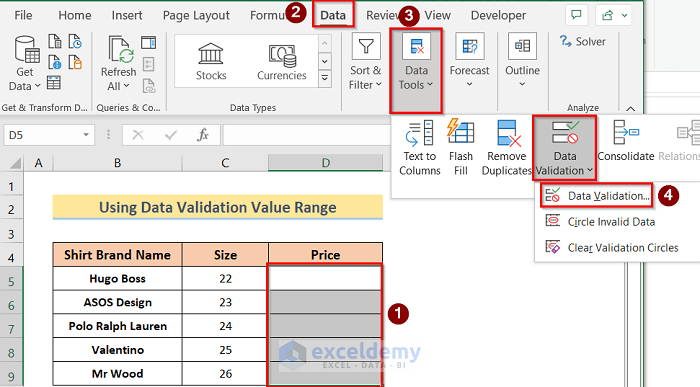
- Select the range Size.
- Click the Data Tab.
- Click Data Tools.
- Select Data Validation from the drop-down list.
- Select Data Validation from the Data Validation drop-down list.
The Data Validation window will pop up on the screen.
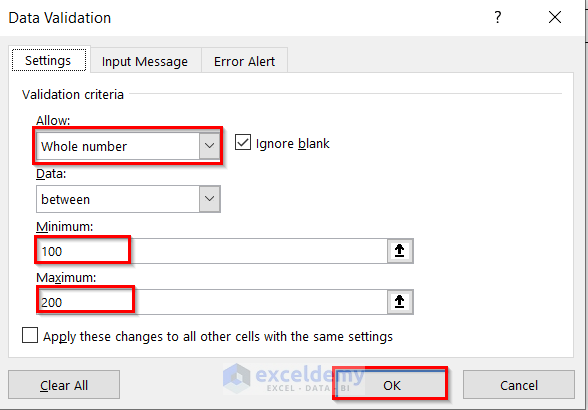
- Click the Settings tab.
- Select Whole Number under Validation Criteria Allow.
- Select between under Data.
- Enter 100 as Minimum.
- Enter 200 as Maximum.
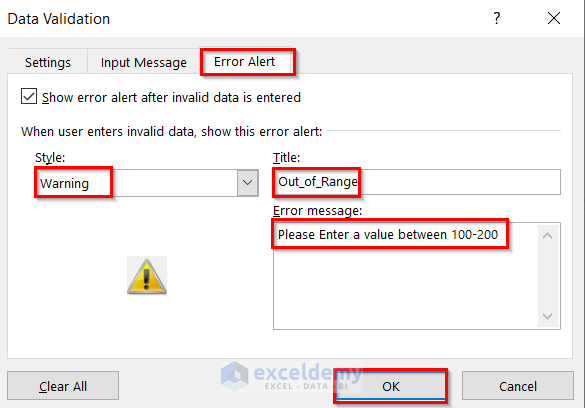
- Click the Error Alert tab.
- Select Warning from the Style drop-down menu.
- Put Out_of_Range as Title.
- Enter “Please Enter a value between 100–200” for Error message.
- Press OK.
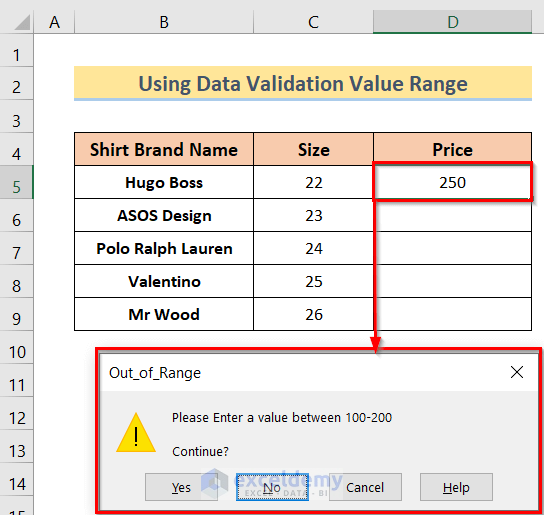
If you enter a value outside the accepted range (100 to 200), the warning message will display.
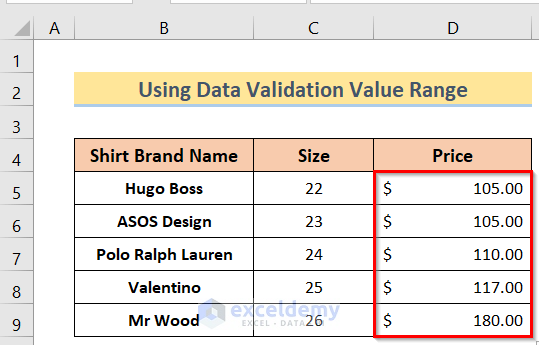
- Enter values into the other cells in column D manually. Only values within the range 100 to 200 will be accepted.
Method 2 – Using a Data Validation Custom Formula
Steps:
- As in the previous method, select the range Size and choose Data Validation.
The Data Validation window will pop up on the screen.
- In the Settings tab, select Custom under Allow.
- Enter the following formula under Formula:
=AND(D5>=100,D5<=200)
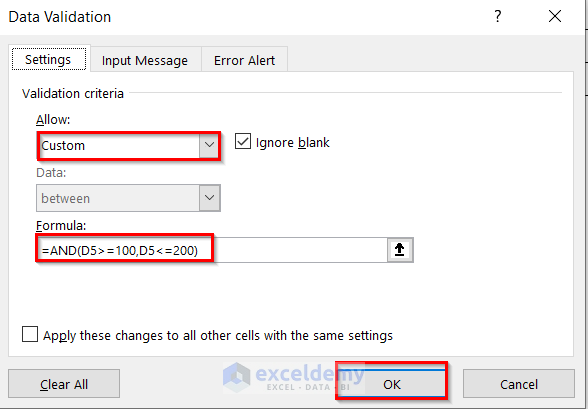
- Click OK,
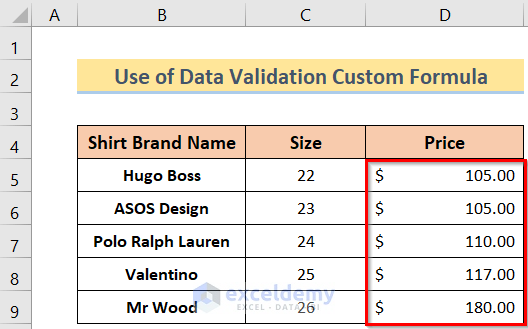
- Start inserting values manually in column D.
Only values within the range will be accepted.
Method 3 – Using the MAX Function
Steps:
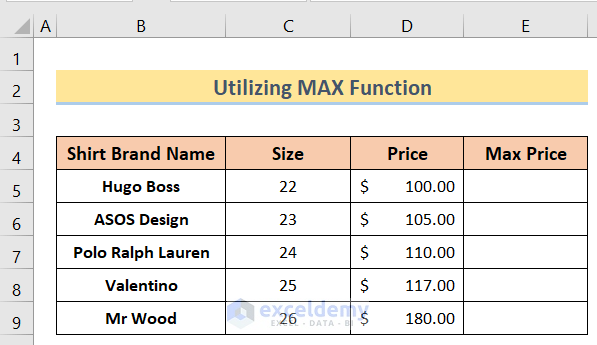
- Arrange the dataset as per the below image.
- Enter the following formula in cell E5:
=MAX(0.8*D5,90)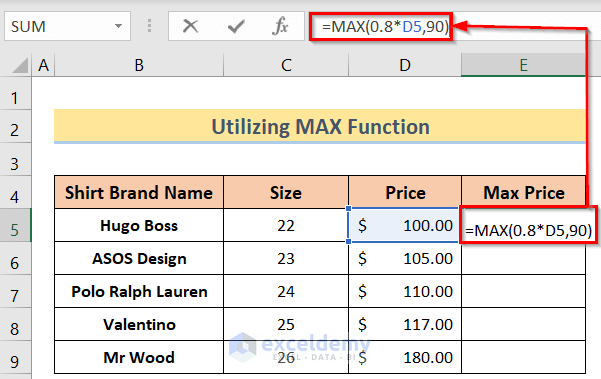
- Press Enter to return the result.
- Drag the Fill Handle down to apply the formula to the other cells in column E.
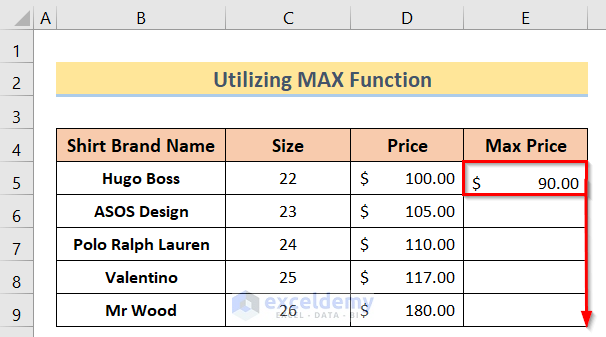
- The Maximum Prices will be set by our formula (the greater of 90 and 80% of the Price).

Method 4 – Using the MIN Function
Steps:
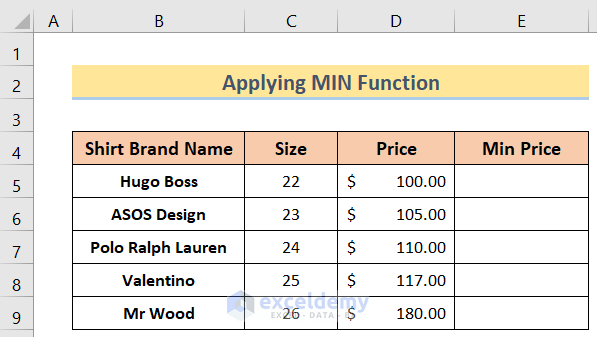
- Arrange the dataset like the below image.
- Insert the following formula in cell E5:
=MIN(0.8*D5,140)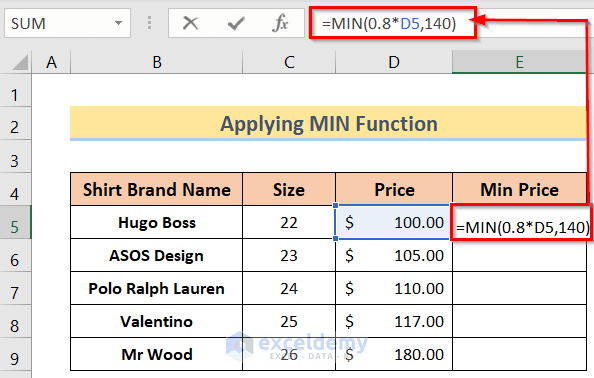
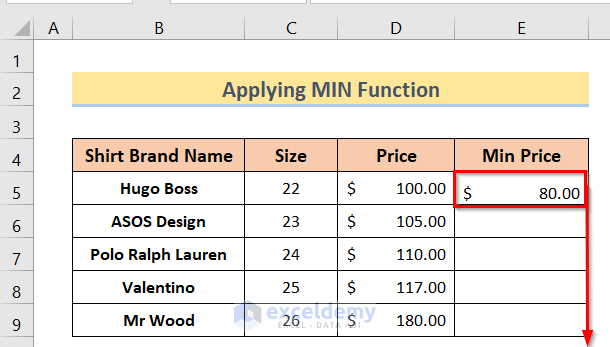
- Press Enter to return the result.
- Drag the Fill Handle down to apply the formula in the rest of the cells in the column.
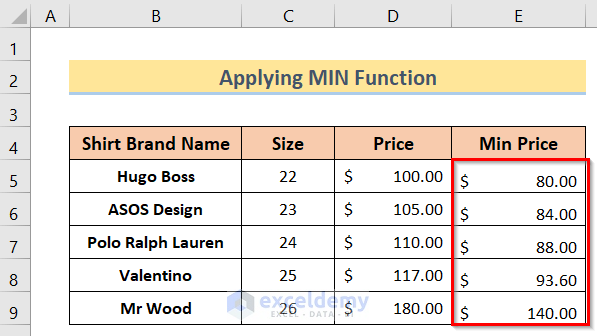
Minimum Prices are set (the lower of 140 and 80% of the Price).
Method 5 – Using the IF Function
Steps:
- Arrange the dataset like the below image.
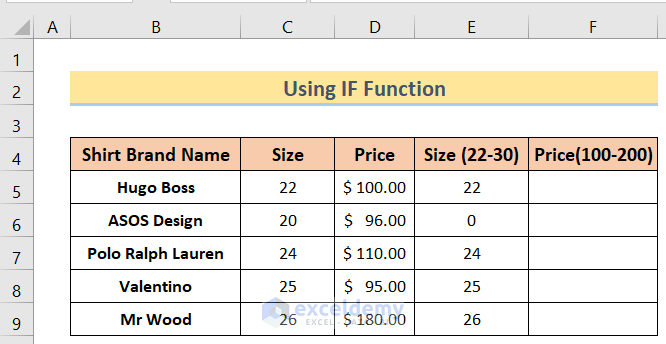
- Insert the following formula in cell F5:
=IF(D5<100,0,IF(D5>200,0,D5))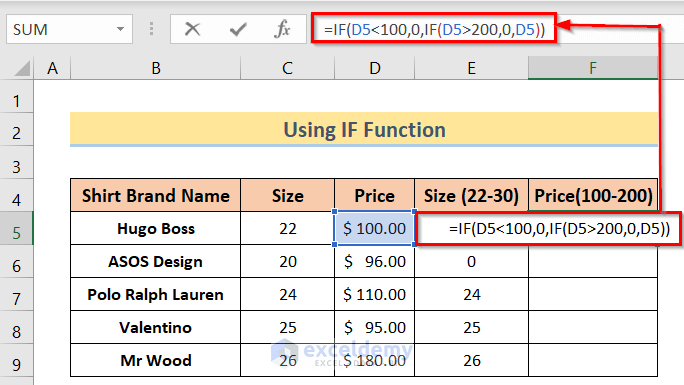
- Press Enter.
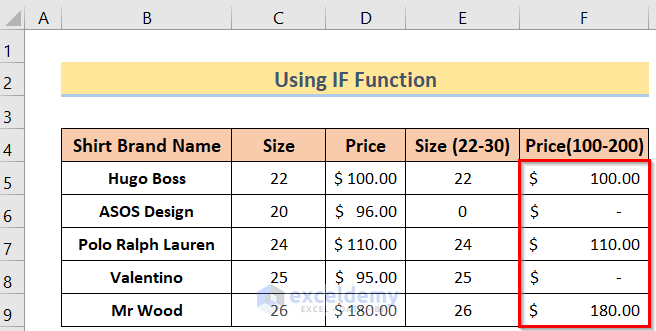
- Drag the Fill Handle down to apply the formula to the other cells in the column.
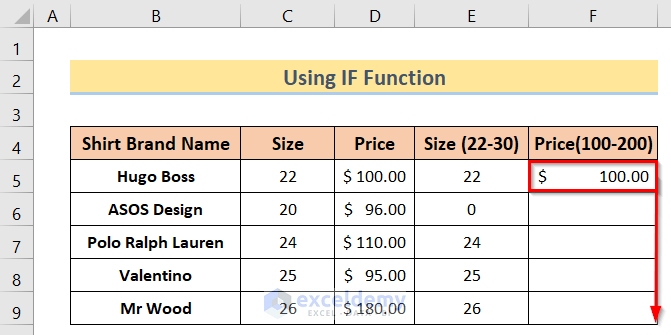
The results are as follows:
Method 6 – Using the RANDBETWEEN Function
Steps:
- Arrange the dataset like the below image.
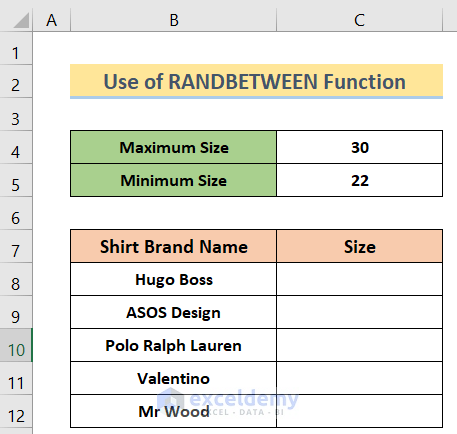
- Insert the following formula in cell C8:
=RANDBETWEEN($C$5,$C$4)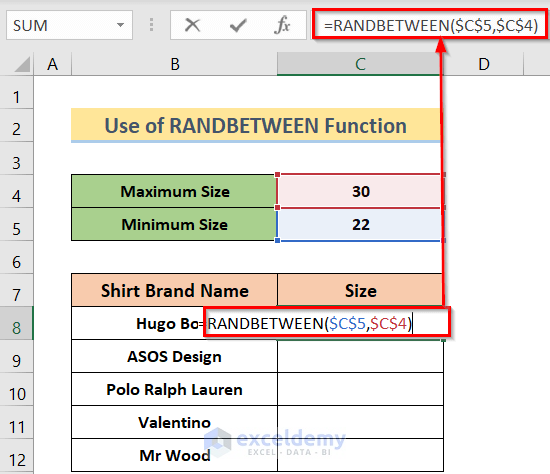
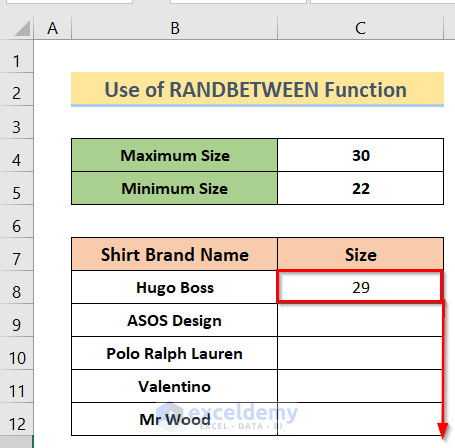
- Press Enter to return the result.
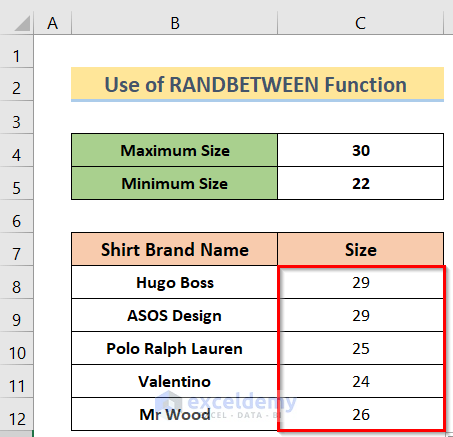
- Drag the Fill Handle down to apply the formula to the rest of the cells in the column.
The results are as follows:
Download the Practice Workbook
Related Articles
- How to Make a Data Validation List from Table in Excel
- Excel Data Validation Drop-Down List
- Excel Data Validation Drop Down List with Filter
- How to Use Data Validation List from Another Sheet
<< Go Back to Data Validation in Excel | Learn Excel
Get FREE Advanced Excel Exercises with Solutions!

