

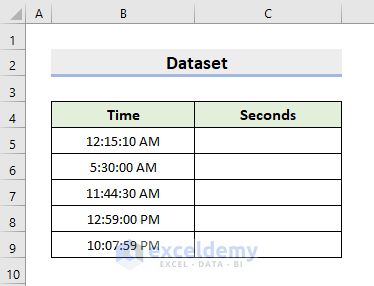
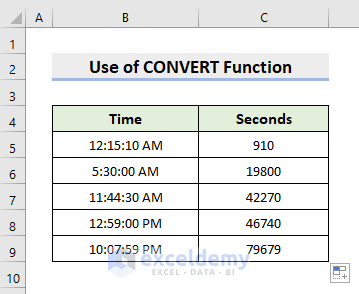
The following dataset contains 5 different times in a 12-hour time format. We’ll transform them into seconds. You can go through the below methods one by one and choose whichever suits you best.
Method 1 – Convert Time to Seconds in Excel with Simple Formula
Steps:
- Click cell C5.
- Input the formula:
=(0*3600)+(15*60)+10- Notice that, as the hour is 12 AM, we have to multiply 0 (not 12) by 3600, which will result in 0.
- Press Enter and Excell will return the time in seconds.
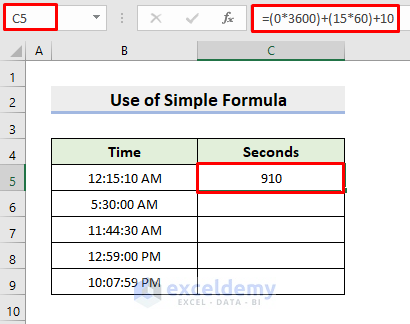
A drawback of this method is that we can’t apply the AutoFill to get other outputs, so we have to input them one by one manually.
- For example, the cell C9 will need this formula:
=(22*3600)+(7*60)+59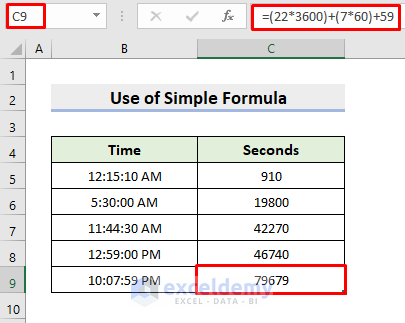
Read More: Convert Time to Text in Excel
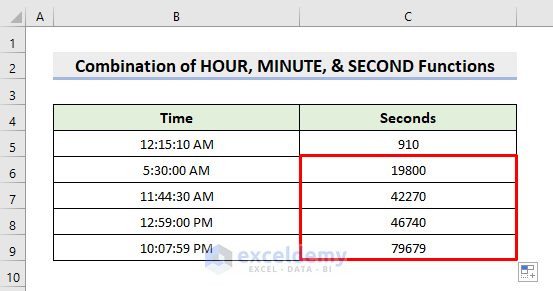
Method 2 – Combining Excel HOUR, MINUTE, & SECOND Functions for Converting Time to Seconds
Steps:
- Select cell C5.
- Input the formula:
=HOUR(B5)*3600+MINUTE(B5)*60+SECOND(B5)- Press Enter.
- If you see the output in Time format, change it to General/Number format.
- You’ll get the total seconds.
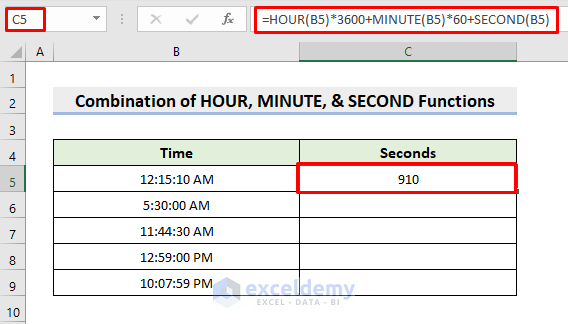
NOTE: HOUR(B5)*3600 retrieves 0, then multiplies the 0 with 3600. The MINUTE(B5)*60 part returns 15 and multiplies it with 60. SECOND(B5) gives out 10.
- Use the AutoFill tool to complete the rest. You’ll see the other outputs.
Read More: How to Convert Time to Hours in Excel
Method 3 – Inserting CONVERT Function to Convert Time to Seconds
Steps:
- Click cell C5.
- Type in the formula:
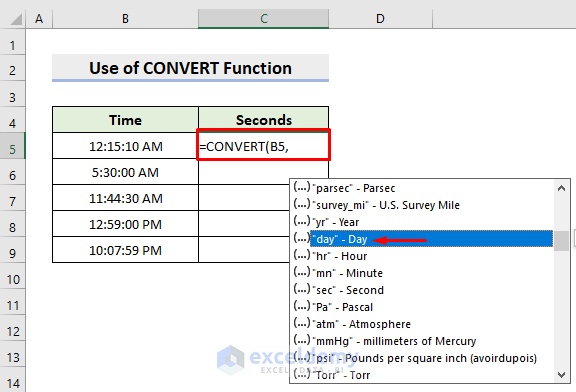
=CONVERT(B5,- You’ll get different options. Choose Day.
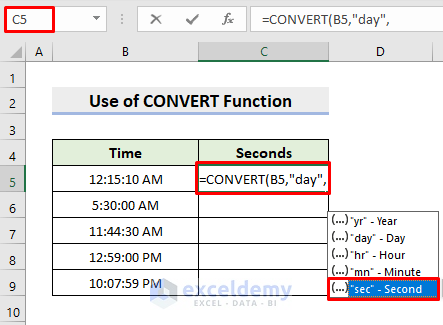
- Select Second next.
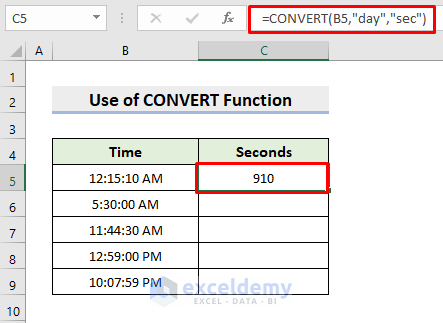
- Press Enter. It’ll return the result in seconds.
- Apply AutoFill to fill the series.
Read More: How to Convert Decimal Time to Hours and Minutes in Excel
Download Practice Workbook
Download the following workbook to practice by yourself.
Related Articles
- How to Convert Time to Number in Excel
- How to Convert Time to Minutes in Excel
- Convert Epoch Time to Date in Excel
- How to Convert Time to Decimal in Excel
- Convert Military Time to Standard Time in Excel
<< Go Back to Time Conversion | Date-Time in Excel | Learn Excel
Get FREE Advanced Excel Exercises with Solutions!

