


Excel’s Flash Fill and Text to Columns are powerful tools for manipulating text data without complex formulas. Flash Fill uses pattern recognition to automate data entry based on examples, while Text to Columns splits data into separate columns using delimiters or fixed widths. In this tutorial, you’ll learn three ways to use Flash Fill and Text to Columns like a pro.
1. Extract or Combine Complex Text Patterns Using Flash Fill
Flash Fill (Excel 2013+) uses pattern recognition to learn from your examples. It automatically completes your data based on those examples. Beyond splitting names or formatting phone numbers, you can use it to extract, combine, or reformat text based on multiple rules at once. The key to mastering it is understanding how to teach it what you want.
Let’s assume you have an employee’s information—first name, last name, and department—and you want to create company email addresses in the format “[email protected]”.
Steps
- Insert a blank column next to the existing data.
- In cell C2, manually type the desired email for the first entry:
- Select the cell below and start typing the next one.
- Excel will automatically suggest the rest using Flash Fill.

- Press Enter or go to the Data tab >> select Flash Fill (or use Ctrl + E).

2. Extract Hidden Details From Mixed Text (Using Flash Fill for Smart Parsing)
Flash Fill can also extract numbers, codes, or keywords from mixed strings—ideal for product IDs, invoice numbers, or embedded codes.
Let’s extract the product codes (e.g., A123) and the item names (e.g., Laptop).
Steps:
- In a new column (cell B2), type the first product code manually:
PRD_120
- In cell B3, start typing the next one.
- Excel identifies the pattern and extracts the codes automatically.
- Press Enter or press Ctrl + E to Flash Fill the rest.

- In the next column (cell C2), type the item name for the first entry.
Laptop
- In cell C3, start typing the next one.
- Flash Fill automatically detects and extracts item names by learning the dash pattern.
- Press Enter or press Ctrl + E again.

- By following similar steps, extract Type/Size and Version.

Pro Tip: Flash Fill looks for delimiters like hyphens, spaces, or underscores. You can mix extraction patterns; for instance, extract middle names or country codes simply by typing the first correct example.
3. Use Text to Columns for Tricky Fixed-Width or Irregular Data
While Flash Fill relies on patterns, Text to Columns is best for structured data separated by consistent delimiters or fixed character widths, especially when importing text from legacy systems, PDFs, or database exports.
Let’s split fixed-width data from a report. Notice that spaces are uneven, and you can’t use a single delimiter like “space” to split correctly.
Steps
- Select the column with data.
- Go to the Data tab >> select Text to Columns >> choose Fixed Width >> click Next.

- In the preview, click to set column breaks between each field (ID, Name, Department, Salary).
- Double-click to remove breaks, or drag to adjust spacing.
- Click Next.

- Select Location >> click Finish.
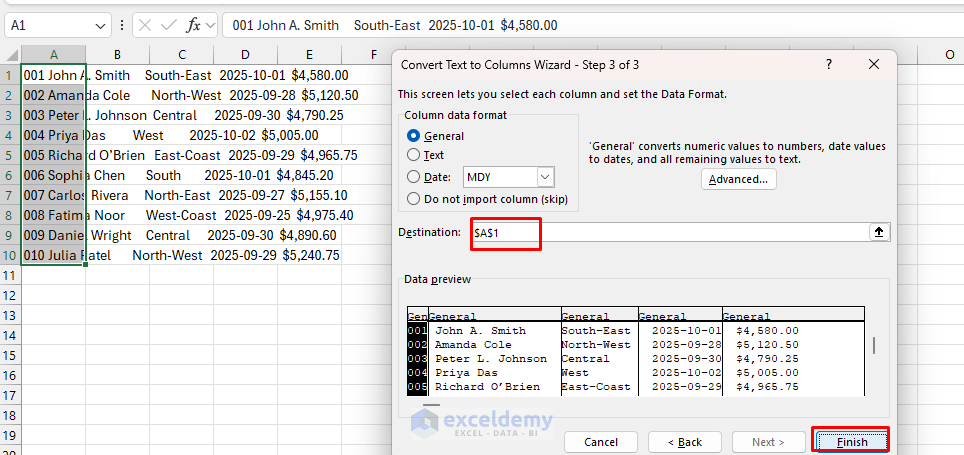
- Data is split into columns automatically in Excel.
- Insert headers and format your data to give the report a polished look.
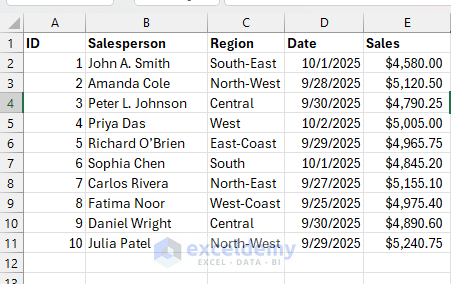
Pro Tip: When working with exported text files (.txt, .csv), always preview in Fixed Width mode. It’s the best way to fix alignment issues where multiple spaces or tabs exist.
Bonus: Combine Flash Fill and Text to Columns
Sometimes you can use both Flash Fill and Text to Columns to clean and extract data easily. The real power comes from using both tools in sequence for complex transformations.
- Use Text to Columns first to split imported text roughly.
- Then use Flash Fill to clean or reformat the results (e.g., combine columns, extract specific words, or standardize formats).
You receive transaction data where multiple pieces of information are crammed into single cells:
Text to Columns:
- Select the column.
- Go to the Data tab >> select Text to Columns >> choose Delimited >> click Next.

- Check Other: type |.
- Click Next.

- Select Location >> click Finish.

- This splits data into separate cells.
- Clean and format your data.

Use Flash Fill:
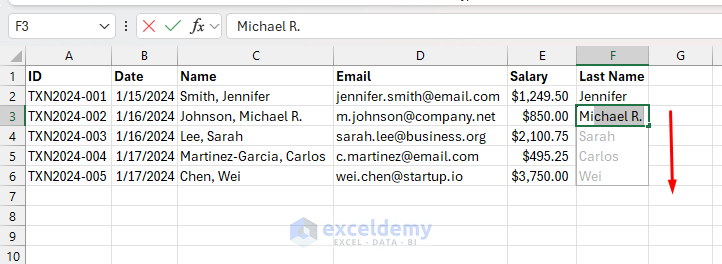
- In Column F, select cell F2 and type Last Name.
- You can change cases; Excel will follow the pattern.
- Select cell F3 and start typing.
- Excel will automatically suggest the other inputs.
- Press Enter or press Ctrl + E.
Final Thoughts
Both Flash Fill and Text to Columns are incredibly powerful once you understand their full potential. In this tutorial, we showed three ways to use them like a pro. Flash Fill extracts and combines text with complex patterns, and Text to Columns tackles fixed-width data with precision. These techniques streamline data cleaning, saving time on messy datasets. Experiment with your own data to leverage Flash Fill’s pattern-learning power and Text to Columns’ structured splitting.
Get FREE Advanced Excel Exercises with Solutions!

