


A Macro Launcher is a dedicated Excel worksheet that serves as a control panel or dashboard for running multiple VBA macros from a single location. Instead of adding separate macro buttons across different sheets, you can create one clean interface where users can run, manage, and understand all available macros.
In this tutorial, we will show how to create a “Macro Launcher” interface in VBA. It will provide a centralized control panel and give every macro in your workbook a single, organized home.
Step 1: Prepare Your Workbook and Macros
- Open your Excel workbook
- Save it as .xlsm (Macro-Enabled Workbook)
- Go to the Developer tab >> select Visual Basic or press Alt + F11
- Click Insert >> select Module
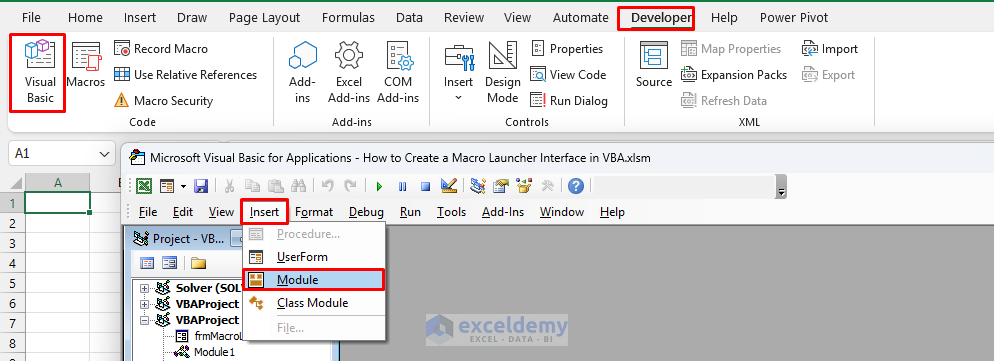
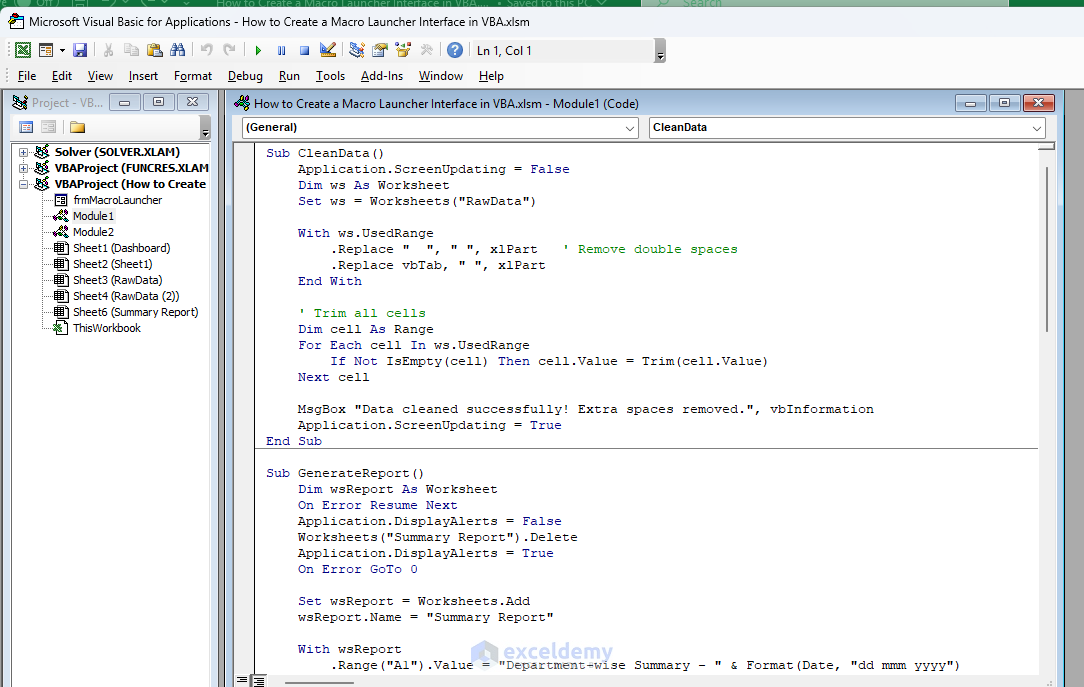
- Write or paste your example macros here
Here are a few practical ones you can use as starters for your launcher:
Example Macro 1: Quick Data Cleaner
Sub CleanData()
    Application.ScreenUpdating = False
    Dim ws As Worksheet
    Set ws = Worksheets("RawData")

    With ws.UsedRange
        .Replace "  ", " ", xlPart   ' Remove double spaces
        .Replace vbTab, " ", xlPart
    End With

    ' Trim all cells
    Dim cell As Range
    For Each cell In ws.UsedRange
        If Not IsEmpty(cell) Then cell.Value = Trim(cell.Value)
    Next cell

    MsgBox "Data cleaned successfully! Extra spaces removed.", vbInformation
    Application.ScreenUpdating = True
End Sub
Example Macro 2: Generate Monthly Report
Sub GenerateReport()
    Dim wsReport As Worksheet
    On Error Resume Next
    Application.DisplayAlerts = False
    Worksheets("Summary Report").Delete
    Application.DisplayAlerts = True
    On Error GoTo 0

    Set wsReport = Worksheets.Add
    wsReport.Name = "Summary Report"

    With wsReport
        .Range("A1").Value = "Department-wise Summary - " & Format(Date, "dd mmm yyyy")
        .Range("A3").Value = "Department"
        .Range("B3").Value = "Headcount"
        .Range("C3").Value = "Avg Salary"
        .Range("D3").Value = "Avg Performance"

        ' Simple summary (you can enhance with PivotTable later)
        .Range("A4").Value = "Sales"
        .Range("B4").Value = 3
        .Range("C4").Value = 67000
        .Range("D4").Value = 82
    End With

    MsgBox "Summary Report created!", vbInformation
End Sub
Example Macro 3: Format Selection as Table
Sub FormatAsTable()
    Dim tbl As ListObject
    Dim ws As Worksheet

    Set ws = Worksheets("RawData")

    ' Delete old table if exists
    On Error Resume Next
    ws.ListObjects("EmployeeTable").Delete
    On Error GoTo 0

    ' Safety check
    If ws.Range("A1").Value = "" Then
        MsgBox "No data found in RawData sheet! Please paste the sample data first.", vbExclamation
        Exit Sub
    End If

    ' Create the table
    Set tbl = ws.ListObjects.Add( _
        SourceType:=xlSrcRange, _
        Source:=ws.Range("A1").CurrentRegion, _
        XlListObjectHasHeaders:=xlYes)

    tbl.Name = "EmployeeTable"

    ' Modern way - use a guaranteed style
    On Error Resume Next
    tbl.TableStyle = "TableStyleMedium9"      ' New naming without spaces
    If Err.Number <> 0 Then
        tbl.TableStyle = "Table Style Medium 9" ' Fallback
    End If
    On Error GoTo 0

    MsgBox "Data formatted as an Excel Table!" & vbCrLf & _
           "Style applied successfully.", vbInformation
End Sub
Example Macro 4: Export to PDF
Sub ExportToPDF()
    Dim fName As String
    fName = Application.GetSaveAsFilename(InitialFileName:="Employee_Report.pdf", _
        FileFilter:="PDF Files (*.pdf), *.pdf")

    If fName <> "False" Then
        Worksheets("RawData").ExportAsFixedFormat Type:=xlTypePDF, _
            Filename:=fName, Quality:=xlQualityStandard, IncludeDocProperties:=True
        MsgBox "PDF exported successfully!", vbInformation
    End If
End Sub
You can expand this with your own macros (e.g. email sender, chart updater, data importer, etc.).
Step 2: Create the UserForm (Your Macro Launcher)
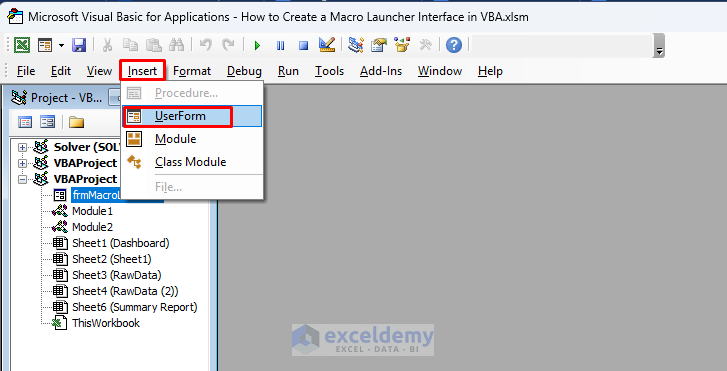
- In the VBA Editor, go to Insert >> select UserForm
- A new form appears (default name: UserForm1)
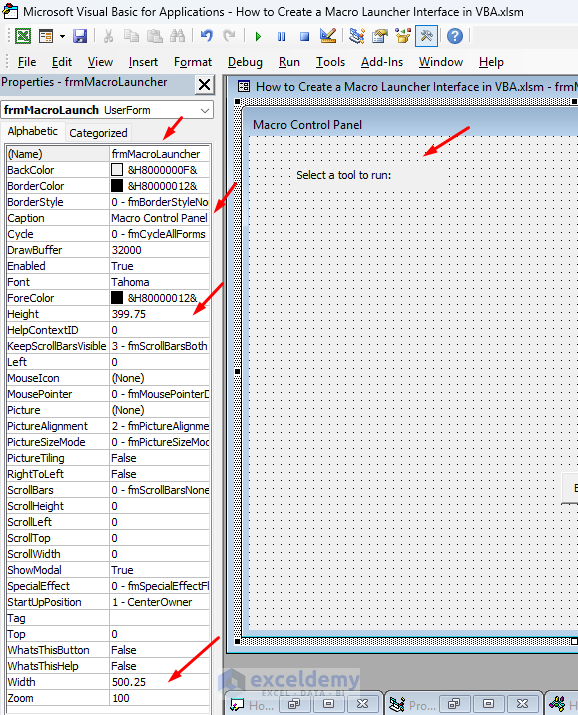
- Right-click >> select the Properties window or press F4 if hidden
- Set Name to frmMacroLauncher.
- Set the Caption to Macro Control Panel
- Set Height to 400 and Width to 500 (adjust as needed)
- Add controls from the Toolbox:
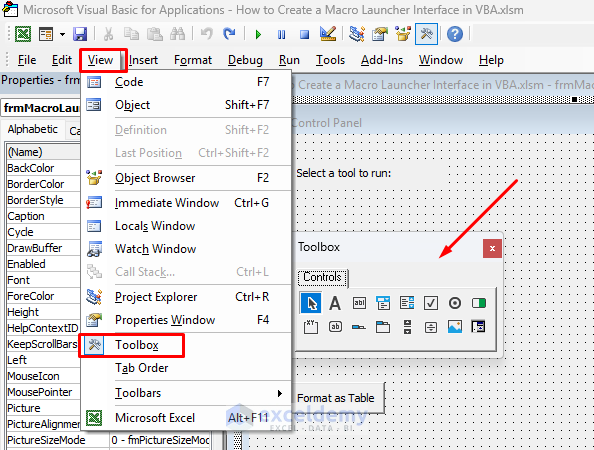
- Go to the View tab >> select Toolbox
- Add a Label from the Toolbox at the top: Caption = “Select a tool to run:”, Font = Bold, Size 12
- Add several CommandButton controls (one for each macro)
- Name them meaningfully, e.g. cmdCleanData, cmdGenerateReport, cmdFormatTable, and cmdExportPDF
- Set their Caption to user-friendly text, e.g. “Clean Data”, “Generate Report”, “Format as Table”, “Export to PDF”
- Add a Close button
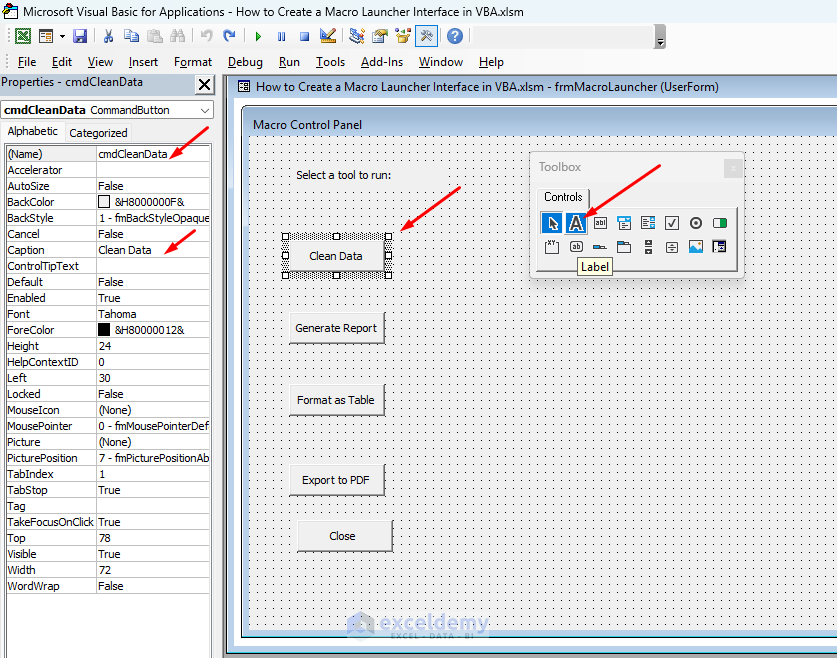
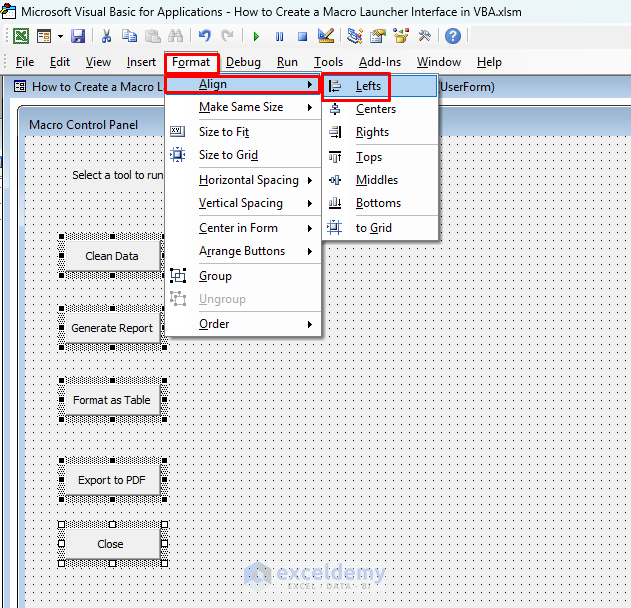
- Resize and arrange them neatly
- Go to the Format menu >> select Align
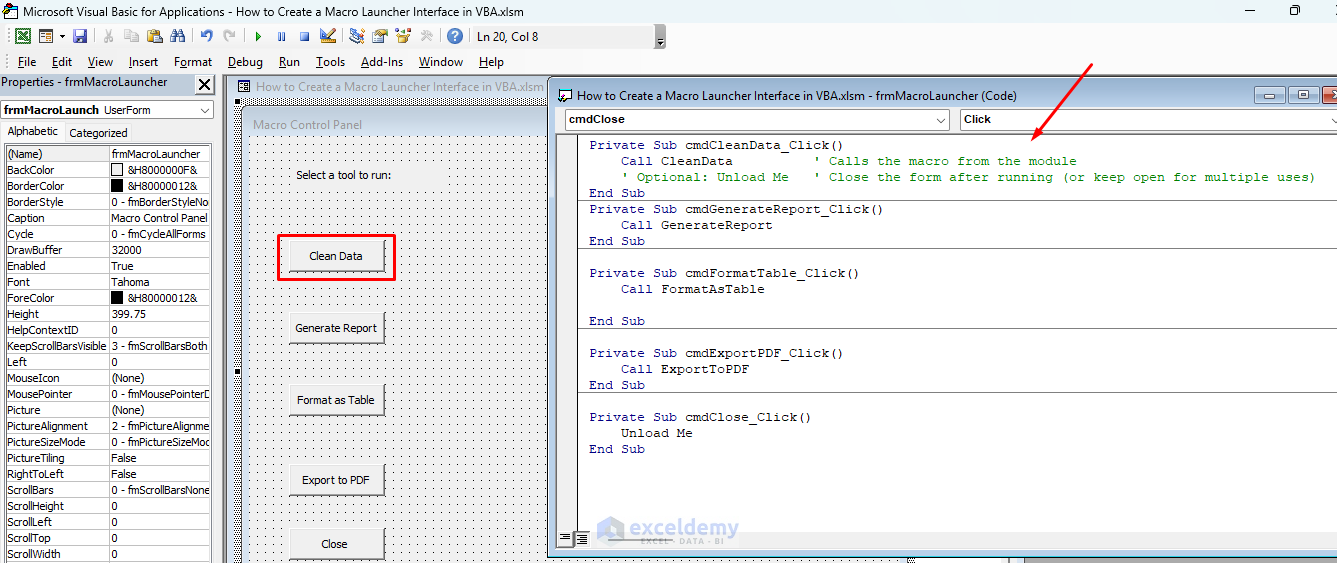
- Double-click each CommandButton to open its code window and add the Click event:
Private Sub cmdCleanData_Click()
    Call CleanData          ' Calls the macro from the module
    ' Optional: Unload Me   ' Close the form after running (or keep open for multiple uses)
End Sub
Private Sub cmdGenerateReport_Click()
    Call GenerateReport
End Sub

Private Sub cmdFormatTable_Click()
    Call FormatAsTable

End Sub

Private Sub cmdExportPDF_Click()
    Call ExportToPDF
End Sub

Private Sub cmdClose_Click()
    Unload Me
End Sub
Tip: If your macros are in a standard module, Call MacroName works perfectly. For very long lists, you can use a single procedure with a Select Case based on button names, or dynamically create buttons at runtime.
Step 3: Add a Launcher Button on the Worksheet
To open the control panel easily:
- Go back to Excel
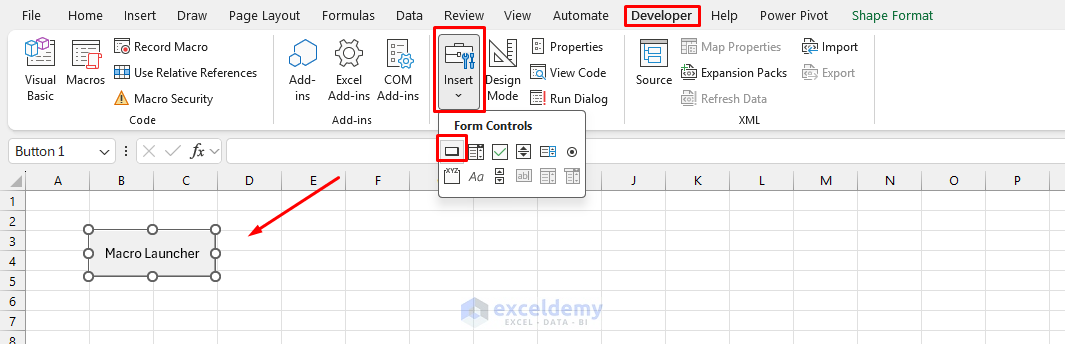
- Go to the Developer tab >> click Insert >> select Button
- Draw the button on a worksheet (e.g. a “Tools” or “Dashboard” sheet)
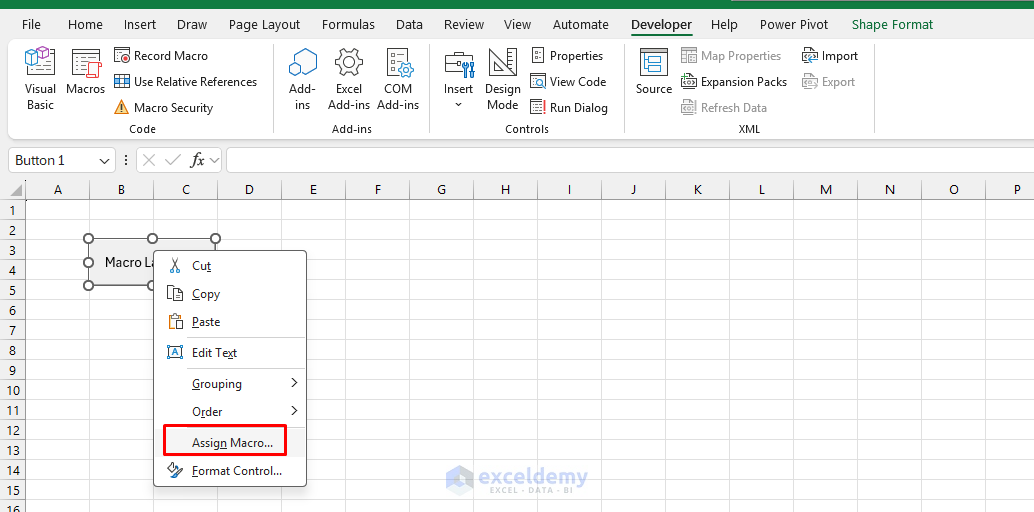
- Right-click the button >> select Assign Macro
- Select or create this simple launcher macro in a module:
Sub Macro_Launcher()
    frmMacroLauncher.Show   ' Modal by default; use .Show vbModeless for non-blocking
End Sub
Step 4: Test Your Macro Launcher
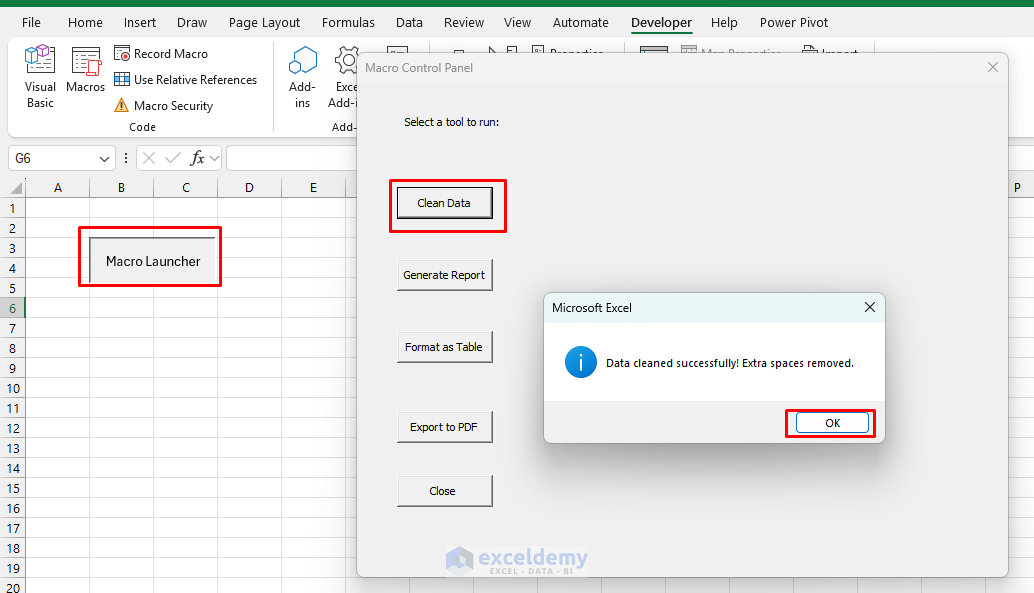
- Click on the Macro Launcher button, and it will launch the macros we saved
- Now, click on the macro that you want to run
- Click Clean Data to clean the data
- Click OK and review your data
- It will be cleaned automatically
Step 5: Polish and Best Practices
- Error Handling: Wrap calls in On Error Resume Next or add proper error handlers in your macros.
- Screen Updating: In macros, turn off Application.ScreenUpdating with Application.ScreenUpdating = False for speed, then restore it.
- Modeless Form: Use frmMacroLauncher.Show vbModeless so users can interact with the sheet while the panel is open.
- Organization:
- Group related buttons on MultiPage tabs.
- Add a search TextBox + ListBox for dynamic macro selection (advanced).
- Security: Protect the VBA project (Tools > VBAProject Properties > Protection) if distributing the workbook.
- Startup: Make the launcher open automatically with the Workbook_Open event in ThisWorkbook:
Private Sub Workbook_Open()

' Optional: frmMacroLauncher.Show  ' Or just provide the button

End Sub
Advanced Ideas for Your Dashboard
- Add progress indicators or status labels
- Include a “Run All Selected” feature with CheckBoxes
- Use a ListBox populated dynamically with macro names (via a collection or array)
- Style it professionally with colors, frames, and consistent button sizes
- For very large sets, consider ribbon customization (XML-based) instead of a form, but UserForms are simpler for most users.
Full UserForm Code Structure
In the UserForm code module (frmMacroLauncher):
Private Sub UserForm_Initialize()

' Optional: Set initial states, load descriptions, etc.

  Me.Caption = "Macro Control Panel - " & Application.UserName

End Sub
This setup turns your workbook into a mini-application with a clean interface. Users love it because it’s intuitive and professional.
Conclusion
By following the above steps, you can create a “Macro Launcher” interface in VBA. A Macro Launcher interface is a better alternative to adding random macro buttons across a workbook. It works like a central dashboard where users can run all automation tasks from one place. You can expand this launcher endlessly by adding more example macros like pivot table creators, email automations, or chart generators. This makes your Excel VBA project easier to use, safer, and more professional.
Get FREE Advanced Excel Exercises with Solutions!

