

Pivot tables are one of the most powerful features in Excel for summarizing large datasets. They are also the most convenient and fastest, but setting them up manually (dragging fields into rows, columns, values, and filters) is something many people dread. Copilot changes that completely. With simple natural language prompts, you can generate insightful summaries instantly, refine them conversationally, and end up with a clean, reusable named PivotTable ready for ongoing analysis, dashboards, or reports.
In this tutorial, we will show how to create and summarize PivotTables in Excel using Copilot, with real prompt examples you can copy and adapt.
Prerequisites:
- Microsoft 365 subscription with Copilot in Excel enabled
- Copilot works only when the file has AutoSave turned on
Step 1: Prepare Your Data for Copilot
For Copilot to work well, your source data needs to be structured properly. Microsoft says Copilot reads data best when it is in a table or supported range, and PivotTables work best when the data is organized in columns with a single header row.
- Select your data range
- Go to the Insert tab >> select Table or press Ctrl + T
- Check “My table has headers” >> click OK
- Go to the Table Design tab, and in the Table Name box, give your table a clear name like SalesData
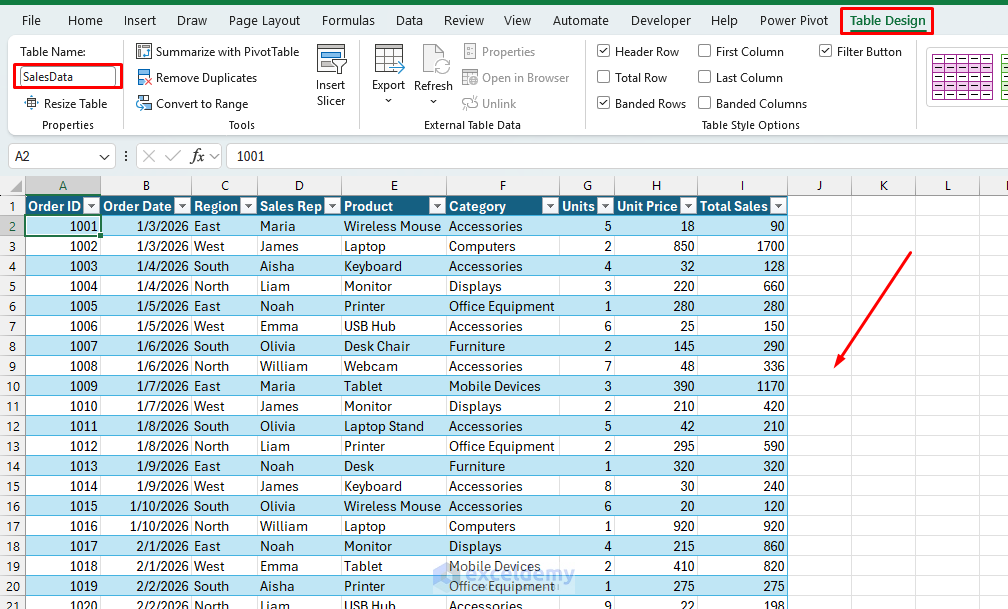
Now Copilot can read table names and column headers perfectly, so prompts like “total sales by region” work flawlessly.
Step 2: Open the Copilot Pane
- Go to the Home tab >> click the Copilot button
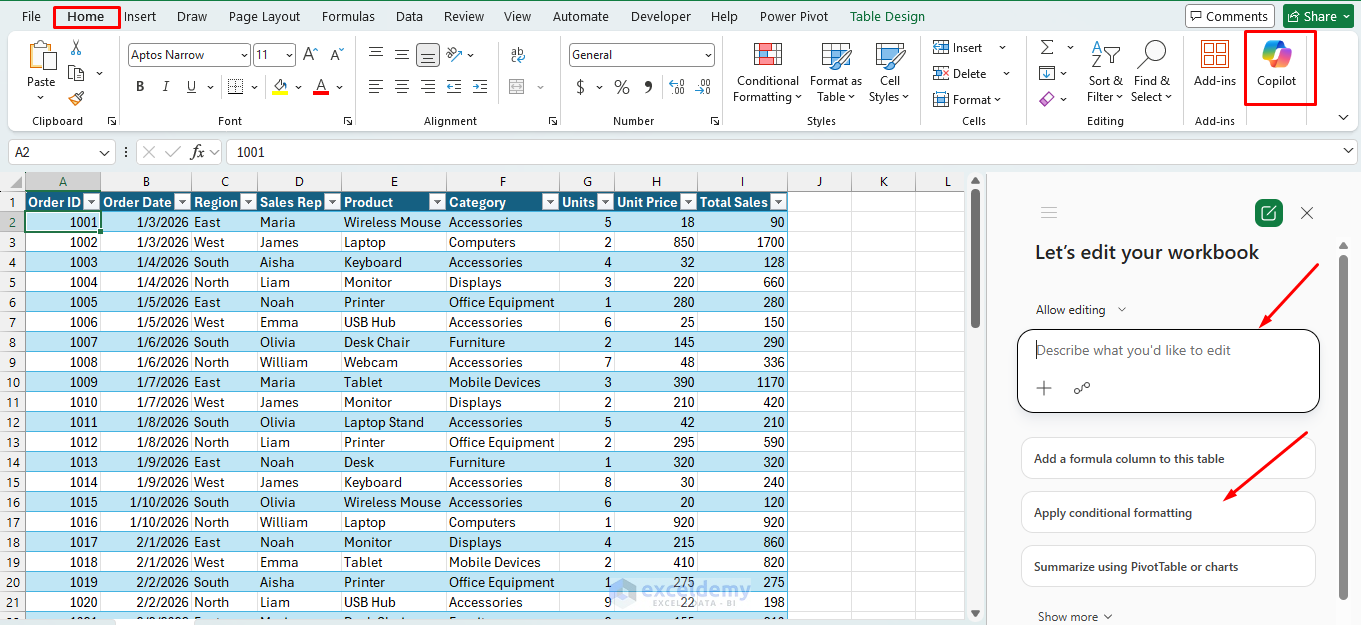
The Copilot pane opens on the right side of your screen. You’ll see a chat box at the bottom where you type prompts, plus helpful conversation starters.
Step 3: Ask Copilot for a Pivot Table Summary in Excel
Now click into the prompt box at the bottom of the Copilot pane and type a clear, natural-language request.
- Type the most recommended first prompt:
"Show me total sales by region and month."
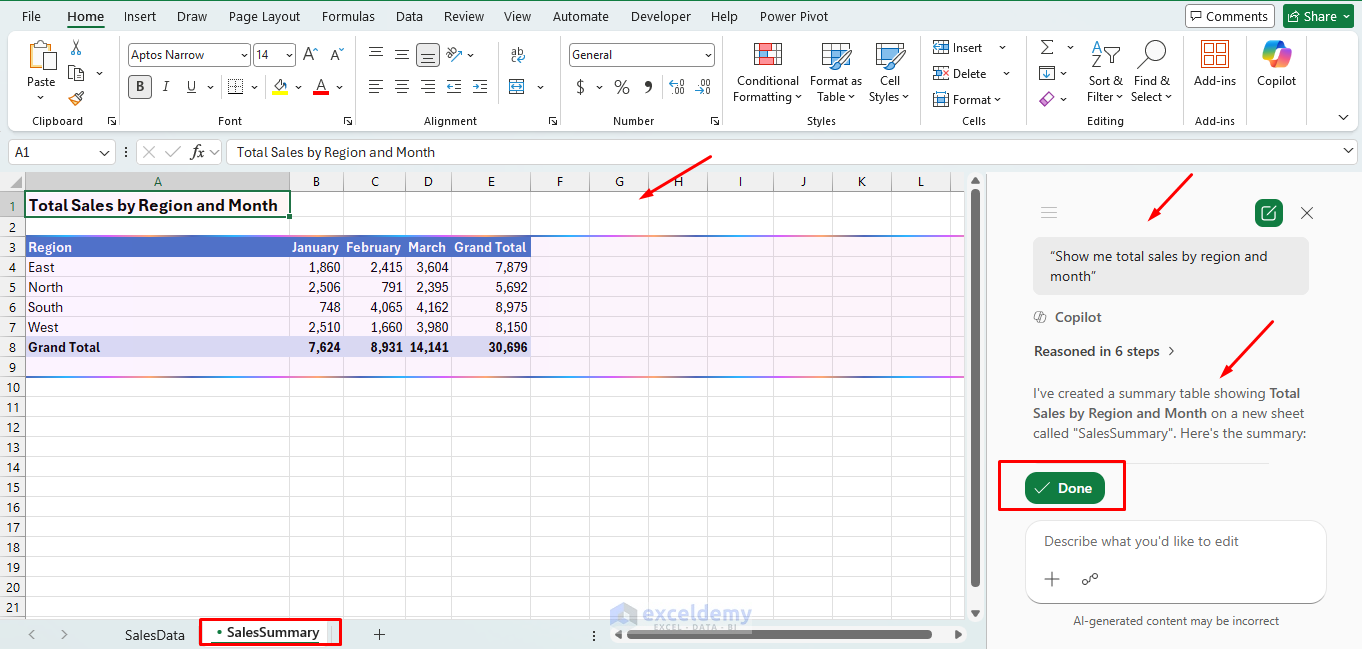
Copilot responds with a summary table directly in the pane and also in the sheet. Now you can specifically ask for a pivot table summary.
"Create a pivot table showing total sales by region and month."
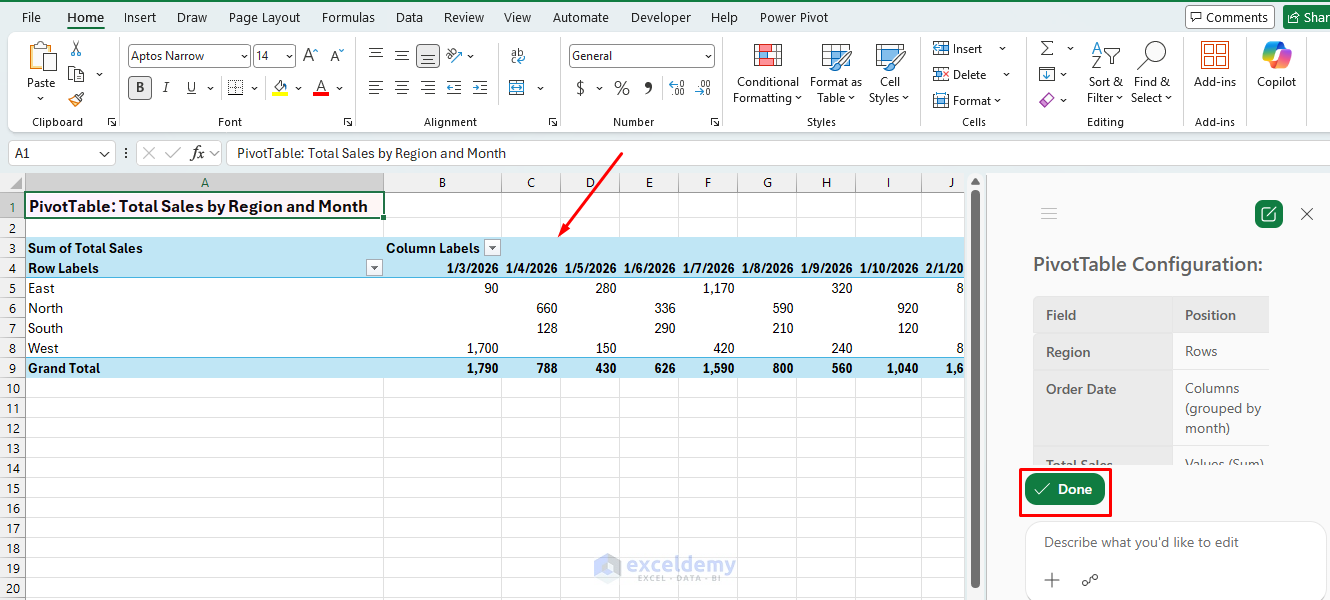
Prompt: Add a Second Dimension
"Break that down further by product category in the pivot table."
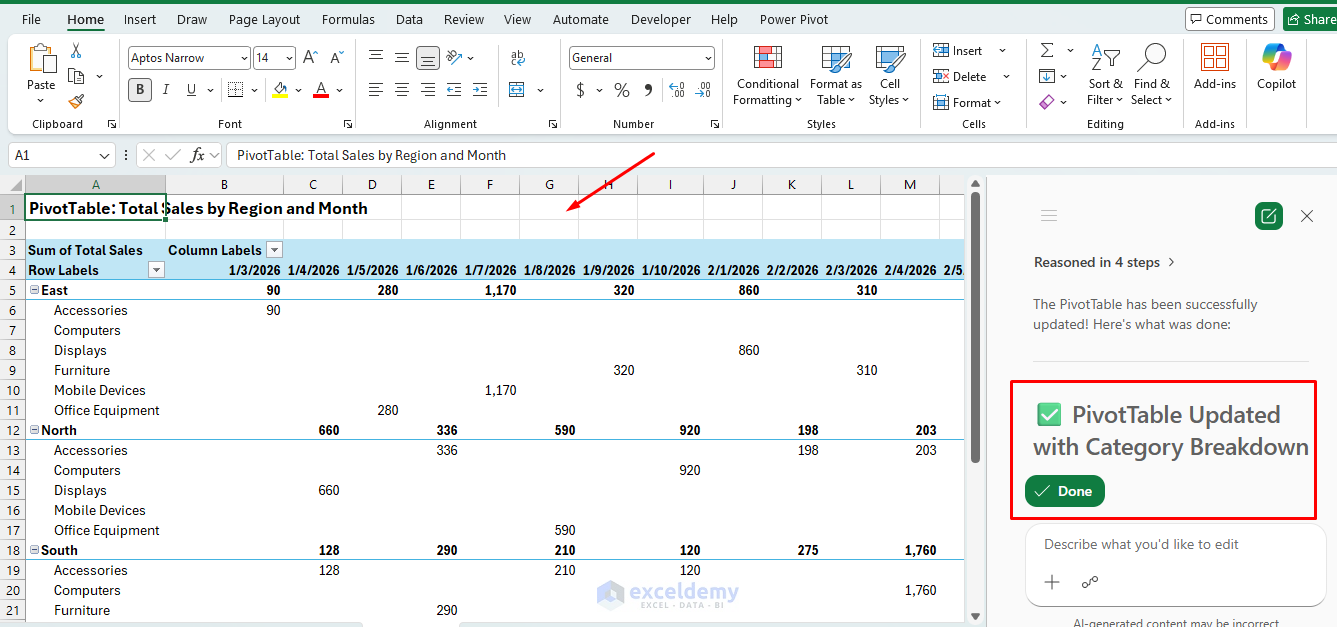
Copilot remembers the previous turn. It will add Category as an additional grouping layer without you restating the whole question. This conversational memory is the real advantage over the manual pivot builder.
Prompt: Rank and Filter
"Which regions had the highest total sales last quarter? Sort descending and update the Pivot Table."
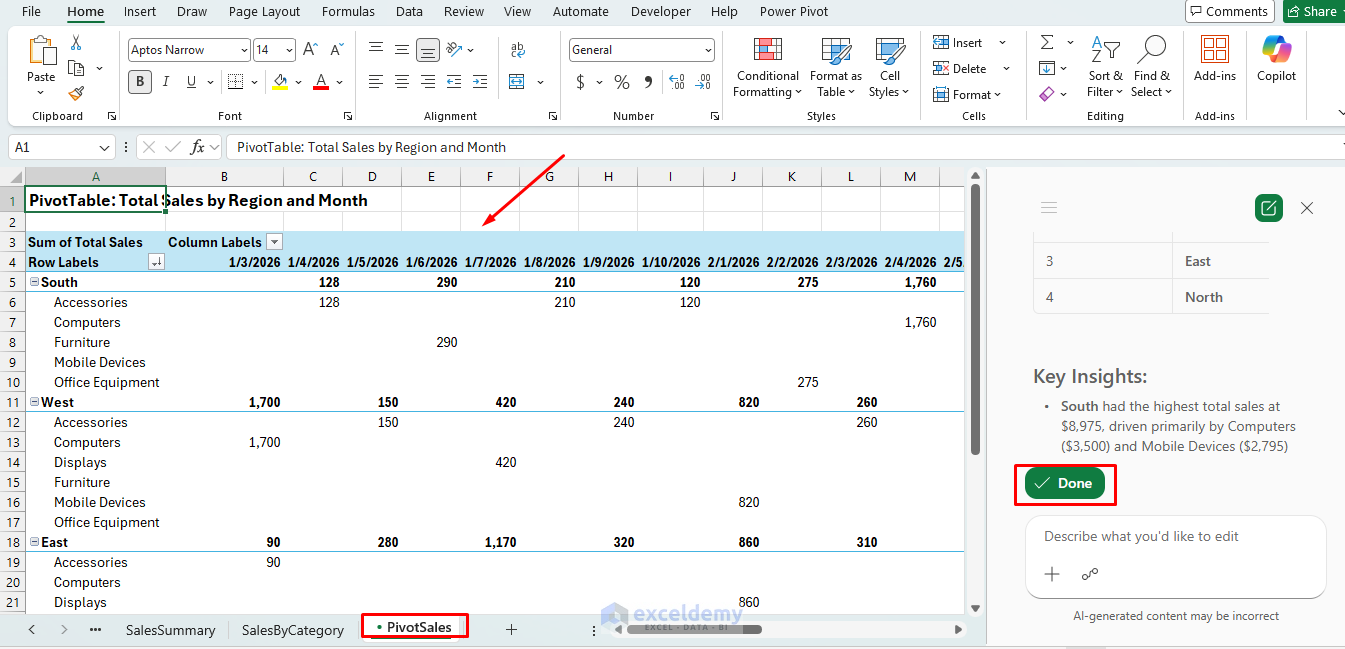
This prompt does three things at once: it filters by a time period, ranks results, and specifies sort order. Copilot handles all three. You’d normally need a pivot table, a manual sort, and a filter to replicate this.
Alternative strong prompts you can copy-paste:
- “Create a PivotTable summarizing total sales by category.”
- “Summarize sales with PivotTable – rows by region, columns by month, values as sum of sales.”
- “PivotTable with sum of sales, month in rows, category in columns.”
- “Show me total sales by region and month and add a bar chart.”
Copilot analyzes your table and displays a preview summary right in the pane (often as a formatted table or PivotTable-like view). It may also suggest a chart alongside it.
Step 4: Iterate and Refine Conversationally (The Real Power)
This is where Copilot shines over manual PivotTables. Every manual pivot table revision — adding a field, changing the aggregation, or filtering to a specific value — requires menu navigation. But in Copilot, you just keep chatting in the same thread. Copilot remembers your data and previous requests.
Prompt: Change the Aggregation
"Instead of total sales, show me average sales per transaction by region."
Copilot switches from SUM to AVERAGE. In a manual pivot table, this means right-clicking >> Value Field Settings >> changing the aggregation type. Here it’s one sentence.
Prompt: Apply a Conditional Filter
"Filter the results to only show regions where total sales exceeded $6000."
This creates what a pivot table calls a Value Filter. Copilot applies it inline. You can immediately see which regions clear the threshold.
Prompt: Spot Outliers
"Are there any months where sales dropped significantly compared to the month before? Highlight the biggest drops."
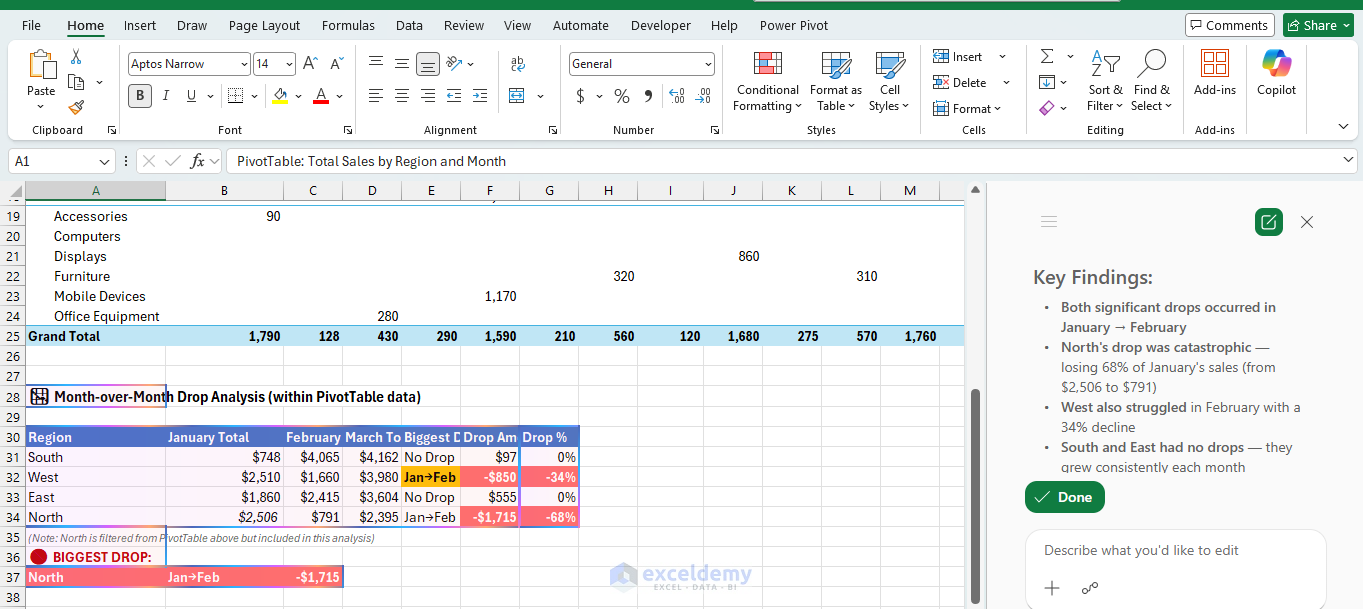
This goes beyond a simple pivot; it asks for trend analysis. Copilot will calculate month-over-month changes and call out the outliers, something that would require an additional calculated field or a separate GETPIVOTDATA formula setup manually.
Prompt: Reframe the Entire Analysis
"Show me total sales by month name."
Whenever you don’t like any output, simply ask to change it. Copilot can do it instantly.
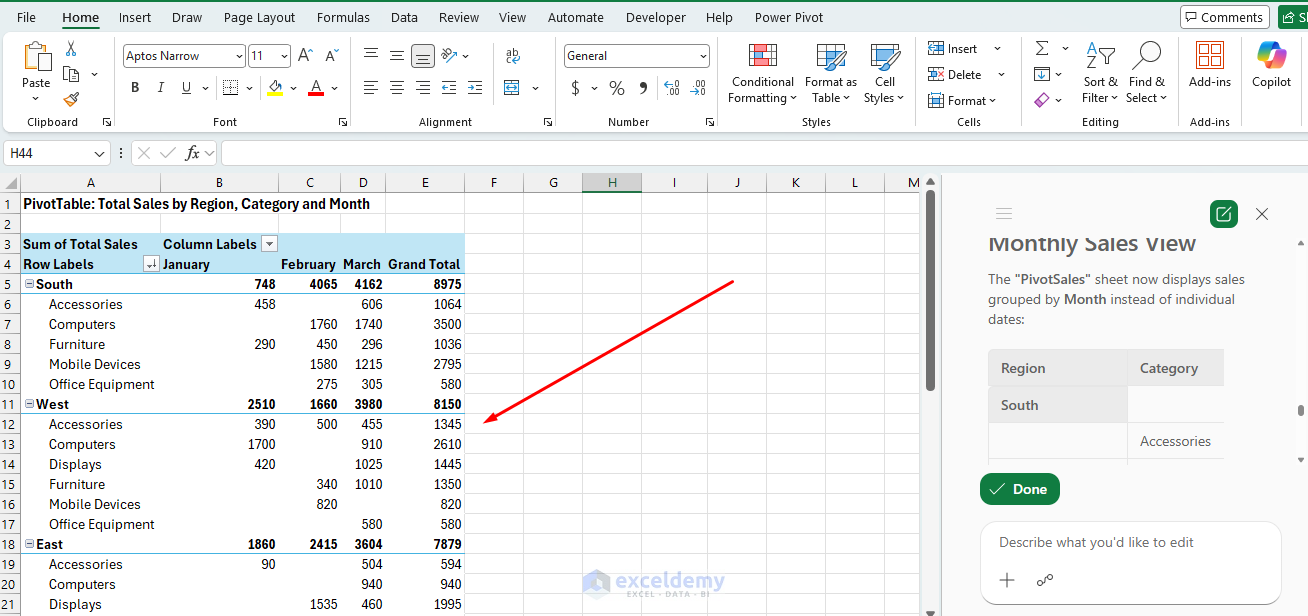
"Now show me performance by sales rep instead of by region. Keep the monthly breakdown."
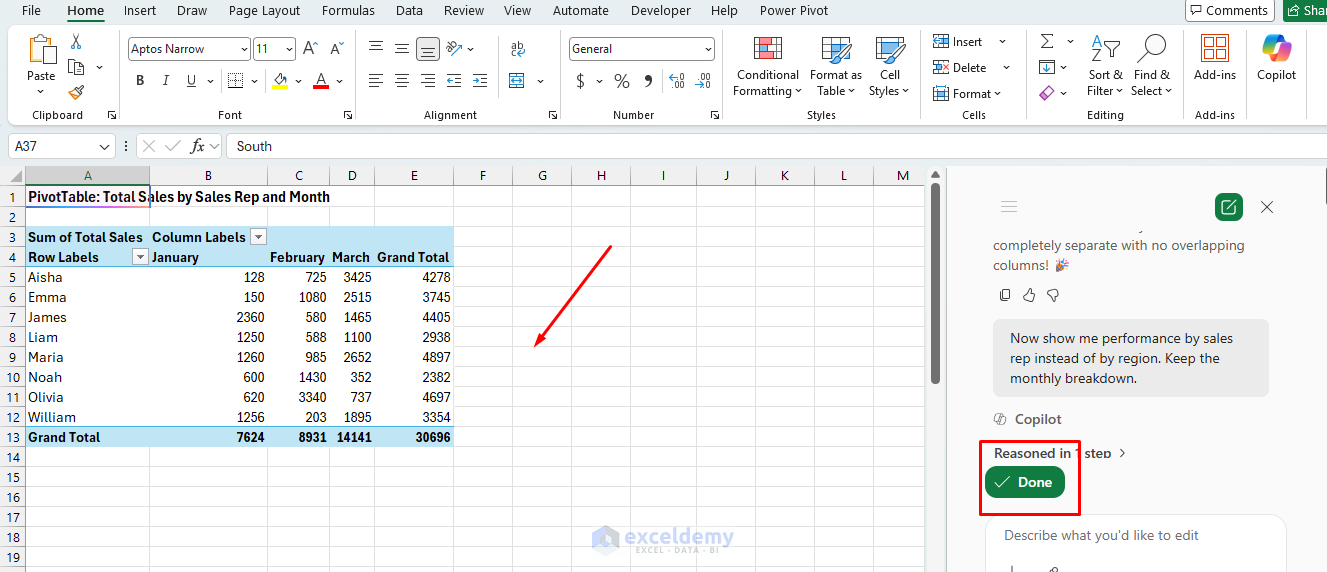
Now Copilot updates the full PivotTable, replacing Region with Rep as the row grouping while preserving the Month column structure.
Each time, Copilot updates the preview instantly. No resetting fields manually!
Step 5: Insert the Output as a Real PivotTable
Copilot will return a PivotTable suggestion, a summary view, or a related insight. Do not assume the first answer is the final one.
Once the preview looks perfect:
- Click Done
- Copilot creates a brand-new worksheet with an actual, fully functional PivotTable
You now have a proper PivotTable that behaves exactly like one you built manually. Verify and check it:
- Did it choose the correct field for the values area?
- Did it summarize correctly with Sum, Count, or Average?
- Did it place fields in the right sections?
- Did it group dates by month or leave them as daily entries?
For instance, if you asked for total sales by region and month but Copilot used Count of Orders, the fix is easy: ask again more specifically.
Step 6: Turn It into a Properly Named PivotTable for Reuse
- Click anywhere inside the new PivotTable
- Copilot automatically names the PivotTable based on the task, but you can recheck and rename it
- Go to the PivotTable Analyze tab, and in the PivotTable Name box, give it a clear name
- Add slicers or timelines via PivotTable Analyze >> Insert Slicer
- To update data later:
- Right-click the PivotTable >> select Refresh
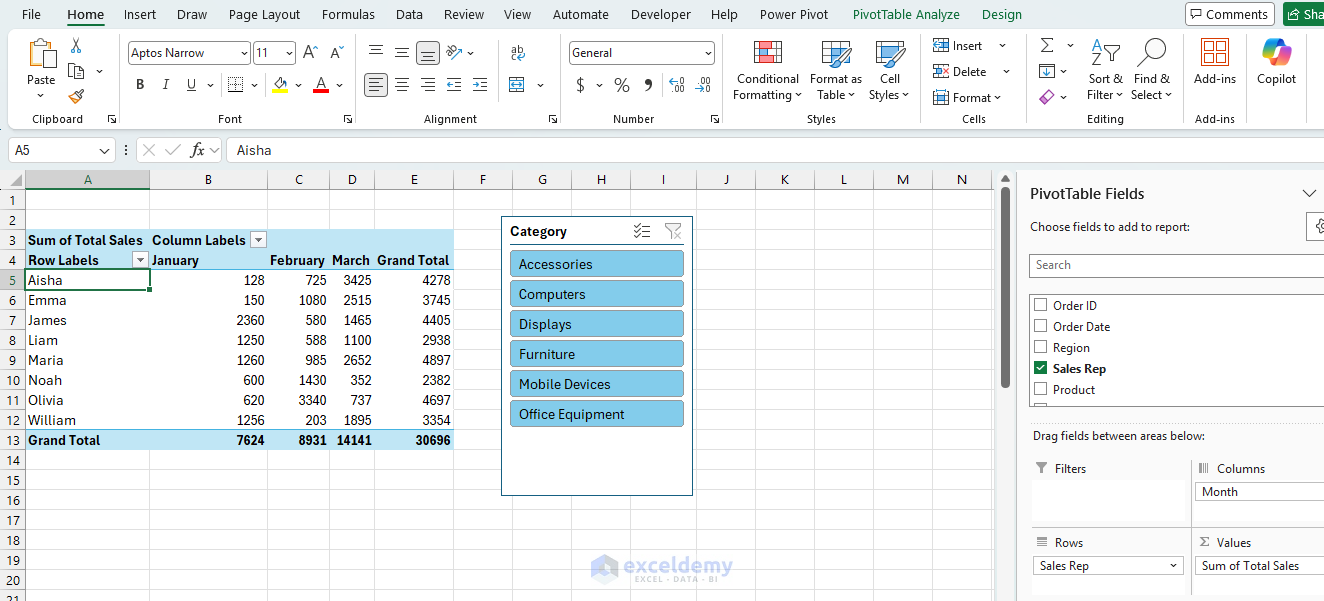
Your named PivotTable is now ready for:
- Dashboards
- Formulas (e.g. =GETPIVOTDATA(…))
- Power Query refreshes
- Sharing with colleagues
Bonus: More Powerful Prompt Examples
| Goal | Prompt Examples |
| Basic summary | “Summarize with PivotTable – total sales by region.” |
| Time-based analysis | “Create PivotTable showing monthly sales trends by product category.” |
| Top performers | “Show top 10 customers by profit in a PivotTable.” |
| Comparison | “PivotTable comparing actual vs target sales by region and quarter.” |
| With visuals | “Total sales by region and month, plus a line chart” |
| Advanced filtering | “PivotTable for sales in 2025 only, filtered by high-value products.” |
Quick Tips for Best Results
- Always use a named Excel Table as your source
- Be descriptive but conversational. Copilot understands plain English better than rigid syntax.
- If the result isn’t perfect, just say “Try again with…” or add details in a follow-up.
- Copilot works best with structured numeric data (sales, dates, categories). Text-heavy lists may need minor cleanup first.
- You can always edit the final PivotTable manually in the PivotTable Fields pane if you want to tweak something Copilot missed.
Conclusion
By following the above steps, you can create and summarize PivotTables in Excel using Copilot. It removes the hardest part: figuring out how to start. Instead of manually building the layout from scratch, you can simply describe the summary you want. Try any of the simple prompts on your own data and see the transformation and how fast it works. Once you get the hang of conversational refinement, you’ll never build a PivotTable the old way again. Use natural language to design the summary, then let Excel’s PivotTable structure keep it organized.
Get FREE Advanced Excel Exercises with Solutions!


Mdm, please share data file for better practice.
Hello Usman,
Here, I am attaching the data file tp practice more efficiently.
Download the file from here: How to Create and Summarize Pivot Tables in Excel Using Copilot
Regards,
ExcelDemy