


Python in Excel is a powerful Microsoft 365 feature that lets you write and run Python code directly inside Excel cells. It brings the power of Python analytics into Excel. You type Python directly into a cell, the Python calculations run in the Microsoft Cloud, and your results are returned to the worksheet. You can combine Excel’s familiar interface and recalculation with Python’s rich ecosystem for data analysis, cleaning, statistics, and visualization without leaving the spreadsheet or installing anything locally.
In this tutorial, we will show how to use Python in Excel and when and how it’s useful. Instead of switching to other tools like Jupyter or VS Code, you can use Python directly in Excel.
Requirements and Availability
- Microsoft 365 Subscription: Available on many paid plans (consumer Family/Personal, commercial, education, enterprise). Some features or higher compute may require an add-on.
- Platform: Primarily available on Windows desktop Excel; support varies for web, Mac, and mobile. Not available on Excel for iPad, Excel for iPhone, or Excel for Android.
- No Local Python Needed: Everything runs in the cloud with pre-installed libraries. You don’t need a local version of Python to use Python in Excel. If you have a local version of Python installed on your computer, any customizations you’ve made to that installation won’t be reflected in Python in Excel calculations.
Important: To use Python in Excel, you need internet access. This is because Python in Excel calculations run in the Microsoft Cloud using a standard version of the Python language.
Getting Started Using Python in Excel
Enable Python in a Cell:
- Select a cell
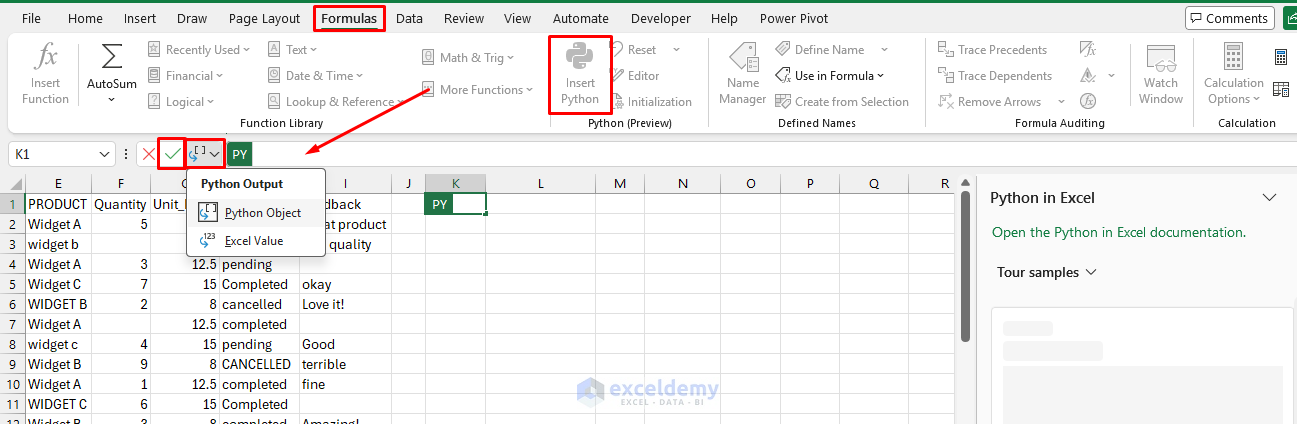
- Go to the Formulas tab >> select Insert Python
- Or type =PY in a cell and press Tab
- The formula bar turns green, indicating Python mode
The xl() Function: Bridging Excel and Python
The key to using Python in Excel is the xl() function, which lets your Python code read data directly from your spreadsheet:
- While in edit mode, click and drag to select a cell or range (e.g., A1:D100)
- Excel inserts a reference like xl(“A1:D100”) or similar
# Reference a range as a pandas DataFrame
df = xl(“A1:D100”, headers=True)
# Reference a single cell value
target = xl(“F1”)
This is how Python “sees” your spreadsheet data. You write this inside a =PY() cell and work with the result as a normal Python object.
Output Options:
- Use the dropdown in the formula bar to return as Excel Value (converts to native Excel cells/tables) or keep as Python Object (for chaining in other Python cells)
- Press Ctrl + Alt + Shift + M to toggle the output type
- Use print() for debugging or output in some cases
Recalculation: Python cells recalculate automatically, like other formulas, when inputs change (in automatic mode).
Tip: Start small. Select your data, insert Python, convert it to a DataFrame, then explore with .head(), .describe(), or simple operations.
When Python in Excel Is Useful
1. Advanced Data Cleaning and Transformation
Python can easily fix messy dates, standardize text (capitalization, spacing), handle nulls and duplicates, unpivot wide data to long format, and manage inconsistent formats or missing values. Pandas makes these tasks concise and reproducible.
Python:
import pandas as pd

df = xl("A1:I56", headers=True)
df.columns = df.columns.str.strip().str.title()

# Fix names: Title Case
df["Customer_Name"] = df["Customer_Name"].str.strip().str.title()

# Fix region: Title Case
df["Region"] = df["Region"].str.strip().str.title()

# Standardize product: Title Case
df["Product"] = df["Product"].str.strip().str.title()

# Standardize status and feedback
df["Status"] = df["Status"].str.strip().str.capitalize()
df["Feedback"] = df["Feedback"].str.strip().str.capitalize()

# Parse all messy date formats into one
df["Order_Date"] = pd.to_datetime(df["Order_Date"], dayfirst=True, errors="coerce")

# Fill missing quantity with median
df["Quantity"] = pd.to_numeric(df["Quantity"], errors="coerce")
df["Quantity"] = df["Quantity"].fillna(df["Quantity"].median())

df
- Click the tick mark or press Ctrl+Enter to run the code
- Click the card icon on the output cell >> select arrayPreview

The cleaned DataFrame spills back into the sheet automatically. Return the result as Excel values to use the clean data for further analysis and calculations.
- Expand the dropdown from the Formula Bar >> select Excel Value

- Now use the new, cleaned data in other examples

2. Complex Data Analysis and Statistics
Python enables operations beyond Excel’s built-in functions, including complex groupings, multi-step transformations, and statistical summaries. It also supports time-series analysis, regression, clustering, outlier detection, sentiment analysis on text, and Monte Carlo simulations.
Python:
import pandas as pd

# Load data from the SalesData sheet
df = xl("SalesData!K1:S156", headers=True)

df["Revenue"] = df["Quantity"] * df["Unit_Price"]

# Revenue summary + outlier flag (> 2 std devs)
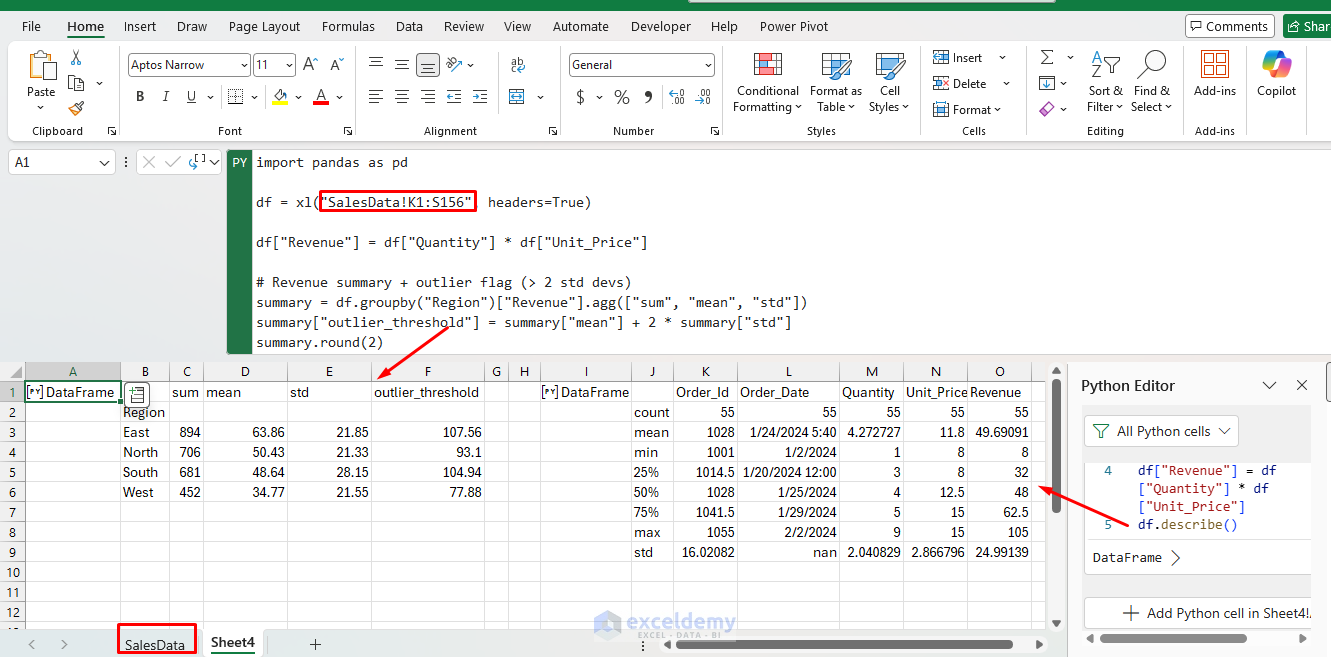
summary = df.groupby("Region")["Revenue"].agg(["sum", "mean", "std"])
summary["outlier_threshold"] = summary["mean"] + 2 * summary["std"]
summary.round(2)
The result spills directly back into your sheet as a table. You can also use df.describe() to show summary statistics for the entire DataFrame.
Python:
import pandas as pd

# Load data from the SalesData sheet
df = xl("SalesData!K1:S156", headers=True)
df["Revenue"] = df["Quantity"] * df["Unit_Price"]
df.describe()
3. Better Charts and Visualizations
It is easy to create professional plots like density plots, swarm plots, word clouds, or small multiples with Matplotlib, Seaborn, or plotnine. These are far more flexible than Excel charts. Go beyond Excel’s native charts with matplotlib and seaborn:
Python:
import pandas as pd
import matplotlib.pyplot as plt
import seaborn as sns

# Load data from the SalesData sheet
df = xl("SalesData!K1:S156", headers=True)
df["Revenue"] = df["Quantity"] * df["Unit_Price"]

fig, ax = plt.subplots(figsize=(8, 4))
sns.boxplot(data=df, x="Region", y="Revenue", palette="Set2", ax=ax)
ax.set_title("Revenue Distribution by Region")
ax.set_xlabel("Region")
ax.set_ylabel("Revenue ($)")
fig
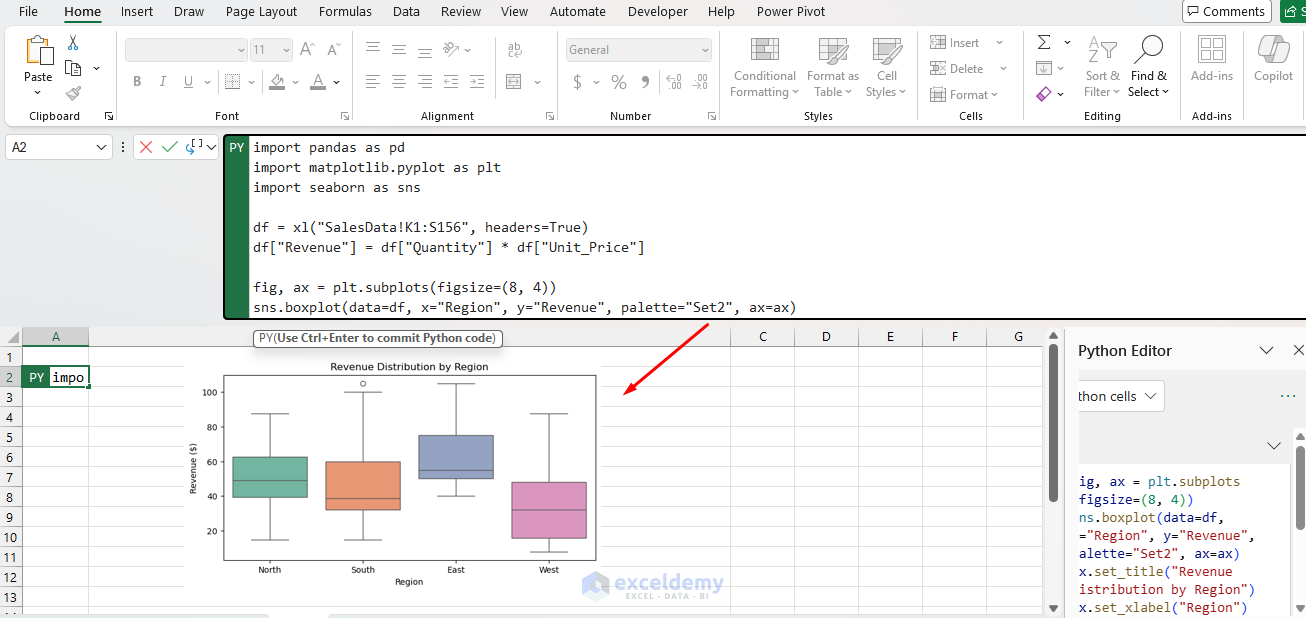
The chart renders as an image object directly in the worksheet, resizable and repositionable like any Excel chart.
4. Machine Learning on Your Spreadsheet Data
Python enables predictive modeling and forecasting. You can build more accurate forecasts or simple machine learning models using statsmodels or scikit-learn directly on your Excel data.
Run predictive models without leaving Excel:
Python:
import pandas as pd
from sklearn.linear_model import LinearRegression

# Load data from the SalesData sheet
df = xl("SalesData!K1:S156", headers=True)

# Convert to numeric and fill missing values with median
df["Quantity"] = pd.to_numeric(df["Quantity"], errors="coerce")
df["Unit_Price"] = pd.to_numeric(df["Unit_Price"], errors="coerce")

df["Quantity"] = df["Quantity"].fillna(df["Quantity"].median())
df["Unit_Price"] = df["Unit_Price"].fillna(df["Unit_Price"].median())

# Calculate Revenue
df["Revenue"] = df["Quantity"] * df["Unit_Price"]

# One-hot encode Product
X = pd.get_dummies(df[["Product", "Unit_Price"]], drop_first=True)
y = df["Revenue"]

# Fit the Linear Regression model
model = LinearRegression().fit(X, y)

# Add predictions
df["Predicted_Revenue"] = model.predict(X).round(2)

# Create final result with useful columns
result = df[["Order_Id", "Product", "Revenue", "Predicted_Revenue"]].copy()
result["Difference"] = (result["Revenue"] - result["Predicted_Revenue"]).round(2)

# Optional: Show model performance
print("Model R² Score:", round(model.score(X, y), 4))

result

Business analysts can apply machine learning models to their existing data without switching to a separate environment.
5. Rolling Calculations and Time Series
Computing moving averages, cumulative sums, or lag features is difficult using only Excel formulas. Python simplifies these tasks.
Python:
import pandas as pd

# Load your full sales data
df = xl("SalesData!K1:S156", headers=True)

# Calculate Daily Revenue
df["Revenue"] = df["Quantity"] * df["Unit_Price"]

# Rolling Calculations (Time Series)
# Sort by date first (important for time series)
df = df.sort_values("Order_Date").reset_index(drop=True)

# 7-day Rolling Metrics on Revenue (weekly trend)
df["Revenue_7d_Mean"]   = df["Revenue"].rolling(window=7, min_periods=1).mean().round(2)
df["Revenue_7d_Sum"]    = df["Revenue"].rolling(window=7, min_periods=1).sum().round(2)
df["Revenue_7d_Max"]    = df["Revenue"].rolling(window=7, min_periods=1).max().round(2)
df["Revenue_7d_Std"]    = df["Revenue"].rolling(window=7, min_periods=1).std().round(2)

# 30-day Rolling Mean (monthly trend)
df["Revenue_30d_Mean"]  = df["Revenue"].rolling(window=30, min_periods=1).mean().round(2)

# Cumulative Revenue (running total)
df["Cumulative_Revenue"] = df["Revenue"].cumsum().round(2)

# Select columns to display
result = df[["Order_Id", "Order_Date", "Product", "Revenue",
             "Revenue_7d_Mean", "Revenue_7d_Sum", "Revenue_30d_Mean",
             "Cumulative_Revenue"]]

result
This approach is useful for analyzing sales trends, smoothing daily or weekly fluctuations, detecting anomalies, and forecasting momentum.
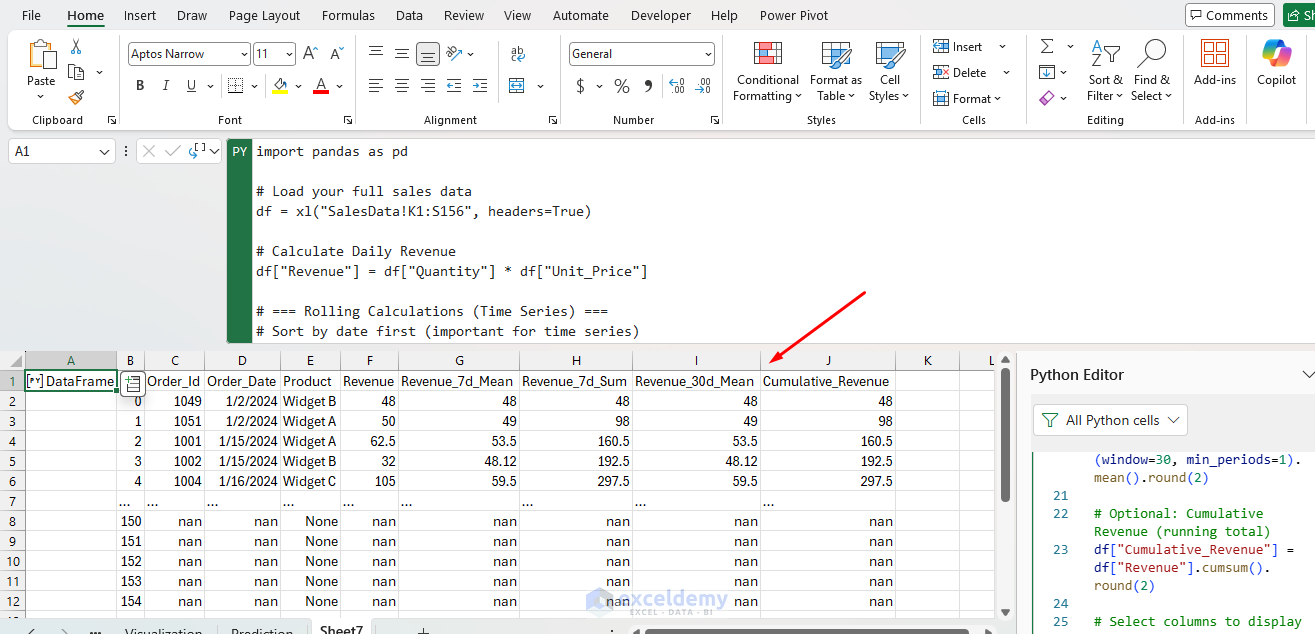
- Revenue_7d_Mean: 7-day moving average (smooths weekly sales trends)
- Revenue_7d_Sum: Total revenue in the last 7 days
- Revenue_30d_Mean: 30-day moving average (longer-term trend)
- Cumulative_Revenue: Running total of all revenue up to that date
Tips and Best Practices
- Chain Cells: Reference previous Python objects (they appear as variables) to build multi-step workflows without cluttering a single cell
- Performance: For heavy computations, be mindful of cloud quotas. Break large tasks into steps or use premium compute if needed
- Security: Code runs in isolated cloud containers. Avoid sensitive operations; Microsoft manages privacy
- Debugging: Use print() or output DataFrames step by step. Errors appear in the cell
- Combine with Excel: Use Python for heavy lifting and Excel for formatting, pivots, or dashboards
- Learning Curve: If you’re new to Python, focus on pandas first. Many free tutorials and sample files are available
- Sharing: Recipients with compatible Microsoft 365 can view or refresh results; otherwise, results are converted to static values
Limitations to Know
- Cloud-only execution; an internet connection is required
- Compute quotas on standard plans
- The Python environment is Anaconda-managed; you cannot install your own packages or use local customizations
- Mobile and web support are limited compared to desktop
- Very large datasets or long-running code may hit timeouts
Conclusion
Python in Excel is most useful when your work is still fundamentally spreadsheet-based, but the analysis itself is becoming more advanced. It excels at data cleaning, DataFrame-style analysis, advanced statistics, and visualization. It is less useful for everyday spreadsheet tasks, which Excel already handles well. Python in Excel bridges the gap between spreadsheet users and data scientists, making advanced analytics accessible without disrupting familiar workflows. Rather than replacing Excel with Python, use Python selectively when analyses become too complex for formulas alone.
Get FREE Advanced Excel Exercises with Solutions!


Really enjoyed reading this. Your perspective on this topic is very interesting. Thanks for putting this together. (ref:62e1a867eb98)
Hello Anna Lewis,
You are most welcome. Thanks for your appreciation and feedback. I am really glad to hear that you enjoyed it.
Keep exploring such article with ExcelDemy!
Regards,
ExcelDemy