


Time series analysis is more than drawing a line chart and extending it into the future. It sits at the heart of business intelligence, from forecasting monthly revenue to anticipating inventory demand and staffing needs. While Python and R dominate academic discussions, Microsoft’s toolset — Excel and Power BI — offers a surprisingly rigorous environment for production-grade time series work, particularly for analysts embedded in enterprise workflows.
In this tutorial, we will show how to perform time series analysis with the Microsoft Stack. Excel will be used for data preparation, seasonal decomposition, moving averages, forecasting, and accuracy metrics. Power BI will be used for interactive visualization and forecast reporting.
1. Prepare and Explore the Time Series in Excel
Assume a company wants to forecast monthly product demand. The dataset contains monthly sales from January 2023 to December 2025.
Use the first 30 months as the training period and the last 6 months as the test period.
| Period | Months | Purpose |
| Training data | Jan-2023 to Jun-2025 | Build forecast models |
| Test data | Jul-2025 to Dec-2025 | Evaluate forecast accuracy |
Create the following helper columns in Excel:
- Month Number:
=ROW()-1
- Year:
=YEAR(A2)
- Month Name:
=TEXT(A2,"mmm")
- Period Type:
=IF(A2<=DATE(2025,6,1),"Training","Test")
- Copy the formulas down to fill the rest of the cells.
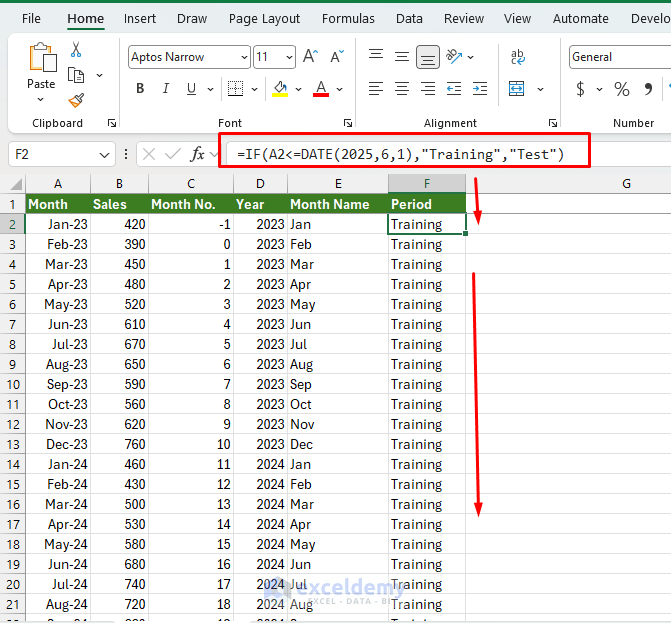
This creates a clean modeling structure. The Month Number column is useful for regression-style trend modeling, while the month name helps estimate seasonal indexes.
2. Visualize the Time Series First
Before forecasting, create a line chart.
- Select the Month and Sales columns.
- Go to Insert >> select Line Chart >> select Line with Markers.
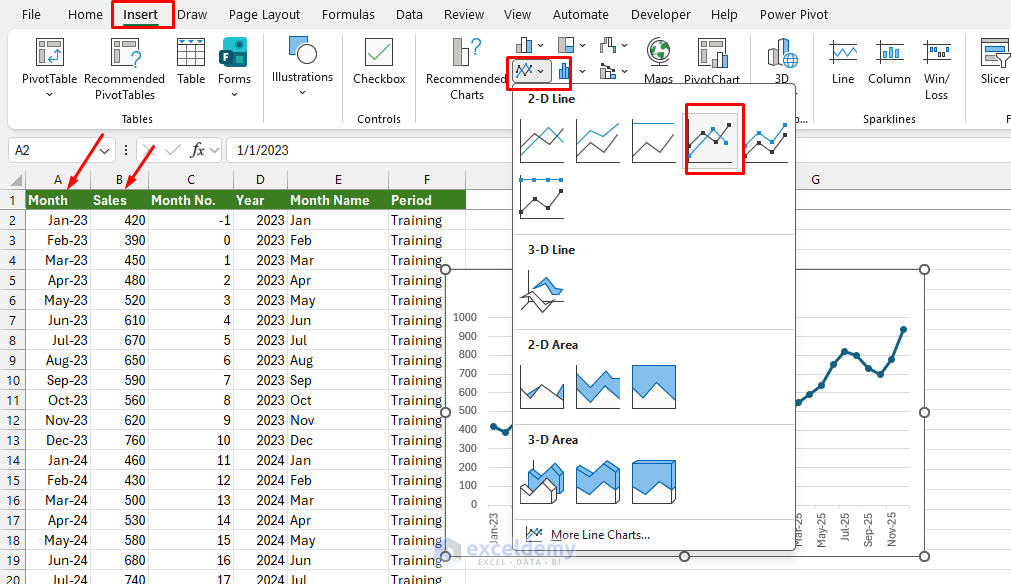
Look for three things:
- Trend: Whether sales increase, decrease, or remain stable.
- Seasonality: Whether certain months repeat high or low values.
- Outliers: Whether unusual spikes or drops exist.
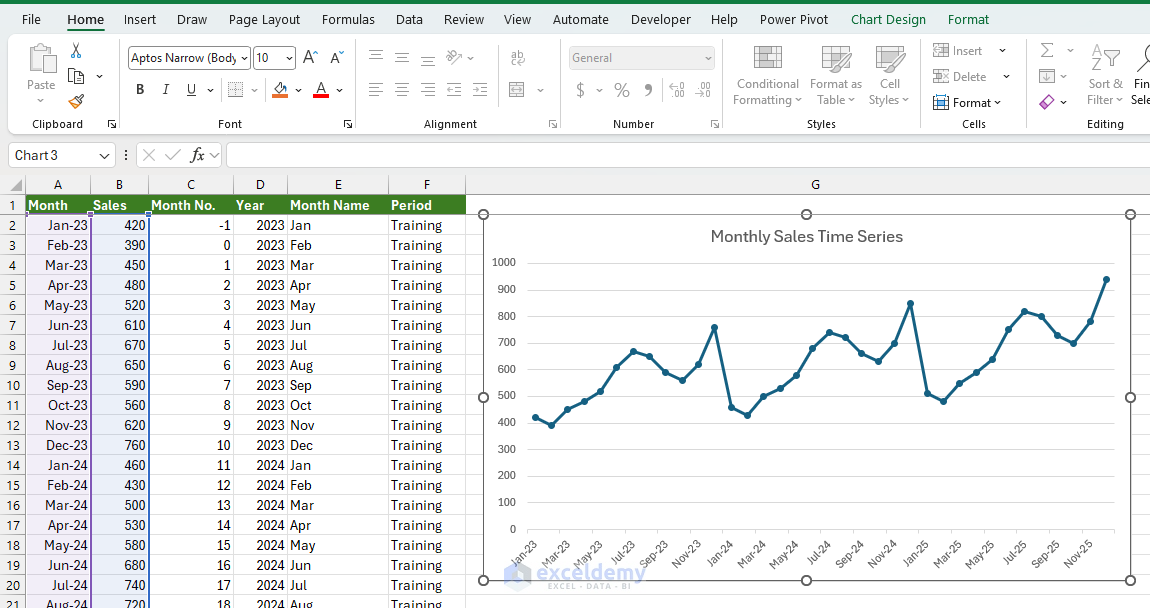
In this dataset, sales generally increase over time, December is usually high, and February is usually low. A simple average is therefore not sufficient.
3. Perform Seasonal Decomposition in Excel
Seasonal decomposition separates a time series into trend, seasonality, and random error.
For business sales data, a multiplicative structure is often useful:
Observed Value = Trend × Seasonal Index × Random Error
This works well when seasonal fluctuations grow larger as the series grows.
Calculate a 12-Month Moving Average:
- First, calculate a 12-month moving average because the data is monthly and has yearly seasonality.
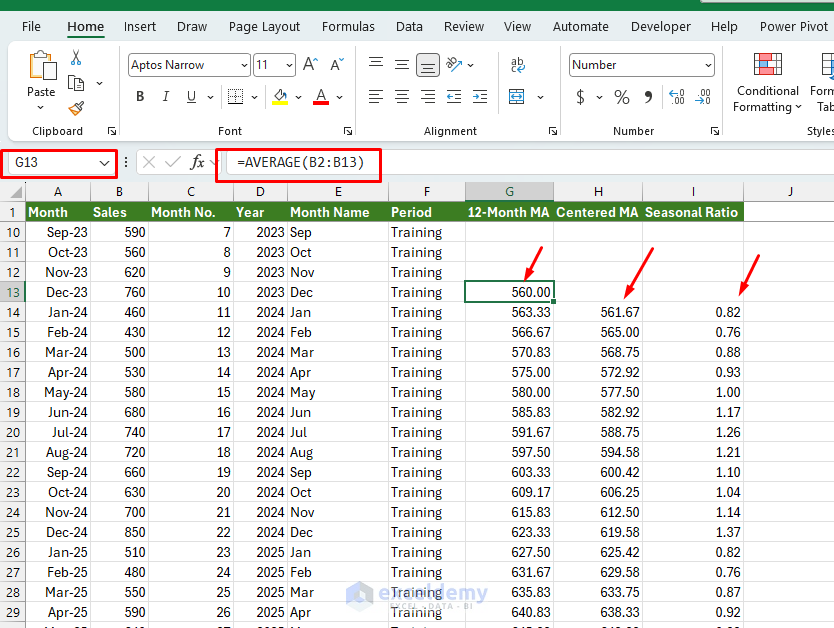
- In G13, enter the following formula:
=AVERAGE(B2:B13)
This gives a rolling 12-month average. Microsoft's Data Analysis ToolPak also includes a Moving Average tool, which projects values based on the average of a specified number of previous periods. However, manual formulas are preferable for transparency because readers can see exactly how each value is calculated.
Calculate the Centered Moving Average:
For even-length moving averages, such as 12 months, the moving average sits between two periods. To align it with actual months, calculate a centered moving average.
- In H14, insert the following formula:
=AVERAGE(G13:G14)
Column H now represents the estimated trend-cycle component.
Calculate Seasonal Ratios:
For multiplicative decomposition, divide actual sales by the centered moving average.
- In I14, enter the following formula:
=B14/H14
- Copy all these formulas downward through the last month.
| Seasonal Ratio | Meaning |
| 1.20 | Sales are 20% above trend |
| 0.85 | Sales are 15% below trend |
| 1.00 | Sales match the trend |
Calculate Monthly Seasonal Indexes:
Create a monthly seasonal index table in another sheet.
- Average Seasonal Ratio:
=AVERAGEIF('Time Series Model'!$E:$E,A2,'Time Series Model'!$I:$I)
- Normalized Seasonal Index:
=B2/AVERAGE($B$2:$B$13)
- Interpretation:
=IF(C2>1,"Above trend",IF(C2<1,"Below trend","Near trend"))
- Copy the formula down to fill the rest of the cells.
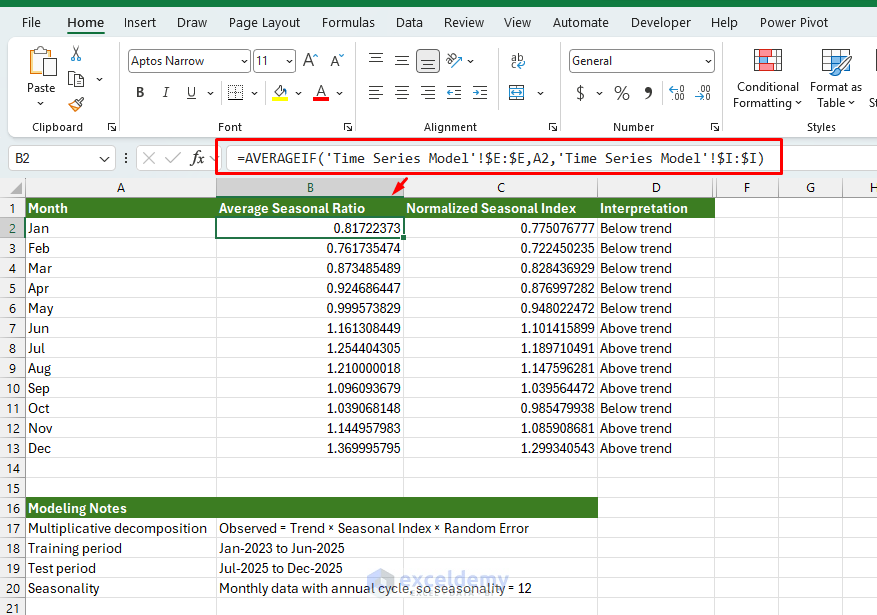
This keeps the average seasonal index equal to 1, which prevents the seasonal adjustment from artificially inflating or deflating the entire series.
4. Build Forecast Models in Excel
Now build several forecast models and compare them. A good forecasting workflow should always compare advanced methods against simple baselines.
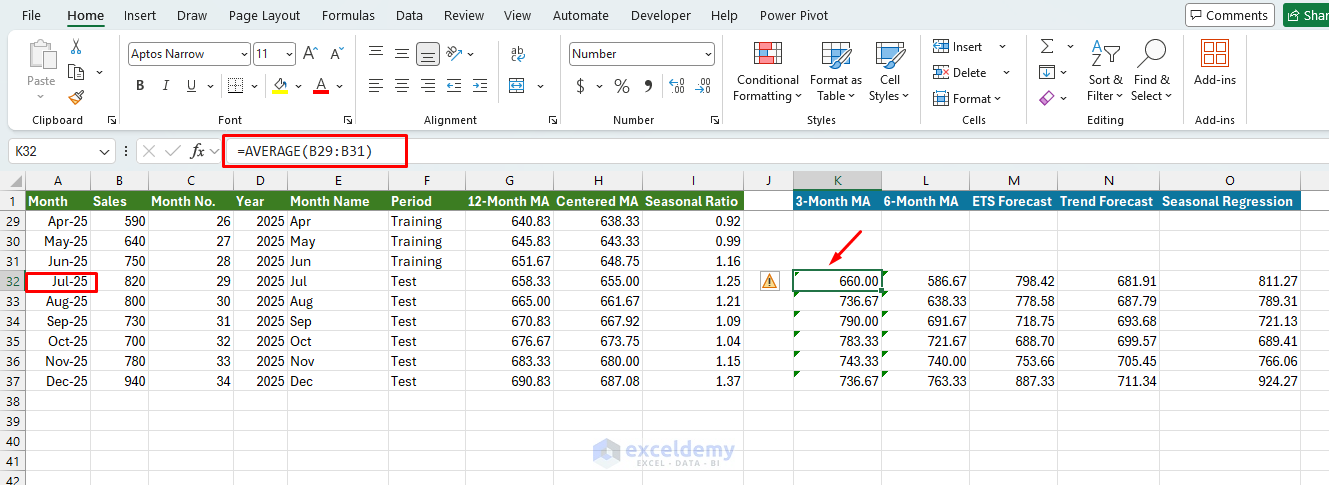
4.1. Three-Month Moving Average
A 3-month moving average reacts quickly to recent changes.
- For the first forecast month, Jul-2025, use the previous three actual months:
=AVERAGE(B29:B31)
- Copy the formula down for the test period.
4.2. Six-Month Moving Average
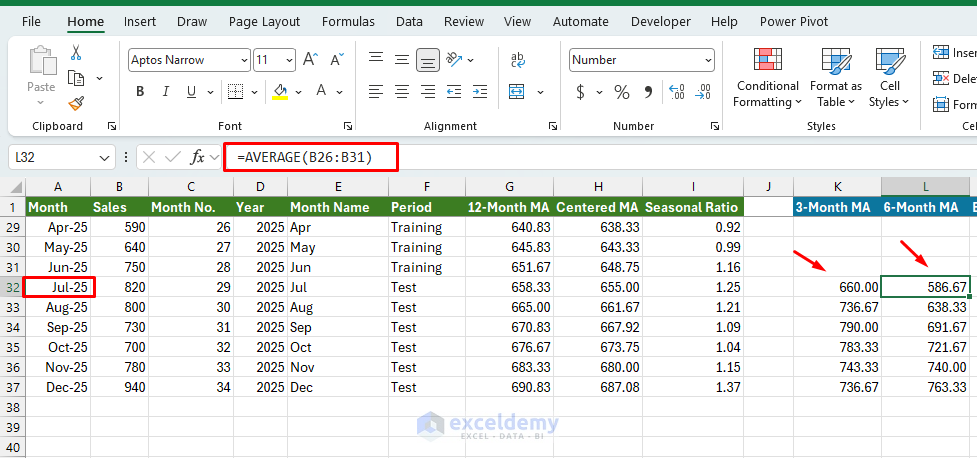
A 6-month moving average is smoother but reacts more slowly.
- For Jul-2025, use the following formula:
=AVERAGE(B26:B31)
- Copy the formula down for the test period.
| Method | Strength | Weakness |
| 3-month moving average | Responds quickly | Can be noisy |
| 6-month moving average | Smoother | Reacts slowly |
| 12-month moving average | Captures annual trend | Too slow for short-term forecasts |
4.3. Excel ETS Forecast
Excel's FORECAST.ETS function is designed for time series forecasting with seasonality.
=FORECAST.ETS(A32,$B$2:$B$31,$A$2:$A$31,12,1,1)
Explanation:
- A32: Target date
- $B$2:$B$31: Historical sales
- $A$2:$A$31: Historical timeline
- 12: Monthly seasonality
- 1: Fill missing values by interpolation
- 1: Aggregate duplicate timestamps by average
You can also check the detected seasonality with:
=FORECAST.ETS.SEASONALITY($B$2:$B$31,$A$2:$A$31)
For monthly data with yearly seasonality, the result should usually be close to 12.
4.4. Manual Seasonal Regression Forecast
A manual seasonal forecast is useful because it is transparent.
The formula is:
Forecast = Trend Forecast × Seasonal Index
- Trend Forecast:
First, estimate the trend using FORECAST.LINEAR.
=FORECAST.LINEAR(C32,$B$2:$B$31,$C$2:$C$31)
- Seasonal Regression:
=N32*INDEX('Seasonal Index'!$C$2:$C$13,MATCH(E32,'Seasonal Index'!$A$2:$A$13,0))
- Copy the formulas down to fill the rest of the cells.
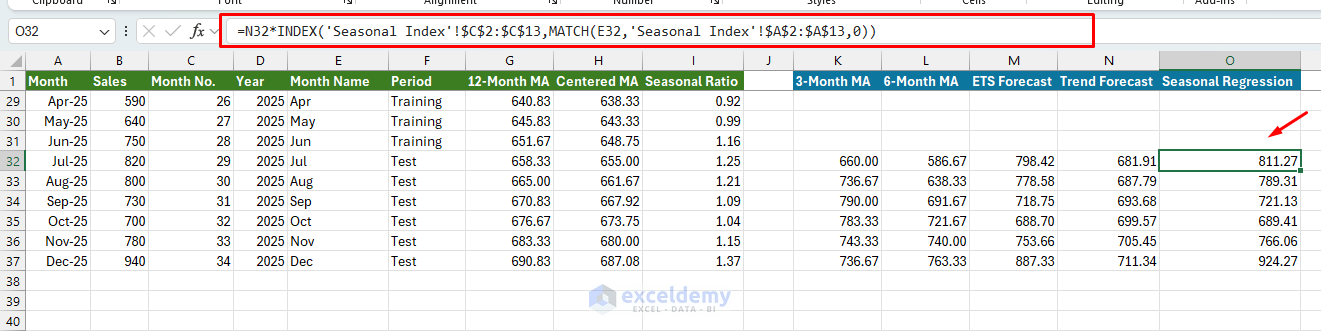
This method is easier to explain in a report because the trend and seasonal components are both visible.
5. Compare Forecasts on the Test Period
Create a comparison table for Jul-2025 to Dec-2025.
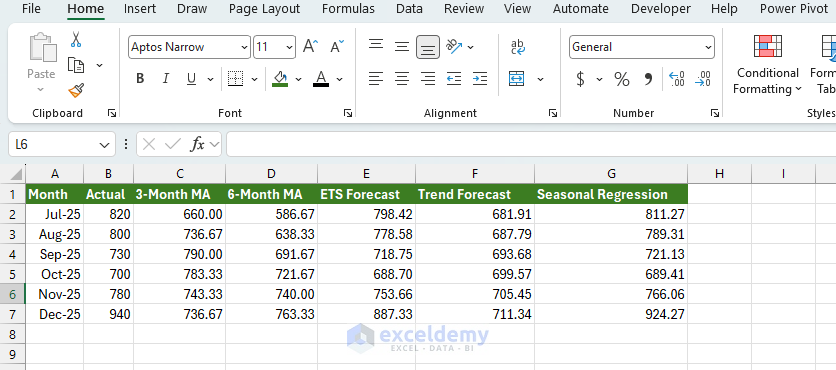
The exact ETS and seasonal regression values depend on the formulas and training range. This table allows the analyst to see whether each forecast method follows the actual test-period pattern.
6. Evaluate Forecast Accuracy with Statistical Error Metrics
Do not select the best forecast model by looking at the chart alone. Use forecast accuracy metrics.
For each forecast method, calculate:
| Error Type | Formula Concept |
| Error | Actual − Forecast |
| Absolute Error | ABS(Actual − Forecast) |
| Squared Error | (Actual − Forecast)^2 |
| Absolute Percentage Error | ABS((Actual − Forecast)/Actual) |
Mean Absolute Error (MAE):
MAE shows the average absolute size of the forecast error.
=AVERAGE(ABS(B32:B37-M32:M37))
Lower MAE is better.
Root Mean Squared Error (RMSE):
RMSE penalizes large errors more heavily.
=SQRT(AVERAGE((B32:B37-M32:M37)^2))
Use RMSE when large forecast misses are costly.
Mean Absolute Percentage Error (MAPE):
MAPE expresses the average error as a percentage.
=AVERAGE(ABS((B32:B37-M32:M37)/B32:B37))
- Format the result as Percentage.
Be careful with MAPE when actual values are zero or very close to zero.
Bias (Mean Error):
Bias shows whether the forecast is consistently too high or too low.
=AVERAGE(B32:B37-M32:M37)
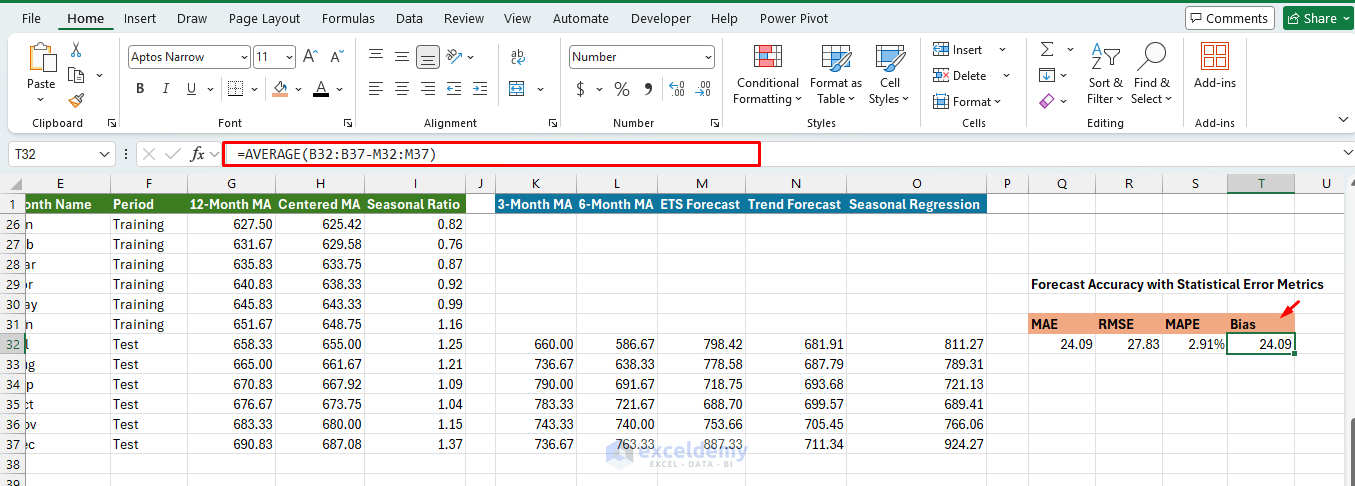
Interpretation:
- Positive: Forecast is too low on average.
- Negative: Forecast is too high on average.
- Near zero: Forecast is balanced on average.
A model can have low average bias but still produce large individual errors, so always use bias alongside MAE, RMSE, and MAPE.
7. Create a Forecast Accuracy Summary Table
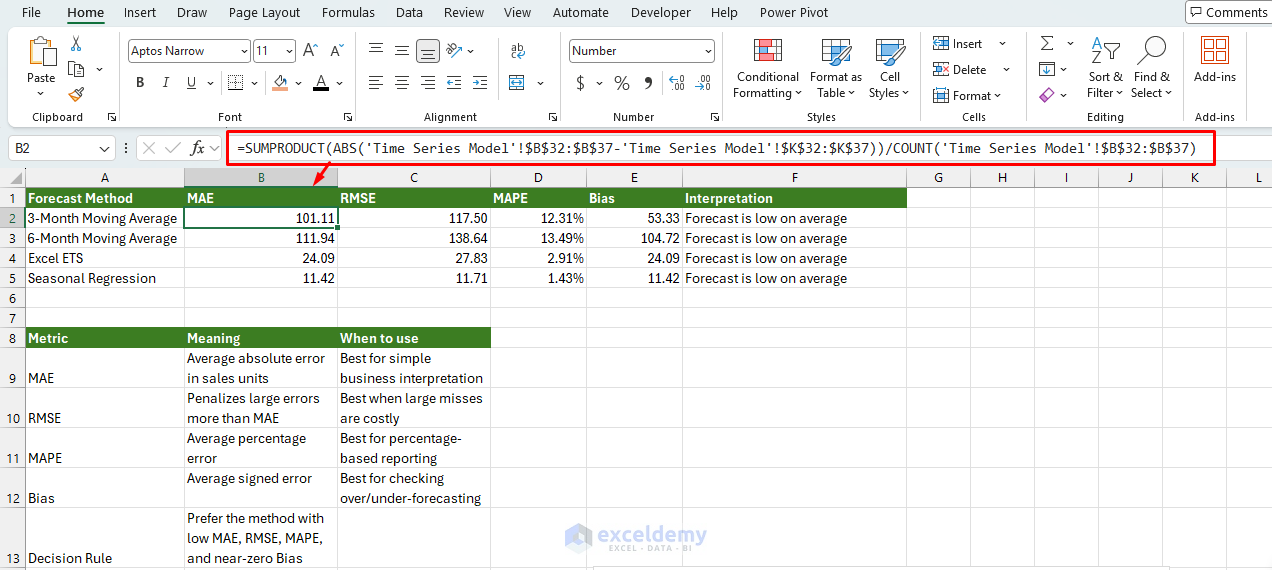
Create a final accuracy summary table across all forecast methods. The strongest model should have low MAE, low RMSE, low MAPE, and low bias.
Build a table like the following:
| Situation | Preferred Metric |
| Easy business interpretation | MAE |
| Large errors are costly | RMSE |
| Percentage-based comparison | MAPE |
| Detecting over/under-forecasting | Bias |
The best method is usually the one with low MAE, low RMSE, low MAPE, and low bias. If the metrics disagree, choose based on the business cost of error.
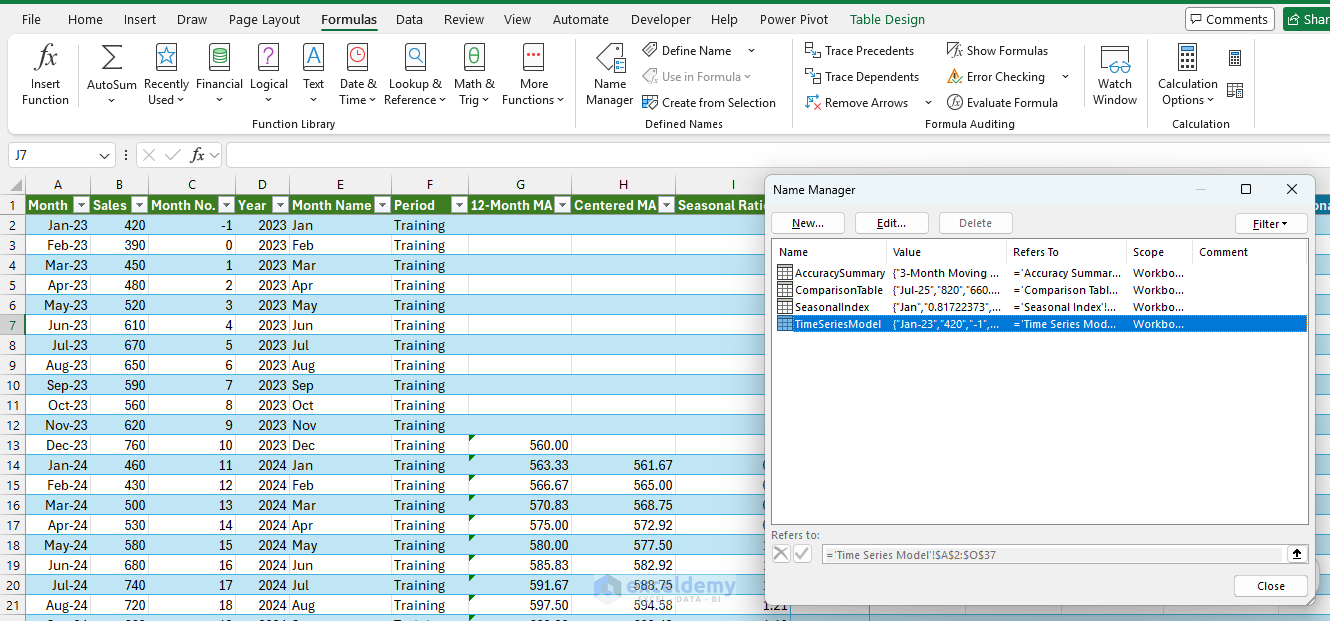
Remember to convert all your data into a table before importing it into Power BI. For clarity in explaining the formulas, this tutorial uses direct cell references. In practice, named tables are recommended.
8. Visualize and Compare Forecasts in Power BI
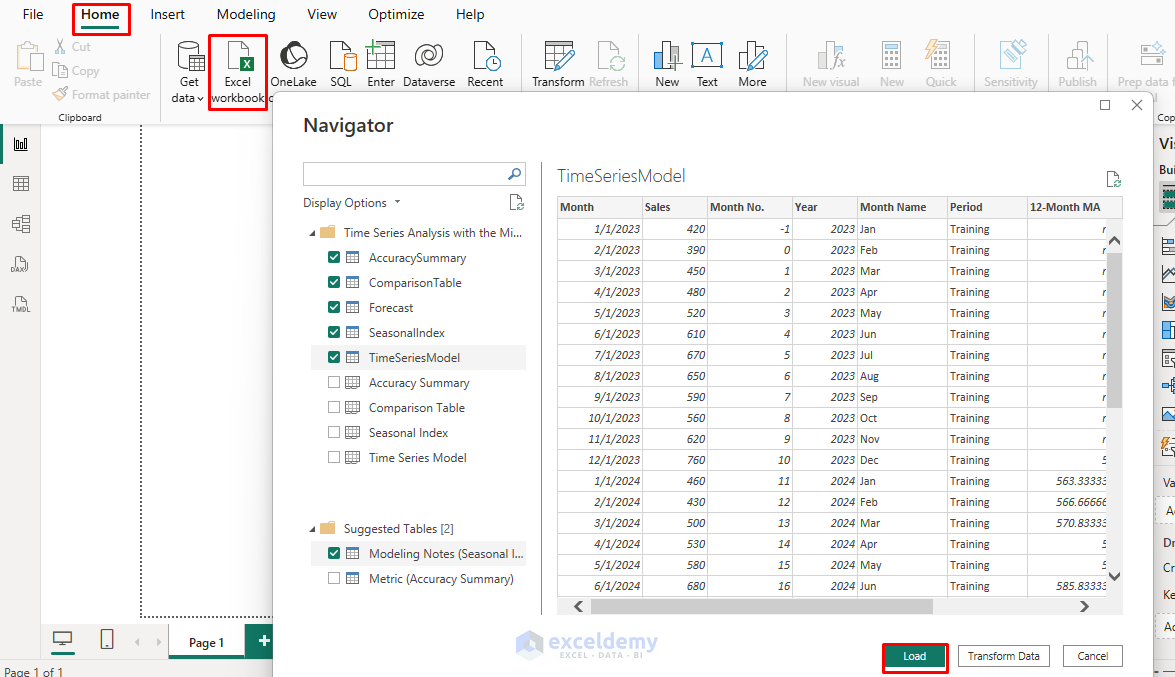
After completing the Excel model, import the workbook into Power BI.
Import Data:
- Go to the Home tab >> select Get Data >> select Excel Workbook.
- Select the Excel file >> click Load.
- Load all the tables.
Build Forecast Visuals in Power BI:
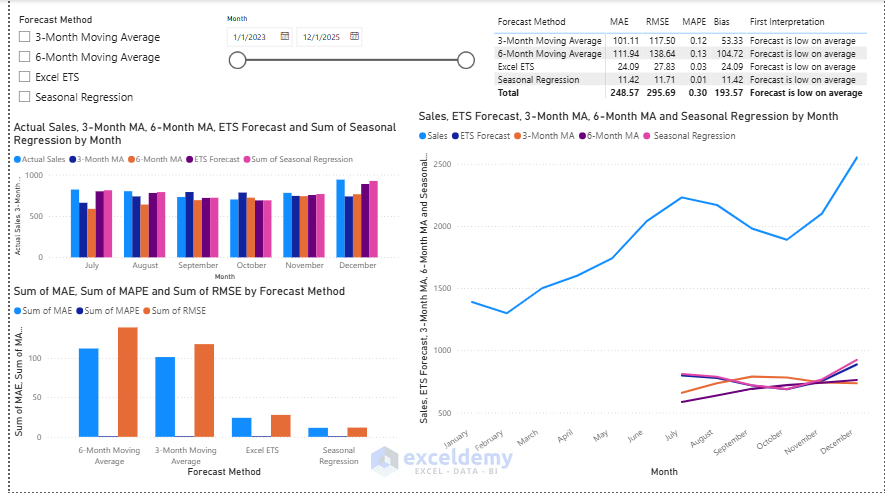
Create a line chart:
- Add a Line Chart from the Visualizations pane.
- Drag Month to the X-axis.
- Drag Sales, ETS Forecast, 3-Month MA, 6-Month MA, and Seasonal Regression to the Y-axis.
This allows the reader to compare how each method behaves.
Add other visuals:
- Clustered column chart: Compare MAE, RMSE, and MAPE.
- Matrix: Display the full accuracy summary.
- Slicer: Select a forecast method.
- Card: Show the best-performing method.
Use Power BI's Built-in Forecast Option:
Power BI also has built-in forecasting through the Analytics pane. The Analytics pane is available after selecting a visual and clicking the Analytics icon, and it can add forecast lines to supported visuals.
- Create a line chart with Month on the X-axis and Sales on the Y-axis.
- Select the line chart.
- Open the Analytics pane.
- Turn on the Forecast line.
- Set the forecast length, confidence interval, and seasonality if available.
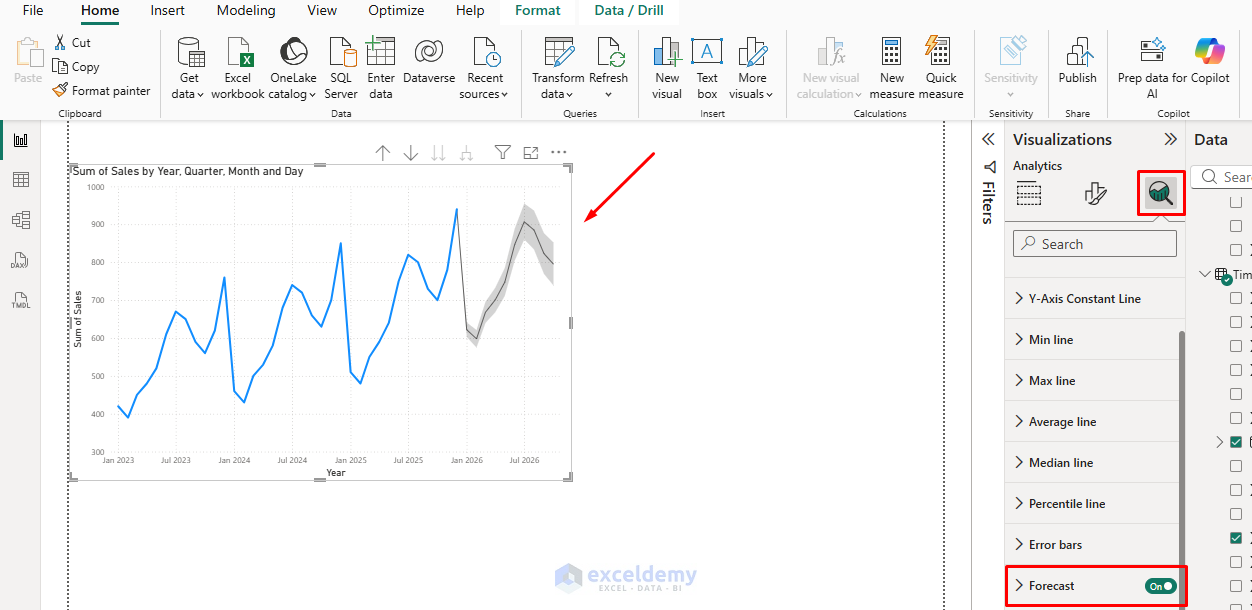
Use Power BI's built-in forecast as a visual reference, not as the sole evaluation method. The Excel test-period metrics should remain the primary basis for model selection.
9. Maintain Statistical Rigor and Finalize the Workflow
A time series analysis becomes weak when it only shows a forecast line. To keep the analysis rigorous, follow these rules:
| Rule | Why It Matters |
| Use a training/test split | Prevents judging the model on data it has already seen |
| Compare against simple baselines | Shows whether advanced methods actually improve accuracy |
| Use multiple error metrics | Different metrics reveal different weaknesses |
| Check seasonality before modeling | Seasonal data requires seasonal methods |
| Avoid overfitting | A complex model may look good historically but fail on new data |
| Report bias | A forecast may be consistently too high or too low |
| Explain limitations | Forecasts are estimates, not guarantees |
Conclusion
Excel and Power BI can support a complete time series analysis workflow when used carefully. Excel provides the statistical foundation: seasonal decomposition, moving averages, ETS forecasting, seasonal regression, and forecast accuracy metrics. Power BI turns the results into an interactive report where users can compare actual values, forecast methods, and model performance. The key is to avoid relying on a single forecast line. A rigorous Microsoft Stack workflow should compare multiple methods, reserve a test period, calculate forecast errors, check bias, and explain uncertainty. This turns a basic forecast into a defensible time series analysis.
Get FREE Advanced Excel Exercises with Solutions!

