


Text cleanup is the most important step when performing any type of analysis with text data in Excel or other Microsoft tools. Whether it’s removing unnecessary spaces, extracting specific parts of text, or replacing certain characters, understanding the right function for the job is crucial. The most commonly used text functions for text cleanup are LEFT, RIGHT, MID, FIND, SEARCH, LEN, TRIM, CLEAN, SUBSTITUTE, and REPLACE.
In this tutorial, we will explore text cleanup and which function solves your problem. We will also cover key decision points like fixed vs. variable position, handling spaces, and working with known or pattern-based text.
The Core Decision Tree
Before reaching for a function, answer three questions:
- Where is the text I want? Fixed position (always starts at character 5) or variable position (starts after a comma)?
- What am I removing? Visible extra spaces, invisible junk characters, or specific known text?
- Am I extracting or replacing? Do I want to pull something out, or swap it for something else?
Your answers point directly to the right function.
1. Fixed Position vs. Variable Position
Fixed Position: You Know Exactly Where It Starts
When you know exactly where the text starts or ends, you can use the LEFT, RIGHT, or MID functions.
- Extract the first 2 characters from a text string (Product Code):
=LEFT(B2, 2)
- Extract the last 5 characters from a text string (Product Code):
=RIGHT(B2,5)
- Extract 4 characters starting from the 5th character of Order ID:
=MID(A2,5,4)
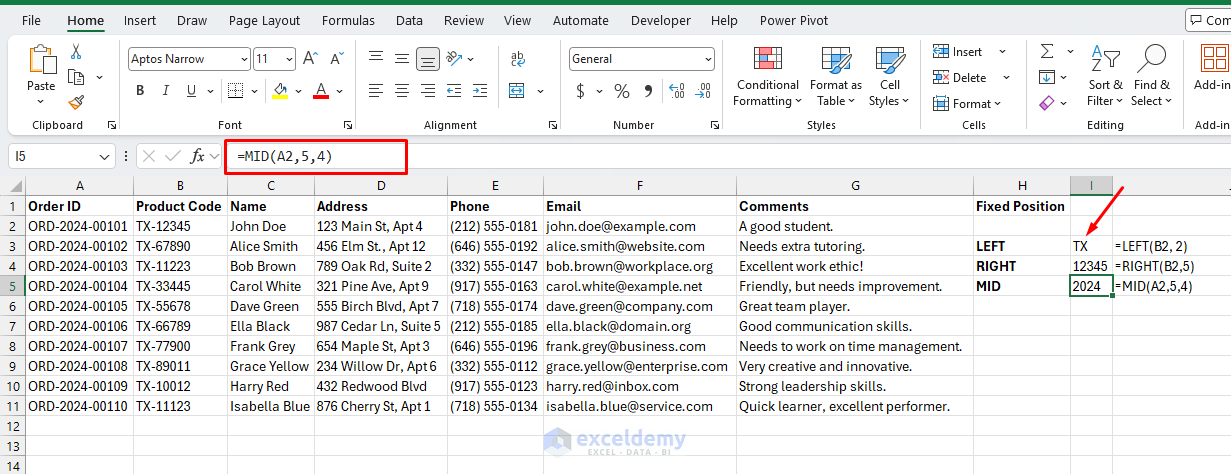
When to use these: Product codes, fixed-width data exports, zip codes, date strings formatted consistently.
The limitation: The moment your data isn’t perfectly uniform, fixed-position functions break. A name that’s one character longer throws everything off.
Variable Position: The Text Moves Around
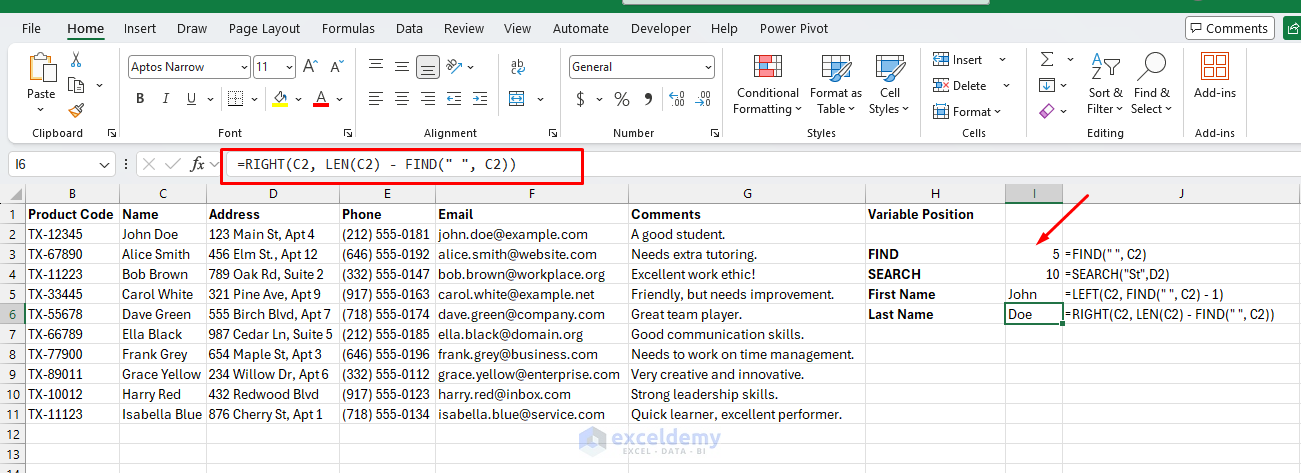
If the position of the text you need to extract is not fixed and depends on the content itself, you can use FIND or SEARCH in combination with other functions. They don’t extract text themselves — they tell MID, LEFT, or RIGHT where to look.
- FIND locates a character or string and is case-sensitive:
=FIND(" ", C2)
- SEARCH does the same thing but is case-insensitive and also accepts wildcards (?, *):
=SEARCH("St",D2)
- Extract the part of the string before the first space:
=LEFT(C2, FIND(" ", C2) - 1)
- Extract the part of the string after the first space:
=RIGHT(C2, LEN(C2) - FIND(" ", C2))
Which brings us to the helper function you’ll need constantly:
- LEN(text): Returns the total character count of a string.
LEN rarely solves a problem on its own, but it’s essential for calculating how many characters remain after a given point — the exact math MID and RIGHT need when positions are variable.
FIND vs. SEARCH: Which One?
| Situation | Use |
| Data has consistent casing | Either works; SEARCH is safer |
| Case matters (“USD” ≠ “usd”) | FIND |
| You need a wildcard pattern | SEARCH |
| You’re not sure | SEARCH |
2. Removing Visible Spaces or Non-Printable Characters
Removing Extra Spaces
If the issue is extra spaces between words (leading, trailing, or multiple spaces between words), use the TRIM function.
- Remove extra spaces from the string:
=TRIM(C2)
This will remove extra spaces but keep single spaces between words.
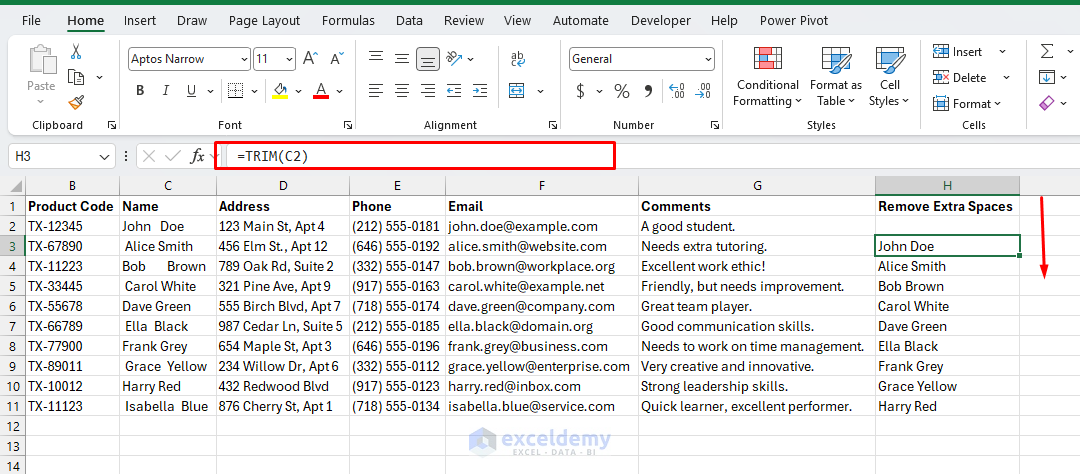
What TRIM does not do: It won’t remove non-breaking spaces (character 160, common in web-pasted data). Combine TRIM with SUBSTITUTE and CHAR to handle those.
Removing Non-Printable Characters
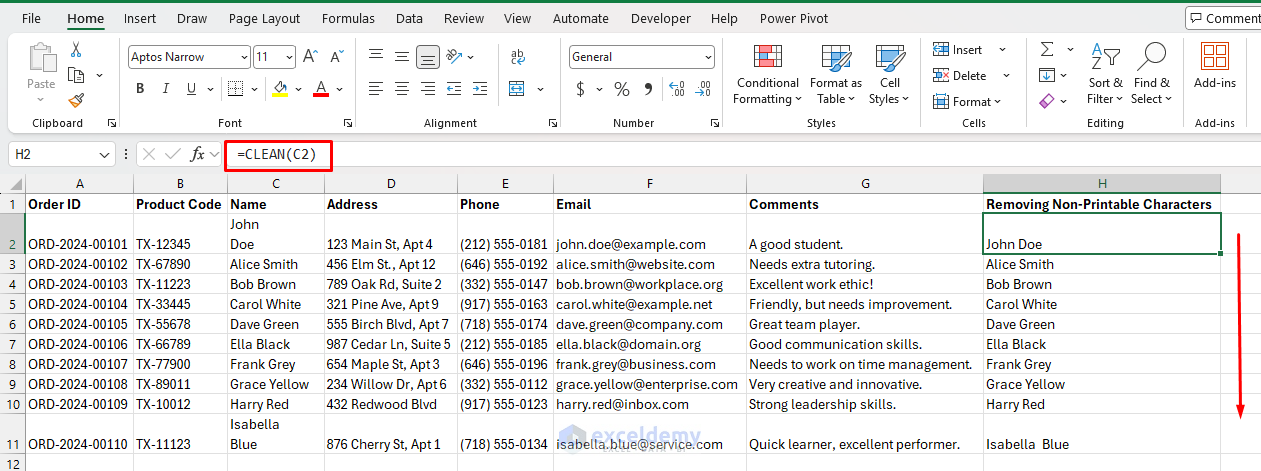
If your data contains unwanted non-printable characters (such as line breaks or other hidden symbols), use the CLEAN function.
- Remove non-printable characters:
=CLEAN(B2)
- This function cleans up text that might cause errors when processing or displaying data.
TRIM vs. CLEAN: Which One Do You Need?
| Symptom | Function |
| Extra gaps between words | TRIM |
| Trailing/leading whitespace | TRIM |
| Strange boxes or symbols appearing in the cell | CLEAN |
| Data imported from a mainframe or ERP | CLEAN |
| You’re not sure | =TRIM(CLEAN(A2)) — run both |
TRIM and CLEAN are safe to nest. Running both costs nothing and catches most cases.
3. Replacing Known Text vs. Pattern-Based Extraction
Replacing Known Text: You Know the Text You Want to Replace
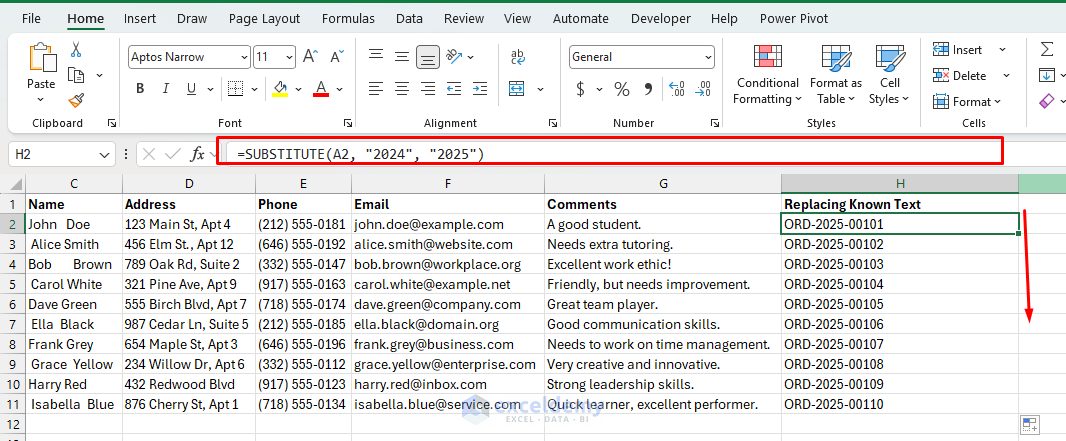
If you want to replace specific words or phrases, SUBSTITUTE is a great choice. This function is ideal when you know exactly what you want to replace.
- Replace all occurrences of the year 2024 with 2025:
=SUBSTITUTE(A2, "2024", "2025")
The optional fourth argument (instance number) is something REPLACE can’t do at all — it’s one of SUBSTITUTE’s unique strengths.
Stripping characters with SUBSTITUTE: Replacing with an empty string “” is effectively a delete. This is the cleanest way to remove specific characters:
=SUBSTITUTE(SUBSTITUTE(A2, "(", ""), ")", "")
Pattern-Based Extraction (Using Wildcards)
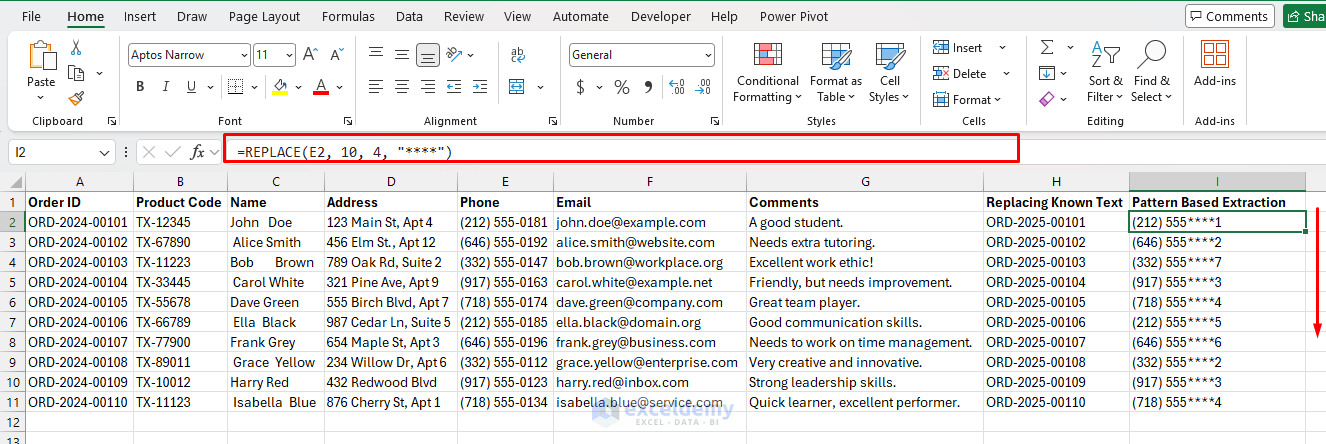
If you need to extract or manipulate text based on a pattern (e.g. extracting a date from a string), use FIND, SEARCH, MID, or REPLACE in combination. These functions work well with wildcards for more flexible pattern matching.
- Replace text within a string where the pattern varies.
- Mask the last 4 digits of a card number:
=REPLACE(E2, 10, 4, "****")
SUBSTITUTE vs. REPLACE:
Do you know what the text says, or where it sits?
| You know… | Use |
| The actual text to swap (“remove all commas”) | SUBSTITUTE |
| The position to overwrite (characters 3–7) | REPLACE |
| You want to replace only the 2nd or 3rd occurrence | SUBSTITUTE with instance_num |
| The content varies, but the position is fixed | REPLACE |
Combining Functions: Where Real Problems Get Solved
Single functions handle clean, simple data. Real-world data usually requires stacking them.
Extract a middle name initial from a full name:
=MID(A2, FIND(" ", A2) + 1, 1)
Extract everything between parentheses:
=MID(A2, FIND("(", A2) + 1, FIND(")", A2) - FIND("(", A2) - 1)
Clean imported data and remove a known prefix:
=SUBSTITUTE(TRIM(CLEAN(A2)), "REF:", "")
Get the filename from a full file path:
=MID(A2, FIND("*", SUBSTITUTE(A2, "\", "*", LEN(A2) - LEN(SUBSTITUTE(A2, "\", "")))) + 1, LEN(A2))
- This replaces the last
\with*, finds it, then extracts everything after it.
Conclusion
Choosing the right text function depends on the problem at hand. By following the decision tree in this tutorial, you can now easily decide which function solves your problem. If you know the position of the text you need, use LEFT, RIGHT, or MID. For pattern-based extractions, FIND or SEARCH combined with MID or REPLACE is the way to go. For cleaning text, TRIM and CLEAN are essential tools. And if you need to replace specific text, SUBSTITUTE and REPLACE are the right choices. Always assess whether you’re dealing with fixed or variable positions, visible spaces or non-printable characters, and known text versus patterns when choosing your function. By doing so, you can efficiently clean and manipulate text in Excel or other Microsoft tools.
Get FREE Advanced Excel Exercises with Solutions!


This tutorial provides a clear, structured approach to text cleanup by analyzing decision points such as fixed versus variable positions, space handling, and pattern-based text. It serves as a practical guide for choosing the correct function to resolve specific, common data cleaning challenges.
Thank you for this excellent overview! Breaking down text cleanup by specific decision points like fixed vs. variable positions makes it so much easier to choose the right function. Great tutorial!
Hello Mohammed Nadim,
Thanks for your feedback and appreciation. Your feedback is so amazing and constructive. Glad to hear that you the breakdown is helpful to choos ethe right function. If you need further help, please let us know.
Regards,
ExcelDemy
I think this also should do it
TEXTAFTER(C2, ” “)
Rather than the lengthy formula to write and interpret. Thanks learnt a lot about it.
Hello Niraj Man,
You are most welcome. Thanks for your suggestion. Of course, you can simplify long formula with existing updated dynamic formulas. We appreciate your feedback. Glad to hear that you learnt a lot from our tutorial.
Regards,
ExcelDemy