


Large Excel models are difficult to audit. A single broken formula buried in a thousand-row sheet can silently corrupt your entire analysis, and without the right visual techniques, you might never catch it. The key is using visual cues, quick formatting tricks, built-in tools, and pattern recognition so problems jump out at you.
In this tutorial, we will show 5 visual cues to spot errors in large Excel models instantly. These are five powerful, practical techniques to catch errors at a glance.
1. Conditional Formatting for Formula Consistency
One of the most powerful auditing tricks is using conditional formatting to highlight cells that break the pattern — specifically, cells that contain a hard-coded number where every other cell in the column uses a formula.
Steps:
- Select your formula range
- Go to the Home tab >> select Conditional Formatting >> select New Rule
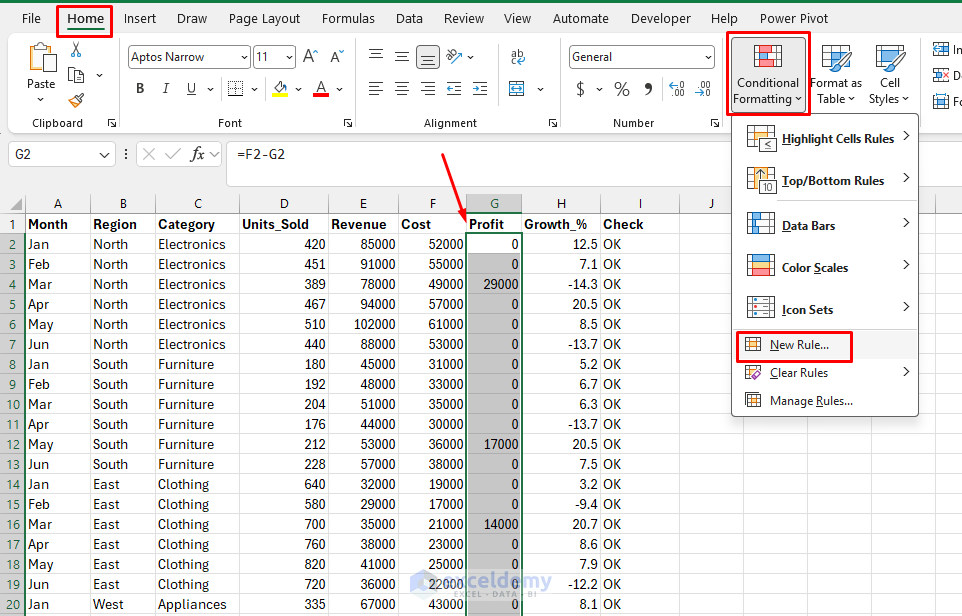
- Choose Use a formula to determine which cells to format
- Enter a formula like:
=NOT(ISFORMULA(G2))
- Click Format >> apply a bold fill color: red or orange works well
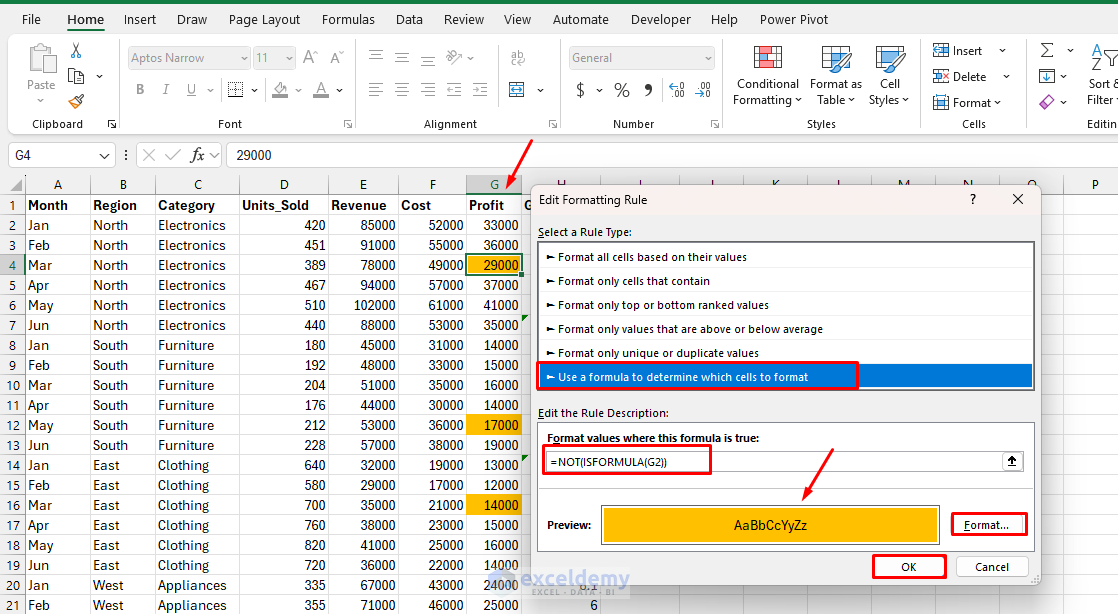
Now every cell without a formula will light up immediately. In a revenue model where every row should compound from the one above it, a hard-coded override becomes impossible to miss.
Take it further: You can flip the logic to highlight only formulas in a range you expect to be static inputs. Use =ISFORMULA(A1) with a yellow fill to catch any cell that has been accidentally overwritten with a live formula in your assumptions block.
2. “Go To Special” to Surface Hard-Coded Numbers
This is Excel’s built-in secret weapon, and most users never touch it. Go To Special lets you select every constant, every formula, every blank, or every error in a range — instantly, across the entire sheet.
Steps:
- Go to the Home tab >> select Find & Select >> select Go To Special
- Or press Ctrl + G (or F5)
- Select Constants
- Keep only Numbers checked
- Click OK
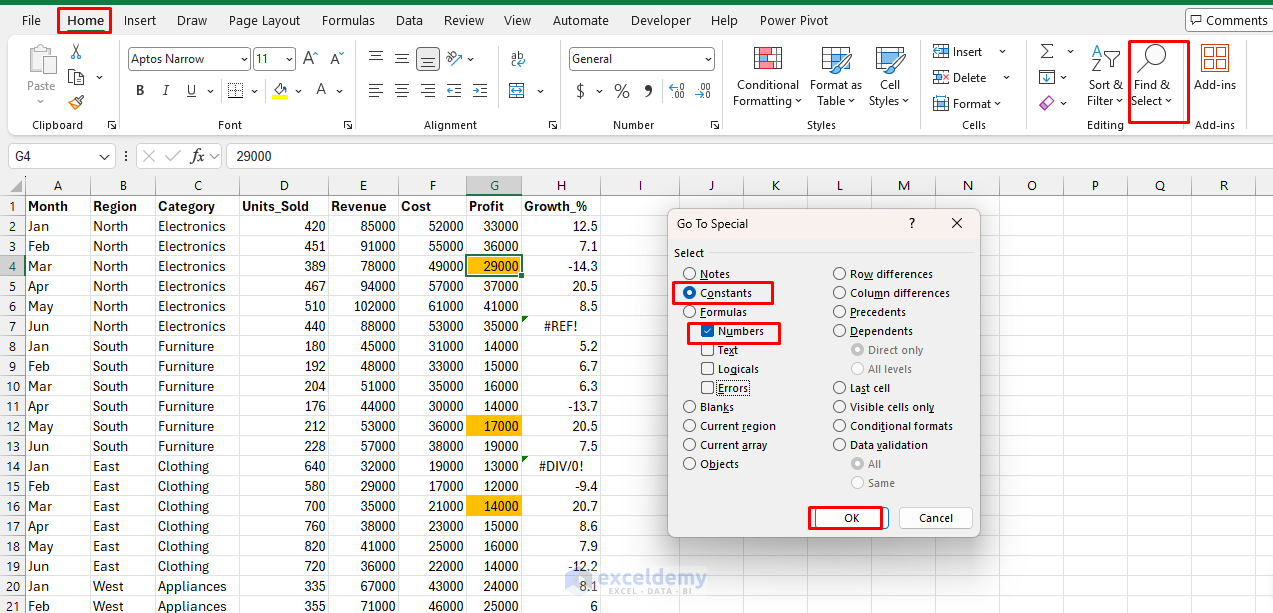
Excel will immediately highlight every cell in the sheet that contains a raw number rather than a formula.
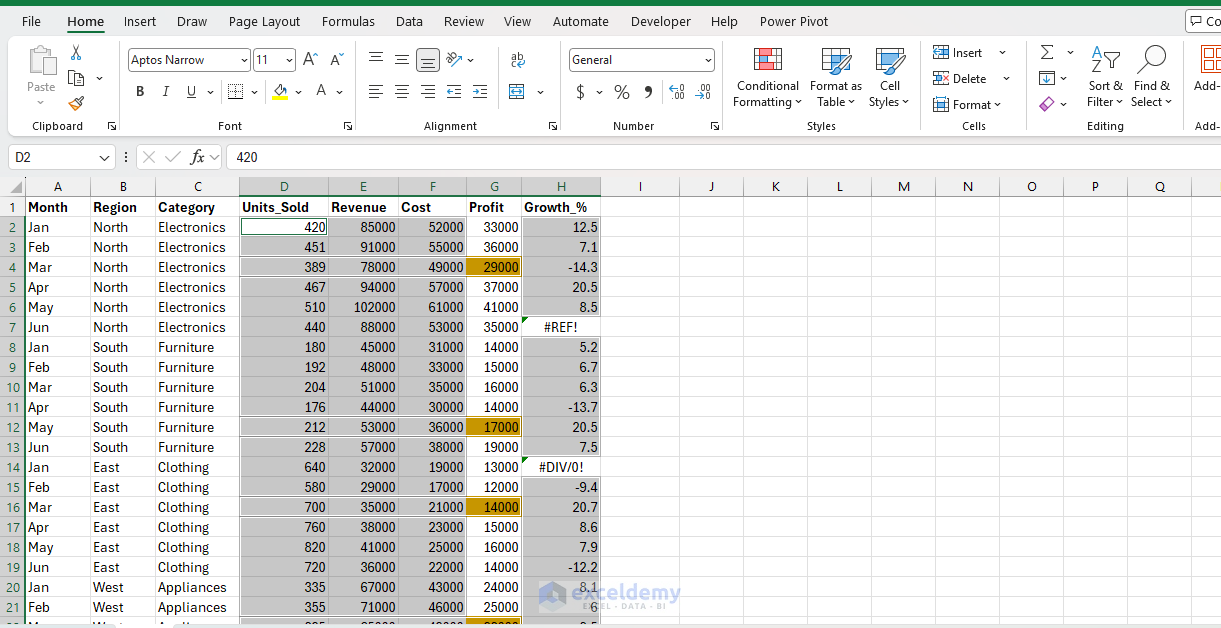
In a well-structured model, your constants should live only in a dedicated inputs or assumptions section. If Go To Special reveals hard-coded numbers scattered throughout your calculation engine — inside DCF rows, amortization tables, or summary tabs — those are live audit flags. They could represent shortcuts taken under deadline pressure that have since been forgotten.
Pro tip: After selecting constants, apply a cell fill manually with Alt + H + H. Now you have a persistent visual map of every assumption baked into the model, which you can review or clear in the next audit cycle.
3. Trace Precedents and Dependents with Arrow Auditing
Excel’s formula auditing toolbar draws literal arrows between cells to show you what feeds into a formula and what that formula feeds into. It turns an invisible web of dependencies into a visible map.
Steps:
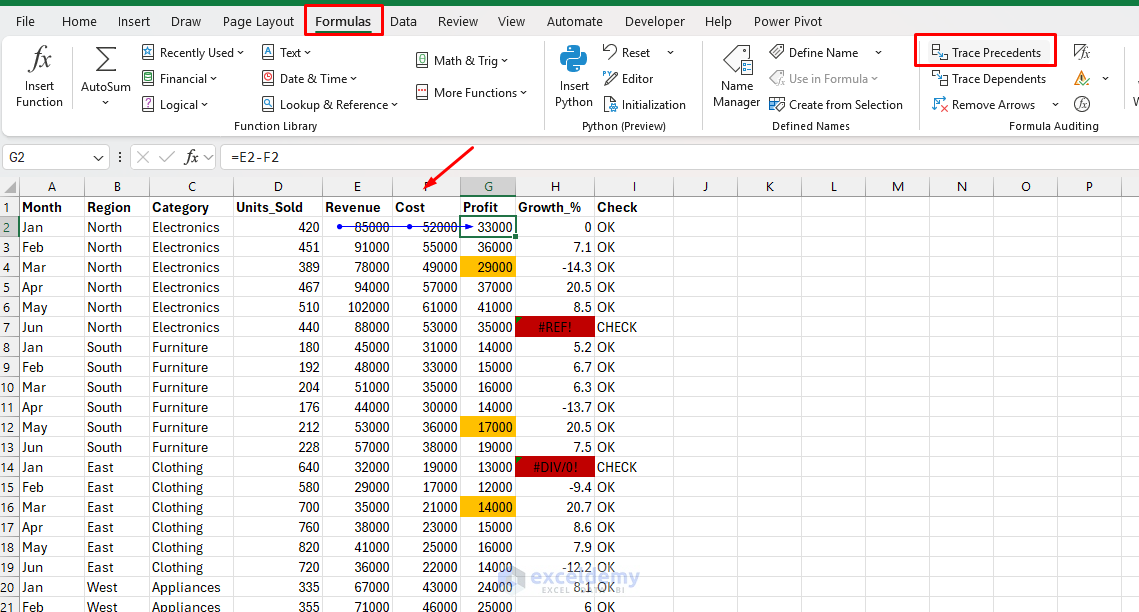
- Go to the Formulas tab >> in the Formula Auditing group, select Trace Precedents or press Ctrl + [
- Select Trace Dependents or press Ctrl + ]
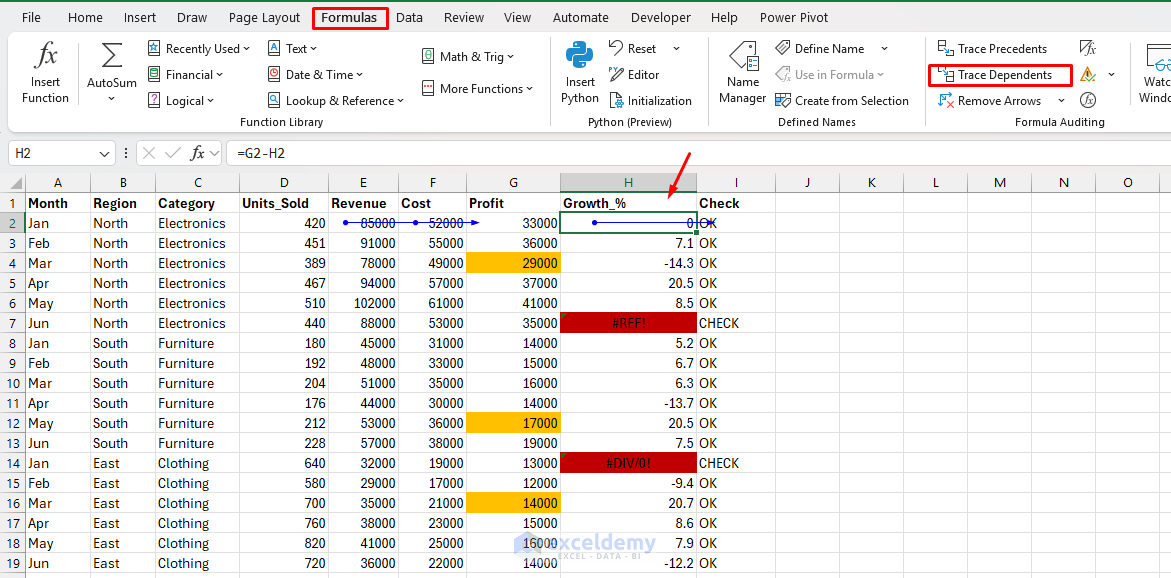
Blue arrows indicate cells on the same sheet; dashed arrows with a small sheet icon indicate cross-sheet references.
The visual cue to watch for is an arrow that goes somewhere unexpected — a cell pulling from a different section than you anticipated, or a formula with no arrows at all (meaning it references no other cell, which often signals a hard-coded value masquerading as a formula). When you see a dashed arrow you can’t immediately explain, that is your error candidate.
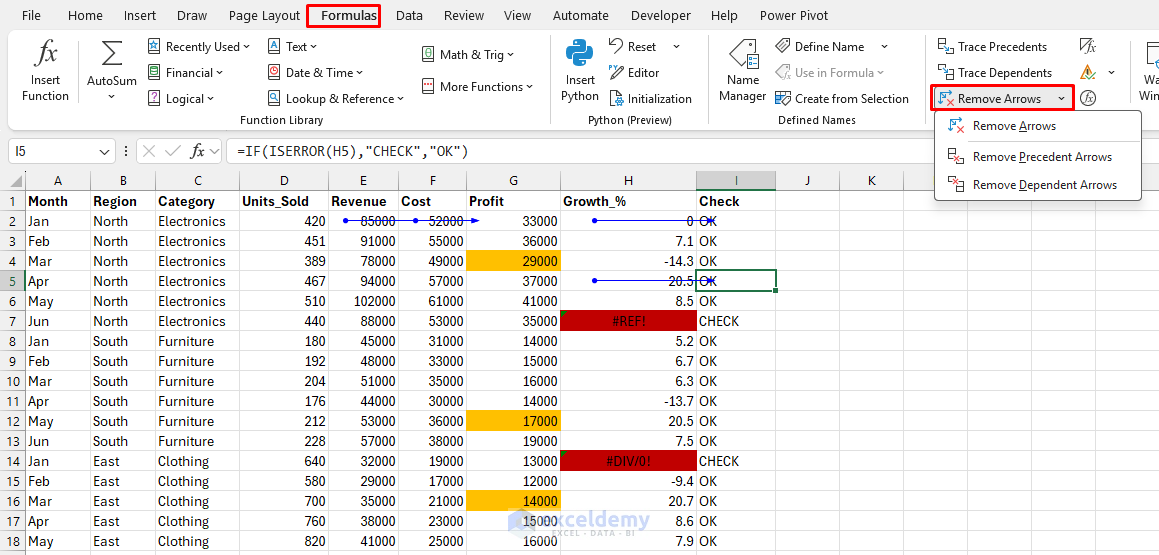
Remove all arrows when done using Remove Arrows in the same ribbon group to keep the sheet clean.
4. Error-Check Formulas with Conditional Formatting Heat Maps
Rather than hunting for #REF!, #DIV/0!, or #VALUE! errors one by one, build a heat map that makes them glow.
Step 1: Highlight errors directly
- Select the entire model range
- Go to the Home tab >> select Conditional Formatting >> select New Rule
- Choose Format only cells that contain >> select Errors
- Click Format >> apply a bright red fill
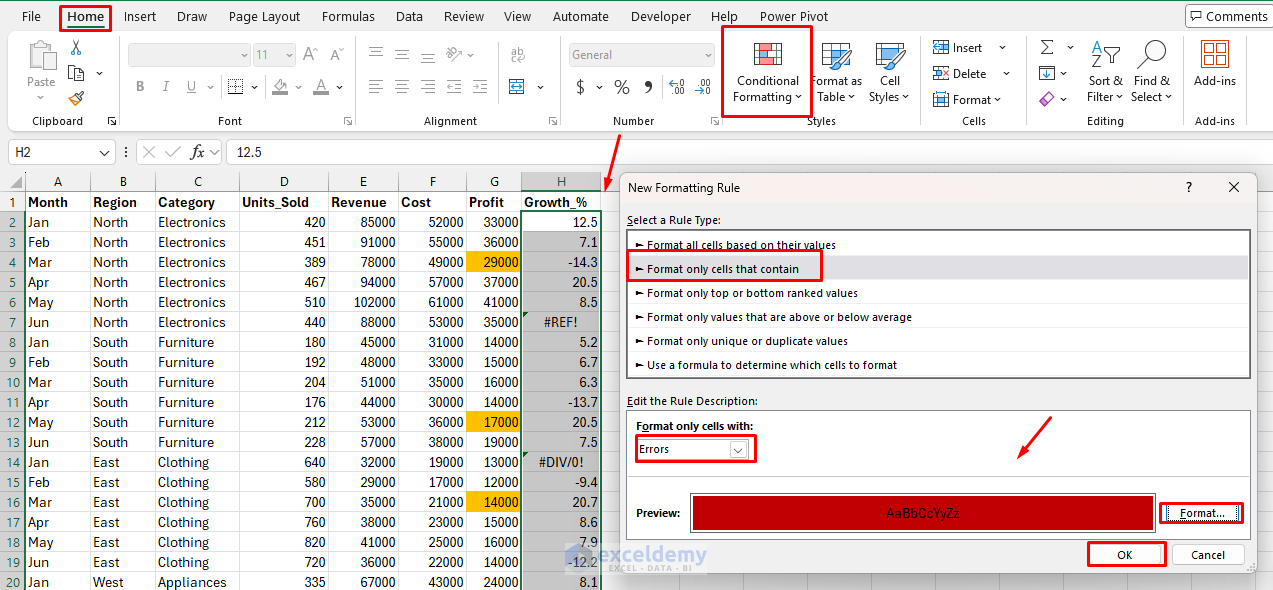
- Any broken formula now shows as a red cell the moment it occurs
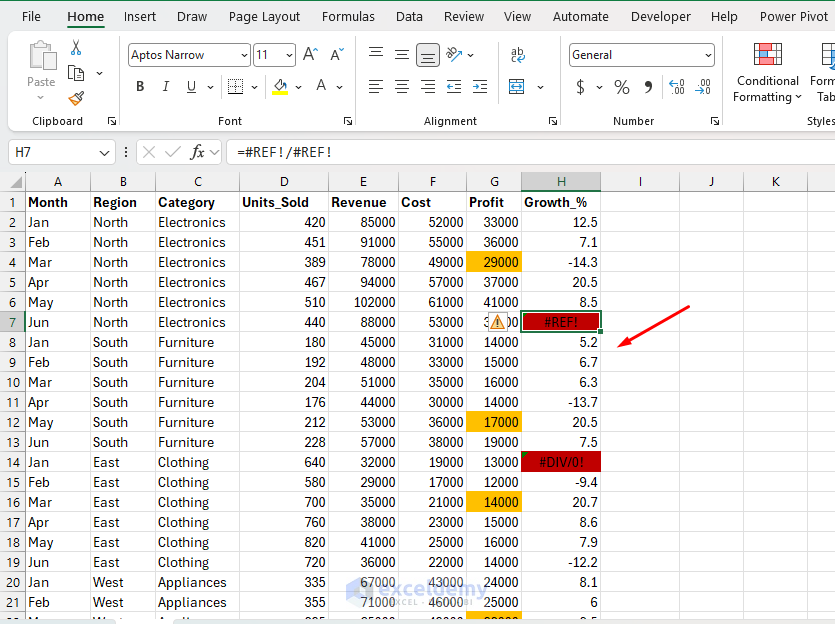
Step 2: Catch near-errors with a sanity-check row.
At the bottom of each column block, add a hidden check row using:
=IF(ISERROR(SUM(B5:B50)), "CHECK", "OK")
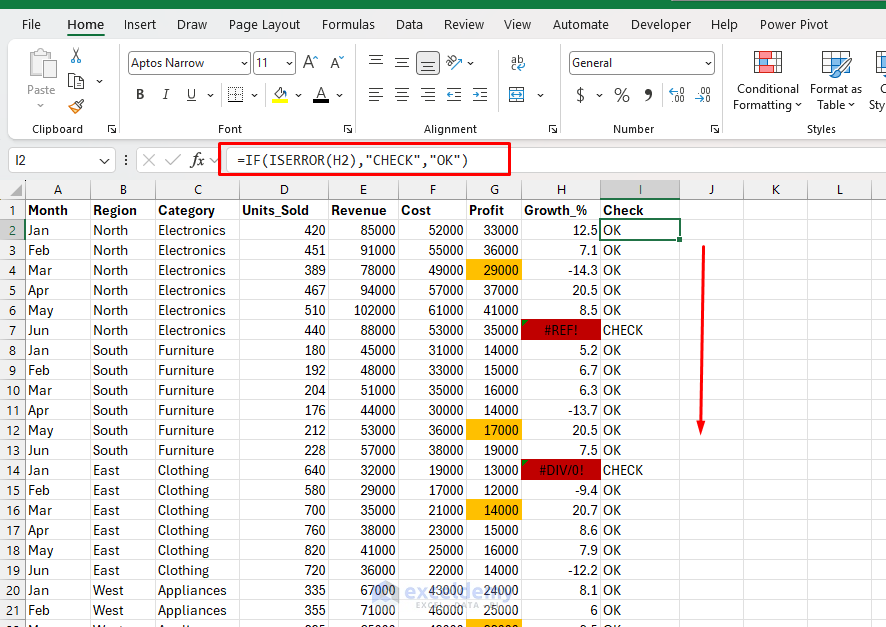
Then apply a conditional format to that row: red fill if the value equals “CHECK”, green fill if it equals “OK”. This gives you a persistent green/red status bar at the base of every column — a dashboard-within-the-model that tells you at a glance which sections are clean and which need investigation.
When you share the model, recipients see the error dashboard before they read a single number. That is the difference between a model that looks robust and one that is robust.
5. Color-Coding by Cell Type (The Analyst Standard)
Many professional finance teams enforce a color convention across all models. This isn’t cosmetic — it is a visual audit protocol baked into the workbook from day one.
The standard scheme:
| Cell Type | Color |
| Hard-coded input/assumption | Blue text |
| Formula (calculated cell) | Black text |
| Link from another sheet/file | Green text |
| Error or check cell | Red fill |
When every analyst on a team follows this convention, a visual scan of any tab instantly reveals whether a cell should be editable or whether it is derived. A black-text cell that someone has manually overridden will show blue font — caught on first glance.
To apply this efficiently during an audit:
- Use Go To Special >> select Formulas to select all formula cells and apply black font in one step
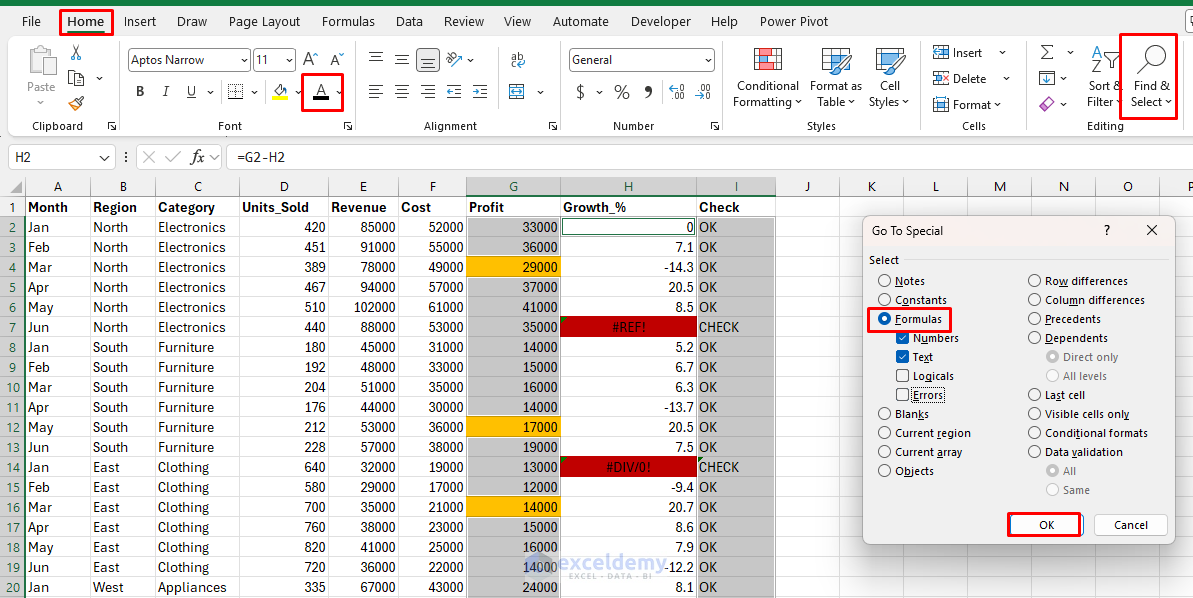
- Next, use Go To Special >> select Constants, then apply blue font color
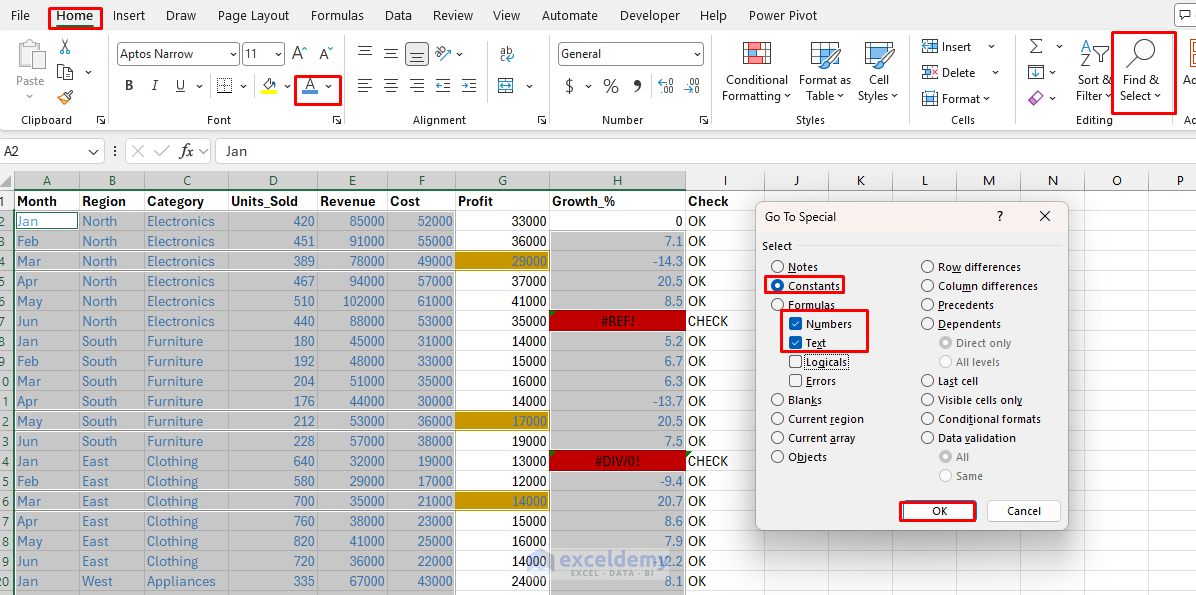
The whole sheet is color-coded in under two minutes.
Conclusion
These 5 visual cues make it easy to spot errors in large Excel models instantly. None of these techniques requires a macro or a third-party add-in. They are all native Excel capabilities that take minutes to set up but pay off every time the model is touched. The underlying principle is the same across all five: make the invisible visible. Errors hide in large models because they look like normal cells. Conditional formatting, Go To Special, audit arrows, color conventions, and error heat maps all do one thing: they give errors nowhere to hide. Build these checks into your template once, and every model you create from that template inherits the audit layer automatically.
Get FREE Advanced Excel Exercises with Solutions!

