


Unstructured data is data that does not arrive in a clean table format. It may contain nested values, inconsistent delimiters, multiple pieces of information in one cell, repeated labels, extra symbols, or records copied from emails, PDFs, logs, or exported systems. Power Query (available in Excel and Power BI) excels at taming unstructured, messy data through a visual, low-code interface.
In this tutorial, we will show 5 Power Query transformations for taming unstructured data. These transformations will go beyond basic cleaning.
Load Data into Power Query
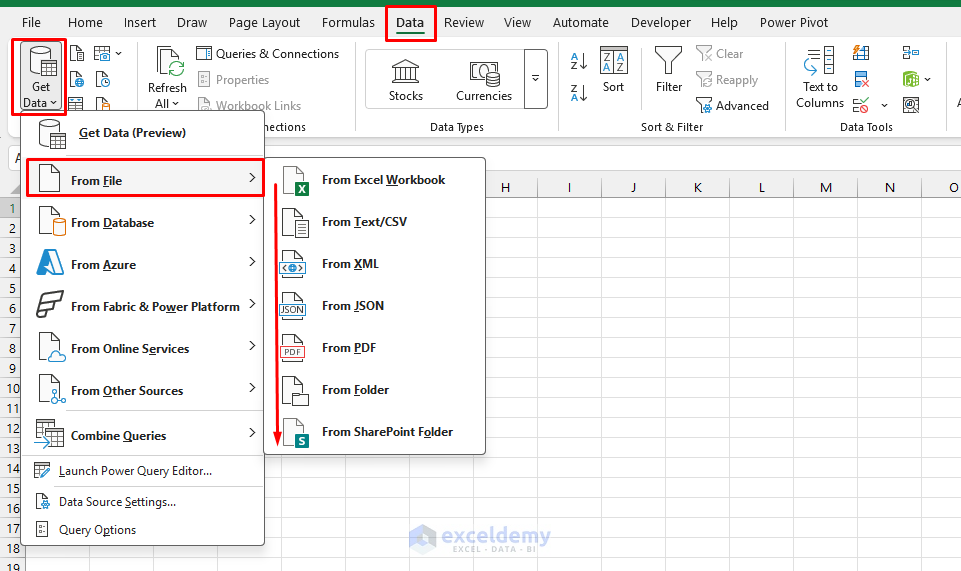
- Go to the Data tab >> select Get Data
- Choose your source (Excel, CSV, Web, etc.)
- Click Transform Data
- It will launch the Power Query Editor
1. Mixed Delimiters: Split Column Transformation
Unstructured data often features inconsistent separators like ” | “, multiple commas, tabs with extra spaces, or varying delimiters.
Normalize All Delimiters to One:
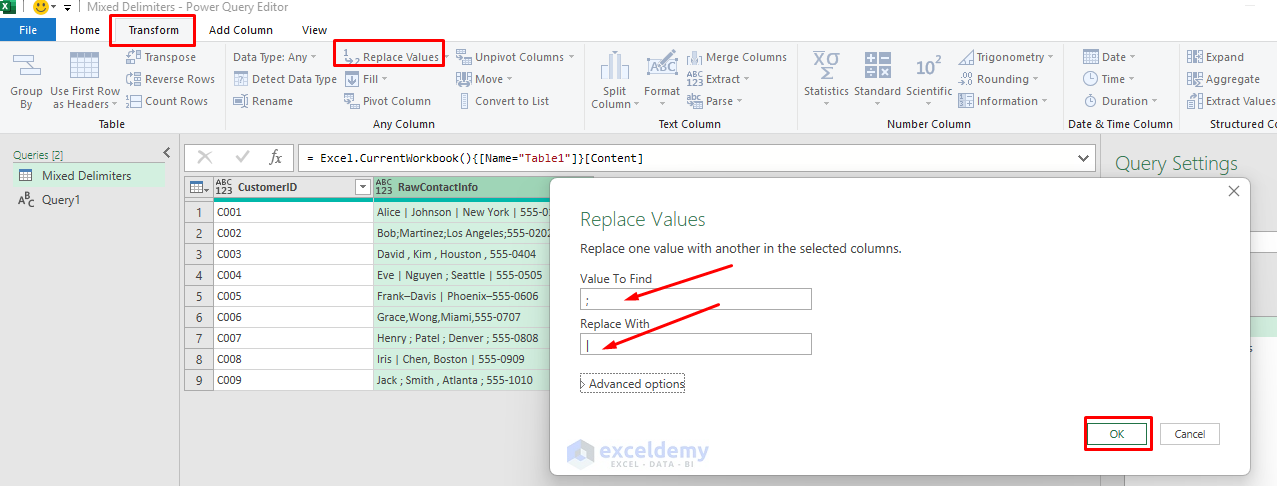
- Go to the Transform tab >> select Replace Values
- In Value to Find, select delimiters like a comma (,)
- In Replace With, type |
- Click OK
- Repeat Replace Values for – → |
- Repeat Replace Values for , → |
- Repeat Replace Values for | → | (removes extra spaces around pipes)
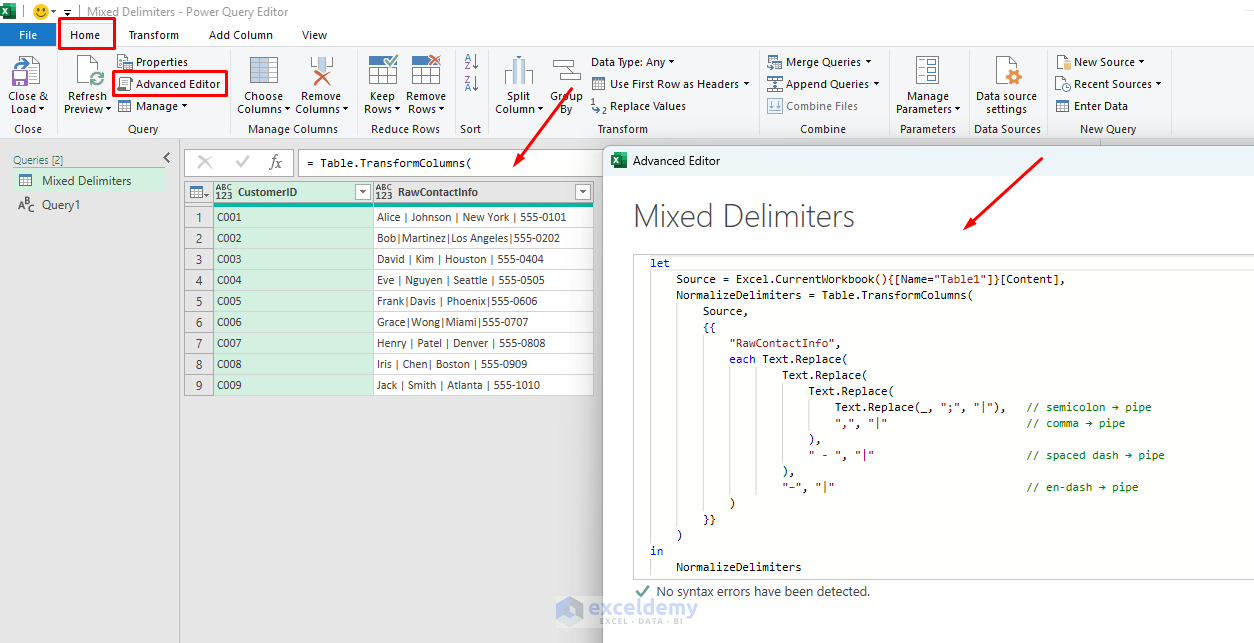
- Or, you can use M code in the Advanced Editor to normalize all delimiters at once
- Go to the Home tab >> select Advanced Editor
- Use the following M code:
let
    Source = Excel.CurrentWorkbook(){[Name="Table1"]}[Content],
    NormalizeDelimiters = Table.TransformColumns(
        Source,
        {{
            "RawContactInfo",
            each Text.Replace(
                    Text.Replace(
                        Text.Replace(
                            Text.Replace(_, ";", "|"),   // semicolon → pipe
                            ",", "|"                     // comma → pipe
                        ),
                        " - ", "|"                       // spaced dash → pipe
                    ),
                    "–", "|"                             // en-dash → pipe
            )
        }}
    )
in
    NormalizeDelimiters
Split the Column:
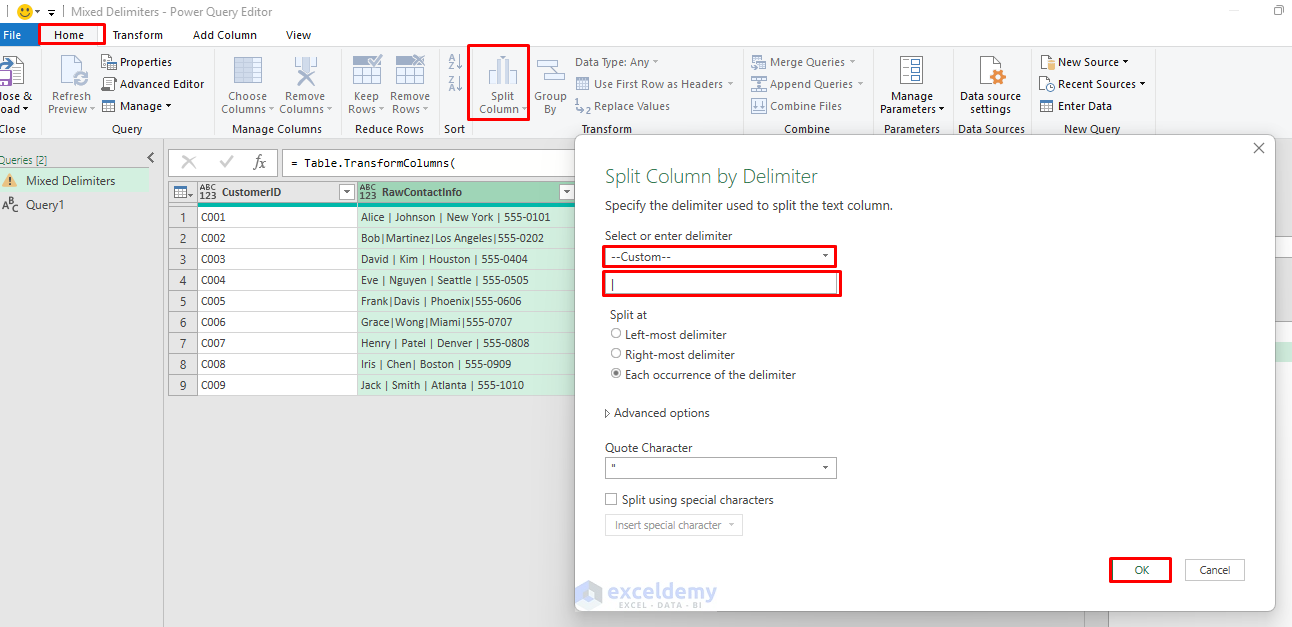
- Select the column
- Go to the Home tab >> select Split Column >> select By Delimiter
- Choose Custom from the delimiter dropdown
- Then type |
- Click OK
Now you will get the Name, Address, and Phone number from the messy, unstructured data.
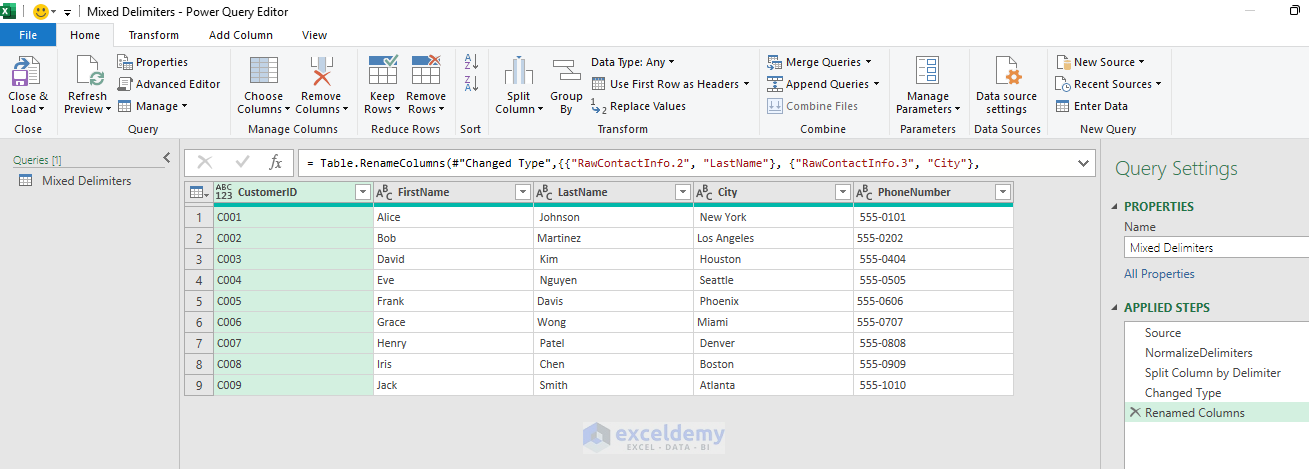
Bonus: Use Split by Number of Characters when your “delimiter” is actually a fixed-width positional format. This is common in legacy exports from mainframe systems.
2. Nested JSON / Lists: Parse & Expand Transformation
APIs, database exports, and modern SaaS tools often dump JSON blobs or comma-separated lists inside a single cell — something like ["Widget A","Widget B","Widget C"] sitting in an Items column.
Parse the JSON Array Column:
- Select the column containing JSON text
- Go to the Transform tab >> select Parse >> select JSON
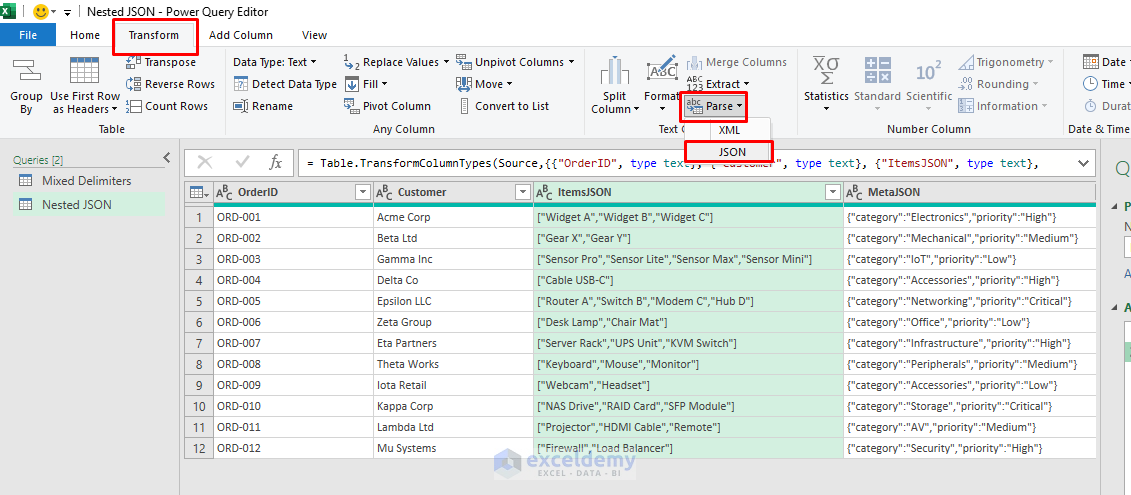
- Power Query will convert the text into a structured List type
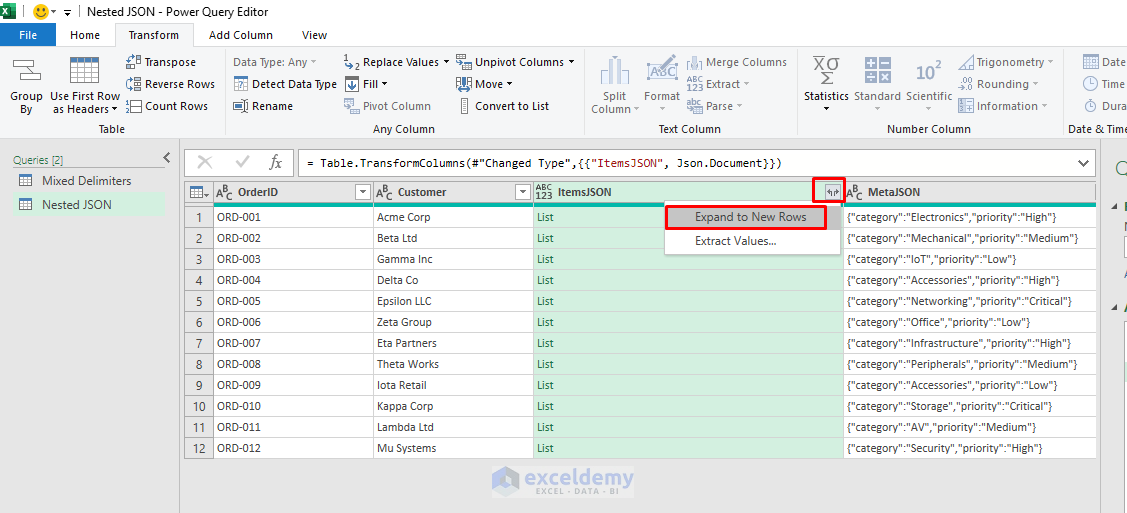
- Click the Expand icon (the double-arrow button) in the column header
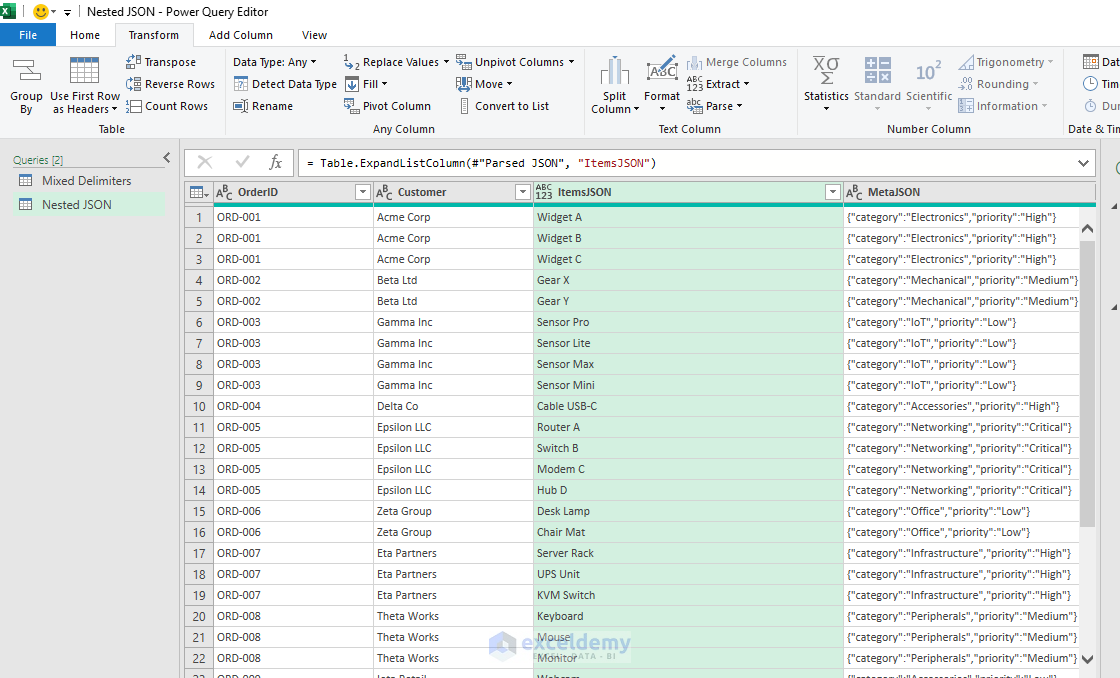
- Choose Expand to New Rows to get one record per value
- Double-click ItemsJSON >> Rename to Item
Parse the JSON Object Column:
- For nested objects like
MetaJson {"category":"Electronics","priority":"High"}, Power Query surfaces a [Record] type - Click the Expand icon in the MetaJSON column header
- Select Expand to New Columns
- Uncheck any fields you don’t need
- Uncheck Use original column name as prefix >> click OK
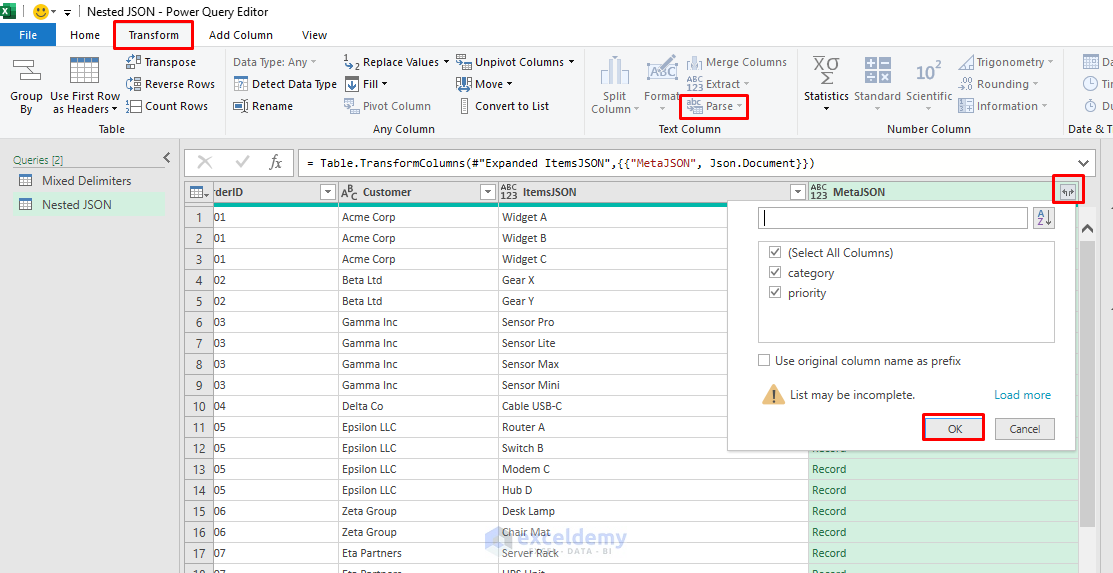
This avoids column explosion when the JSON has dozens of keys. Rename the columns as needed.
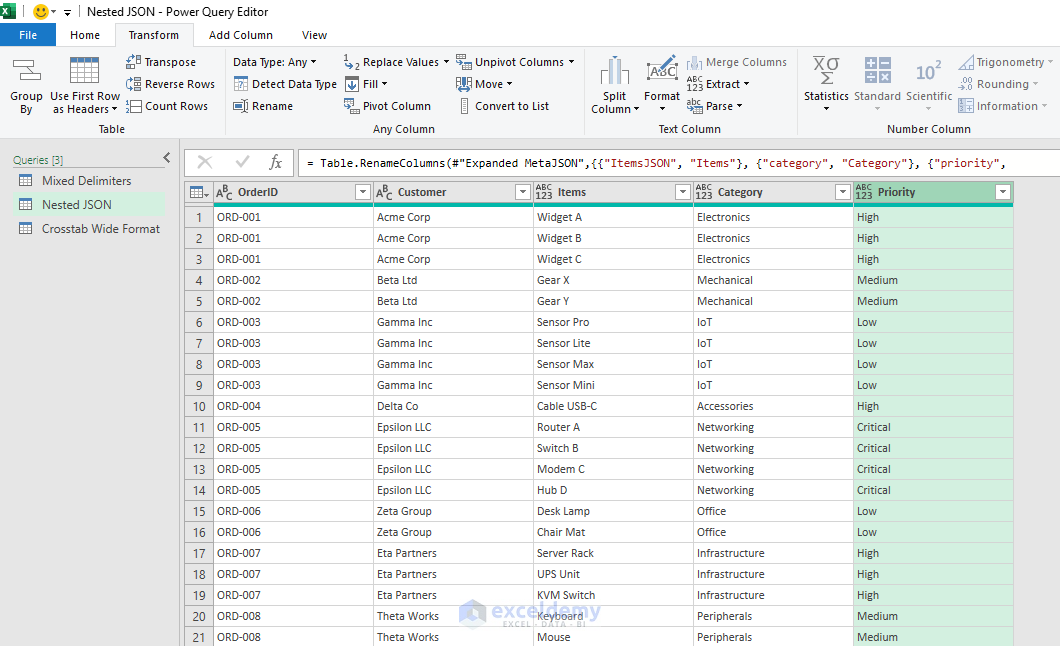
Pro tip: If your JSON is malformed in some rows, wrap the parse step in try...otherwise to avoid killing the entire refresh:
Table.TransformColumns(Source, {{"JsonCol", each try Json.Document(_) otherwise null}})
3. Crosstab Wide Format: Unpivot Transformation
Unstructured data often has merged cells, varying row counts, or attribute-value pairs scattered across columns. Finance teams love crosstab exports — months across columns, categories as rows. This format is human-readable but analytically useless. You can’t filter by month, you can’t build time-series charts, and adding a new month breaks everything.
Steps:
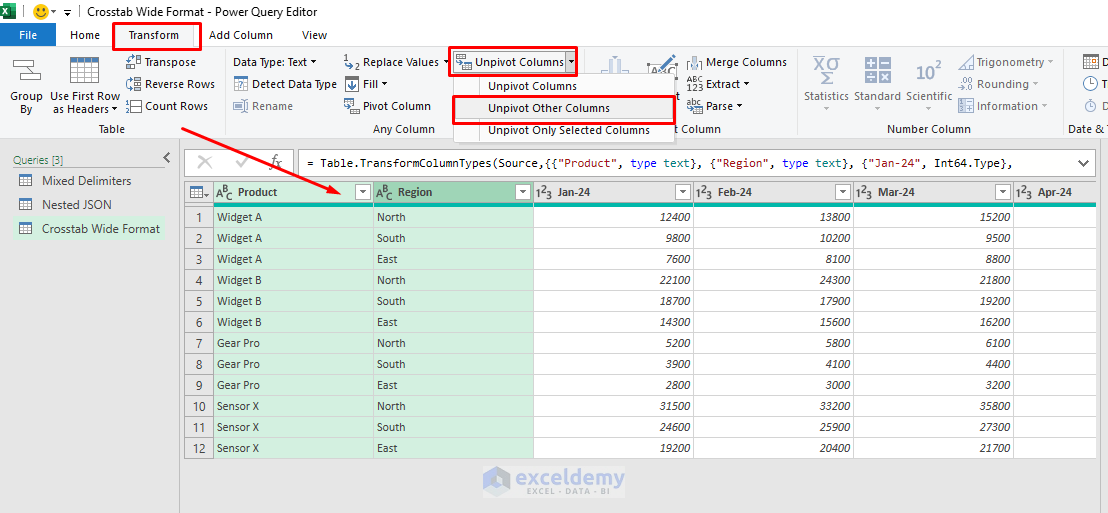
- Select the identifier columns (e.g., Product, Region) that should stay fixed
- Go to the Transform tab >> select Unpivot Columns dropdown >> select Unpivot Other Columns
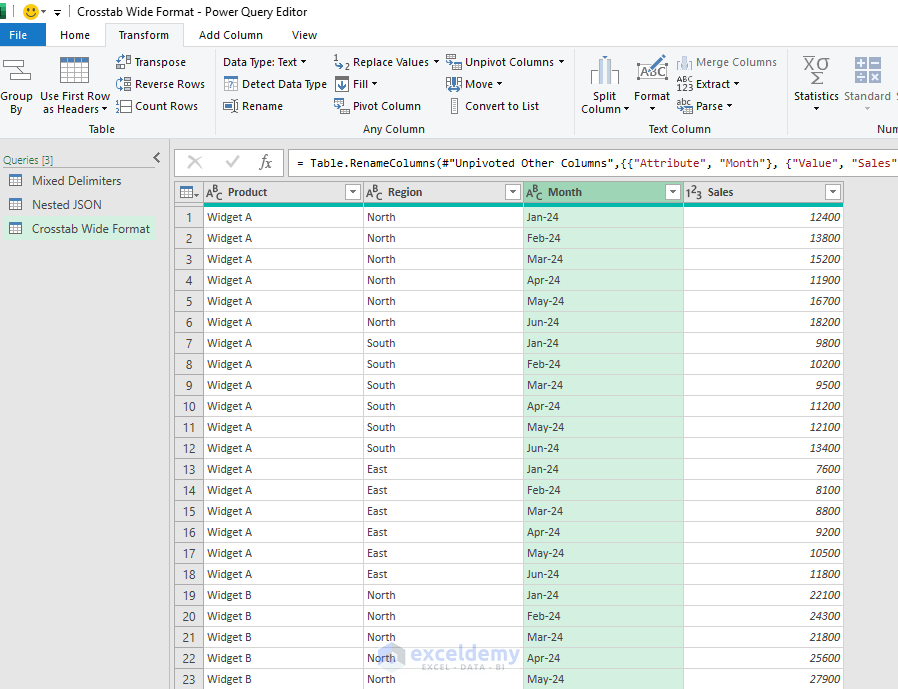
- Power Query creates two new columns: Attribute and Value
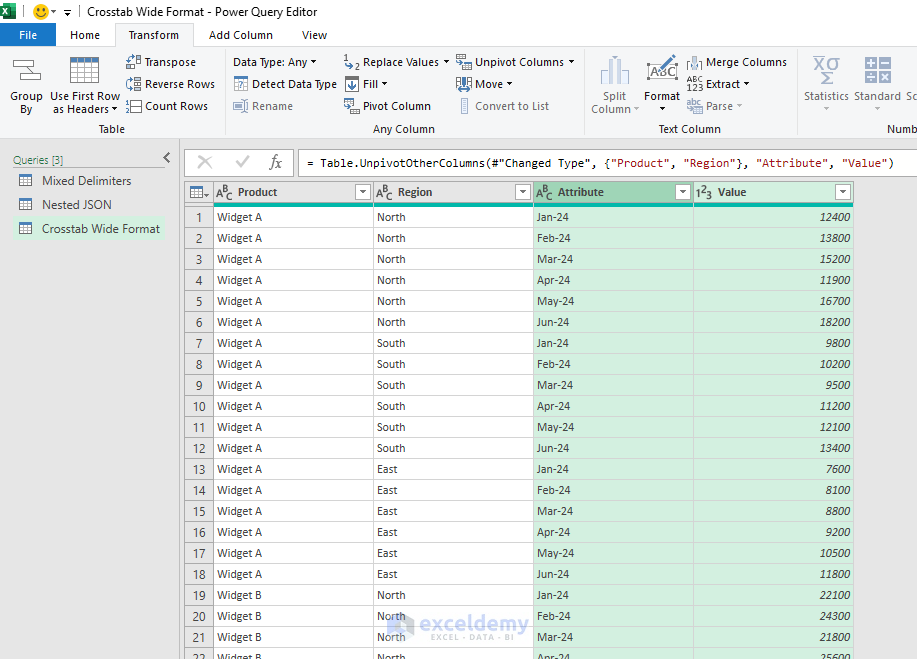
- Rename the new columns:
- Double-click Attribute >> Rename to Month
- Double-click Value >> Rename to Sales
- Fix data types:
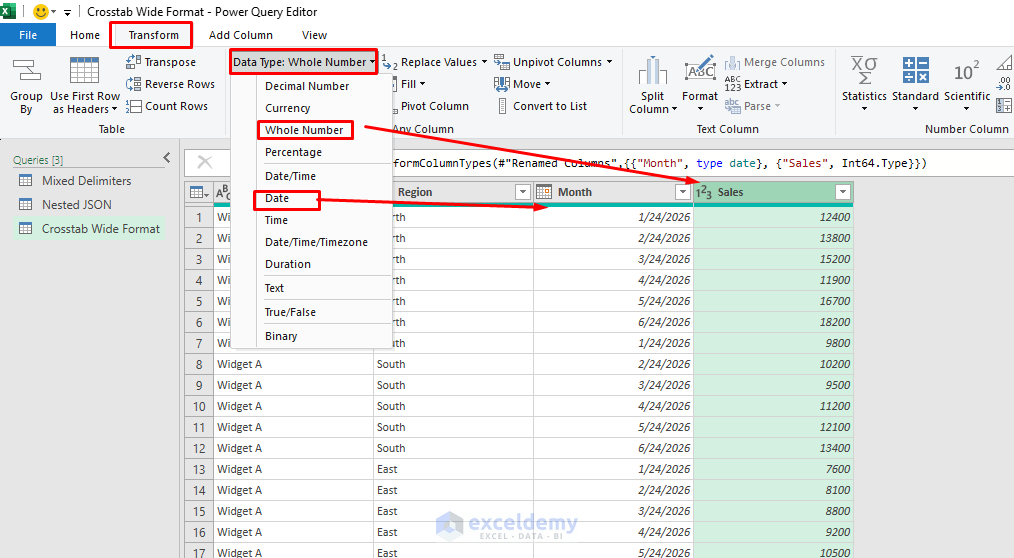
- Click the Sales column header
- Go to the Transform tab >> select Data Type >> select Whole Number
- Click the Month column header >> select Date (Power Query will parse the month-year format)
Handling partial crosstabs: If only some columns are dates (mixed with other metadata), use Unpivot Columns (not “Other”) and manually select just the date columns.
4. Extracting Structured Data from Free-Text Fields
It is common to have text merged with numbers. Sales notes, support tickets, and form fields often contain semi-structured text like: “Called on 04/12 – spoke with Jane re: Invoice #4421 – follow up in 2 weeks”.
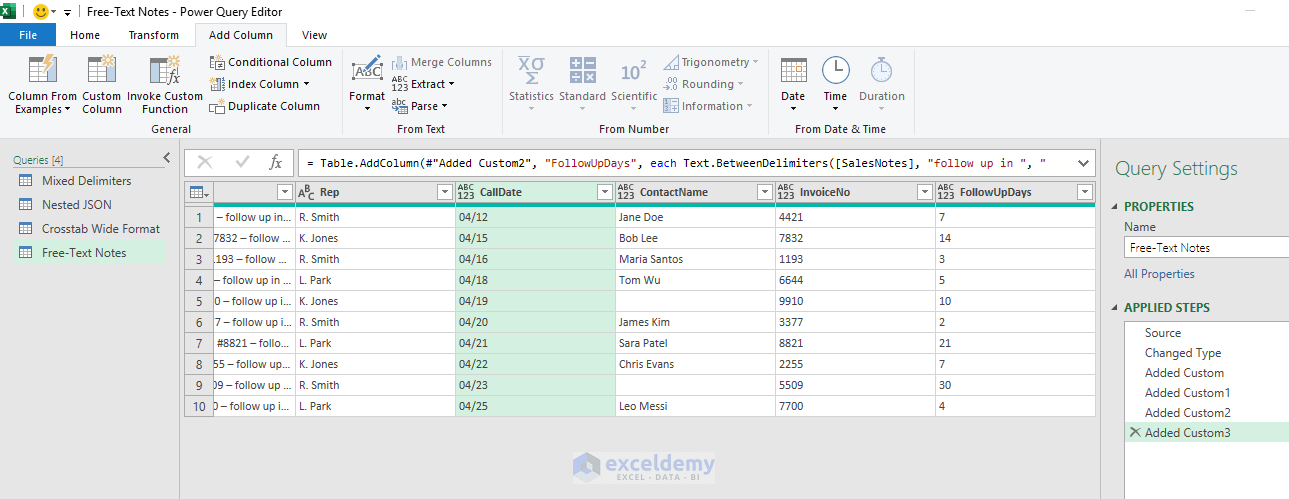
Let’s extract the Call Date, Contact Name, Invoice #, and Follow-up Days from raw notes.
Extract the Call Date:
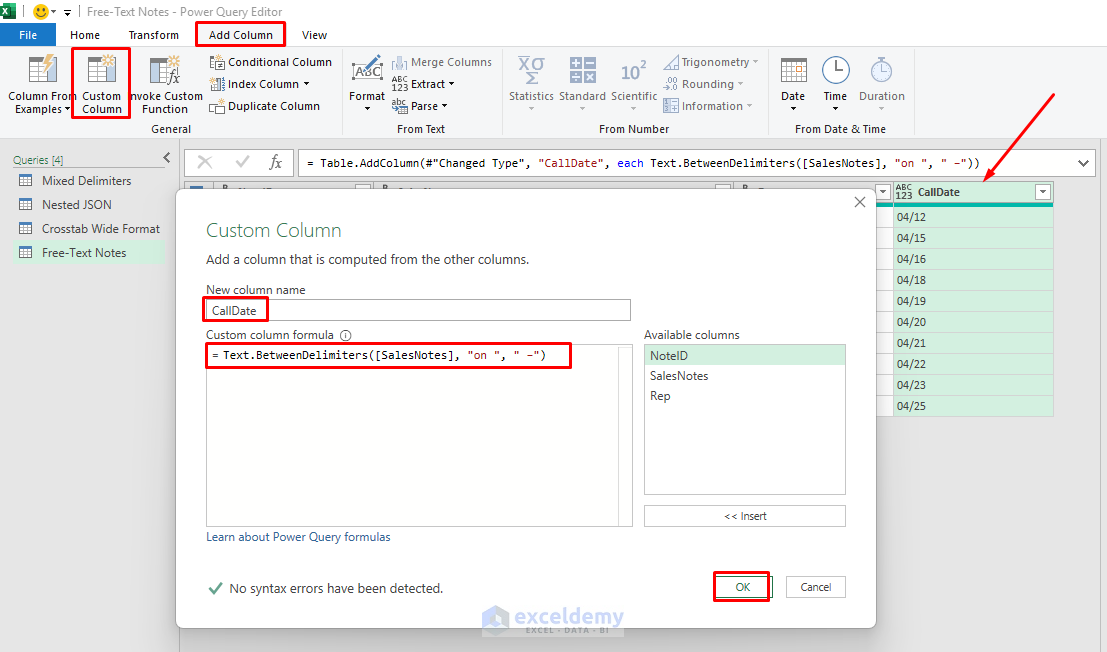
- Go to the Add Column tab >> select Custom Column
- Name: CallDate
- Insert the following formula:
- Click OK
Text.BetweenDelimiters([SalesNotes], "on ", " –")
Extract the Contact Name:
- Name: ContactName
- Formula:
Text.BetweenDelimiters([SalesNotes], "with ", " re:")
Extract the Invoice Number:
- Name: InvoiceNo
- Formula:
Text.BetweenDelimiters([SalesNotes], "Invoice #", " –")
Extract Follow-up Days:
- Name: FollowUpDays
- Formula:
Text.BetweenDelimiters([SalesNotes], "follow up in ", " days")
Text.BetweenDelimiters is the unsung hero here — it grabs text sandwiched between two landmark strings. No regex required (though Power Query does support regex via Text.Contains patterns in some connectors).
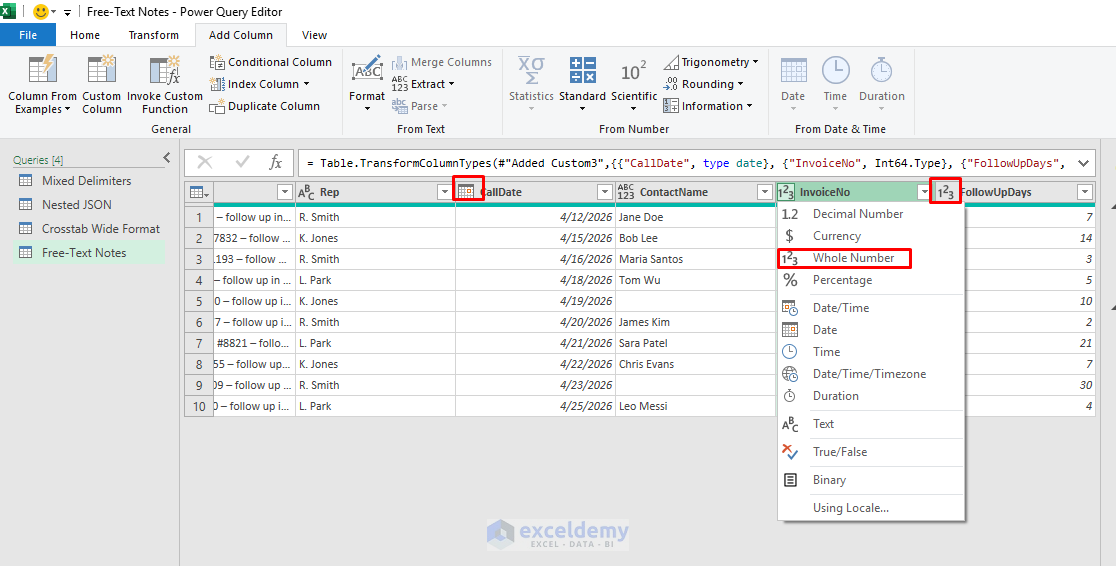
Convert Data Types:
- Click the CallDate header >> select Date
- Click the InvoiceNo header >> select Whole Number
- Click the FollowUpDays header >> select Whole Number
5. Fill Down Missing Values: Sparse Export Transformation
Unstructured data often has merged cells, varying row counts, or attribute-value pairs scattered across columns.
Check Current State:
- Scroll through the data and you’ll see blank cells where merged cells used to be
- Region only has a value on the first row of each group
- Salesperson, Product, and Quarter are similarly sparse
Fill Down:
- Click the Region column header
- Hold Ctrl and also click: Salesperson, Product, Quarter
- Go to the Transform tab >> select Fill >> select Down
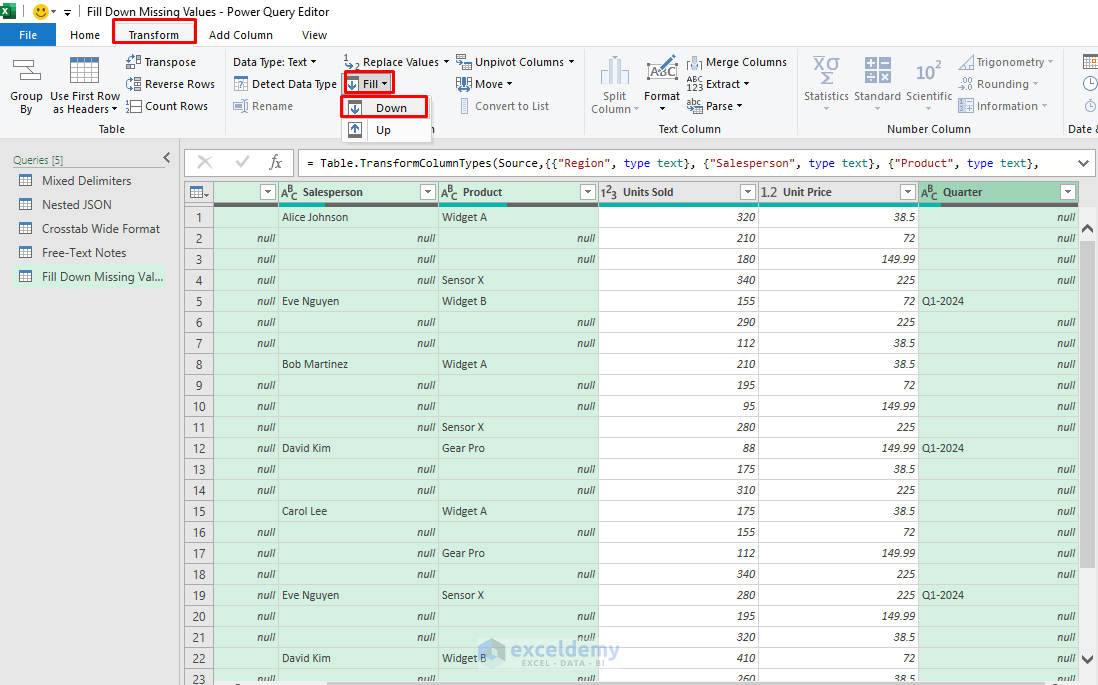
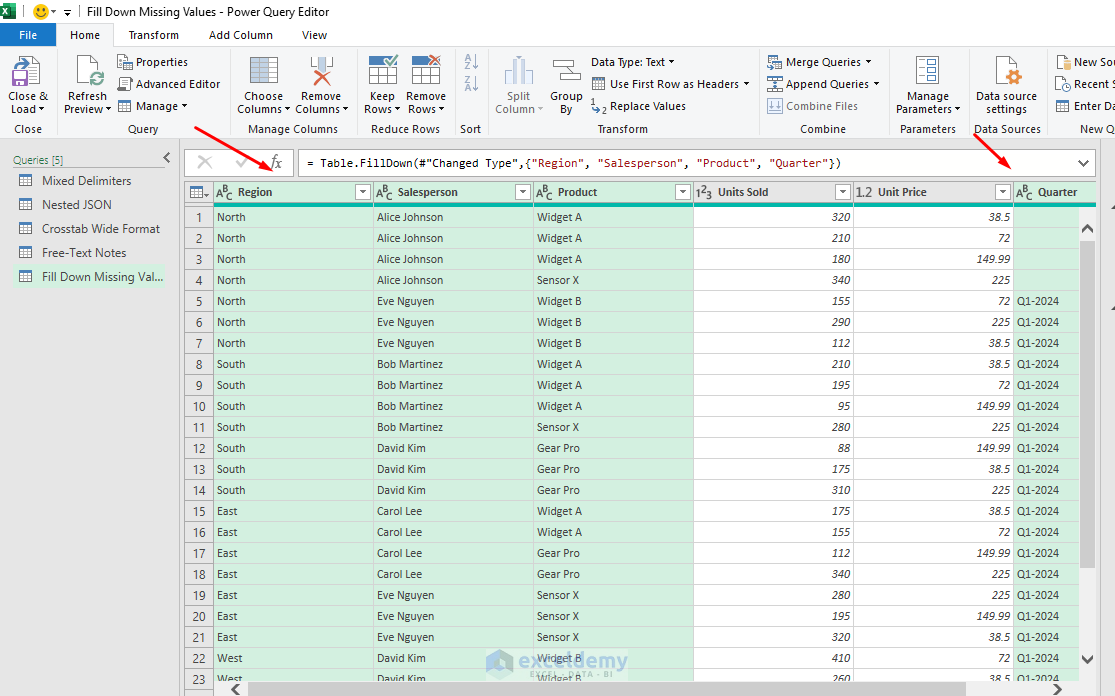
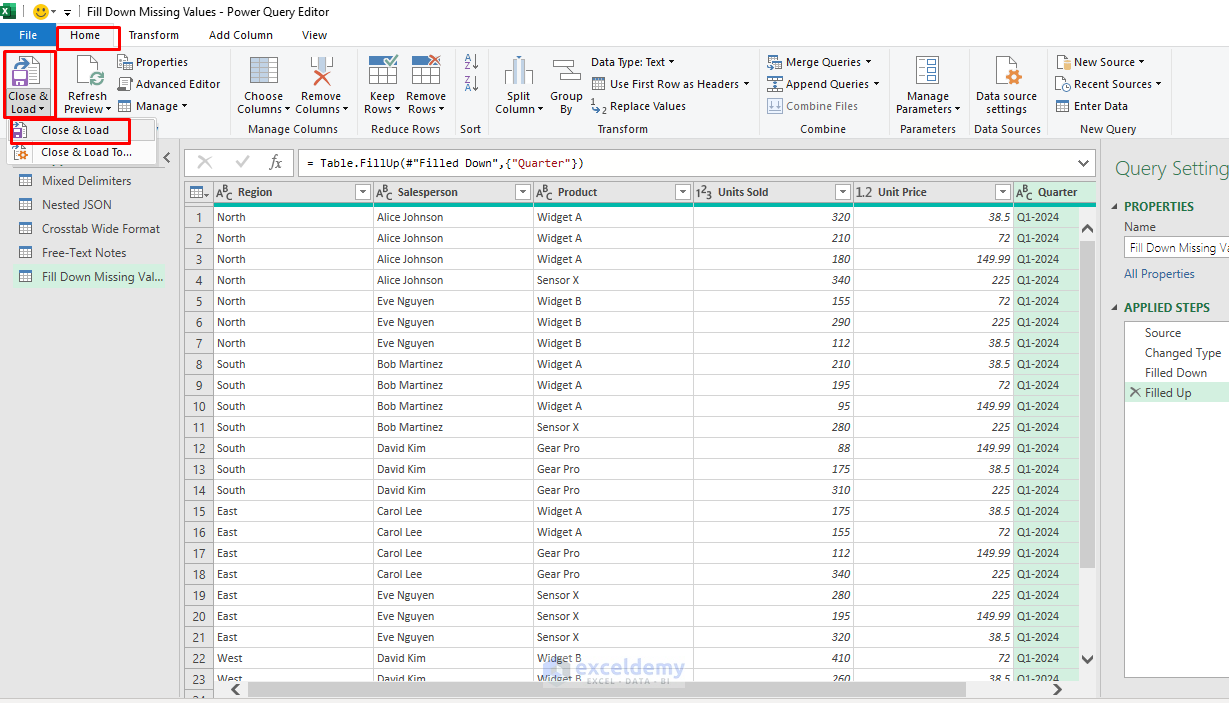
- All blank cells are now filled with the value from the nearest non-blank cell above
Verify the Fill Worked:
- Scroll through the data; every row should now have values in all 4 columns
- Check boundary rows (the first row of a new Region group) to confirm values switched correctly
Fix the Quarter Column:
- Since Quarter appeared in the last row of each group (not the first), Fill Down won’t work correctly for it
- Instead, select the Quarter column
- Go to the Transform tab >> select Fill >> select Up first to push Q1-2024 upward through the group
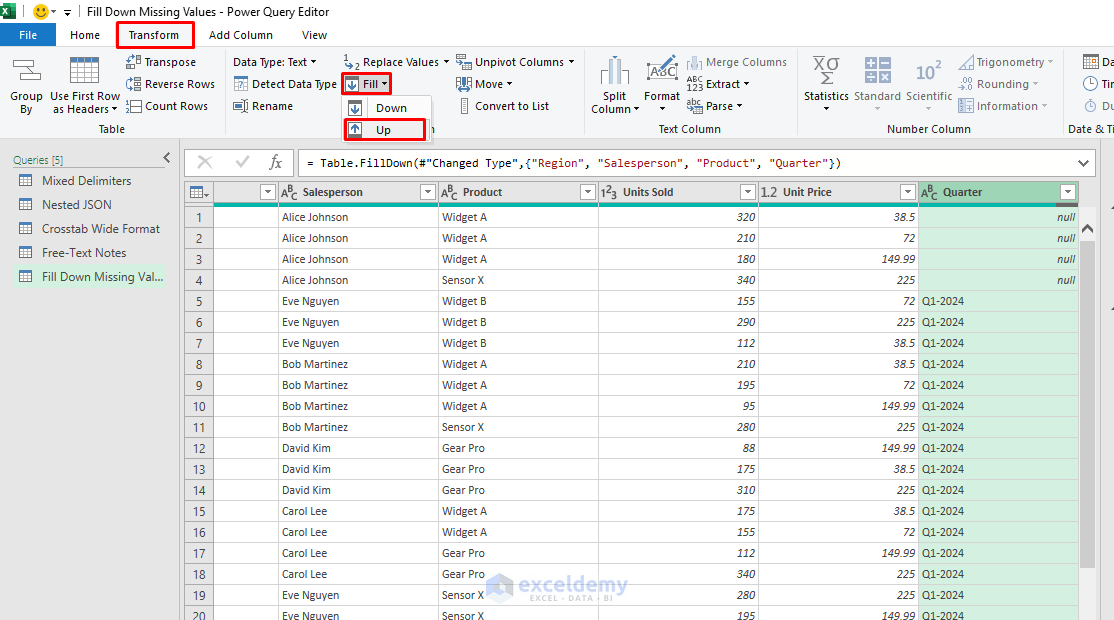
- Then confirm all rows in the group show Q1-2024
For multi-level headers, combine rows (e.g., merge header rows first) or transpose sections. This normalizes “jagged” datasets where some groups have extra rows.
Best Practices for Unstructured Data
- Always start with sample data: Work on a representative messy file.
- Document steps: Rename Applied Steps clearly.
- Use Column From Examples: For pattern-based extraction (AI-assisted).
- Refreshable: These are all no-code or low-code, so they update automatically on data refresh.
- Performance: Remove unnecessary columns early; avoid expanding large nested structures without filtering first.
Conclusion
These 5 Power Query transformations cover most “nightmare” unstructured data sources — PDF imports, combined CSVs, API responses, and legacy reports — while staying in the friendly Power Query Editor. Practice on a sample dataset with nested sheets or irregular text, and you’ll handle complex cases efficiently. The real strength of Microsoft Power Query isn’t just cleaning data; it’s reshaping chaos into structure without writing code.
Get FREE Advanced Excel Exercises with Solutions!

