

We need to use date and time in Excel for various functions and formatting. Excel date and time functionality involves handling and manipulating dates and times within Excel.
Excel stores dates as serial numbers and times as fractional values of a day. Every date is assigned a unique serial number starting from January 1st, 1900 which is denoted by 1. January 2nd, 1900 holds a numeric value of 2.
In this article, we will discuss 6 ways to insert and perform calculations on date and time in Excel.
1. Inserting Date and Time
We can insert the date and time in Excel worksheets differently, such as manually, using keyboard shortcuts, and using Excel functions.
1.1. Manually Insert Date and Time
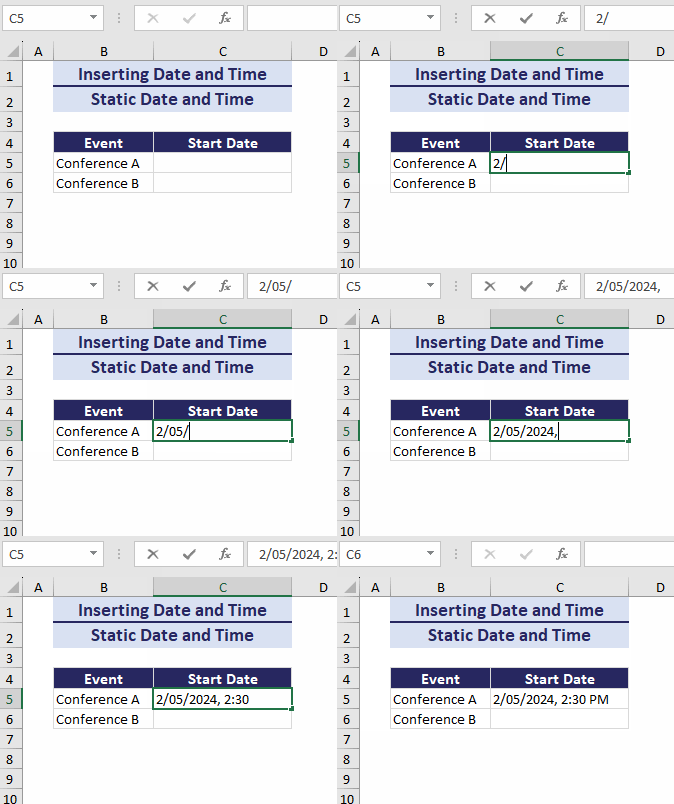
We can manually insert the date and time in two different ways. The manually inputted date and time do not update automatically.
To manually insert date and time:
Select cell C5 and manually insert the date and time.
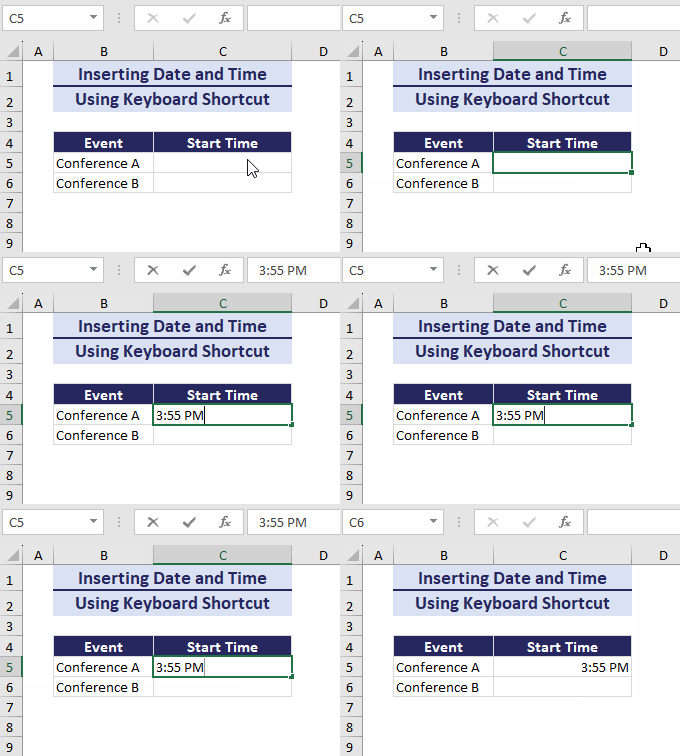
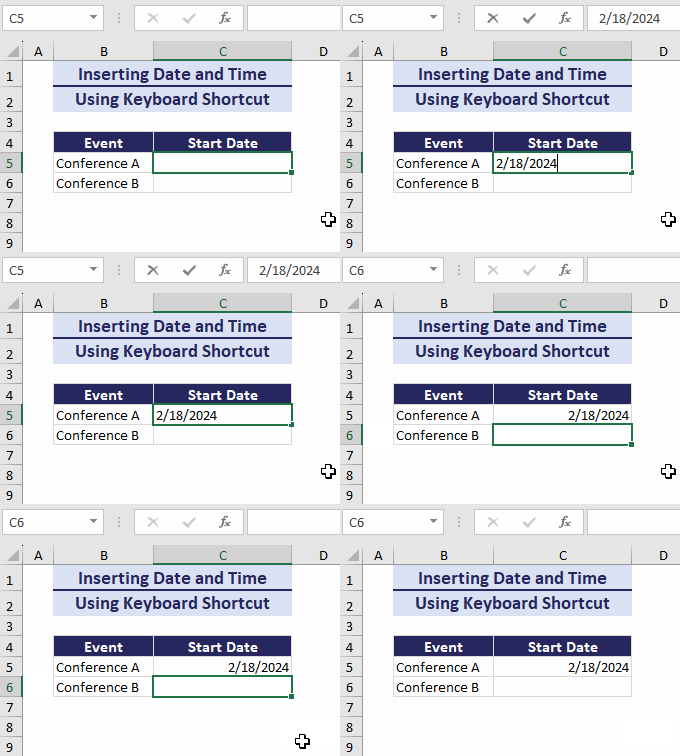
Alternatively, we can also insert the date and time using keyboard shortcuts:
- Ctrl + Shift + ;(semi-colon) inserts the current time.
- Ctrl + ;(semi-colon) inserts the current date.
1.2. Using TODAY Function to Insert Date
The main benefit of using functions to insert date and time is that the time and date update automatically when there are any changes made within the sheet. This is useful for creating dynamic reports and interactive dashboards.
The two functions to insert date and time are the TODAY and NOW functions.
The TODAY function in Excel returns today’s date. On the other hand, the NOW function returns both the current time and today’s date.
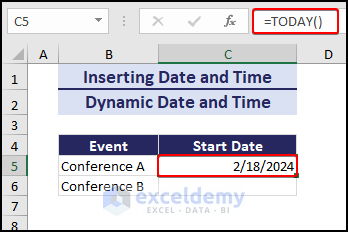
Suppose we have a dataset. Conference A starts today. We can use the TODAY function to display the date. For this:
- Go to cell C5.
- Insert the TODAY function:
=TODAY()
2. Inserting Timestamp in Excel
Timestamps in Excel allow us to track the progress of different events and works after certain intervals.
We can insert timestamps manually, using keyboard shortcuts and Excel functions.
The NOW function that we have already used can insert the current time along with the date, which is quite useful for inserting timestamps.
To insert the timestamp, follow the steps below.
- Select cell C4.
- Insert the NOW function:
=NOW()
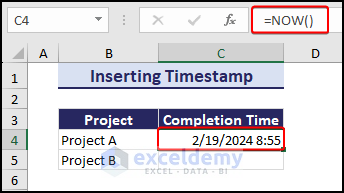
Note: The date and time update automatically when there are any changes made within the sheet.
Alternatively, we can use the keyboard shortcuts that require manual intervention each time we want to insert a timestamp.
- Press Ctrl + Shift + ;(semi-colon) to insert the current time.
- Press Ctrl + ;(semi-colon) to insert the current date.
3. Adding Date and Time
Adding date and time is useful for calculating durations for projects and working hours.
3.1. Adding Days with Dates
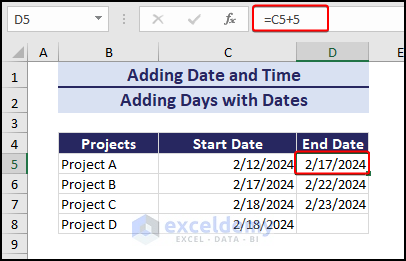
We can add days to dates in different ways. The simplest way to add days to a date is by using a cell reference.
To add 5 days to the date in cell B5, we can use the formula: =C5+5
The DATE function can be used to add a specific number of days to a certain date. The DATE function can take an input and convert it to a date.
For this, use the following formula: =DATE(2024,2,17)+5
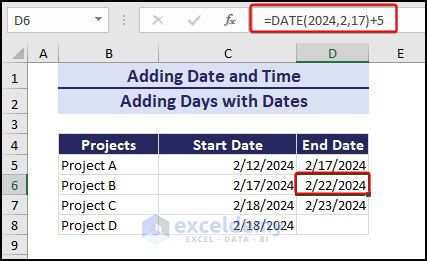 This function adds 5 days to the date of 2/17/2024 and returns the result.
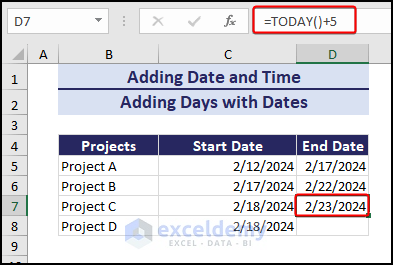
We can also use the TODAY function to add days to today’s date.
The following formula adds 5 days to today’s date: =TODAY()+5
3.2. Adding Times
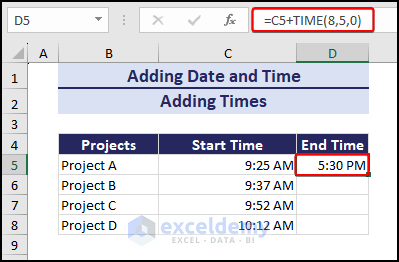
The TIME function can be used in Excel to add a certain time to a time specified in the TIME function.
To add a specific time to the time in cell B5, use the following formula: =C5+TIME(8,5,0)
This adds 8 hours and 5 minutes to the time in cell C5.
4. Subtracting Date and Time
Subtracting date and time is useful for calculating durations, managing deadlines, etc.
4.1. Subtracting Days from Dates
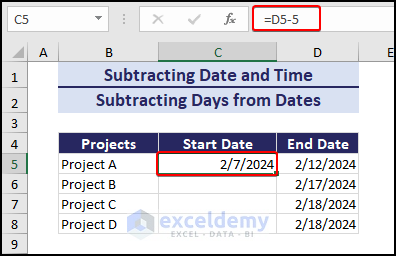
Subtracting days from dates is similar to adding days to dates. This returns a date as the result.
To subtract 5 days from the date in cell D5, we need to use the formula: =D5-5
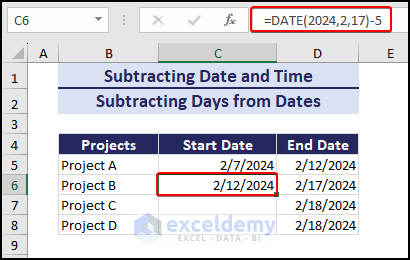
We can use the DATE function to subtract days from a date.
The following formula subtracts 5 days from the date of 2/17/2024: =DATE(2024,2,17)-5
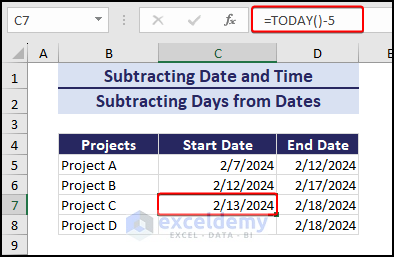
To subtract 5 days from today’s date: =TODAY()-5
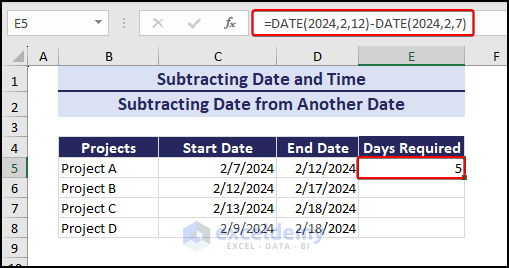
4.2. Subtracting Date from Another Date
Subtracting a date from another date returns the duration.
The following formula returns the result of the subtraction between the two dates: =DATE(2024,2,12)-DATE(2024,2,7)
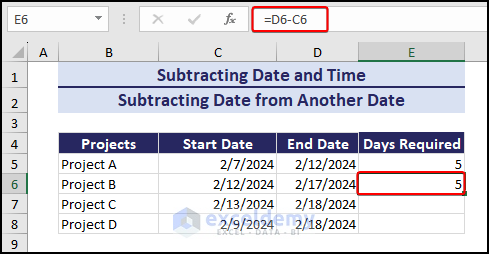
A similar result can be achieved using cell reference: =C5-B5
4.3. Subtracting Time
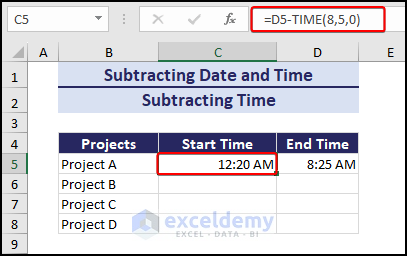
The TIME function allows us to easily subtract time.
To subtract time from the time in cell D5, use the following formula: =D5-TIME(8,5,0)
This subtracts 8 hours and 5 minutes from the time in cell D5.
5. Changing the Date and Time Format
Changing the date and time format is essential for displaying the date and time in a more visually appealing way.
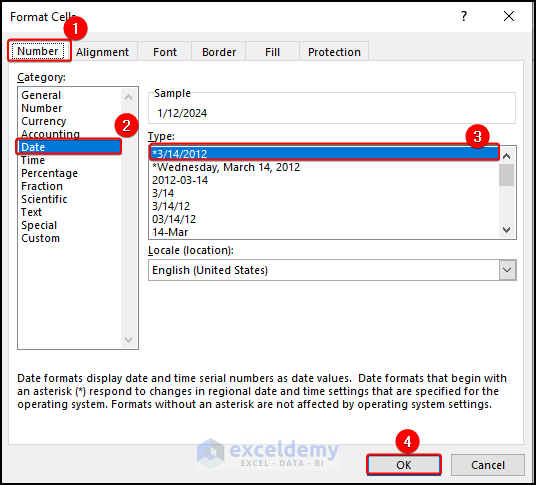
To change the date or time format:
- Select a cell or a range of cells and press Ctrl + 1.
This brings out the Format Cells dialog box. - Go to the Number tab on the Format Cells dialog box.
- Select Date or Time under Category.
- Select any format from the Type field, and click OK.
6. Converting Time Zones in Excel
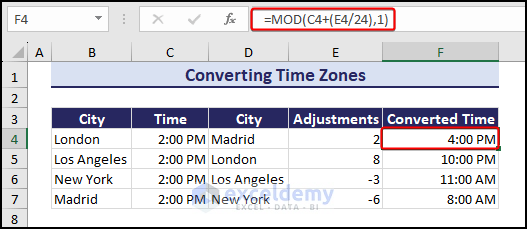
The Earth is divided into many different time zones. It defines if a place is ahead or behind another place in terms of time. In Excel, there is no direct formula to convert time zones. For this, we can use the MOD function to convert time zones.
For this, we have a dataset with times of different areas and adjustments. The adjustment denotes how much time has to be added or subtracted from the GMT to get the time of that particular area.
Go to a cell and insert the following formula: =MOD(C4+(E4/24),1)
C5 is the time to convert
E5 is the adjustment time
Download Practice Workbook
Conclusion
In this article, we have discussed in detail the 6 ways to insert and perform calculations on date and time in Excel. The ways include: inserting date and time in Excel in two different ways, and learning how to insert timestamps in Excel. We have learned to perform various calculations on dates and times. Another useful learning point was changing time to different time zones.
We hope you’ll find this article useful and use the methods in your dataset.
<< Go Back to Learn Excel
Get FREE Advanced Excel Exercises with Solutions!

