

The title is a very important element in an Excel Graph. It tells us what the graph is about and makes the chart or graph more understandable to other people. In Microsoft Excel, you can easily add a title to a graph. This article demonstrates how to add a title in Excel Graph with 2 handy methods.
How to Add Title in Excel Graph: 2 Ways
Let’s assume we have a dataset of Weekly Sales of two different models of Laptop and also their Weekly Comparison Chart. But, there is no title in this chart. So, you want to add a title to the Excel Graph. Now, we will see 2 easy ways to add a title to this graph.
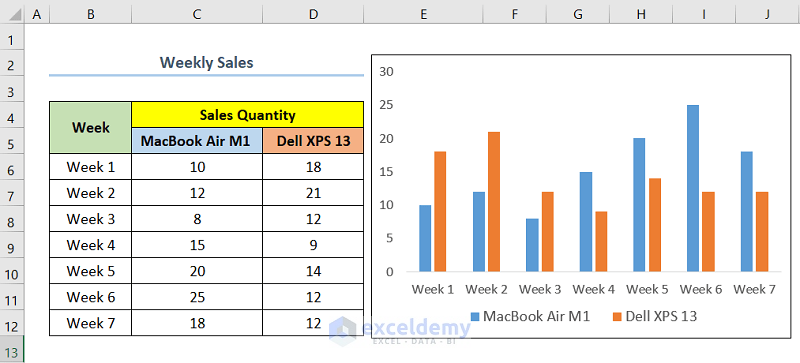
We have used Microsoft Excel 365 version for this article, you can use any other version according to your convenience.
1. Utilizing Chart Elements Button
In this method, we will use the Chart Elements Button to add a title. This method is very fast and convenient. Now, to use this method follow the below steps.
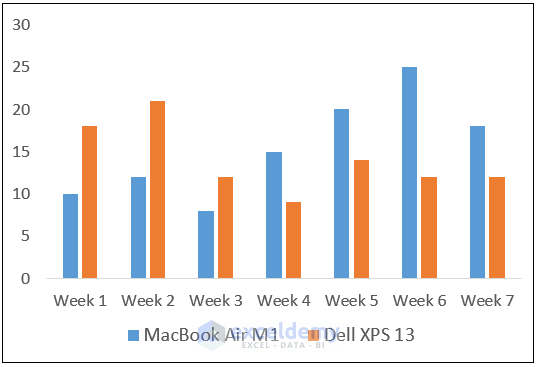
Steps:
- First, select the chart.
- Then, click on the Chart Elements button, which looks like a green plus sign.
- After that, select Chart Title.
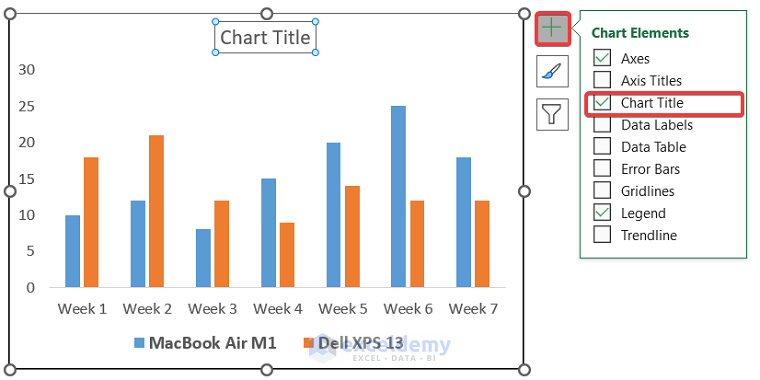
- Also, you can choose the position of the Chart Title.
- In this case, we choose Above Chart.
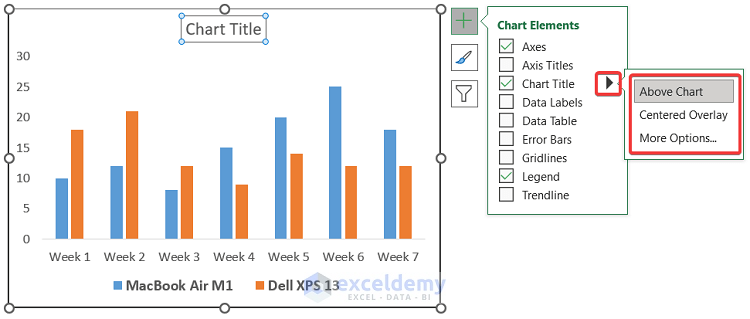
- Consequently, you will have an output as shown in the screenshot below.
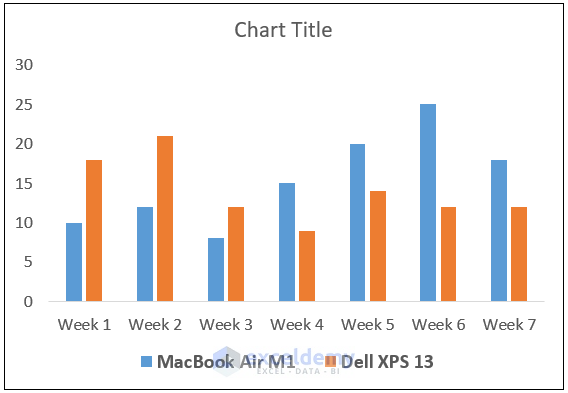
Now, we will edit the Chart Title and also format it to change the text color.
- At this point, click on the Chart Title.
- Next, edit the text and change it to Weekly Sales Comparison (or whatever you want).
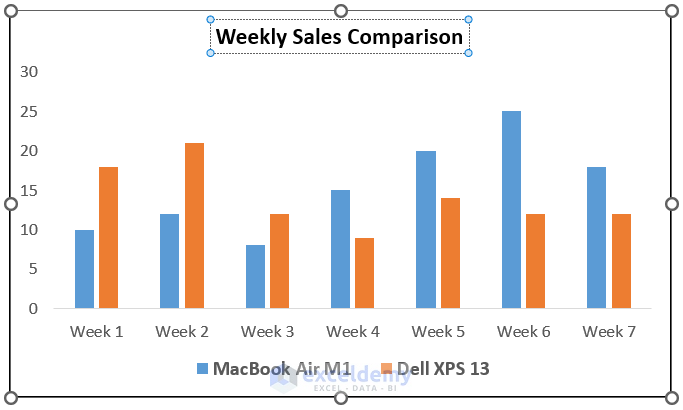
- After that, double-click on the Chart Title.
- Subsequently, on the right side of your screen, the Format Chart Title wizard will appear, and then go to the Text Options.
- After that, go to Text Fill & Outline.
- Next, select your preferred color from the Color options. In this case, we choose Green, 25% darker.

- Finally, you will finish adding a title in Excel Graph and have an output as shown in the below screenshot.
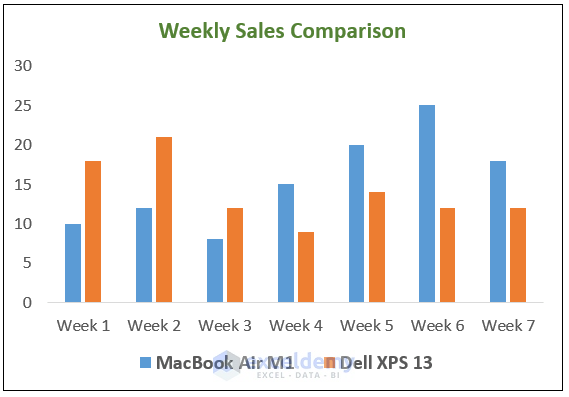
2. Using Chart Tools to Add Title in Excel Graph
In this method, we will use the Chart Tools from the top of the screen to add a title to Excel Graph. Now, to use this method follow the below steps.
Steps:
- At the very beginning, select the chart.
- Then, go to the Chart Design tab from the top of the screen.
- After that, click the Add Chart Element group.
- Then, select the Chart Title dropdown.
- Next, click on the Above Chart option.
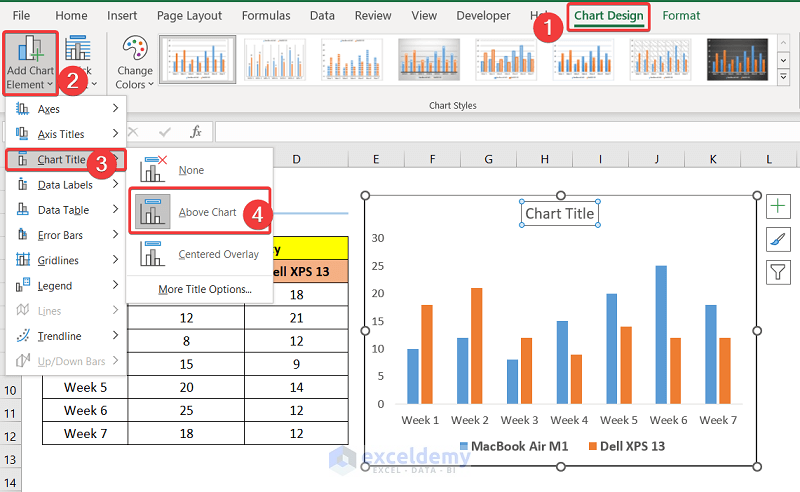
At this point, edit the chart text and format it as shown in the above method.
- Lastly, you will have an output as shown in the below screenshot.
How to Add Axis Title in Excel Graph
Suppose, you have an Excel Graph where the Axis Titles are missing. Therefore, you want to add Axis Title to the Graph. Now, to do so follow the below steps.
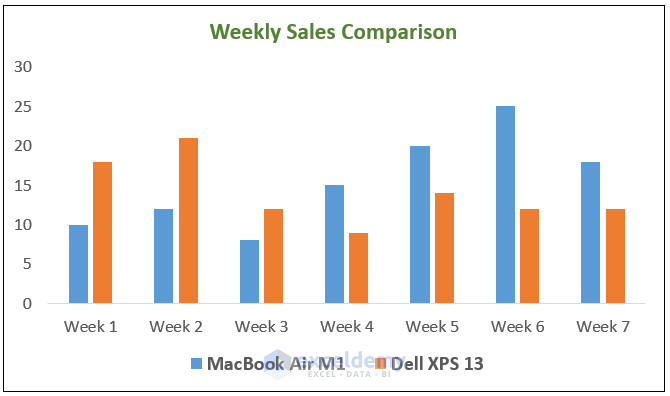
Steps:
- First, select the chart.
- Next, click on the Chart Elements button.
- After that, select Axis Titles.
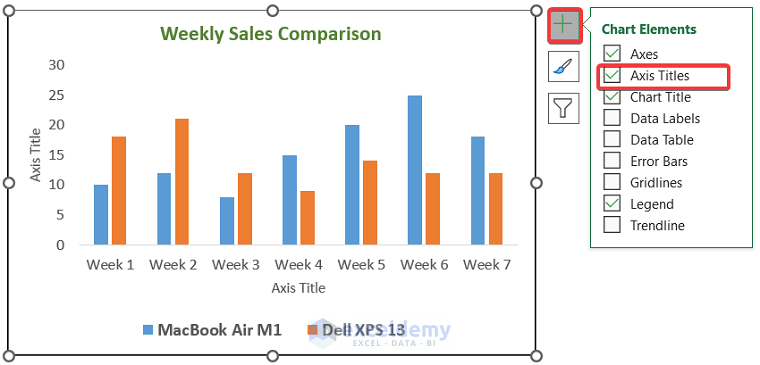
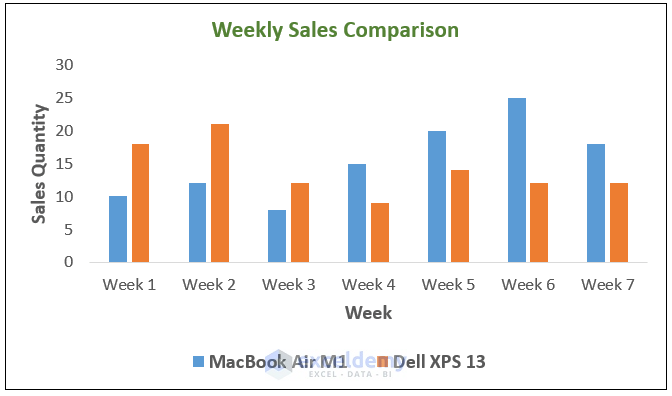
- Now, edit the texts of the Axis Title (For the X-axis we have used Week, and for the Y-axis Sales Quantity as titles).
- Finally, you will have an output as shown in the below screenshot.
How to Remove Title from Excel Graph
Let’s assume you have a graph with a title. For enhancing the space of the chart area or for any other reason, you may want to remove the title from your Graph. Now, to do so follow the below steps.
Steps:
- At the very beginning, select the chart.
- Next, click on the Chart Elements button.
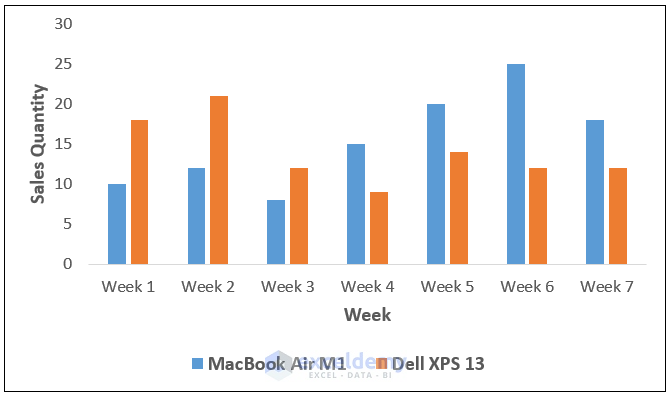
- Now, deselect Chart Title.

- Eventually, you will finish removing your Chart Title.
Practice Section
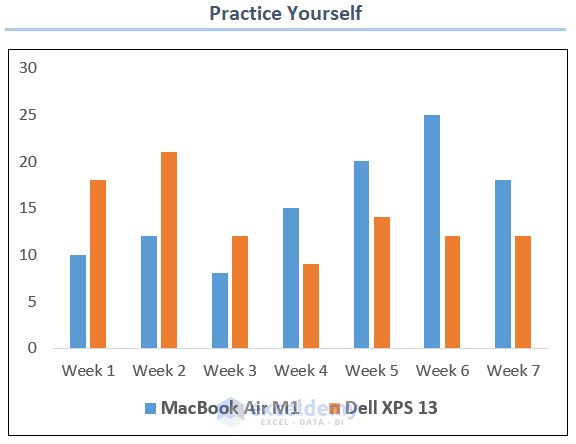
For doing practice by yourself we have provided a Practice section like below in each sheet on the right side. Please do it by yourself.
Conclusion
In this article, I showed you how to add a title in an Excel graph with different methods. Also, I showed you how to add axis titles in Excel Graph and how to remove any title in Excel Graph.
Last but not least, I hope you found what you were looking for in this article. If you have any queries, please drop a comment below.
Related Articles
- How to Change Decimal Places in Excel Graph
- How to Hide Zero Values in Excel Chart
- How to Mirror Chart in Excel
- How to Resize Chart Area Without Resizing Plot Area in Excel
<< Go Back to Customize Excel Charts | Excel Charts | Learn Excel
Get FREE Advanced Excel Exercises with Solutions!

