

In Excel, you can use the area and volume formulas very effectively. Area and volume formulas are used mostly in mathematics, estimation work, engineering, architecture, etc. You can calculate the area and volume of different geometric objects effectively by using Excel formulas and functions.
In this article, we have demonstrated all the basic area and volume formulas and how to use them in Excel.
What Are Basic Area and Volume Formulas?
Following are the lists of area and volume formulas that are frequently used.
Area Formulas:
| Geometric Shape | Formula for Area |
|---|---|
| Rectangle | Length × Width |
| Triangle | 0.5 × Base × Height |
| Circle | π × Radius^2 |
| Cylinder | 2 × π × Radius × Height + 2 × π × Radius^2 |
| Cube | 6 × Side Length^2 |
Volume Formulas:
| Geometric Shape | Formula for Volume |
|---|---|
| Rectangular Solid | Length × Width × Height |
| Cube | Side Length^3 |
| Sphere | (4/3) × π × Radius^3 |
| Cylnder | π × Radius^2 × Height |
| Cone | (1/3) π × Radius^2 × Height |
How to Calculate Area in Excel
In this section, we will describe calculating the area of 6 geometric shapes in Excel.
1. Area of a Circle
Area of a Circle =πr^2
Here, r = radius
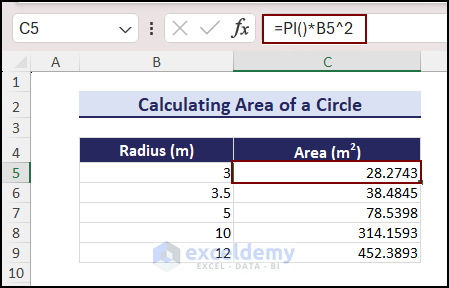
If the radius of the circle is given, you can calculate the area by using this simple formula.
To calculate the area of a circle:
- Write this formula:
=PI()*B5^2
Press the Enter button, and you will get the area of the circle. - Use the AutoFill feature to copy the formula up to the last cell.
2. Surface Area of a Cylinder
Surface area of a cylinder =2πrh + 2πr^2
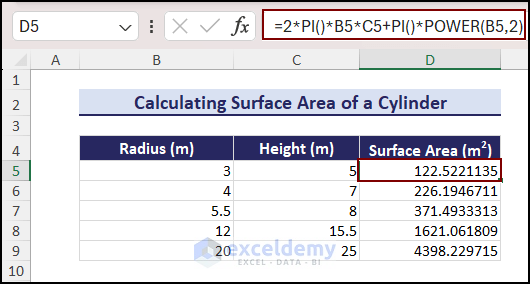
Here, r and h denote radius and height, respectively. Let’s calculate the surface area.
- Write the radius and height of the cylinder in two different cells.
- Write this formula:
=2*PI()*B5*C5+PI()*POWER(B5,2) - Press Enter, and you will get the surface area of the cylinder.
3. Area of a Triangle
Area of a Triangle =½*base*height
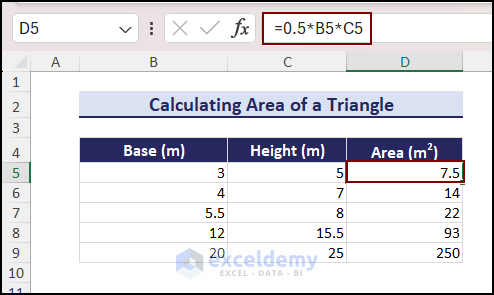
Let’s determine the area of a triangle.
- Write the base and height of the triangle in two different cells.
- Write this formula in your preferred cell:
=0.5*B5*C5
In the formula, cells B5 and C5 contain the values of base and height. - Press the Enter button, and you will get the area of the triangle.
4. Area of a Rectangle
Area of a Rectangle =Length*Width
These are the steps:
- Write the length and breadth of the triangle in two different cells.
- In the third cell, write this formula:
=B5*C5
Here, the cells B5 and C5 are the length and breadth of the rectangle. - Press the Enter button, and you will get the area.

5. Area of a Square
Area of Square =(Side Length)^2
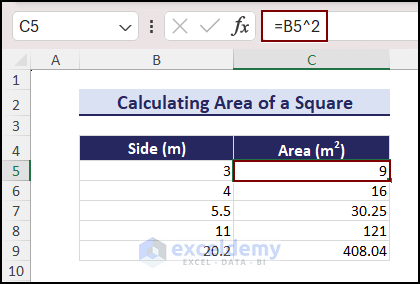
- Write the side length of the square in a cell.
- Write this formula in another cell:
=B5^2
Where B5 contains the side length of the square. - Press enter to get the result.
6. Area of a Trapezium
Area of a Trapezium =½*(Sum of the lengths of the parallel sides)*Distance between parallel sides
Steps to calculate the area of a trapezium:
- Write the length of the parallel sides as Base 1 and Base 2 in two different cells.
- Write the distance between parallel sides in another cell.
- Write this formula in a cell and press Enter:
=((B5+C5)/2)*D5
Here, the cells B5 and C5 contain the lengths of the parallel sides. And D5 is the distance between the two sides.

How to Calculate Volume in Excel
Now, we will calculate the volumes of 7 types of geometric objects.
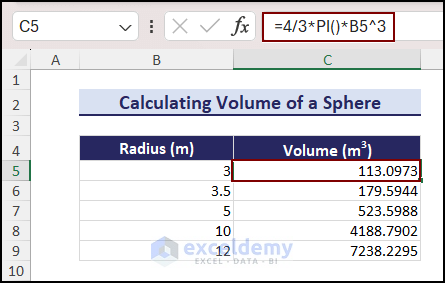
1. Volume of a Sphere
Volume of a Sphere =(4/3) × π × Radius^3
Let’s calculate the volume.
- Write the radius of the sphere in a cell.
- Copy this formula to another cell:
=4/3*PI()*B5^3
Here, the B5 cell contains the radius of the sphere. - Hit the Enter button.
2. Volume of a Rectangular Solid
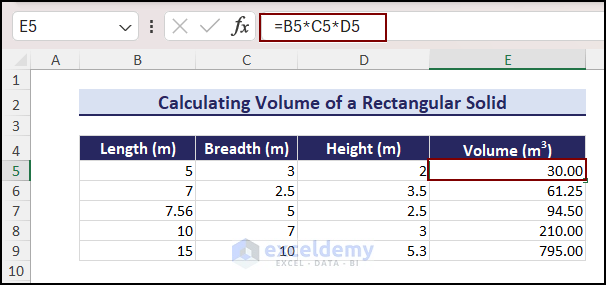
Volume of a Rectangular Solid =Length*Breadth*Height
The steps to calculate the volume:
- Write the length, breadth, and height of the rectangular solid in 3 different cells.
- In another cell, write this formula:
=B5*C5*D5
Here, the cells B5, C5, and D5 are the length, breadth, and height of the rectangle. - Press the Enter button, and you will get the volume.
3. Volume of a Cube
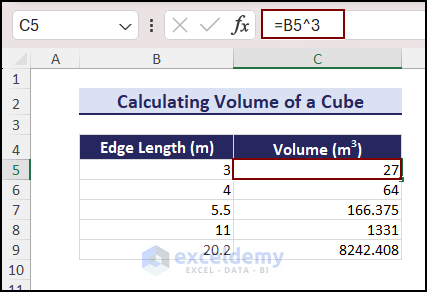
Volume of a Cube =(Side Length)^3
- Write the edge length of the cube in a cell.
- Write this formula in another cell:
=B5^3
Here B5 contains the edge length of the cube. - Press Enter to get the result.
4. Volume of a Cylinder
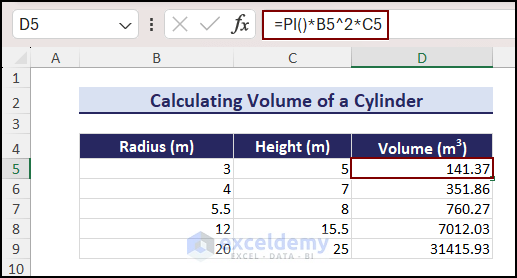
Volume of a Cylinder =π × Radius^2 × Height
- Write this formula in the cell where you want to get the volume:
=PI()*B5^2*C5
Here, cell B5 contains the radius, and cell C5 contains the height. - Press Enter, and you will get the volume of the cylinder.
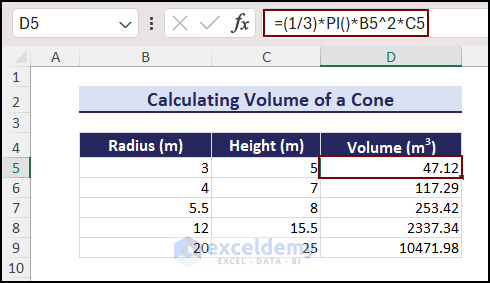
5. Volume of a Cone
Volume of a Cone =(1/3) π × Radius^2 × Height
- Write the radius and height of the cone in two different cells.
- Copy this formula to another cell:
=(1/3)*PI()*B5^2*C5
Here, B5 contains the radius, and C5 contains the height. - Press Enter.
6. Volume of a Torus
A torus is a three-dimensional object. It is mostly like a doughnut or tire tube.
Volume of a torus =π*(Inner Radius)^2*2*π*Outer Radius
- Write the inner and outer radii of the torus in two different cells.
- Now, write the formula in a cell:
=PI()*B5^2*2*PI()*C5
Here, cell B5 contains the inner radius, and cell C5 contains the outer radius. - Press Enter.

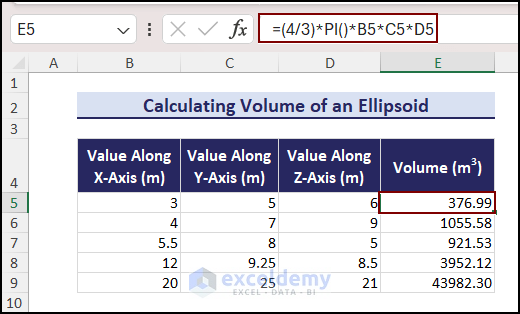
7. Volume of an Ellipsoid
An ellipsoid is a three-dimensional object. It is symmetrical, with about three perpendicular axes.
Volume of Ellipsoid =(4/3)*π*a*b*c
Here, a, b, and c = lengths of the ellipsoid along the axes.
- Write the values along the X, Y, and Z axes in three different cells.
- Copy this formula to another cell:
=(4/3)*PI()*B5*C5*D5
Here, the cells B5, C5, and D5 are the values along the X, Y, and Z axes. - Press the Enter button, and you will get the volume of an ellipsoid.
Some Advanced Area Formula Examples in Excel
Now, we will use some advanced area formulas. These are the trapezoidal formula and the shoelace formula.
Calculating Area Under Curve
By using the trapezoidal rule, we will calculate the area under a curve. First, we need to divide the region into smaller trapezoids. Then we will sum their areas.
Let’s plot the scatter chart by using the given x and y coordinates first.
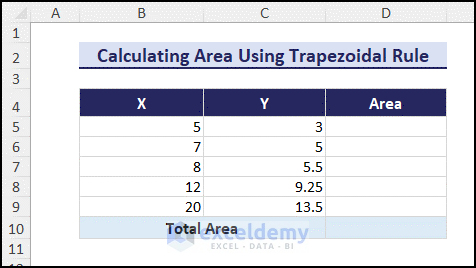
Calculate the area under the curve by following these steps:
- Select the range that contains the X and Y coordinates.
- Go to the Insert tab >> Charts group >> Scatter with Smooth Lines option.
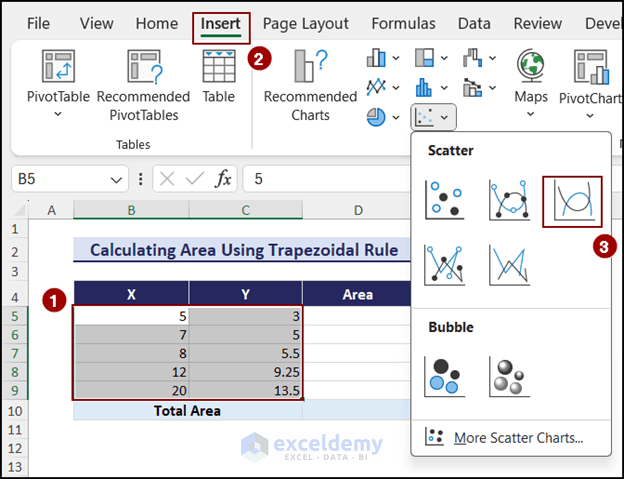 As the scatter chart is plotted, we can calculate the area now.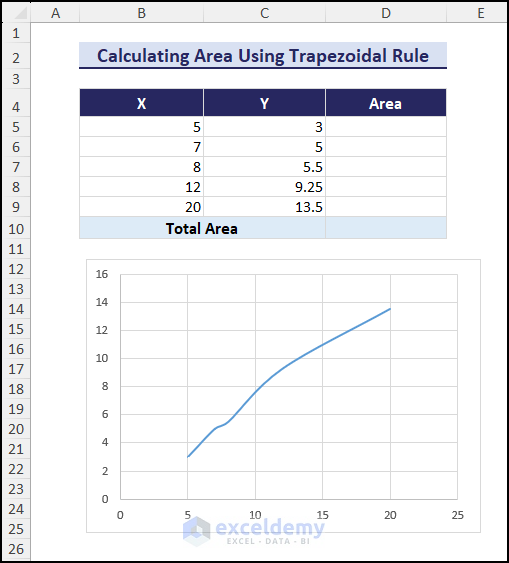
- Select a cell in a separate column, and write this formula:
=(B5+C5)/2*(B5-C5) - Press Enter and you will get the area of the first trapezium.
- Copy this formula to the other cells using the Fill Handle. You don’t need to determine the area for the last set of coordinates. Because it doesn’t enclose any area.
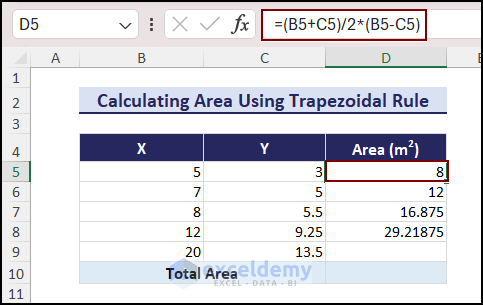
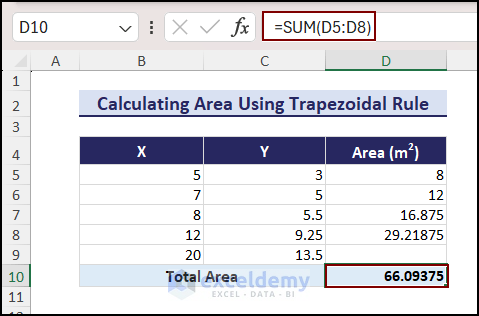
- Now, use this formula to get the total area:
=SUM(D5:D8)
Here, the range D5:D8 contains the area of the smaller trapeziums. - Press Enter, and you will get the total area under the curve.
Calculating the Area of an Irregular Shape
In this section, we will show the steps for calculating the area of an irregular shaped polygon. We can use the shoelace formula for this problem.
The shoelace formula is used to calculate the area of a polygon. It requires the coordinates of its vertices.
The formula is:
A = (½)|x1y2+x2y3+….+xny1-x2y1-x2y3-….-x1yn|
Here,
A = Area
n = Number of Sides
x = Abscissa
y = Ordinate
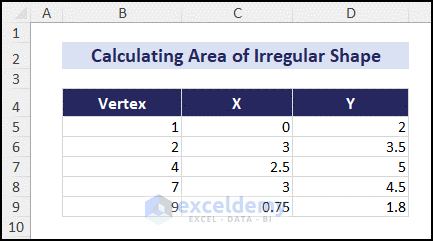
These are the steps:
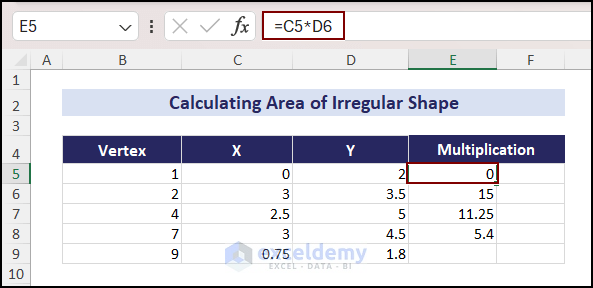
- Create two separate columns for the multiplication values.
- Write this formula in cell E5:
=C5*D5
This is the value of x1y2. - Copy this formula up to cell E8 to get the values of x2y3, x3y4, x4y5.
- To get the value of x5y1, write the formula in cell E9:
=C9*D5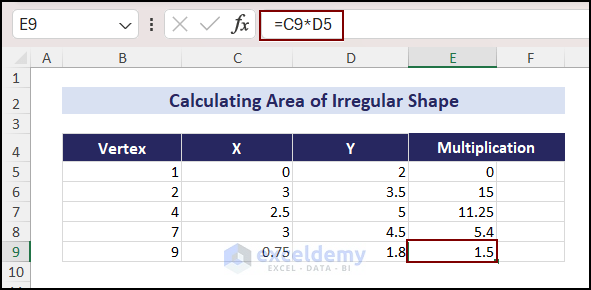
- Write the formula in F5:
=D5*C6
You will get the value of x2Y1. - Now, copy the formula up to cell F8 to get the other values.
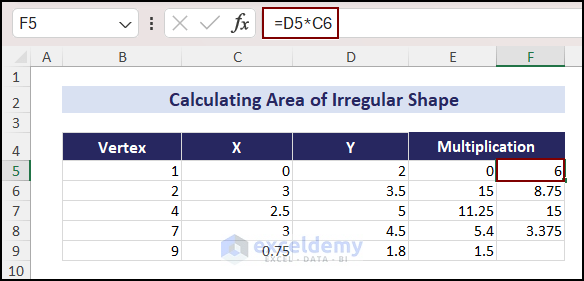
- Write the formula in cell F9:
=D9*C5
This is the value of x1y5.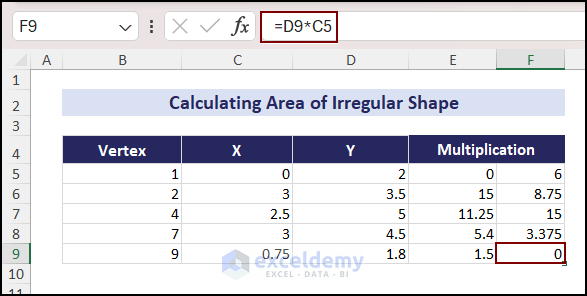
- To get the sum, copy this formula in cell E10:
=SUM(E5:E9)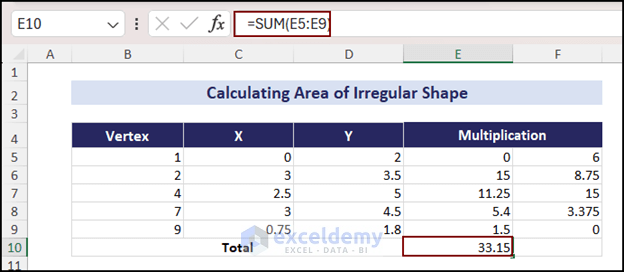
- Again, use this formula in cell F10:
=SUM(F5:F9)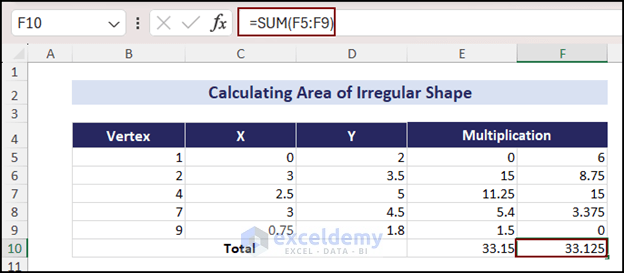
- Finally, to get the area, copy this formula to cell F12:
=ABS(E10-F10)/2
Here, the ABS function is used to get the absolute value of E10-F10.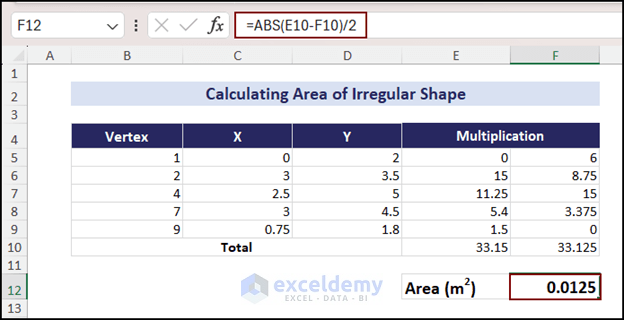
Download Practice Workbook
Conclusion
Using Excel while using area and volume formulas is shown in this article. If the parameters are given, it is very easy to calculate the area or volume. I hope this article has helped you to use these formulas in Excel. If you have any questions, please leave a comment.
Excel Area and Volume Formulas: Knowledge Hub
<< Go Back to Formula List | Learn Excel


