

Want to learn the use Case vs If statement in Excel VBA? Then, this is the right place for you.
One of the fundamental concepts in VBA is making decisions based on certain conditions, such as comparing values or checking whether a certain condition is true or false. Two common methods to implement these conditional statements are the IF statement and the SELECT CASE statement, also known as the CASE statement.
The IF statement in VBA allows you to execute a block of code if a condition is met. This block of code can also contain multiple statements. In other words, if a certain condition is true, the code inside the IF block will be executed, otherwise, the code will be skipped. The IF statement can be nested, meaning one IF statement can contain another IF statement, to create more complex decision structures.
On the other hand, the SELECT CASE statement in VBA allows you to execute a block of code based on multiple conditions. It can be used as an alternative to nested IF statements when there are many possible conditions. With the SELECT CASE statement, you can specify a variable or expression to evaluate, and then define multiple cases that will trigger certain actions. The syntax for a SELECT CASE statement is often more concise and easier to read than nested IF statements, especially when there are more than three or four cases.
How to Launch Visual Basic Editor in Excel
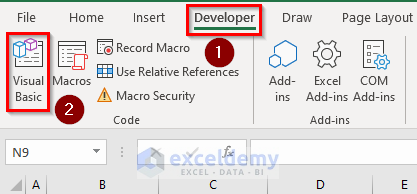
To Launch Visual Basic Editor, we need to click on Visual Basic under the Developer tab.
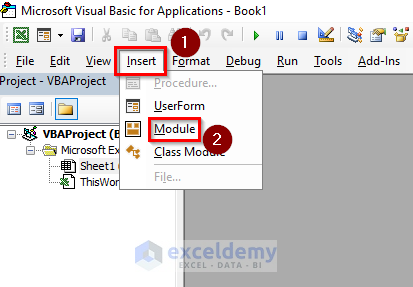
Then, Insert a module to write the code. Finally, inside the module, we can write suitable codes to get our desired output. We have to repeat this process for adding each of the new Macros. (If you are using VBA for the first time, you may need to add the Developer tab inside the ribbon excel)
Overview of Case and If Statements
Case Statement:
The syntax of the Case statement is as follows:
Select Case expression
Case value1
' code to execute if expression = value1
Case value2
' code to execute if expression = value2
Case value3
' code to execute if expression = value3
Case Else
' code to execute if expression is not equal to any of the specified values
End Select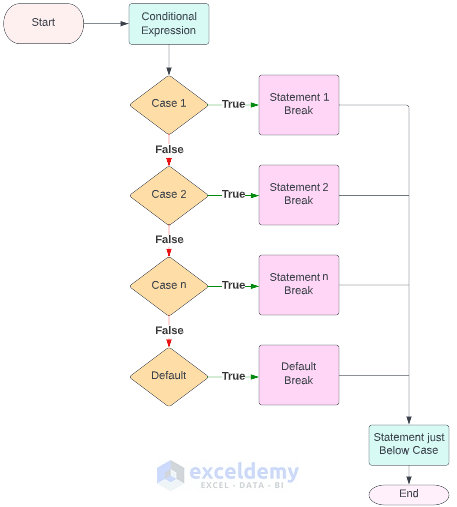
The Select Case statement is used to declare the start of the control structure. The expression is the value or expression that you want to evaluate. Each Case statement compares the expression to a specific value or set of values. If the expression matches the value, then the code associated with that Case statement is executed.
The Case Else statement is optional, and it is used to specify the code to execute if the expression does not match any of the specified values. This is similar to the Else statement in an If…Then statement.
It is important to note that the Case statements can also use comparison operators (<, >, <=, >=, <>) to test a range of values. Additionally, the Case statements can be nested to provide more complex control structures.
If Statement:
The syntax of the If statement is as follows:
If condition Then
'Code to execute if condition is true
ElseIf
'Code to execute if condition is false
End If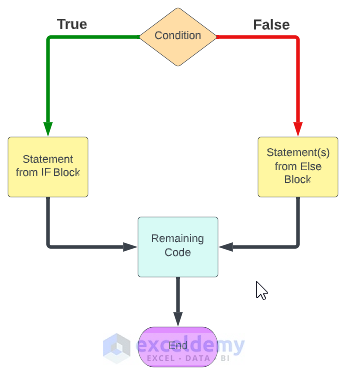
Here, the condition is the expression that is evaluated to determine whether it is true or false. If the condition is true, the code inside the If block will be executed, and if it is false, the code will be skipped and execution will continue with the next statement after the End If statement.
Optionally, you can use an Else clause to specify a block of code to execute if the condition is false.
Similarities Between Case and If Statements
Some similarities between Select Case and If Statements can be:
- Both Select Case and If statements are conditional statements used in VBA programming to execute code based on certain conditions.
- Both can be used to evaluate a single condition or multiple conditions.
- Both can be nested, meaning that they can contain one or more additional Select Case or If statements.
Difference Between Case and If Statements
Some dissimilarities between Select Case and If Statements can be:
- Select Case statements are more efficient and easier to read when dealing with multiple conditions, whereas If statements are more suitable for handling single conditions or small sets of conditions.
- The Case statements provide a clearer and more concise way of expressing multiple conditions, whereas If statements can lead to more complex and cluttered code when dealing with multiple conditions.
- Fianlly, select Case statements can only evaluate expressions that result in a single value, whereas If statements can evaluate a wider range of expressions, including logical and comparison operators.
VBA Case Vs If: 9 Examples That Will Teach You to Apply Case and If Statements in Similar Scenarios
We have taken a dataset named “Employee Information Dataset” to demonstrate these 9 examples to you.
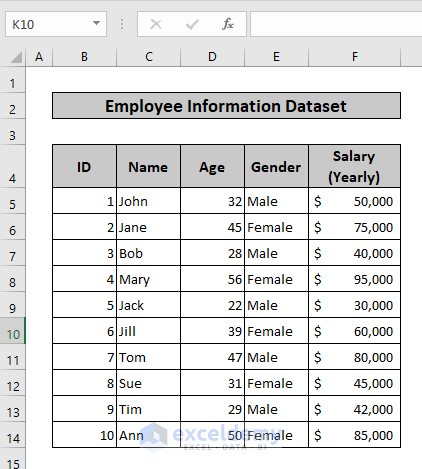
1. Using Loop in Both Case and If Statements
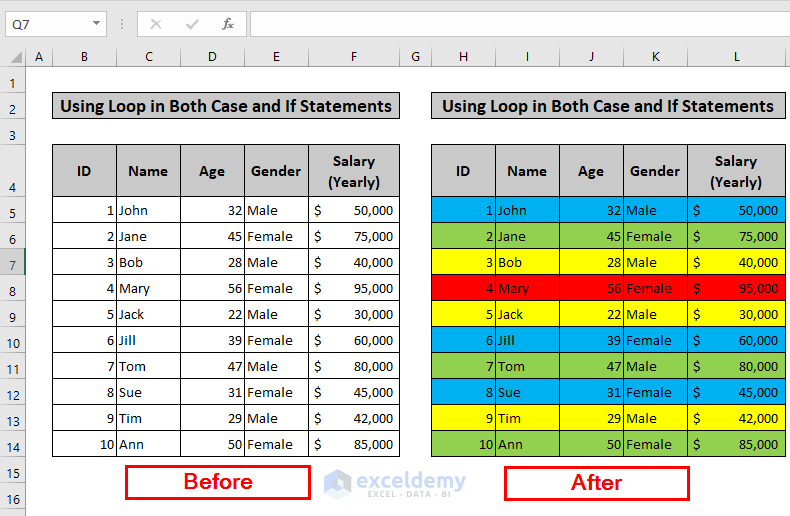
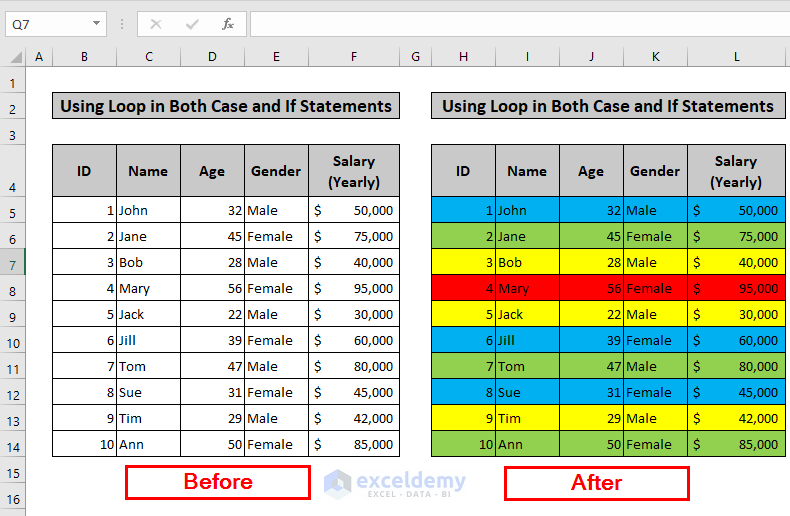
In this example, the rows in the range B5:F14 are highlighted based on the age range of the corresponding value in column D (i.e., Age). The age range categories are defined as follows:
Age between 18 and 30: yellow; Age between 31 and 40: blue; Age between 41 and 50: green; Age above 50 or below 18: red
The codes use a “For Each” loop to iterate through each cell in the Age column (column D), and then use both Select Case and If statements to determine the appropriate age group for that cell’s value. The corresponding rows in columns B to F are then highlighted using the appropriate color.
Steps:
- First, we need to insert a module as stated earlier.
- Then, we need to write the following code inside the module. (Select Case Statement)
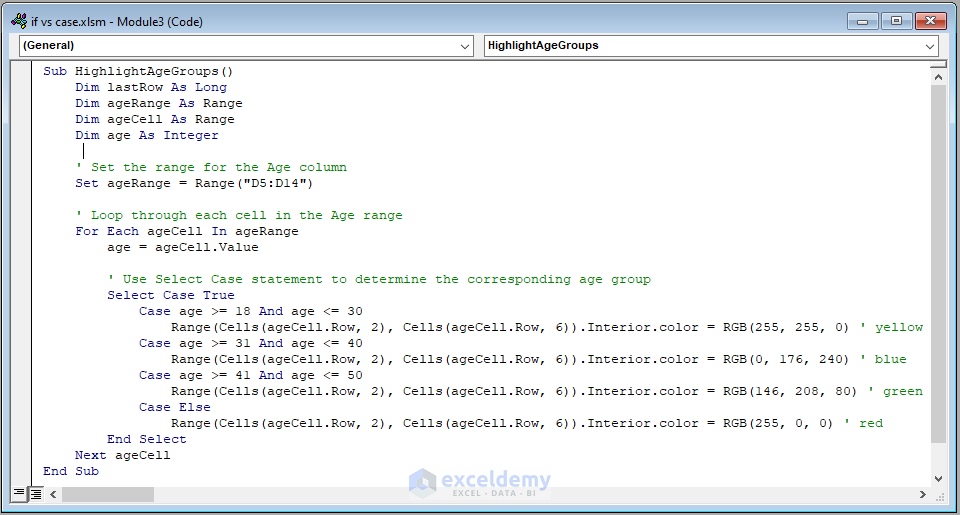
Code Syntax:
Sub HighlightAgeGroups()
Dim lastRow As Long
Dim ageRange As Range
Dim ageCell As Range
Dim age As Integer' Set the range for the Age column
Set ageRange = Range("D5:D14")
' Loop through each cell in the Age range
For Each ageCell In ageRange
age = ageCell.Value
' Use Select Case statement to determine the corresponding age group
Select Case True
Case age >= 18 And age <= 30
Range(Cells(ageCell.Row, 2), Cells(ageCell.Row, 6)).Interior.color = RGB(255, 255, 0) ' yellow
Case age >= 31 And age <= 40
Range(Cells(ageCell.Row, 2), Cells(ageCell.Row, 6)).Interior.color = RGB(0, 176, 240) ' blue
Case age >= 41 And age <= 50
Range(Cells(ageCell.Row, 2), Cells(ageCell.Row, 6)).Interior.color = RGB(146, 208, 80) ' green
Case Else
Range(Cells(ageCell.Row, 2), Cells(ageCell.Row, 6)).Interior.color = RGB(255, 0, 0) ' red
End Select
Next ageCell
End Sub
Code Breakdown:
Sub HighlightAgeGroups()This is the beginning of the subroutine “HighlightAgeGroups”.
Dim lastRow As LongDeclares a variable “lastRow” as Long data type to store the last row number of the age range.
Dim ageRange As RangeThis line declares a variable “ageRange” as Range data type to store the range of cells containing age data.
Dim ageCell As RangeThen, this line declares a variable “ageCell” as Range data type to store the individual cell containing age data.
Dim age As IntegerFinally, this line declares a variable “age” as Integer data type to store the integer value of age.
Set ageRange = Range("D5:D14")Sets the range of cells containing age data from D5 to D14.
For Each ageCell In ageRangeBegins a loop through each cell in the age range.
age = ageCell.ValueAssigns the value of the current age cell to the “age” variable.
Select Case TrueThis begins a select case statement using True as the test expression.
Case age >= 18 And age <= 30Tests whether the age is between 18 and 30, and if true, applies the corresponding formatting to the row.
Case age >= 31 And age <= 40This tests whether the age is between 31 and 40, and if true, applies the corresponding formatting to the row.
Case age >= 41 And age <= 50Tests whether the age is between 41 and 50, and if true, applies the corresponding formatting to the row.
Case ElseApplies the formatting for any age that does not fit into the previous categories.
End SelectEnds the select case statement.
Next ageCellMoves to the next cell in the age range.
End SubThis is the end of the subroutine.
- Alternatively, you can Insert a module and write the following code instead of the previous one inside the module. (If Statement)
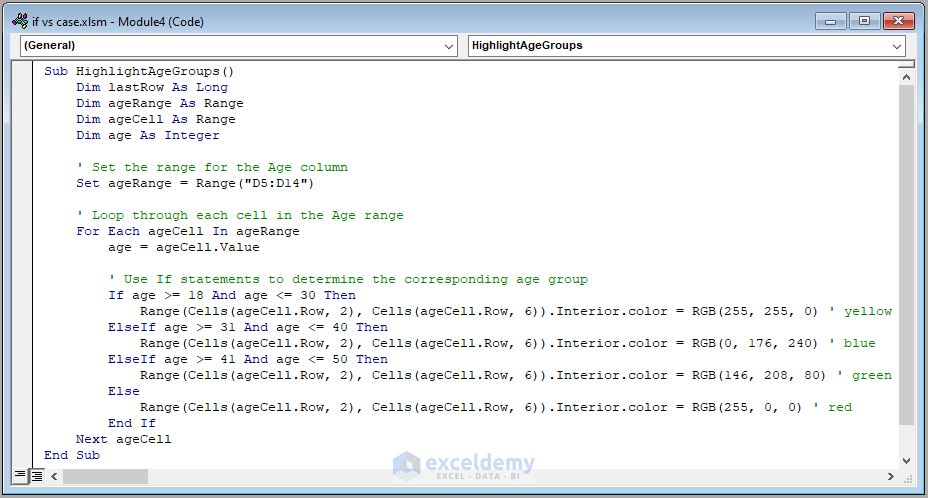
Code Syntax:
Sub HighlightAgeGroups()
Dim lastRow As Long
Dim ageRange As Range
Dim ageCell As Range
Dim age As Integer' Set the range for the Age column
Set ageRange = Range("D5:D14")
' Loop through each cell in the Age range
For Each ageCell In ageRange
age = ageCell.Value
' Use If statements to determine the corresponding age group
If age >= 18 And age <= 30 Then
Range(Cells(ageCell.Row, 2), Cells(ageCell.Row, 6)).Interior.color = RGB(255, 255, 0) ' yellow
ElseIf age >= 31 And age <= 40 Then
Range(Cells(ageCell.Row, 2), Cells(ageCell.Row, 6)).Interior.color = RGB(0, 176, 240) ' blue
ElseIf age >= 41 And age <= 50 Then
Range(Cells(ageCell.Row, 2), Cells(ageCell.Row, 6)).Interior.color = RGB(146, 208, 80) ' green
Else
Range(Cells(ageCell.Row, 2), Cells(ageCell.Row, 6)).Interior.color = RGB(255, 0, 0) ' red
End If
Next ageCell
End Sub
Code Breakdown:
Sub HighlightAgeGroups()Declares a subroutine called “HighlightAgeGroups”.
Dim lastRow As LongDim ageRange As RangeDim ageCell As RangeDim age As IntegerThese lines declare variables called “lastRow” as a Long data type, “ageRange”, “ageCell” as Range data type, “age” as an Integer data type.
Set ageRange = Range("D5:D14")Assigns the range “D5:D14” to the variable “ageRange”.
For Each ageCell In ageRangeStarts a loop that iterates through each cell in the range “ageRange” and assigns the current cell to the variable “ageCell”.
age = ageCell.ValueAssigns the value of the current cell to the variable “age”.
If age >= 18 And age <= 30 ThenChecks if the value of “age” is between 18 and 30 (inclusive).
Range(Cells(ageCell.Row, 2), Cells(ageCell.Row, 6)).Interior.color = RGB(255, 255, 0)If the value of “age” is between 18 and 30, sets the background color of the cells in columns B to F of the current row to yellow.
ElseIf age >= 31 And age <= 40 ThenThen, if the value of “age” is not between 18 and 30, checks if it is between 31 and 40 (inclusive).
Range(Cells(ageCell.Row, 2), Cells(ageCell.Row, 6)).Interior.color = RGB(0, 176, 240)If the value of “age” is between 31 and 40, sets the background color of the cells in columns B to F of the current row to blue.
ElseIf age >= 41 And age <= 50 ThenNext, If the value of “age” is not between 18 and 40, checks if it is between 41 and 50 (inclusive).
Range(Cells(ageCell.Row, 2), Cells(ageCell.Row, 6)).Interior.color = RGB(146, 208, 80)If the value of “age” is between 41 and 50, sets the background color of the cells in columns B to F of the current row to green.
ElseIf the value of “age” is not between 18 and 50, sets the background color of the cells in columns B to F of the current row to red.
End IfEnds the If statement.
Next ageCellGoes to the next cell in the range “ageRange”.
End SubEnds the subroutine.
- Consequently, run any of the two codes by clicking on the highlighted area.
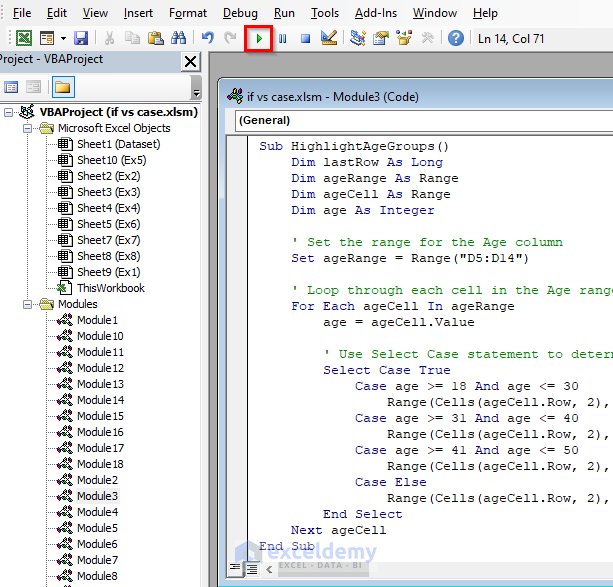
- You will get the same output for both of them.
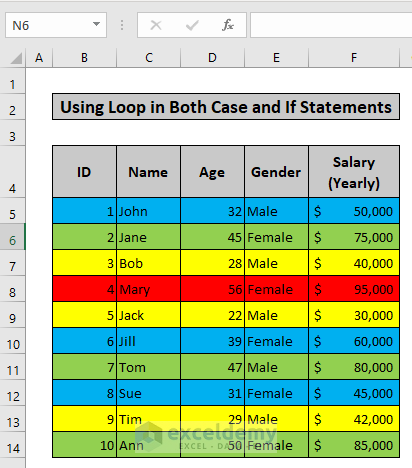
- Finally, a before-after scenario of this example is given below:
Read More: How to Use VBA Case Statement
2. Setting Cell Color Based on Salary
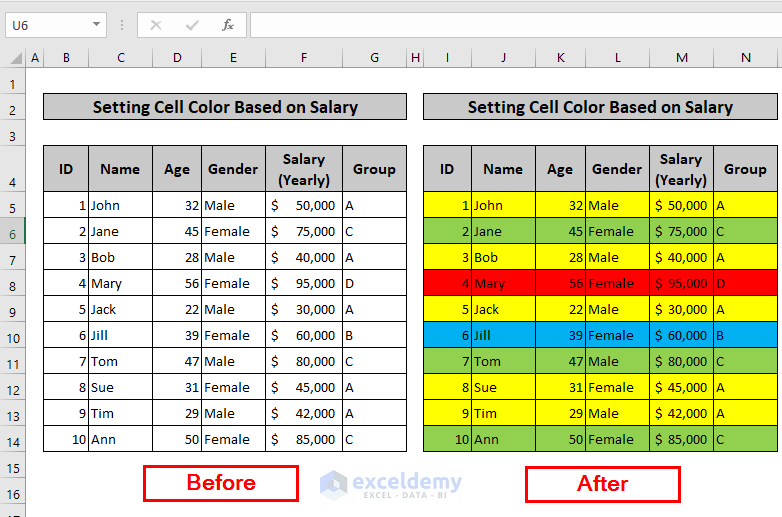
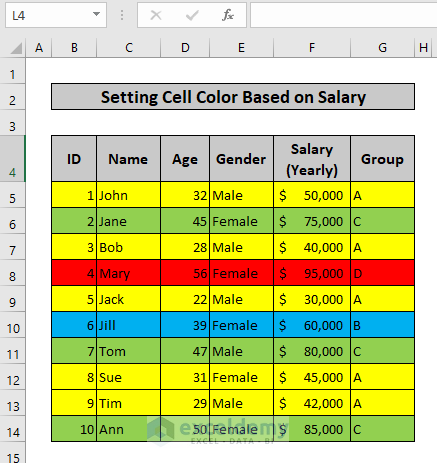
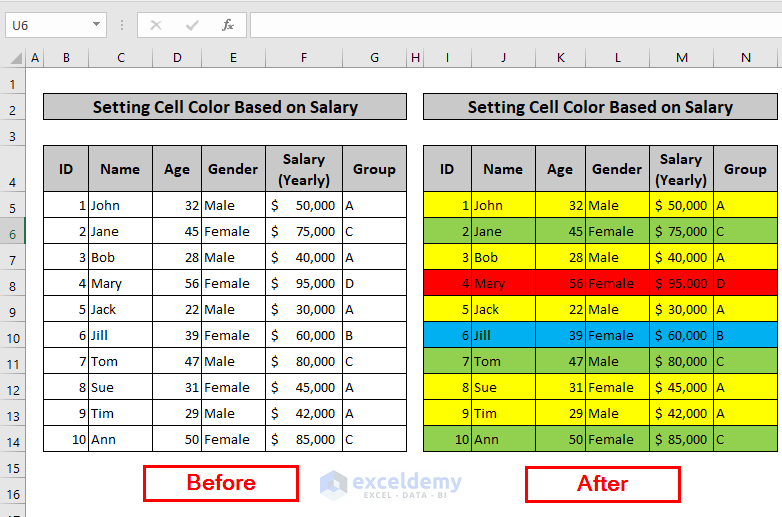
In this example, the rows in a specific range of a spreadsheet are highlighted based on the salary ranges of the employees. First the salary group of each employee is determined based on their salary, and then the corresponding row is highlighted with a specific color based on the salary group.
⇒ Salary less than or equal to 50000: Group A
⇒ Salary less than or equal to 70000: Group B
⇒ Salary less than or equal to 90000: Group C
⇒ Salary greater than 90000: Group D
Also a new column to the spreadsheet is added to display the salary group of each employee.
Steps:
- First, we need to insert a module as stated earlier.
- Then, we need to write the following code inside the module. (Select Case Statement)
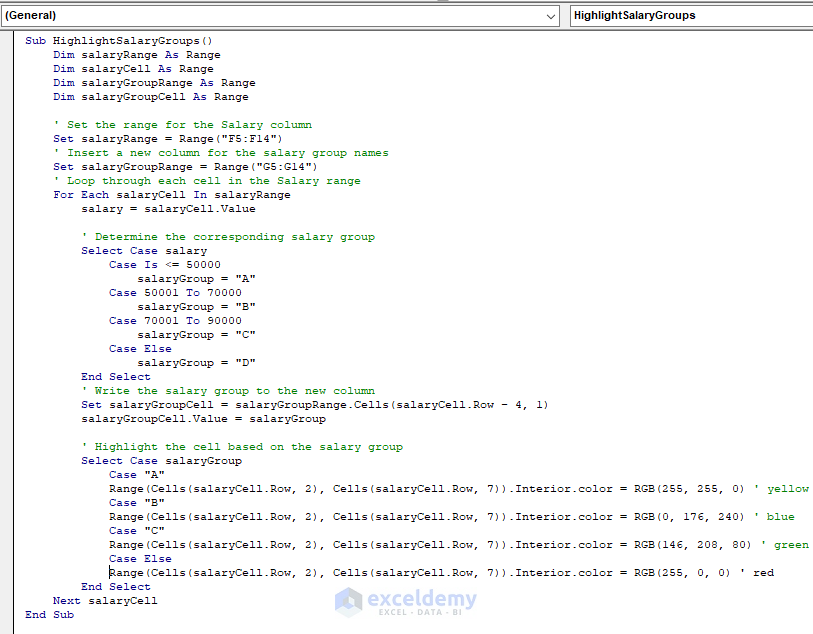
Code Syntax:
Sub HighlightSalaryGroups()
Dim salaryRange As Range
Dim salaryCell As Range
Dim salaryGroupRange As Range
Dim salaryGroupCell As Range' Set the range for the Salary column
Set salaryRange = Range("F5:F14")
' Insert a new column for the salary group names
Set salaryGroupRange = Range("G5:G14")
' Loop through each cell in the Salary range
For Each salaryCell In salaryRange
salary = salaryCell.Value
' Determine the corresponding salary group
Select Case salary
Case Is <= 50000
salaryGroup = "A"
Case 50001 To 70000
salaryGroup = "B"
Case 70001 To 90000
salaryGroup = "C"
Case Else
salaryGroup = "D"
End Select
' Write the salary group to the new column
Set salaryGroupCell = salaryGroupRange.Cells(salaryCell.Row - 4, 1)
salaryGroupCell.Value = salaryGroup
' Highlight the cell based on the salary group
Select Case salaryGroup
Case "A"
Range(Cells(salaryCell.Row, 2), Cells(salaryCell.Row, 7)).Interior.color = RGB(255, 255, 0) ' yellow
Case "B"
Range(Cells(salaryCell.Row, 2), Cells(salaryCell.Row, 7)).Interior.color = RGB(0, 176, 240) ' blue
Case "C"
Range(Cells(salaryCell.Row, 2), Cells(salaryCell.Row, 7)).Interior.color = RGB(146, 208, 80) ' green
Case Else
Range(Cells(salaryCell.Row, 2), Cells(salaryCell.Row, 7)).Interior.color = RGB(255, 0, 0) ' red
End Select
Next salaryCell
End Sub
Code Breakdown:
Sub HighlightSalaryGroups()This is a VBA Subroutine named HighlightSalaryGroups.
Dim salaryRange As RangeThis declares a Range variable named salaryRange to store the cells in the Salary column.
Dim salaryCell As RangeThis declares a Range variable named salaryCell to store the current cell in the Salary column while looping through each cell.
Dim salaryGroupRange As RangeThis declares a Range variable named salaryGroupRange to store the cells in the new column where the salary group names will be written.
Dim salaryGroupCell As RangeThis declares a Range variable named salaryGroupCell to store the current cell in the new column where the salary group name will be written.
Set salaryRange = Range("F5:F14")This sets the salaryRange variable to the cells in the Salary column (cells F5 through F14).
Set salaryGroupRange = Range("G5:G14")This sets the salaryGroupRange variable to the cells in the new column where the salary group names will be written (cells G5 through G14).
For Each salaryCell In salaryRangeThis starts a loop through each cell in the Salary range.
salary = salaryCell.ValueThis sets the salary variable to the value of the current cell in the Salary range.
Select Case salaryThis starts a Select Case statement based on the value of the salary variable.
Case Is <= 50000If the salary is less than or equal to 50000, set the salaryGroup variable to “A”.
Case 50001 To 70000If the salary is between 50001 and 70000, set the salaryGroup variable to “B”.
Case 70001 To 90000If the salary is between 70001 and 90000, set the salaryGroup variable to “C”.
Case ElseIf the salary is greater than 90000, set the salaryGroup variable to “D”.
Set salaryGroupCell = salaryGroupRange.Cells(salaryCell.Row - 4, 1)This sets the salaryGroupCell variable to the cell in the new column where the salary group name will be written, based on the row of the current cell in the Salary range.
salaryGroupCell.Value = salaryGroupThis writes the salary group name to the cell in the new column.
Select Case salaryGroupThis starts a Select Case statement based on the value of the salaryGroup variable.
Case "A"If the salary group is “A”, highlight the cell in the row with a yellow background color.
Case "B"If the salary group is “B”, highlight the cell in the row with a blue background color.
Case "C"If the salary group is “C”, highlight the cell in the row with a green background color.
Case ElseIf the salary group is “D”, highlight the cell in the row with a red background color.
Next salaryCellThis ends the loop through each cell in the Salary range.
End SubThis ends the subroutine.
- Alternatively, you can Insert a module and write the following code instead of the previous one inside the module (If Statement).
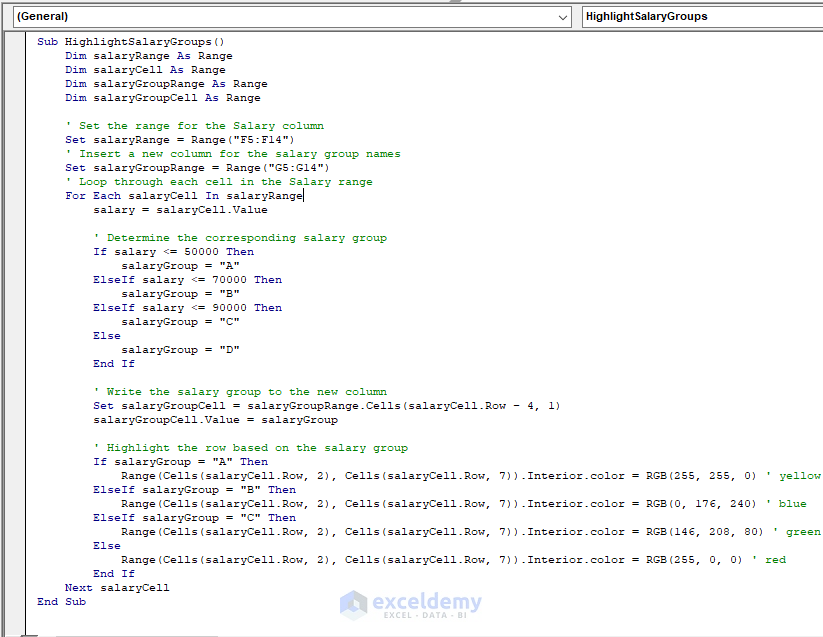
Code Syntax:
Sub HighlightSalaryGroups()
Dim salaryRange As Range
Dim salaryCell As Range
Dim salaryGroupRange As Range
Dim salaryGroupCell As Range' Set the range for the Salary column
Set salaryRange = Range("F5:F14")
' Insert a new column for the salary group names
Set salaryGroupRange = Range("G5:G14")
' Loop through each cell in the Salary range
For Each salaryCell In salaryRange
salary = salaryCell.Value
' Determine the corresponding salary group
If salary <= 50000 Then
salaryGroup = "A"
ElseIf salary <= 70000 Then
salaryGroup = "B"
ElseIf salary <= 90000 Then
salaryGroup = "C"
Else
salaryGroup = "D"
End If
' Write the salary group to the new column
Set salaryGroupCell = salaryGroupRange.Cells(salaryCell.Row - 4, 1)
salaryGroupCell.Value = salaryGroup
' Highlight the row based on the salary group
If salaryGroup = "A" Then
Range(Cells(salaryCell.Row, 2), Cells(salaryCell.Row, 7)).Interior.color = RGB(255, 255, 0) ' yellow
ElseIf salaryGroup = "B" Then
Range(Cells(salaryCell.Row, 2), Cells(salaryCell.Row, 7)).Interior.color = RGB(0, 176, 240) ' blue
ElseIf salaryGroup = "C" Then
Range(Cells(salaryCell.Row, 2), Cells(salaryCell.Row, 7)).Interior.color = RGB(146, 208, 80) ' green
Else
Range(Cells(salaryCell.Row, 2), Cells(salaryCell.Row, 7)).Interior.color = RGB(255, 0, 0) ' red
End If
Next salaryCell
End Sub
Code Breakdown:
Sub HighlightSalaryGroups()This is the beginning of a Subroutine called “HighlightSalaryGroups” that will be executed when called.
Dim salaryRange As Range Dim salaryCell As RangeDim salaryGroupRange As RangeDim salaryGroupCell As RangeThese lines declare variable “salaryRange”, “salaryCell”, “salaryGroupRange” and “salaryGroupCell” as a Range object.
Set salaryRange = Range("F5:F14")Sets the range for the Salary column to be cells F5 to F14.
Set salaryGroupRange = Range("G5:G14")This sets the range for the new column for the salary group names to be cells G5 to G14.
For Each salaryCell In salaryRangeBegins a loop that will execute once for each cell in the Salary range.
salary = salaryCell.ValueSets the value of “salary” to be the value of the current cell in the Salary range.
If salary <= 50000 ThenBegins an “If” statement that checks if the value of “salary” is less than or equal to 50000.
salaryGroup = "A"Sets the value of “salaryGroup” to be “A” if the previous “If” statement is true.
ElseIf salary <= 70000 ThenBegins an “ElseIf” statement that checks if the value of “salary” is less than or equal to 70000.
salaryGroup = "B"This sets the value of “salaryGroup” to be “B” if the previous “ElseIf” statement is true.
ElseIf salary <= 90000 ThenThis begins another “ElseIf” statement that checks if the value of “salary” is less than or equal to 90000.
salaryGroup = "C"Sets the value of “salaryGroup” to be “C” if the previous “ElseIf” statement is true.
ElseBegins an “Else” statement that will execute if none of the previous statements are true.
salaryGroup = "D"This line sets the value of “salaryGroup” to be “D” if the previous “Else” statement is executed.
Set salaryGroupCell = salaryGroupRange.Cells(salaryCell.Row - 4, 1)Sets the value of “salaryGroupCell” to be the cell in the new column corresponding to the current cell in the Salary range.
salaryGroupCell.Value = salaryGroupThis sets the value of the current cell in the “If salaryGroup = “A” Then”: This begins an “If” statement that checks if the salary group is “A”.
Range(Cells(salaryCell.Row, 2), Cells(salaryCell.Row, 7)).Interior.color = RGB(255, 255, 0) ' yellowHighlights the row of the current cell in the Salary range with a yellow color if the salary group is “A”.
ElseIf salaryGroup = "B" ThenBegins an “ElseIf” statement that checks if the salary group is “B”.
Range(Cells(salaryCell.Row, 2), Cells(salaryCell.Row, 7)).Interior.color = RGB(0, 176, 240) ' blueThis highlights the row of the current cell in the Salary range with a blue color if the salary group is “B”.
ElseIf salaryGroup = "C" ThenThen, this begins another “ElseIf” statement that checks if the salary group is “C”.
Range(Cells(salaryCell.Row, 2), Cells(salaryCell.Row, 7)).Interior.color = RGB(146, 208, 80) ' greenHighlights the row of the current cell in the Salary range with a green color if the salary group is “C”.
ElseThis begins an “Else” statement that will execute if none of the previous statements are true.
Range(Cells(salaryCell.Row, 2), Cells(salaryCell.Row, 7)).Interior.color = RGB(255, 0, 0) ' redThis highlights the row of the current cell in the Salary range with a red color if the salary group is “D”.
End IfEnds the “If” statement that begins on line 26.
Next salaryCellMoves the loop to the next cell in the Salary range.
End SubEnds the Subroutine.new column to be the corresponding salary group.
- Consequently, run any of the two codes by clicking on the highlighted area.
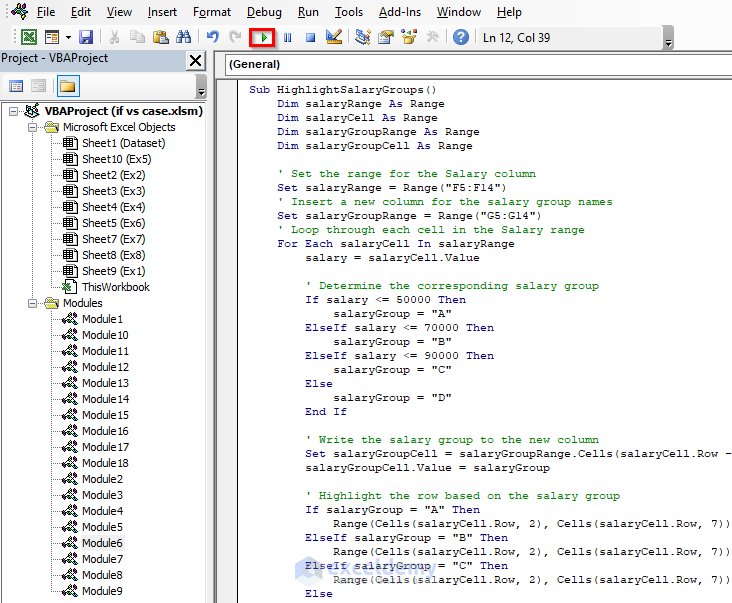
- You will get the same output for both of them.
- Finally, a before-after scenario of this example is given below:
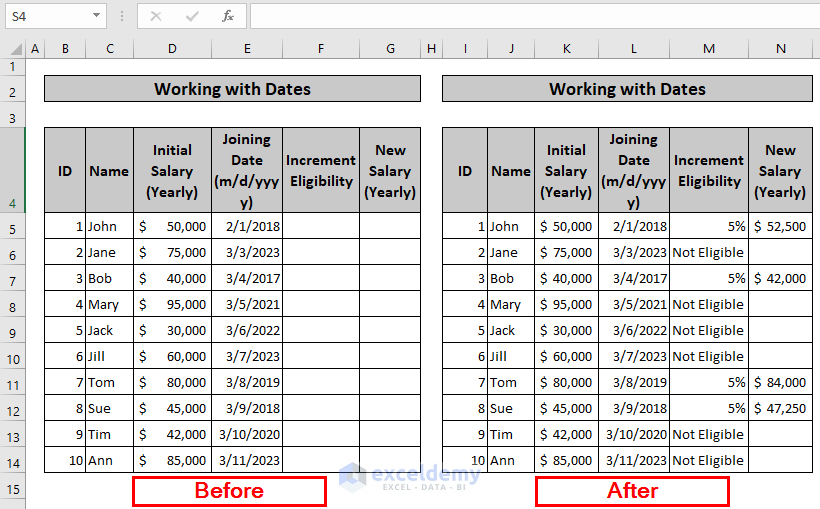
3. Working with Dates
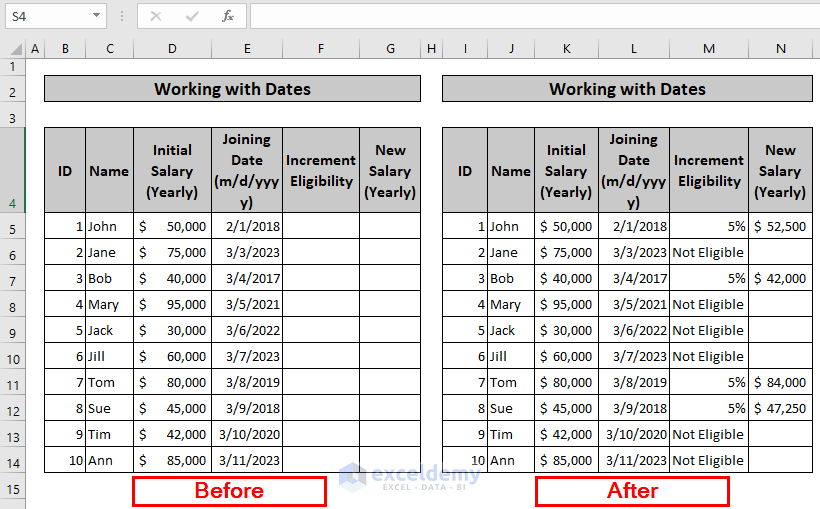
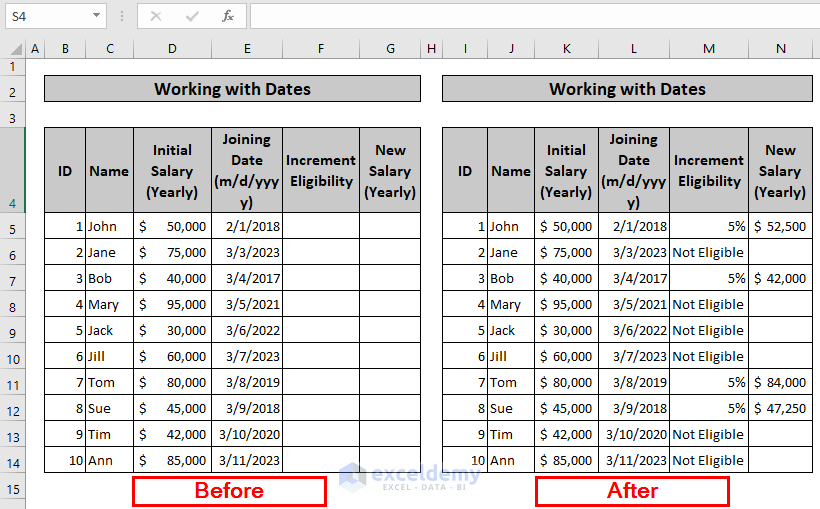
In this example, the bonus eligibility is determined for a range of employees based on their join date and the corresponding cells are updated with their bonus percentage and increased salary amount, or they get marked as not eligible.
Steps:
- First, we need to insert a module as stated earlier.
- Then, we need to write the following code inside the module. (Select Case Statement)
Code Syntax:
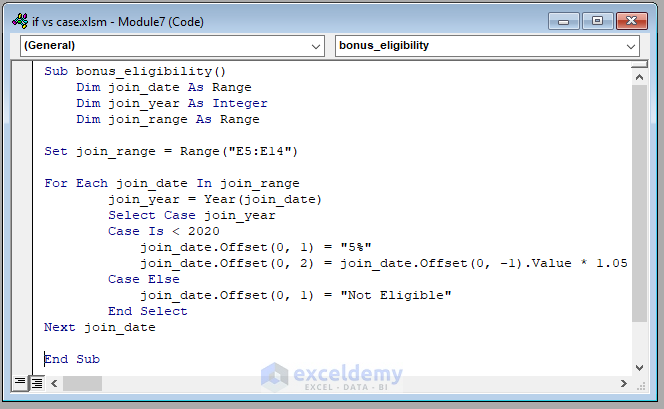
Sub bonus_eligibility()
Dim join_date As Range
Dim join_year As Integer
Dim join_range As RangeSet join_range = Range("E5:E14")
For Each join_date In join_range
join_year = Year(join_date)
Select Case join_year
Case Is < 2020
join_date.Offset(0, 1) = "5%"
join_date.Offset(0, 2) = join_date.Offset(0, -1).Value * 1.05
Case Else
join_date.Offset(0, 1) = "Not Eligible"
End Select
Next join_date
End Sub
Code Breakdown:
Sub bonus_eligibility()Defines the name of the subroutine as “bonus_eligibility”.
Dim join_date As RangeDim join_year As IntegerDim join_range As RangeDeclare variables “join_date”, “join_range” as a Range and “join_year” as an Integer.
Set join_range = Range("E5:E14")Sets the “join_range” variable to the range “E5:E14” on the worksheet.
For Each join_date In join_rangeStarts a loop that will iterate through each cell in the “join_range” range, and assign the current cell to the “join_date” variable.
join_year = Year(join_date)Uses the Year function to extract the year value from the “join_date” cell, and assigns it to the “join_year” variable.
Select Case join_yearBegins a Select Case block, which will evaluate the value of “join_year” and execute the appropriate case statement.
Case Is < 2020This line sets the condition for the first case statement, which will execute if “join_year” is less than 2020.
join_date.Offset(0, 1) = "5%"Sets the cell one column to the right of the “join_date” cell to the value “5%”.
join_date.Offset(0, 2) = join_date.Offset(0, -1).Value * 1.05Calculates the bonus amount by multiplying the value in the cell one column to the left of “join_date” by 1.05, and sets the result in the cell two columns to the right of “join_date”.
Case ElseThis line sets the condition for the “default” case statement, which will execute if “join_year” is greater than or equal to 2020.
join_date.Offset(0, 1) = "Not Eligible"Sets the cell one column to the right of the “join_date” cell to the value “Not Eligible”.
End SelectEnds the Select Case block.
Next join_dateMoves to the next cell in the “join_range” range and repeats the loop.
End SubThis line indicates the end of the subroutine.
- Alternatively, you can Insert a module and write the following code instead of the previous one inside the module. (If Statement)

Code Syntax:
Sub bonus_eligibility()
Dim join_date As Range
Dim join_year As Integer
Dim join_range As RangeSet join_range = Range("F5:F14")
For Each join_date In join_range
join_year = Year(join_date)
If join_year < 2020 Then
join_date.Offset(0, 1) = "5%"
join_date.Offset(0, 2) = join_date.Offset(0, -1).Value * 1.05
Else
join_date.Offset(0, 1) = "Not Eligible"
End If
Next join_date
End Sub
Code Breakdown:
Sub bonus_eligibility()This is the beginning of the subroutine named “bonus_eligibility”.
Dim join_date As RangeDim join_year As IntegerDim join_range As RangeDeclare variables “join_date”, “join_range” as a Range and “join_year” as an Integer.
Set join_range = Range("E5:E14")This line sets the range of cells from E5 to E14 to the variable “join_range”.
For Each join_date In join_rangeStarts a loop that goes through each cell in the “join_range” variable.
join_year = Year(join_date)Sets the “join_year” variable to the year value of the “join_date” cell.
If join_year < 2020 ThenChecks if the “join_year” value is less than 2020.
join_date.Offset(0, 1) = "5%"This line sets the value of the cell one column to the right of “join_date” to “5%”.
join_date.Offset(0, 2) = join_date.Offset(0, -1).Value * 1.05Sets the value of the cell two columns to the right of “join_date” to the value of the cell one column to the left of “join_date” multiplied by 1.05.
ElseStarts the “else” condition of the “if” statement on line 8.
join_date.Offset(0, 1) = "Not Eligible"This line sets the value of the cell one column to the right of “join_date” to “Not Eligible”.
End IfEnds the “if” statement started on line 8.
Next join_dateMoves the loop to the next cell in the “join_range” variable.
End SubThis is the end of the subroutine named “bonus_eligibility”.
- Consequently, run any of the two codes by clicking on the highlighted area.

- You will get the same output for both of them.
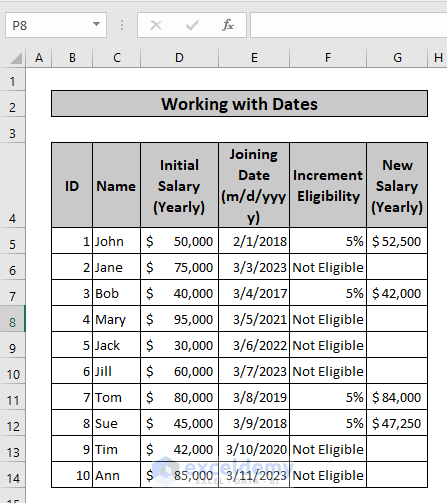
- Finally, a before-after scenario of this example is given below:
4. Check If Number Is Even or Odd
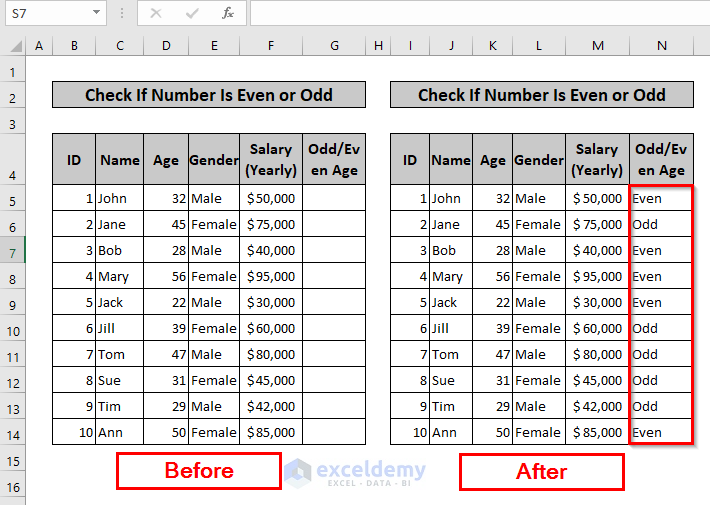
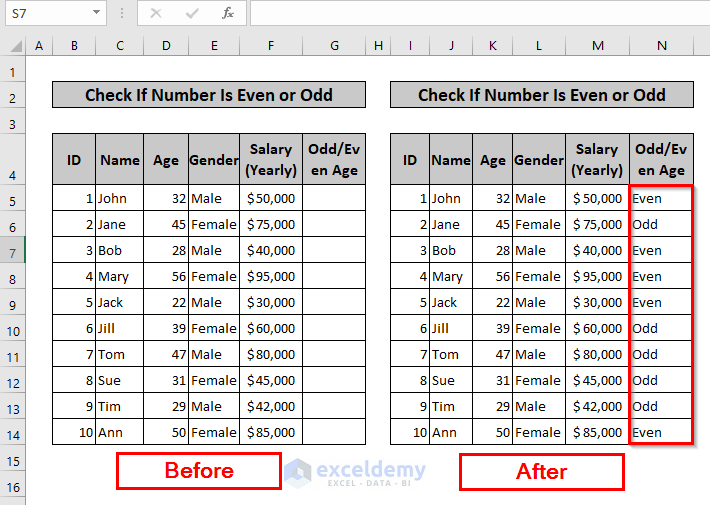
In this example, the codes check whether the age of individuals in a specified range is odd or even and write the result in a new column. The age range and the odd/even range are specified, and the codes loop through each cell in the age range to determine if it’s odd or even using both Select Case and If statements. The odd/even value is then written to the corresponding cell in the odd/even range.
Steps:
- First, we need to insert a module as stated earlier.
- Then, we need to write the following code inside the module. (Select Case Statement)

Code Syntax:
Sub CheckAgeOddEven3()
Dim ageRange As Range
Dim ageCell As Range
Dim oddEvenRange As Range
Dim oddEvenCell As Range' Set the range for the Age column
Set ageRange = Range("D5:D14")
' Set the range for the Odd/Even column
Set oddEvenRange = Range("G5:G14")
' Loop through each cell in the Age range
For Each ageCell In ageRange
age = ageCell.Value
' Determine if the age is odd or even
Select Case age Mod 2
Case 0
oddEven = "Even"
Case 1
oddEven = "Odd"
End Select
' Write the odd/even value to the new column
Set oddEvenCell = oddEvenRange.Cells(ageCell.Row - 4, 1)
oddEvenCell.Value = oddEven
Next ageCell
End Sub
Code Breakdown:
Sub CheckAgeOddEven3()Declares a subroutine called CheckAgeOddEven3.
Dim ageRange As RangeDim ageCell As RangeDim oddEvenRange As RangeDim oddEvenCell As RangeDeclare Range variable called ageRange, ageCell, oddEvenRange, oddEvenCell to store the range of cells for the Age column, current cell in the ageRange loop, the range of cells for the Odd/Even column and the cell in the oddEvenRange that corresponds to the current ageCell respectively.
Set ageRange = Range("D5:D14")Set oddEvenRange = Range("G5:G14")Set the range of cells for the Age column to D5:D14 and the Odd/Even column to G5:G14.
For Each ageCell In ageRangeLoops through each cell in the Age range.
age = ageCell.ValueAssigns the value of the current ageCell to a variable called age.
Select Case age Mod 2Determines if the age is odd or even by using the Mod operator.
Case 0If the result of age Mod 2 is 0, then the age is even.
oddEven = "Even"Assigns the value “Even” to a variable called oddEven.
Case 1If the result of age Mod 2 is 1, then the age is odd.
oddEven = "Odd"Assigns the value “Odd” to the variable oddEven.
End SelectEnds the Select Case block.
Set oddEvenCell = oddEvenRange.Cells(ageCell.Row - 4, 1)Determines the corresponding cell in the Odd/Even column for the current ageCell.
oddEvenCell.Value = oddEvenWrites the odd/even value to the corresponding cell in the Odd/Even column.
Next ageCellGoes to the next cell in the Age range loop.
End SubEnds the subroutine.
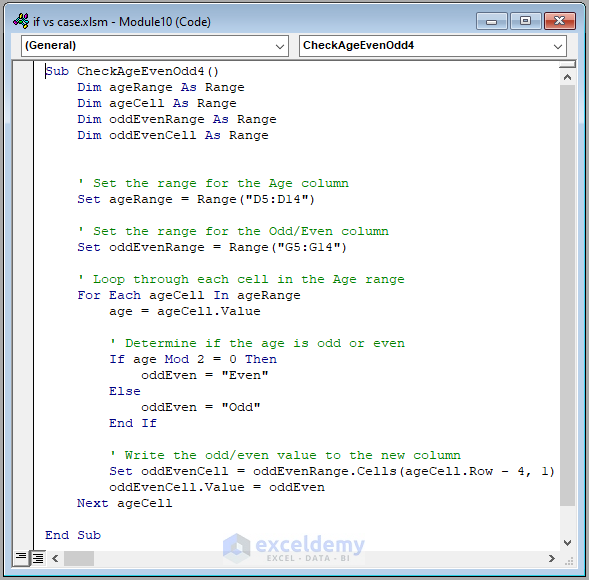
- Alternatively, you can Insert a module and write the following code instead of the previous one inside the module. (If Statement)
Code Syntax:
Sub CheckAgeEvenOdd4()
Dim ageRange As Range
Dim ageCell As Range
Dim oddEvenRange As Range
Dim oddEvenCell As Range' Set the range for the Age column
Set ageRange = Range("D5:D14")
' Set the range for the Odd/Even column
Set oddEvenRange = Range("G5:G14")
' Loop through each cell in the Age range
For Each ageCell In ageRange
age = ageCell.Value
' Determine if the age is odd or even
If age Mod 2 = 0 Then
oddEven = "Even"
Else
oddEven = "Odd"
End If
' Write the odd/even value to the new column
Set oddEvenCell = oddEvenRange.Cells(ageCell.Row - 4, 1)
oddEvenCell.Value = oddEven
Next ageCell
End Sub
Code Breakdown:
Sub CheckAgeEvenOdd4()Declares a subroutine named “CheckAgeEvenOdd4”.
Dim ageRange As RangeDim ageCell As RangeDim oddEvenRange As RangeDim oddEvenCell As RangeThese lines declares variables named “ageRange”, “ageCell”, “oddEvenRange”, “oddEvenCell” as a Range data type.
Set ageRange = Range("D5:D14")Set oddEvenRange = Range("G5:G14")Then, these lines assign the range “D5:D14” to the “ageRange” variable and range “G5:G14” to the “oddEvenRange” variable.
For Each ageCell In ageRangeStarts a loop to iterate through each cell in the “ageRange” variable.
age = ageCell.ValueAssigns the value of the current “ageCell” to the “age” variable.
If age Mod 2 = 0 ThenChecks if the value of “age” is even.
oddEven = "Even"This line assigns the string “Even” to the “oddEven” variable if the value of “age” is even.
ElseThis line is executed if the value of “age” is odd.
oddEven = "Odd"Assigns the string “Odd” to the “oddEven” variable if the value of “age” is odd.
End IfMarks the end of the conditional statement.
Set oddEvenCell = oddEvenRange.Cells(ageCell.Row - 4, 1)Sets the “oddEvenCell” variable to the cell in the “oddEvenRange” corresponding to the current row of the “ageCell”.
oddEvenCell.Value = oddEvenThis line assigns the value of the “oddEven” variable to the “oddEvenCell”.
Next ageCellMoves the loop to the next cell in the “ageRange”.
End SubMarks the end of the subroutine.
- Consequently, run any of the two codes by clicking on the highlighted area.
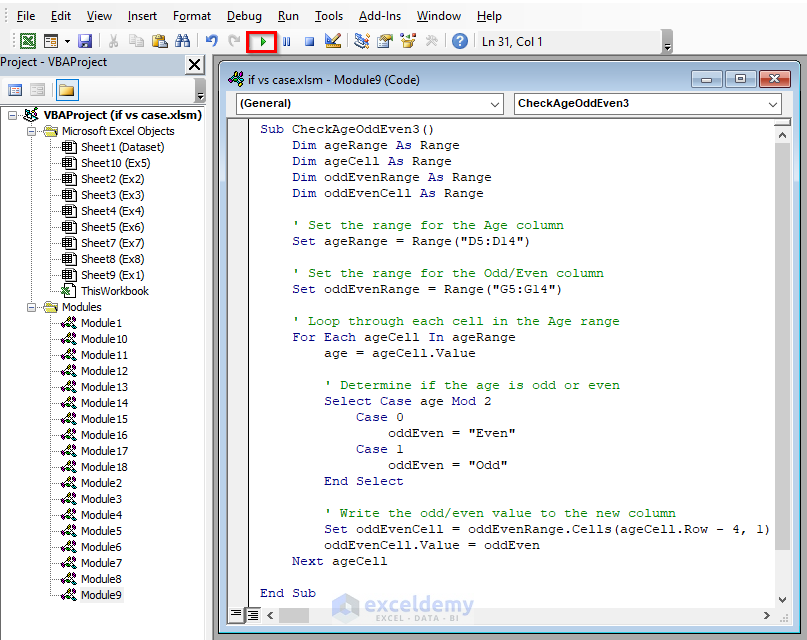
- You will get the same output for both of them.
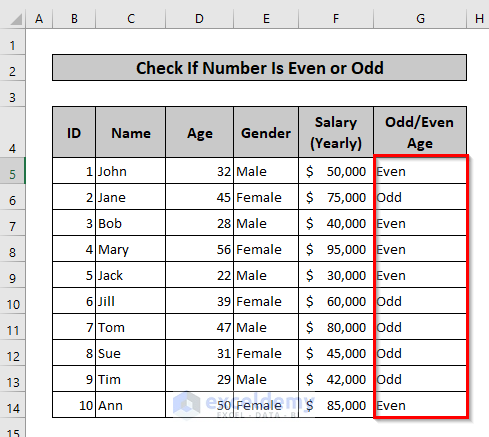
- Finally, a before-after scenario of this example is given below:
5. Applying User-Defined Function
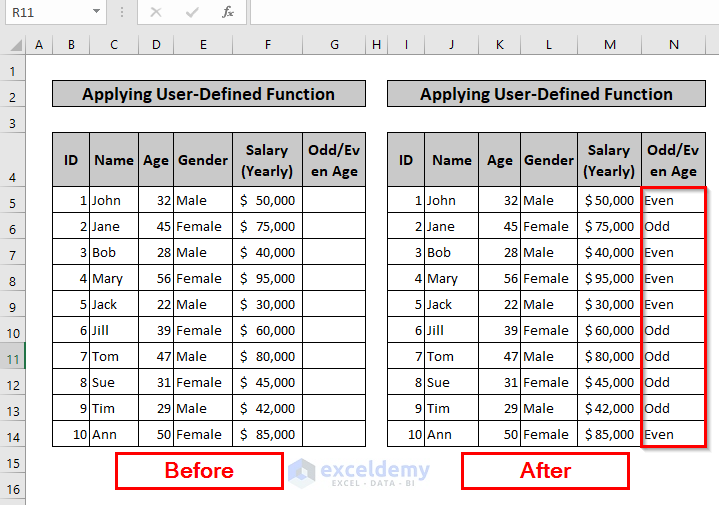
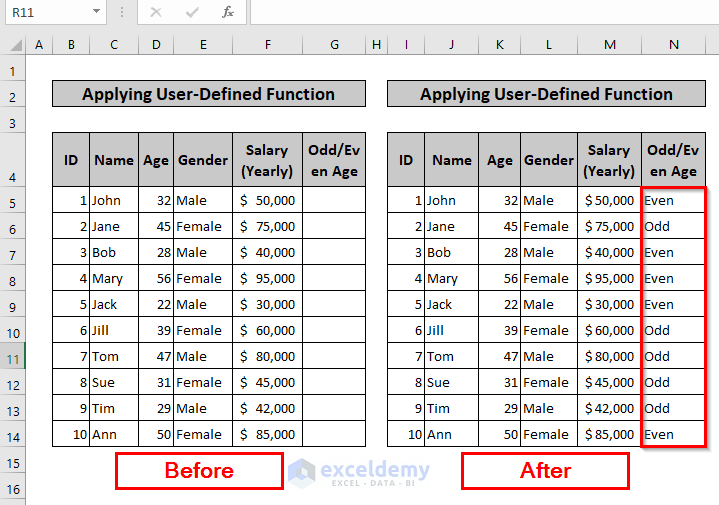
In this example, we are going to carry out the same task as example 4. Only this time, we are going to use User Defined Functions (UDF) instead of SubRoutines.
Steps:
- First, we need to insert a module as stated earlier.
- Then, we need to write the following code inside the module. (Select Case Statement)
Code Syntax:
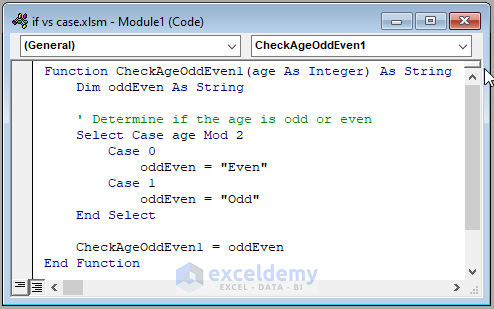
Function CheckAgeOddEven1(age As Integer) As String
Dim oddEven As String' Determine if the age is odd or even
Select Case age Mod 2
Case 0
oddEven = "Even"
Case 1
oddEven = "Odd"
End Select
CheckAgeOddEven1 = oddEven
End Function
Code Breakdown:
Function CheckAgeOddEven1(age As Integer) As StringDefines a new function named “CheckAgeOddEven1”, which takes an integer input parameter named “age” and returns a string value.
Dim oddEven As StringDeclares a new variable “oddEven” of type string.
Select Case age Mod 2Starts a select case statement that checks if the remainder of the “age” parameter divided by 2 is either 0 or 1.
Case 0This line is executed if the remainder is 0, indicating an even number.
oddEven = "Even"Assigns the string “Even” to the “oddEven” variable, indicating that the number is even.
Case 1This line is executed if the remainder is 1, indicating an odd number.
oddEven = "Odd"Assigns the string “Odd” to the “oddEven” variable, indicating that the number is odd.
End SelectThis line marks the end of the select case statement.
CheckAgeOddEven1 = oddEvenAssigns the value of the “oddEven” variable to the function name, effectively returning the string value “Even” or “Odd” depending on the input parameter.
End FunctionThis line signifies the end of the function.
- Alternatively, you can Insert a module and write the following code instead of the previous one inside the module. (If Statement)
Code Syntax:
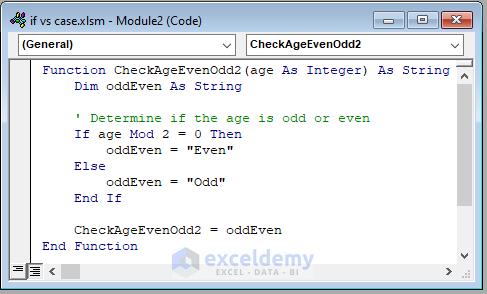
Function CheckAgeEvenOdd2(age As Integer) As String
Dim oddEven As String' Determine if the age is odd or even
If age Mod 2 = 0 Then
oddEven = "Even"
Else
oddEven = "Odd"
End If
CheckAgeEvenOdd2 = oddEven
End Function
Code Breakdown:
Function CheckAgeEvenOdd2(age As Integer) As StringThis is a function named CheckAgeEvenOdd2 that takes an integer argument and returns a string.
Dim oddEven As StringThis declares a string variable named oddEven.
If age Mod 2 = 0 ThenThis tests whether the argument age is even by checking whether its remainder when divided by 2 is 0.
oddEven = "Even"If the age is even, this line assigns the string “Even” to the variable oddEven.
ElseHowever, if the age is not even, the program goes to this line.
oddEven = "Odd"If the age is odd, this line assigns the string “Odd” to the variable oddEven.
End IfThis marks the end of the If statement.
CheckAgeEvenOdd2 = oddEvenAssigns the value of the oddEven variable to the CheckAgeEvenOdd2 function.
End FunctionMarks the end of the function definition.
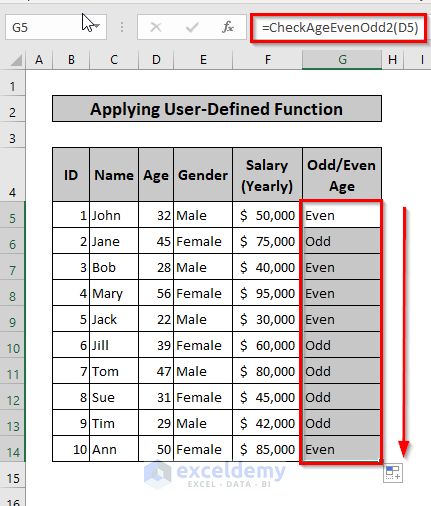
- Consequently, inside the cell G5, type any of the function names with an equal sign “=” in front of it and also type D5 inside the bracket.

- Press ENTER. Then, place the cursor and click at the bottom right corner of the Cell G5 and drag the cursor down to cell G14.
- You will get the same output for both of the functions.
- Finally, a before-after scenario of this example is given below:
6. Using Multiple Criteria in a Single Statement
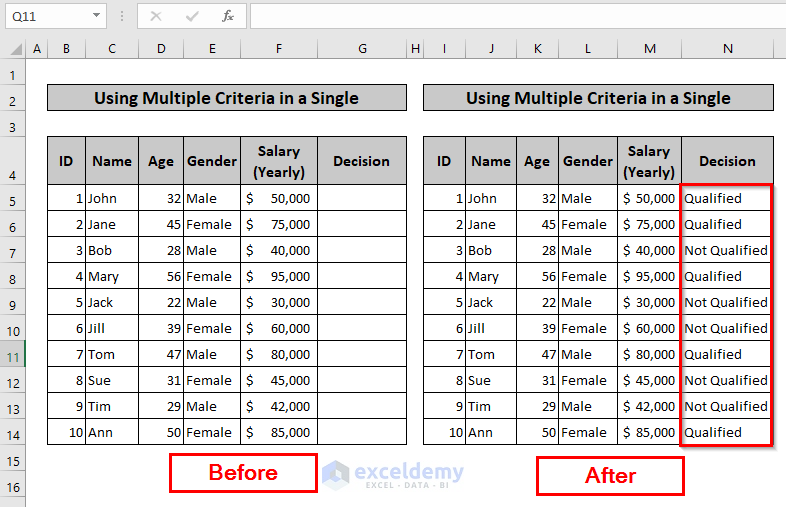
In this example, the codes perform a multiple criteria check for a dataset in the active worksheet of the active workbook. They loop through each row in the data and check certain conditions based on the values in specified columns. If the conditions are met, they write “Qualified” in a corresponding cell in column G. If the conditions are not met, they write “Not Qualified” in the same cell.
Steps:
- First, we need to insert a module as stated earlier.
- Then, we need to write the following code inside the module. (Select Case Statement)
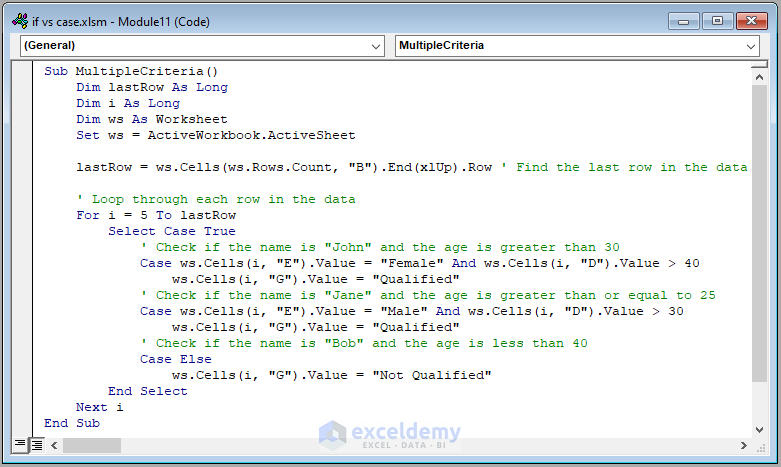
Code Syntax:
Sub MultipleCriteria()
Dim lastRow As Long
Dim i As Long
Dim ws As Worksheet
Set ws = ActiveWorkbook.ActiveSheetlastRow = ws.Cells(ws.Rows.Count, "B").End(xlUp).Row ' Find the last row in the data
' Loop through each row in the data
For i = 5 To lastRow
Select Case True
' Check if the name is "John" and the age is greater than 30
Case ws.Cells(i, "E").Value = "Female" And ws.Cells(i, "D").Value > 40
ws.Cells(i, "G").Value = "Qualified"
' Check if the name is "Jane" and the age is greater than or equal to 25
Case ws.Cells(i, "E").Value = "Male" And ws.Cells(i, "D").Value > 30
ws.Cells(i, "G").Value = "Qualified"
' Check if the name is "Bob" and the age is less than 40
Case Else
ws.Cells(i, "G").Value = "Not Qualified"
End Select
Next i
End Sub
Code Breakdown:
Sub MultipleCriteria()This line declares the start of a Subroutine named MultipleCriteria.
Dim lastRow As LongDim i As Longdeclare variables named lastRow, i as Long type.
Dim ws As Worksheetdeclares a variable named ws as Worksheet type.
Set ws = ActiveWorkbook.ActiveSheetassigns the current active worksheet to the variable ws.
lastRow = ws.Cells(ws.Rows.Count, "B").End(xlUp).Rowfinds the last row in column “B” with data in the active sheet and assigns it to the variable lastRow.
For i = 5 To lastRowstarts a loop from 5th row to the last row found in the previous step.
Select Case TrueThis line starts a Select Case statement with the condition True.
Case ws.Cells(i, "E").Value = "Female" And ws.Cells(i, "D").Value > 40checks if the value in column “E” in the current row is “Female” and the value in column “D” is greater than 40.
ws.Cells(i, "G").Value = "Qualified"assigns the value “Qualified” to the cell in column “G” in the current row if the above condition is met.
Case ws.Cells(i, "E").Value = "Male" And ws.Cells(i, "D").Value > 30checks if the value in column “E” in the current row is “Male” and the value in column “D” is greater than 30.
ws.Cells(i, "G").Value = "Qualified"assigns the value “Qualified” to the cell in column “G” in the current row if the above condition is met.
Case Elseexecutes if none of the above conditions are met.
ws.Cells(i, "G").Value = "Not Qualified"assigns the value “Not Qualified” to the cell in column “G” in the current row if the above condition is met.
End Selectends the Select Case statement.
Next imoves the loop to the next row.
End Subdeclares the end of the subroutine.
- Alternatively, you can Insert a module and write the following code instead of the previous one inside the module. (If Statement)
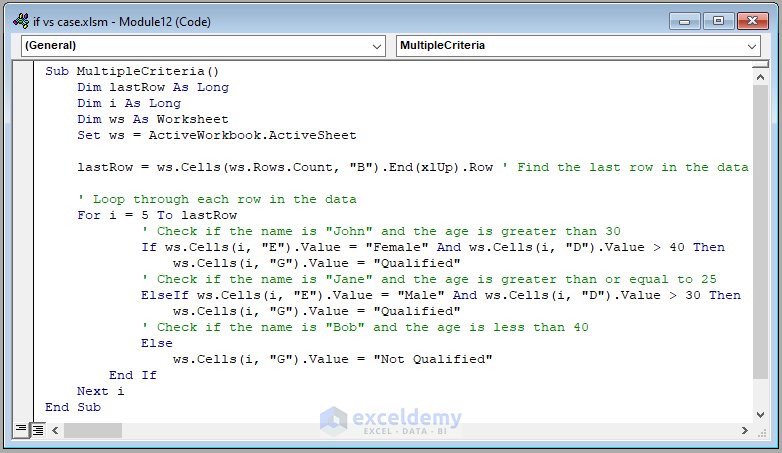
Code Syntax:
Sub MultipleCriteria()
Dim lastRow As Long
Dim i As Long
Dim ws As Worksheet
Set ws = ActiveWorkbook.ActiveSheetlastRow = ws.Cells(ws.Rows.Count, "B").End(xlUp).Row ' Find the last row in the data
' Loop through each row in the data
For i = 5 To lastRow
' Check if the name is "John" and the age is greater than 30
If ws.Cells(i, "E").Value = "Female" And ws.Cells(i, "D").Value > 40 Then
ws.Cells(i, "G").Value = "Qualified"
' Check if the name is "Jane" and the age is greater than or equal to 25
ElseIf ws.Cells(i, "E").Value = "Male" And ws.Cells(i, "D").Value > 30 Then
ws.Cells(i, "G").Value = "Qualified"
' Check if the name is "Bob" and the age is less than 40
Else
ws.Cells(i, "G").Value = "Not Qualified"
End If
Next i
End Sub
Code Breakdown:
Sub MultipleCriteria()This line declares a Subroutine named MultipleCriteria.
Dim lastRow As LongDim i As LongThese lines declare variable named lastRow and i as Long data type.
Dim ws As WorksheetThis line declares a variable named ws as Worksheet data type.
Set ws = ActiveWorkbook.ActiveSheetSets the ws variable as the active worksheet in the active workbook.
lastRow = ws.Cells(ws.Rows.Count, "B").End(xlUp).RowThis line sets the value of the lastRow variable as the last row of the data in the B column of the worksheet.
For i = 5 To lastRowStarts a For loop that iterates through rows 5 to the last row of the data.
If ws.Cells(i, "E").Value = "Female" And ws.Cells(i, "D").Value > 40 ThenChecks if the value in column E and D of the current row meet the criteria of being “Female” and age greater than 40 respectively.
ws.Cells(i, "G").Value = "Qualified"This line sets the value of the cell in column G of the current row as “Qualified”.
ElseIf ws.Cells(i, "E").Value = "Male" And ws.Cells(i, "D").Value > 30 ThenThis line checks if the value in column E and D of the current row meet the criteria of being “Male” and age greater than 30 respectively.
ws.Cells(i, "G").Value = "Qualified"Sets the value of the cell in column G of the current row as “Qualified”.
ElseThis line is executed when neither of the above conditions is met.
ws.Cells(i, "G").Value = "Not Qualified"Sets the value of the cell in column G of the current row as “Not Qualified”.
Next iEnds the For loop.
End SubThis line ends the Subroutine.
- Consequently, run any of the two codes by clicking on the highlighted area.
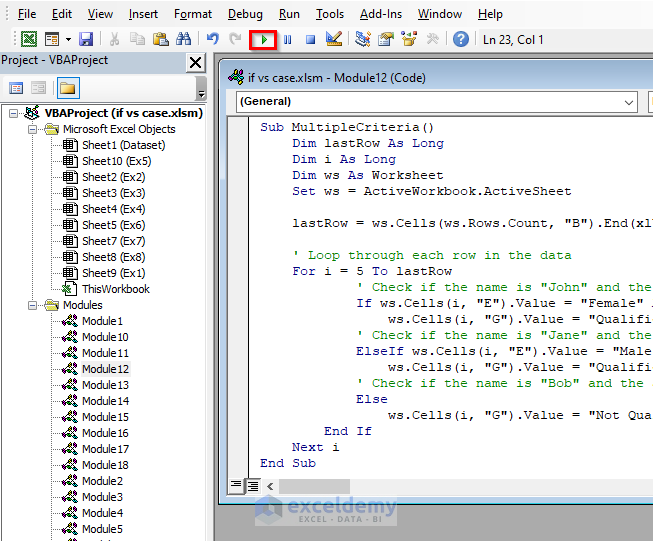
- You will get the same output for both of them.
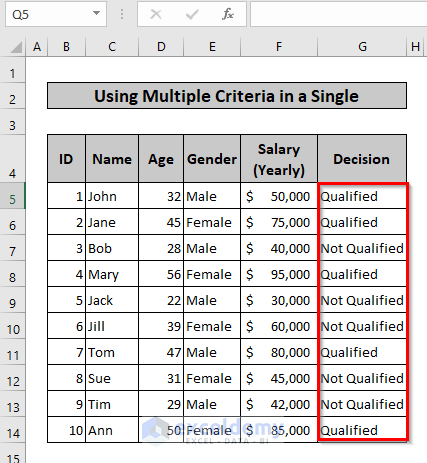
- Finally, a before-after scenario of this example is given below:

Read More: How to Use Excel VBA Select Case and Operator
7. Applying Nested Conditions
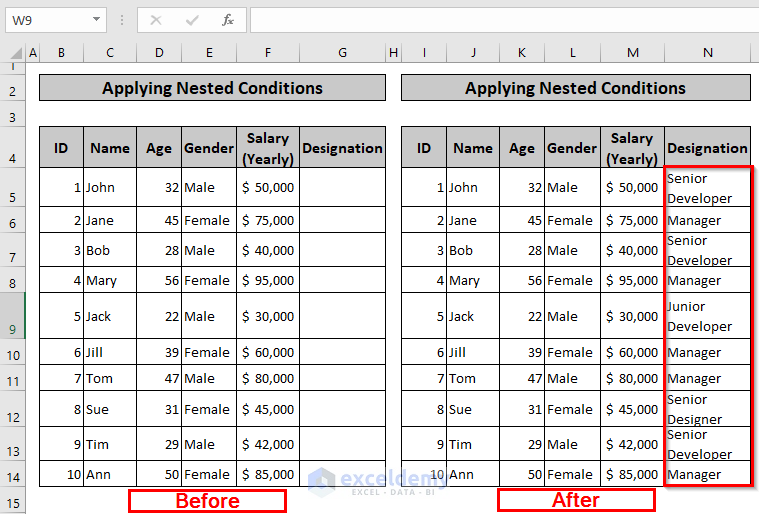
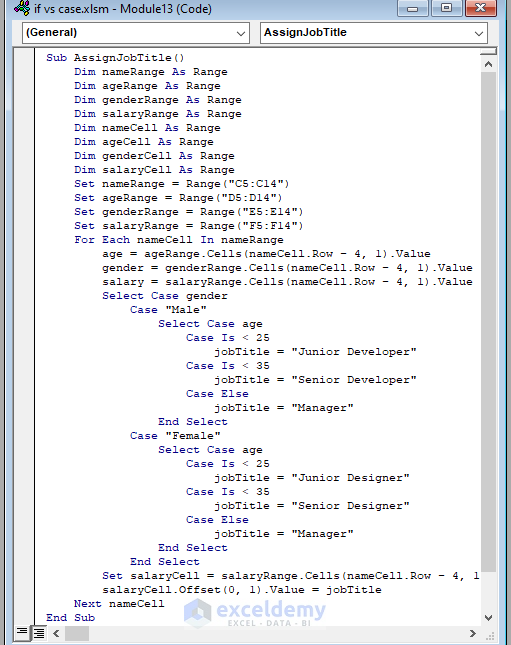
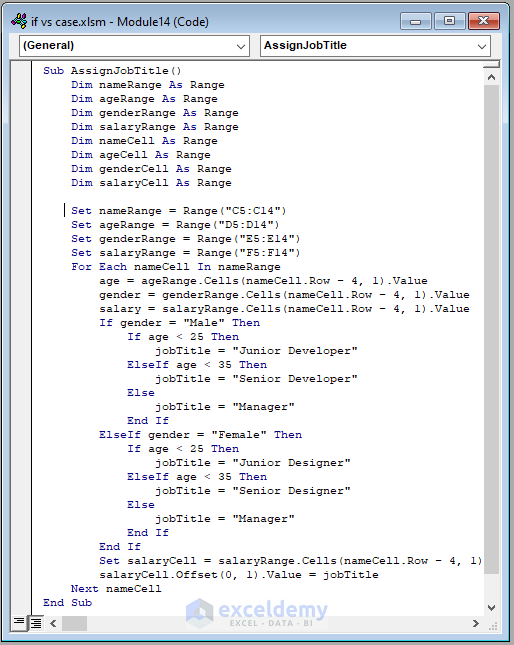
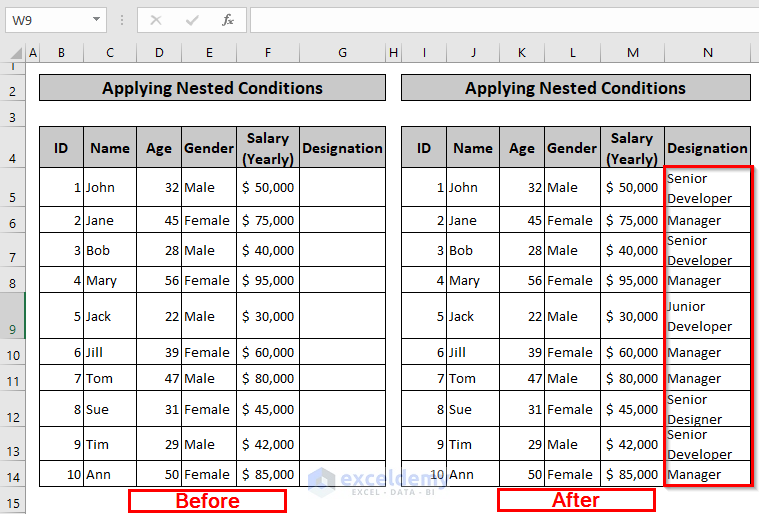
In this example, the codes assign a job title based on the gender, age, and salary of employees in a company. They loop through each employee’s name and calculate their job title using both nested Select Case and If statements based on their gender and age. The resulting job title is then assigned to the cell adjacent to the employee’s salary in the salary range.
Steps:
- First, we need to insert a module as stated earlier.
- Then, we need to write the following code inside the module. (Select Case Statement)
Code Syntax:
Sub AssignJobTitle()
Dim nameRange As Range
Dim ageRange As Range
Dim genderRange As Range
Dim salaryRange As Range
Dim nameCell As Range
Dim ageCell As Range
Dim genderCell As Range
Dim salaryCell As Range
Set nameRange = Range("C5:C14")
Set ageRange = Range("D5:D14")
Set genderRange = Range("E5:E14")
Set salaryRange = Range("F5:F14")
For Each nameCell In nameRange
age = ageRange.Cells(nameCell.Row - 4, 1).Value
gender = genderRange.Cells(nameCell.Row - 4, 1).Value
salary = salaryRange.Cells(nameCell.Row - 4, 1).Value
Select Case gender
Case "Male"
Select Case age
Case Is < 25
jobTitle = "Junior Developer"
Case Is < 35
jobTitle = "Senior Developer"
Case Else
jobTitle = "Manager"
End Select
Case "Female"
Select Case age
Case Is < 25
jobTitle = "Junior Designer"
Case Is < 35
jobTitle = "Senior Designer"
Case Else
jobTitle = "Manager"
End Select
End Select
Set salaryCell = salaryRange.Cells(nameCell.Row - 4, 1)
salaryCell.Offset(0, 1).Value = jobTitle
Next nameCell
End Sub
Code Breakdown:
Sub AssignJobTitle()This is the start of the subroutine.
Dim nameRange As RangeDim ageRange As RangeDim genderRange As RangeDim salaryRange As RangeDeclare variables to store the ranges of cells that contain employee names, ages, genders, salaries.
Dim nameCell As RangeThis line declares a variable to store the current cell being evaluated in the nameRange.
Dim ageCell As RangeDim genderCell As RangeDim salaryCell As RangeThese lines declare variables to store the age, gender, salary of the current employee.
Set nameRange = Range("C5:C14")Set ageRange = Range("D5:D14")Set genderRange = Range("E5:E14")Set salaryRange = Range("F5:F14")Set the nameRange variable to cells C5 through C14, ageRange variable to cells D5 through D14, genderRange variable to cells E5 through E14, salaryRange variable to cells F5 through F14.
For Each nameCell In nameRangeLoops through each cell in the nameRange variable.
age = ageRange.Cells(nameCell.Row - 4, 1).Valuegender = genderRange.Cells(nameCell.Row - 4, 1).Valuesalary = salaryRange.Cells(nameCell.Row - 4, 1).ValueThese lines set the ageCell variable to the cell in the ageRange, genderCell variable to the cell in the genderRange, salaryCell variable to the cell in the salaryRange that corresponds to the current nameCell.
Select Case genderBegins a Select Case statement based on the value of the genderCell.
Case "Male"Executes if the genderCell equals “Male”.
Select Case ageBegins a nested Select Case statement based on the value of the ageCell.
Case Is < 25Executes if the ageCell is less than 25.
jobTitle = "Junior Developer"Sets the jobTitle variable to “Junior Developer”.
Case Is < 35Executes if the ageCell is less than 35.
jobTitle = "Senior Developer"Sets the jobTitle variable to “Senior Developer”.
Case ElseExecutes if the ageCell is 35 or greater.
jobTitle = "Manager"Sets the jobTitle variable to “Manager”.
Case "Female"Executes if the genderCell equals “Female”.
Same nested Select Case statement as lines 20-26 but with different job titles for each case.
End SelectEnds the nested Select Case statement.
Set salaryCell = salaryRange.Cells(nameCell.Row - 4, 1)Sets the salaryCell variable to the cell in the salaryRange that corresponds to the current nameCell.
salaryCell.Offset(0, 1).Value = jobTitleSets the cell to the right of the salaryCell to the value of the jobTitle variable. This assigns a job title to the employee based on their age and gender.
Next nameCellGoes to the next cell in the nameRange variable.
End SubEnd of the subroutine.
- Alternatively, you can Insert a module and write the following code instead of the previous one inside the module. (If Statement)
Code Syntax:
Sub AssignJobTitle()
Dim nameRange As Range
Dim ageRange As Range
Dim genderRange As Range
Dim salaryRange As Range
Dim nameCell As Range
Dim ageCell As Range
Dim genderCell As Range
Dim salaryCell As RangeSet nameRange = Range("C5:C14")
Set ageRange = Range("D5:D14")
Set genderRange = Range("E5:E14")
Set salaryRange = Range("F5:F14")
For Each nameCell In nameRange
age = ageRange.Cells(nameCell.Row - 4, 1).Value
gender = genderRange.Cells(nameCell.Row - 4, 1).Value
salary = salaryRange.Cells(nameCell.Row - 4, 1).Value
If gender = "Male" Then
If age < 25 Then
jobTitle = "Junior Developer"
ElseIf age < 35 Then
jobTitle = "Senior Developer"
Else
jobTitle = "Manager"
End If
ElseIf gender = "Female" Then
If age < 25 Then
jobTitle = "Junior Designer"
ElseIf age < 35 Then
jobTitle = "Senior Designer"
Else
jobTitle = "Manager"
End If
End If
Set salaryCell = salaryRange.Cells(nameCell.Row - 4, 1)
salaryCell.Offset(0, 1).Value = jobTitle
Next nameCell
End Sub
Code Breakdown:
Sub AssignJobTitle(): This line declares a Subroutine named “AssignJobTitle”.
Dim nameRange As RangeDim ageRange As RangeDim genderRange As RangeDim salaryRange As RangeDim nameCell As RangeDim ageCell As RangeDim genderCell As RangeDim salaryCell As Range: Declares variables named “nameRange” , “ageRange”, “genderRange”, “salaryRange”, “nameCell”, “ageCell”, “genderCell”, “salaryCell” as Range data type.
Set nameRange = Range("C5:C14"): Sets the variable “nameRange” to the range of cells from C5 to C14.
Set ageRange = Range("D5:D14"): This line sets the variable “ageRange” to the range of cells from D5 to D14.
Set genderRange = Range("E5:E14"): Sets the variable “genderRange” to the range of cells from E5 to E14.
Set salaryRange = Range("F5:F14"): This line sets the variable “salaryRange” to the range of cells from F5 to F14.
For Each nameCell In nameRange: Loops through each cell in the range “nameRange”.
age = ageRange.Cells(nameCell.Row - 4, 1).Value: Gets the value of the age of the current person.
gender = genderRange.Cells(nameCell.Row - 4, 1).Value: This line gets the gender of the current person.
salary = salaryRange.Cells(nameCell.Row - 4, 1).Value: Gets the salary of the current person.
If gender = "Male" Then: Checks if the gender is male.
If age < 25 Then: This line checks if the age is less than 25.
jobTitle = "Junior Developer": Assigns the job title “Junior Developer”.
ElseIf age < 35 Then: Checks if the age is less than 35.
jobTitle = "Senior Developer": This line assigns the job title “Senior Developer”.
Else: Executes if the above conditions are not met.
jobTitle = "Manager": Assigns the job title “Manager”.
ElseIf gender = "Female" Then: This line checks if the gender is female.
If age < 25 Then: Checks if the age is less than 25.
jobTitle = "Junior Designer": This line assigns the job title “Junior Designer”.
ElseIf age < 35 Then: This line checks if the age is less than 35.
jobTitle = "Senior Designer": Assigns the job title “Senior Designer”.
Else: Executes if the above conditions are not met.
jobTitle = "Manager": This line assigns the job title “Manager”.
End If: Ends the if-else statement.
Set salaryCell = salaryRange.Cells(nameCell.Row - 4, 1): Sets the salary cell to the current row of the salary range.
salaryCell.Offset(0, 1).Value = jobTitle: This line sets the cell to the right of the salaryCell to the value of the jobTitle variable. This assigns a job title to the employee based on their age and gender.
Next nameCell: Goes to the next cell in the nameRange variable.
End Sub: End of the subroutine.
- Consequently, run any of the two codes by clicking on the highlighted area.
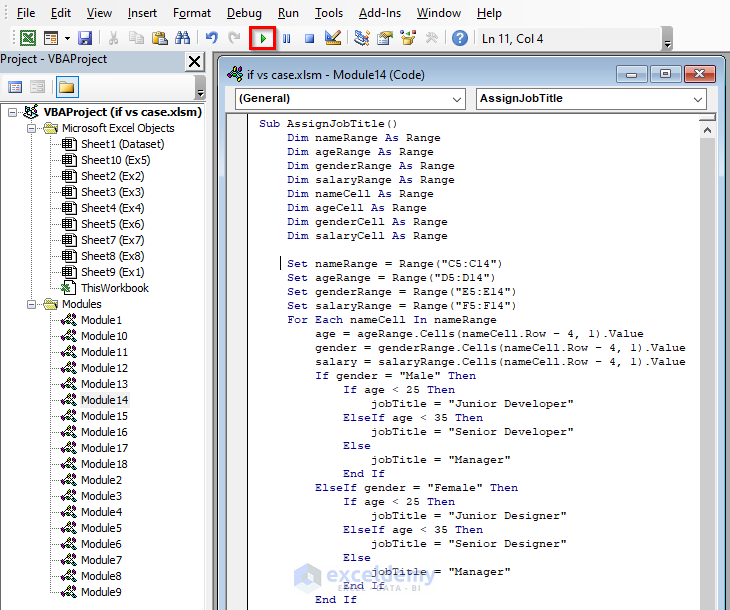
- You will get the same output for both of them.
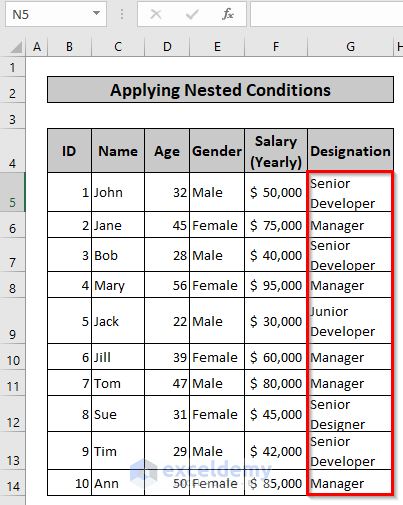
- Finally, a before-after scenario of this example is given below:
Read More: How to Use Nested Select Case with VBA in Excel
8. Setting Bonus Based on Salary
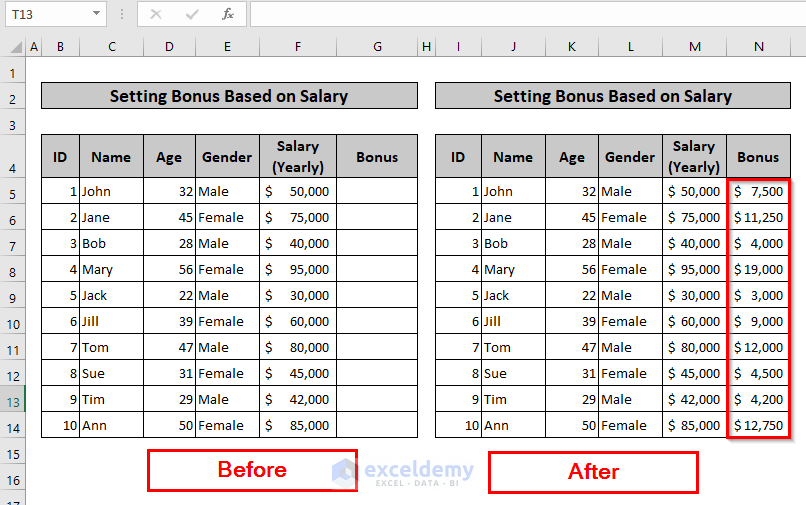
In this example, the codes assign a bonus amount to each salary value in a given range based on the salary value, and then write the bonus amount to the next column.
Steps:
- First, we need to insert a module as stated earlier.
- Then, we need to write the following code inside the module. (Select Case Statement)
Code Syntax:
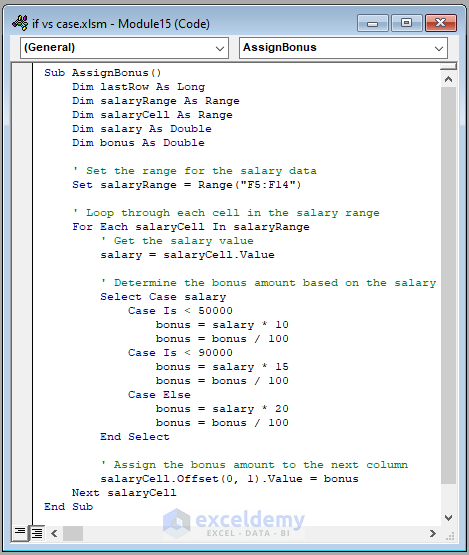
Sub AssignBonus()
Dim lastRow As Long
Dim salaryRange As Range
Dim salaryCell As Range
Dim salary As Double
Dim bonus As Double' Set the range for the salary data
Set salaryRange = Range("F5:F14")' Loop through each cell in the salary range
For Each salaryCell In salaryRange
' Get the salary value
salary = salaryCell.Value' Determine the bonus amount based on the salary
Select Case salary
Case Is < 50000
bonus = salary * 10
bonus = bonus / 100
Case Is < 90000
bonus = salary * 15
bonus = bonus / 100
Case Else
bonus = salary * 20
bonus = bonus / 100
End Select
' Assign the bonus amount to the next column
salaryCell.Offset(0, 1).Value = bonus
Next salaryCell
End Sub
Code Breakdown:
Sub AssignBonus()Start of a Subroutine called “AssignBonus”.
Dim lastRow As LongThis line declares a Long variable called “lastRow”.
Dim salaryRange As RangeIt declares a Range variable called “salaryRange”.
Dim salaryCell As RangeDeclares a Range variable called “salaryCell”.
Dim salary As DoubleThis declares a Double variable called “salary”.
Dim bonus As DoubleThis declares a Double variable called “bonus”.
Set salaryRange = Range("F5:F14")Sets the “salaryRange” variable to the range “F5:F14”.
For Each salaryCell In salaryRangeStarts a loop that will iterate through each cell in the “salaryRange” variable and assign it to the “salaryCell” variable.
salary = salaryCell.ValueAssigns the value of the current cell in the loop to the “salary” variable.
Select Case salaryStarts a “Select Case” statement that checks the value of “salary”.
Case Is < 50000This is the first case in the “Select Case” statement, and checks if the value of “salary” is less than 50000.
bonus = salary * 10If the value of “salary” is less than 50000, this assigns the value of “salary” multiplied by 10 to the “bonus” variable.
bonus = bonus / 100This divides the “bonus” variable by 100 to convert it to a percentage.
Case Is < 90000This is the second case in the “Select Case” statement, and checks if the value of “salary” is less than 90000.
bonus = salary * 15If the value of “salary” is less than 90000, this assigns the value of “salary” multiplied by 15 to the “bonus” variable.
bonus = bonus / 100This divides the “bonus” variable by 100 to convert it to a percentage.
Case ElseThis is the default case in the “Select Case” statement, and will execute if none of the previous cases are true.
bonus = salary * 20If the value of “salary” is not less than 50000 or 90000, this assigns the value of “salary” multiplied by 20 to the “bonus” variable.
bonus = bonus / 100Divides the “bonus” variable by 100 to convert it to a percentage.
End SelectEnds the “Select Case” statement.
salaryCell.Offset(0, 1).Value = bonusAssigns the value of the “bonus” variable to the cell one column to the right of the current cell in the loop.
Next salaryCellMoves the loop to the next cell in the “salaryRange” variable.
End SubEnds the Subroutine.
- Alternatively, you can Insert a module and write the following code instead of the previous one inside the module. (If Statement)
Code Syntax:
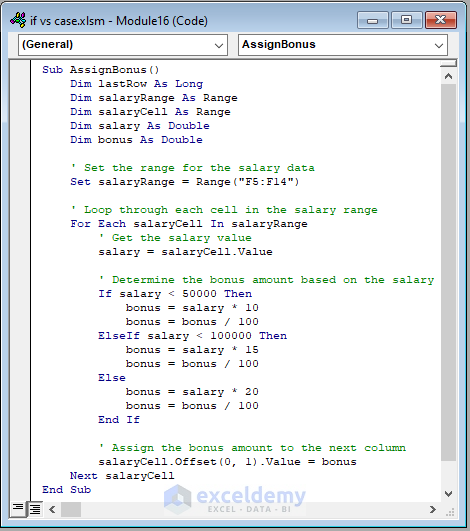
Sub AssignBonus()
Dim lastRow As Long
Dim salaryRange As Range
Dim salaryCell As Range
Dim salary As Double
Dim bonus As Double' Set the range for the salary data
Set salaryRange = Range("F5:F14")' Loop through each cell in the salary range
For Each salaryCell In salaryRange
' Get the salary value
salary = salaryCell.Value' Determine the bonus amount based on the salary
If salary < 50000 Then
bonus = salary * 10
bonus = bonus / 100
ElseIf salary < 100000 Then
bonus = salary * 15
bonus = bonus / 100
Else
bonus = salary * 20
bonus = bonus / 100
End If
' Assign the bonus amount to the next column
salaryCell.Offset(0, 1).Value = bonus
Next salaryCell
End Sub
Code Breakdown:
Sub AssignBonus()This is the start of a Subroutine called “AssignBonus”.
Dim lastRow As LongDeclares a Long variable called “lastRow”.
Dim salaryRange As RangeThis line declares a Range variable called “salaryRange”.
Dim salaryCell As RangeDeclares a Range variable called “salaryCell”.
Dim salary As DoubleThis line declares a Double variable called “salary”.
Dim bonus As DoubleIt declares a Double variable called “bonus”.
Set salaryRange = Range("F5:F14")Sets the “salaryRange” variable to the range “F5:F14”.
For Each salaryCell In salaryRangeThis starts a loop that will iterate through each cell in the “salaryRange” variable and assign it to the “salaryCell” variable.
salary = salaryCell.ValueAssigns the value of the current cell in the loop to the “salary” variable.
If salary < 50000 ThenChecks if the salary value is less than 50,000.
bonus = salary * 10If the value of “salary” is less than 50000, this assigns the value of “salary” multiplied by 10 to the “bonus” variable.
bonus = bonus / 100This divides the “bonus” variable by 100 to convert it to a percentage.
ElseIf salary < 100000 ThenIf the salary is not less than 50,000, checks if it is less than 100,000.
bonus = salary * 15If the value of “salary” is less than 90000, this assigns the value of “salary” multiplied by 15 to the “bonus” variable.
bonus = bonus / 100This divides the “bonus” variable by 100 to convert it to a percentage.
ElseIf the salary is not less than 100,000, executes the following statement.
bonus = salary * 20If the value of “salary” is not less than 50000 or 90000, this assigns the value of “salary” multiplied by 20 to the “bonus” variable.
bonus = bonus / 100This divides the “bonus” variable by 100 to convert it to a percentage.
End IfEnds the conditional statement.
salaryCell.Offset(0, 1).Value = bonusThis assigns the value of the “bonus” variable to the cell one column to the right of the current cell in the loop.
Next salaryCellThis moves the loop to the next cell in the “salaryRange” variable.
End SubThis ends the Subroutine.
- Consequently, run any of the two codes by clicking on the highlighted area.

- You will get the same output for both of them.
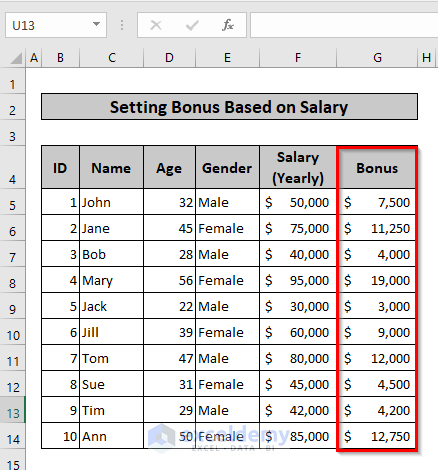
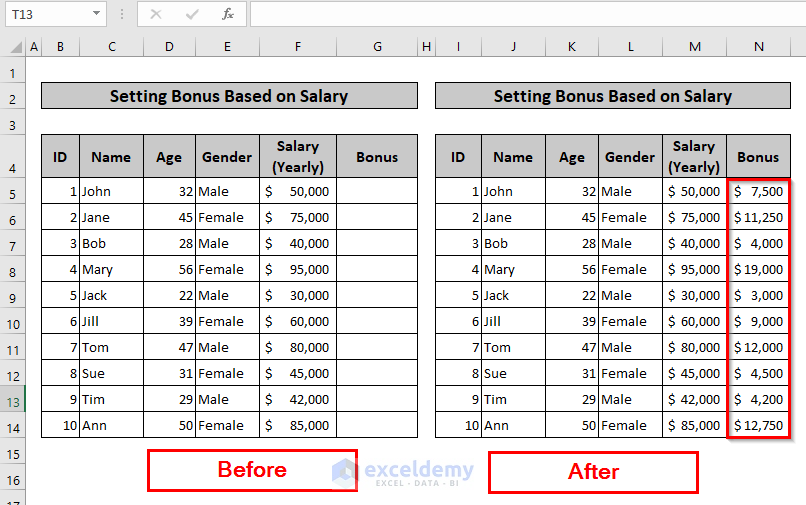
- Finally, you can see a before-after scenario of this example below:
9. Case-Sensitive Operation
In this example, the codes prompt the user to enter the name “JOHN” using an input box. Then, they use both Select Case and If statements to compare the entered name with “JOHN” and display a message box indicating whether the name matched or not.
Steps:
- First, we need to insert a module as stated earlier.
- Then, we need to write the following code inside the module. (Select Case Statement)
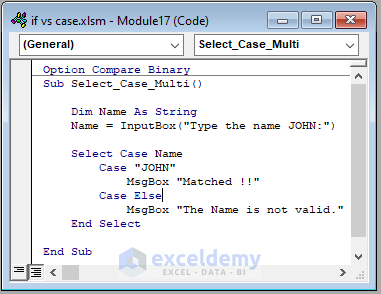
Code Syntax:
Option Compare Binary
Sub Select_Case_Multi()Dim Name As String
Name = InputBox("Type the name JOHN:")Select Case Name
Case "JOHN"
MsgBox "Matched !!"
Case Else
MsgBox "The Name is not valid."
End Select
End Sub
Code Breakdown:
Option Compare Binary: Specifies the type of string comparison to use in string operations.
Sub Select_Case_Multi(): Starts the definition of a new Sub procedure named “Select_Case_Multi”.
Dim Name As String: Declares a variable named “Name” as a string data type.
Name = InputBox("Type the name JOHN:"): Displays an input box with the message “Type the name JOHN:” and assigns the input value to the “Name” variable.
Select Case Name: Starts a Select Case block that evaluates the value of the “Name” variable.
Case "JOHN": Specifies the first case to check for when evaluating the value of the “Name” variable. If the value matches “JOHN”, it will execute the following code.
MsgBox "Matched !!": Displays a message box with the message “Matched !!” if the value of the “Name” variable matches “JOHN”.
Case Else: Specifies the code to execute if the value of the “Name” variable does not match any of the previous cases.
MsgBox "The Name is not valid.": Displays a message box with the message “The Name is not valid.” if the value of the “Name” variable does not match “JOHN” or any other specified cases.
End Select: Ends the Select Case block.
End Sub: Ends the definition of the “Select_Case_Multi” Sub procedure.
- Alternatively, you can Insert a module and write the following code instead of the previous one inside the module. (If Statement)
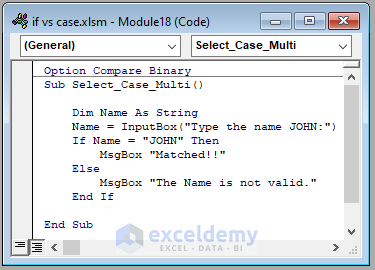
Code Syntax:
Option Compare Binary
Sub Select_Case_Multi()Dim Name As String
Name = InputBox("Type the name JOHN:")
If Name = "JOHN" Then
MsgBox "Matched!!"
Else
MsgBox "The Name is not valid."
End IfEnd Sub
Code Breakdown:
Option Compare Binary: Sets the comparison method for strings to binary.
Sub Select_Case_Multi(): Starts the definition of a sub procedure named “Select_Case_Multi”.
Dim Name As String: Declares a variable named “Name” as a string data type.
Name = InputBox("Type the name JOHN:"): Prompts the user to input a value and assigns it to the variable “Name”.
If Name = "JOHN" Then: Begins an if statement that checks if the value of “Name” is equal to “JOHN”.
MsgBox "Matched!!": Displays a message box with the text “Matched!!” if the condition in line 5 is true.
Else: Specifies the block of code to be executed if the condition in line 5 is false.
MsgBox "The Name is not valid.": Displays a message box with the text “The Name is not valid.” if the condition in line 5 is false.
End If: Marks the end of the if statement.
End Sub: Marks the end of the sub procedure.
- Consequently, you need to run any of the two codes.
- If you type anything other than “JOHN”, the codes will provide you with the following Message:

- And If you type “JOHN”, the codes will provide you with the following Message:
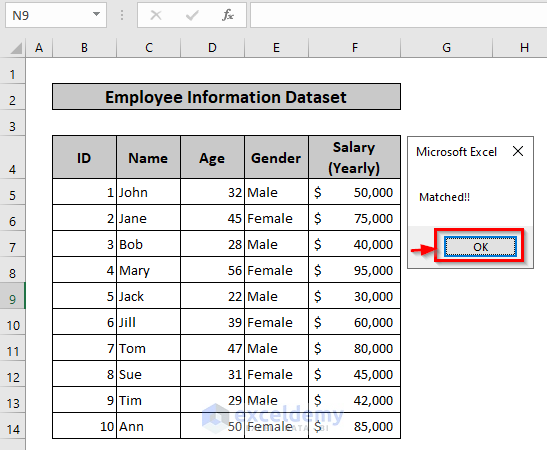
- You will get the same output for both of them.
Things to Remember
- Number of conditions: If you have a small number of conditions (typically 2-3), then using If statements may be more straightforward and efficient. On the other hand, if you have many conditions to check, Select Case may be a better option as it can be more concise and easier to read.
- Data type: You can use Select Case only with certain data types, such as numeric or string values. If you need to evaluate a more complex expression or variable, you may need to use If statements instead.
- Readability: Consider which option will make your code more readable and easier to understand. Select Case can be more concise, but may be less clear if there are many nested conditions. If statements can be more verbose, but may be easier to understand and debug in some cases.
Download Practice Workbook
Download the Excel workbook file from the link below to practice.
Conclusion
In conclusion, both Select Case and If statements are powerful tools in VBA that allow programmers to control the flow of their code based on certain conditions. They both have their strengths and weaknesses, and the choice between the two largely depends on the specific situation and personal preference.
When deciding which to use, it is important to consider factors such as the number of conditions, the readability of the code, and the overall efficiency of the program. It is also important to keep in mind that using Select Case may result in more concise code, while using If statements can be more flexible in terms of the conditions that can be evaluated.
Ultimately, the key is to choose the statement that best fits the task at hand and makes the code more readable and maintainable in the long run. By keeping these factors in mind, programmers can make informed decisions on when to use Select Case or If statements in their VBA code. Hope this article helped you to know about the use of Case vs If statement in Excel VBA clearly.
Related Articles
- Excel VBA Select Case Between Two Values
- Excel VBA Select Case Like
- Excel VBA Select Case True
- Excel VBA to Exit Select Case


