

In Excel, Conditional Formatting is a handy feature that allows you to effortlessly format and shade cells based on certain conditional criteria. However, you may wish to delete or clear conditional formatting in Excel at times. In this tutorial, we’ll explain to you how to remove conditional formatting in different ways including the Clear Rules function and the application of VBA.
How to Remove Conditional Formatting in Excel: 3 Examples
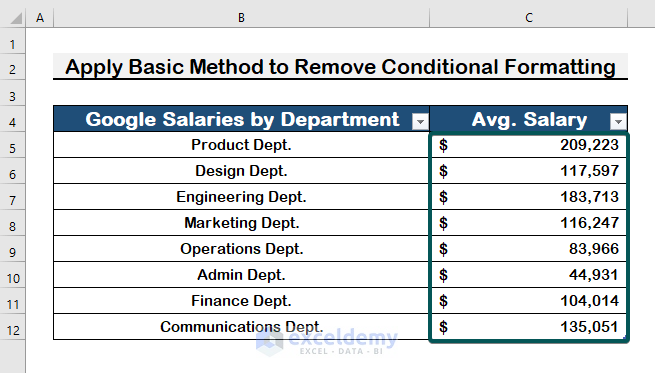
A sample data set of average yearly salaries at Google’s multiple departments are shown in the screenshot below. We’ve highlighted the incomes with an average salary of more than $120,000 using Conditional Formatting. However, you may need to remove conditional formatting after applying it.
We’ll demonstrate to you three different ways to remove conditional formatting. To begin, we’ll use the usual method. Then, using VBA code, we’ll eliminate conditional formatting whilst also leaving the format intact.
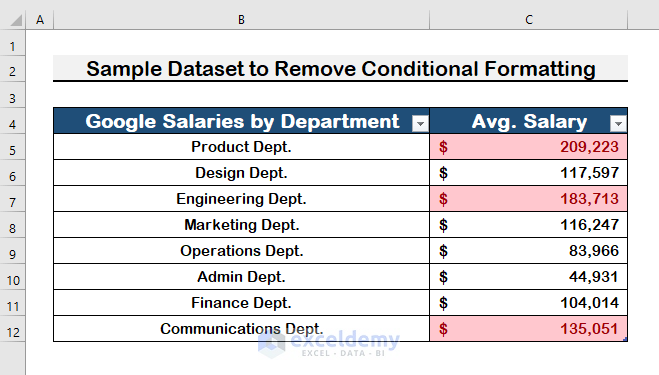
1. Apply Basic Method to Remove Conditional Formatting
In the beginning, we will apply the Clear Rules command to remove Conditional Formatting. It’s usually the basic method to remove Conditional Formatting. To apply these methods, simply follow the steps.
Step 1:
- Firstly, select the range where you applied Conditional Formatting.
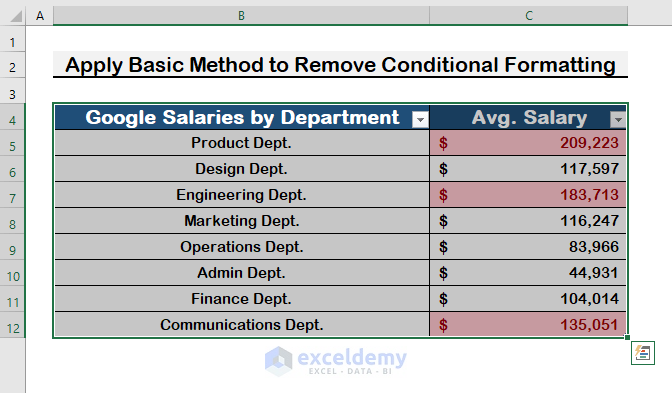
Step 2:
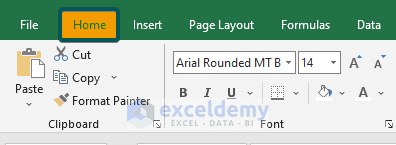
- Click on Home.
Step 3:
- Firstly, click on the Conditional Formatting
- Select the Clear Rules
- Finally, select Clear Rules from Selected Cells from the menu.
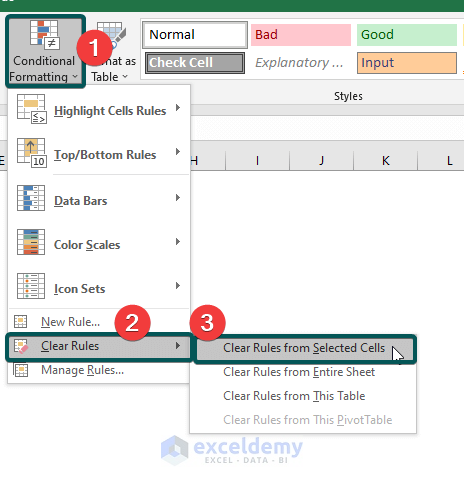
- Therefore, you’ll see that your Conditional Formatting is no longer present.
2. Run a VBA Code to Remove Conditional Formatting
In this section, we’ll explain to you how to use VBA code to remove Conditional Formatting as well. It’s a unique approach, but it’s one that works. Because you can simply select the range and remove the Conditional Formatting to apply the same code countless times. To run a VBA code, follow the steps below.
Step 1:
- Firstly, press Alt + F11 to activate VBA Macro-Enabled Worksheet.
- Choose Insert from the tab.
- Then, Select Module from the options.

Step 2:
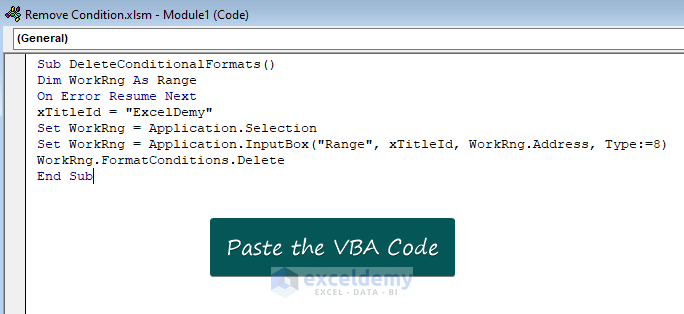
- After selecting a Module, just paste the following VBA.
Sub DeleteConditionalFormats()
Dim WorkRng As Range
On Error Resume Next
xTitleId = "ExcelDemy"
Set WorkRng = Application.Selection
Set WorkRng = Application.InputBox("Range", xTitleId, WorkRng.Address, Type:=8)
WorkRng.FormatConditions.Delete
End Sub
Here,
- Dim WorkRng As Range is declaring WorkRng variable as a range value.
- xTitleId = “ExcelDemy” is the title name that appeared in the input box.
- Set WorkRng = Application.Selection refers to the range that will be from the current selection.
- InputBox(“Range”, xTitleId, WorkRng.Address, Type:=8) refers to the input box that appears to get the range and is named with the title ‘ExcelDemy’.
WorkRng.FormatConditions.Delete refers to deleting all the Conditional Format between the range.
Step 3:
- Save the program and press F5 to run it.
- A range box ‘ExelDemy’ will appear, select the range.
- Finally, press Enter to see the changes.

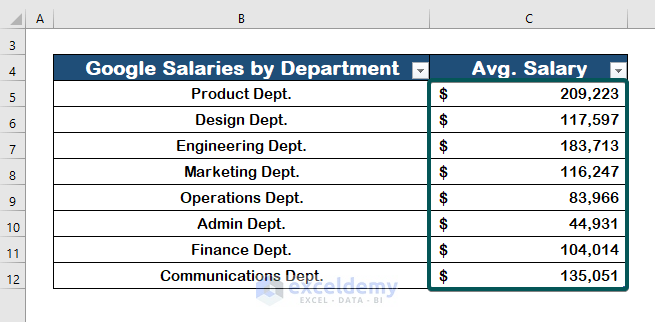
Consequently, conditional formatting will be removed from the cells as shown in the below screenshot.
3. Run a VBA Code to Remove Conditional Formatting but Keep Format
In addition to the previous method, you may easily remove the conditional formatting yet preserve the format by using VBA code. In general, Excel functions do not permit this. Only the VBA code will allow you to accomplish this. That is VBA code’s supremacy over Excel functions. To achieve this, follow the steps below.
Step 1:
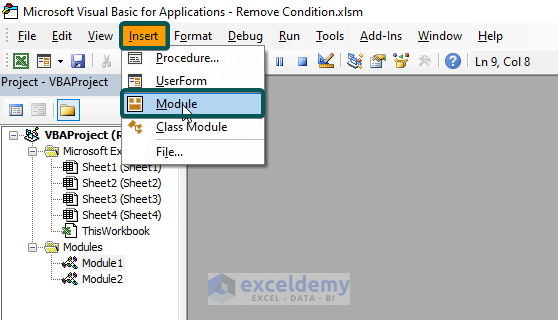
- To open the VBA Macro, press Alt + F11.
- From the tabs, choose the Insert option.
- Then, select Module.
Step 2:
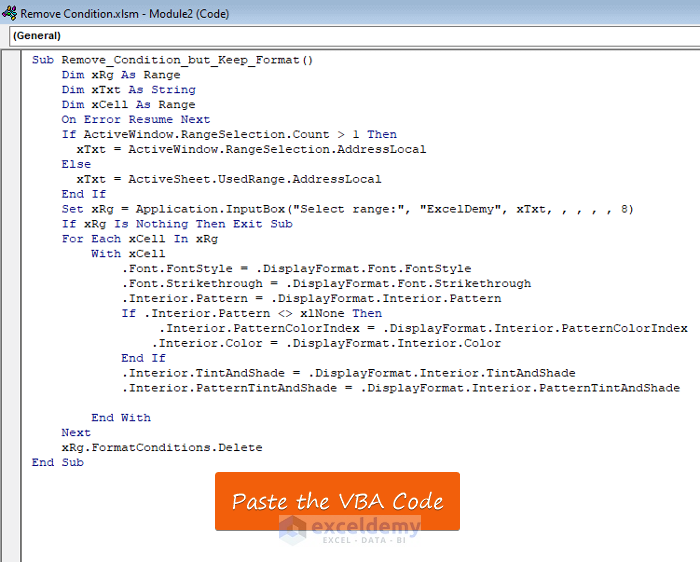
- Paste the following VBA code.
Sub Remove_Condition_but_Keep_Format()
Dim xRg As Range
Dim xTxt As String
Dim xCell As Range
On Error Resume Next
If ActiveWindow.RangeSelection.Count > 1 Then
xTxt = ActiveWindow.RangeSelection.AddressLocal
Else
xTxt = ActiveSheet.UsedRange.AddressLocal
End If
Set xRg = Application.InputBox("Select range:", "ExcelDemy", xTxt, , , , , 8)
If xRg Is Nothing Then Exit Sub
For Each xCell In xRg
With xCell
.Font.FontStyle = .DisplayFormat.Font.FontStyle
.Font.Strikethrough = .DisplayFormat.Font.Strikethrough
.Interior.Pattern = .DisplayFormat.Interior.Pattern
If .Interior.Pattern <> xlNone Then
.Interior.PatternColorIndex = .DisplayFormat.Interior.PatternColorIndex
.Interior.Color = .DisplayFormat.Interior.Color
End If
.Interior.TintAndShade = .DisplayFormat.Interior.TintAndShade
.Interior.PatternTintAndShade = .DisplayFormat.Interior.PatternTintAndShade
End With
Next
xRg.FormatConditions.Delete
End Sub
Here,
- xRg As Range refers to declaring xRg as a range.
- xTxt As String refers to declaring xTxt as a string.
- xCell As Range refers to xCell as a range.
- On Error Resume Next refers to your code will continue to run even if an error occurs.
- RangeSelection.Count refers to the selection of cells in the worksheet.
- UsedRange.AddressLocal refers to the used range in the specified worksheet.
- InputBox(“Select range:”, “ExcelDemy”, xTxt, , , , , 8) is the input box where you will input range when appeared with the title ‘ExcelDemy’.
- .Font.FontStyle = .DisplayFormat.Font.FontStyle commands that font will remain as conditional formatting.
- .Interior.PatternColorIndex = .DisplayFormat.Interior.PatternColorIndex command that will remain cell color as conditional formatting.
- .Interior.TintAndShade = .DisplayFormat.Interior.TintAndShade commands that interior shade and object will remain as conditional formatting.
xRg.FormatConditions.Delete refers to delete all the conditional formatting for range for the string value under the range.
Step 3:
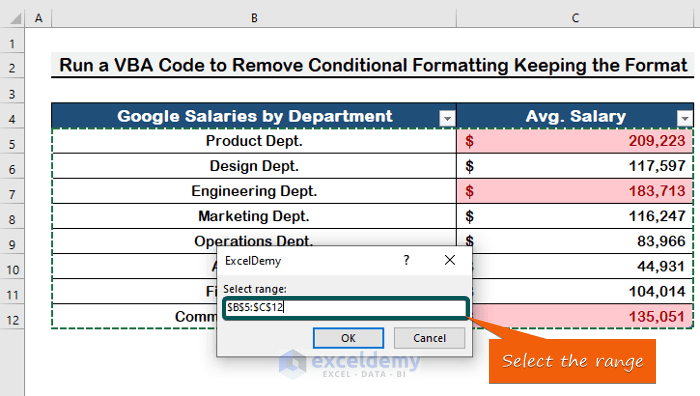
- A dialog box will appear, select the range.
- Finally, click OK to see the results.
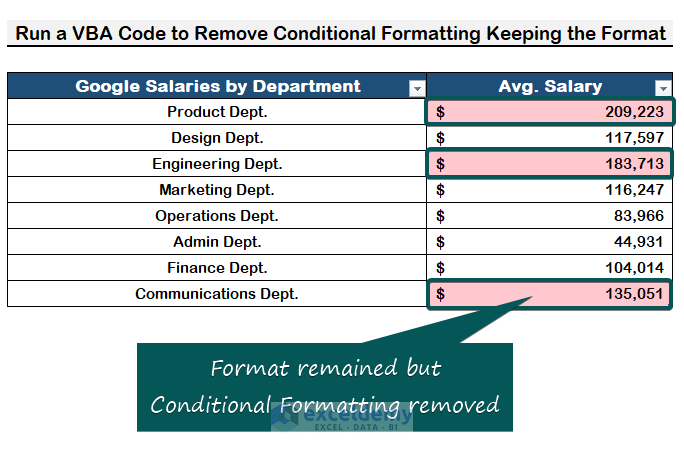
Therefore, conditional formatting is deleted in the image below, but the cell format stays the same.
Download Practice Workbook
Download this practice workbook to exercise while you are reading this article.
Conclusion
To sum up, I hope this tutorial has shown you how to remove conditional formatting in Excel using both the simple method and VBA code. All of these techniques should be taught and used to your data. Examine the practice book and apply what you’ve learned. Because of your contribution, we are able to support projects like this.
Related Articles
- How to Apply Different Types of Conditional Formatting in Excel
- How to Find External Links in Conditional Formatting in Excel
- How to Apply Conditional Formatting for Blank Cells in Excel
- How to Apply Conditional Formatting on Multiple Columns in Excel
- How to Compare Two Columns Using Conditional Formatting in Excel
- How to Remove Conditional Formatting but Keep the Format in Excel
- How to Do Conditional Formatting in Excel
- Conditional Formatting with Formula in Excel
<< Go Back to Conditional Formatting | Learn Excel
Get FREE Advanced Excel Exercises with Solutions!

